> ## Documentation Index
> Fetch the complete documentation index at: https://docs.xpander.ai/llms.txt
> Use this file to discover all available pages before exploring further.
# OpenAPI Spec to MCP Tool
> Transform any OpenAPI specification into a working MCP server with custom authentication and tools selection.
**Time to complete:** 5 minutes\
**What you'll get:** A custom MCP server from your OpenAPI spec + MCP client integration ready to use
Turn any OpenAPI/Swagger specification into a fully functional MCP server with AI-optimized tools. Perfect for connecting private APIs and custom services to your MCP clients.
## Quick OpenAPI-to-MCP Process
Go to the [Connectors page](https://app.xpander.ai/connectors) in the xpander.ai console.
1. Click **"+ Create new connector"**
2. Upload your OpenAPI/Swagger specification file (JSON or YAML)
3. Provide a name and description for your connector
4. Don't forget the server URL, especially if your original spec doesn't have one.
Your OpenAPI spec gets automatically analyzed by the connector generator agent!
Set up authentication for your API:
**For API Key authentication:**
1. Select **"API Key"** as the authentication method
2. Specify the key location (header, query parameter, etc.)
3. Enter your API key or leave it for later configuration
**Other supported methods:**
* OAuth 2.0
* Bearer tokens
* Basic authentication
* No authentication
The connector generator analyzes your API and creates AI-optimized tools:
* **Function descriptions** optimized for LLM understanding
* **Parameter validation** based on your schema
* **Response formatting** for better AI consumption
* **Error handling** built-in
Navigate to **MCP Servers** section in the console:
1. Click **"New MCP Server"**
2. Give your MCP server a descriptive name
3. Go to the **Tools** tab, and click **+ Add tools**
4. **Select tools** from your newly generated connector
5. Click **Update changes**
6. Go to the **Connect** tab to get your MCP Server URL, and one-line commands to hook up your MCP server to your favorite MCP client.
Your MCP server is now live and ready!
Add your MCP server to your favorite MCP client using the connection details provided:
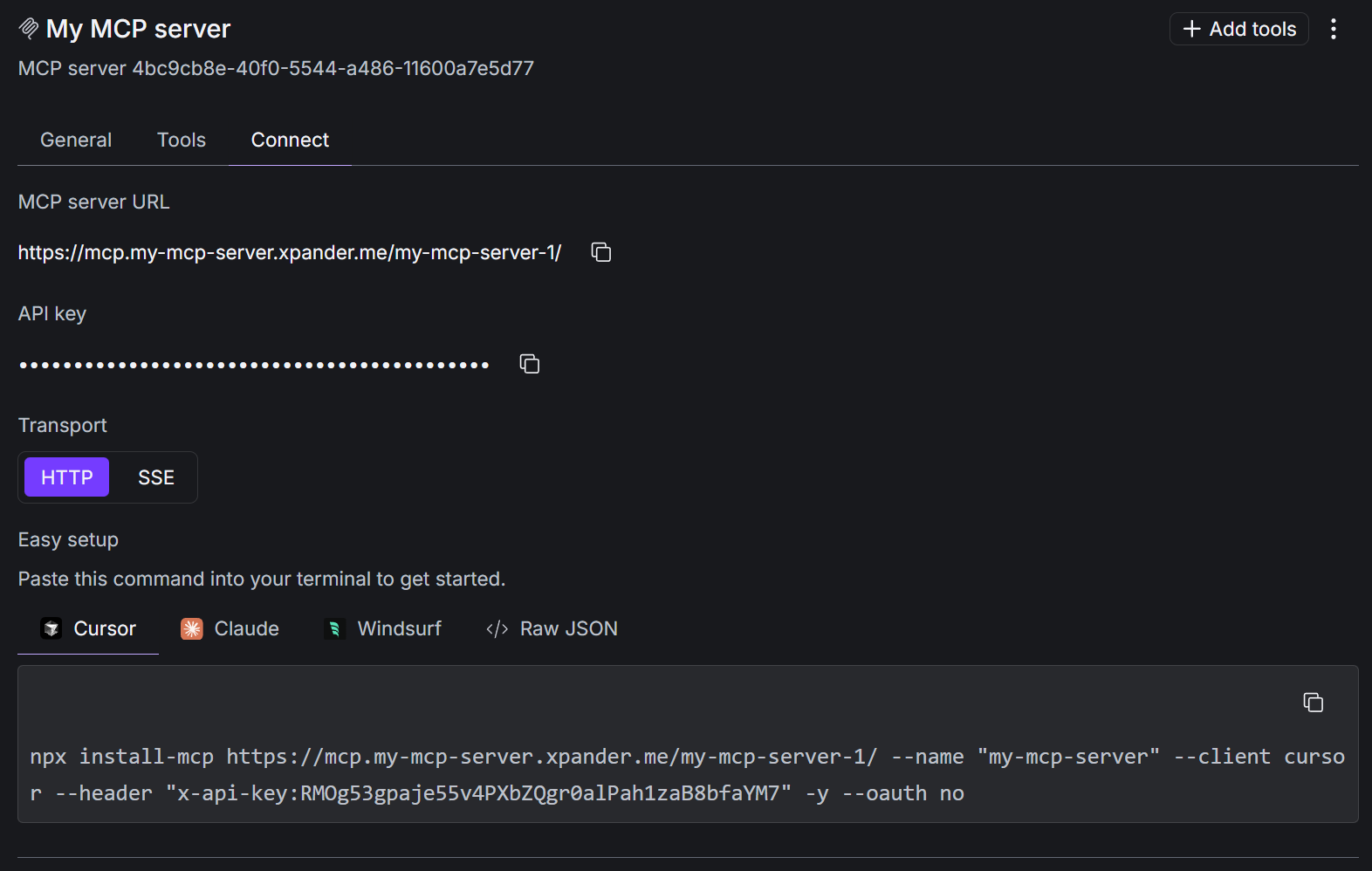 **For other MCP clients**: Use the provided URL and authentication details.
## What You Just Built
🎉 **A complete MCP integration** with:
Functions described in LLM-friendly language for better tool selection
API keys and auth handled transparently in the background
Request/response validation based your OpenAPI specification
Ready to use in Claude Desktop and other MCP clients immediately
## Example: Connecting a Weather API
Here's a simple weather API spec that would generate weather tools:
```yaml theme={"dark"}
openapi: 3.0.0
info:
title: Weather API
version: 1.0.0
servers:
- url: https://api.weather.com/v1
paths:
/current:
get:
summary: Get current weather
parameters:
- name: location
in: query
required: true
schema:
type: string
description: City name or coordinates
responses:
'200':
description: Current weather data
security:
- apiKey: []
components:
securitySchemes:
apiKey:
type: apiKey
in: header
name: X-API-Key
```
The connector generator would create:
* **get\_current\_weather(location)** - Gets current weather for a location
* **Optimized description**: "Retrieves real-time weather conditions including temperature, humidity, and conditions for any city or coordinates"
* **Auto-validation**: Ensures location parameter is provided
* **Error handling**: Graceful handling of API errors with helpful messages
Once connected, you can ask Claude:
* "What's the weather like in San Francisco?"
* "Compare the weather in New York vs London"
* "Is it a good day for outdoor activities in Seattle?"
Claude will automatically use your weather API through the MCP server!
## Next Step: Self-Deploy Your MCP Server
Your MCP server runs on xpander.ai's cloud, but you can also deploy it to your own infrastructure:
* **[Self-deploy to K8s Cluster](/Examples/5-minute-wins/k8s-self-deploy)** - Run your MCP servers on your own Kubernetes infrastructure
* **Full control** over data and scaling
* **Enterprise security** with your own network policies
## Troubleshooting
* Ensure your spec is valid JSON/YAML
* Check for syntax errors with a tool like Swagger Editor
* File size should be under 10MB
* Make sure all required fields are present
* Verify the MCP URL is copied correctly
* Check your MCP client configuration syntax
* Restart your MCP client after configuration changes
* Ensure your API keys are properly configured
* Review the generated tool descriptions and edit if needed
* Check API authentication is properly configured
* Verify your API endpoints are accessible from xpander.ai
* Test individual tools in the xpander.ai console first
**For other MCP clients**: Use the provided URL and authentication details.
## What You Just Built
🎉 **A complete MCP integration** with:
Functions described in LLM-friendly language for better tool selection
API keys and auth handled transparently in the background
Request/response validation based your OpenAPI specification
Ready to use in Claude Desktop and other MCP clients immediately
## Example: Connecting a Weather API
Here's a simple weather API spec that would generate weather tools:
```yaml theme={"dark"}
openapi: 3.0.0
info:
title: Weather API
version: 1.0.0
servers:
- url: https://api.weather.com/v1
paths:
/current:
get:
summary: Get current weather
parameters:
- name: location
in: query
required: true
schema:
type: string
description: City name or coordinates
responses:
'200':
description: Current weather data
security:
- apiKey: []
components:
securitySchemes:
apiKey:
type: apiKey
in: header
name: X-API-Key
```
The connector generator would create:
* **get\_current\_weather(location)** - Gets current weather for a location
* **Optimized description**: "Retrieves real-time weather conditions including temperature, humidity, and conditions for any city or coordinates"
* **Auto-validation**: Ensures location parameter is provided
* **Error handling**: Graceful handling of API errors with helpful messages
Once connected, you can ask Claude:
* "What's the weather like in San Francisco?"
* "Compare the weather in New York vs London"
* "Is it a good day for outdoor activities in Seattle?"
Claude will automatically use your weather API through the MCP server!
## Next Step: Self-Deploy Your MCP Server
Your MCP server runs on xpander.ai's cloud, but you can also deploy it to your own infrastructure:
* **[Self-deploy to K8s Cluster](/Examples/5-minute-wins/k8s-self-deploy)** - Run your MCP servers on your own Kubernetes infrastructure
* **Full control** over data and scaling
* **Enterprise security** with your own network policies
## Troubleshooting
* Ensure your spec is valid JSON/YAML
* Check for syntax errors with a tool like Swagger Editor
* File size should be under 10MB
* Make sure all required fields are present
* Verify the MCP URL is copied correctly
* Check your MCP client configuration syntax
* Restart your MCP client after configuration changes
* Ensure your API keys are properly configured
* Review the generated tool descriptions and edit if needed
* Check API authentication is properly configured
* Verify your API endpoints are accessible from xpander.ai
* Test individual tools in the xpander.ai console first