> ## Documentation Index
> Fetch the complete documentation index at: https://docs.xpander.ai/llms.txt
> Use this file to discover all available pages before exploring further.
# Confluence
> Learn how to integrate AI agents with Confluence using xpander.ai. Create intelligent workflows that automate documentation, generate dynamic content, and surface relevant knowledge across your Confluence spaces using AI-powered agents.
## About Confluence
Confluence is a collaborative workspace developed by Atlassian, designed to help teams create, organize, and share knowledge efficiently. It serves as a central hub where teams can collaborate on projects, document processes, and maintain institutional knowledge.
Key features include:
* **Dynamic Pages**: Confluence allows users to create and edit pages collaboratively, making it easy to document meeting notes, project plans, and other important information.
* **Organized Spaces**: Content is structured into spaces, which can be organized by team, project, or department, facilitating easy navigation and information retrieval.
* **Integration with Atlassian Tools**: Confluence integrates seamlessly with other Atlassian products like Jira, enhancing project tracking and collaboration.
* **Templates and Macros**: It offers a variety of templates and macros to streamline content creation and formatting.
* **Access Controls**: Granular permission settings ensure that sensitive information is accessible only to authorized users.
## Authentication Options
Below are possible authentication options you can choose:
The simplest way to connect to Confluence is by using xpander.ai's built-in authentication:
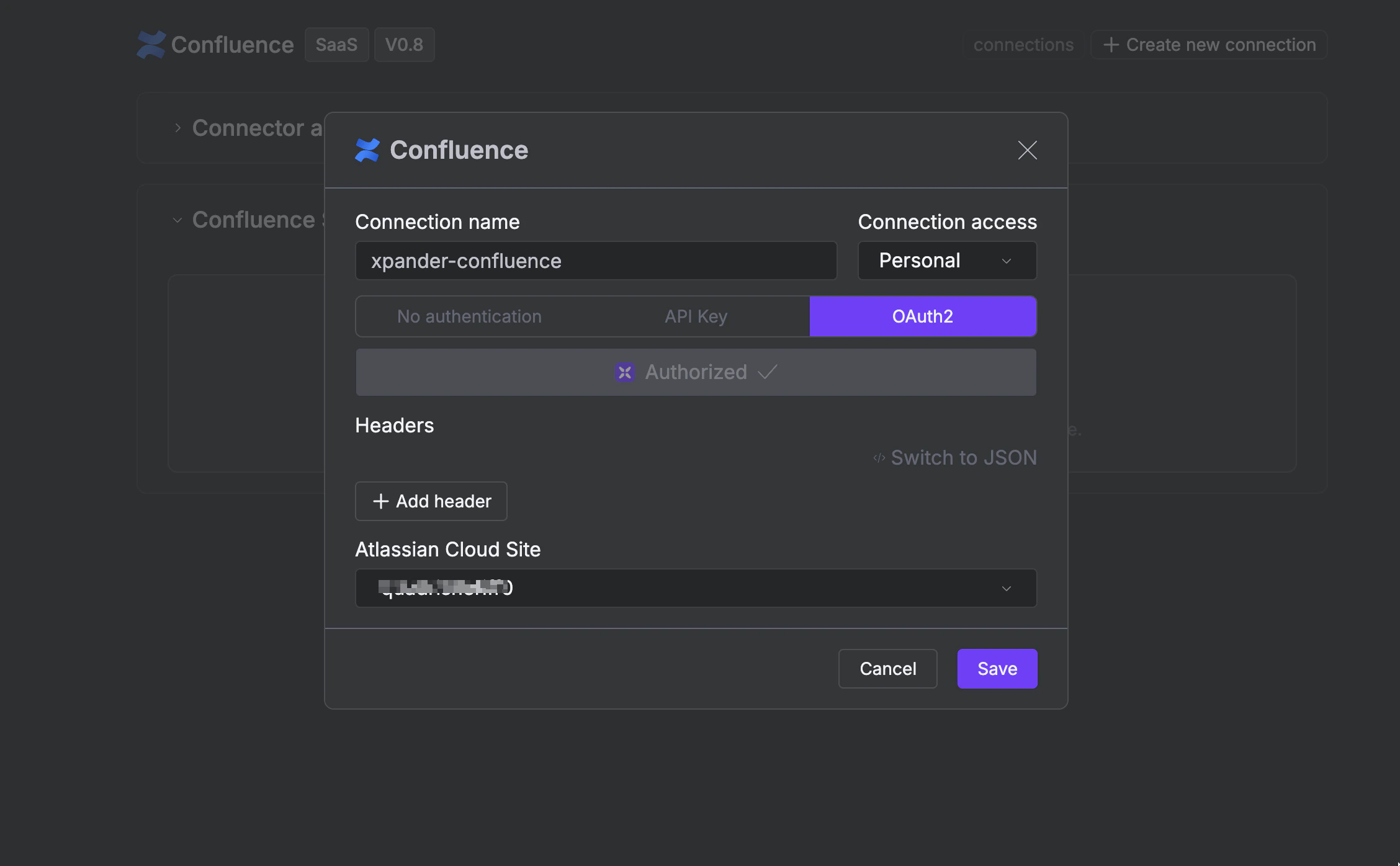
1. Go to the **Agentic Connectors** section in the sidebar of your xpander.ai dashboard.
2. Select **Confluence** from the available integrations.
3. Click **+ Create new connection**.
4. Enter a **connector name** as desired, e.g., "xpander-confluence".
5. Choose **OAuth2** as the authentication method.
6. Click **Authorize xpander.ai**.
7. Grant xpander.ai permission to access your account.
8. Save the configuration.
 ## Integration of Confluence into AI Agent
Once you've configured your Confluence account with the authentication option(s) described above, you can integrate it into your AI agent with xpander.ai:
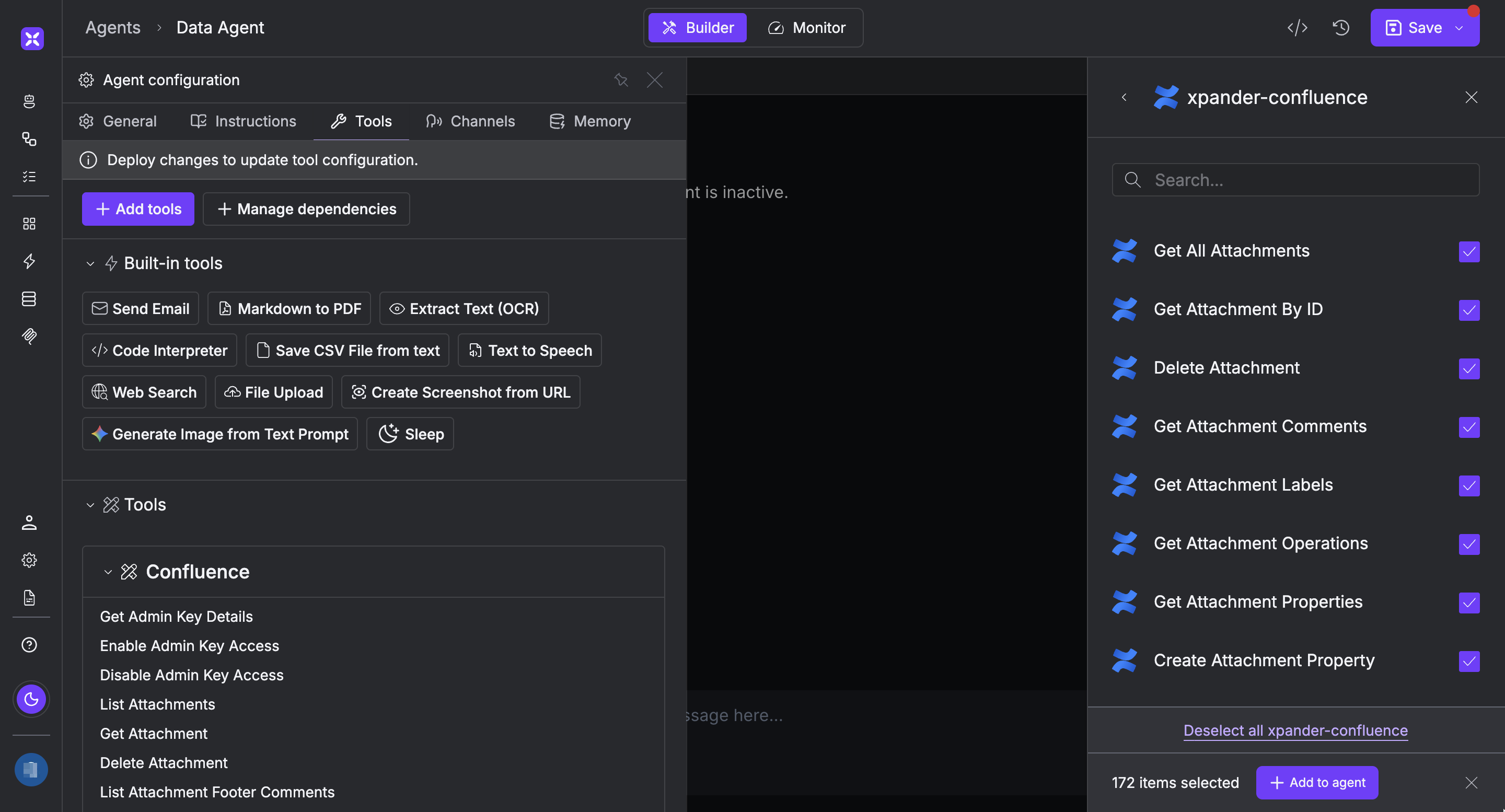
1. In your xpander.ai dashboard, go to the **Agent Configuration** tab and select **Tools**, then click **Add Tools**.
2. Select **Connectors**.
3. Choose **Confluence** with the same **connector name** you configured in the previous section (e.g., xpander-confluence).
4. Select the available Confluence operations that suit your use case.
To grant your agent space management capabilities, enable the following operations.
* **Get All Spaces**
* **Get Space By ID**
* **Get Space Pages**
* **Get Space Blog Posts**
* **Get Space Operations**
5. Click **Save**, then click **Publish** to publish the updated agent.
## Integration of Confluence into AI Agent
Once you've configured your Confluence account with the authentication option(s) described above, you can integrate it into your AI agent with xpander.ai:
1. In your xpander.ai dashboard, go to the **Agent Configuration** tab and select **Tools**, then click **Add Tools**.
2. Select **Connectors**.
3. Choose **Confluence** with the same **connector name** you configured in the previous section (e.g., xpander-confluence).
4. Select the available Confluence operations that suit your use case.
To grant your agent space management capabilities, enable the following operations.
* **Get All Spaces**
* **Get Space By ID**
* **Get Space Pages**
* **Get Space Blog Posts**
* **Get Space Operations**
5. Click **Save**, then click **Publish** to publish the updated agent.
 ## AI Agent Confluence Prompt Library
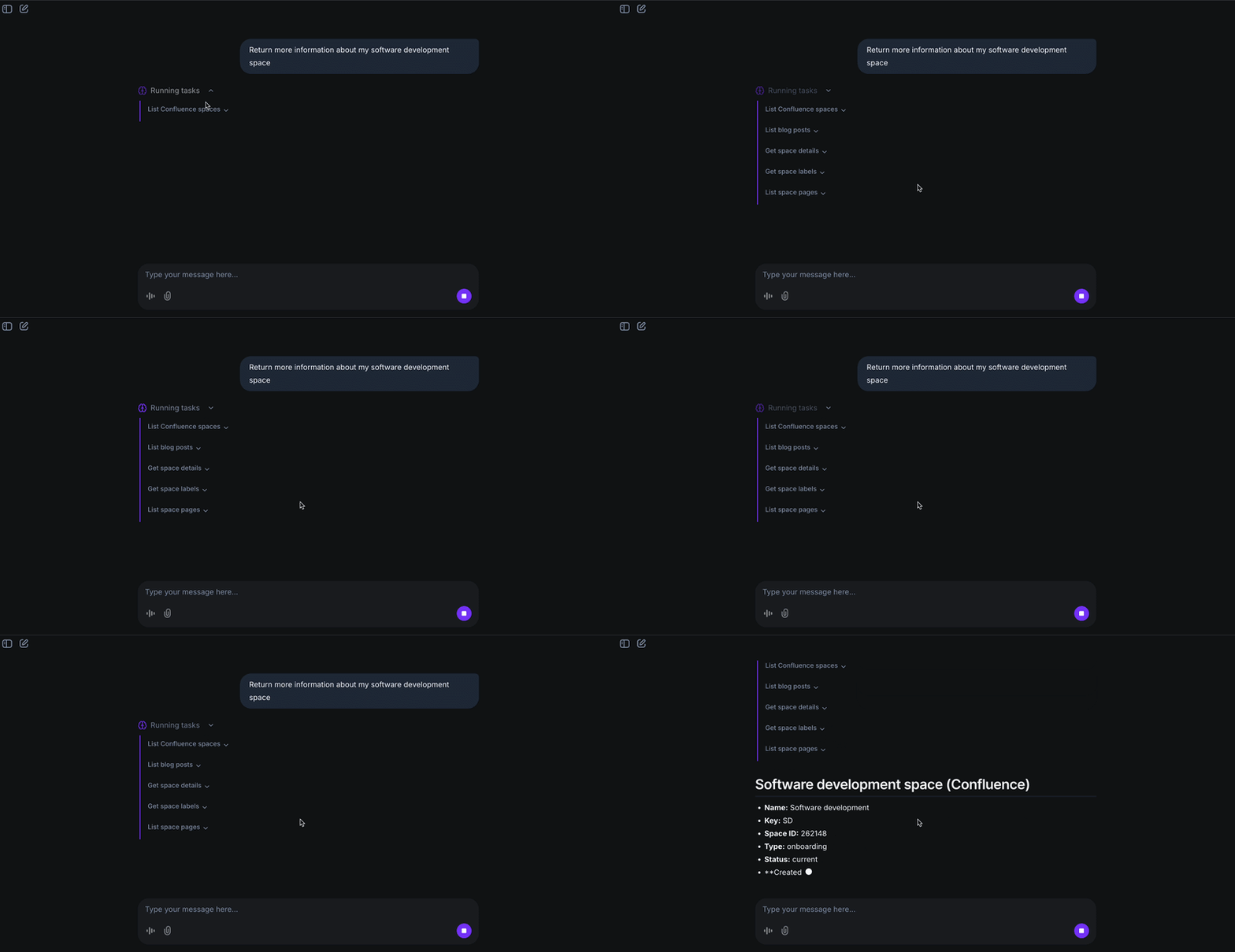
Below are possible prompts or use cases you can try after integrating Confluence into your xpander AI agent:
```
I need to see who liked the feedback comment on our project proposal, can you check?
```
```
I need to update the property {property_name} on our project blog post, can you help?
```
```
Can you fetch all the inline comments on the {page_name} documentation to review feedback?
```
```
Can you help me find all attachments in our Confluence site?
```
## AI Agent Confluence Prompt Library
Below are possible prompts or use cases you can try after integrating Confluence into your xpander AI agent:
```
I need to see who liked the feedback comment on our project proposal, can you check?
```
```
I need to update the property {property_name} on our project blog post, can you help?
```
```
Can you fetch all the inline comments on the {page_name} documentation to review feedback?
```
```
Can you help me find all attachments in our Confluence site?
```
 ## Related Resources
* [Understanding Model Context Protocol (MCP)](/guides/deploy/mcp)
* [Confluence API Documentation](https://developer.atlassian.com/cloud/confluence/rest/v2/intro/#about)
## Related Resources
* [Understanding Model Context Protocol (MCP)](/guides/deploy/mcp)
* [Confluence API Documentation](https://developer.atlassian.com/cloud/confluence/rest/v2/intro/#about)