> ## Documentation Index
> Fetch the complete documentation index at: https://docs.xpander.ai/llms.txt
> Use this file to discover all available pages before exploring further.
# dbt Labs
> Learn how to integrate AI agents with dbt Labs using xpander.ai. Create intelligent workflows that automate data transformation, generate insights, and enhance analytics efficiency seamlessly within your data pipeline.
## About dbt Labs
dbt (Data Build Tool) is an open-source and cloud platform that enables analytics engineers to transform raw data into clean, documented, and tested datasets directly in their cloud warehouses using SQL and software engineering best practices.
Key features include:
* **SQL‑based modeling**: Build modular, versioned SQL models in any cloud data warehouse (Snowflake, BigQuery, Redshift, Databricks)
* **Documentation & lineage**: Auto‑generated docs, searchable metadata, lineage graphs for transparency and governance.
* **Orchestration & scheduling**: Built‑in job scheduler, run history, run visibility, alerting and Slack/email integrations.
* **Semantic Layer**: Centralized and consistent metric definitions surfaced to dashboards or LLMs (Enterprise tier).
* **dbt Mesh**: Handles data dependencies across business domains, multi‑team orchestration.
## Authentication Options
Below are possible authentication options you can choose:
### Generate a dbt Labs API Token
1. Log in to your [dbt Labs account](https://auth.cloud.getdbt.com/u/login).
2. At the bottom of the sidebar in your dashboard, click your profile and select **Your profile**.
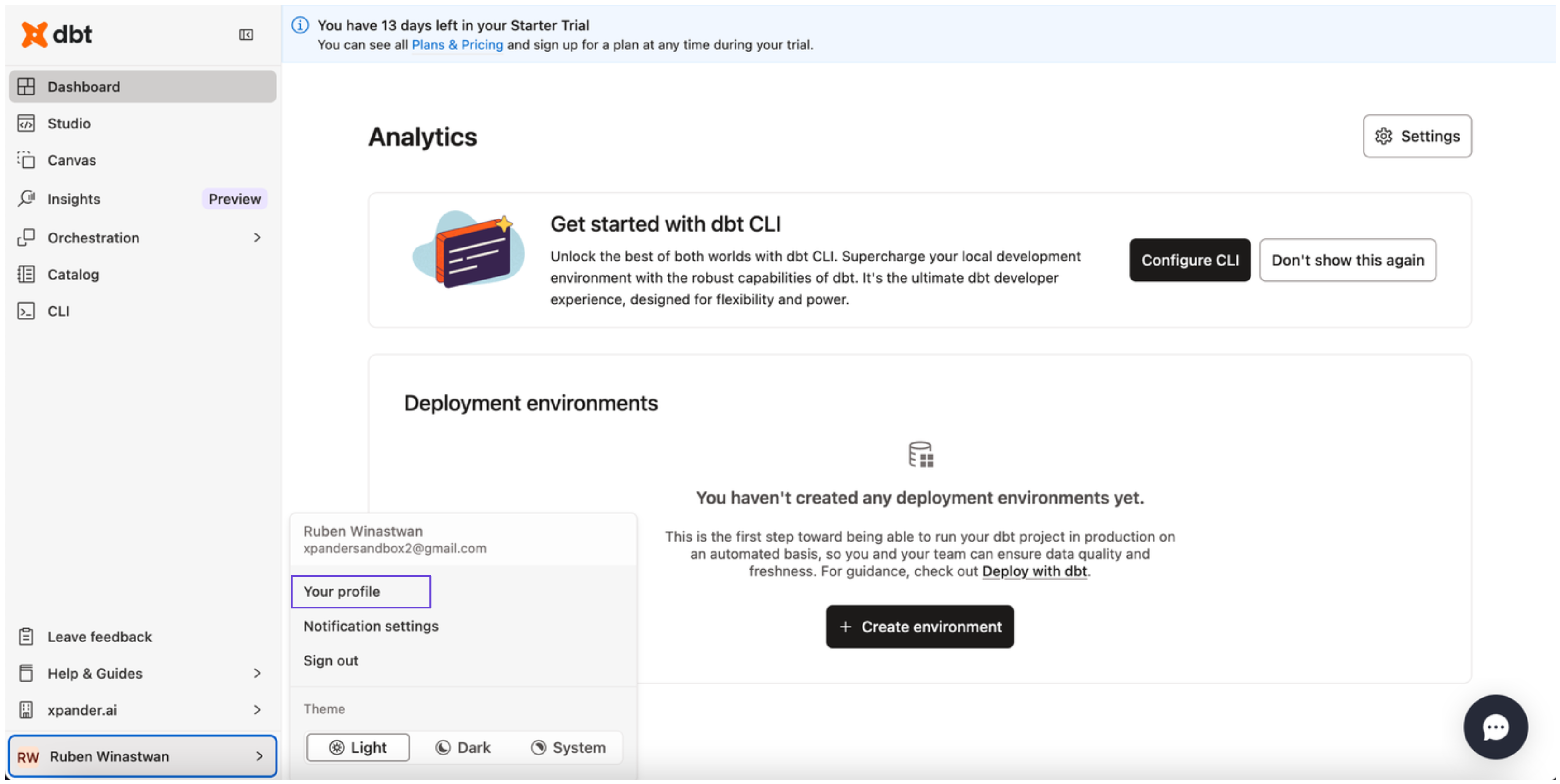 3. In the sidebar, choose **Personal tokens**, then click **Create personal access token**.
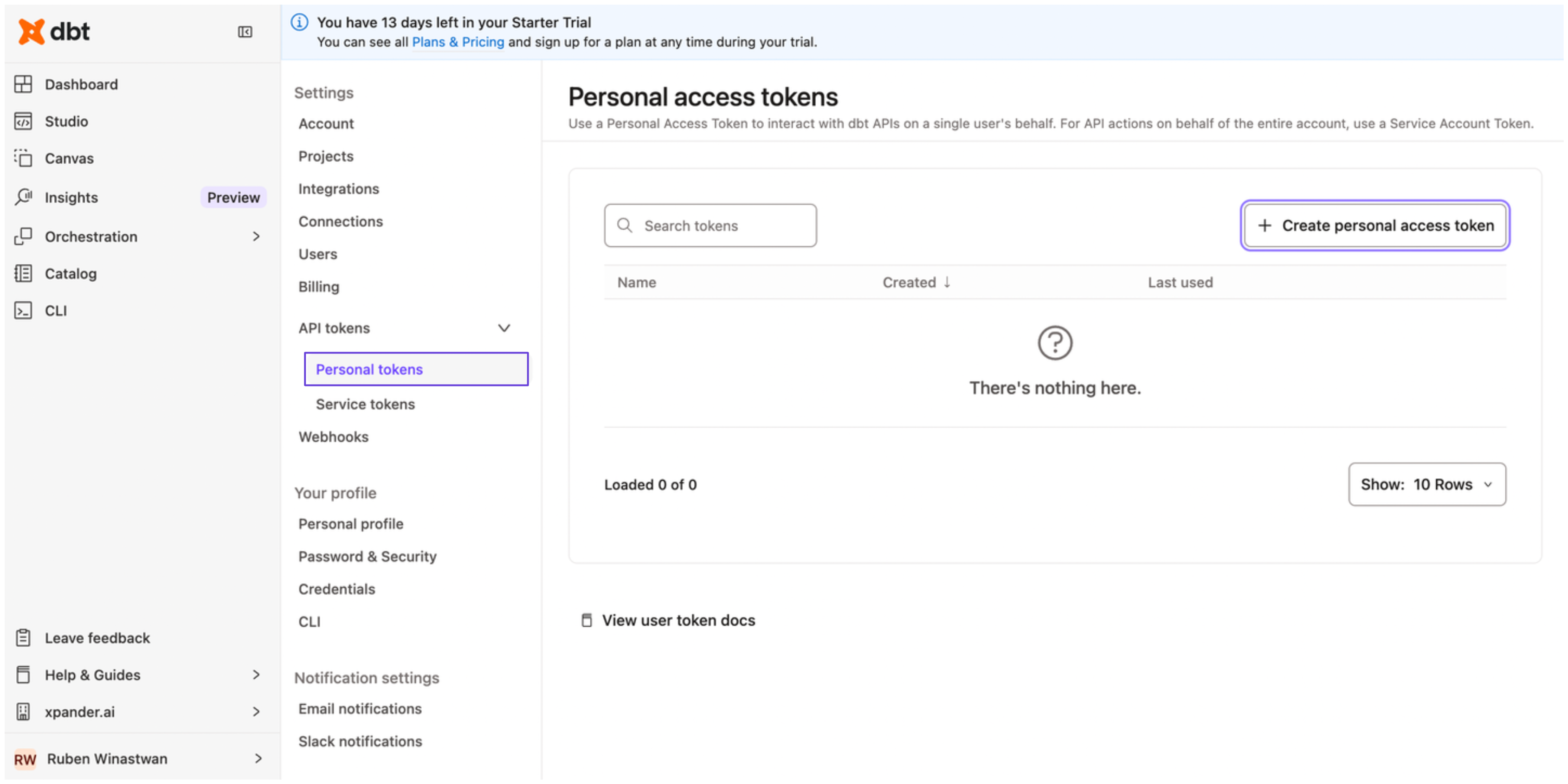 4. Enter a name for your access token, then click **Save**.
5. Copy your personal access token and store it securely before closing the dialog box.
### Integrate dbt Labs into xpander.ai
1. In your xpander.ai dashboard, go to the **Connectors** section in the sidebar.
2. Select **dbt Labs** from the available integrations.
3. Click **Enable**.
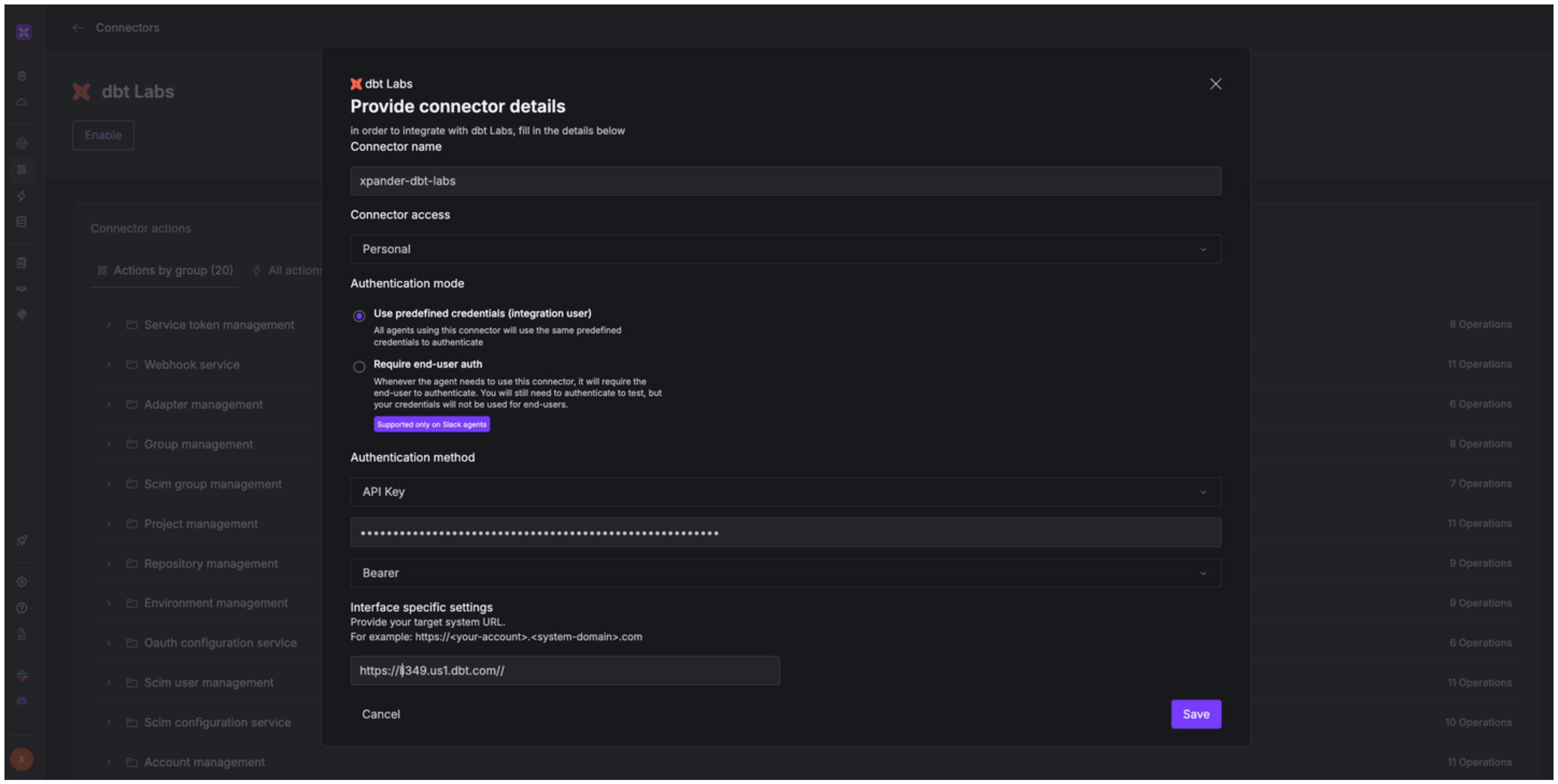
4. Enter a **connector name**, e.g., "xpander-dbt-labs".
5. Choose **Integration User** as the authentication mode.
6. Select **API Key** as the authentication method.
7. Paste your dbt Labs access token into the provided field.
8. Set the **Auth Type** to **Bearer**.
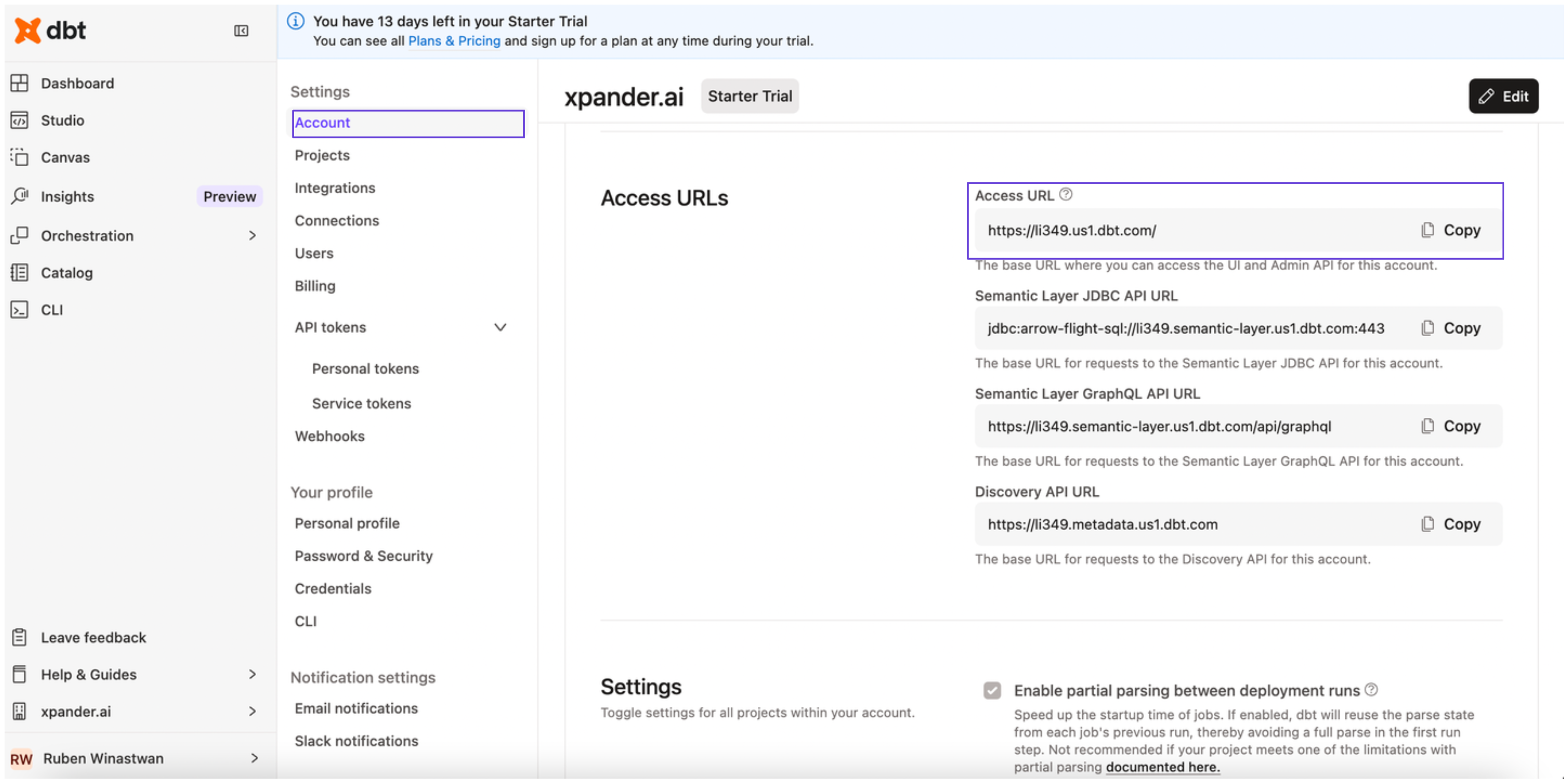
9. Under **Interface specific settings**, enter the base URL: `https://{url}/`, replacing **{url}** with the URL of your dbt Labs account. You can find the URL of your dbt account by clicking **Account** -> **Access URL** in the same page where you created your personal access token before.
4. Enter a name for your access token, then click **Save**.
5. Copy your personal access token and store it securely before closing the dialog box.
### Integrate dbt Labs into xpander.ai
1. In your xpander.ai dashboard, go to the **Connectors** section in the sidebar.
2. Select **dbt Labs** from the available integrations.
3. Click **Enable**.
4. Enter a **connector name**, e.g., "xpander-dbt-labs".
5. Choose **Integration User** as the authentication mode.
6. Select **API Key** as the authentication method.
7. Paste your dbt Labs access token into the provided field.
8. Set the **Auth Type** to **Bearer**.
9. Under **Interface specific settings**, enter the base URL: `https://{url}/`, replacing **{url}** with the URL of your dbt Labs account. You can find the URL of your dbt account by clicking **Account** -> **Access URL** in the same page where you created your personal access token before.
 10. Save the configuration.
 ## Integration of dbt Labs into AI Agent
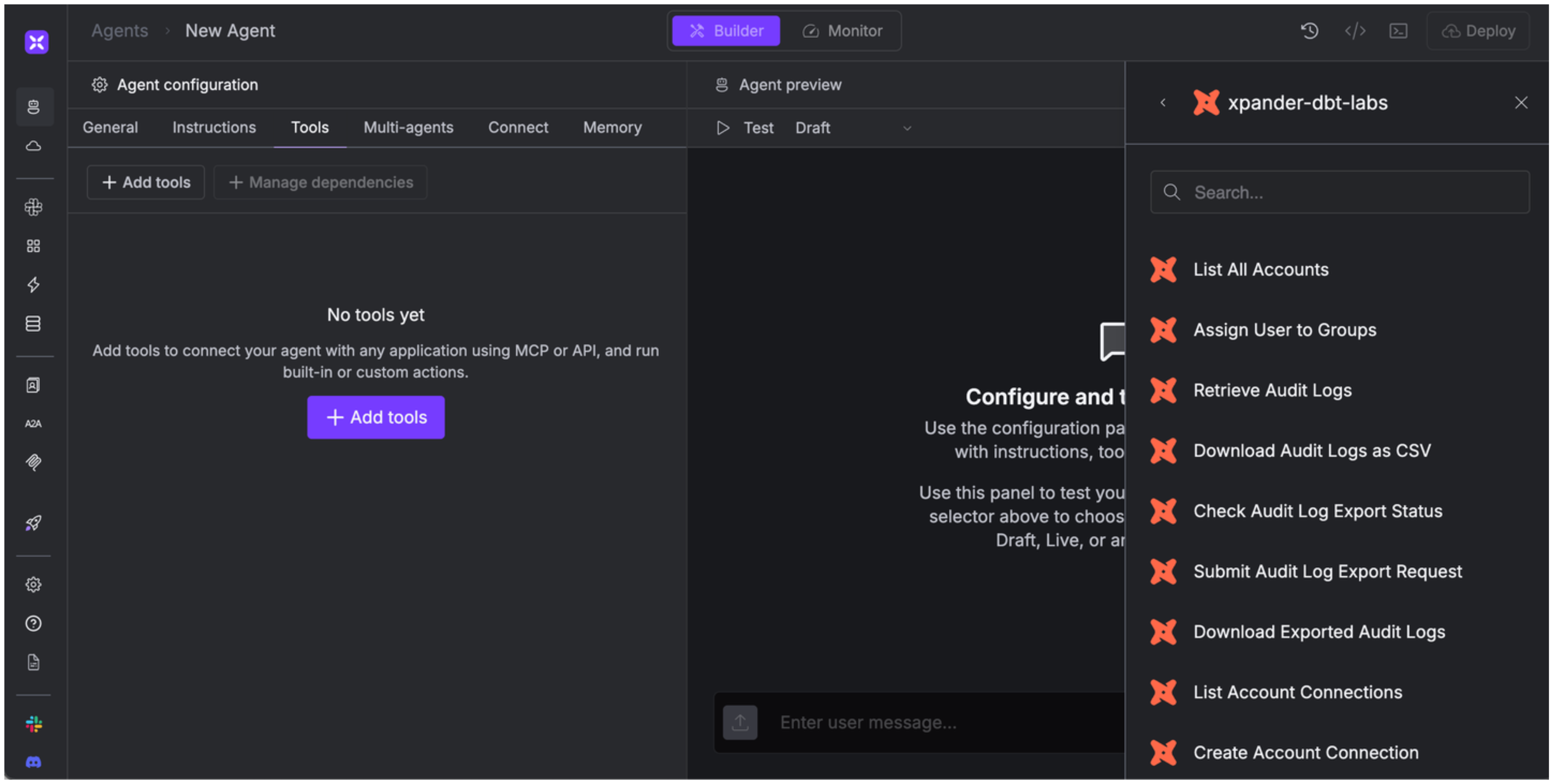
Once you've configured your dbt Labs account with the authentication option(s) described above, you can integrate it into your AI agent with xpander.ai:
1. In your xpander.ai dashboard, go to the **Agent Configuration** tab and select **Tools**, then click **Add Tools**.
2. Select **Connectors**.
3. Choose **dbt Labs** with the same **connector name** you configured in the previous section (e.g., xpander-dbt-labs).
4. Select the available dbt Labs operations that suit your use case.
## Integration of dbt Labs into AI Agent
Once you've configured your dbt Labs account with the authentication option(s) described above, you can integrate it into your AI agent with xpander.ai:
1. In your xpander.ai dashboard, go to the **Agent Configuration** tab and select **Tools**, then click **Add Tools**.
2. Select **Connectors**.
3. Choose **dbt Labs** with the same **connector name** you configured in the previous section (e.g., xpander-dbt-labs).
4. Select the available dbt Labs operations that suit your use case.
 ## Expose dbt Labs as MCP Server
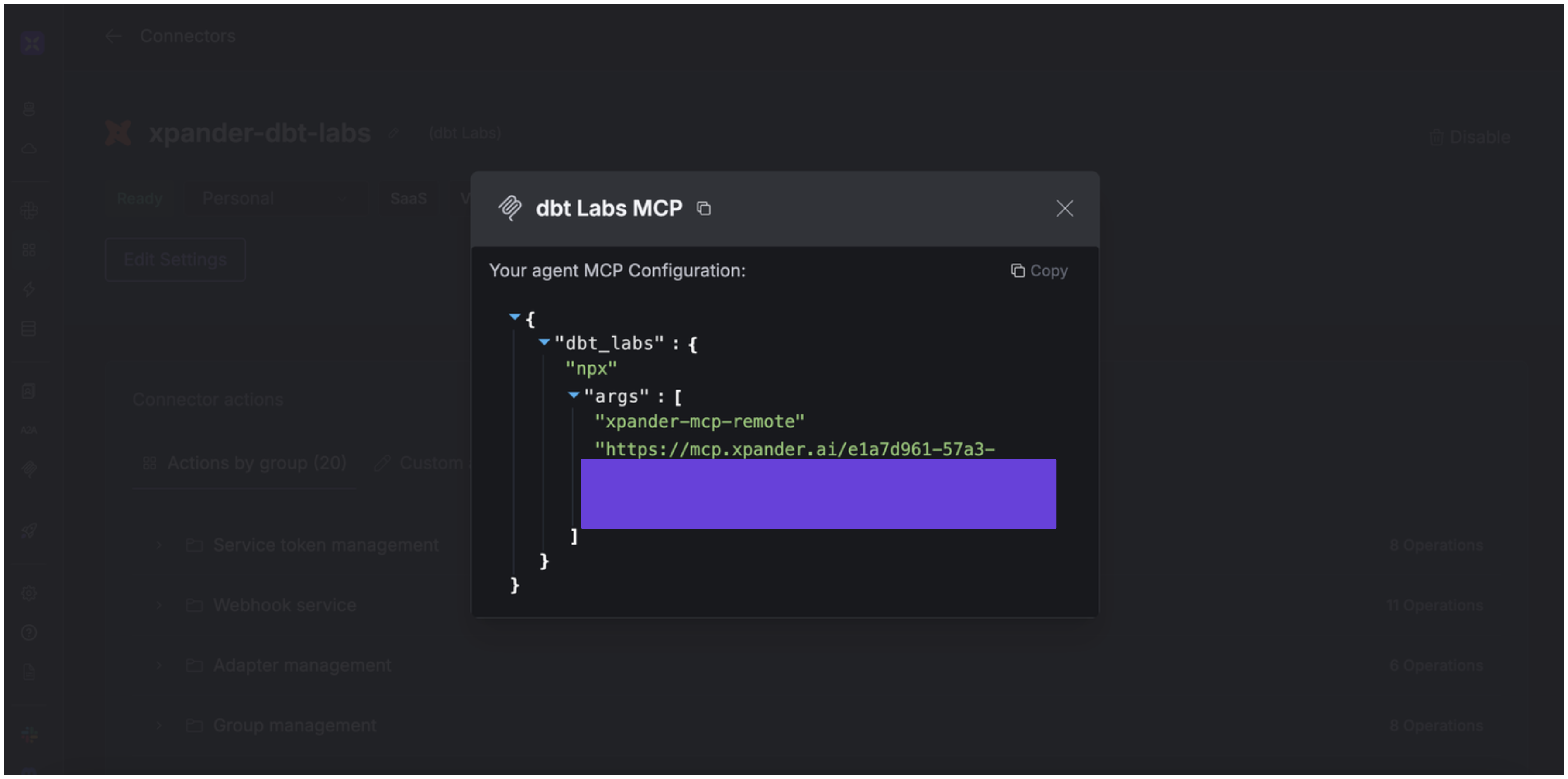
Alternatively, you can also expose your dbt Labs account as an MCP server. To do so:
1. Go to the **Connectors** section in the sidebar of your xpander.ai dashboard.
2. Select **dbt Labs** with the same **connector name** you configured in the previous section (e.g., xpander-dbt-labs).
3. Click **MCP Configuration**.
4. Enter the MCP configuration into the appropriate settings of the client app you want to use (e.g., Cursor, Windsurf, Claude Desktop, etc.).
## Expose dbt Labs as MCP Server
Alternatively, you can also expose your dbt Labs account as an MCP server. To do so:
1. Go to the **Connectors** section in the sidebar of your xpander.ai dashboard.
2. Select **dbt Labs** with the same **connector name** you configured in the previous section (e.g., xpander-dbt-labs).
3. Click **MCP Configuration**.
4. Enter the MCP configuration into the appropriate settings of the client app you want to use (e.g., Cursor, Windsurf, Claude Desktop, etc.).
 ## AI Agent dbt Labs Prompt Library
Below are possible prompts or use cases you can try after integrating dbt Labs into your xpander AI agent:
```
Create a new SCIM user with username '{username}' and email '{email_address}' in account {account_id}.
```
```
Retrieve all collections from the business intelligence tool for lineage integration {integration_id} in project {project_id} and get details for collection {collection_id}.
```
```
Can you create a new Git repository for project {project_id} in account {account_id}?
```
```
Generate a CSV export of all audit logs for account {account_id} from the past {time_period}.
```
## Related Resources
* [Understanding Model Context Protocol (MCP)](/guides/deploy/mcp)
* [dbt Labs API Documentation](https://docs.getdbt.com/dbt-cloud/api-v2#/)
## AI Agent dbt Labs Prompt Library
Below are possible prompts or use cases you can try after integrating dbt Labs into your xpander AI agent:
```
Create a new SCIM user with username '{username}' and email '{email_address}' in account {account_id}.
```
```
Retrieve all collections from the business intelligence tool for lineage integration {integration_id} in project {project_id} and get details for collection {collection_id}.
```
```
Can you create a new Git repository for project {project_id} in account {account_id}?
```
```
Generate a CSV export of all audit logs for account {account_id} from the past {time_period}.
```
## Related Resources
* [Understanding Model Context Protocol (MCP)](/guides/deploy/mcp)
* [dbt Labs API Documentation](https://docs.getdbt.com/dbt-cloud/api-v2#/)