> ## Documentation Index
> Fetch the complete documentation index at: https://docs.xpander.ai/llms.txt
> Use this file to discover all available pages before exploring further.
# Github Issues Manager
> Learn how to integrate AI agents with GitHub Issues Manager using xpander.ai. Create intelligent automation pipelines that monitor, generate, and triage issues in real time.
## About Github Issues Manager
GitHub is a cloud-based platform designed for developers to store, manage, and collaborate on code.
Key features of Github Issues Manager include:
* **List Issues**: Retrieve issues assigned to the authenticated user across all visible repositories, including owned, member, and organization repositories. Filters such as assigned, created, mentioned, subscribed, repos, or all can be applied to narrow down results.
* **Create an Issue**: Initiate a new issue in a specified repository by providing necessary details like title, body, and labels.
* **Get an Issue**: Fetch detailed information about a specific issue using its number within a repository.
* **Update an Issue**: Modify attributes of an existing issue, such as title, body, state (open or closed), labels, and assignees.
* **Lock/Unlock an Issue**: Restrict or allow further comments on an issue to manage discussions effectively.
## Authentication Options
Below are possible authentication options you can choose:
The simplest way to connect Github Issues Manager is by using xpander.ai's built-in authentication:
1. Go to the **Connectors** section in the sidebar of your xpander.ai dashboard.
2. Select **Github Issues** from the available integrations.
3. Click **Sign in with Github Issues**.
4. Grant xpander.ai permission to access your Github workspace.
5. Your Github Issues Manager integration is now ready to use.
### Generate a Github Issues Manager API Key
1. Log in to your [Github account](https://github.com/).
2. Click your profile icon in the top-right corner, then select **Settings**.\\
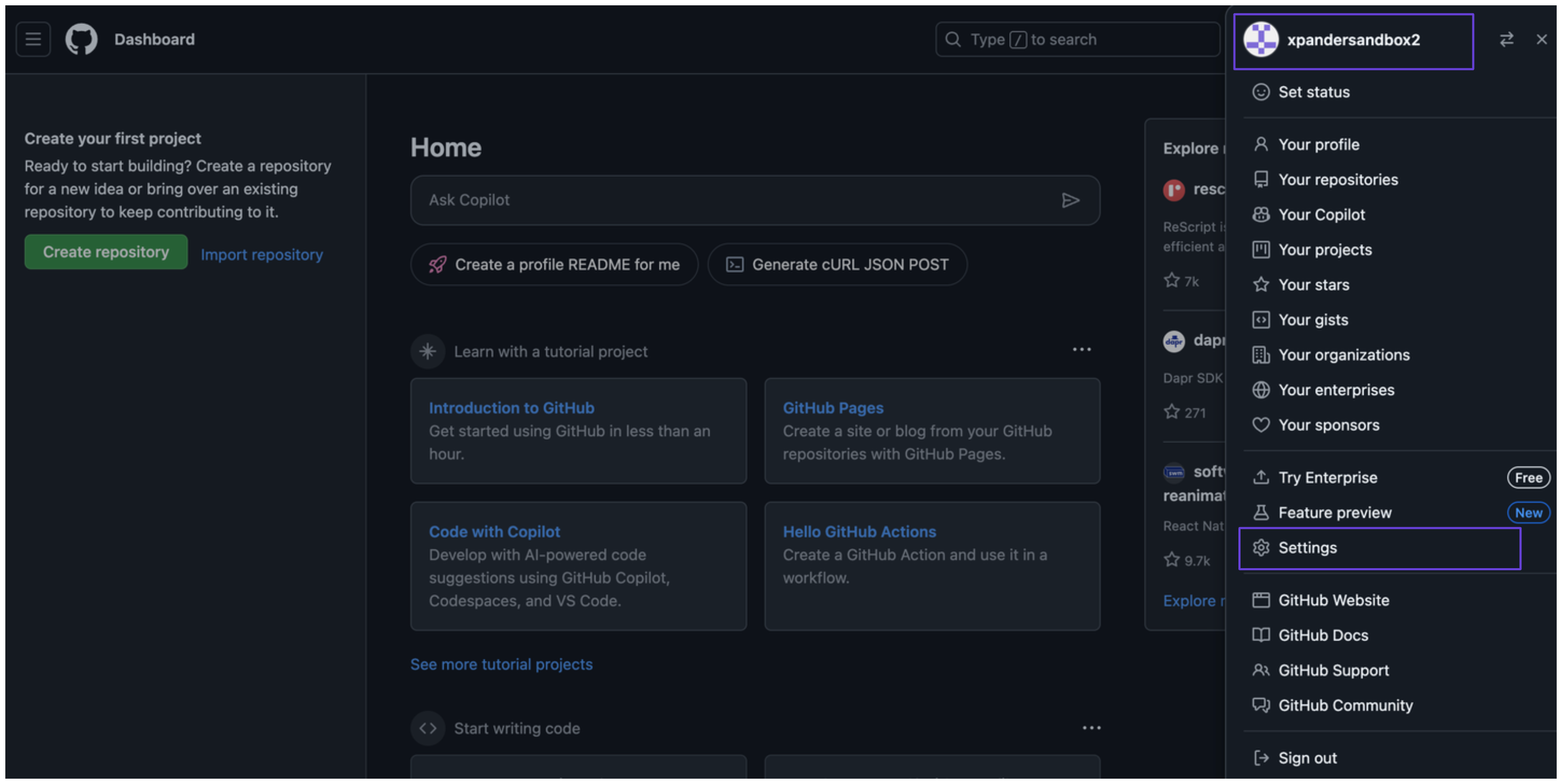 3. In the sidebar, navigate to **Developer settings**.
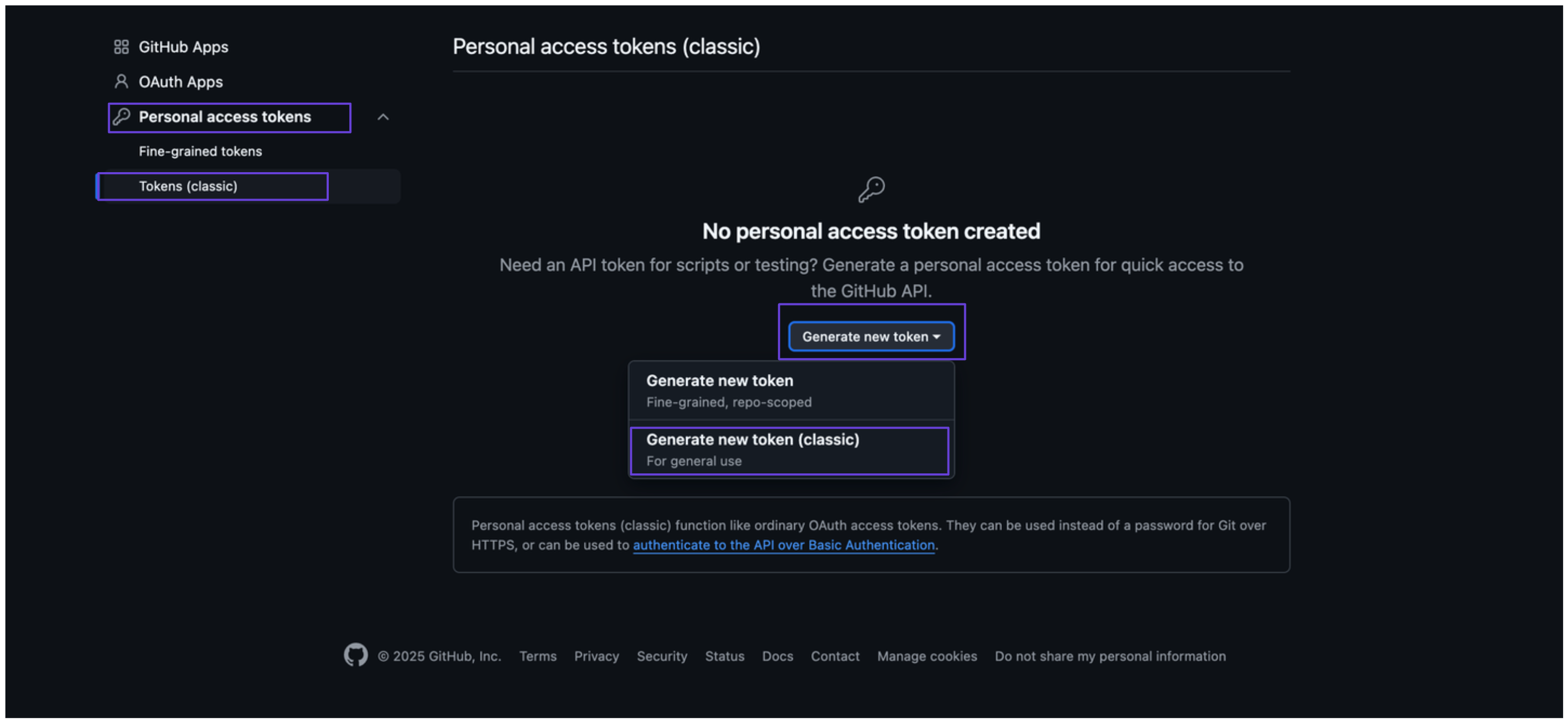
4. Select **Personal access tokens**, then click on **Tokens (classic)**.
5. Click **Generate new token**, then choose **Generate new token (classic)**.\\
3. In the sidebar, navigate to **Developer settings**.
4. Select **Personal access tokens**, then click on **Tokens (classic)**.
5. Click **Generate new token**, then choose **Generate new token (classic)**.\\
 6. Add a description under the **Note** field, set an expiration date, and choose the appropriate scopes for your token.
7. Click **Generate token**. You’ll then see your Github access token—make sure to copy and store it securely.
### Integrate Github Issues Manager into xpander.ai
1. Go to the **Connectors** section in the sidebar of your xpander.ai dashboard.
2. Select **Github Issues** from the available integrations.
3. Click **Other auth options**.
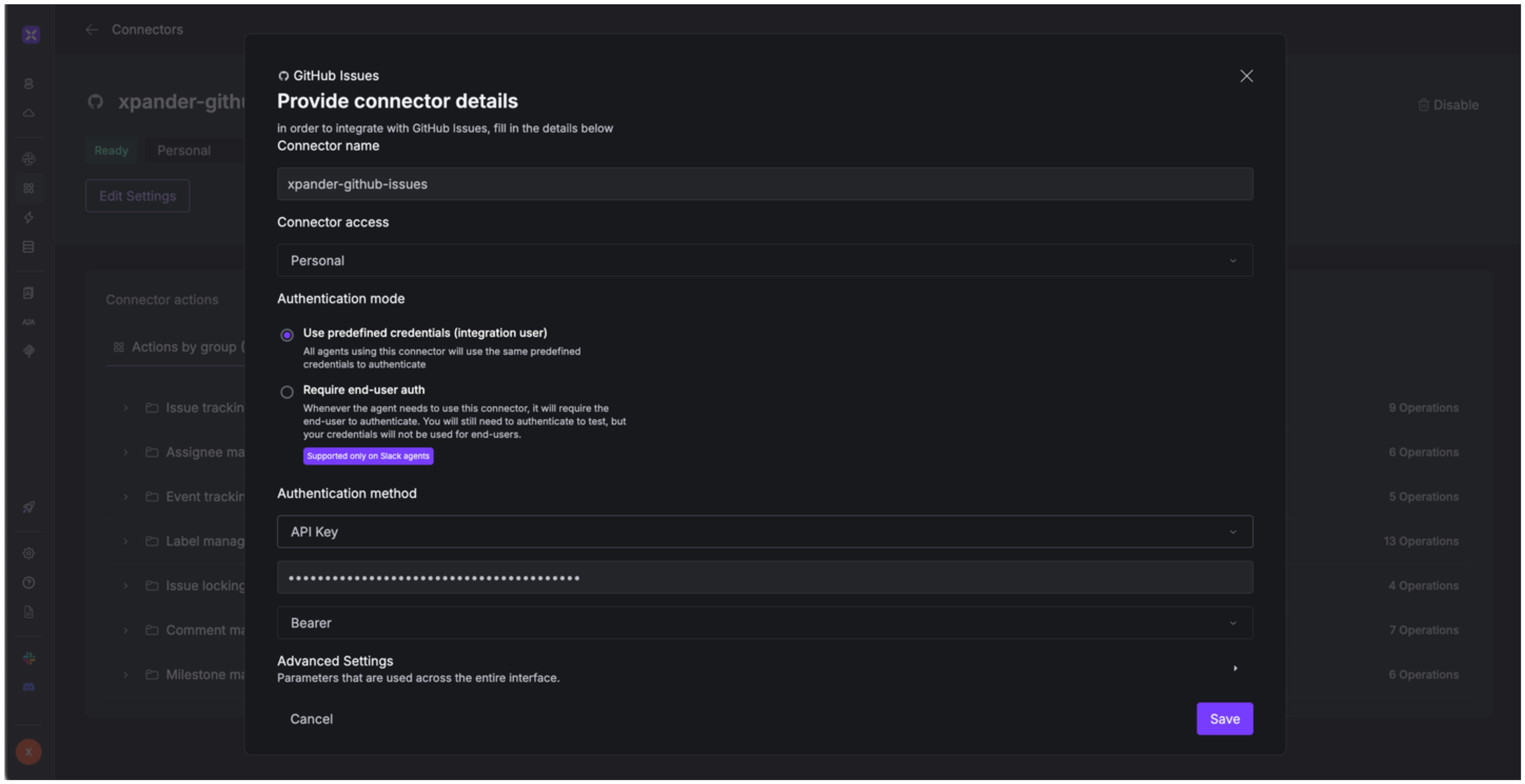
4. Enter a **connector name**, e.g., "xpander-github-issues-manager".
5. Select **Integration User** as the authentication mode.
6. Select **API Key** as the authentication method.
7. Paste the Github access token into the provided field.
8. Choose **Bearer** as the **Auth Type**.
9. Save the configuration.\\
6. Add a description under the **Note** field, set an expiration date, and choose the appropriate scopes for your token.
7. Click **Generate token**. You’ll then see your Github access token—make sure to copy and store it securely.
### Integrate Github Issues Manager into xpander.ai
1. Go to the **Connectors** section in the sidebar of your xpander.ai dashboard.
2. Select **Github Issues** from the available integrations.
3. Click **Other auth options**.
4. Enter a **connector name**, e.g., "xpander-github-issues-manager".
5. Select **Integration User** as the authentication mode.
6. Select **API Key** as the authentication method.
7. Paste the Github access token into the provided field.
8. Choose **Bearer** as the **Auth Type**.
9. Save the configuration.\\
 ## Integration of Github Issues Manager into AI Agent
Once you've configured your Github Issues Manager account with the authentication option(s) described above, you can integrate it into your AI agent with xpander.ai:
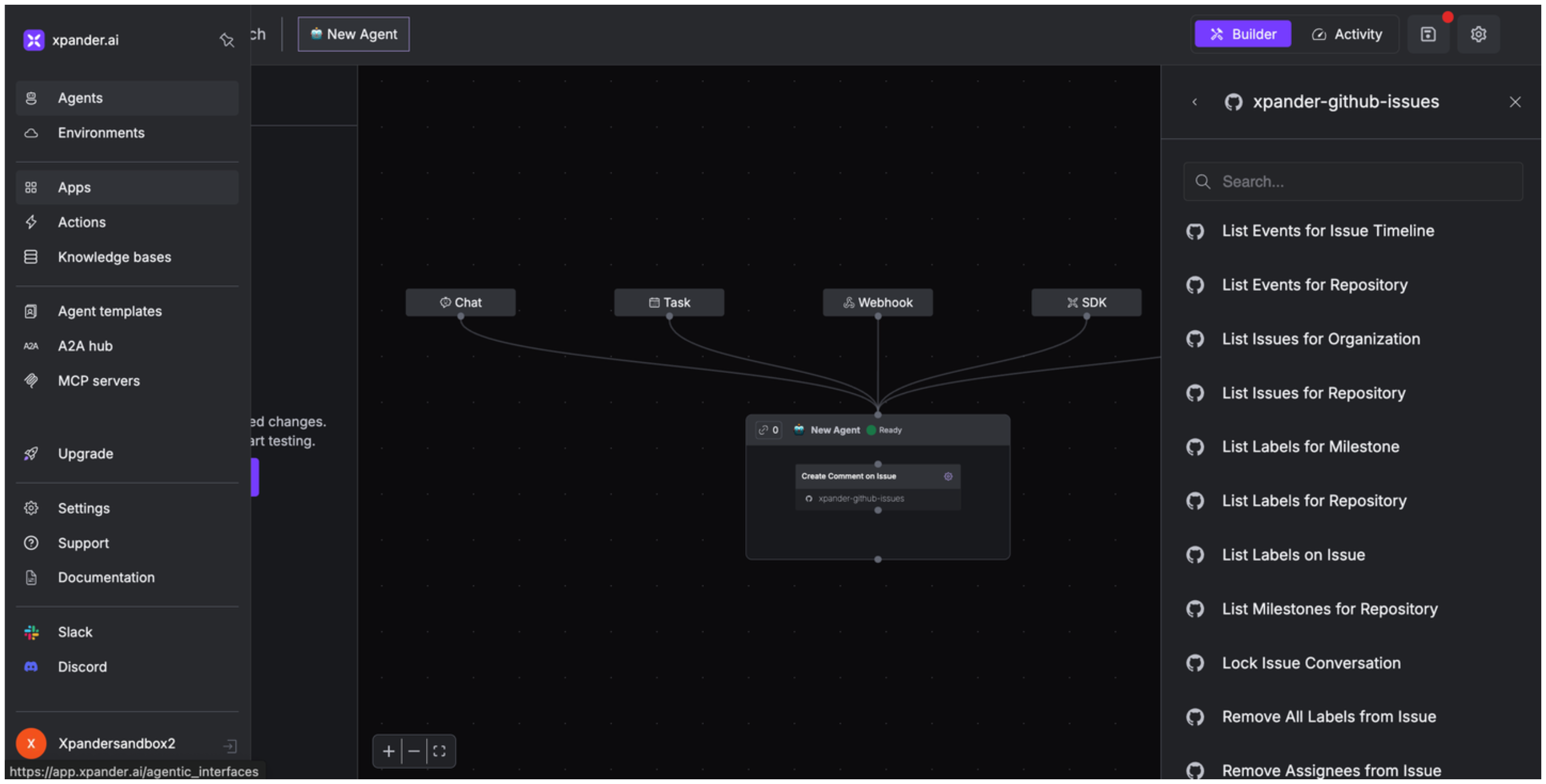
1. In your xpander.ai dashboard, go to the **Agent Configuration** tab and select **Tools**, then click **Add Tools**.
2. Select **Connectors**.
3. Choose **Github Issues Manager** with the same **connector name** you configured in the previous section (e.g., xpander-github-issues-manager).
4. Select the available Github Issues Manager operations that suit your use case.
## Integration of Github Issues Manager into AI Agent
Once you've configured your Github Issues Manager account with the authentication option(s) described above, you can integrate it into your AI agent with xpander.ai:
1. In your xpander.ai dashboard, go to the **Agent Configuration** tab and select **Tools**, then click **Add Tools**.
2. Select **Connectors**.
3. Choose **Github Issues Manager** with the same **connector name** you configured in the previous section (e.g., xpander-github-issues-manager).
4. Select the available Github Issues Manager operations that suit your use case.
 ## Expose Github Issues Manager as MCP Server
Alternatively, you can also expose your Github Issues Manager account as an MCP server. To do so:
1. Go to the **Connectors** section in the sidebar of your xpander.ai dashboard.
2. Select **Github Issues Manager** with the same **connector name** you configured in the previous section (e.g., xpander-github-issues-manager).
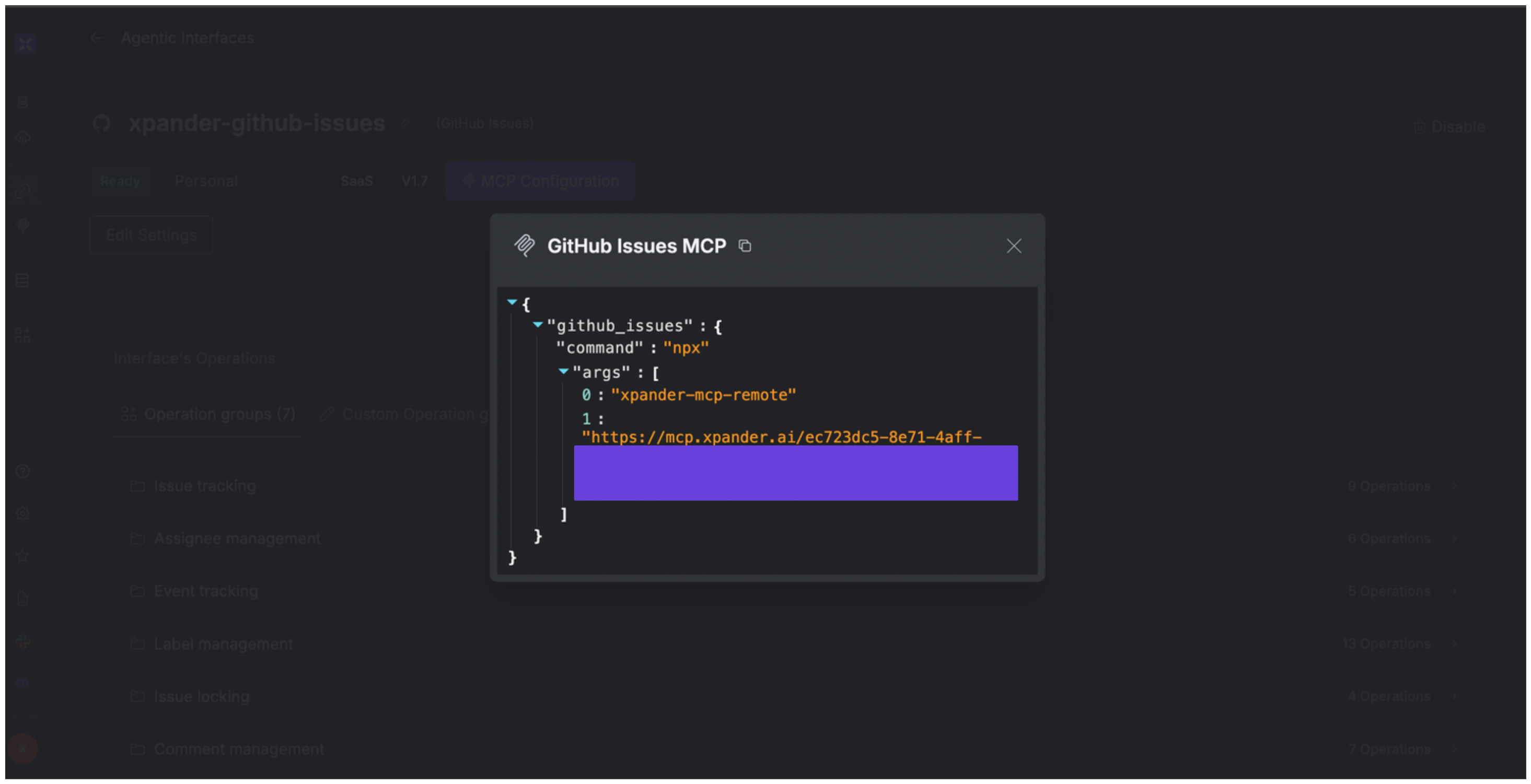
3. Click **MCP Configuration**.
4. Enter the MCP configuration into the appropriate settings of the client app you want to use (e.g., Cursor, Windsurf, Claude Desktop, etc.).
## Expose Github Issues Manager as MCP Server
Alternatively, you can also expose your Github Issues Manager account as an MCP server. To do so:
1. Go to the **Connectors** section in the sidebar of your xpander.ai dashboard.
2. Select **Github Issues Manager** with the same **connector name** you configured in the previous section (e.g., xpander-github-issues-manager).
3. Click **MCP Configuration**.
4. Enter the MCP configuration into the appropriate settings of the client app you want to use (e.g., Cursor, Windsurf, Claude Desktop, etc.).
 ## AI Agent Github Issues Manager Prompt Library
Below are possible prompts or use cases you can try after integrating Github Issues Manager into your xpander AI agent:
```
Can you create a new issue in {repo_owner}/{repo_name} about {issue_description}?
```
```
Can you add the label {label_name} to issue {issue_number} in {repo_owner}/{repo_name}?
```
```
Can you update the milestone {milestone_number} in {repo_owner}/{repo_name} with a new due date {due_date}?
```
```
Can you list all issues assigned to me across my repositories?
```
## Related Resources
* [Understanding Model Context Protocol (MCP)](/guides/deploy/mcp)
* [Github Issues Manager API Documentation](https://docs.github.com/en/rest/issues/)
## AI Agent Github Issues Manager Prompt Library
Below are possible prompts or use cases you can try after integrating Github Issues Manager into your xpander AI agent:
```
Can you create a new issue in {repo_owner}/{repo_name} about {issue_description}?
```
```
Can you add the label {label_name} to issue {issue_number} in {repo_owner}/{repo_name}?
```
```
Can you update the milestone {milestone_number} in {repo_owner}/{repo_name} with a new due date {due_date}?
```
```
Can you list all issues assigned to me across my repositories?
```
## Related Resources
* [Understanding Model Context Protocol (MCP)](/guides/deploy/mcp)
* [Github Issues Manager API Documentation](https://docs.github.com/en/rest/issues/)