> ## Documentation Index
> Fetch the complete documentation index at: https://docs.xpander.ai/llms.txt
> Use this file to discover all available pages before exploring further.
# GitHub
> GitHub on xpander: 4 skills, 112 actions in total, how each connects, and which actions to hold for approval.
HTTP API connector
## What the skills can do
The platform lists 4 GitHub skills, each added to an agent separately. All are HTTP APIs described by OpenAPI specs, not MCP servers:
* **GitHub Actions Manager**: 34 actions. Calls go to `https://api.github.com` and carry an OAuth 2.0 token obtained with **Sign in with GitHub** on the cloud edition, or an API key or custom header on a self-hosted installation, which offers no sign-in flow.
* **GitHub Issues**: 40 actions. Calls carry an OAuth 2.0 token obtained with **Sign in with GitHub** on the cloud edition, or an API key or custom header on a self-hosted installation, which offers no sign-in flow.
* **GitHub Pull Requests**: 31 actions. Calls go to `https://api.github.com` and carry an OAuth 2.0 token obtained with **Sign in with GitHub** on the cloud edition, or an API key or custom header on a self-hosted installation, which offers no sign-in flow.
* **GitHub Search Manager**: 7 actions. Calls go to your GitHub address (`{protocol}://{hostname}/api/v3`, filled in when connecting) and carry an OAuth 2.0 token obtained with **Sign in with GitHub** on the cloud edition, or an API key or custom header on a self-hosted installation, which offers no sign-in flow.
### What the GitHub Actions Manager skill can do
API connector: 34 actions, as they appear in the skill panel. 15 of them create, change or delete something in GitHub Actions Manager; mark those under **These actions need approval** when you add the skill to an agent.
* **Other** (34): Git Hub Actions Jobs Rerun Job By Id, Git Hub Actions Artifacts Get Artifact Archive By Id, Git Hub Actions Runners List All Self Hosted Runners, Git Hub Actions Runs Get Run By Id, Git Hub Actions Runs Delete Run By Id, Git Hub Actions Runs List Artifacts By Run Id, Git Hub Actions Secrets List All Repository Secrets, Git Hub Actions Variables Get Variable By Name, Git Hub Actions Workflows List All Workflows In Repository, Git Hub Actions Workflows Disable Workflow By Id, Git Hub Actions Workflows List Runs By Workflow Id, Git Hub Actions Runs List All Workflow Runs, Git Hub Actions Secrets Get Public Key For Encryption, Git Hub Actions Variables Delete Variable By Name, and 20 more
### What the GitHub Issues skill can do
API connector: 40 actions, as they appear in the skill panel. 19 of them create, change or delete something in GitHub Issues; mark those under **These actions need approval** when you add the skill to an agent.
* **Assignee coordination** (8): Git Hub Repo Assignee Validation Check User Assignable To Issue, Git Hub Issue Management List Issues Assigned To Authenticated User, Git Hub Org Issue Management List Issues For Organization, Git Hub Repo Assignee Management List Assignees For Repository, Git Hub Repo Issue Assignee Management Add Assignees To Issue, Git Hub Repo Issue Assignee Management Remove Assignees From Issue, Git Hub Repo Issue Assignee Check User Assignable To Issue, Git Hub User Issue Tracking List Issues For Authenticated User
* **Issue comment handling** (7): Git Hub Repo Issue Comment Retrieval Get Issue Comment, Git Hub Repo Issue Comment Management Update Issue Comment, Git Hub Repo Issue Comments List Comments For Repository, Git Hub Repo Issue Comment Management Delete Issue Comment, Git Hub Repo Issue Management Update Issue By Number, Git Hub Repo Issue Comment Retrieval List Comments On Issue, Git Hub Repo Issue Comment Creation Create Comment On Issue
* **Repository label management** (6): Git Hub Repo Issue Tracking List Issues For Repository, Git Hub Repo Label Retrieval Get Label By Name, Git Hub Repo Issue Label Retrieval List Labels On Issue, Git Hub Repo Milestone Management List Milestones For Repository, Git Hub Repo Milestone Label Retrieval List Labels For Milestone, Git Hub Repo Label Management List Labels For Repository
* **Issue label operations** (6): Git Hub Repo Issue Label Management Add Labels To Issue, Git Hub Repo Issue Label Management Set Labels For Issue, Git Hub Repo Issue Label Management Remove All Labels From Issue, Git Hub Repo Label Management Delete Label From Repository, Git Hub Repo Label Management Update Label In Repository, Git Hub Repo Issue Label Management Remove Label From Issue
* **Issue event tracking** (5): Git Hub Repo Issue Event Tracking List Issue Events For Repo, Git Hub Repo Issue Event Tracking List Events For Issue, Git Hub Repo Issue Retrieval Get Issue By Number, Git Hub Repo Issue Timeline List Events For Issue Timeline, Git Hub Repo Issue Event Retrieval Get Issue Event
* **Repository content creation** (3): Git Hub Repo Issue Creation Create Issue In Repository, Git Hub Repo Label Management Create Label In Repository, Git Hub Repo Milestone Management Create Milestone In Repository
* **Milestone administration** (3): Git Hub Repo Milestone Retrieval Get Milestone By Number, Git Hub Repo Milestone Management Update Milestone By Number, Git Hub Repo Milestone Management Delete Milestone By Number
* **Issue conversation control** (2): Git Hub Repo Issue Locking Unlock Issue Conversation, Git Hub Repo Issue Locking Lock Issue Conversation
### What the GitHub Pull Requests skill can do
API connector: 31 actions, as they appear in the skill panel. 18 of them create, change or delete something in GitHub Pull Requests; mark those under **These actions need approval** when you add the skill to an agent.
* **Reviewer management** (10): Remove Requested Reviewers, Request Reviewers for Pull, Create Review for Pull Request, Dismiss Review for Pull Request, Get Requested Reviewers for Pull, List All Reviews for Pull Request, Update Review Content for Pull, Get Review by ID for Pull Request, Delete Pending Review, Submit Pending Review Event
* **Pull request management** (8): Create New Pull Request in Repository, List Pull Requests in Repository, Update Existing Pull Request Details, Update Pull Request Branch, List Commits for Pull Request, Merge Pull Request to Base Branch, List Files in Pull Request, Check if Pull Request is Merged
* **Review comment service** (8): List Comments for Pull Requests, Delete Review Comment, Edit Review Comment Content, Get Specific Review Comment, Create Comment on Pull Diff, List Comments for Review, Create Reply to Review Comment, List All Comments for Pull Request
* **Reaction management** (3): Create Reaction for Review Comment, Delete Reaction for Review Comment, List Reactions for Review Comment
* **Codespace integration** (2): Create New Codespace for Pull Request, Get Pull Request Details by Number
### What the GitHub Search Manager skill can do
API connector: 7 actions, as they appear in the skill panel. 0 of them create, change or delete something in GitHub Search Manager; mark those under **These actions need approval** when you add the skill to an agent.
* **Search** (7): Git Hub Search Issues Search Issues And Pull Requests, Git Hub Search Code Search Code By Query Terms, Git Hub Search Repositories Find Repos By Search Criteria, Git Hub Search Users Find Users By Search Criteria, Git Hub Search Commits Find Commits By Search Criteria, Git Hub Search Labels Find Labels By Keywords, Git Hub Search Topics Explore Topics By Search Terms
## Connect GitHub Pull Requests
In Xpander Chat, open the agent's settings, click **Add skill**, and search for **GitHub Pull Requests**. The connect dialog asks for a connection name and whether the connection is for the **Organization** (one shared account) or **Personal** (your own account, so the agent acts with your permissions where systems allow). On an agent other people use, a personal connection runs their requests as you unless the binding requires each person's own sign-in; see [whose credential a shared agent uses](/use/agents/permissions#whose-credential-a-shared-agent-uses).
GitHub Pull Requests connects with **Sign in with GitHub Pull Requests**: you authorize in the browser and xpander stores the OAuth token; the agent never sees it, and the token is attached at the moment a skill is called.
Calls go to `https://api.github.com`.
## Give an agent the GitHub skill
Once GitHub is connected, any agent you can edit may be given the skill: open the agent's settings, click **Add skill**, and choose **GitHub**. Enable only the action groups the agent needs, and mark the actions that should wait for a named person's sign-off under **These actions need approval**. Which skills exist for your organization, and who may add them, is decided by your admins; see [Skills](/use/skills).
## Related Resources
* [Skills](/use/skills)
* [GitHub Pull Requests](https://api.github.com)
## GitHub Actions Manager: connect and authenticate
### Authentication Options
The simplest way to connect GitHub Actions Manager is by using xpander's built-in authentication:
1. In Xpander Chat, open the agent's settings and click **Add skill**.
2. Search for **GitHub Actions Manager** and select it.
3. Click **Sign in with GitHub Actions Manager**.
4. Grant xpander permission to access your Github workspace.
5. Your GitHub Actions Manager integration is now ready to use.
### Generate a GitHub Actions Manager API Key
1. Log in to your [Github account](https://github.com/).
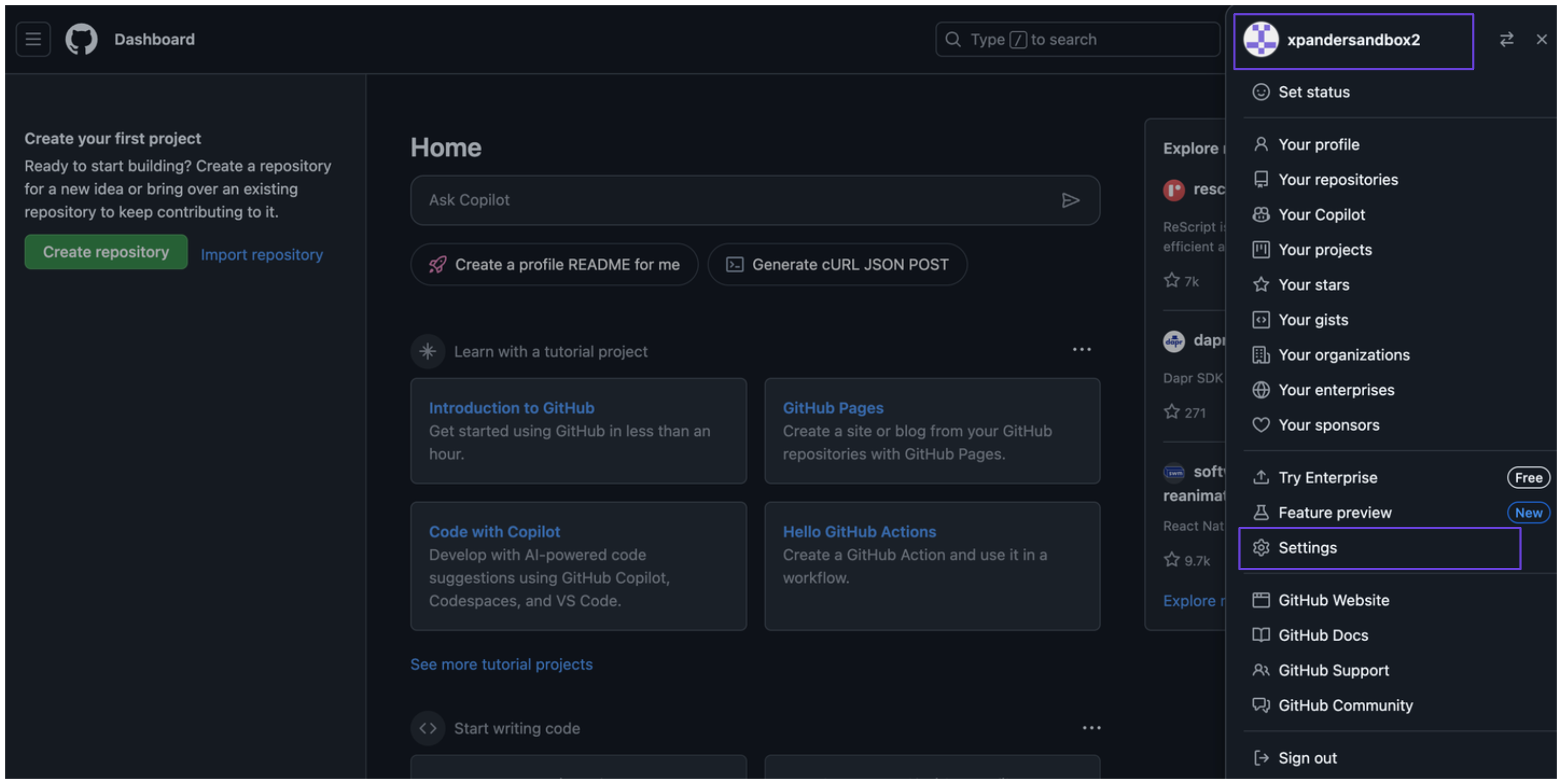
2. Click your profile icon in the top-right corner and select **Settings**.\\
 3. In the sidebar, click **Developer settings**.
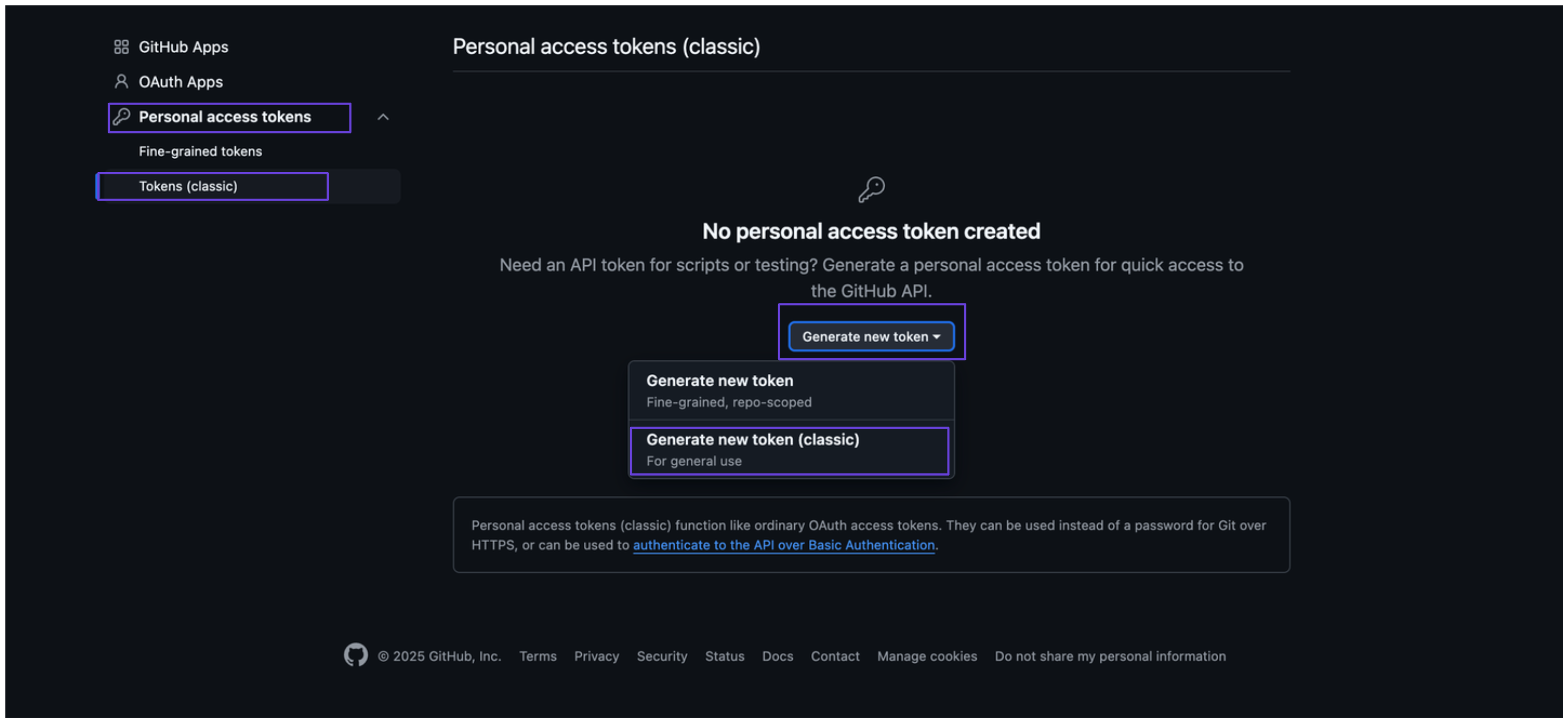
4. Select **Personal access tokens**, then click on **Tokens (classic)**.
5. Click **Generate new token**, then select **Generate new token (classic)**.\\
3. In the sidebar, click **Developer settings**.
4. Select **Personal access tokens**, then click on **Tokens (classic)**.
5. Click **Generate new token**, then select **Generate new token (classic)**.\\
 6. Add a description under **Note**, set an expiration date, and choose the appropriate scopes for your token.
7. After clicking **Generate token**, you’ll see your Github access token, be sure to copy and store it securely.
### Connect GitHub Actions Manager in xpander
1. In Xpander Chat, open the agent's settings and click **Add skill**.
2. Search for **GitHub Actions Manager** and select it.
3. Click **Other auth options**.
4. Enter a **connection name**, e.g., "xpander-github-actions-manager".
5. Choose **Organization** access (one shared account) or **Personal** (your own account, so the agent acts with your permissions where systems allow). On an agent other people use, a personal connection runs their requests as you unless the binding requires each person's own sign-in; see [whose credential a shared agent uses](/use/agents/permissions#whose-credential-a-shared-agent-uses).
6. Select **API Key** as the authentication method.
7. Paste the Github access token into the provided field.
8. Choose **Bearer** as the **Type**.
9. Click **Connect**.
### Give an agent the GitHub Actions Manager skill
Once GitHub Actions Manager is connected, any agent you can edit may be given the skill: open the agent's settings, click **Add skill**, and choose **GitHub Actions Manager**. The skill panel lists the GitHub Actions Manager actions by group. Enable only the groups the agent needs, and mark the actions that should wait for a named person's sign-off under **These actions need approval**. Which skills exist for your organization, and who may add them, is decided by your admins; see [Skills](/use/skills).
## GitHub Issues: connect and authenticate
### Authentication Options
The simplest way to connect GitHub Issues is by using xpander's built-in authentication:
1. In Xpander Chat, open the agent's settings and click **Add skill**.
2. Search for **GitHub Issues** and select it.
3. Click **Sign in with Github Issues**.
4. Grant xpander permission to access your Github workspace.
5. Your GitHub Issues integration is now ready to use.
### Generate a GitHub Issues API Key
1. Log in to your [Github account](https://github.com/).
2. Click your profile icon in the top-right corner, then select **Settings**.\\
6. Add a description under **Note**, set an expiration date, and choose the appropriate scopes for your token.
7. After clicking **Generate token**, you’ll see your Github access token, be sure to copy and store it securely.
### Connect GitHub Actions Manager in xpander
1. In Xpander Chat, open the agent's settings and click **Add skill**.
2. Search for **GitHub Actions Manager** and select it.
3. Click **Other auth options**.
4. Enter a **connection name**, e.g., "xpander-github-actions-manager".
5. Choose **Organization** access (one shared account) or **Personal** (your own account, so the agent acts with your permissions where systems allow). On an agent other people use, a personal connection runs their requests as you unless the binding requires each person's own sign-in; see [whose credential a shared agent uses](/use/agents/permissions#whose-credential-a-shared-agent-uses).
6. Select **API Key** as the authentication method.
7. Paste the Github access token into the provided field.
8. Choose **Bearer** as the **Type**.
9. Click **Connect**.
### Give an agent the GitHub Actions Manager skill
Once GitHub Actions Manager is connected, any agent you can edit may be given the skill: open the agent's settings, click **Add skill**, and choose **GitHub Actions Manager**. The skill panel lists the GitHub Actions Manager actions by group. Enable only the groups the agent needs, and mark the actions that should wait for a named person's sign-off under **These actions need approval**. Which skills exist for your organization, and who may add them, is decided by your admins; see [Skills](/use/skills).
## GitHub Issues: connect and authenticate
### Authentication Options
The simplest way to connect GitHub Issues is by using xpander's built-in authentication:
1. In Xpander Chat, open the agent's settings and click **Add skill**.
2. Search for **GitHub Issues** and select it.
3. Click **Sign in with Github Issues**.
4. Grant xpander permission to access your Github workspace.
5. Your GitHub Issues integration is now ready to use.
### Generate a GitHub Issues API Key
1. Log in to your [Github account](https://github.com/).
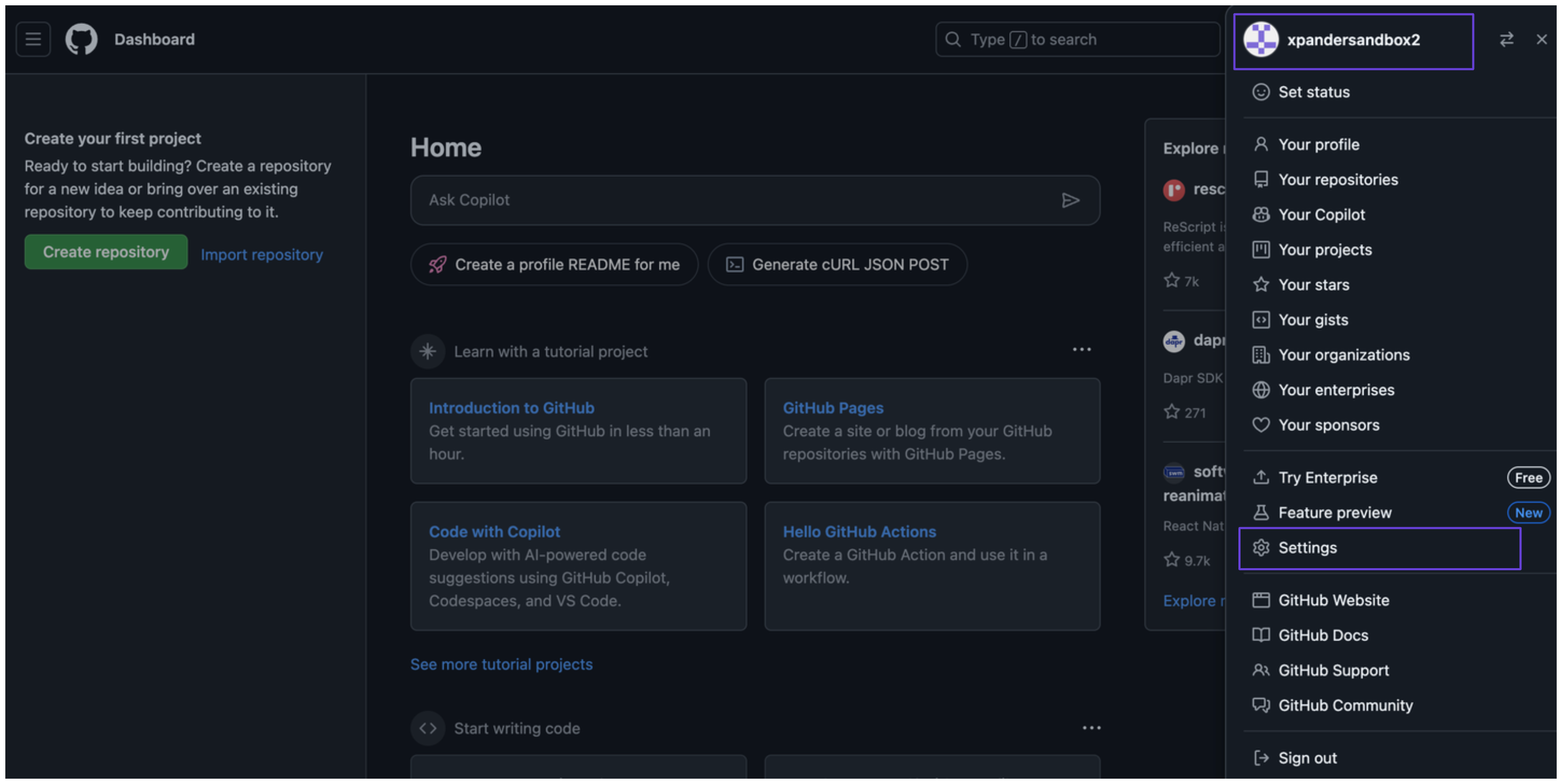
2. Click your profile icon in the top-right corner, then select **Settings**.\\
 3. In the sidebar, navigate to **Developer settings**.
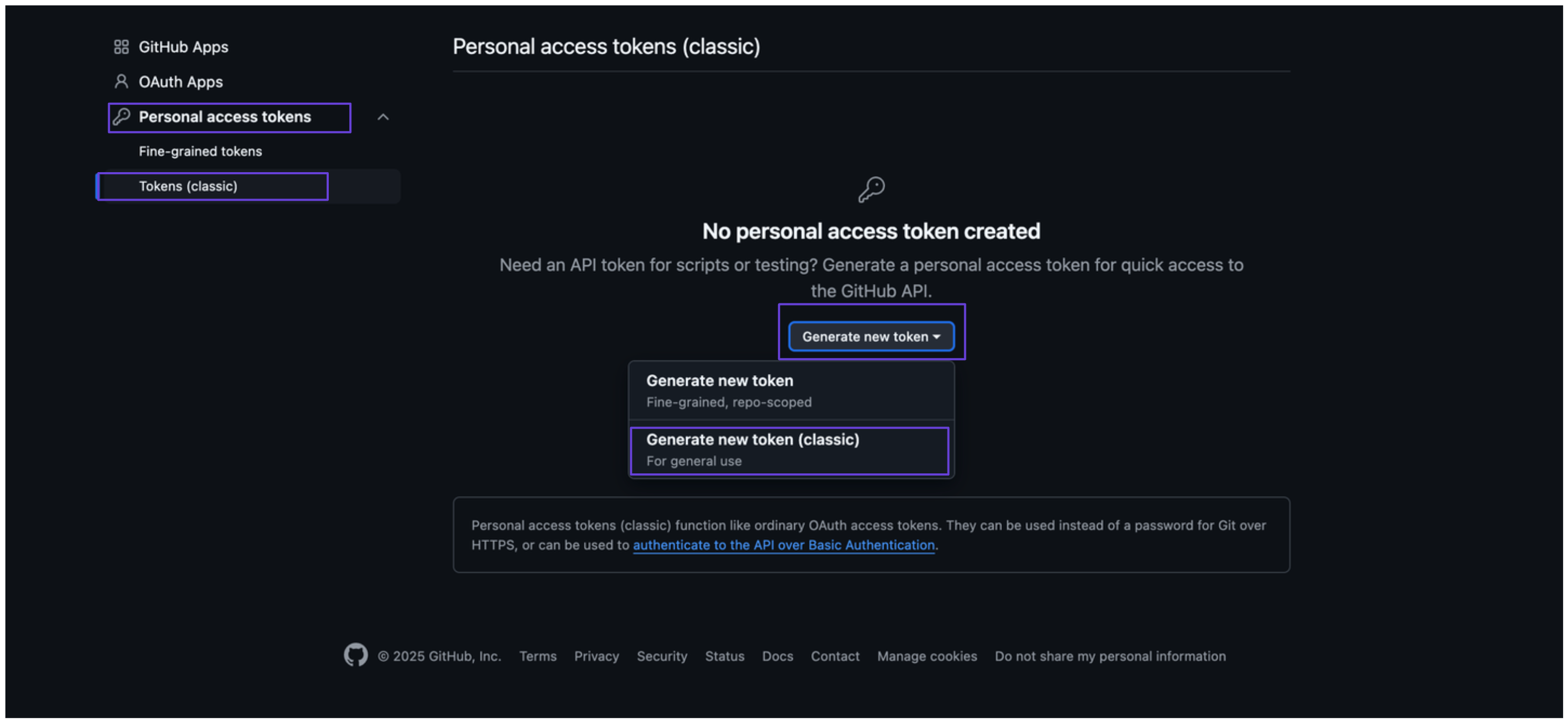
4. Select **Personal access tokens**, then click on **Tokens (classic)**.
5. Click **Generate new token**, then choose **Generate new token (classic)**.\\
3. In the sidebar, navigate to **Developer settings**.
4. Select **Personal access tokens**, then click on **Tokens (classic)**.
5. Click **Generate new token**, then choose **Generate new token (classic)**.\\
 6. Add a description under the **Note** field, set an expiration date, and choose the appropriate scopes for your token.
7. Click **Generate token**. You’ll then see your Github access token, make sure to copy and store it securely.
### Connect GitHub Issues in xpander
1. In Xpander Chat, open the agent's settings and click **Add skill**.
2. Search for **GitHub Issues** and select it.
3. Click **Other auth options**.
4. Enter a **connection name**, e.g., "xpander-github-issues-manager".
5. Choose **Organization** access (one shared account) or **Personal** (your own account, so the agent acts with your permissions where systems allow). On an agent other people use, a personal connection runs their requests as you unless the binding requires each person's own sign-in; see [whose credential a shared agent uses](/use/agents/permissions#whose-credential-a-shared-agent-uses).
6. Select **API Key** as the authentication method.
7. Paste the Github access token into the provided field.
8. Choose **Bearer** as the **Type**.
9. Click **Connect**.
### Give an agent the GitHub Issues skill
Once GitHub Issues is connected, any agent you can edit may be given the skill: open the agent's settings, click **Add skill**, and choose **GitHub Issues**. The skill panel lists the GitHub Issues actions by group. Enable only the groups the agent needs, and mark the actions that should wait for a named person's sign-off under **These actions need approval**. Which skills exist for your organization, and who may add them, is decided by your admins; see [Skills](/use/skills).
## GitHub Search Manager: connect and authenticate
### Authentication Options
The simplest way to connect GitHub Search Manager is by using xpander's built-in authentication:
1. In Xpander Chat, open the agent's settings and click **Add skill**.
2. Search for **GitHub Search Manager** and select it.
3. Click **Sign in with GitHub Search Manager**.
4. Grant xpander permission to access your Github workspace.
5. Your GitHub Search Manager integration is now ready to use.
### Generate a GitHub Search Manager API Key
1. Log in to your [Github account](https://github.com/).
2. Click on your profile icon in the top-right corner, then select **Settings**.\\
6. Add a description under the **Note** field, set an expiration date, and choose the appropriate scopes for your token.
7. Click **Generate token**. You’ll then see your Github access token, make sure to copy and store it securely.
### Connect GitHub Issues in xpander
1. In Xpander Chat, open the agent's settings and click **Add skill**.
2. Search for **GitHub Issues** and select it.
3. Click **Other auth options**.
4. Enter a **connection name**, e.g., "xpander-github-issues-manager".
5. Choose **Organization** access (one shared account) or **Personal** (your own account, so the agent acts with your permissions where systems allow). On an agent other people use, a personal connection runs their requests as you unless the binding requires each person's own sign-in; see [whose credential a shared agent uses](/use/agents/permissions#whose-credential-a-shared-agent-uses).
6. Select **API Key** as the authentication method.
7. Paste the Github access token into the provided field.
8. Choose **Bearer** as the **Type**.
9. Click **Connect**.
### Give an agent the GitHub Issues skill
Once GitHub Issues is connected, any agent you can edit may be given the skill: open the agent's settings, click **Add skill**, and choose **GitHub Issues**. The skill panel lists the GitHub Issues actions by group. Enable only the groups the agent needs, and mark the actions that should wait for a named person's sign-off under **These actions need approval**. Which skills exist for your organization, and who may add them, is decided by your admins; see [Skills](/use/skills).
## GitHub Search Manager: connect and authenticate
### Authentication Options
The simplest way to connect GitHub Search Manager is by using xpander's built-in authentication:
1. In Xpander Chat, open the agent's settings and click **Add skill**.
2. Search for **GitHub Search Manager** and select it.
3. Click **Sign in with GitHub Search Manager**.
4. Grant xpander permission to access your Github workspace.
5. Your GitHub Search Manager integration is now ready to use.
### Generate a GitHub Search Manager API Key
1. Log in to your [Github account](https://github.com/).
2. Click on your profile icon in the top-right corner, then select **Settings**.\\
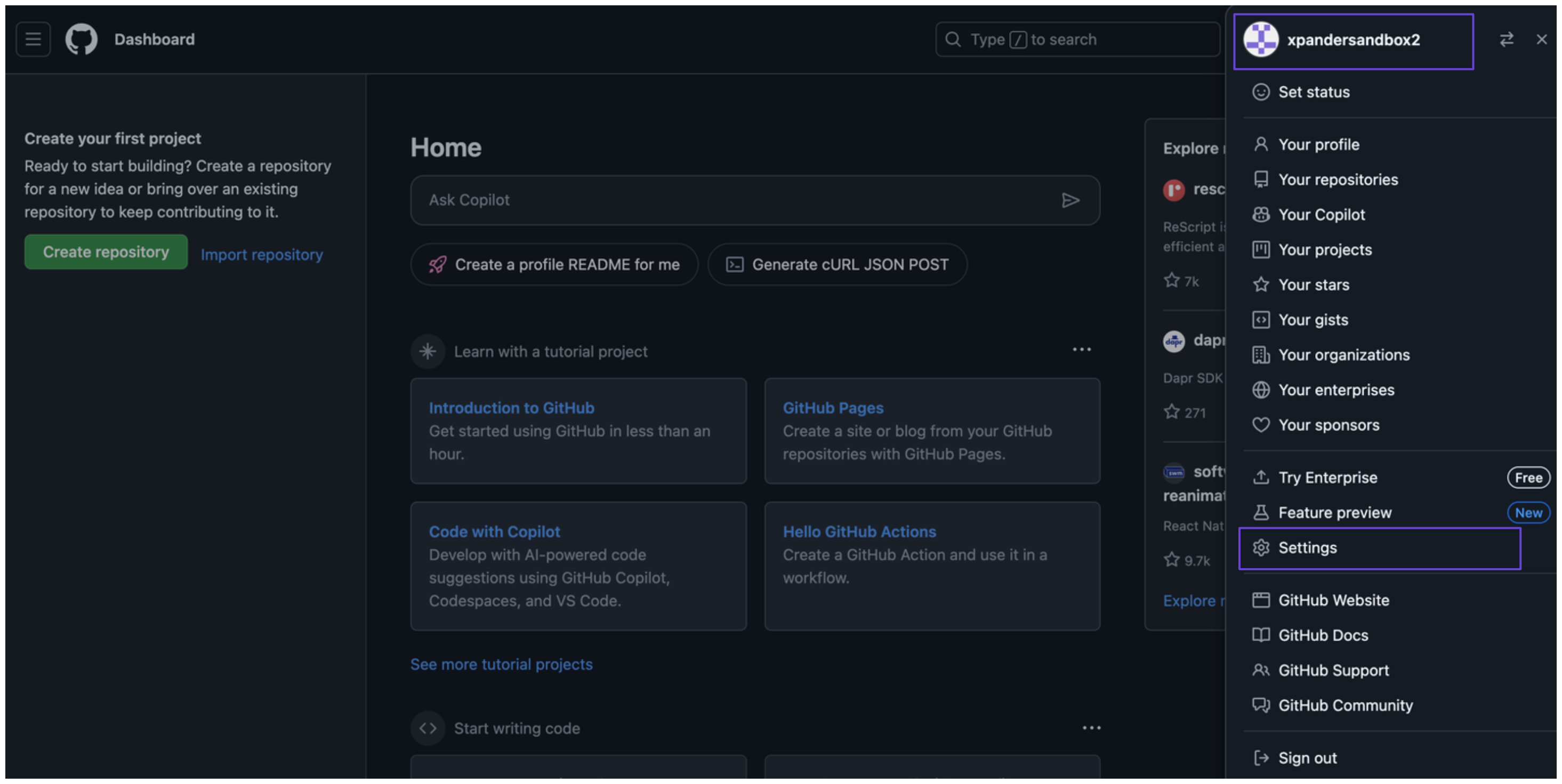 3. In the sidebar, go to **Developer settings**.
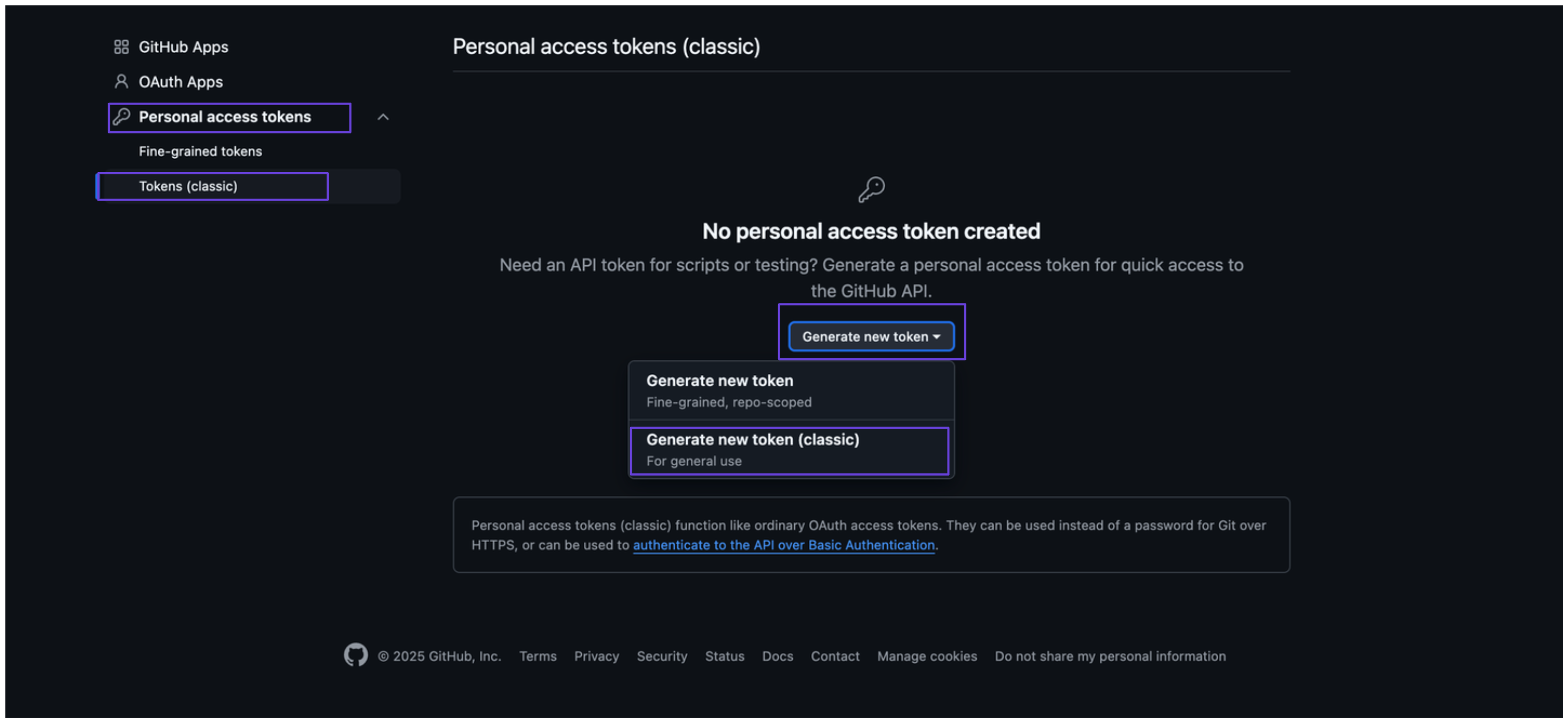
4. Select **Personal access tokens**, then click on **Tokens (classic)**.
5. Click **Generate new token**, and then **Generate new token (classic)**.\\
3. In the sidebar, go to **Developer settings**.
4. Select **Personal access tokens**, then click on **Tokens (classic)**.
5. Click **Generate new token**, and then **Generate new token (classic)**.\\
 6. Add a description under the **Note** field, set an expiration date, and select the appropriate scopes for your token.
7. Click **Generate token**. You’ll see your Github access token, copy and store it securely.
### Connect GitHub Search Manager in xpander
1. In Xpander Chat, open the agent's settings and click **Add skill**.
2. Search for **GitHub Search Manager** and select it.
3. Click **Other auth options**.
4. Enter a **connection name**, e.g., "xpander-github-search-manager".
5. Choose **Organization** access (one shared account) or **Personal** (your own account, so the agent acts with your permissions where systems allow). On an agent other people use, a personal connection runs their requests as you unless the binding requires each person's own sign-in; see [whose credential a shared agent uses](/use/agents/permissions#whose-credential-a-shared-agent-uses).
6. Select **API Key** as the authentication method.
7. Paste the Github access token into the provided field.
8. Choose **Bearer** as the **Type**.
9. Click **Connect**.
### Give an agent the GitHub Search Manager skill
Once GitHub Search Manager is connected, any agent you can edit may be given the skill: open the agent's settings, click **Add skill**, and choose **GitHub Search Manager**. The skill panel lists the GitHub Search Manager actions by group. Enable only the groups the agent needs, and mark the actions that should wait for a named person's sign-off under **These actions need approval**. Which skills exist for your organization, and who may add them, is decided by your admins; see [Skills](/use/skills).
6. Add a description under the **Note** field, set an expiration date, and select the appropriate scopes for your token.
7. Click **Generate token**. You’ll see your Github access token, copy and store it securely.
### Connect GitHub Search Manager in xpander
1. In Xpander Chat, open the agent's settings and click **Add skill**.
2. Search for **GitHub Search Manager** and select it.
3. Click **Other auth options**.
4. Enter a **connection name**, e.g., "xpander-github-search-manager".
5. Choose **Organization** access (one shared account) or **Personal** (your own account, so the agent acts with your permissions where systems allow). On an agent other people use, a personal connection runs their requests as you unless the binding requires each person's own sign-in; see [whose credential a shared agent uses](/use/agents/permissions#whose-credential-a-shared-agent-uses).
6. Select **API Key** as the authentication method.
7. Paste the Github access token into the provided field.
8. Choose **Bearer** as the **Type**.
9. Click **Connect**.
### Give an agent the GitHub Search Manager skill
Once GitHub Search Manager is connected, any agent you can edit may be given the skill: open the agent's settings, click **Add skill**, and choose **GitHub Search Manager**. The skill panel lists the GitHub Search Manager actions by group. Enable only the groups the agent needs, and mark the actions that should wait for a named person's sign-off under **These actions need approval**. Which skills exist for your organization, and who may add them, is decided by your admins; see [Skills](/use/skills).