> ## Documentation Index
> Fetch the complete documentation index at: https://docs.xpander.ai/llms.txt
> Use this file to discover all available pages before exploring further.
# Gitlab
> Learn how to integrate AI agents with GitLab using xpander.ai. Create automated workflows that enhance your CI/CD pipelines, streamline code reviews, and boost project management efficiency.
## About GitLab
GitLab is a comprehensive, open-core DevSecOps platform that enables software development, security, and operations teams to collaborate throughout the entire software development lifecycle. It integrates a wide range of tools into a single application, including Git repository management, issue tracking, continuous integration and delivery (CI/CD), security scanning, and monitoring.
Key features include:
* **Version Control**: Built on Git, GitLab offers robust version control capabilities, allowing teams to manage and track code changes effectively.
* **CI/CD Pipelines**: Automate the process of building, testing, and deploying code, ensuring faster and more reliable software delivery.
* **Security and Compliance**: Integrated security features, such as automated vulnerability scanning and compliance tracking, help identify and mitigate risks early in the development process.
* **Collaboration Tools**: Features like issue boards, wikis, and snippets facilitate team collaboration and knowledge sharing.
* **AI Integration**: Gitlab's recent versions have introduced AI-powered features, including code suggestions and contextual assistance within the integrated development environment (IDE), to enhance developer productivity.
## Authentication Options
Below are possible authentication options you can choose:
### Generate a Gitlab API Key
1. Log in into your [Gitlab account](https://gitlab.com/).
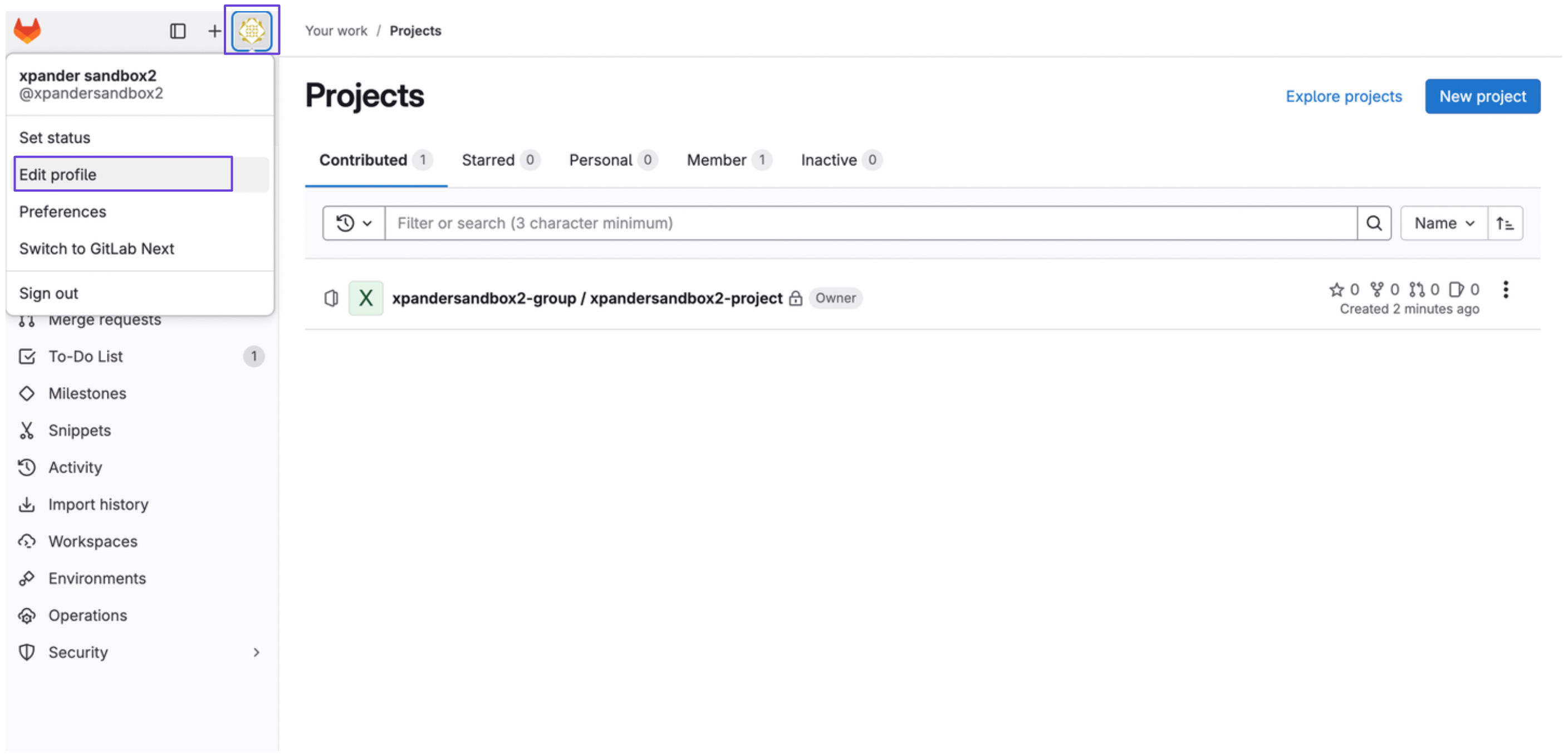
2. On the top left of your sidebar, click on your profile account, and then select **Edit profile**
 3. Navigate to **Access token** in the sidebar, and then click on **Add new token**
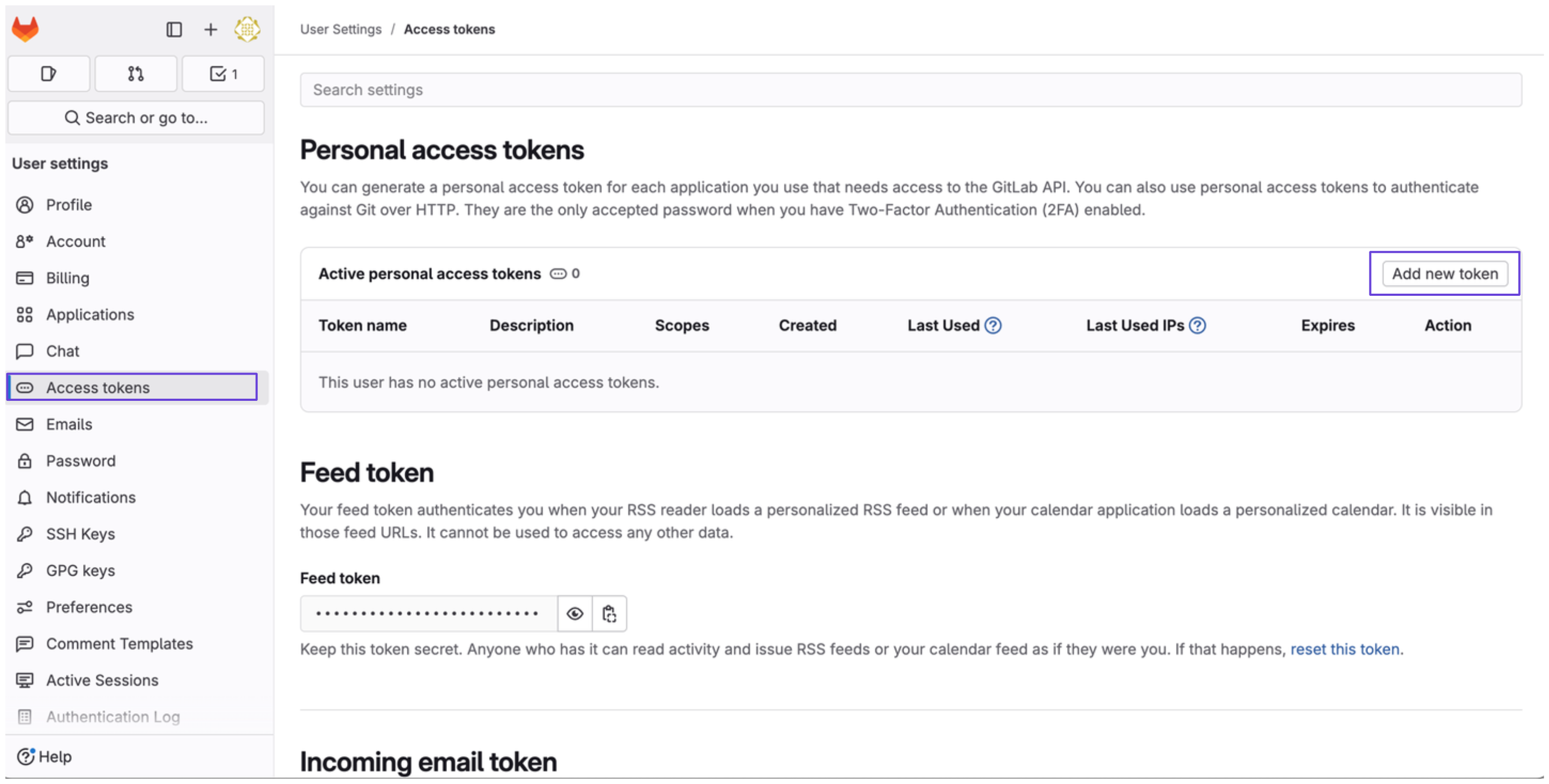 4. Give your access token a name, expiration date, and the necessary scopes. Then, click on **Create personal access token**
5. You'll see your Gitlab access token afterwards.
### Integrate Gitlab into xpander.ai
1. Go to the **Connectors** section in the sidebar of your xpander.ai dashboard.
2. Select **Gitlab** from the available integrations.
3. Click **Enable**.
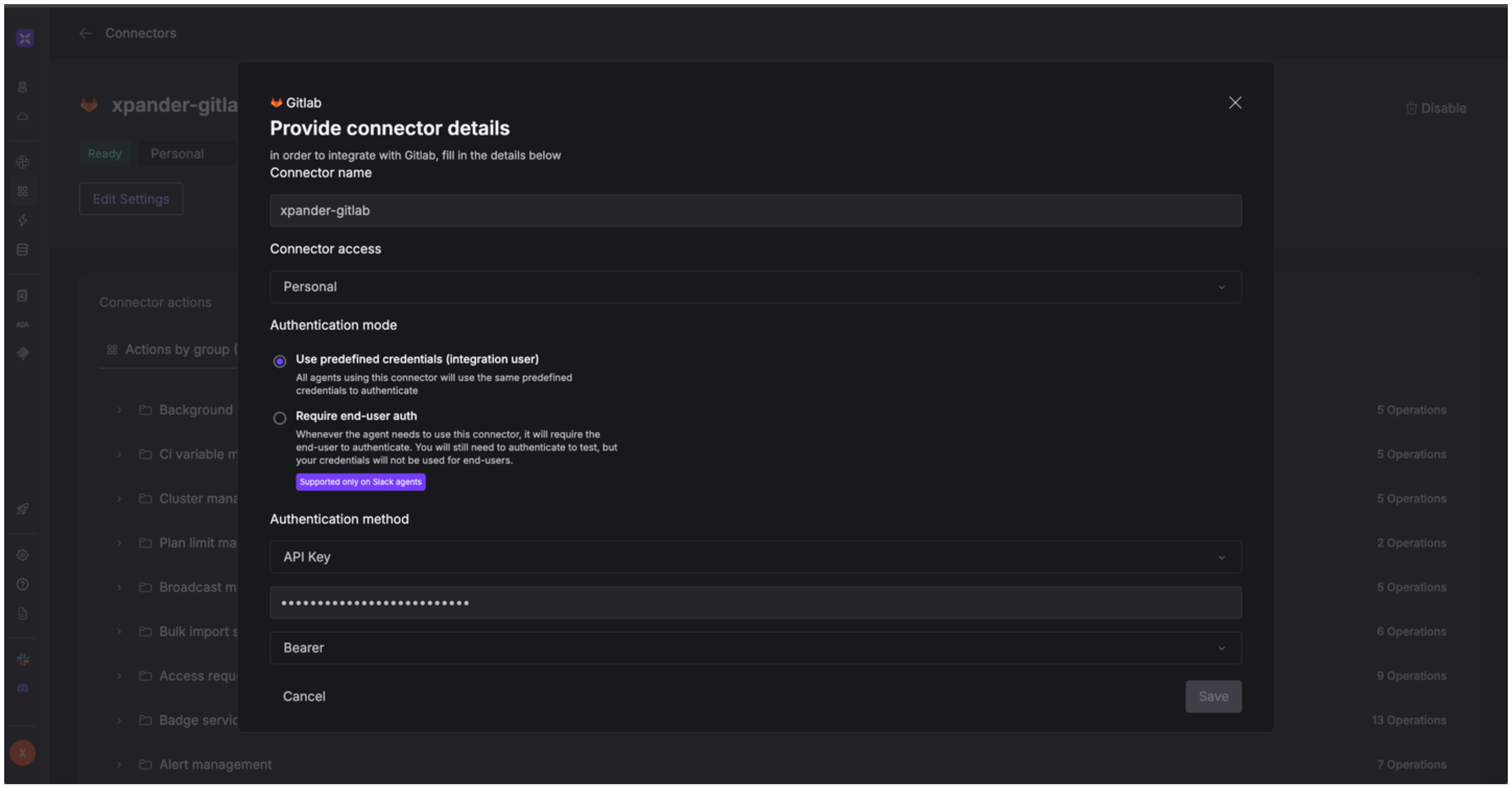
4. Enter a **connector name**, e.g., "xpander-gitlab".
5. Select **Integration User** as the authentication mode.
6. Select **API Key** as the authentication method.
7. Paste the Gitlab access token the provided field.
8. Choose **Bearer** as the **Auth Type**.
9. Save the configuration.
4. Give your access token a name, expiration date, and the necessary scopes. Then, click on **Create personal access token**
5. You'll see your Gitlab access token afterwards.
### Integrate Gitlab into xpander.ai
1. Go to the **Connectors** section in the sidebar of your xpander.ai dashboard.
2. Select **Gitlab** from the available integrations.
3. Click **Enable**.
4. Enter a **connector name**, e.g., "xpander-gitlab".
5. Select **Integration User** as the authentication mode.
6. Select **API Key** as the authentication method.
7. Paste the Gitlab access token the provided field.
8. Choose **Bearer** as the **Auth Type**.
9. Save the configuration.
 ## Integration of GitLab into AI Agent
Once you've configured your GitLab account with the authentication option(s) described above, you can integrate it into your AI agent with xpander.ai:
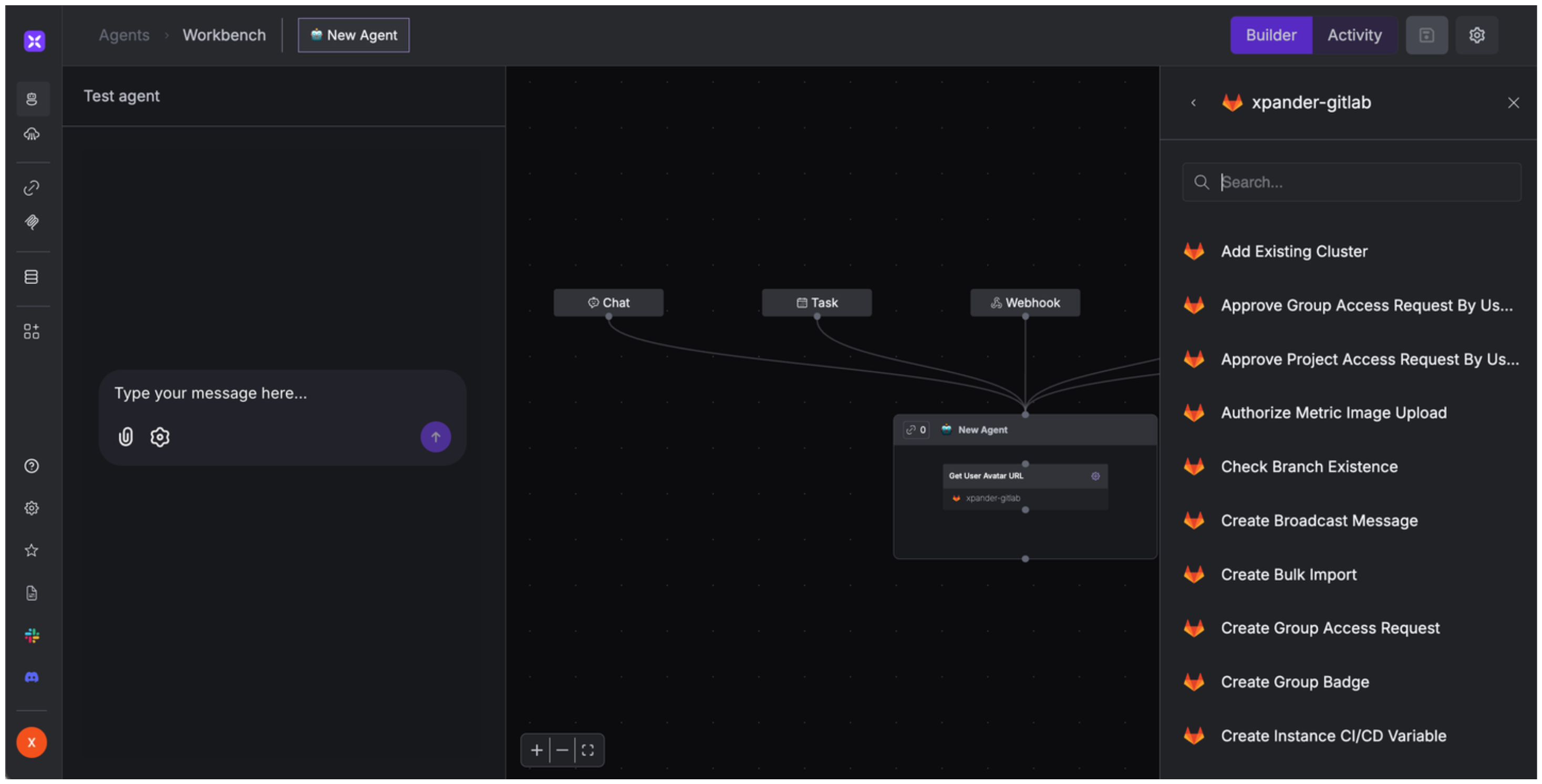
1. In your xpander.ai dashboard, go to the **Agent Configuration** tab and select **Tools**, then click **Add Tools**.
2. Select **Connectors**.
3. Choose **GitLab** with the same **connector name** you configured in the previous section (e.g., xpander-gitlab).
4. Select the available GitLab operations that suit your use case.
## Integration of GitLab into AI Agent
Once you've configured your GitLab account with the authentication option(s) described above, you can integrate it into your AI agent with xpander.ai:
1. In your xpander.ai dashboard, go to the **Agent Configuration** tab and select **Tools**, then click **Add Tools**.
2. Select **Connectors**.
3. Choose **GitLab** with the same **connector name** you configured in the previous section (e.g., xpander-gitlab).
4. Select the available GitLab operations that suit your use case.
 ## Expose GitLab as MCP Server
Alternatively, you can also expose your GitLab account as an MCP server. To do so:
1. Go to the **Connectors** section in the sidebar of your xpander.ai dashboard.
2. Select **GitLab** with the same **connector name** you configured in the previous section (e.g., xpander-gitlab).
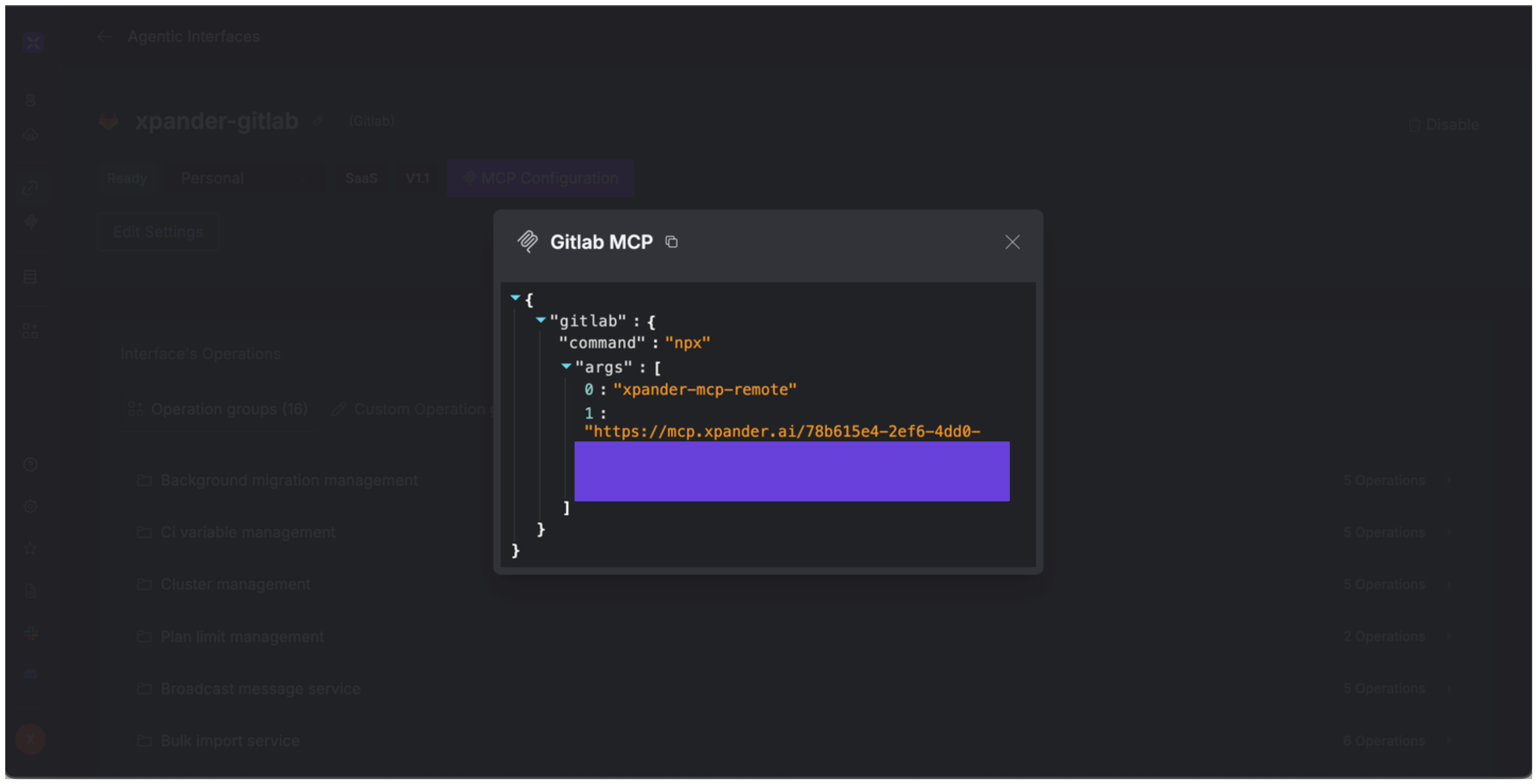
3. Click **MCP Configuration**.
4. Enter the MCP configuration into the appropriate settings of the client app you want to use (e.g., Cursor, Windsurf, Claude Desktop, etc.).
## Expose GitLab as MCP Server
Alternatively, you can also expose your GitLab account as an MCP server. To do so:
1. Go to the **Connectors** section in the sidebar of your xpander.ai dashboard.
2. Select **GitLab** with the same **connector name** you configured in the previous section (e.g., xpander-gitlab).
3. Click **MCP Configuration**.
4. Enter the MCP configuration into the appropriate settings of the client app you want to use (e.g., Cursor, Windsurf, Claude Desktop, etc.).
 ## AI Agent GitLab Prompt Library
Below are possible prompts or use cases you can try after integrating GitLab into your xpander AI agent:
```
Can you fetch the latest 5 commits for the project {project_id}?
```
```
Can you show me all open merge requests for {project_id}?
```
```
Can you fork the project {project_id} into my namespace {namespace_id}?
```
```
Can I get the list of all issues assigned to {user_id} in the project {project_id}?
```
## Related Resources
* [Understanding Model Context Protocol (MCP)](/guides/deploy/mcp)
* [GitLab API Documentation](https://docs.gitlab.com/api/rest/)
## AI Agent GitLab Prompt Library
Below are possible prompts or use cases you can try after integrating GitLab into your xpander AI agent:
```
Can you fetch the latest 5 commits for the project {project_id}?
```
```
Can you show me all open merge requests for {project_id}?
```
```
Can you fork the project {project_id} into my namespace {namespace_id}?
```
```
Can I get the list of all issues assigned to {user_id} in the project {project_id}?
```
## Related Resources
* [Understanding Model Context Protocol (MCP)](/guides/deploy/mcp)
* [GitLab API Documentation](https://docs.gitlab.com/api/rest/)