> ## Documentation Index
> Fetch the complete documentation index at: https://docs.xpander.ai/llms.txt
> Use this file to discover all available pages before exploring further.
# Gmail
> Connect Gmail to xpander and give agents its 75 actions: how to sign in and connect it, and which actions to hold for approval.
HTTP API connector
An HTTP API described by an OpenAPI spec, not an MCP server. Calls go to `https://gmail.googleapis.com` and carry an OAuth 2.0 token obtained with **Sign in with Google** on the cloud edition, or an API key or custom header on a self-hosted installation, which offers no sign-in flow.
## What the skill can do
API connector: 75 actions, as they appear in the skill panel. 46 of them create, change or delete something in Gmail; mark those under **These actions need approval** when you add the skill to an agent.
* **Messages management** (10): List Messages In Mailbox, Batch Delete Messages, Import Message To Mailbox, Send Specified Message, Get Specific Message, Permanently Delete Message, Get Message Attachment, User Management Get Current User Profile, Notifications Management Stop Push Notifications, Notifications Management Setup Push Notifications
* **Cseidentities and keypairs management** (9): Cse Management List Encrypted Identities, Cse Management Create Encrypted Identity, Cse Management Update Encrypted Identity Key Pair, Cse Management List Encryption Key Pairs, Cse Management Create Encryption Key Pair, Cse Management Get Encryption Key Pair, Cse Management Disable Encryption Key Pair, Cse Management Enable Encryption Key Pair, Cse Management Permanently Delete Key Pair
* **Sendas management** (7): List Send As Aliases, Create Custom Send As Alias, Get Specific Send As Alias, Update Send As Alias, Delete Send As Alias, Patch Send As Alias, Verify Send As Alias
* **Drafts management** (6): List Drafts In Mailbox, Create New Draft, Send Existing Draft, Get Specific Draft, Replace Draft Content, Permanently Delete Draft
* **Labels management** (6): List All Labels, Create New Label, Get Specific Label, Update Specific Label, Permanently Delete Label, Patch Specific Label
* **Smimeinfo management** (5): Smime Management List Smime Configs, Smime Management Upload Smime Config, Smime Management Get Smime Config, Smime Management Delete Smime Config, Smime Management Set Default Smime Config
* **Delegates management** (4): List Account Delegates, Add New Delegate, Get Specific Delegate, Remove Specific Delegate
* **Filters management** (4): List User Message Filters, Create New Filter, Get Specific Filter, Delete Specific Filter
* **Forwardingaddresses management** (4): Forwarding Management List Forwarding Addresses, Forwarding Management Create Forwarding Address, Forwarding Management Get Forwarding Address, Forwarding Management Delete Forwarding Address
* **Imappop management** (4): Imap Management Get Imap Settings, Imap Management Update Imap Settings, Pop Management Get Pop Settings, Pop Management Update Pop Settings
* **Language and vacation management** (4): Get Language Settings, Update Language Settings, Get Vacation Settings, Update Vacation Settings
* **Message and thread modification management** (3): Batch Modify Labels, Modify Message Labels, Modify Thread Labels
* **Trash management** (3): Move Message To Trash, Remove Message From Trash, Move Thread To Trash
* **Threads management** (3): List Threads In Mailbox, Get Specific Thread, Permanently Delete Thread
* **Autoforwarding management** (2): Get Auto Forwarding Settings, Update Auto Forwarding Settings
* **History management** (1): List Mailbox Changes
## Authentication Options
The simplest way to connect Gmail is by using xpander's built-in authentication:
1. In Xpander Chat, open the agent's settings and click **Add skill**.
2. Search for **Gmail** and select it.
3. Click **Sign in with Gmail**.
4. Grant xpander permission to access your account.
5. Your Gmail integration is now ready to use.
This method is recommended for most users. xpander securely manages your OAuth tokens without exposing any credentials.
### Generate a Gmail API Key
1. Log in to your [Google Cloud Console](https://console.cloud.google.com/).
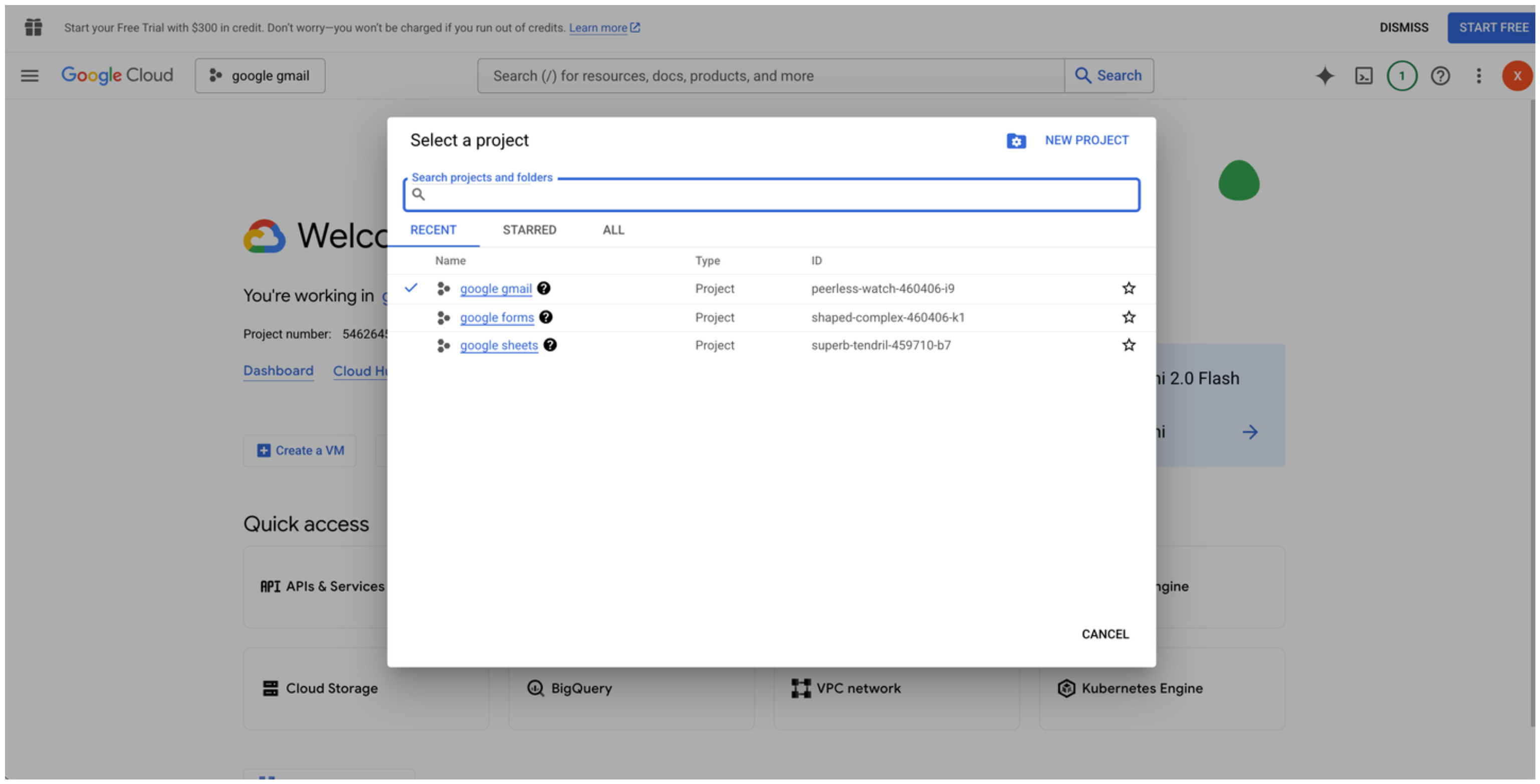
2. Create a new project or select an existing one.\\
 3. Go to the [Google Cloud API Library](https://console.cloud.google.com/apis/library).\\
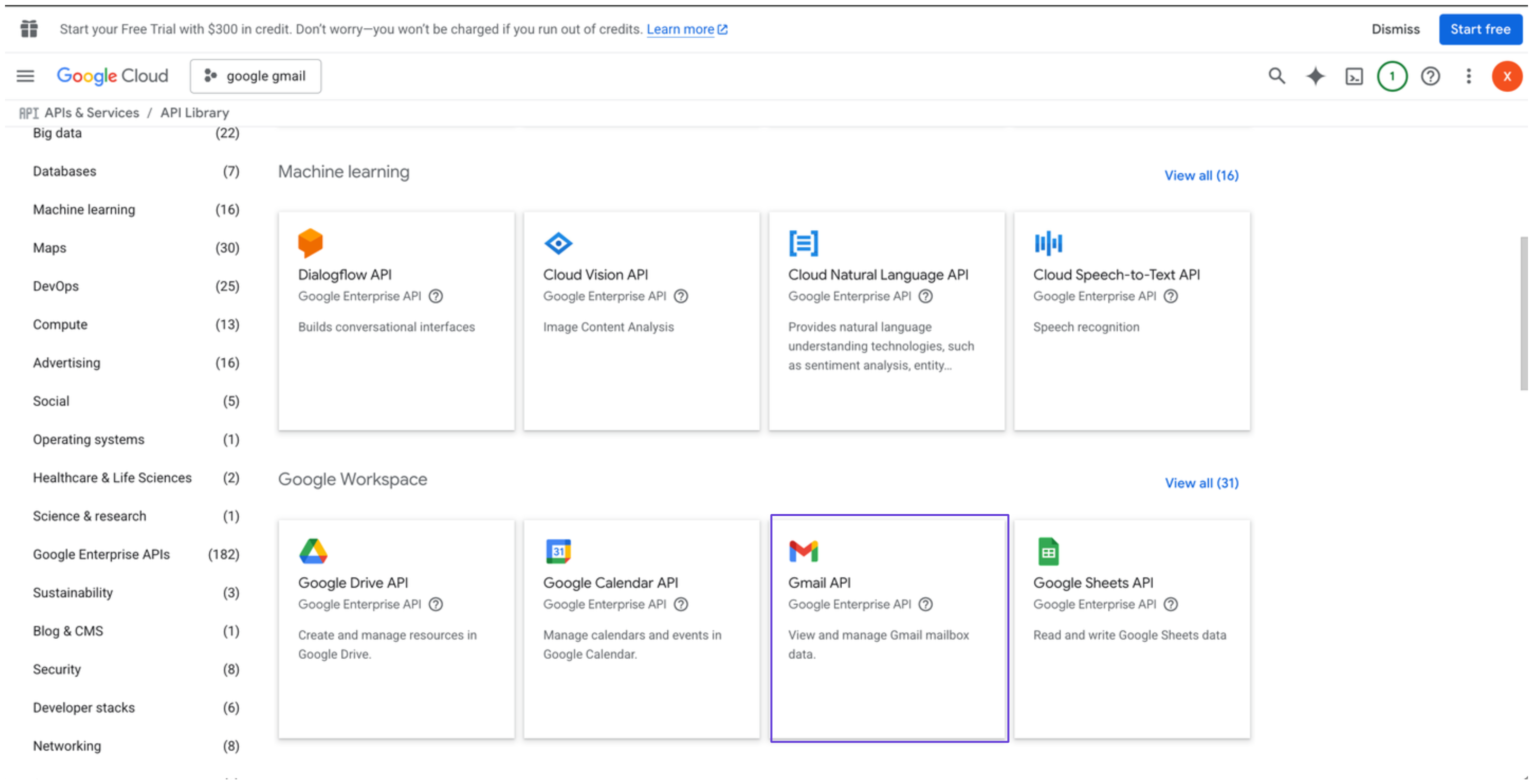 4. Search for and select **Gmail API**, then click **Enable**.
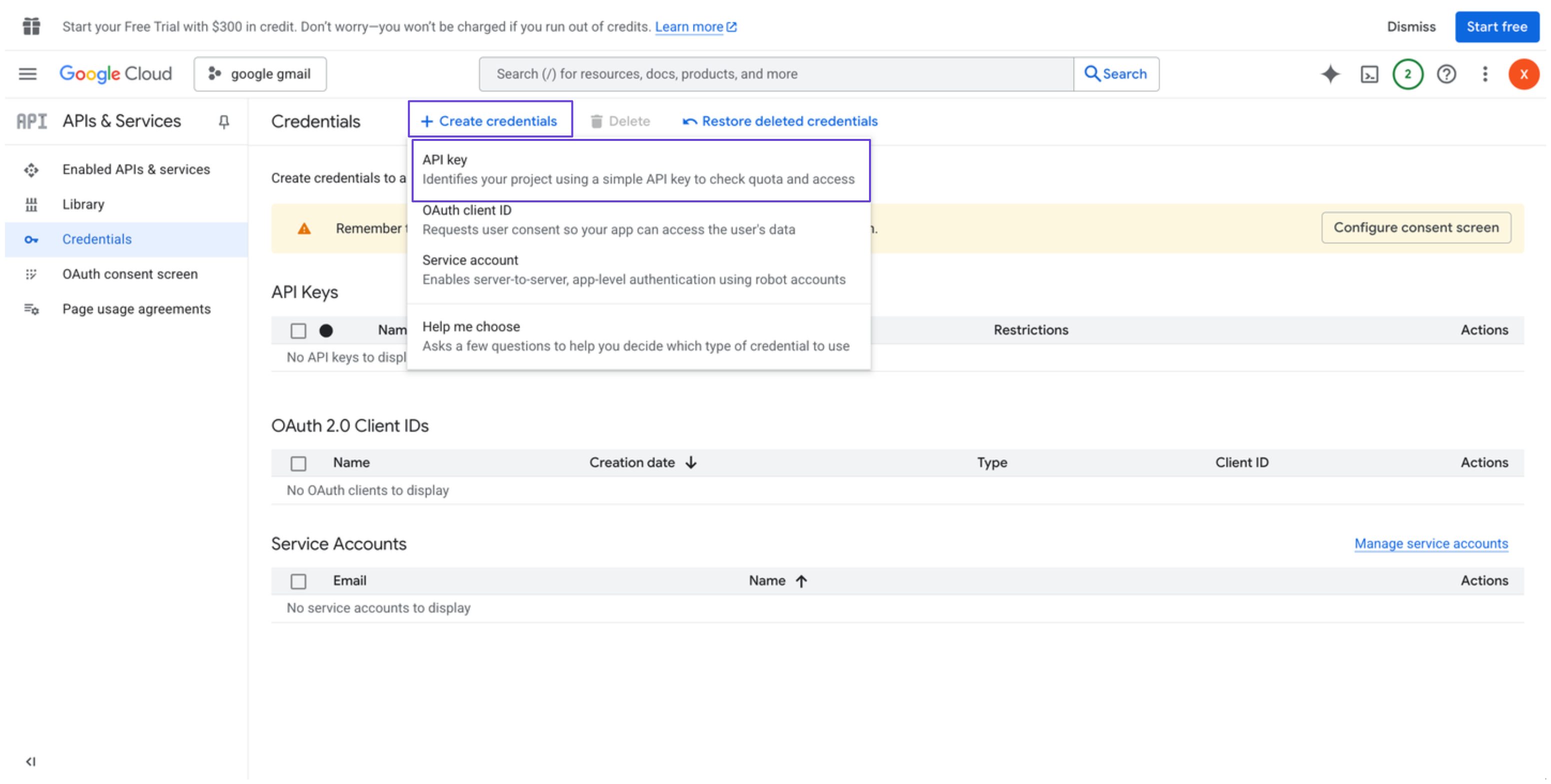
5. In the sidebar, go to **Credentials**.
6. Click **Create credentials**, and select **API key**.\\
4. Search for and select **Gmail API**, then click **Enable**.
5. In the sidebar, go to **Credentials**.
6. Click **Create credentials**, and select **API key**.\\
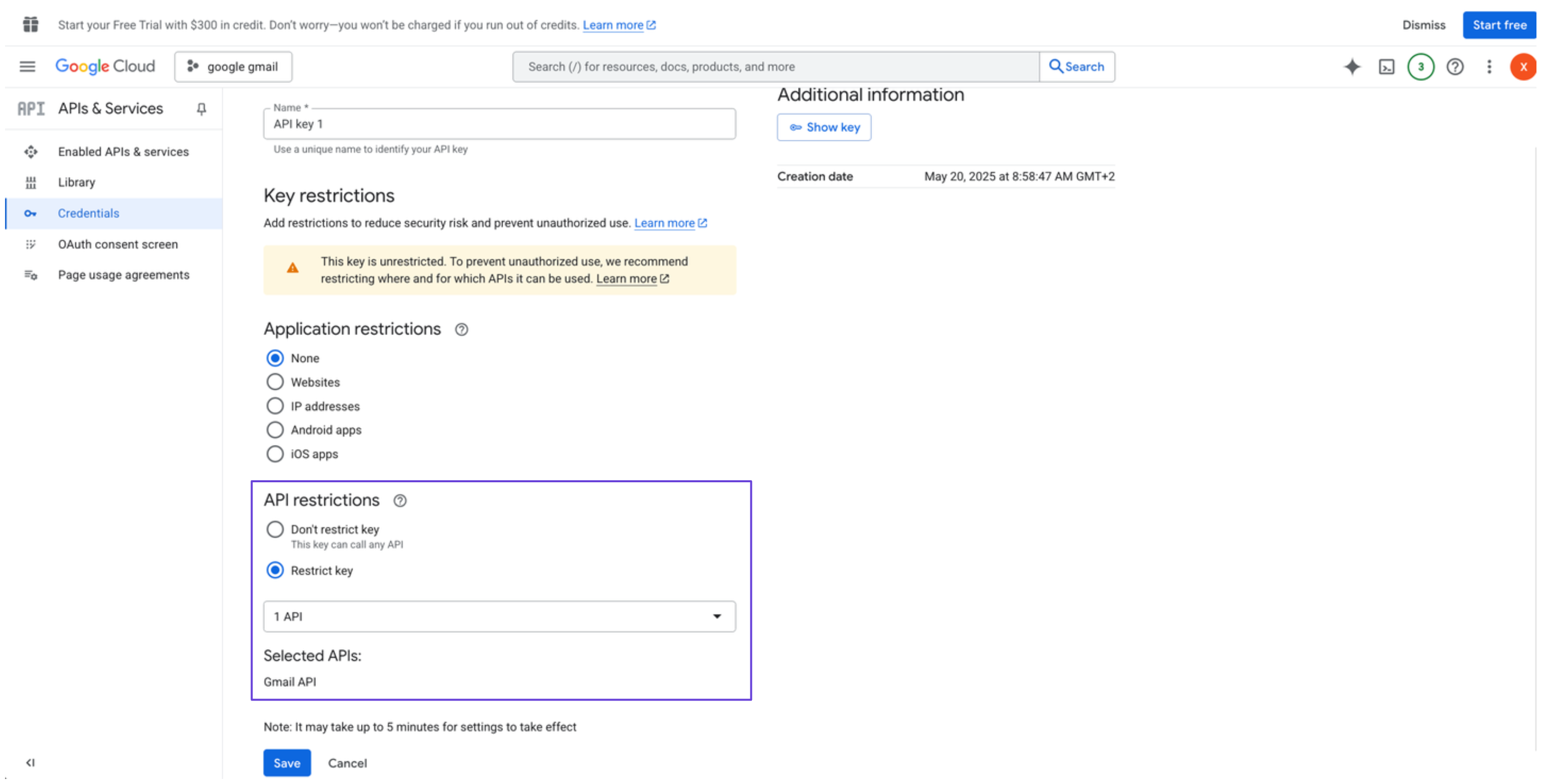
 7. Restrict the API key to Google Gmaiil API only (optional but recommended).\\
 ### Connect Gmail in xpander
1. In Xpander Chat, open the agent's settings and click **Add skill**.
2. Search for **Gmail** and select it.
3. Click **Other auth options**.
4. Enter a **connection name**, e.g., "xpander-google-gmail".
5. Choose **Organization** access (one shared account) or **Personal** (your own account, so the agent acts with your permissions where systems allow). On an agent other people use, a personal connection runs their requests as you unless the binding requires each person's own sign-in; see [whose credential a shared agent uses](/use/agents/permissions#whose-credential-a-shared-agent-uses).
6. Select **API Key** as the authentication method.
7. Paste the Gmail API key into the provided field.
8. Choose **Basic** as the **Type**.
9. Click **Connect**.
API keys provide limited functionality and are best for read-only operations on public files. For full access, use OAuth methods.
## Give an agent the Gmail skill
Once Gmail is connected, any agent you can edit may be given the skill: open the agent's settings, click **Add skill**, and choose **Gmail**. The skill panel lists the Gmail actions by group. Enable only the groups the agent needs, and mark the actions that should wait for a named person's sign-off under **These actions need approval**. Which skills exist for your organization, and who may add them, is decided by your admins; see [Skills](/use/skills).
## Related Resources
* [Skills](/use/skills)
* [Gmail API Documentation](https://developers.google.com/workspace/gmail/api/guides)
### Connect Gmail in xpander
1. In Xpander Chat, open the agent's settings and click **Add skill**.
2. Search for **Gmail** and select it.
3. Click **Other auth options**.
4. Enter a **connection name**, e.g., "xpander-google-gmail".
5. Choose **Organization** access (one shared account) or **Personal** (your own account, so the agent acts with your permissions where systems allow). On an agent other people use, a personal connection runs their requests as you unless the binding requires each person's own sign-in; see [whose credential a shared agent uses](/use/agents/permissions#whose-credential-a-shared-agent-uses).
6. Select **API Key** as the authentication method.
7. Paste the Gmail API key into the provided field.
8. Choose **Basic** as the **Type**.
9. Click **Connect**.
API keys provide limited functionality and are best for read-only operations on public files. For full access, use OAuth methods.
## Give an agent the Gmail skill
Once Gmail is connected, any agent you can edit may be given the skill: open the agent's settings, click **Add skill**, and choose **Gmail**. The skill panel lists the Gmail actions by group. Enable only the groups the agent needs, and mark the actions that should wait for a named person's sign-off under **These actions need approval**. Which skills exist for your organization, and who may add them, is decided by your admins; see [Skills](/use/skills).
## Related Resources
* [Skills](/use/skills)
* [Gmail API Documentation](https://developers.google.com/workspace/gmail/api/guides)