> ## Documentation Index
> Fetch the complete documentation index at: https://docs.xpander.ai/llms.txt
> Use this file to discover all available pages before exploring further.
# Google BigQuery
> Learn how to integrate AI agents with Google BigQuery using xpander.ai. Create intelligent workflows that automatically query, analyze, and act on large-scale datasets.
## About Google BigQuery
Google BigQuery is a fully managed, serverless data warehouse and analytics platform offered by Google Cloud.
Key features include:
* **Serverless Architecture**: BigQuery eliminates the need for infrastructure management, allowing users to focus solely on data analysis.
* **Scalability**: It can process petabytes of data quickly, making it suitable for large-scale analytics.
* **Built-in Machine Learning**: With BigQuery ML, users can create and execute machine learning models directly within BigQuery using SQL, facilitating predictive analytics without extensive ML expertise.
* **Real-time Analytics**: BigQuery supports real-time data analysis, enabling timely insights for decision-making.
* **Integration with Google Cloud Ecosystem**: It seamlessly integrates with other Google Cloud services, such as Cloud Storage, Dataflow, and Looker Studio, enhancing data processing and visualization capabilities.
## Authentication Options
Below are possible authentication options you can choose:
The simplest way to connect to Google BigQuery is by using xpander.ai's built-in authentication:
1. Go to the **Connectors** section in the sidebar of your xpander.ai dashboard.
2. Select **BigQuery** from the available integrations.
3. Click **Sign in with BigQuery**.
4. Grant xpander.ai permission to access your account.
5. Your Google BigQuery integration is now ready to use.
### Generate a Google BigQuery API Token
1. You’ll need access to the Google Cloud CLI tool to obtain your token. If it’s already installed, skip to step 5.
2. Download the Google Cloud CLI tool.
3. In the directory where you downloaded and extracted the SDK, run the installation script:
```
./google-cloud-sdk/install.sh
```
4. After installation, add the SDK’s `bin` directory to your `$PATH`:
```
export PATH="$PATH:$HOME/Downloads/google-cloud-sdk/bin"
```
5. Initialize the gcloud CLI:
```
./google-cloud-sdk/bin/gcloud init
```
6. Run the following command and copy the token it generates:
```
gcloud auth print-access-token
```
### Integrate Google BigQuery into xpander.ai
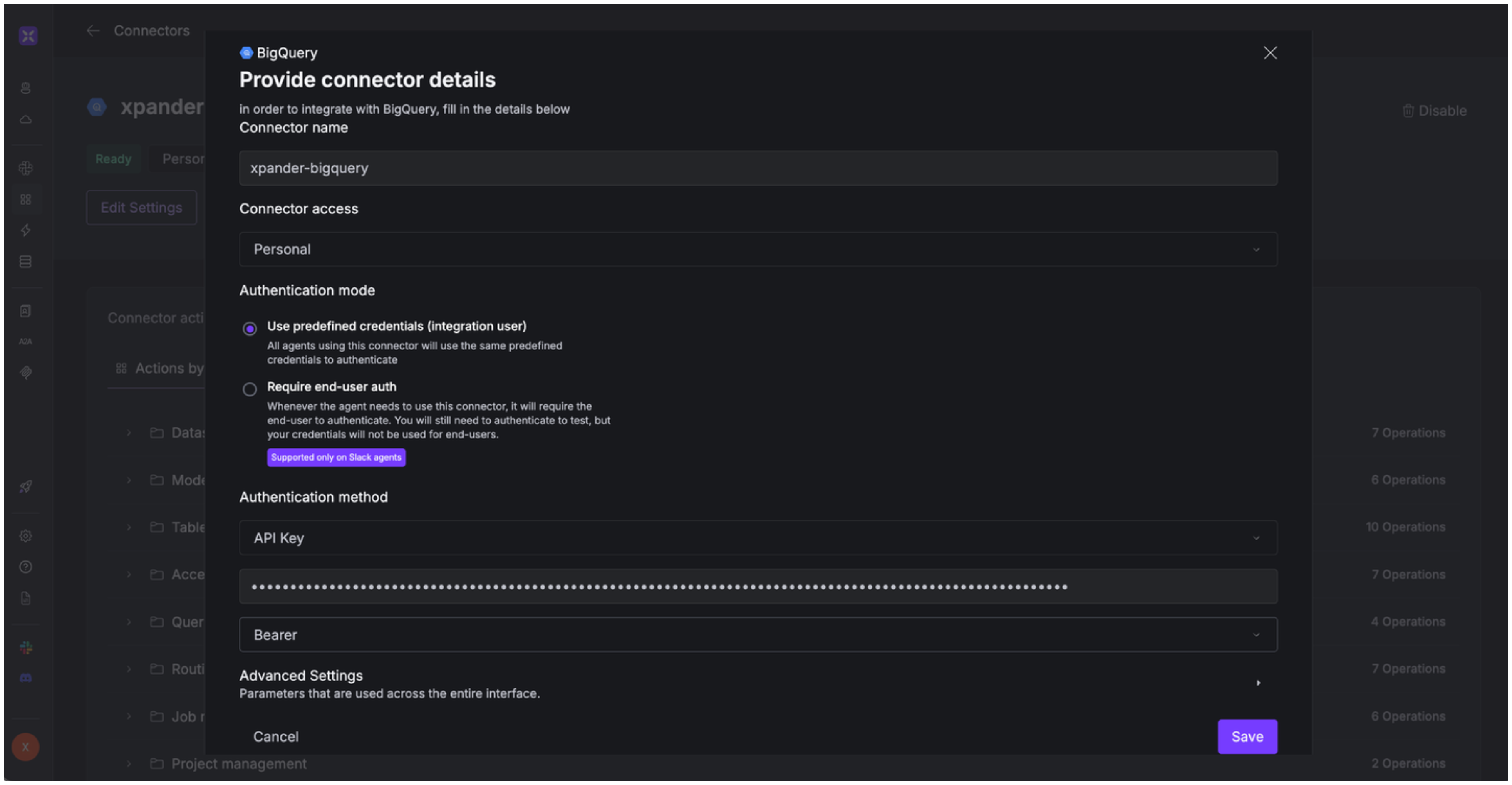
1. Go to the **Connectors** section in the sidebar of your xpander.ai dashboard.
2. Select **BigQuery** from the available integrations.
3. Click **Other auth options**.
4. Enter a **connector name**, e.g., "xpander-bigquery".
5. Select **Integration User** as the authentication mode.
6. Select **API Key** as the authentication method.
7. Paste the Google BigQuery access token into the provided field.
8. Choose **Bearer** as the **Auth Type**.
9. Save the configuration.\\
 ## Integration of Google BigQuery into AI Agent
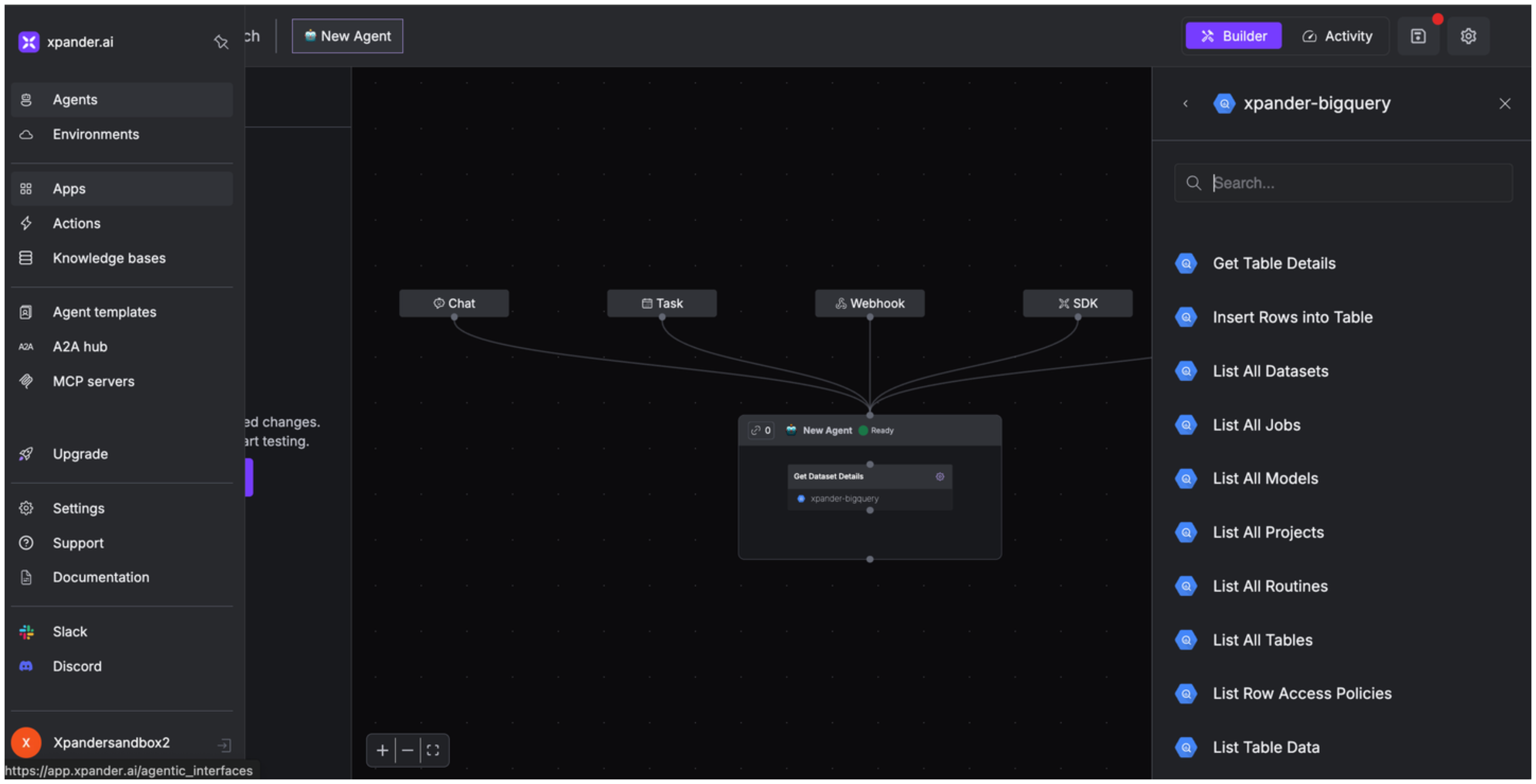
Once you've configured your Google BigQuery account with the authentication option(s) described above, you can integrate it into your AI agent with xpander.ai:
1. In your xpander.ai dashboard, go to the **Agent Configuration** tab and select **Tools**, then click **Add Tools**.
2. Select **Connectors**.
3. Choose **BigQuery** with the same **connector name** you configured in the previous section (e.g., xpander-bigquery).
4. Select the available Google BigQuery operations that suit your use case.
## Integration of Google BigQuery into AI Agent
Once you've configured your Google BigQuery account with the authentication option(s) described above, you can integrate it into your AI agent with xpander.ai:
1. In your xpander.ai dashboard, go to the **Agent Configuration** tab and select **Tools**, then click **Add Tools**.
2. Select **Connectors**.
3. Choose **BigQuery** with the same **connector name** you configured in the previous section (e.g., xpander-bigquery).
4. Select the available Google BigQuery operations that suit your use case.
 ## Expose Google BigQuery as MCP Server
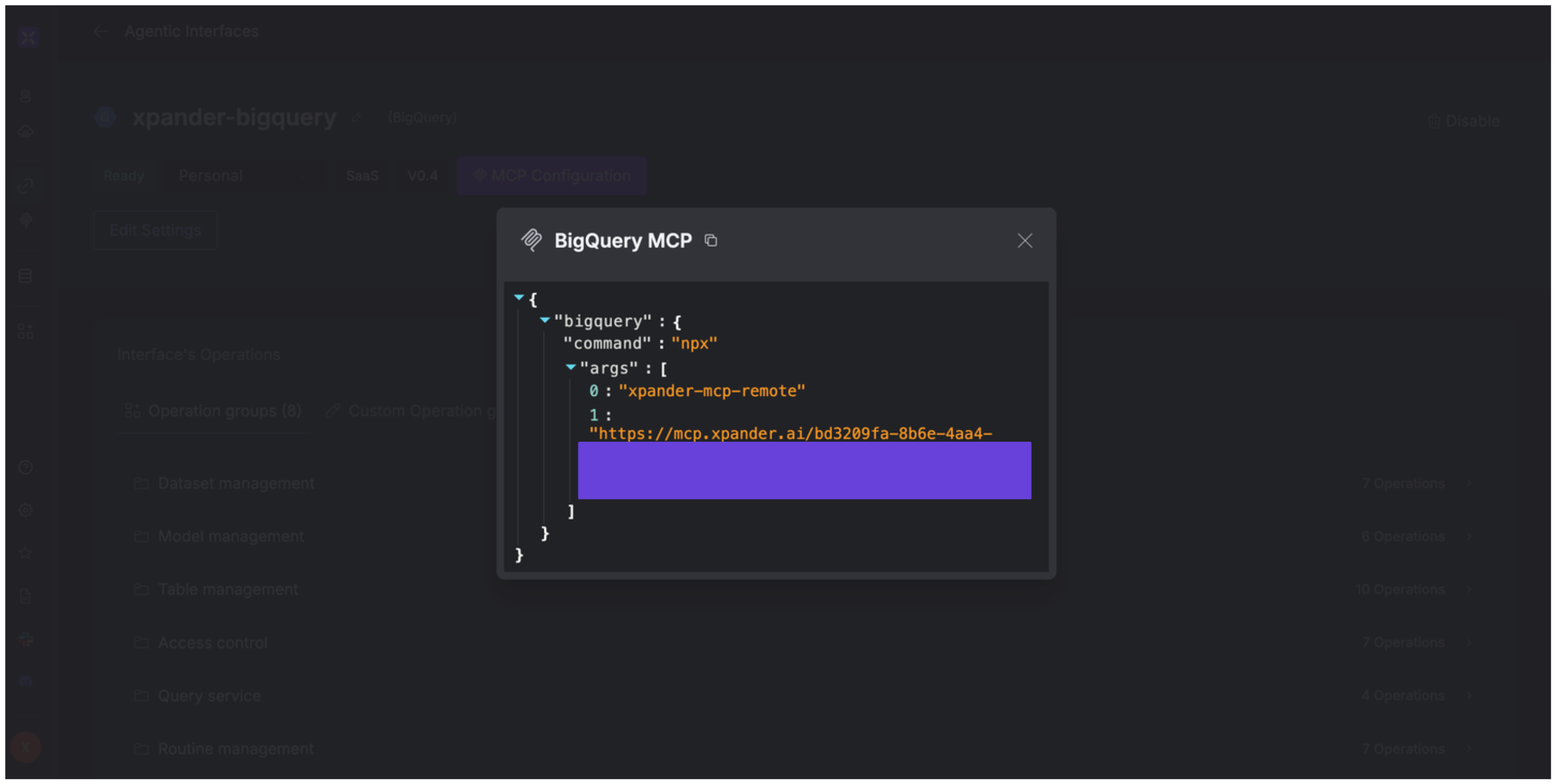
Alternatively, you can also expose your Google BigQuery account as an MCP server. To do so:
1. Go to the **Connectors** section in the sidebar of your xpander.ai dashboard.
2. Select **BigQuery** with the same **connector name** you configured in the previous section (e.g., xpander-bigquery).
3. Click **MCP Configuration**.
4. Enter the MCP configuration into the appropriate settings of the client app you want to use (e.g., Cursor, Windsurf, Claude Desktop, etc.).
## Expose Google BigQuery as MCP Server
Alternatively, you can also expose your Google BigQuery account as an MCP server. To do so:
1. Go to the **Connectors** section in the sidebar of your xpander.ai dashboard.
2. Select **BigQuery** with the same **connector name** you configured in the previous section (e.g., xpander-bigquery).
3. Click **MCP Configuration**.
4. Enter the MCP configuration into the appropriate settings of the client app you want to use (e.g., Cursor, Windsurf, Claude Desktop, etc.).
 ## AI Agent Google BigQuery Prompt Library
Below are possible prompts or use cases you can try after integrating Google BigQuery into your xpander AI agent:
```
Could you show me all datasets within the {project_name} project?
```
```
Can you create a new dataset called {dataset_name} in our {project_name} project with a 30-day expiration policy?
```
```
I need detailed information about the {dataset_name} dataset in our {project_name} project. Can you retrieve that?
```
```
Can you run this SQL query "{query_string}" on our {project_name} project using the {dataset_name}?
```
## Related Resources
* [Understanding Model Context Protocol (MCP)](/guides/deploy/mcp)
* [BigQuery API Documentation](https://cloud.google.com/bigquery/docs/reference/rest)
## AI Agent Google BigQuery Prompt Library
Below are possible prompts or use cases you can try after integrating Google BigQuery into your xpander AI agent:
```
Could you show me all datasets within the {project_name} project?
```
```
Can you create a new dataset called {dataset_name} in our {project_name} project with a 30-day expiration policy?
```
```
I need detailed information about the {dataset_name} dataset in our {project_name} project. Can you retrieve that?
```
```
Can you run this SQL query "{query_string}" on our {project_name} project using the {dataset_name}?
```
## Related Resources
* [Understanding Model Context Protocol (MCP)](/guides/deploy/mcp)
* [BigQuery API Documentation](https://cloud.google.com/bigquery/docs/reference/rest)