> ## Documentation Index
> Fetch the complete documentation index at: https://docs.xpander.ai/llms.txt
> Use this file to discover all available pages before exploring further.
# Google Cloud Monitoring
> Learn how to integrate AI agents with Google Cloud Monitoring using xpander.ai. Create intelligent AI agents that can automatically track metrics, respond to alerts, and take action on real-time performance and system health insights across your cloud infrastructure.
## About Google Cloud Monitoring
**Google Cloud Monitoring** is a fully managed observability and monitoring platform offered by Google Cloud.
Key features include:
* **Comprehensive Metrics Collection**: Collects metrics from Google Cloud services, virtual machines, containers, databases, and custom applications to provide deep visibility into system performance and health.
* **Real-Time Alerting**: Create and manage alerting policies based on metrics, thresholds, and logs to detect and respond to incidents proactively.
* **Uptime Monitoring**: Monitor the availability and responsiveness of applications and endpoints from multiple global locations.
* **Integration with Google Cloud Ecosystem**: Seamlessly integrates with services like Cloud Logging, Cloud Trace, Kubernetes Engine (GKE), and other GCP tools to provide a unified observability experience across your cloud environment.
## Authentication Options
Below are possible authentication options you can choose:
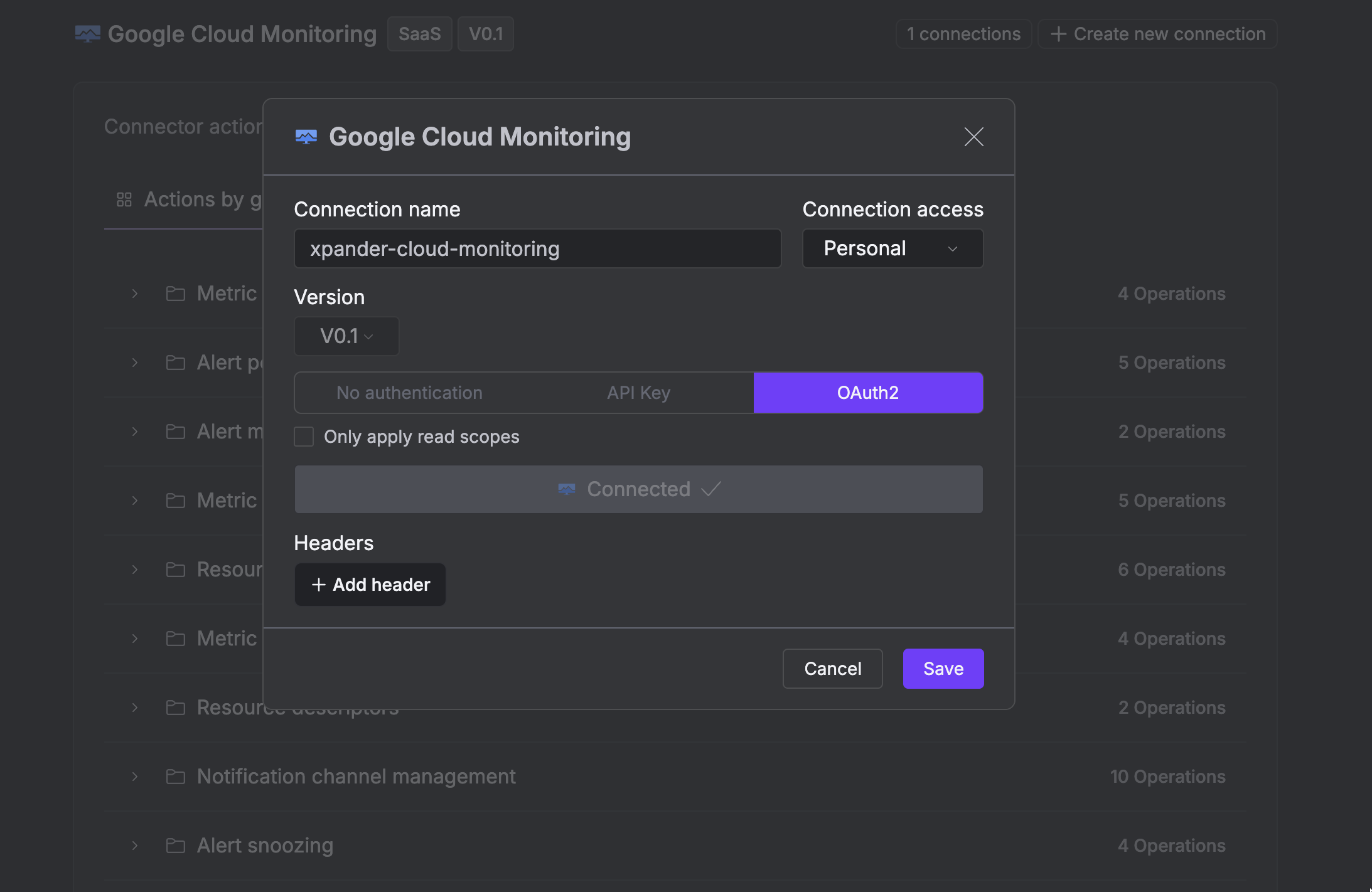
The simplest way to connect Google Cloud Monitoring is by using xpander.ai's built-in authentication:
1. Go to the **Connectors** section in the sidebar of your xpander.ai dashboard.
2. Select **Google Cloud Monitoring** from the available integrations.
3. Click **+ Create new connection**.
4. Enter a **connector name** as desired, e.g., "xpander-cloud-monitoring".
5. Choose **OAuth2** as the authentication method.
6. Click **Sign in with Google Cloud Monitoring**.
7. Grant xpander.ai permission to access your account.
8. Save the configuration.
 ### Generate a Google Cloud Monitoring API Token
1. You’ll need access to the Google Cloud CLI tool to obtain your token. If it’s already installed, skip to step 5.
2. Download the Google Cloud CLI tool.
3. In the directory where you downloaded and extracted the SDK, run the installation script:
```
./google-cloud-sdk/install.sh
```
4. After installation, add the SDK’s `bin` directory to your `$PATH`:
```
export PATH="$PATH:$HOME/Downloads/google-cloud-sdk/bin"
```
5. Initialize the gcloud CLI:
```
./google-cloud-sdk/bin/gcloud init
```
6. Run the following command and copy the token it generates:
```
gcloud auth print-access-token
```
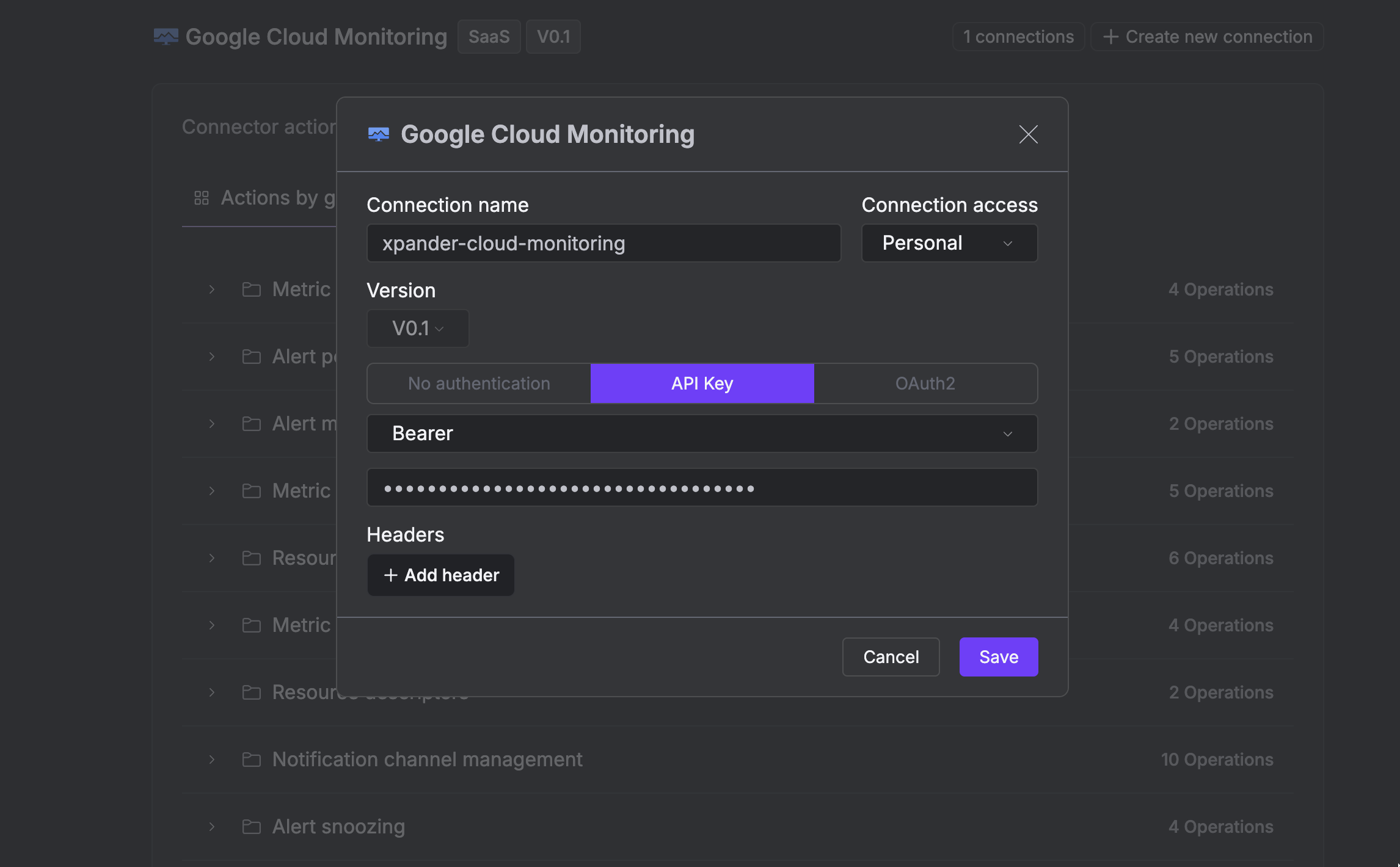
### Integrate Google Cloud Monitoring into xpander.ai
1. Go to the **Connectors** section in the sidebar of your xpander.ai dashboard.
2. Select **Google Cloud Monitoring** from the available integrations.
3. Click **+ Create new connection**.
4. Enter a **connector name** as desired, e.g., "xpander-cloud-monitoring".
5. Choose **API Key** as the authentication method.
6. Paste your Google Cloud Monitoring access token into the provided field.
7. Choose **Bearer** as the **Auth Type**.
8. Save the configuration.
### Generate a Google Cloud Monitoring API Token
1. You’ll need access to the Google Cloud CLI tool to obtain your token. If it’s already installed, skip to step 5.
2. Download the Google Cloud CLI tool.
3. In the directory where you downloaded and extracted the SDK, run the installation script:
```
./google-cloud-sdk/install.sh
```
4. After installation, add the SDK’s `bin` directory to your `$PATH`:
```
export PATH="$PATH:$HOME/Downloads/google-cloud-sdk/bin"
```
5. Initialize the gcloud CLI:
```
./google-cloud-sdk/bin/gcloud init
```
6. Run the following command and copy the token it generates:
```
gcloud auth print-access-token
```
### Integrate Google Cloud Monitoring into xpander.ai
1. Go to the **Connectors** section in the sidebar of your xpander.ai dashboard.
2. Select **Google Cloud Monitoring** from the available integrations.
3. Click **+ Create new connection**.
4. Enter a **connector name** as desired, e.g., "xpander-cloud-monitoring".
5. Choose **API Key** as the authentication method.
6. Paste your Google Cloud Monitoring access token into the provided field.
7. Choose **Bearer** as the **Auth Type**.
8. Save the configuration.
 ## Integration of Google Cloud Monitoring into an AI Agent
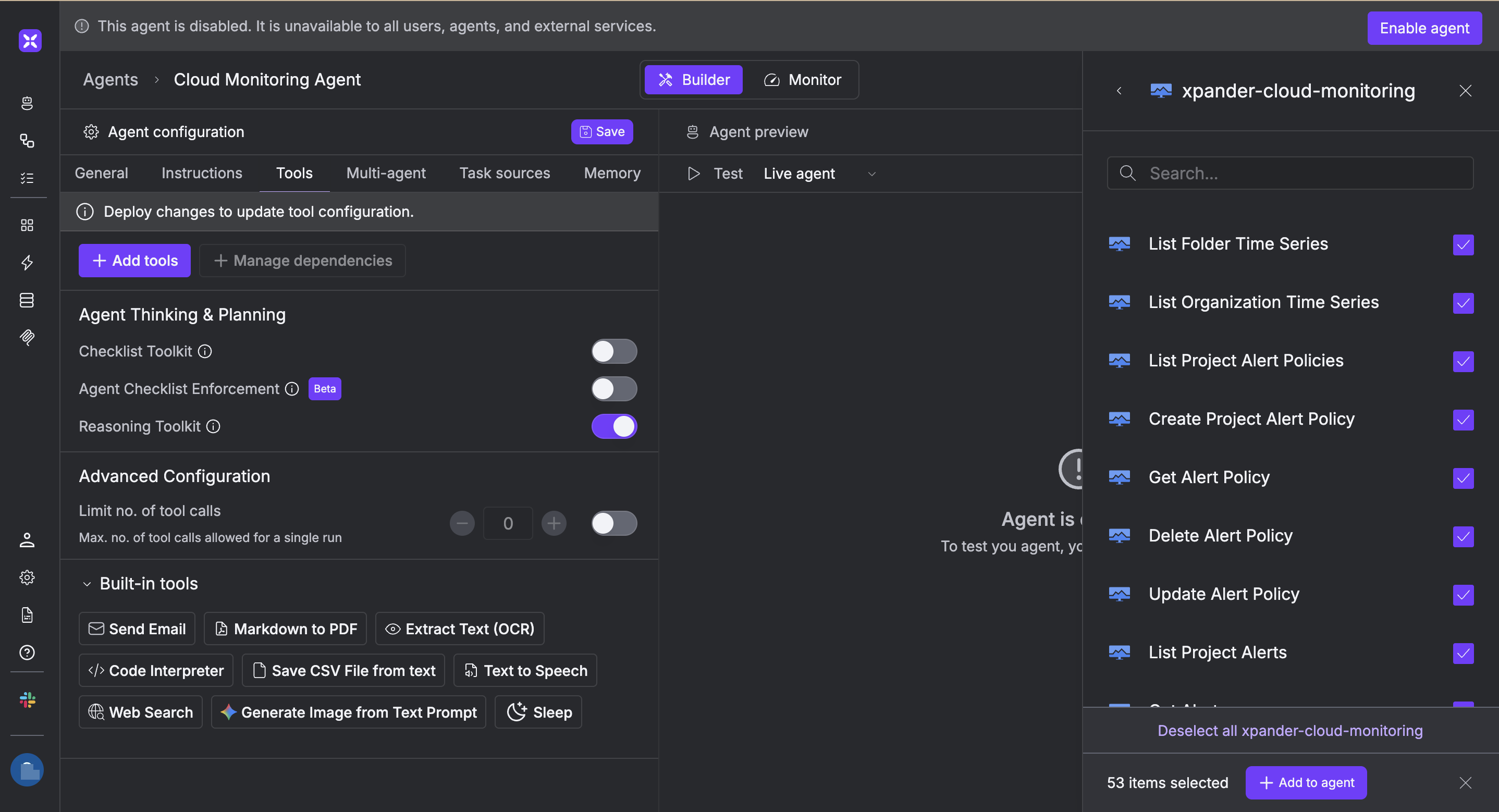
Once you’ve configured your Google Cloud Monitoring connector with the authentication option described above, you can integrate it into your AI agent with xpander.ai:
1. In your xpander.ai dashboard, navigate to the **Agents** page, then click an agent to open the **Agent Configuration** tab.
2. Select **Tools**, then click **Add Tools**.
3. Select **Connectors**.
4. Choose **Google Cloud Monitoring** with the same **connector name** you configured in the previous section (e.g., xpander-cloud-monitoring).
5. Select the available Google Cloud Monitoring operations that suit your use case.
To grant your agent cloud monitoring capabilities, enable the following operations.
* **List Project Alerts**
* **Get Alert**
* **List Folder Time Series**
* **Get Alert Policy**
* **List Metric Descriptor**
* **List Project Alert Snoozes**
6. Click **Deploy** to update your agent.
## Integration of Google Cloud Monitoring into an AI Agent
Once you’ve configured your Google Cloud Monitoring connector with the authentication option described above, you can integrate it into your AI agent with xpander.ai:
1. In your xpander.ai dashboard, navigate to the **Agents** page, then click an agent to open the **Agent Configuration** tab.
2. Select **Tools**, then click **Add Tools**.
3. Select **Connectors**.
4. Choose **Google Cloud Monitoring** with the same **connector name** you configured in the previous section (e.g., xpander-cloud-monitoring).
5. Select the available Google Cloud Monitoring operations that suit your use case.
To grant your agent cloud monitoring capabilities, enable the following operations.
* **List Project Alerts**
* **Get Alert**
* **List Folder Time Series**
* **Get Alert Policy**
* **List Metric Descriptor**
* **List Project Alert Snoozes**
6. Click **Deploy** to update your agent.
 ## AI Agent Google Cloud Monitoring Prompt Library
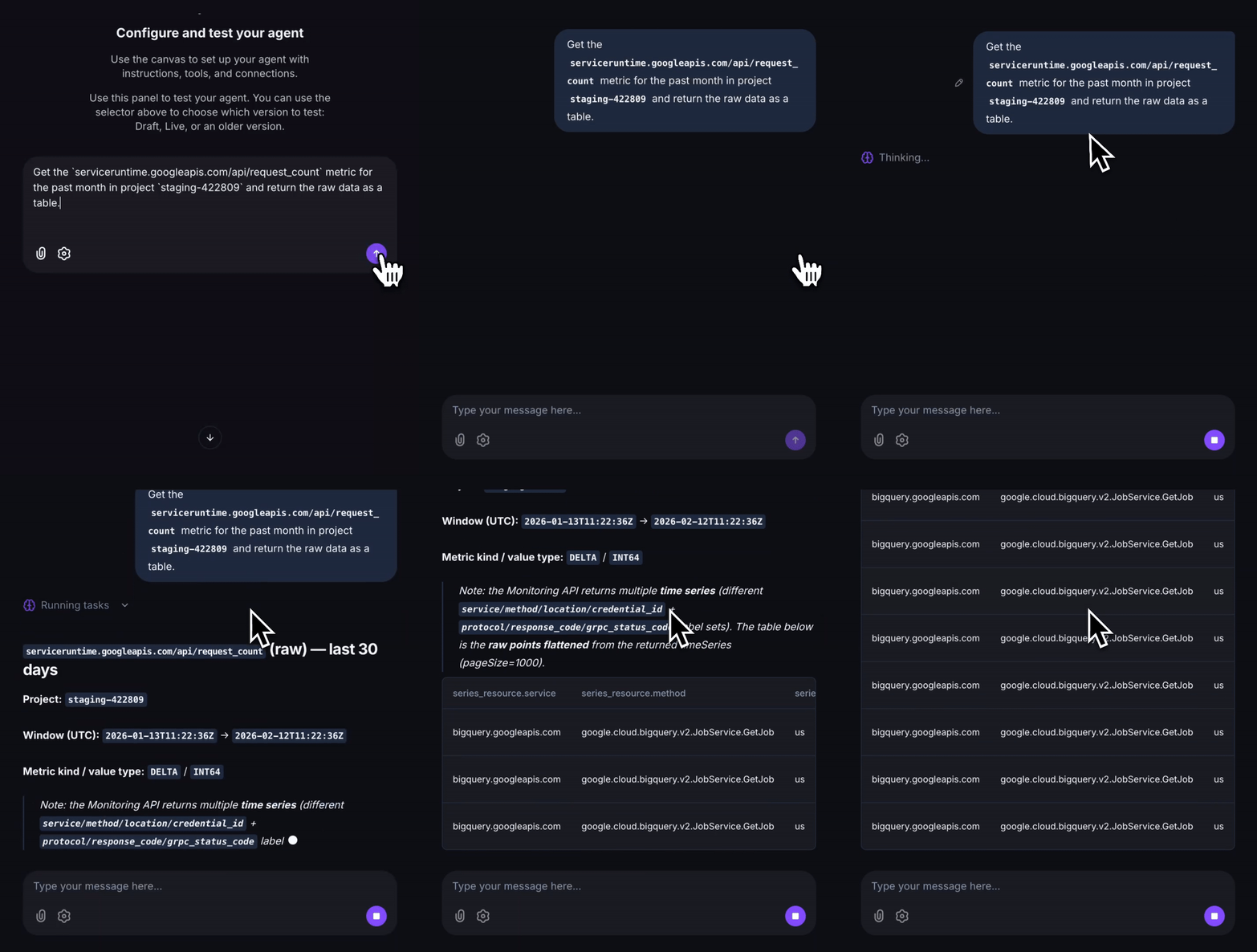
Below are possible prompts or use cases you can try after integrating Google Cloud Monitoring into your xpander.ai AI agent:
```
List all active alerting policies in my Google Cloud project.
```
```
Show me the CPU utilization metrics for my Compute Engine instances in the last 24 hours.
```
```
Show uptime check results for over the past 7 days.
```
```
Get memory usage metrics for for the last 1 hour.
```
## AI Agent Google Cloud Monitoring Prompt Library
Below are possible prompts or use cases you can try after integrating Google Cloud Monitoring into your xpander.ai AI agent:
```
List all active alerting policies in my Google Cloud project.
```
```
Show me the CPU utilization metrics for my Compute Engine instances in the last 24 hours.
```
```
Show uptime check results for over the past 7 days.
```
```
Get memory usage metrics for for the last 1 hour.
```
 ## Related Resources
* [Using Tools & Connectors in the xpander.ai platform](/guides/agents/tools-connectors)
* [Google Cloud Monitoring Documentation](https://docs.cloud.google.com/monitoring/docs)
## Related Resources
* [Using Tools & Connectors in the xpander.ai platform](/guides/agents/tools-connectors)
* [Google Cloud Monitoring Documentation](https://docs.cloud.google.com/monitoring/docs)