> ## Documentation Index
> Fetch the complete documentation index at: https://docs.xpander.ai/llms.txt
> Use this file to discover all available pages before exploring further.
# Google Docs
> Learn how to integrate AI agents with Google Docs using xpander.ai. Create intelligent workflows that automatically analyze, summarize, and generate content within your documents.
## About Google Docs
Google Docs is a free, web-based word processor developed by Google, allowing users to create, edit, and collaborate on documents in real-time.
Key features include:
* **Real-Time Collaboration**: Multiple users can work on a document simultaneously, with changes reflected instantly.
* **Cloud-Based Access**: Documents are stored in Google Drive, ensuring access from any device with internet connectivity.
* **Version History**: Track and revert to previous versions of a document.
* **Offline Editing**: With the Google Docs Offline extension, users can edit documents without an internet connection.
* **Compatibility**: Supports various file formats, including Microsoft Word (.docx), and allows exporting to formats like PDF.
## Authentication Options
Below are possible authentication options you can choose:
The simplest way to connect Google Docs is by using xpander.ai's built-in authentication:
1. Go to the **Connectors** section in the sidebar of your xpander.ai dashboard.
2. Select **Google Docs** from the available integrations.
3. Click **Sign in with Google Docs**.
4. Grant xpander.ai permission to access your account.
5. Your Google Docs integration is now ready to use.
This method is recommended for most users. xpander.ai securely manages your OAuth tokens without exposing any credentials.
### Generate a Google Docs API Key
1. Log in to your [Google Cloud Console](https://console.cloud.google.com/).
2. Create a new project or select an existing one.\\
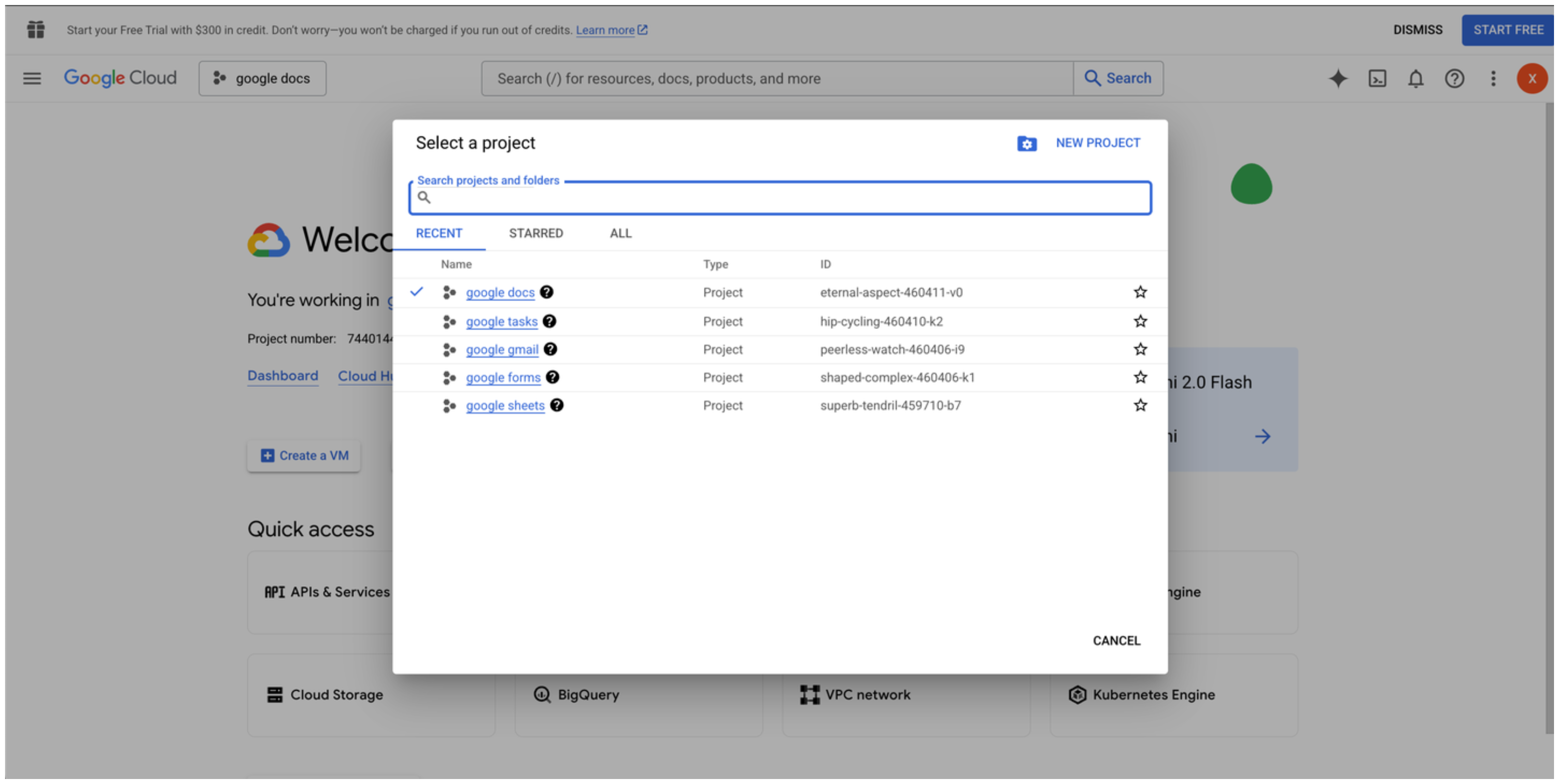 3. Go to the [Google Cloud API Library](https://console.cloud.google.com/apis/library).\\
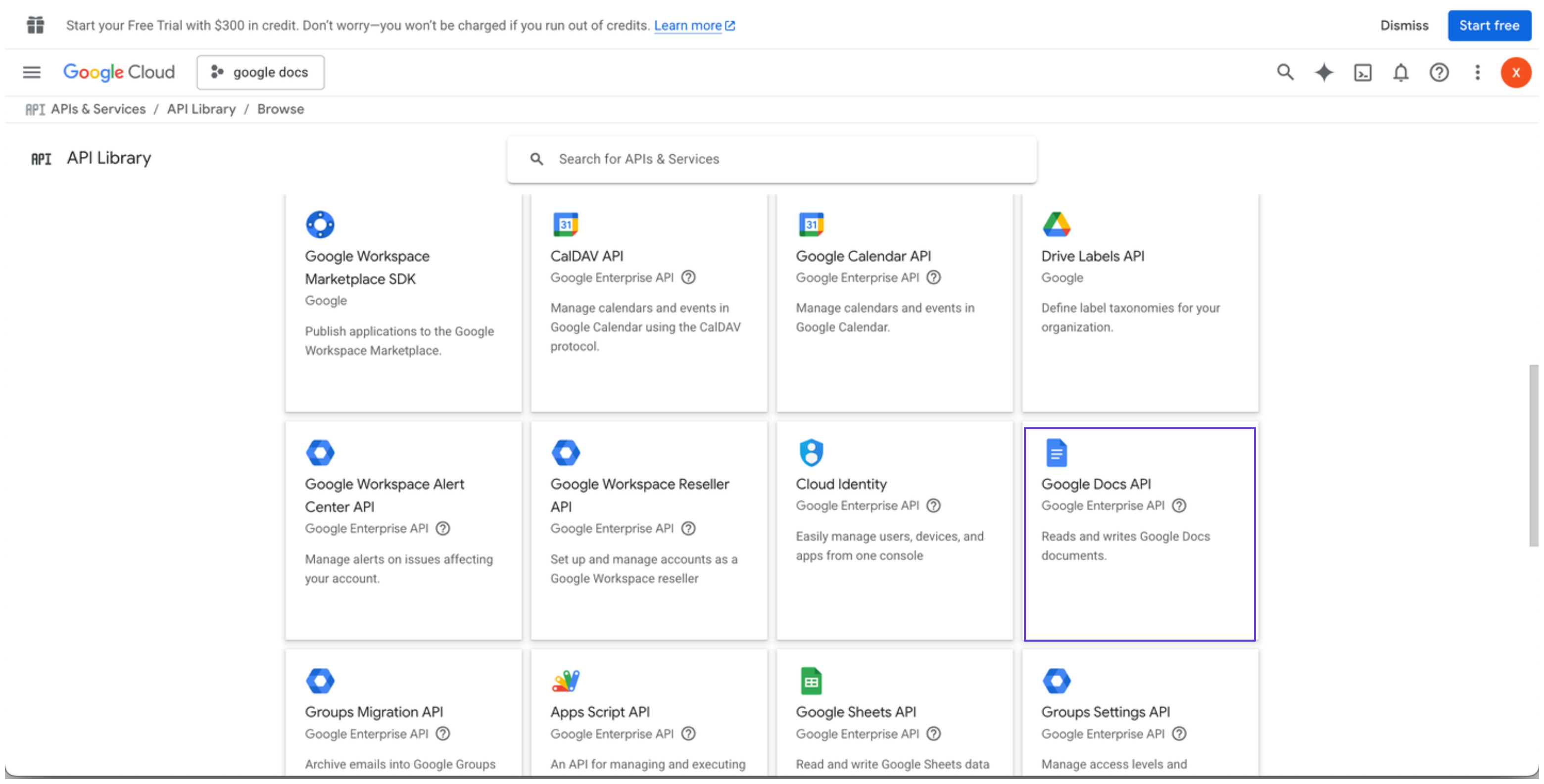 4. Search for and select **Google Docs API**, then click **Enable**.
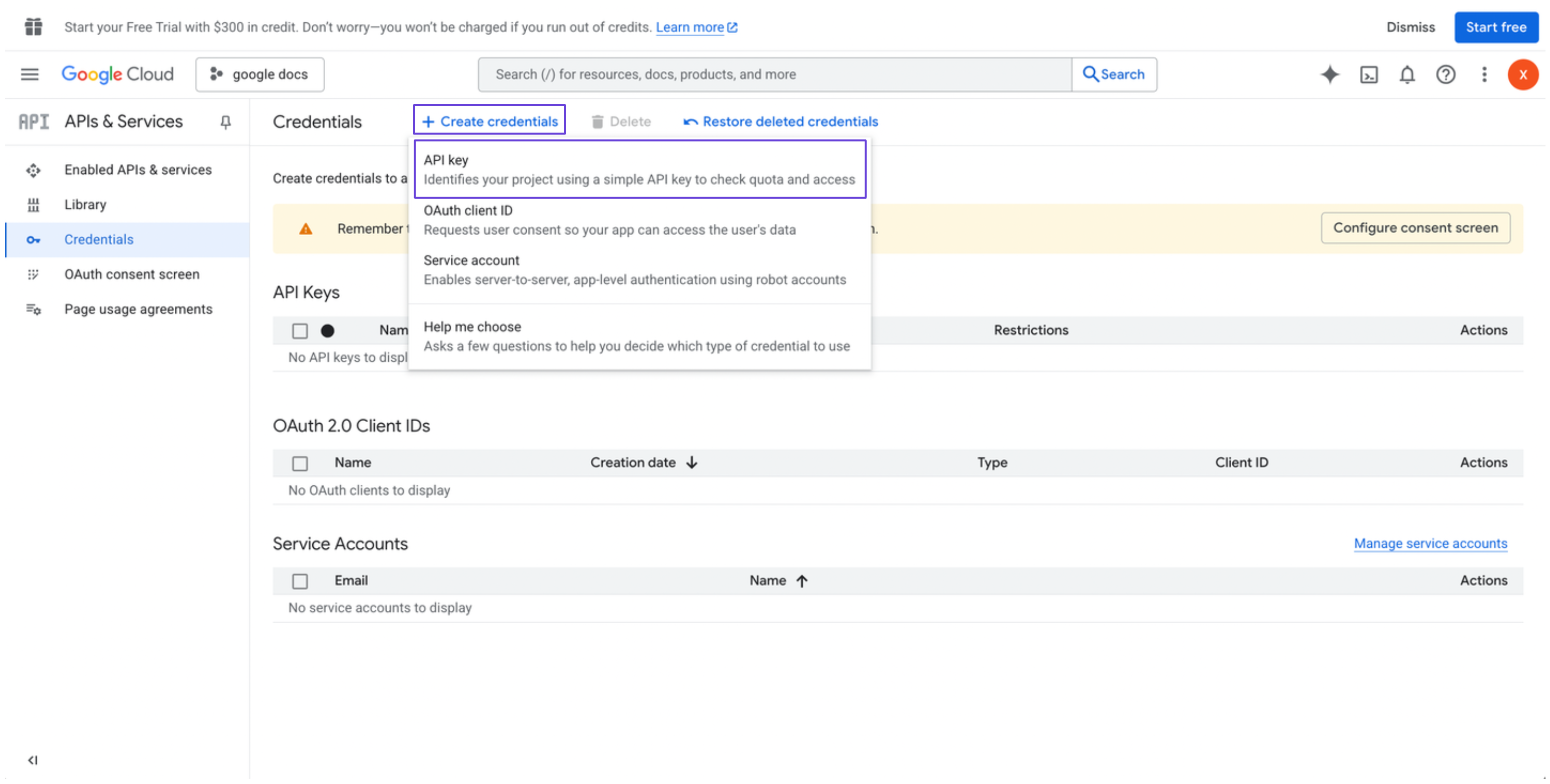
5. In the sidebar, go to **Credentials**.
6. Click **Create credentials**, and select **API key**.\\
4. Search for and select **Google Docs API**, then click **Enable**.
5. In the sidebar, go to **Credentials**.
6. Click **Create credentials**, and select **API key**.\\
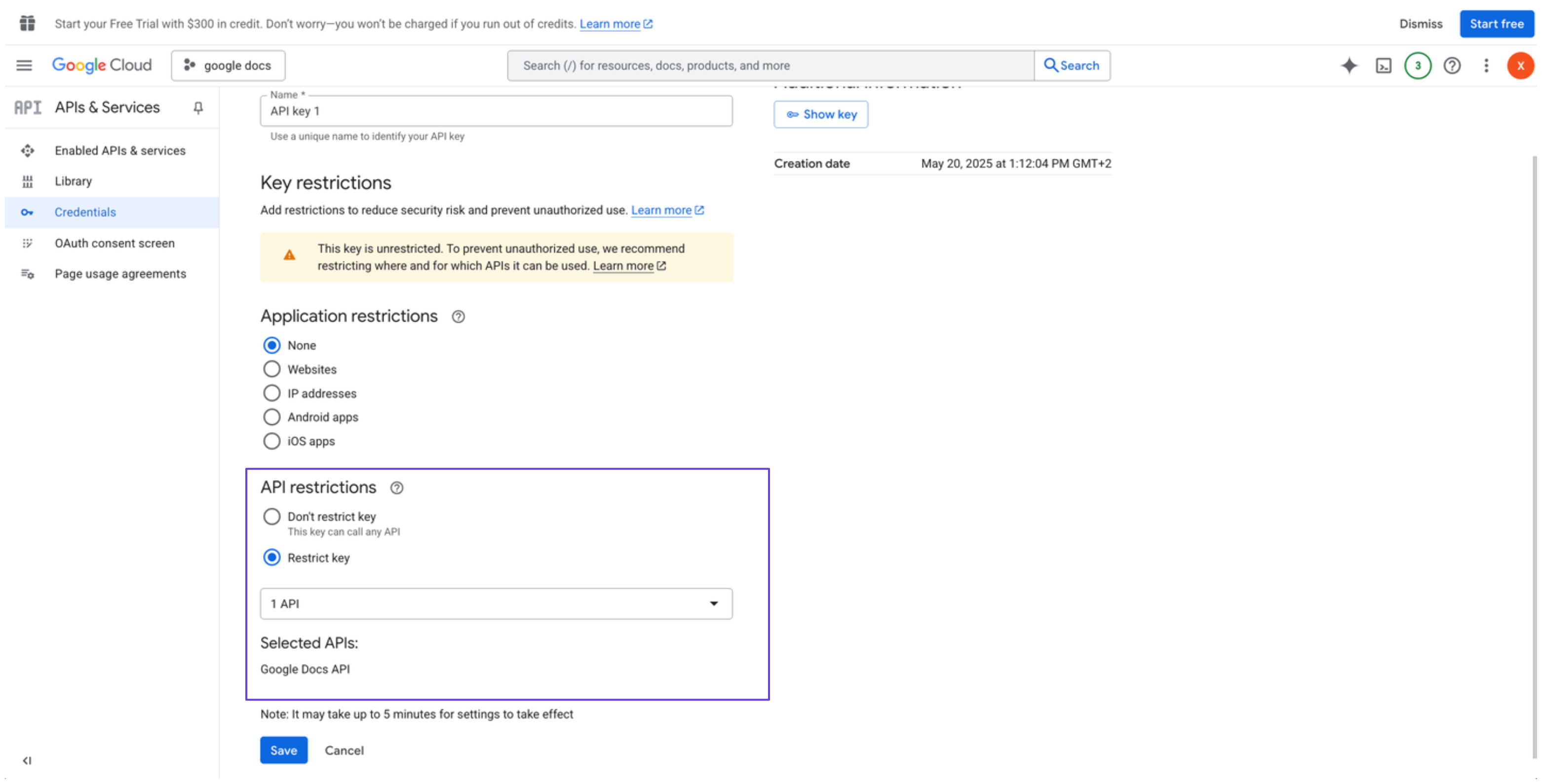
 7. Restrict the API key to Google Docs API only (optional but recommended).\\
 ### Integrate Google Docs into xpander.ai
1. Go to the **Connectors** section in the sidebar of your xpander.ai dashboard.
2. Select **Google Docs** from the available integrations.
3. Click **Other auth options**.
4. Enter a **connector name**, e.g., "xpander-google-docs".
5. Select **Integration User** as the authentication mode.
6. Select **API Key** as the authentication method.
7. Paste the Google Docs API key into the provided field.
8. Choose **Basic** as the **Auth Type**.
9. Save the configuration.\\
### Integrate Google Docs into xpander.ai
1. Go to the **Connectors** section in the sidebar of your xpander.ai dashboard.
2. Select **Google Docs** from the available integrations.
3. Click **Other auth options**.
4. Enter a **connector name**, e.g., "xpander-google-docs".
5. Select **Integration User** as the authentication mode.
6. Select **API Key** as the authentication method.
7. Paste the Google Docs API key into the provided field.
8. Choose **Basic** as the **Auth Type**.
9. Save the configuration.\\
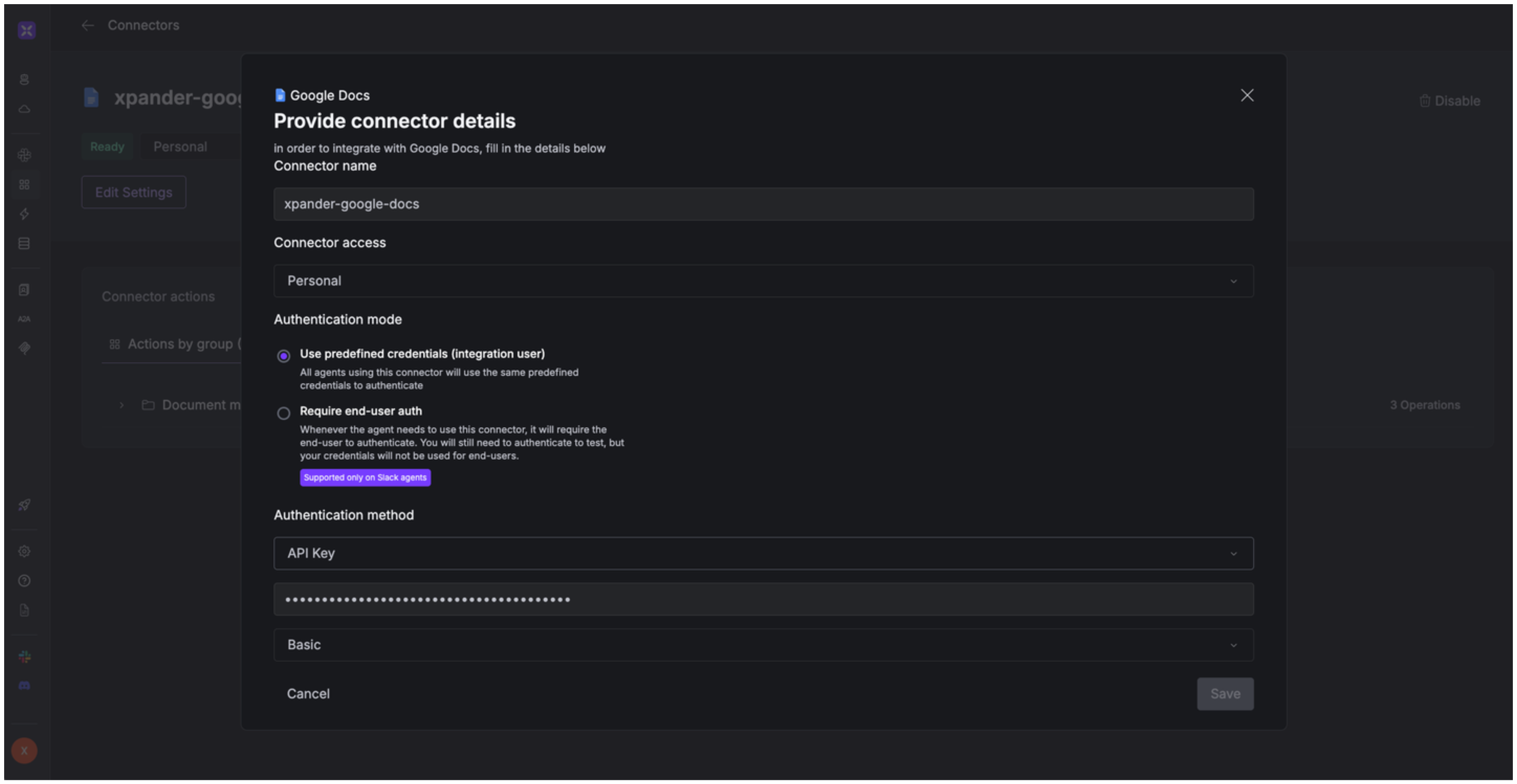 API keys provide limited functionality and are best for read-only operations on public files. For full access, use OAuth methods.
## Integration of Google Docs into AI Agent
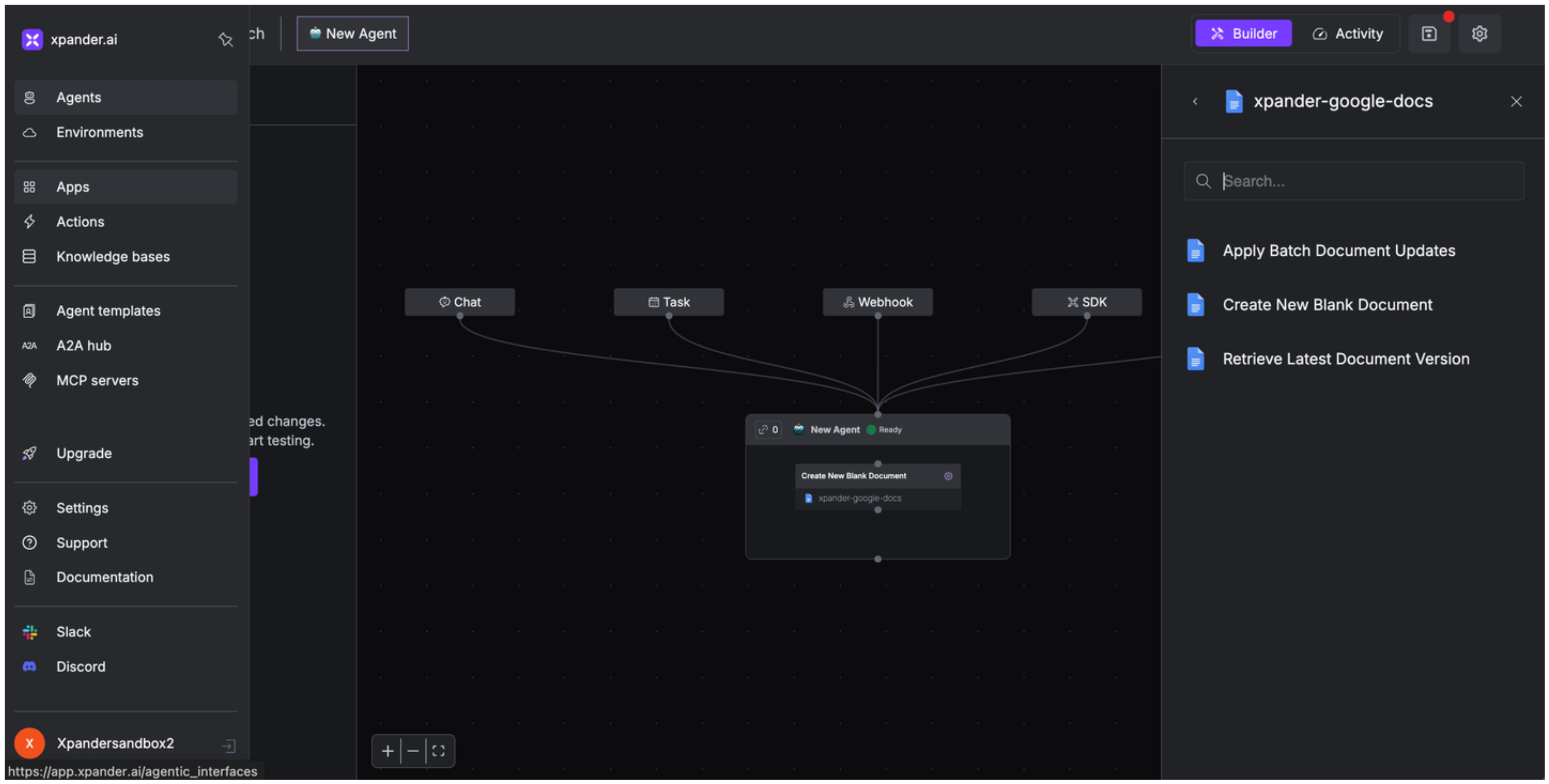
Once you've configured your Google Docs account with the authentication option(s) described above, you can integrate it into your AI agent with xpander.ai:
1. In your xpander.ai dashboard, go to the **Agent Configuration** tab and select **Tools**, then click **Add Tools**.
2. Select **Connectors**.
3. Choose **Google Docs** with the same **connector name** you configured in the previous section (e.g., xpander-google-docs).
4. Select the available Google Docs operations that suit your use case.
API keys provide limited functionality and are best for read-only operations on public files. For full access, use OAuth methods.
## Integration of Google Docs into AI Agent
Once you've configured your Google Docs account with the authentication option(s) described above, you can integrate it into your AI agent with xpander.ai:
1. In your xpander.ai dashboard, go to the **Agent Configuration** tab and select **Tools**, then click **Add Tools**.
2. Select **Connectors**.
3. Choose **Google Docs** with the same **connector name** you configured in the previous section (e.g., xpander-google-docs).
4. Select the available Google Docs operations that suit your use case.
 ## Expose Google Docs as MCP Server
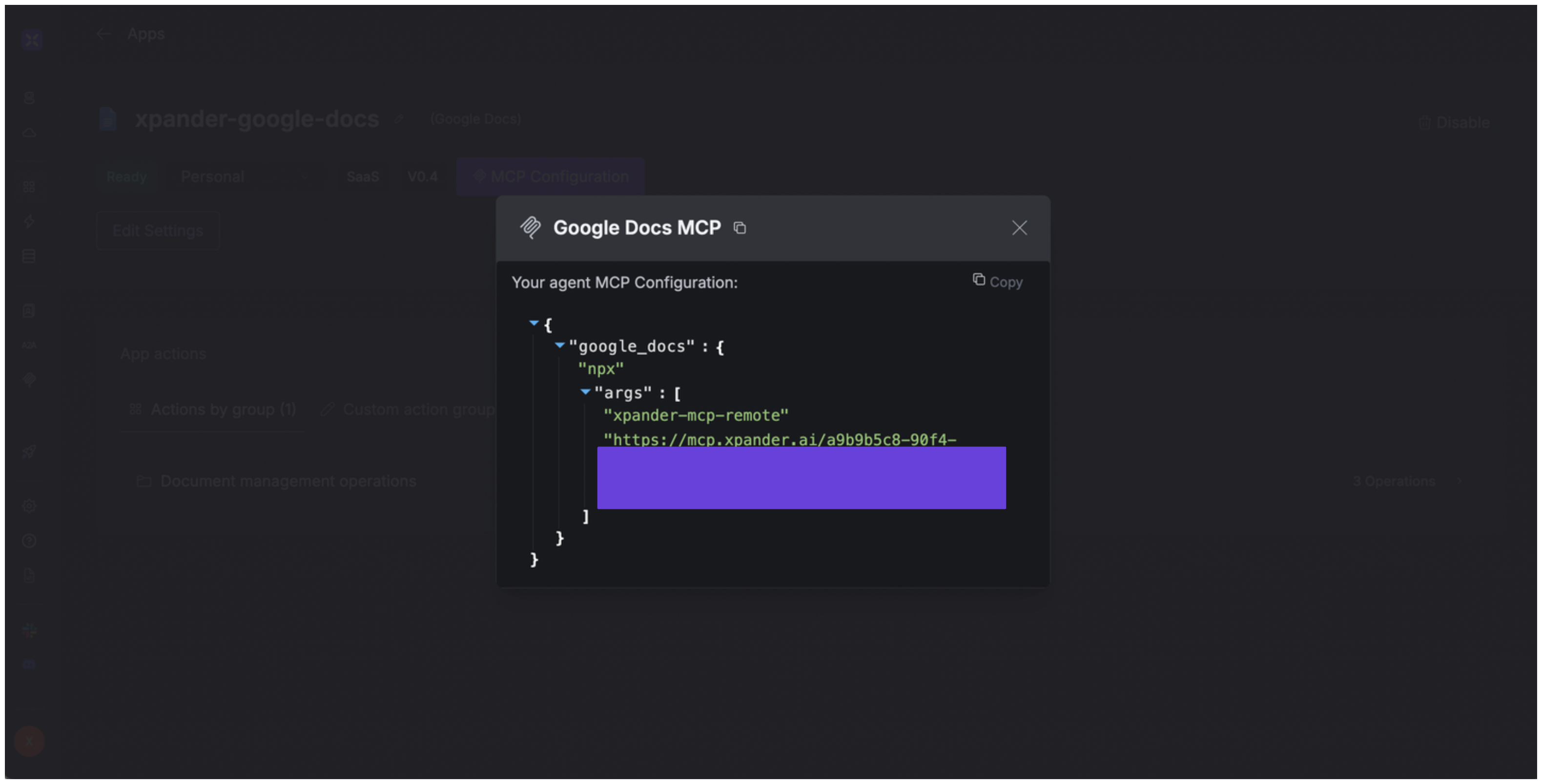
Alternatively, you can also expose your Google Docs account as an MCP server. To do so:
1. Go to the **Connectors** section in the sidebar of your xpander.ai dashboard.
2. Select **Google Docs** with the same **connector name** you configured in the previous section (e.g., xpander-google-docs).
3. Click **MCP Configuration**.
4. Enter the MCP configuration into the appropriate settings of the client app you want to use (e.g., Cursor, Windsurf, Claude Desktop, etc.).
## Expose Google Docs as MCP Server
Alternatively, you can also expose your Google Docs account as an MCP server. To do so:
1. Go to the **Connectors** section in the sidebar of your xpander.ai dashboard.
2. Select **Google Docs** with the same **connector name** you configured in the previous section (e.g., xpander-google-docs).
3. Click **MCP Configuration**.
4. Enter the MCP configuration into the appropriate settings of the client app you want to use (e.g., Cursor, Windsurf, Claude Desktop, etc.).
 ## AI Agent Google Docs Prompt Library
Below are possible prompts or use cases you can try after integrating Google Docs into your xpander AI agent:
```
Can you create a new document titled {document_title} for our {project_name} project?
```
```
Can you update the text style in document {document_name} to {style_type} for {section_name}?
```
```
Can you update the section formatting in document {document_name} for {chapter_name}?
```
```
Can you create a new document for {meeting_date} and apply {font_style} to its text?
```
## Related Resources
* [Understanding Model Context Protocol (MCP)](/guides/deploy/mcp)
* [Google Docs API Documentation](https://developers.google.com/workspace/docs/api/reference/rest)
## AI Agent Google Docs Prompt Library
Below are possible prompts or use cases you can try after integrating Google Docs into your xpander AI agent:
```
Can you create a new document titled {document_title} for our {project_name} project?
```
```
Can you update the text style in document {document_name} to {style_type} for {section_name}?
```
```
Can you update the section formatting in document {document_name} for {chapter_name}?
```
```
Can you create a new document for {meeting_date} and apply {font_style} to its text?
```
## Related Resources
* [Understanding Model Context Protocol (MCP)](/guides/deploy/mcp)
* [Google Docs API Documentation](https://developers.google.com/workspace/docs/api/reference/rest)