> ## Documentation Index
> Fetch the complete documentation index at: https://docs.xpander.ai/llms.txt
> Use this file to discover all available pages before exploring further.
# Google Gmail
> Learn how to integrate AI agents with Google Gmail using xpander.ai. Create automated workflows that streamline your email management, enhance productivity with smart replies, and personalize customer interactions by leveraging AI-driven insights.
## About Google Gmail
Gmail is Google's free, web-based email service.
Key features include:
* **Free Storage**: Users receive 15 GB of free storage shared across Gmail, Google Drive, and Google Photos. Additional storage can be purchased through Google One .
* **Integrated Google Services**: Gmail seamlessly integrates with other Google services like Google Drive, Calendar, Meet, and Chat, allowing users to manage emails, schedule events, and join video meetings without leaving the platform .
* **Spam Filtering**: Gmail employs advanced spam filtering techniques to automatically detect and move suspicious emails to the Spam folder, reducing unwanted messages in the inbox .
* **Conversation View**: Emails are grouped into threads, making it easier to follow conversations and reducing inbox clutter .
* **Advanced Search Capabilities**: Gmail offers powerful search features, allowing users to find emails by sender, date, attachments, and more .
## Authentication Options
Below are possible authentication options you can choose:
The simplest way to connect Google Gmail is by using xpander.ai's built-in authentication:
1. Go to the **Connectors** section in the sidebar of your xpander.ai dashboard.
2. Select **Google SheeGmailts** from the available integrations.
3. Click **Sign in with Google Gmail**.
4. Grant xpander.ai permission to access your account.
5. Your Google Gmail integration is now ready to use.
This method is recommended for most users. xpander.ai securely manages your OAuth tokens without exposing any credentials.
### Generate a Google Gmail API Key
1. Log in to your [Google Cloud Console](https://console.cloud.google.com/).
2. Create a new project or select an existing one.\\
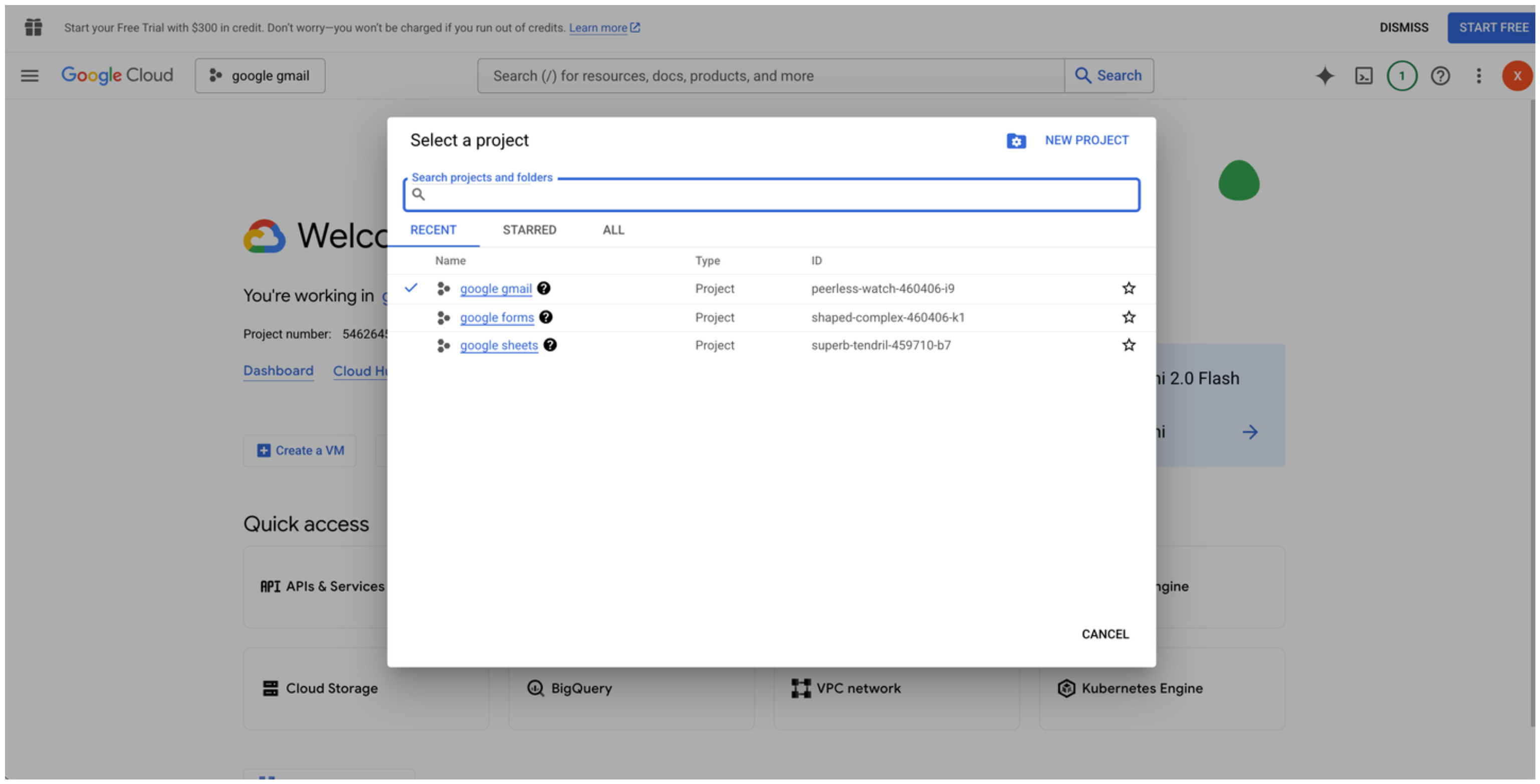 3. Go to the [Google Cloud API Library](https://console.cloud.google.com/apis/library).\\
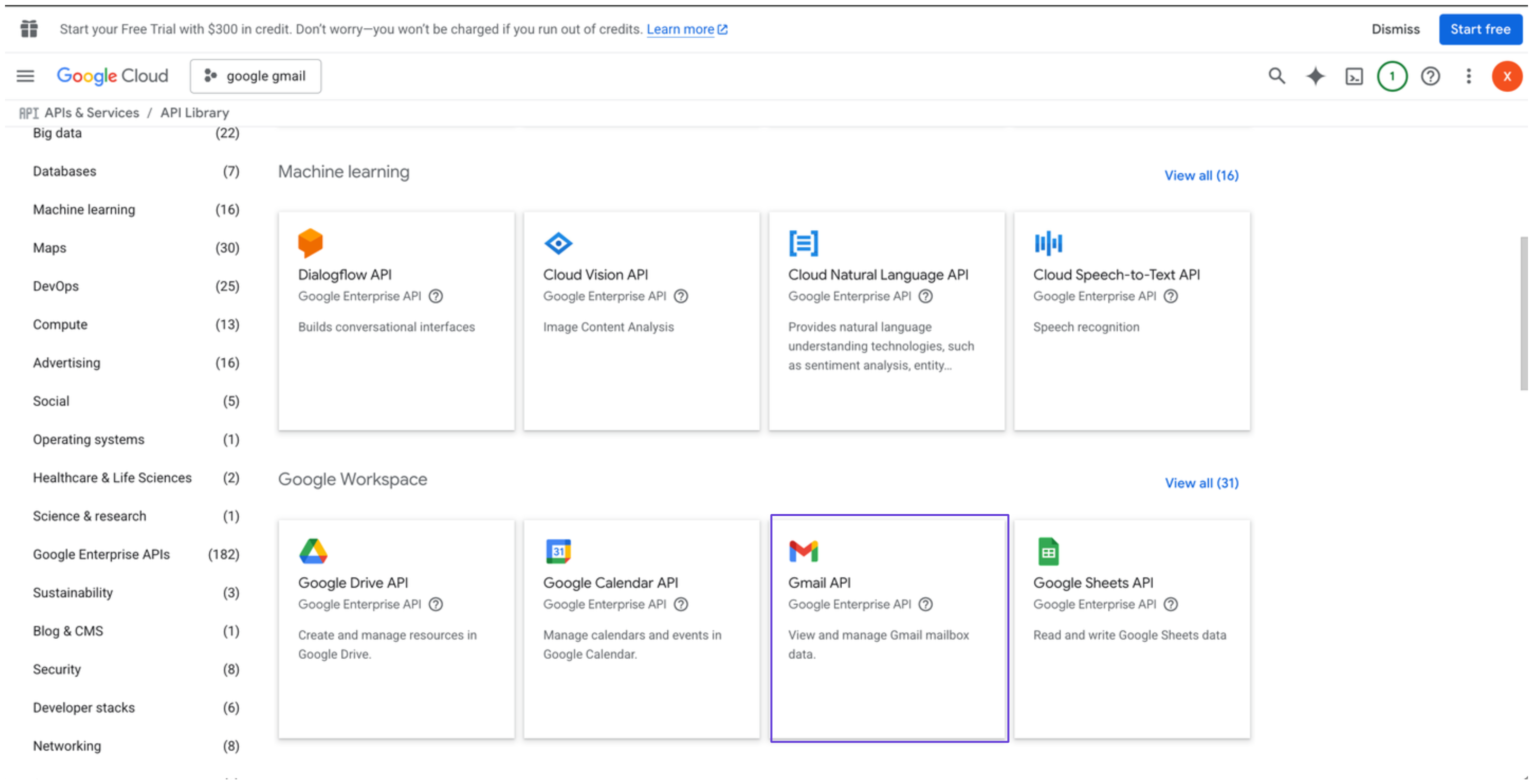 4. Search for and select **Google Gmail API**, then click **Enable**.
5. In the sidebar, go to **Credentials**.
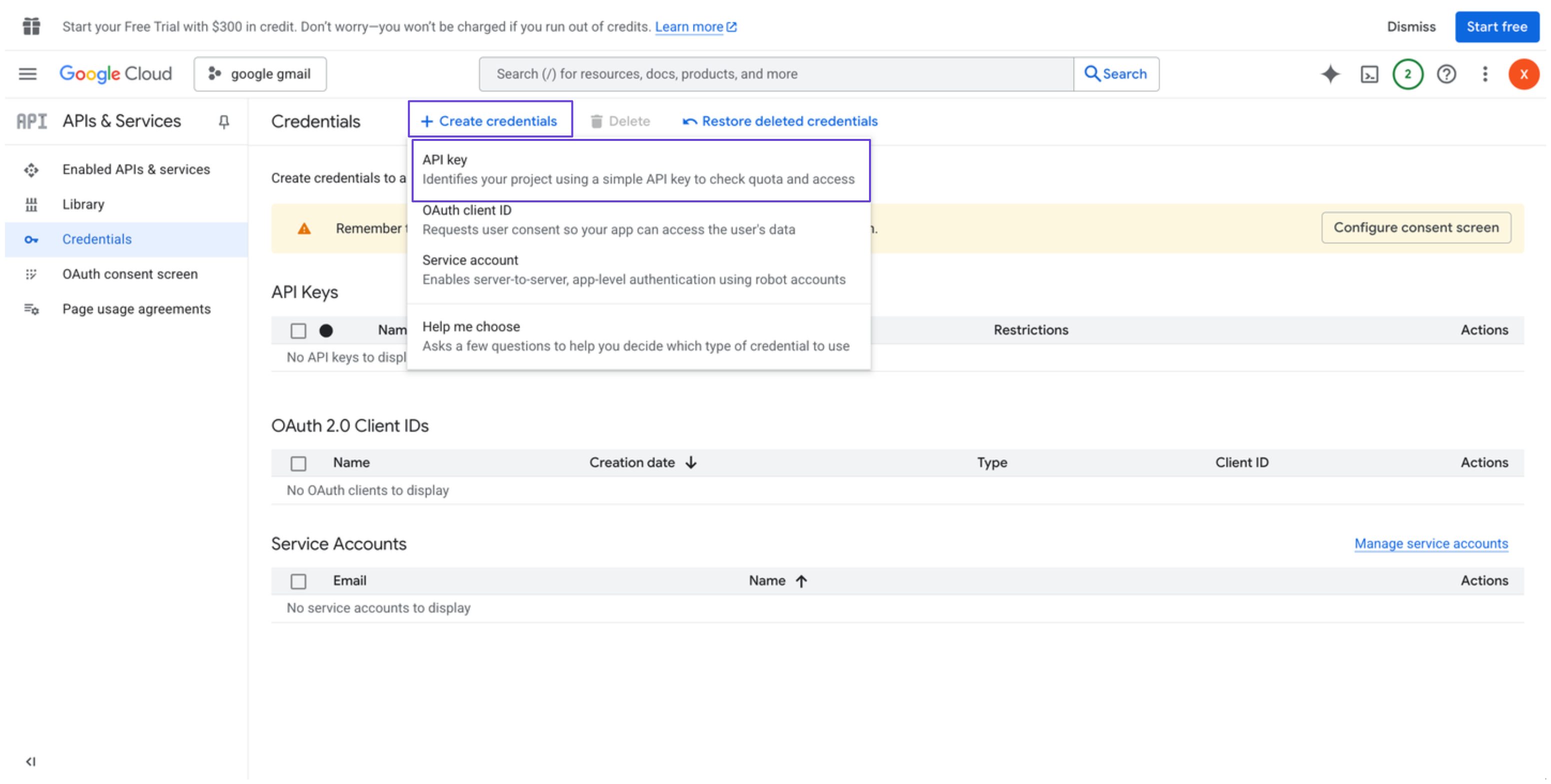
6. Click **Create credentials**, and select **API key**.\\
4. Search for and select **Google Gmail API**, then click **Enable**.
5. In the sidebar, go to **Credentials**.
6. Click **Create credentials**, and select **API key**.\\
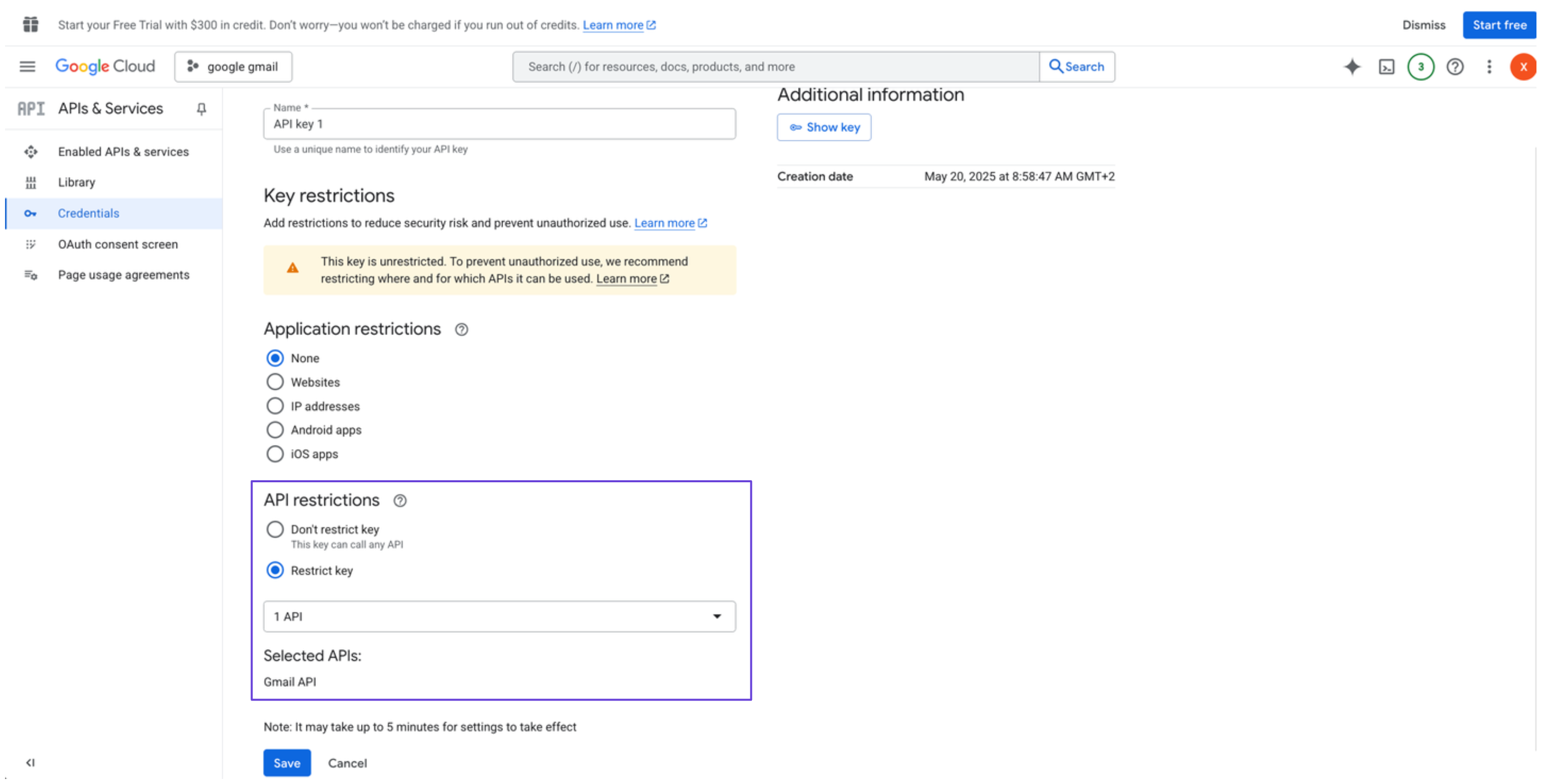
 7. Restrict the API key to Google Gmaiil API only (optional but recommended).\\
 ### Integrate Google Gmail into xpander.ai
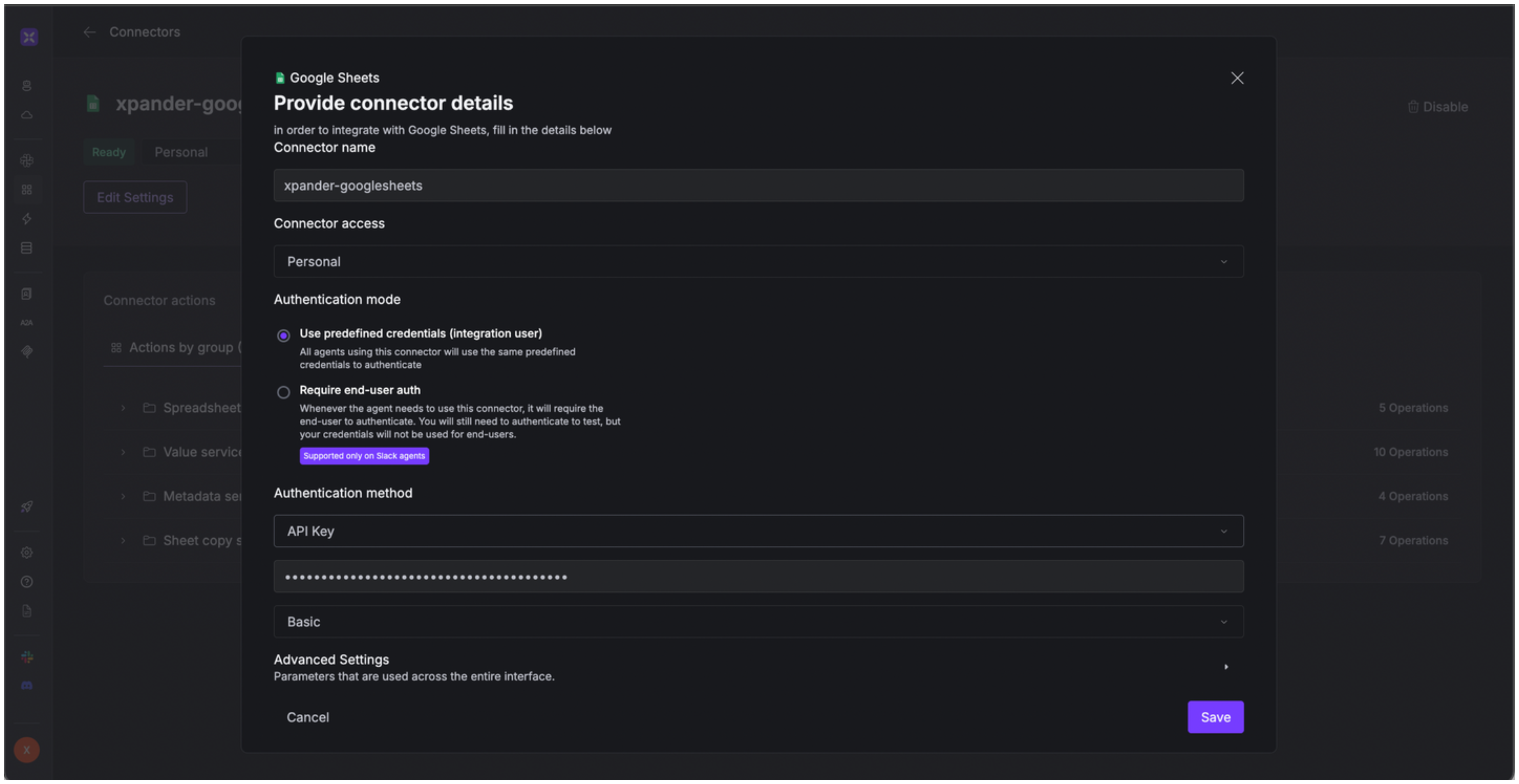
1. Go to the **Connectors** section in the sidebar of your xpander.ai dashboard.
2. Select **Google Gmail** from the available integrations.
3. Click **Other auth options**.
4. Enter a **connector name**, e.g., "xpander-google-gmail".
5. Select **Integration User** as the authentication mode.
6. Select **API Key** as the authentication method.
7. Paste the Google Gmail API key into the provided field.
8. Choose **Basic** as the **Auth Type**.
9. Save the configuration.\\
### Integrate Google Gmail into xpander.ai
1. Go to the **Connectors** section in the sidebar of your xpander.ai dashboard.
2. Select **Google Gmail** from the available integrations.
3. Click **Other auth options**.
4. Enter a **connector name**, e.g., "xpander-google-gmail".
5. Select **Integration User** as the authentication mode.
6. Select **API Key** as the authentication method.
7. Paste the Google Gmail API key into the provided field.
8. Choose **Basic** as the **Auth Type**.
9. Save the configuration.\\
 API keys provide limited functionality and are best for read-only operations on public files. For full access, use OAuth methods.
## Integration of Google Gmail into AI Agent
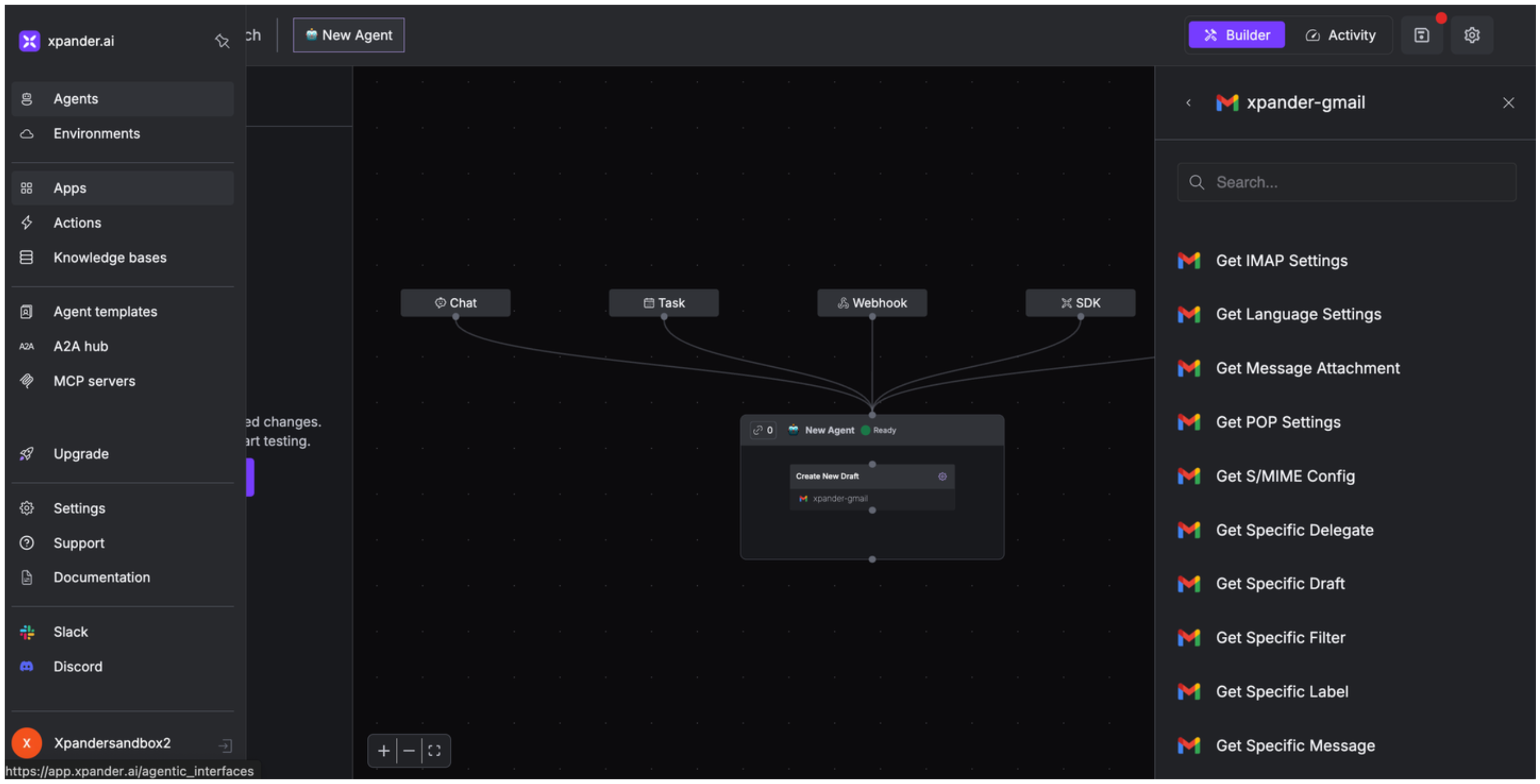
Once you've configured your Google Gmail account with the authentication option(s) described above, you can integrate it into your AI agent with xpander.ai:
1. In your xpander.ai dashboard, go to the **Agent Configuration** tab and select **Tools**, then click **Add Tools**.
2. Select **Connectors**.
3. Choose **Google Gmail** with the same **connector name** you configured in the previous section (e.g., xpander-google-gmail).
4. Select the available Google Gmail operations that suit your use case.
API keys provide limited functionality and are best for read-only operations on public files. For full access, use OAuth methods.
## Integration of Google Gmail into AI Agent
Once you've configured your Google Gmail account with the authentication option(s) described above, you can integrate it into your AI agent with xpander.ai:
1. In your xpander.ai dashboard, go to the **Agent Configuration** tab and select **Tools**, then click **Add Tools**.
2. Select **Connectors**.
3. Choose **Google Gmail** with the same **connector name** you configured in the previous section (e.g., xpander-google-gmail).
4. Select the available Google Gmail operations that suit your use case.
 ## Expose Google Gmail as MCP Server
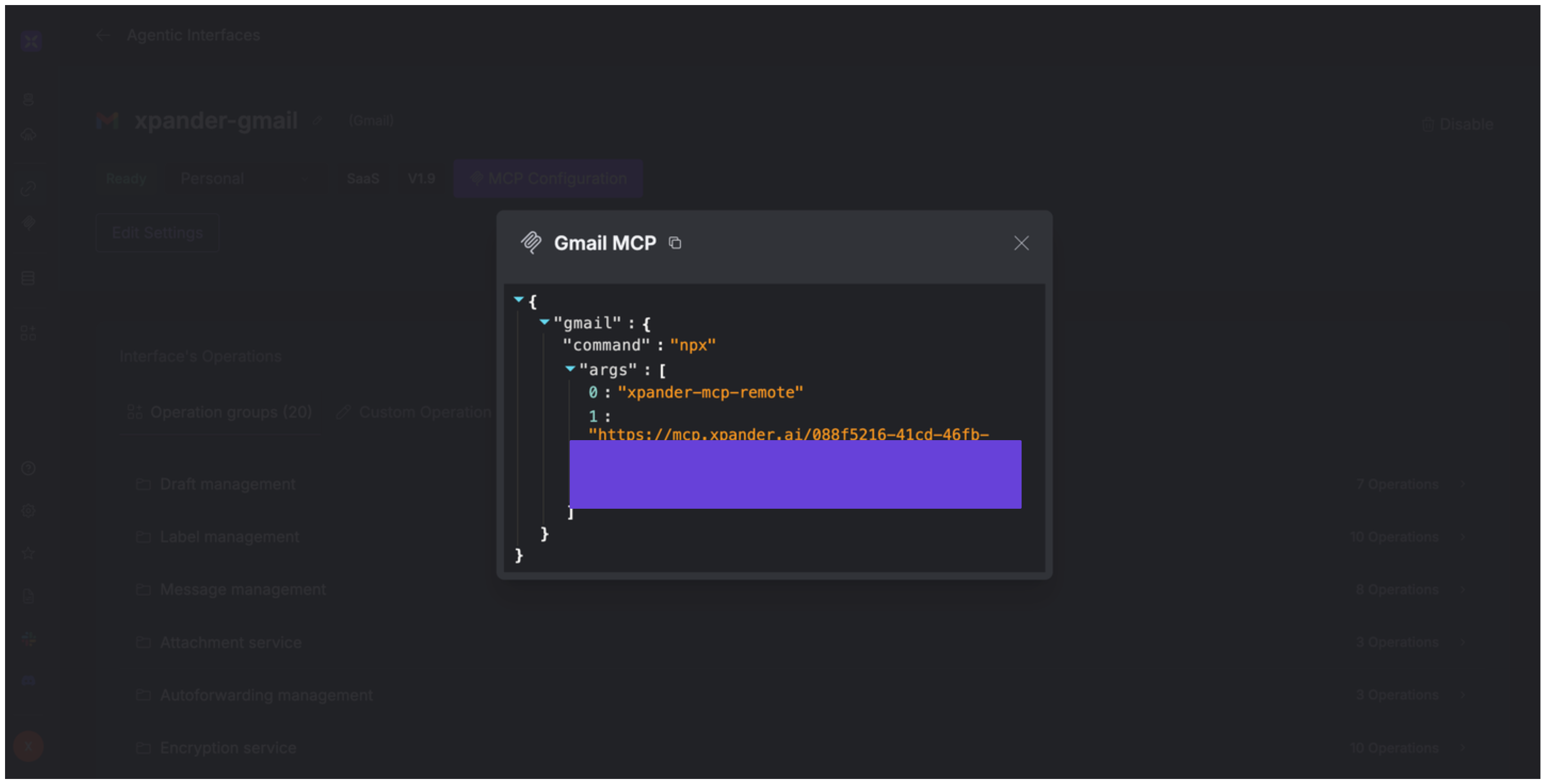
Alternatively, you can also expose your Google Gmail account as an MCP server. To do so:
1. Go to the **Connectors** section in the sidebar of your xpander.ai dashboard.
2. Select **Google Gmail** with the same **connector name** you configured in the previous section (e.g., xpander-google-gmail).
3. Click **MCP Configuration**.
4. Enter the MCP configuration into the appropriate settings of the client app you want to use (e.g., Cursor, Windsurf, Claude Desktop, etc.).
## Expose Google Gmail as MCP Server
Alternatively, you can also expose your Google Gmail account as an MCP server. To do so:
1. Go to the **Connectors** section in the sidebar of your xpander.ai dashboard.
2. Select **Google Gmail** with the same **connector name** you configured in the previous section (e.g., xpander-google-gmail).
3. Click **MCP Configuration**.
4. Enter the MCP configuration into the appropriate settings of the client app you want to use (e.g., Cursor, Windsurf, Claude Desktop, etc.).
 ## AI Agent Google Gmail Prompt Library
Below are possible prompts or use cases you can try after integrating Google Gmail into your xpander AI agent:
```
Can you create a new draft email for {user_email} with the subject {subject_line}?
```
```
Can you retrieve the details of the email message from {user_email}?
```
```
Can you enable push notifications for new emails from {user_email}?
```
```
Can you send the draft email {draft_name} to {user_email}?
```
## Related Resources
* [Understanding Model Context Protocol (MCP)](/guides/deploy/mcp)
* [Google Gmail API Documentation](https://developers.google.com/workspace/gmail/api/guides)
## AI Agent Google Gmail Prompt Library
Below are possible prompts or use cases you can try after integrating Google Gmail into your xpander AI agent:
```
Can you create a new draft email for {user_email} with the subject {subject_line}?
```
```
Can you retrieve the details of the email message from {user_email}?
```
```
Can you enable push notifications for new emails from {user_email}?
```
```
Can you send the draft email {draft_name} to {user_email}?
```
## Related Resources
* [Understanding Model Context Protocol (MCP)](/guides/deploy/mcp)
* [Google Gmail API Documentation](https://developers.google.com/workspace/gmail/api/guides)