> ## Documentation Index
> Fetch the complete documentation index at: https://docs.xpander.ai/llms.txt
> Use this file to discover all available pages before exploring further.
# HubSpot CRM
> Learn how to integrate AI agents with HubSpot CRM using xpander.ai. Create intelligent workflows that automatically engage leads, update contact records, and trigger personalized follow-ups based on real-time customer interactions.
## About HubSpot CRM
HubSpot CRM is a customer relationship management (CRM) platform designed to help businesses organize, track, and nurture leads and customers.
Key Features of HubSpot CRM:
* **Contact Management**: Store and manage customer and lead information in one place.
* **Pipeline Management**: Visualize and track the progress of deals through sales stages.
* **Email Integration**: Connect with Gmail or Outlook to track email interactions.
* **Marketing Tools**: Includes forms, landing pages, email marketing, and automation (in the Marketing Hub).
* **Customer Service**: Offers ticketing, live chat, and a knowledge base (in the Service Hub).
* **Analytics & Reporting**: Provides insights into sales activity, performance, and marketing metrics.
* **Customization**: Users can customize pipelines, fields, dashboards, and more.
* **Integration**: Works with tools like Slack, Zoom, Shopify, and hundreds of others.
## Authentication Options
Below are possible authentication options you can choose:
The simplest way to connect HubSpot CRM is by using xpander.ai's built-in authentication:
1. Go to the **Connectors** section in the sidebar of your xpander.ai dashboard.
2. Select **HubSpot CRM** from the available integrations.
3. Click **Sign in with HubSpot CRM**.
4. Choose the account you want to connect and grant xpander.ai permission to access it.
5. HubSpot CRM is now ready to use.
### Generate a HubSpot CRM API Key
1. Log in to your [HubSpot CRM account](https://www.hubspot.com/products/crm).
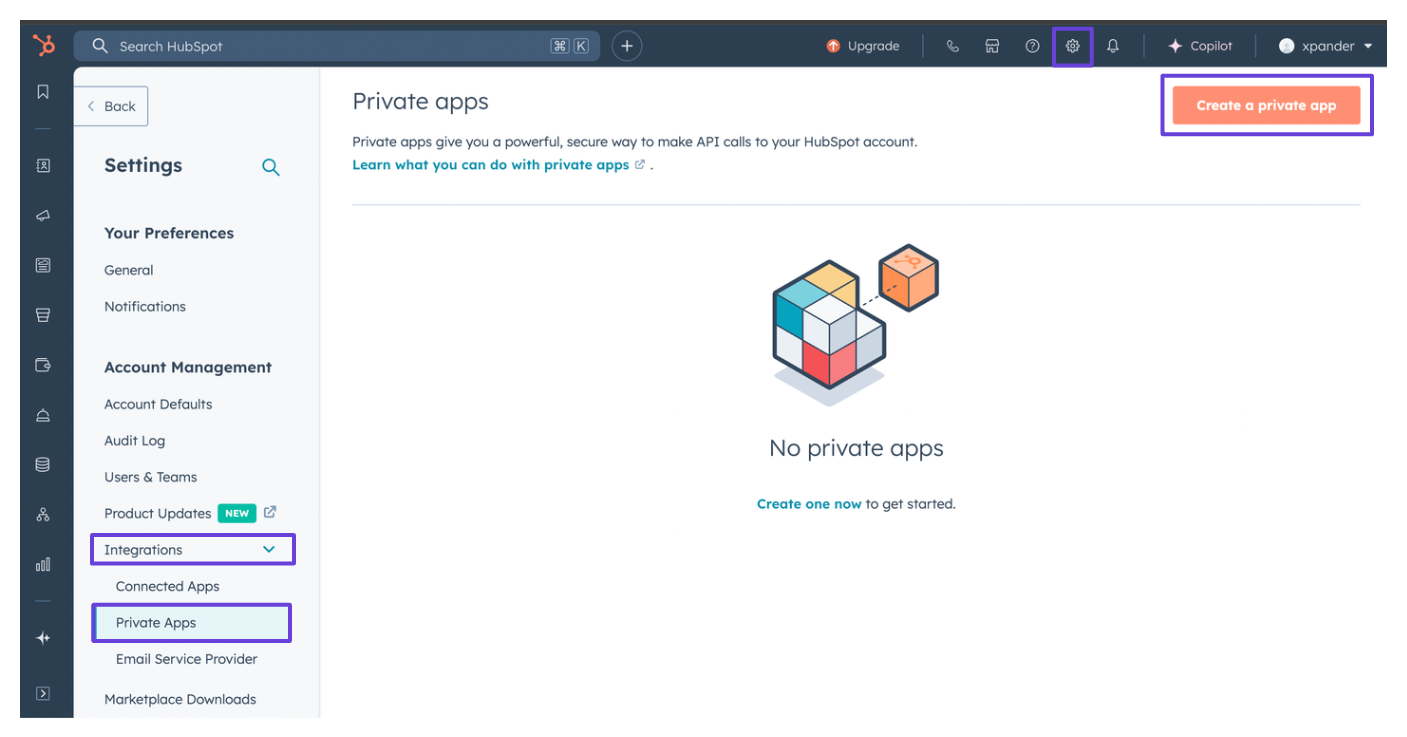
2. Click on **Settings** (the gear icon) in the top bar of your dashboard.
3. In the sidebar, click on **Integration**.
4. Select **Private Apps**, then click **Create Private App**.\\
 5. Enter a name for your app. In the **Scopes** tab, click **Add new scope** and grant the app access to the CRM services appropriate for your use case.\\
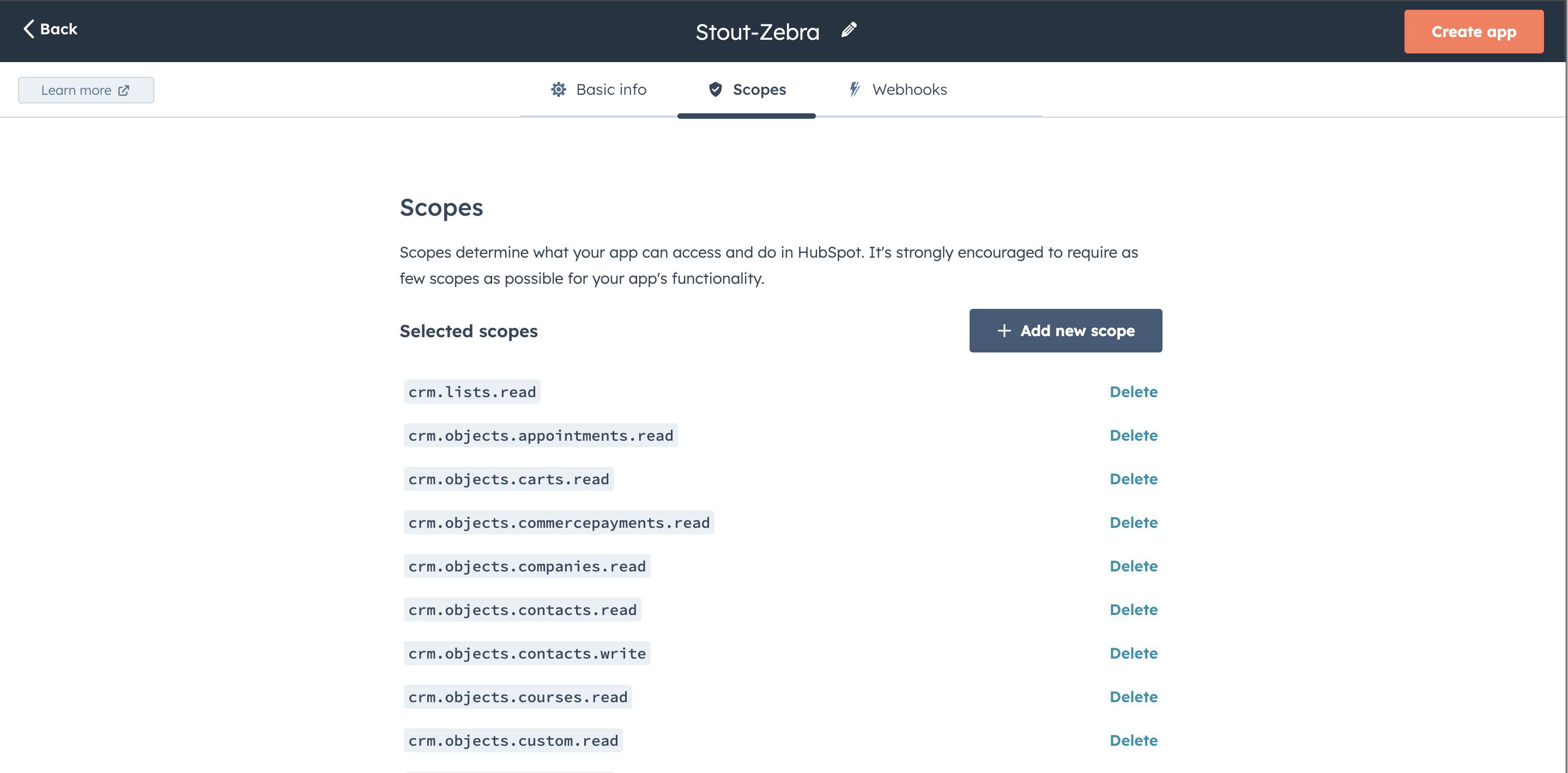 6. Click **Create App**.
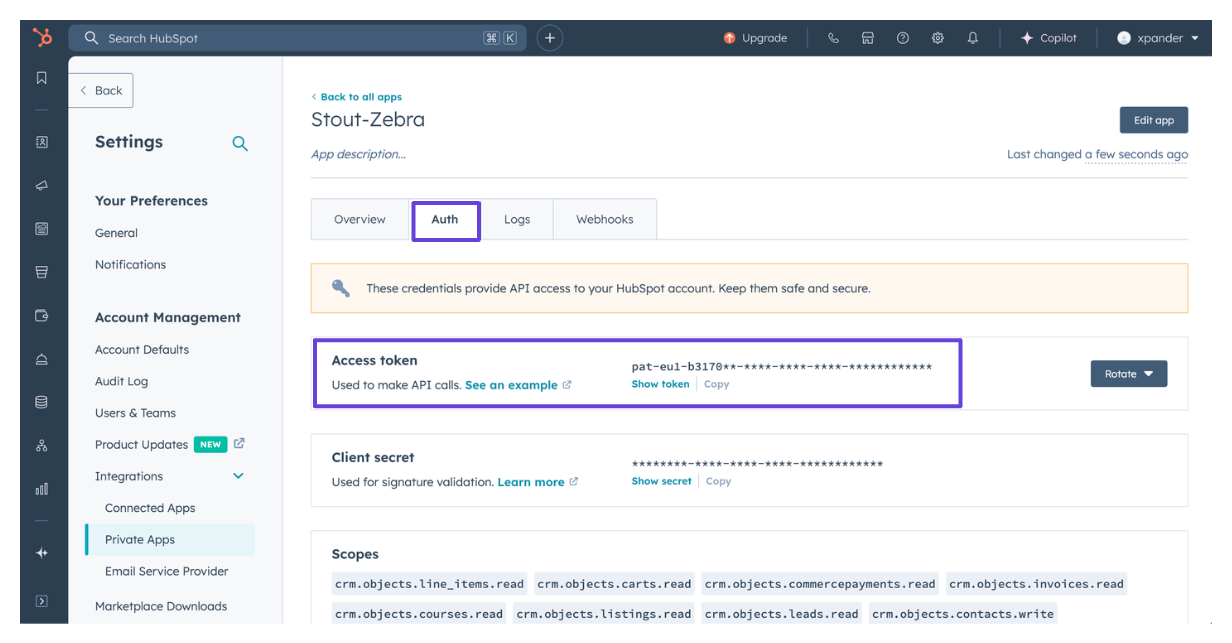
7. Your access token will be available in the **Auth** tab of the newly created private app.\\
6. Click **Create App**.
7. Your access token will be available in the **Auth** tab of the newly created private app.\\
 ### Integrate HubSpot CRM into xpander.ai
1. Go to the **Connectors** section in the sidebar of your xpander.ai dashboard.
2. Select **HubSpot CRM** from the available integrations.
3. Click **Other auth options**.
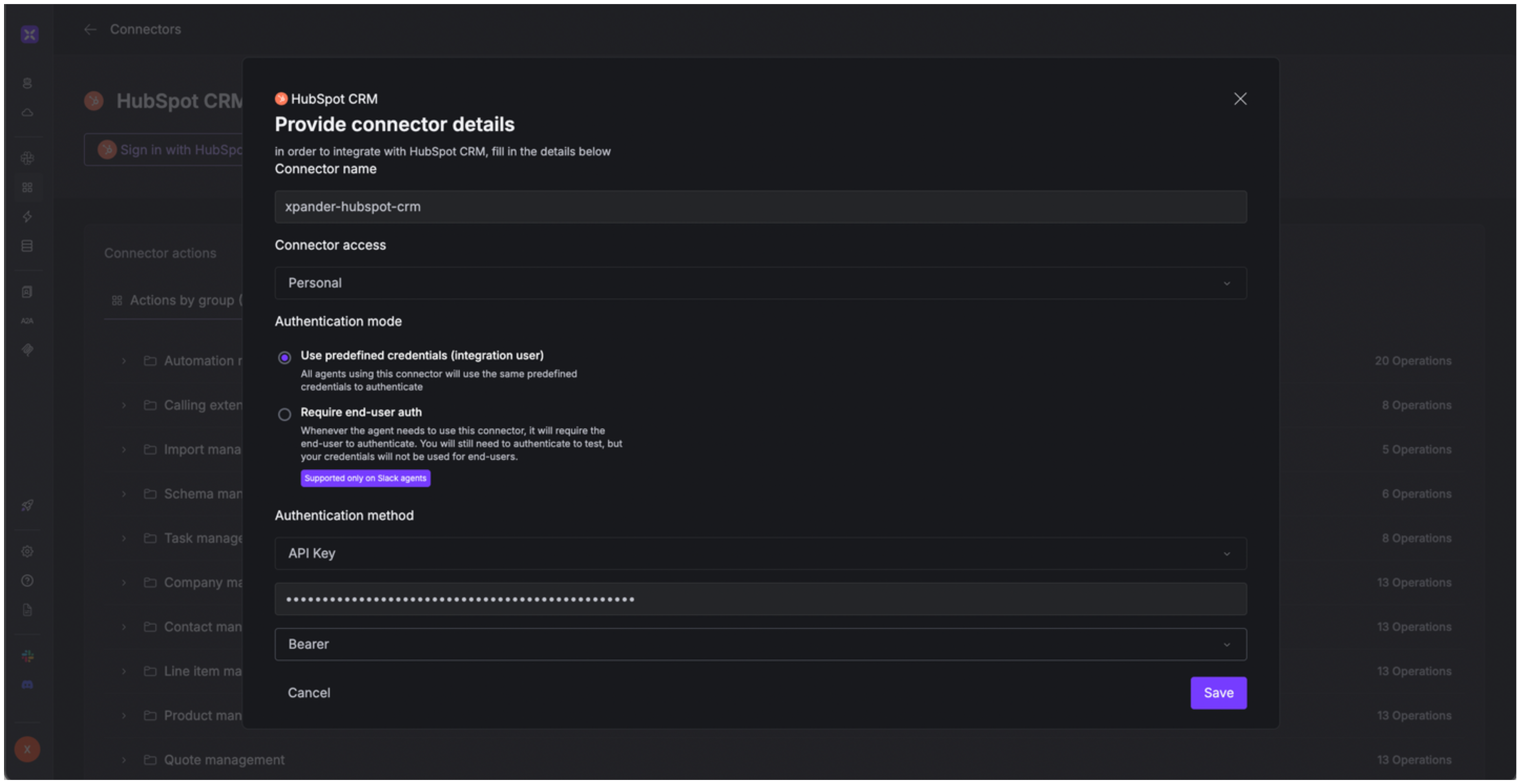
4. Enter a **connector name**, e.g., "xpander-hubspot-crm".
5. Select **Integration User** as the authentication mode.
6. Select **API Key** as the authentication method.
7. Paste the HubSpot access token into the provided field.
8. Choose **Bearer** as the **Auth Type**.
9. Save the configuration.
### Integrate HubSpot CRM into xpander.ai
1. Go to the **Connectors** section in the sidebar of your xpander.ai dashboard.
2. Select **HubSpot CRM** from the available integrations.
3. Click **Other auth options**.
4. Enter a **connector name**, e.g., "xpander-hubspot-crm".
5. Select **Integration User** as the authentication mode.
6. Select **API Key** as the authentication method.
7. Paste the HubSpot access token into the provided field.
8. Choose **Bearer** as the **Auth Type**.
9. Save the configuration.
 ## Integration of HubSpot CRM into AI Agent
Once you've configured your HubSpot CRM account with the authentication option(s) described above, you can integrate it into your AI agent with xpander.ai:
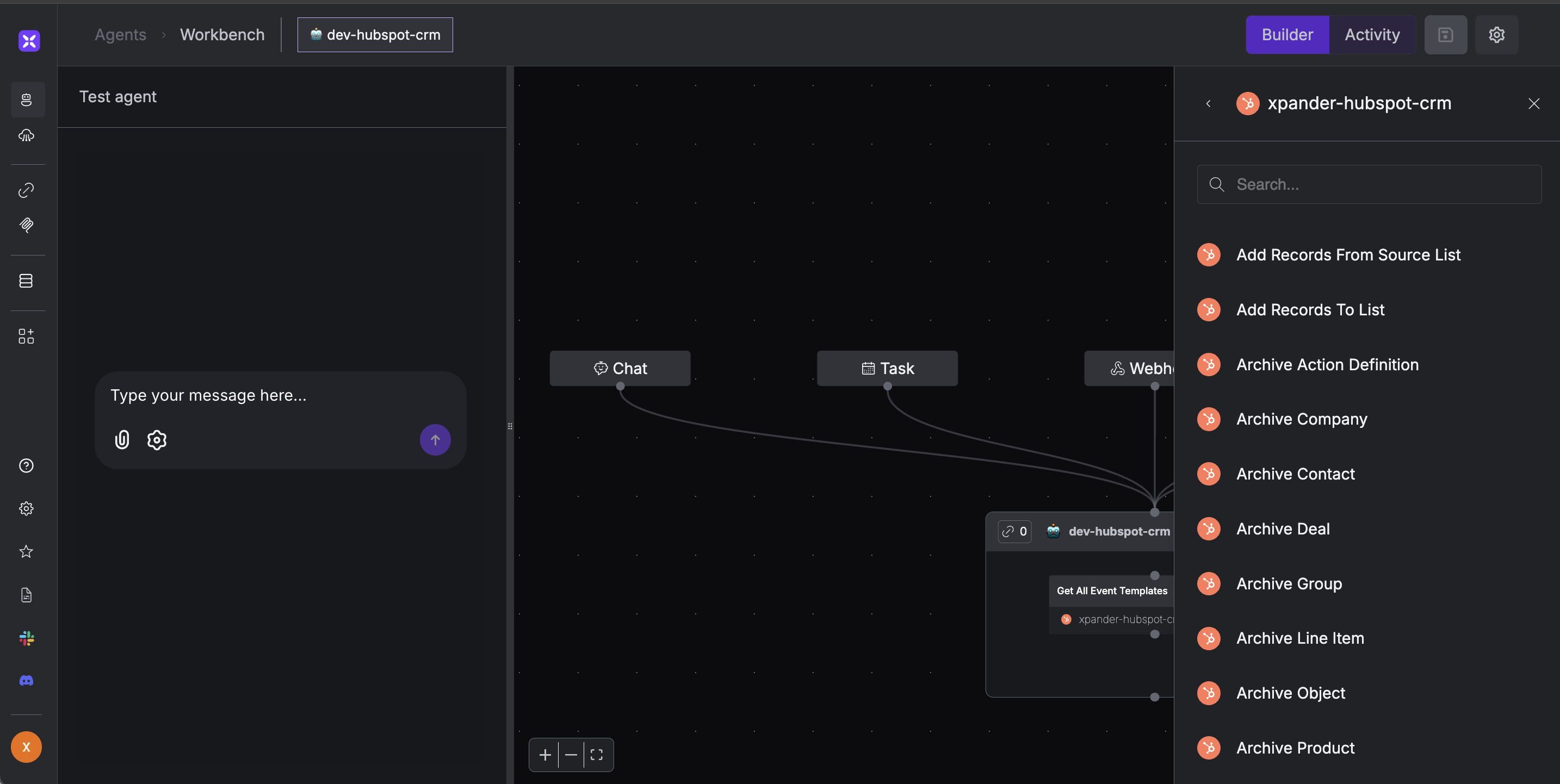
1. In your xpander.ai dashboard, go to the **Agent Configuration** tab and select **Tools**, then click **Add Tools**.
2. Select **Connectors**.
3. Choose **HubSpot CRM** with the same **connector name** you configured in the previous section (e.g., xpander-hubspot-crm).
4. Select the available HubSpot CRM operations that suit your use case.
## Integration of HubSpot CRM into AI Agent
Once you've configured your HubSpot CRM account with the authentication option(s) described above, you can integrate it into your AI agent with xpander.ai:
1. In your xpander.ai dashboard, go to the **Agent Configuration** tab and select **Tools**, then click **Add Tools**.
2. Select **Connectors**.
3. Choose **HubSpot CRM** with the same **connector name** you configured in the previous section (e.g., xpander-hubspot-crm).
4. Select the available HubSpot CRM operations that suit your use case.
 ## AI Agent HubSpot CRM Prompt Library
Below are possible prompts or use cases you can try after integrating HubSpot CRM into your xpander AI agent:
```
Can you search for all companies that have more than {revenue_amount} in annual revenue?
```
```
How do I create a custom object schema for tracking our product warranties?
```
```
How do I add all the contacts from our "Newsletter Subscribers" list to our "Product Launch" campaign list?
```
```
Can you update our event template to display customer support interactions differently?
```
## Related Resources
* [Understanding Model Context Protocol (MCP)](/guides/deploy/mcp)
* [HubSpot CRM API Documentation](https://developers.hubspot.com/docs/reference/api/overview)
## AI Agent HubSpot CRM Prompt Library
Below are possible prompts or use cases you can try after integrating HubSpot CRM into your xpander AI agent:
```
Can you search for all companies that have more than {revenue_amount} in annual revenue?
```
```
How do I create a custom object schema for tracking our product warranties?
```
```
How do I add all the contacts from our "Newsletter Subscribers" list to our "Product Launch" campaign list?
```
```
Can you update our event template to display customer support interactions differently?
```
## Related Resources
* [Understanding Model Context Protocol (MCP)](/guides/deploy/mcp)
* [HubSpot CRM API Documentation](https://developers.hubspot.com/docs/reference/api/overview)