> ## Documentation Index
> Fetch the complete documentation index at: https://docs.xpander.ai/llms.txt
> Use this file to discover all available pages before exploring further.
# Linear
> Learn how to integrate AI agents with Linear using xpander.ai. Create automated workflows that can triage issues, assign tasks based on workload, update statuses in real-time, and generate progress summaries—streamlining your entire development pipeline.
## About Linear
Linear is a modern, purpose-built project management and issue tracking tool designed specifically for software development teams. It streamlines workflows by integrating tasks, sprints, roadmaps, and documentation into a unified, fast, and intuitive interface.
Linear key features:
* **Issues & Tasks**: Track bugs, features, and tasks with customizable fields, dependencies, and comments. Issues can be organized into projects or linked to sprints (called “Cycles”) for agile planning.
* **Projects & Milestones**: Group related issues into projects, define milestones, and monitor progress with visual tools like project graphs and status updates.
* **Cycles (Sprints)**: Plan and execute time-boxed iterations to keep teams focused and aligned.
* **Roadmaps**: Visualize long-term plans and align the team around strategic goals.
* **Real-Time Collaboration**: Comment on issues, tag teammates, and co-edit documents with real-time syncing across devices.
* **Integrations**: Connect with tools like GitHub, Slack, Figma, and more to automate workflows and enhance productivity.
## Authentication Options
Below are possible authentication options you can choose:
### Generate a Linear API Key
1. Log in to your [Linear app](https://linear.app/).
2. Click on your avatar and select **Settings** from the dropdown menu.
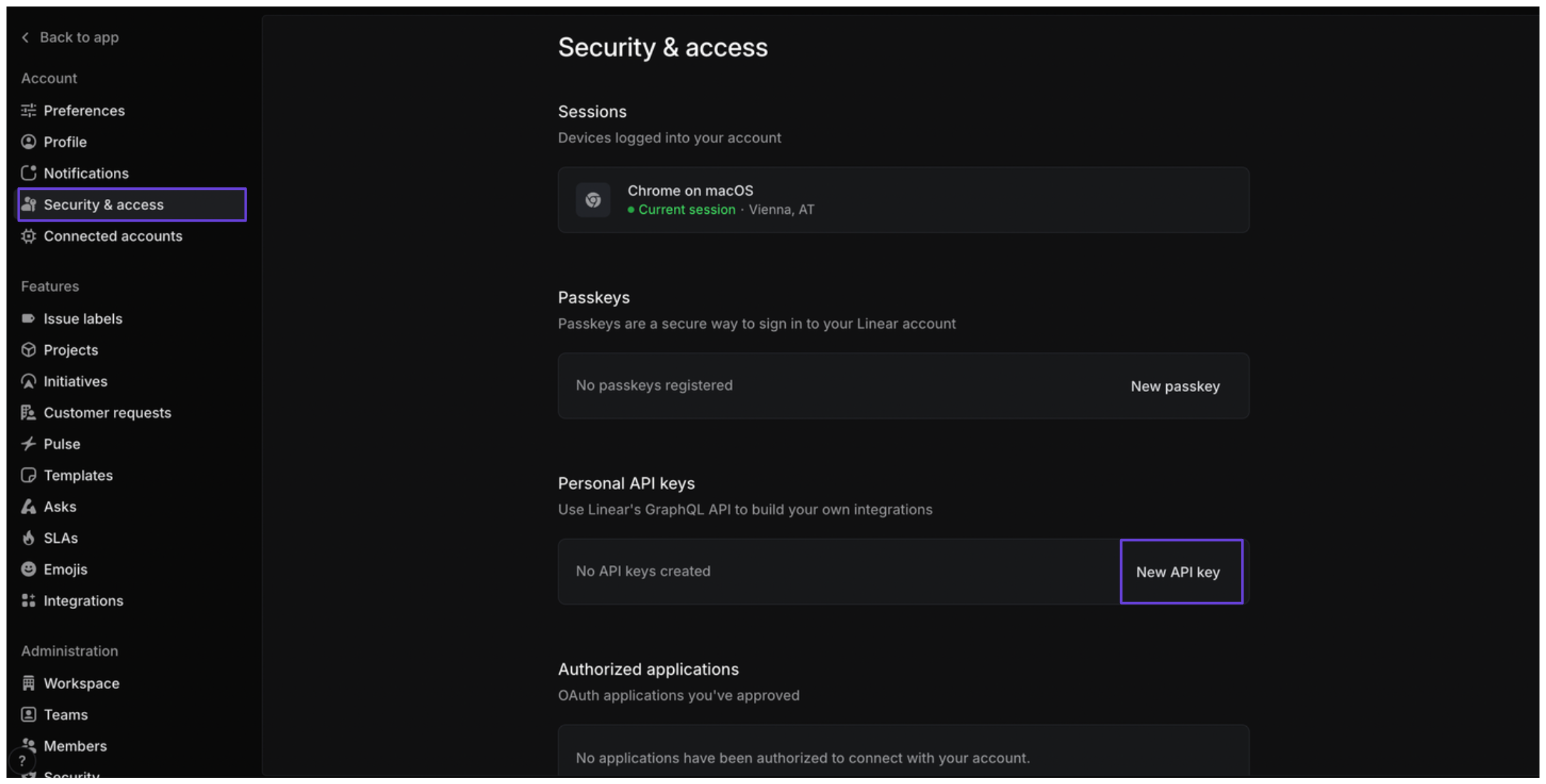
3. In the sidebar, click **Security & access**.
4. In the **Personal API keys** section, click **New API key**.\\
 5. Enter a name for the key, assign the appropriate permissions, and click **Create**.
6. Save the API key.
### Integrate Linear into xpander.ai
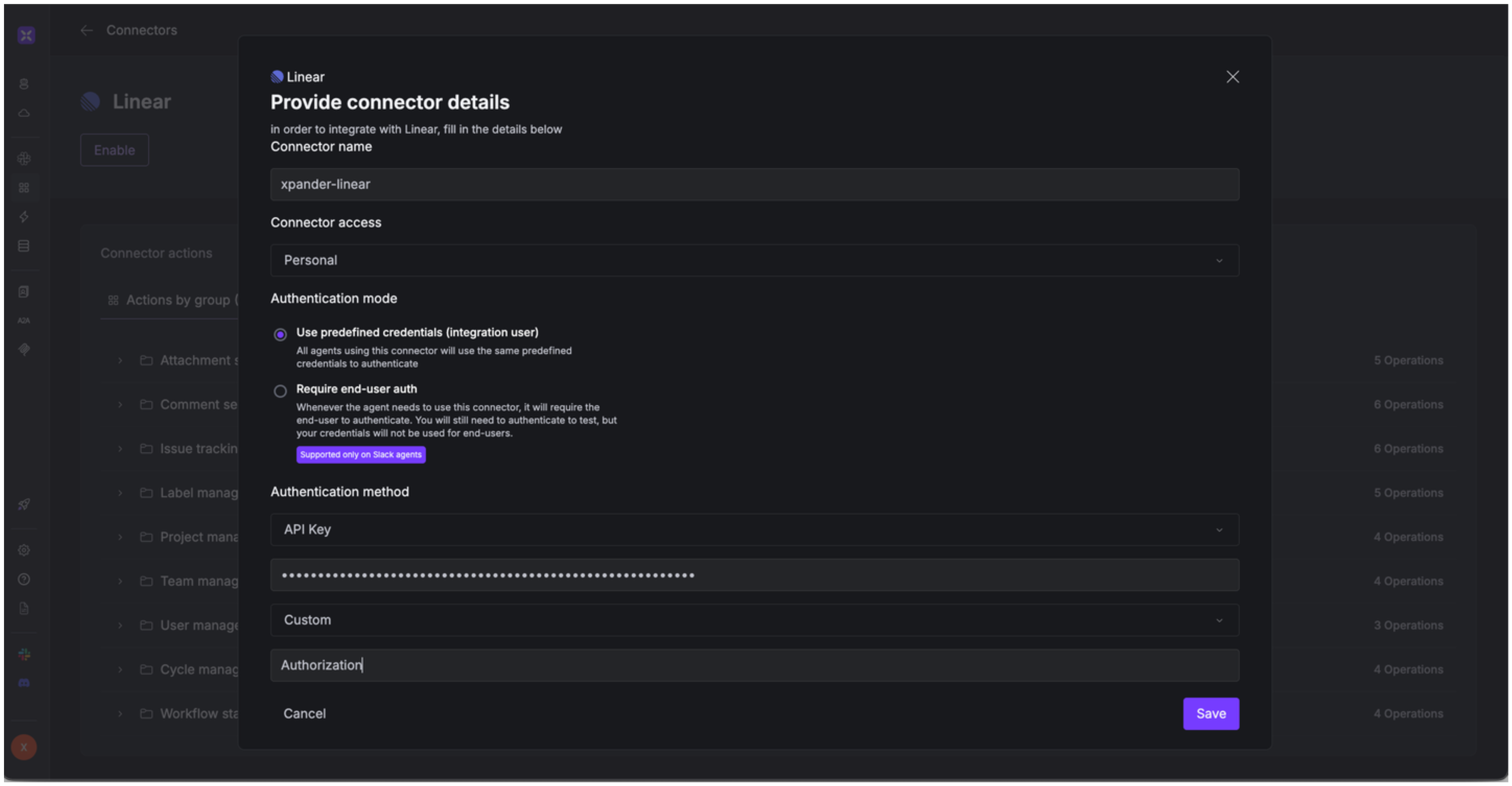
1. Go to the **Connectors** section in the sidebar of your xpander.ai dashboard.
2. Select **Linear** from the available integrations.
3. Click **Enable**.
4. Enter a **connector name**, e.g., "xpander-linear".
5. Select **Integration User** as the authentication mode.
6. Select **API Key** as the authentication method.
7. Paste the Linear API key into the provided field.
8. Choose **Custom** as the **Auth Type**.
9. In the **Custom header name** field, enter `Authorization`.
10. Save the configuration.
5. Enter a name for the key, assign the appropriate permissions, and click **Create**.
6. Save the API key.
### Integrate Linear into xpander.ai
1. Go to the **Connectors** section in the sidebar of your xpander.ai dashboard.
2. Select **Linear** from the available integrations.
3. Click **Enable**.
4. Enter a **connector name**, e.g., "xpander-linear".
5. Select **Integration User** as the authentication mode.
6. Select **API Key** as the authentication method.
7. Paste the Linear API key into the provided field.
8. Choose **Custom** as the **Auth Type**.
9. In the **Custom header name** field, enter `Authorization`.
10. Save the configuration.
 ## Integration of Linear into AI Agent
Once you've configured your Linear account with the authentication option(s) described above, you can integrate it into your AI agent with xpander.ai:
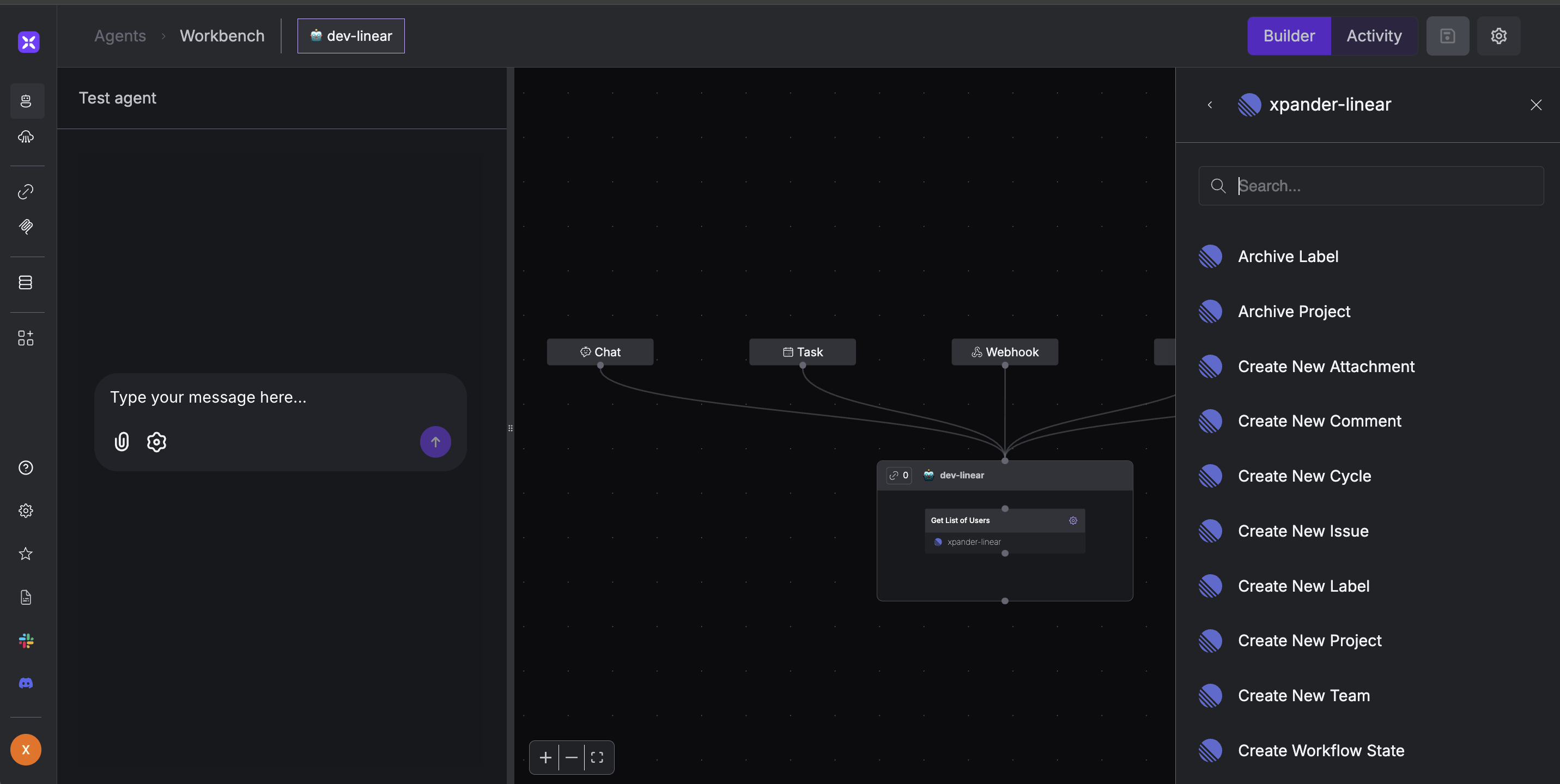
1. In your xpander.ai dashboard, go to the **Agent Configuration** tab and select **Tools**, then click **Add Tools**.
2. Select **Connectors**.
3. Choose **Linear** with the same **connector name** you configured in the previous section (e.g., xpander-linear).
4. Select the available Linear operations that suit your use case.
## Integration of Linear into AI Agent
Once you've configured your Linear account with the authentication option(s) described above, you can integrate it into your AI agent with xpander.ai:
1. In your xpander.ai dashboard, go to the **Agent Configuration** tab and select **Tools**, then click **Add Tools**.
2. Select **Connectors**.
3. Choose **Linear** with the same **connector name** you configured in the previous section (e.g., xpander-linear).
4. Select the available Linear operations that suit your use case.
 ## Expose Linear as MCP Server
Alternatively, you can also expose your Linear account as an MCP server. To do so:
1. Go to the **Connectors** section in the sidebar of your xpander.ai dashboard.
2. Select **Linear** with the same **connector name** you configured in the previous section (e.g., xpander-linear).
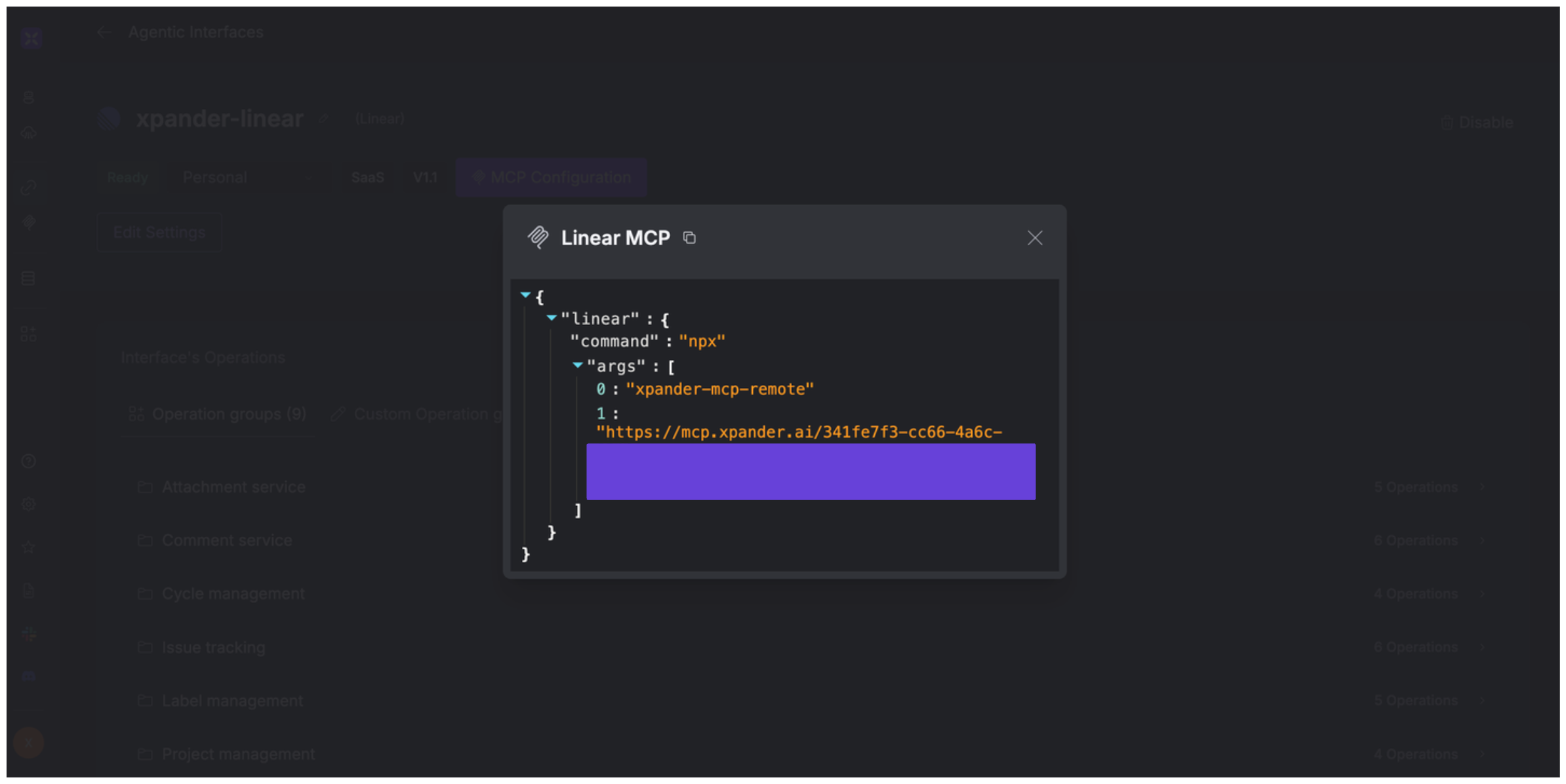
3. Click **MCP Configuration**.
4. Enter the MCP configuration into the appropriate settings of the client app you want to use (e.g., Cursor, Windsurf, Claude Desktop, etc.).
## Expose Linear as MCP Server
Alternatively, you can also expose your Linear account as an MCP server. To do so:
1. Go to the **Connectors** section in the sidebar of your xpander.ai dashboard.
2. Select **Linear** with the same **connector name** you configured in the previous section (e.g., xpander-linear).
3. Click **MCP Configuration**.
4. Enter the MCP configuration into the appropriate settings of the client app you want to use (e.g., Cursor, Windsurf, Claude Desktop, etc.).
 ## AI Agent Linear Prompt Library
Below are possible prompts or use cases you can try after integrating Linear into your xpander AI agent:
```
Could you add a comment to issue #{issue_number} with feedback from the {team_name} team?
```
```
Could you create a new bug ticket for the login page crash we just discovered?
```
```
Can you update the priority of issue #{issue_number} to urgent?
```
```
Can you create a new project named '{project_name}' for our Q4 initiatives?
```
## Related Resources
* [Understanding Model Context Protocol (MCP)](/guides/deploy/mcp)
* [Linear API Documentation](https://linear.app/developers)
## AI Agent Linear Prompt Library
Below are possible prompts or use cases you can try after integrating Linear into your xpander AI agent:
```
Could you add a comment to issue #{issue_number} with feedback from the {team_name} team?
```
```
Could you create a new bug ticket for the login page crash we just discovered?
```
```
Can you update the priority of issue #{issue_number} to urgent?
```
```
Can you create a new project named '{project_name}' for our Q4 initiatives?
```
## Related Resources
* [Understanding Model Context Protocol (MCP)](/guides/deploy/mcp)
* [Linear API Documentation](https://linear.app/developers)