> ## Documentation Index
> Fetch the complete documentation index at: https://docs.xpander.ai/llms.txt
> Use this file to discover all available pages before exploring further.
# Looker
> Learn how to integrate AI agents with Looker using xpander.ai. Create intelligent data workflows that enable AI agents to analyze Looker models, generate actionable insights, and trigger automated business decisions in real time.
## About Looker
Looker is a cloud-based enterprise business intelligence (BI) and data analytics platform which is now part of Google Cloud.
Key features include:
* **LookML Semantic Layer**: Central definition of business logic and metrics, enabling a single source of truth and scalable governance.
* **Self-Service Analytics & Visualization**: Users can explore data visually via "Explores," dashboards, and charts without requiring SQL skills.
* **Embedded & Extensible Analyticst**: Looker provides robust APIs to embed dashboards into apps/websites and build customized data applications, with options like the Looker Agent for AI workflows
* **Scalable In-Database Architecture**: Queries are pushed directly to high-performance cloud warehouses (e.g. BigQuery, Snowflake, Redshift, Vertica) for speed and scale.
## Authentication Options
Below are possible authentication options you can choose:
### Generate a Tableau API Token
1. Log in to your [Looker account](https://cloud.google.com/looker?hl=en).
2. In the sidebar of your Looker dashboard, click **Admin**.
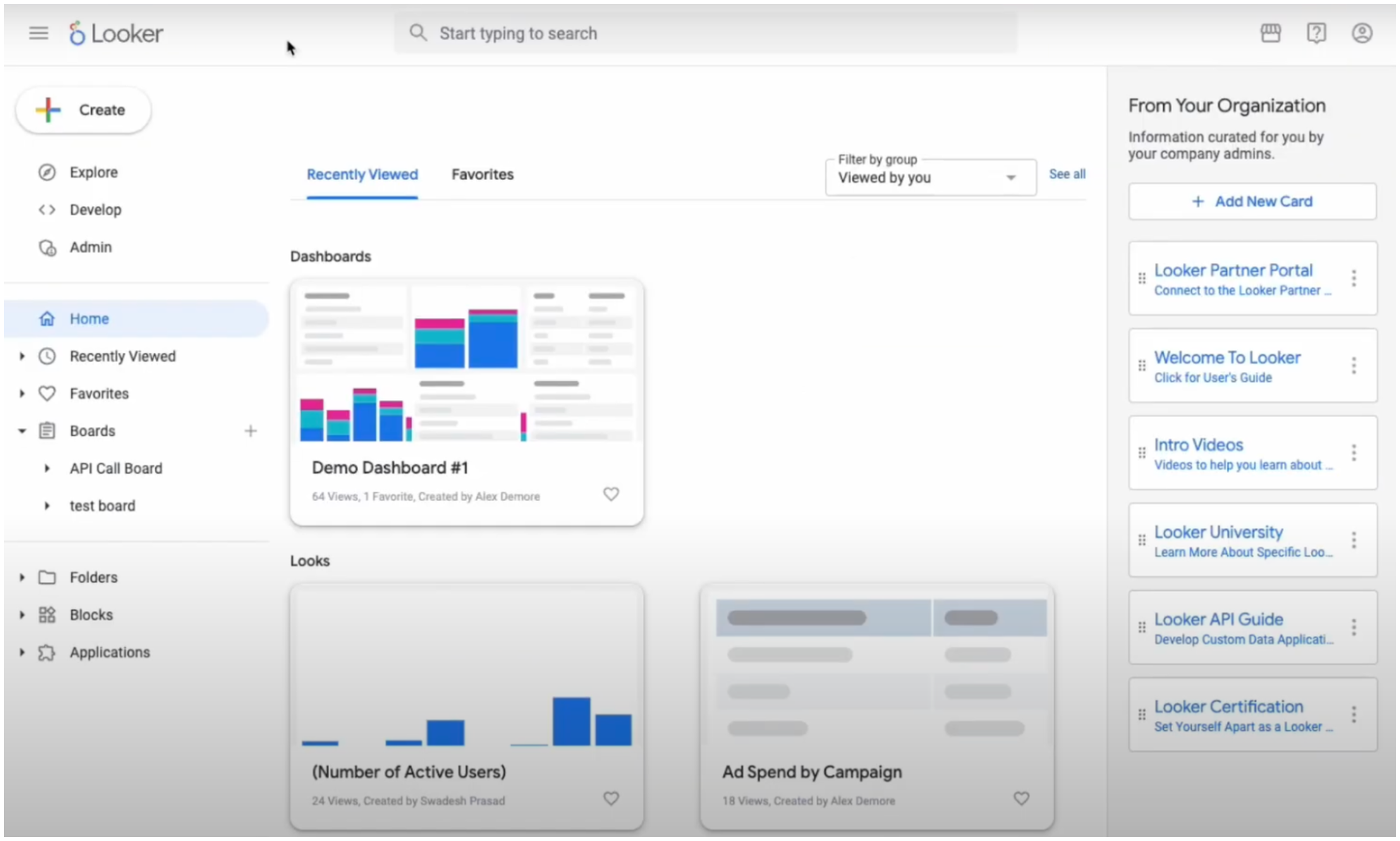 3. In the **Admin** panel sidebar, select **Users**, then choose an existing user or create a new one to grant API access.
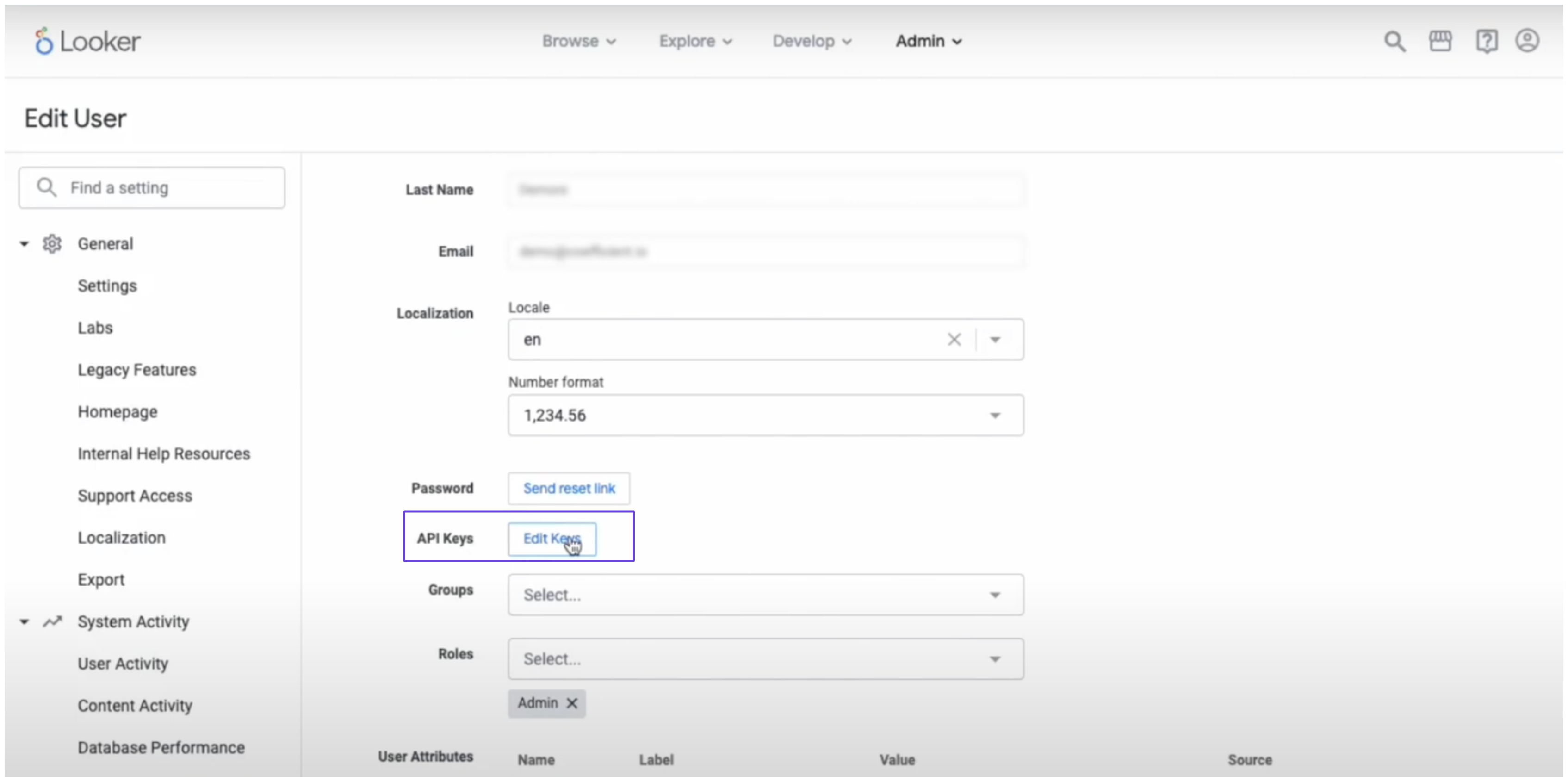
4. Under the **API Keys** section for that user, click **Edit Keys**. You’ll receive a **Client ID** and **Client Secret**, which you’ll use to obtain an access token.
3. In the **Admin** panel sidebar, select **Users**, then choose an existing user or create a new one to grant API access.
4. Under the **API Keys** section for that user, click **Edit Keys**. You’ll receive a **Client ID** and **Client Secret**, which you’ll use to obtain an access token.
 5. Next, obtain an access token by executing the following request:
```
curl -d "client_id=&client_secret=" \
https://.cloud.looker.com/api/4.0/login
```
Note: You can find your account name in your Looker URL. For example, if the URL is [https://xpander.cloud.looker.com](https://xpander.cloud.looker.com), the account name is xpander.
6. Copy your access token and store it somewhere safe.
### Integrate Looker into xpander.ai
1. In your **xpander.ai** dashboard, navigate to the **Connectors** section in the sidebar.
2. Select **Looker** from the list of available integrations.
3. Click **Enable**.
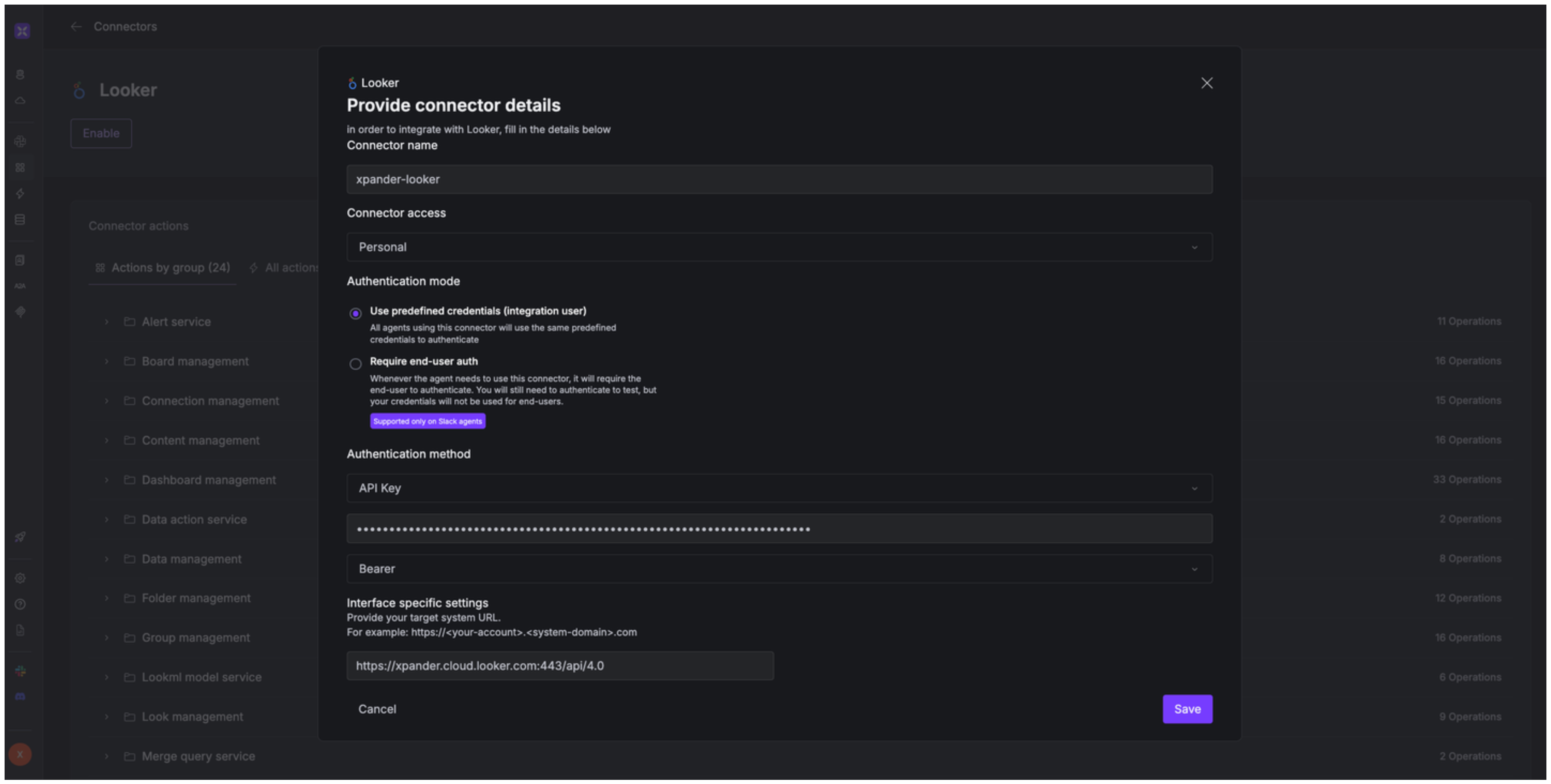
4. Enter a **connector name**, for example: `xpander-looker`.
5. Set the Authentication Mode to **Integration User**.
6. Choose **API Key** as the authentication method.
7. Paste your Looker **Access Token** into the provided field.
8. Set **Auth Type** to **Bearer**.
9. Under **Interface-Specific Settings**, enter the base URL `https://{host}:{port}/api/4.0`
* Replace `{host}` with the base URL of your Looker account (e.g., `xpander.cloud.looker.com`).
* For `{port}`, use:
* `443` if your Looker instance is hosted on Google Cloud, Microsoft Azure, or AWS **and was created on or after 07/07/2020**.
* `19999` if it was created **before 07/07/2020**.
10. Save the configuration.
5. Next, obtain an access token by executing the following request:
```
curl -d "client_id=&client_secret=" \
https://.cloud.looker.com/api/4.0/login
```
Note: You can find your account name in your Looker URL. For example, if the URL is [https://xpander.cloud.looker.com](https://xpander.cloud.looker.com), the account name is xpander.
6. Copy your access token and store it somewhere safe.
### Integrate Looker into xpander.ai
1. In your **xpander.ai** dashboard, navigate to the **Connectors** section in the sidebar.
2. Select **Looker** from the list of available integrations.
3. Click **Enable**.
4. Enter a **connector name**, for example: `xpander-looker`.
5. Set the Authentication Mode to **Integration User**.
6. Choose **API Key** as the authentication method.
7. Paste your Looker **Access Token** into the provided field.
8. Set **Auth Type** to **Bearer**.
9. Under **Interface-Specific Settings**, enter the base URL `https://{host}:{port}/api/4.0`
* Replace `{host}` with the base URL of your Looker account (e.g., `xpander.cloud.looker.com`).
* For `{port}`, use:
* `443` if your Looker instance is hosted on Google Cloud, Microsoft Azure, or AWS **and was created on or after 07/07/2020**.
* `19999` if it was created **before 07/07/2020**.
10. Save the configuration.
 ## Integration of Looker into AI Agent
Once you've configured your Looker account with the authentication option(s) described above, you can integrate it into your AI agent with xpander.ai:
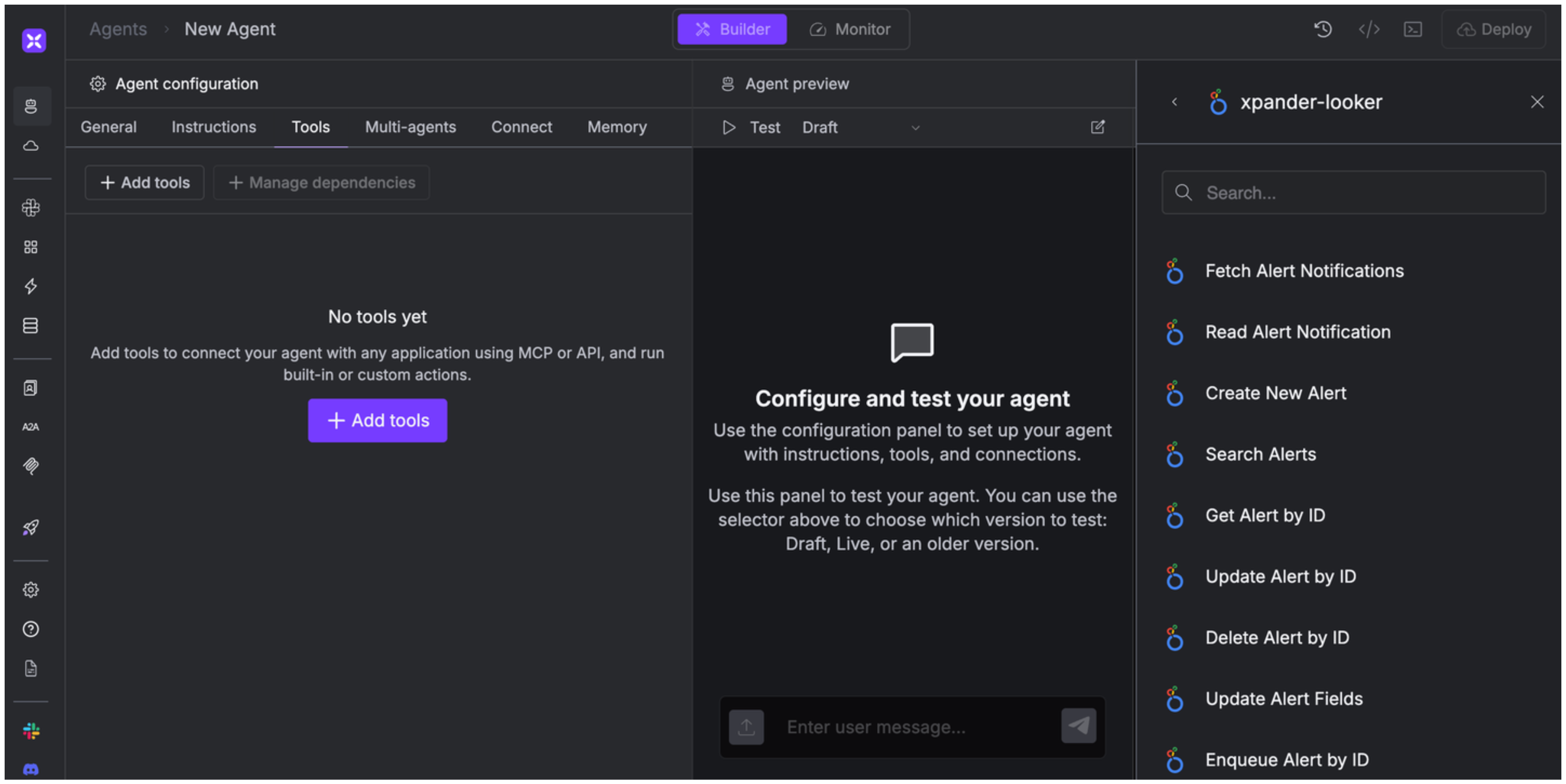
1. In your xpander.ai dashboard, go to the **Agent Configuration** tab and select **Tools**, then click **Add Tools**.
2. Select **Connectors**.
3. Choose **Tableau** with the same **connector name** you configured in the previous section (e.g., xpander-looker).
4. Select the available Looker operations that suit your use case.
## Integration of Looker into AI Agent
Once you've configured your Looker account with the authentication option(s) described above, you can integrate it into your AI agent with xpander.ai:
1. In your xpander.ai dashboard, go to the **Agent Configuration** tab and select **Tools**, then click **Add Tools**.
2. Select **Connectors**.
3. Choose **Tableau** with the same **connector name** you configured in the previous section (e.g., xpander-looker).
4. Select the available Looker operations that suit your use case.
 ## Expose Looker as MCP Server
Alternatively, you can also expose your Looker account as an MCP server. To do so:
1. Go to the **Connectors** section in the sidebar of your xpander.ai dashboard.
2. Select **Looker** with the same **connector name** you configured in the previous section (e.g., xpander-looker).
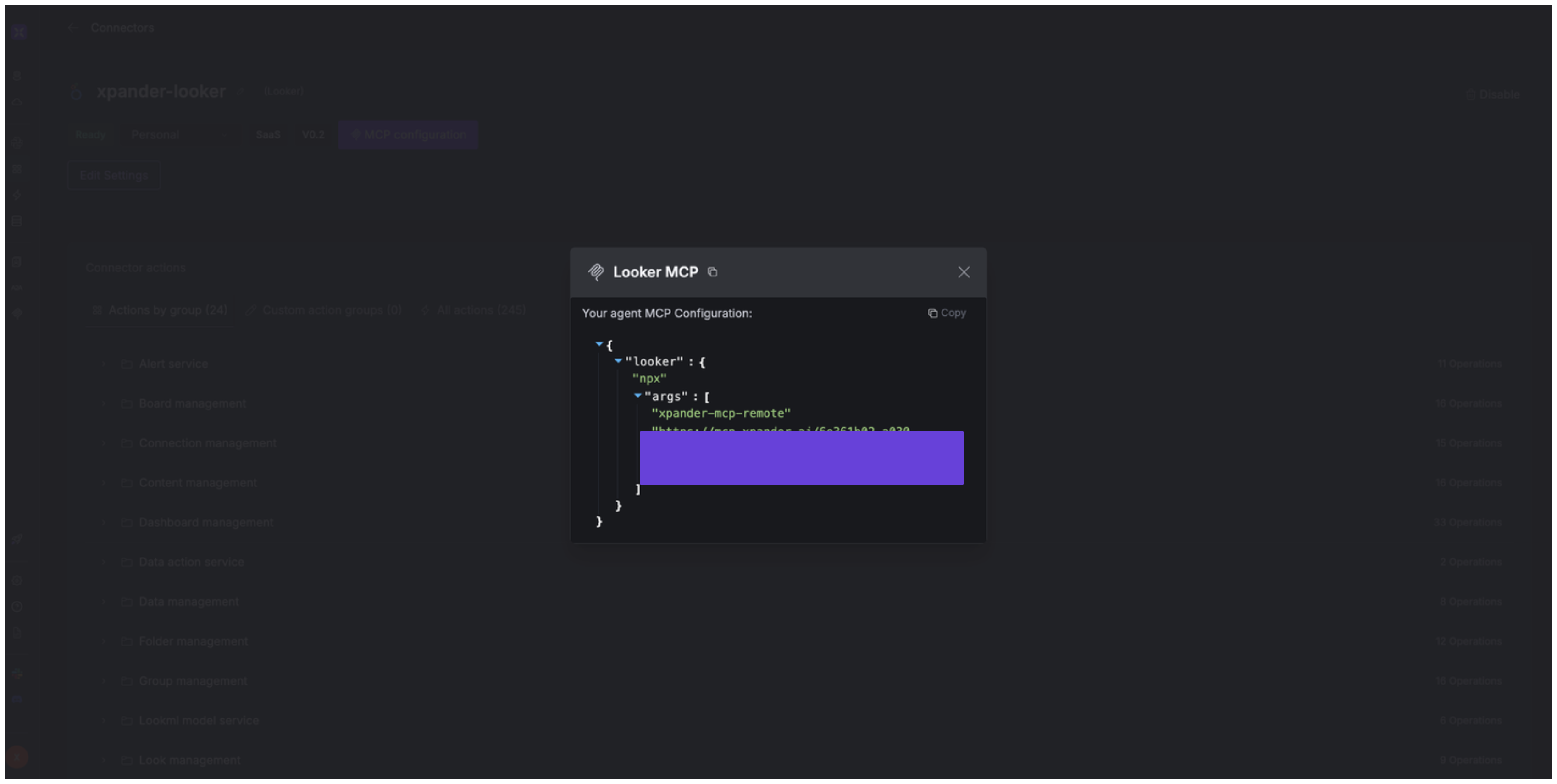
3. Click **MCP Configuration**.
4. Enter the MCP configuration into the appropriate settings of the client app you want to use (e.g., Cursor, Windsurf, Claude Desktop, etc.).
## Expose Looker as MCP Server
Alternatively, you can also expose your Looker account as an MCP server. To do so:
1. Go to the **Connectors** section in the sidebar of your xpander.ai dashboard.
2. Select **Looker** with the same **connector name** you configured in the previous section (e.g., xpander-looker).
3. Click **MCP Configuration**.
4. Enter the MCP configuration into the appropriate settings of the client app you want to use (e.g., Cursor, Windsurf, Claude Desktop, etc.).
 ## AI Agent Looker Prompt Library
Below are possible prompts or use cases you can try after integrating Looker into your xpander AI agent:
```
Find me all content items that mention {keyword} across the platform.
```
```
Show me all favorite content records for user {user_id}.
```
```
Can you get me the detailed metadata information for content item {content_metadata_id}?
```
```
Create a new filter named "{filter_name}" of type {filter_type} for dashboard {dashboard_id}.
```
## Related Resources
* [Understanding Model Context Protocol (MCP)](/guides/deploy/mcp)
* [Looker API Documentation](https://cloud.google.com/looker/docs/reference/looker-api/latest)
## AI Agent Looker Prompt Library
Below are possible prompts or use cases you can try after integrating Looker into your xpander AI agent:
```
Find me all content items that mention {keyword} across the platform.
```
```
Show me all favorite content records for user {user_id}.
```
```
Can you get me the detailed metadata information for content item {content_metadata_id}?
```
```
Create a new filter named "{filter_name}" of type {filter_type} for dashboard {dashboard_id}.
```
## Related Resources
* [Understanding Model Context Protocol (MCP)](/guides/deploy/mcp)
* [Looker API Documentation](https://cloud.google.com/looker/docs/reference/looker-api/latest)