> ## Documentation Index
> Fetch the complete documentation index at: https://docs.xpander.ai/llms.txt
> Use this file to discover all available pages before exploring further.
# MeetGeek
> Learn how to integrate AI agents with MeetGeek using xpander.ai. Create intelligent meeting assistants that automatically capture, summarize, and share key discussion points by leveraging MeetGeek's advanced transcription and integration capabilities.
## About MeetGeek
MeetGeek is an AI-powered meeting assistant designed to enhance productivity by automating the recording, transcription, summarization, and analysis of meetings. It integrates seamlessly with platforms like Google Calendar, Outlook, etc to provide accurate transcripts and actionable insights.
Key Features of MeetGeek:
* **Automated Recording & Transcription**which ensures accurate and comprehensive records.
* **AI-Generated Summaries**: MeekGeek delivers concise meeting summaries highlighting key points, decisions, and action items, which allows users to quickly grasp the essence of meetings without reviewing entire recordings.
* **Integration with Productivity Tools**: MeetGeek integrates with tools like Notion, ClickUp, Trello, HubSpot, and Salesforce, which enables seamless synchronization of meeting content and insights across various platforms.
* **Team Collaboration & Knowledge Sharing**: MeetGeek offers features for team collaboration, such as shared meeting libraries, searchable transcripts, and the ability to define team rules for sharing meeting content.
* **Conversation Intelligence**: MeetGeek provides analytics on meeting engagement, speaker distribution, meeting sentiment, and other key performance indicators.
## Authentication Options
Below are possible authentication options you can choose:
### Generate MeetGeek API Key
1. Log in into your [MeetGeek account](https://meetgeek.ai/).
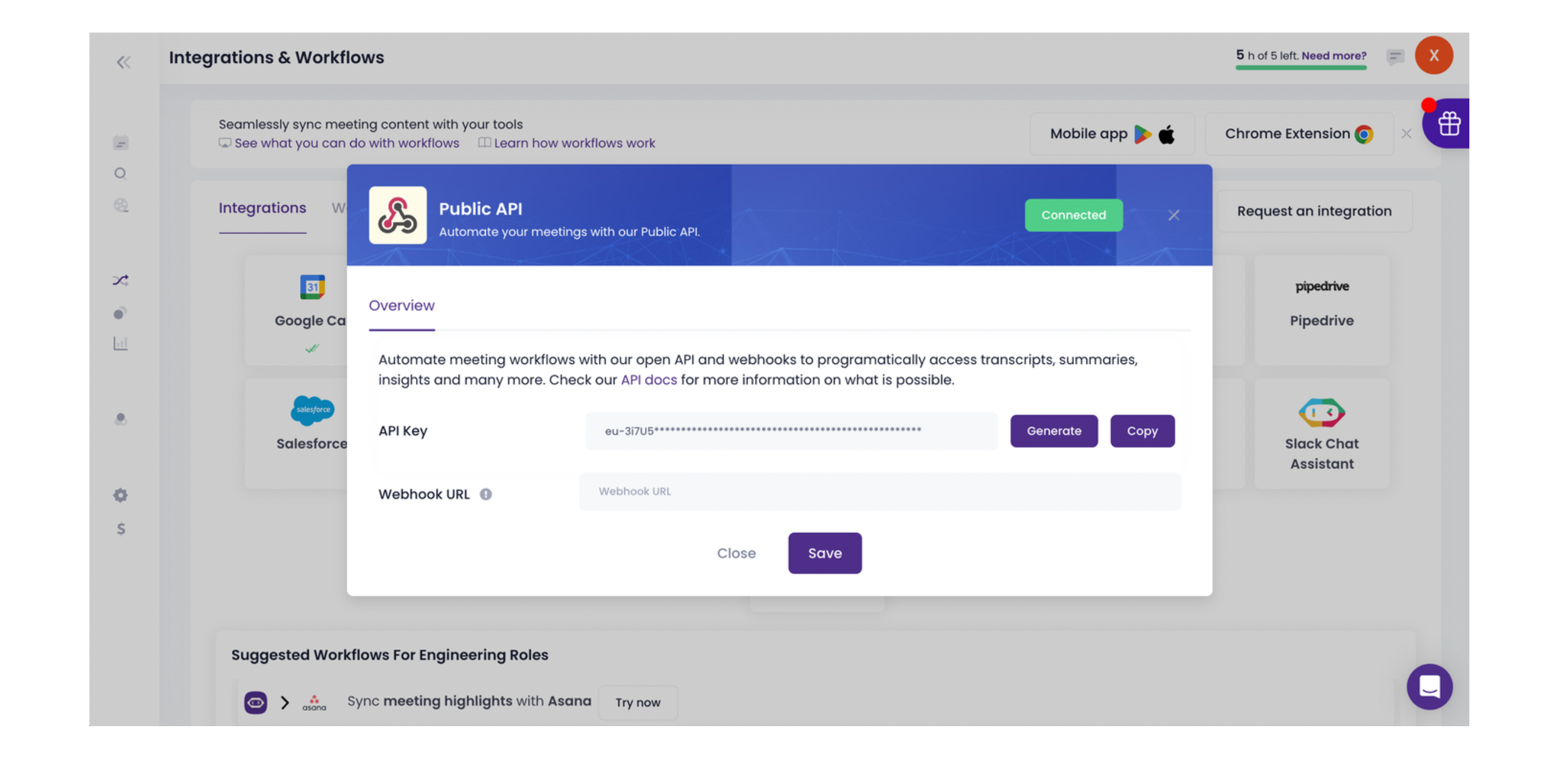
2. In the sidebar of your dashboard, choose **Integrations** -> **Public API**.
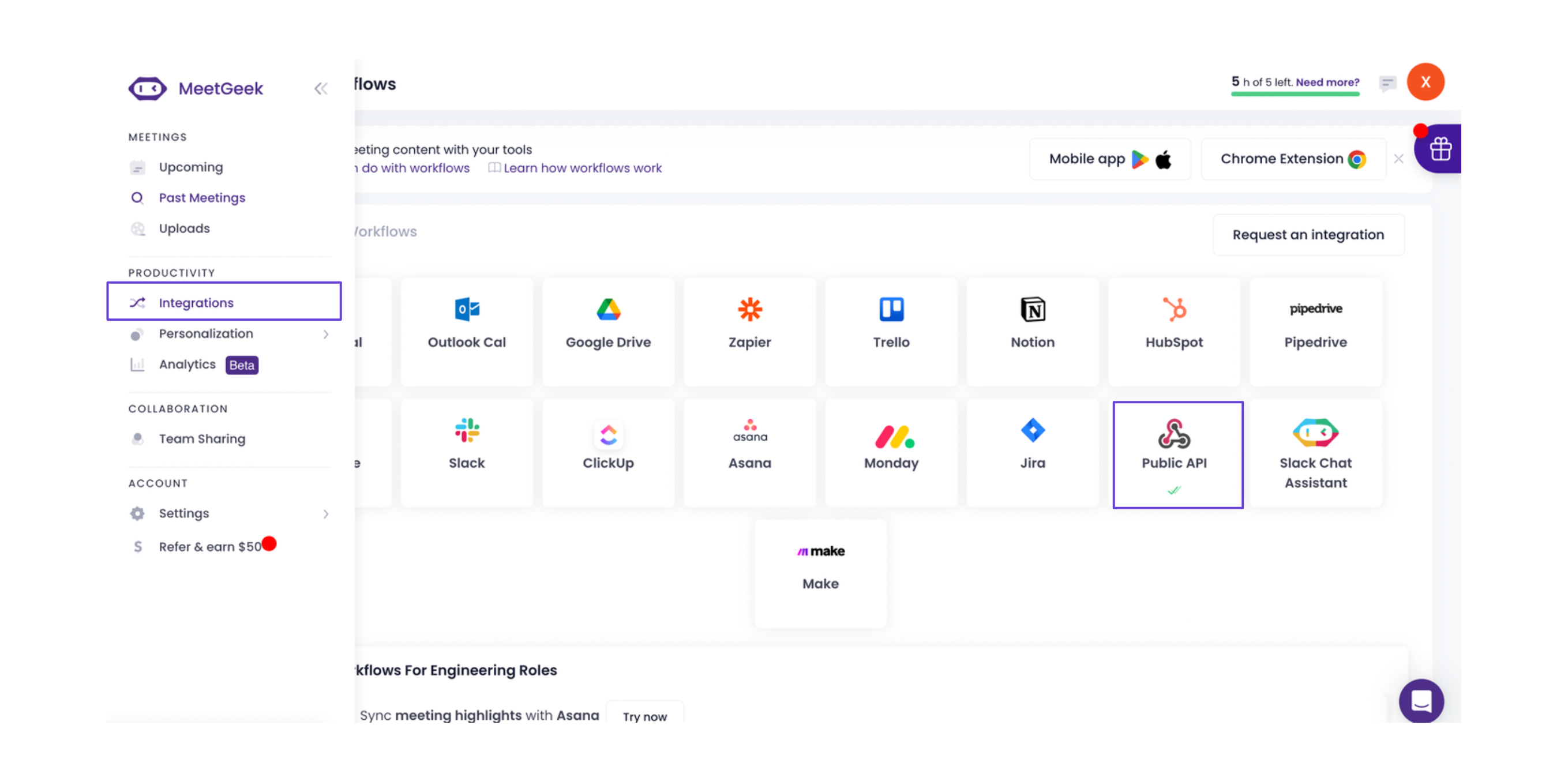 3. You'll see your MeetGeek API key.
 ### Integrate MeetGeek into Xpander.ai
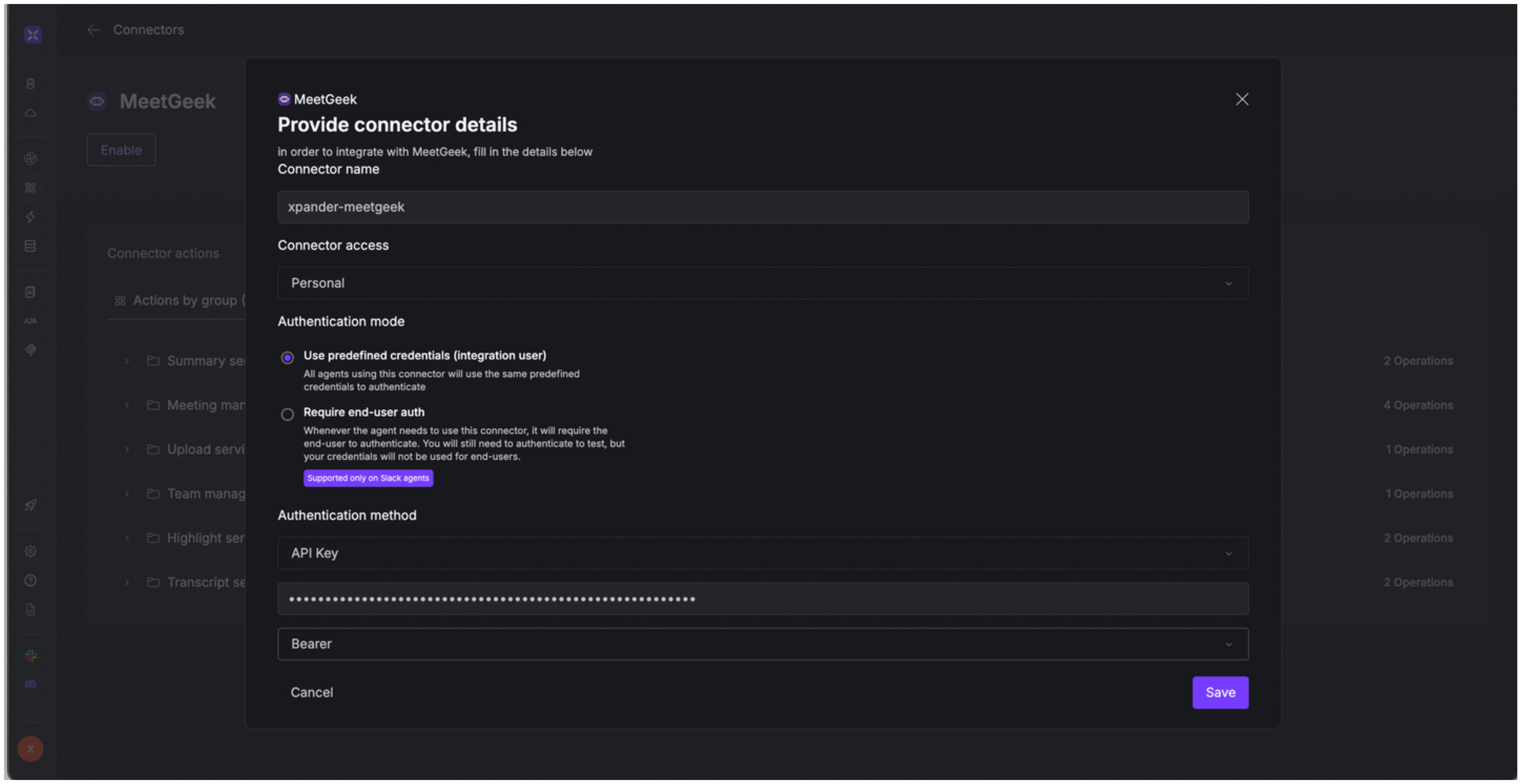
1. Go to the **Connectors** section in the sidebar of your xpander.ai dashboard.
2. Select **MeetGeek** from the available integrations.
3. Click **Enable**.
4. Fill in the **connector name** as desired, e.g., "xpander-meetgeek".
5. Choose **Integration user** as the authentication mode.
6. Choose **API Key** as the authentication method.
7. Copy and paste your MeetGeek API key into the provided field.
8. Choose **Bearer** as the **auth type**.
9. Save the configuration
### Integrate MeetGeek into Xpander.ai
1. Go to the **Connectors** section in the sidebar of your xpander.ai dashboard.
2. Select **MeetGeek** from the available integrations.
3. Click **Enable**.
4. Fill in the **connector name** as desired, e.g., "xpander-meetgeek".
5. Choose **Integration user** as the authentication mode.
6. Choose **API Key** as the authentication method.
7. Copy and paste your MeetGeek API key into the provided field.
8. Choose **Bearer** as the **auth type**.
9. Save the configuration
 ## Integration of MeetGeek into AI Agent
Once you've configured your MeetGeek account with the authentication option(s) described above, you can integrate it into your AI agent with xpander.ai:
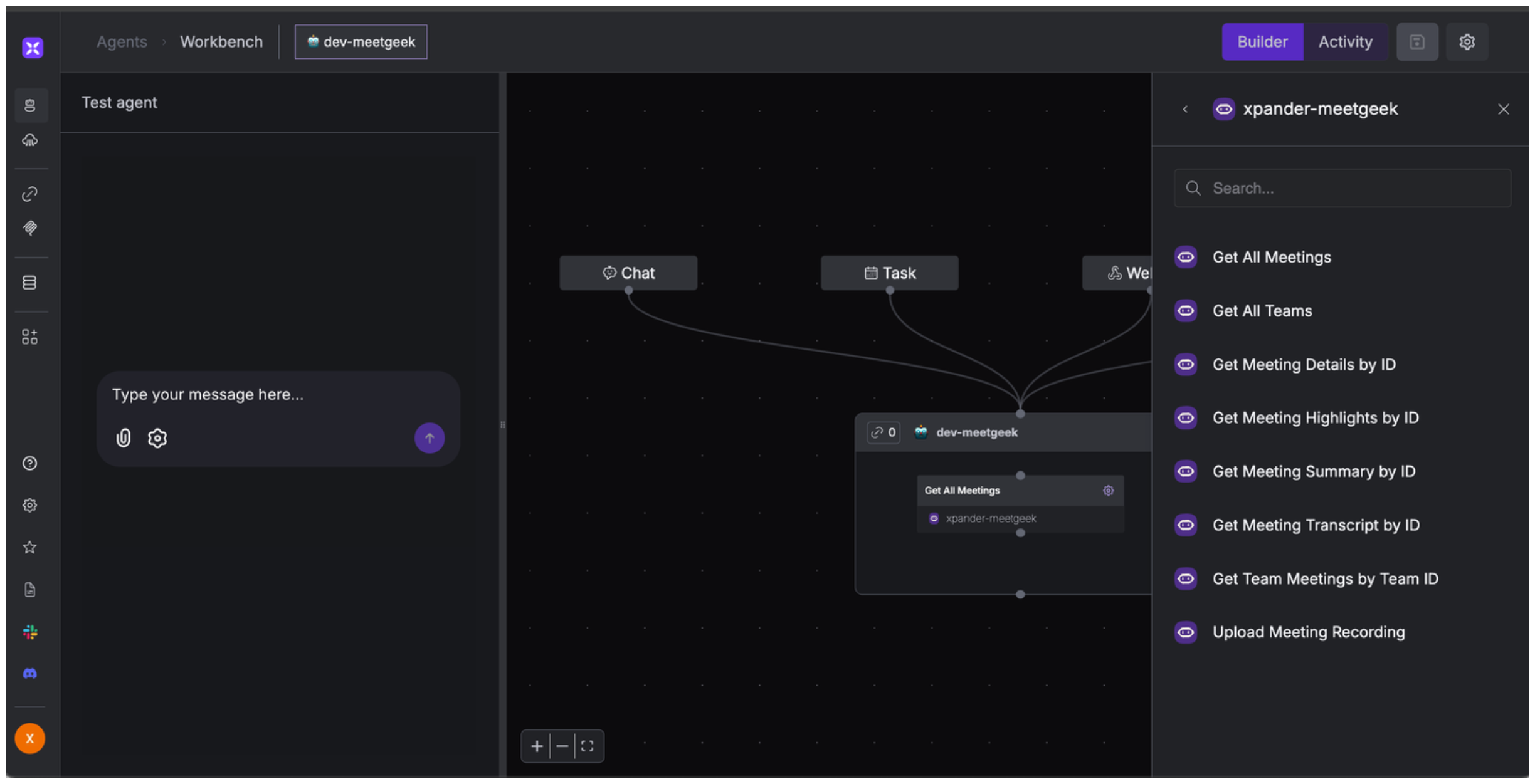
1. In your xpander.ai dashboard, go to the **Agent Configuration** tab and select **Tools**, then click **Add Tools**.
2. Select **Connectors**.
3. Choose **MeetGeek** with the same **connector name** you configured in the previous section (e.g., xpander-meetgeek).
4. Select the available MeetGeek operations that suit your use case.
## Integration of MeetGeek into AI Agent
Once you've configured your MeetGeek account with the authentication option(s) described above, you can integrate it into your AI agent with xpander.ai:
1. In your xpander.ai dashboard, go to the **Agent Configuration** tab and select **Tools**, then click **Add Tools**.
2. Select **Connectors**.
3. Choose **MeetGeek** with the same **connector name** you configured in the previous section (e.g., xpander-meetgeek).
4. Select the available MeetGeek operations that suit your use case.
 ## Expose MeetGeek as MCP Server
Alternatively, you can also expose your MeetGeek account as an MCP server. To do so:
1. Go to the **Connectors** section in the sidebar of your xpander.ai dashboard.
2. Select **MeetGeek** with the same **connector name** you configured in the previous section (e.g., xpander-meetgeek).
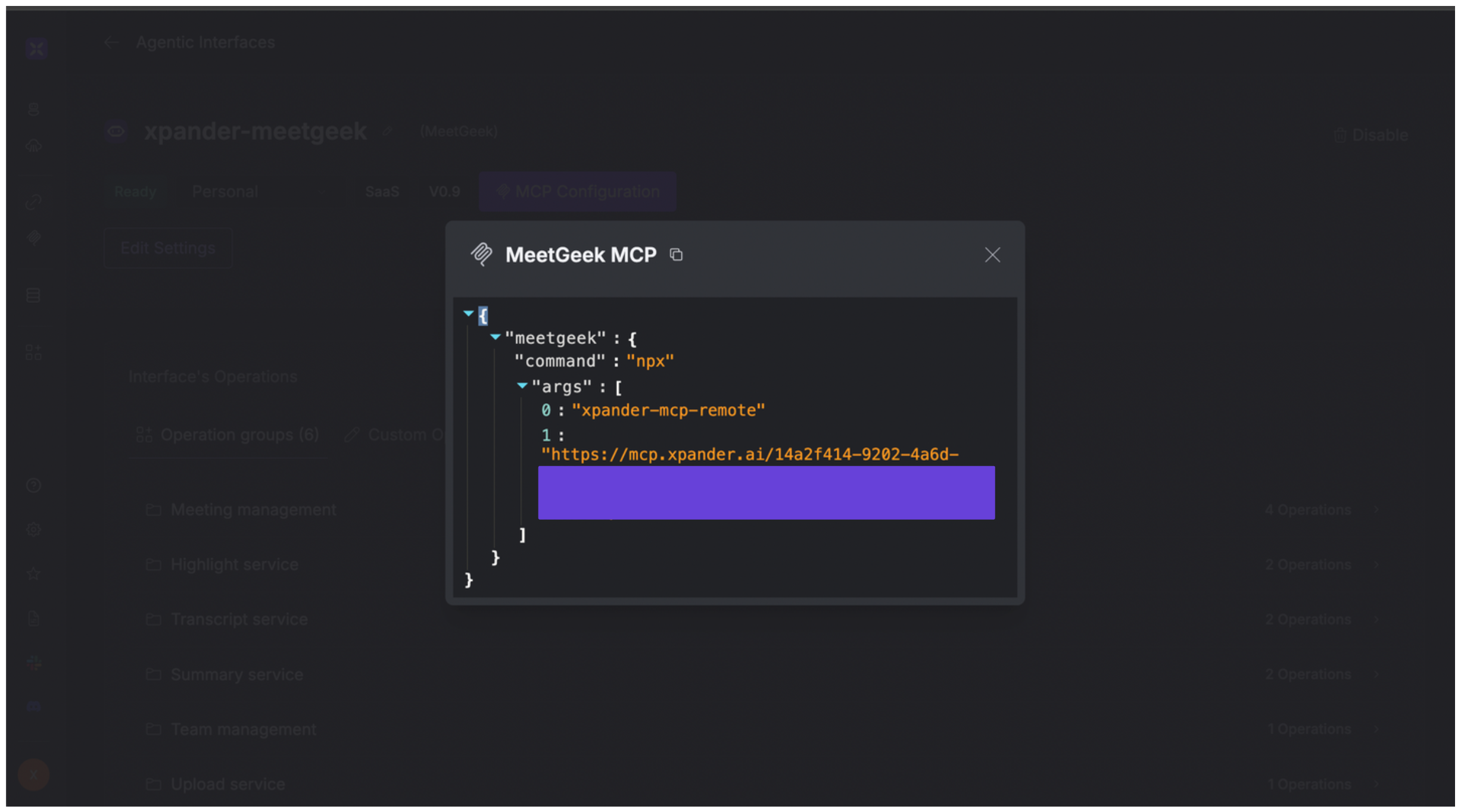
3. Click **MCP Configuration**.
4. Put the MCP configuration into the appropriate settings of the client app you want to use (e.g., Cursor, Windsurf, Claude Desktop, etc.).
## Expose MeetGeek as MCP Server
Alternatively, you can also expose your MeetGeek account as an MCP server. To do so:
1. Go to the **Connectors** section in the sidebar of your xpander.ai dashboard.
2. Select **MeetGeek** with the same **connector name** you configured in the previous section (e.g., xpander-meetgeek).
3. Click **MCP Configuration**.
4. Put the MCP configuration into the appropriate settings of the client app you want to use (e.g., Cursor, Windsurf, Claude Desktop, etc.).
 ## AI Agent MeetGeek Prompt Library
Below are possible prompts or use cases you can try after integrating MeetGeek into your xpander AI agent:
```
Can you provide a summary of my meeting with {Client_Name} last Thursday?
```
```
I have a recording of a meeting with {Client_Name} from yesterday. Can you transcribe and analyze it?
```
```
What meetings did I have last week?
```
```
Who attended my meeting with {Client_Name} on {Date}?
```
## Related Resources
* [Understanding Model Context Protocol (MCP)](/guides/deploy/mcp)
* [MeetGeek API Documentation](https://docs.meetgeek.ai/getting-started/introduction)
## AI Agent MeetGeek Prompt Library
Below are possible prompts or use cases you can try after integrating MeetGeek into your xpander AI agent:
```
Can you provide a summary of my meeting with {Client_Name} last Thursday?
```
```
I have a recording of a meeting with {Client_Name} from yesterday. Can you transcribe and analyze it?
```
```
What meetings did I have last week?
```
```
Who attended my meeting with {Client_Name} on {Date}?
```
## Related Resources
* [Understanding Model Context Protocol (MCP)](/guides/deploy/mcp)
* [MeetGeek API Documentation](https://docs.meetgeek.ai/getting-started/introduction)