> ## Documentation Index
> Fetch the complete documentation index at: https://docs.xpander.ai/llms.txt
> Use this file to discover all available pages before exploring further.
# Microsoft Outlook
> Learn how to integrate AI agents with Microsoft Outlook using xpander.ai. Create intelligent AI agents that can securely access your Outlook email, calendar, and contacts to complete scheduling and communication tasks.
## About Microsoft Outlook
**Microsoft Outlook** is a cloud-based communication and productivity platform designed to help manage email, calendars, and contacts for individuals and organizations.
Key features include:
* **Email and messaging**: Send, receive, organize, and manage email conversations, including attachments, folders, and rules.
* **Calendar and scheduling**: Manage calendars, meetings, and events with scheduling, availability, and reminder support.
* **Contacts and people management**: Store and manage contact information and people data across personal and organizational directories.
* **Security and compliance**: Enterprise-grade security, data protection, retention, and compliance controls across communication data.
## Authentication Options
Below are possible authentication options you can choose:
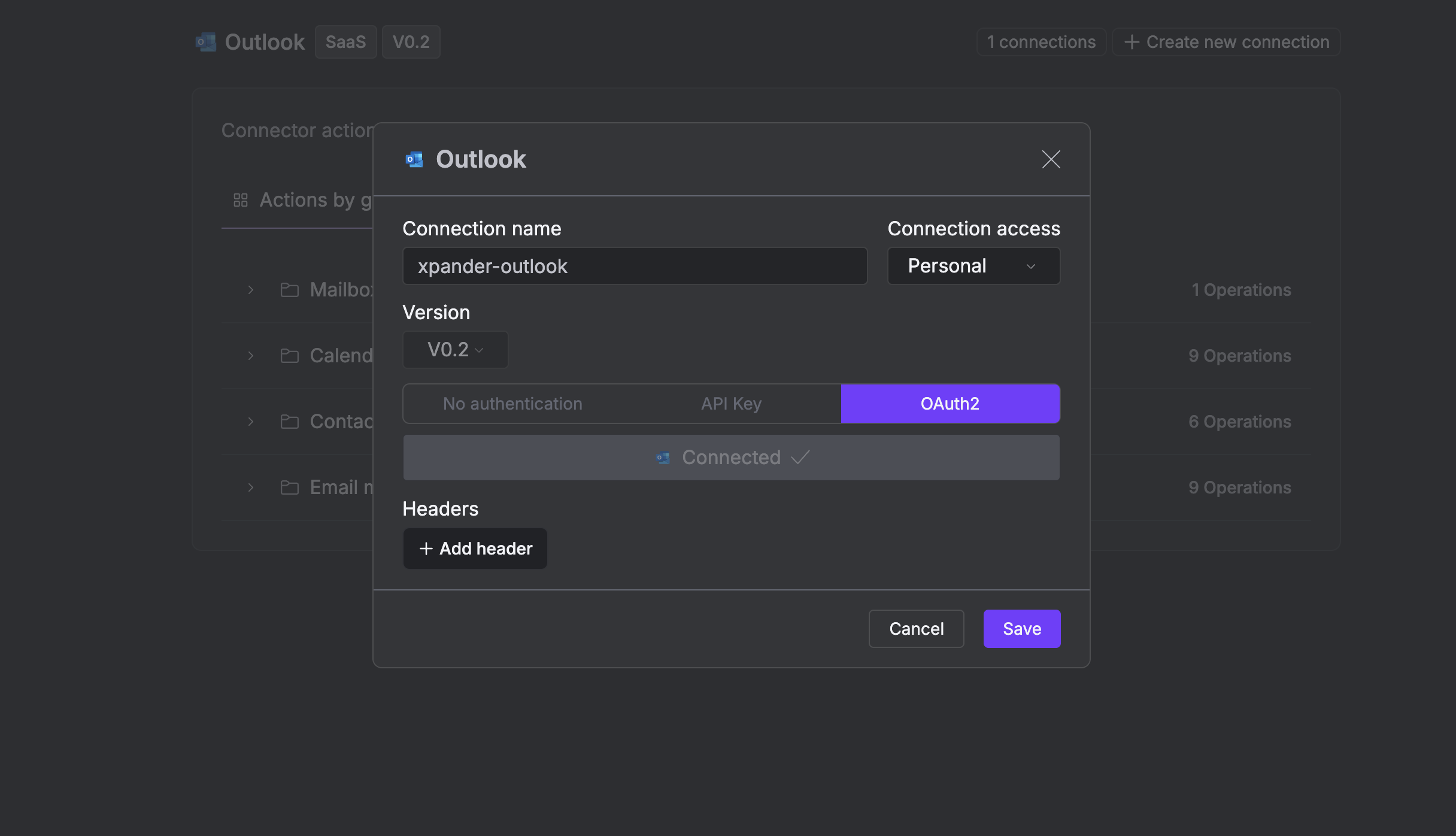
The simplest way to connect Microsoft Outlook is by using xpander.ai's built-in authentication:
1. Go to the **Connectors** section in the sidebar of your xpander.ai dashboard.
2. Select **Outlook** from the available integrations.
3. Click **+ Create new connection**.
4. Enter a **connector name** as desired, e.g., "xpander-outlook".
5. Choose **OAuth2** as the authentication method.
6. Click **Sign in with Outlook**.
7. Grant xpander.ai permission to access your account.
8. Save the configuration.
 ## Integration of Microsoft Outlook into an AI Agent
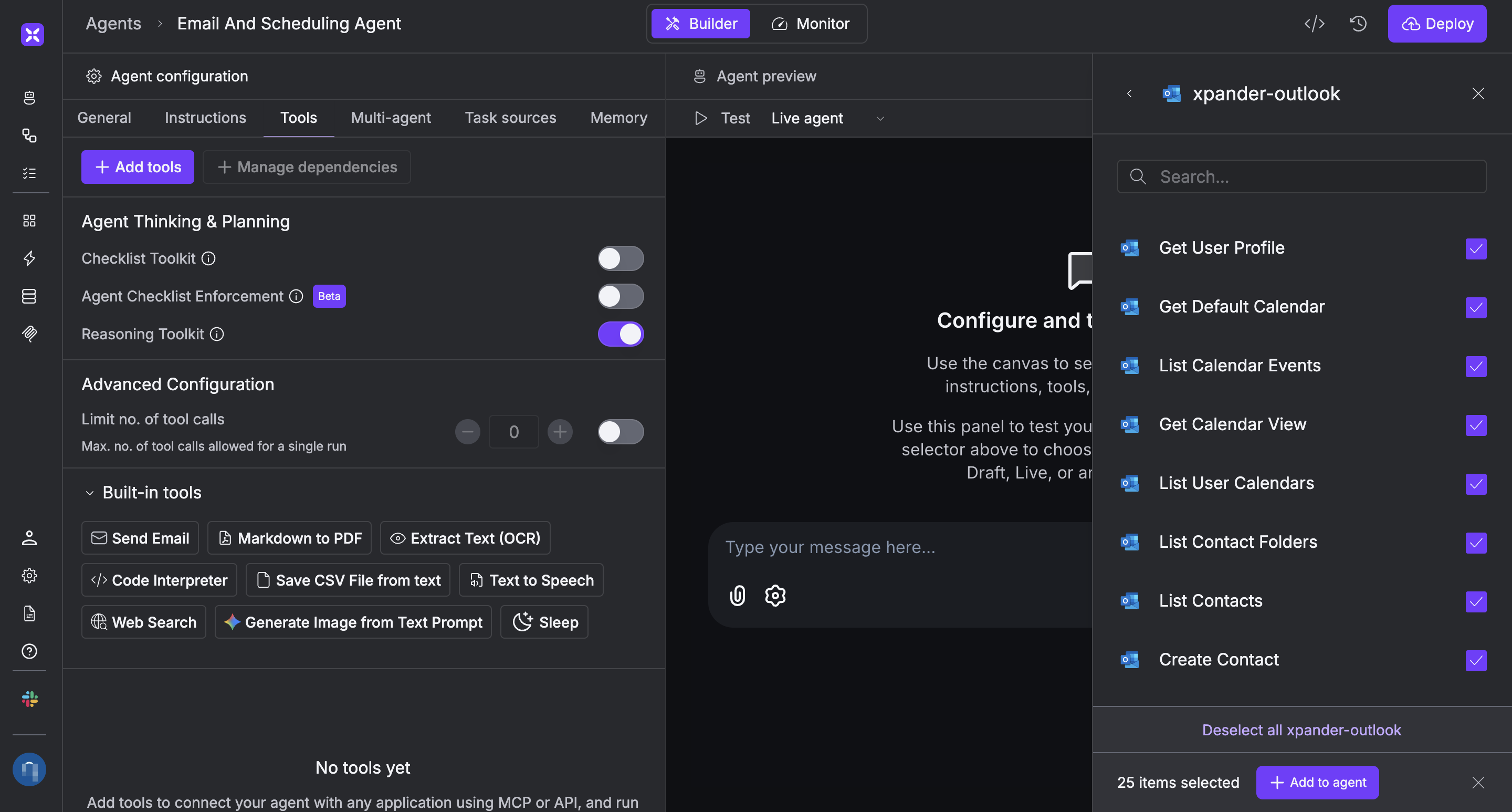
Once you’ve configured your Microsoft Outlook connector with the authentication option described above, you can integrate it into your AI agent with xpander.ai:
1. In your xpander.ai dashboard, navigate to the **Agents** page, then click an agent to open the **Agent Configuration** tab.
2. Select **Tools**, then click **Add Tools**.
3. Select **Connectors**.
4. Choose **Outlook** with the same **connector name** you configured in the previous section (e.g., xpander-outlook).
5. Select the available Microsoft Outlook operations that suit your use case.
To grant your agent email management and scheduling capabilities, enable the following operations.
* **List Calendar Events**
* **Create Event**
* **Update Event Details**
* **Delete Event**
* **Create Message**
* **Send Draft Message**
* **List User Messages**
6. Click **Deploy** to update your agent.
## Integration of Microsoft Outlook into an AI Agent
Once you’ve configured your Microsoft Outlook connector with the authentication option described above, you can integrate it into your AI agent with xpander.ai:
1. In your xpander.ai dashboard, navigate to the **Agents** page, then click an agent to open the **Agent Configuration** tab.
2. Select **Tools**, then click **Add Tools**.
3. Select **Connectors**.
4. Choose **Outlook** with the same **connector name** you configured in the previous section (e.g., xpander-outlook).
5. Select the available Microsoft Outlook operations that suit your use case.
To grant your agent email management and scheduling capabilities, enable the following operations.
* **List Calendar Events**
* **Create Event**
* **Update Event Details**
* **Delete Event**
* **Create Message**
* **Send Draft Message**
* **List User Messages**
6. Click **Deploy** to update your agent.
 ## AI Agent Microsoft Outlook Prompt Library
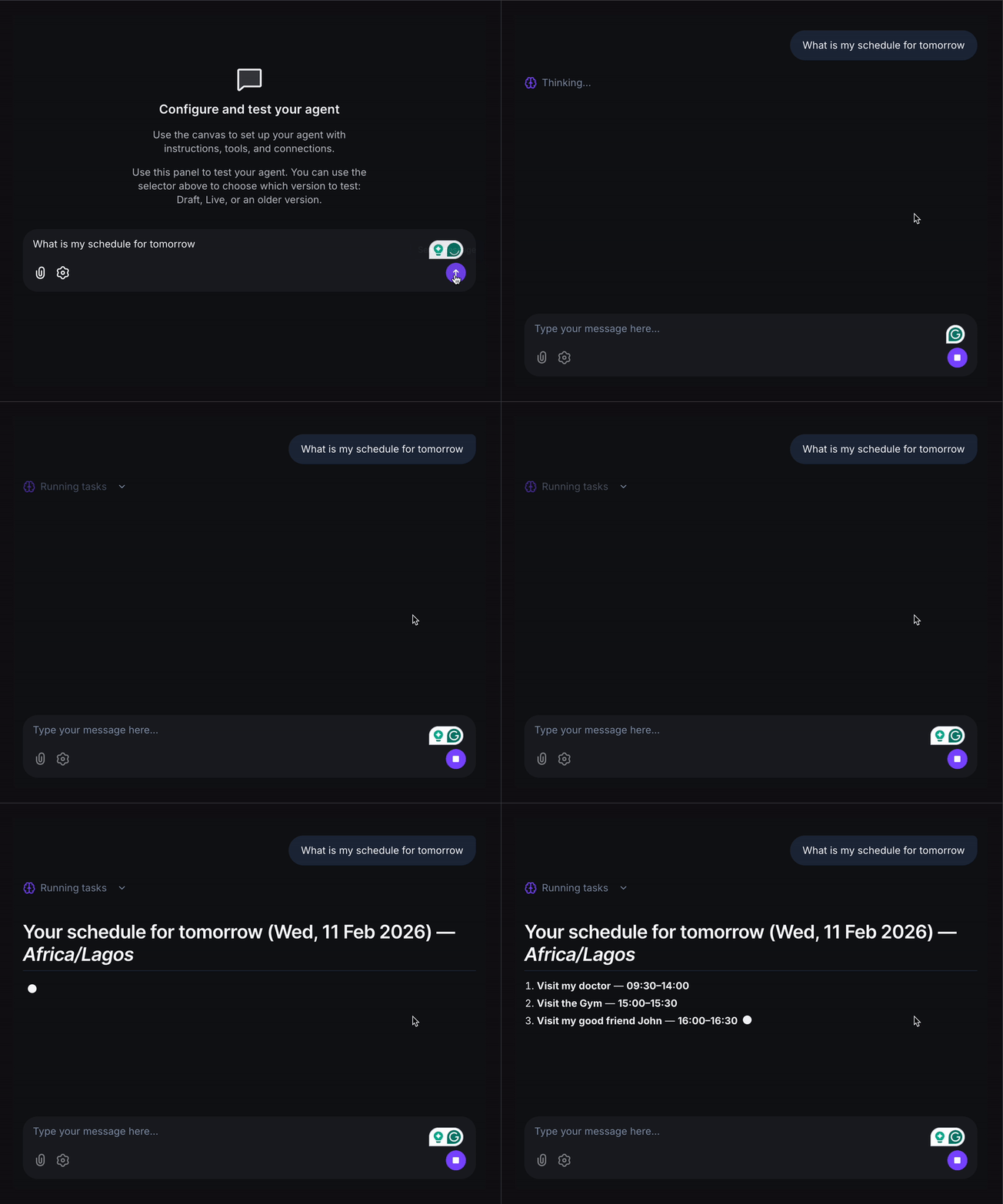
Below are possible prompts or use cases you can try after integrating Microsoft Outlook into your xpander.ai AI agent:
```
List all messages in my email inbox.
```
```
What events are in my calendar for tomorrow.
```
```
Create a new event name for 6pm tomorrow.
```
```
Send an email with the subject and body to .
```
## AI Agent Microsoft Outlook Prompt Library
Below are possible prompts or use cases you can try after integrating Microsoft Outlook into your xpander.ai AI agent:
```
List all messages in my email inbox.
```
```
What events are in my calendar for tomorrow.
```
```
Create a new event name for 6pm tomorrow.
```
```
Send an email with the subject and body to .
```
 ## Related Resources
* [Using Tools & Connectors in the xpander.ai platform](/guides/agents/tools-connectors)
* [Microsoft Outlook Documentation](https://support.microsoft.com/en-us/outlook)
## Related Resources
* [Using Tools & Connectors in the xpander.ai platform](/guides/agents/tools-connectors)
* [Microsoft Outlook Documentation](https://support.microsoft.com/en-us/outlook)