> ## Documentation Index
> Fetch the complete documentation index at: https://docs.xpander.ai/llms.txt
> Use this file to discover all available pages before exploring further.
# Microsoft SharePoint
> Learn how to integrate AI agents with Microsoft SharePoint using xpander.ai. Create intelligent AI agents that can securely access SharePoint sites, lists, and documents to complete collaboration tasks.
## About Microsoft SharePoint
**Microsoft SharePoint** is a cloud-based collaboration and content management platform for creating, managing, and sharing organizational content, sites, and structured data.
Key features include:
* **Sites and team collaboration**: Create and manage team sites, communication sites, and shared workspaces.
* **Document and content management**: Store, organize, and manage documents in libraries with metadata, versioning, and content types.
* **Lists and structured data**: Create and manage lists to track structured business data with custom fields and views.
* **Sharing and permissions**: Control access to sites, lists, and documents with role-based permissions and sharing policies.
* **Security and compliance**: Enterprise-grade security, governance, and compliance controls for organizational content.
## Authentication Options
Below are possible authentication options you can choose:
The simplest way to connect Microsoft SharePoint is by using xpander.ai's built-in authentication:
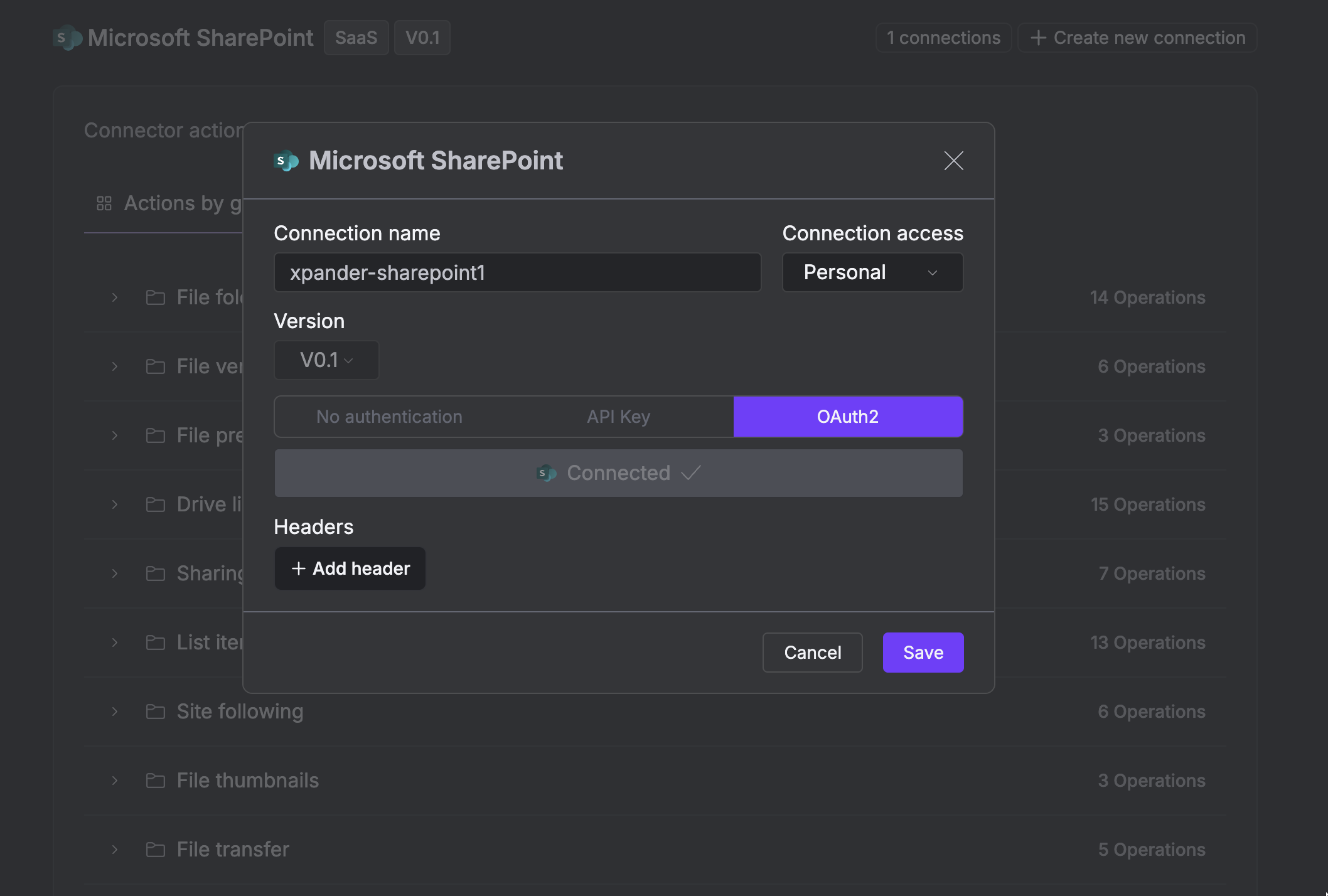
1. Go to the **Connectors** section in the sidebar of your xpander.ai dashboard.
2. Select **Microsoft SharePoint** from the available integrations.
3. Click **+ Create new connection**.
4. Enter a **connector name** as desired, e.g., "xpander-sharepoint".
5. Choose **OAuth2** as the authentication method.
6. Click **Sign in with Microsoft SharePoint**.
7. Grant xpander.ai permission to access your account.
8. Save the configuration.
 ## Integration of Microsoft SharePoint into an AI Agent
Once you’ve configured your Microsoft SharePoint connector with the authentication option described above, you can integrate it into your AI agent with xpander.ai:
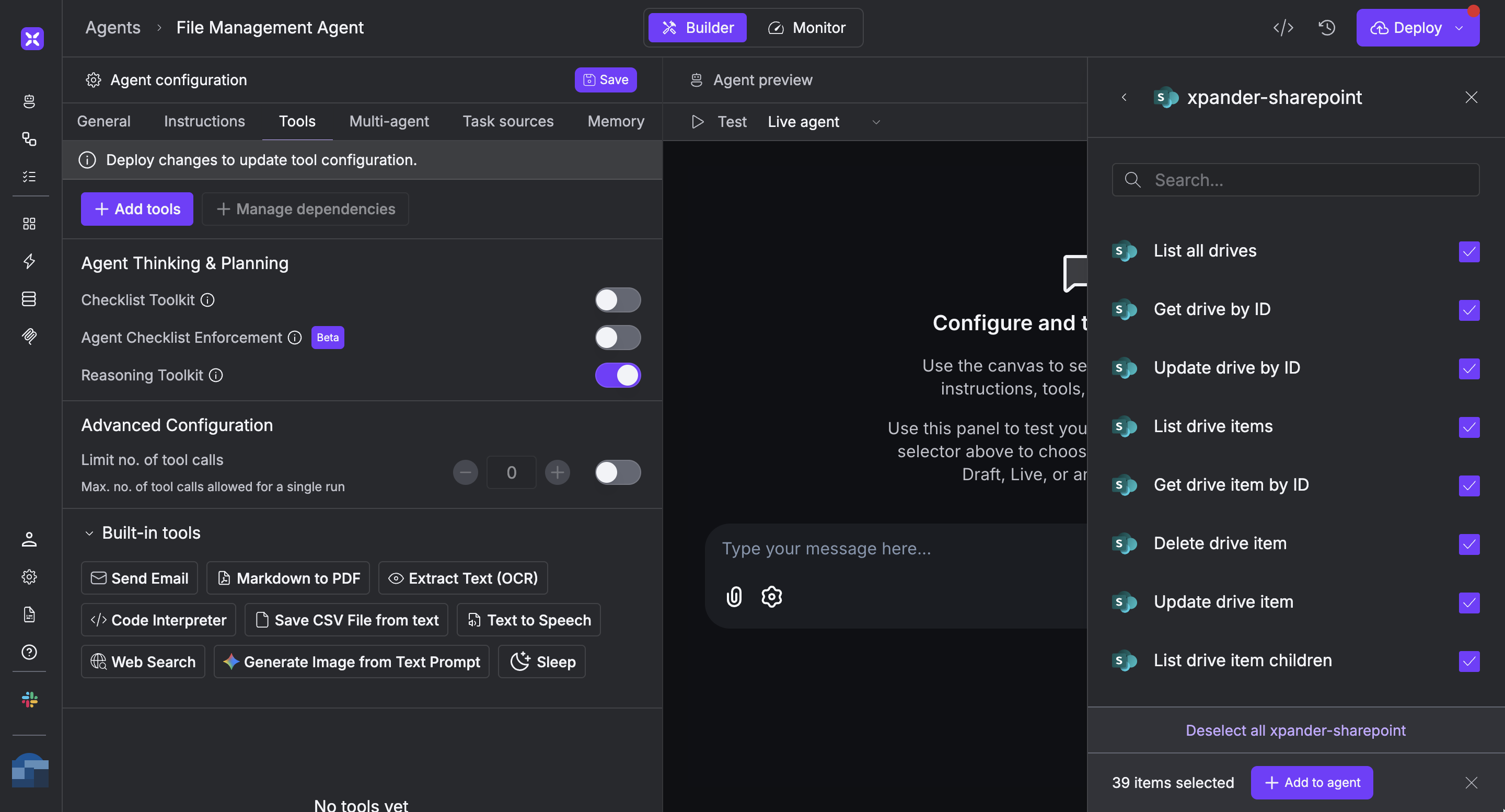
1. In your xpander.ai dashboard, navigate to the **Agents** page, then click an agent to open the **Agent Configuration** tab.
2. Select **Tools**, then click **Add Tools**.
3. Select **Connectors**.
4. Choose **Microsoft SharePoint** with the same **connector name** you configured in the previous section (e.g., xpander-sharepoint).
5. Select the available Microsoft SharePoint operations that suit your use case.
To grant your agent site and file management capabilities, enable the following operations.
* **List All Drives**
* **List Drive Items**
* **Get Drive List**
* **List Site Pages**
* **List Site Drives**
* **List All Sites**
* **List Followed Sites**
6. Click **Deploy** to update your agent.
## Integration of Microsoft SharePoint into an AI Agent
Once you’ve configured your Microsoft SharePoint connector with the authentication option described above, you can integrate it into your AI agent with xpander.ai:
1. In your xpander.ai dashboard, navigate to the **Agents** page, then click an agent to open the **Agent Configuration** tab.
2. Select **Tools**, then click **Add Tools**.
3. Select **Connectors**.
4. Choose **Microsoft SharePoint** with the same **connector name** you configured in the previous section (e.g., xpander-sharepoint).
5. Select the available Microsoft SharePoint operations that suit your use case.
To grant your agent site and file management capabilities, enable the following operations.
* **List All Drives**
* **List Drive Items**
* **Get Drive List**
* **List Site Pages**
* **List Site Drives**
* **List All Sites**
* **List Followed Sites**
6. Click **Deploy** to update your agent.
 ## AI Agent Microsoft SharePoint Prompt Library
Below are possible prompts or use cases you can try after integrating Microsoft SharePoint into your xpander.ai AI agent:
```
List the sites I'm currently following.
```
```
Get a list of drives in site .
```
```
Create a new list named .
```
```
List all the pages in site .
```
## Related Resources
* [Using Tools & Connectors in the xpander.ai platform](/guides/agents/tools-connectors)
* [Microsoft SharePoint Documentation](https://learn.microsoft.com/en-us/sharepoint/)
## AI Agent Microsoft SharePoint Prompt Library
Below are possible prompts or use cases you can try after integrating Microsoft SharePoint into your xpander.ai AI agent:
```
List the sites I'm currently following.
```
```
Get a list of drives in site .
```
```
Create a new list named .
```
```
List all the pages in site .
```
## Related Resources
* [Using Tools & Connectors in the xpander.ai platform](/guides/agents/tools-connectors)
* [Microsoft SharePoint Documentation](https://learn.microsoft.com/en-us/sharepoint/)