> ## Documentation Index
> Fetch the complete documentation index at: https://docs.xpander.ai/llms.txt
> Use this file to discover all available pages before exploring further.
# Monday
> Learn how to integrate AI agents with Monday using xpander.ai. Create intelligent workflows that automatically assign tasks, prioritize requests, and resolve issues by embedding AI-driven decision-making directly into your Monday boards.
## About Monday
Monday.com is a cloud-based work operating system (Work OS) that enables teams to build, manage, and customize workflows for projects, tasks, and everyday operations. It offers a visual and flexible platform designed to enhance collaboration, automate processes, and integrate with various tools, catering to a wide range of industries and team sizes.
Monday key features:
* **Customizable Workflows**: Users can tailor boards to fit specific project needs, using a variety of column types and views (such as Kanban, Gantt, and calendar) to visualize work.
* **Automation**: The platform supports automation of repetitive tasks, such as status updates and notifications, reducing manual work.
* **Integrations**: Monday.com integrates with numerous third-party applications, including Slack, Microsoft Teams, Google Workspace, and Adobe Creative Cloud, allowing for seamless workflow across tools.
* **Collaboration Tools**: Features like real-time updates, file sharing, and comment threads facilitate team communication and collaboration within the platform.
* **No-Code/Low-Code Development**: With its open API and app framework, users can develop custom applications and extensions without extensive coding knowledge.
## Authentication Options
Below are possible authentication options you can choose:
### Generate a Monday API Key
1. Log in to your [Monday account](https://monday.com).
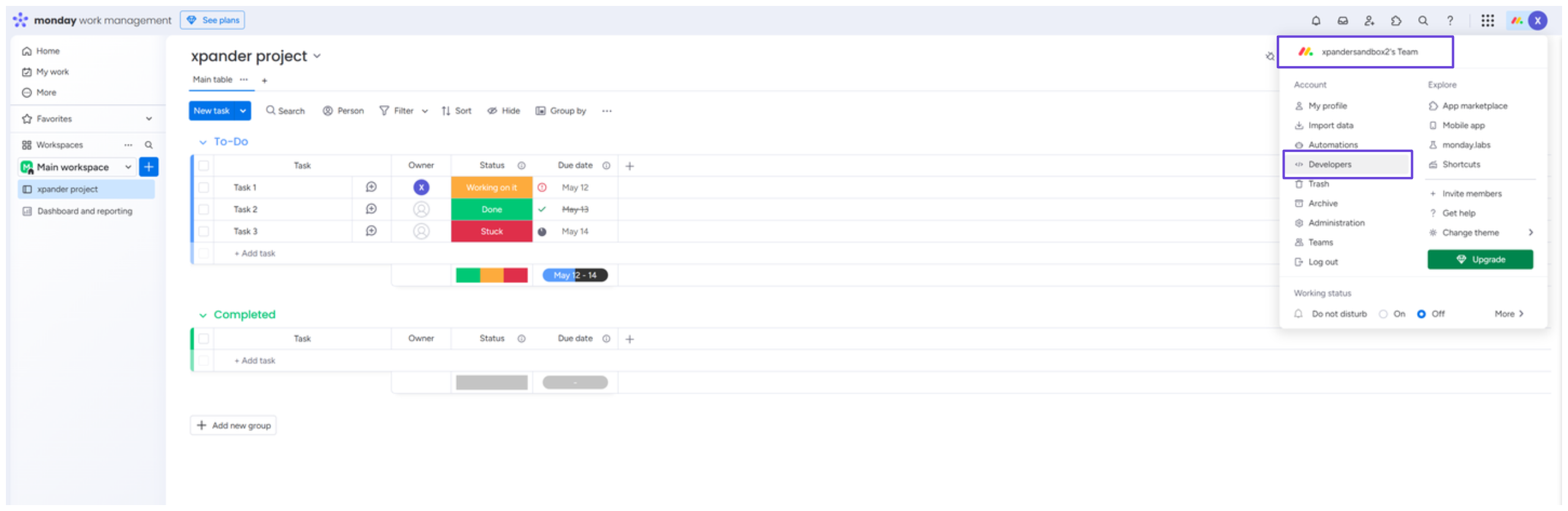
2. Click your profile icon in the top-right corner, then select **Developers**.
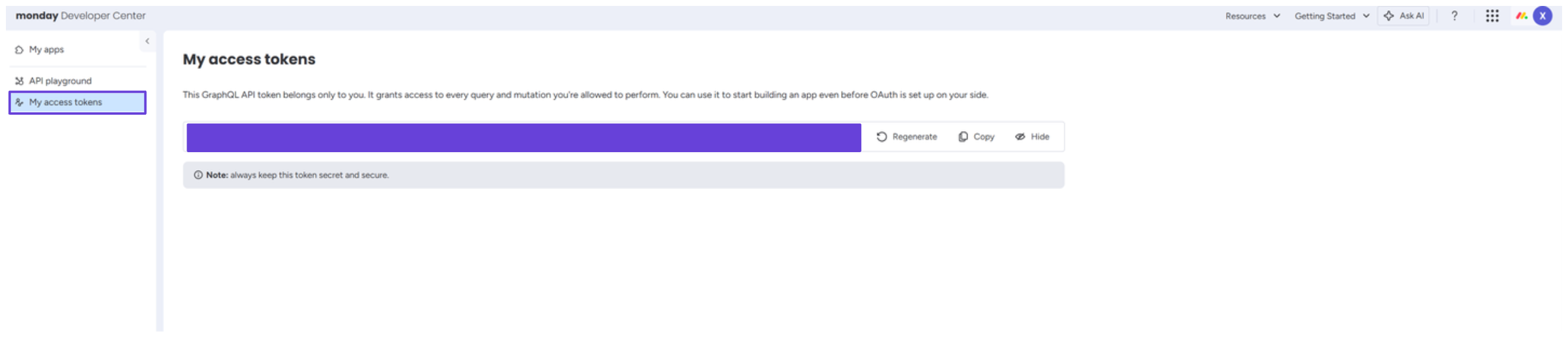
 3. In the sidebar, under the **My access tokens** section, you’ll find your API key.
 ### Integrate Monday into xpander.ai
1. In your xpander.ai dashboard, go to the **Connectors** section in the sidebar.
2. Select **Monday** from the available integrations.
3. Click **Enable**.
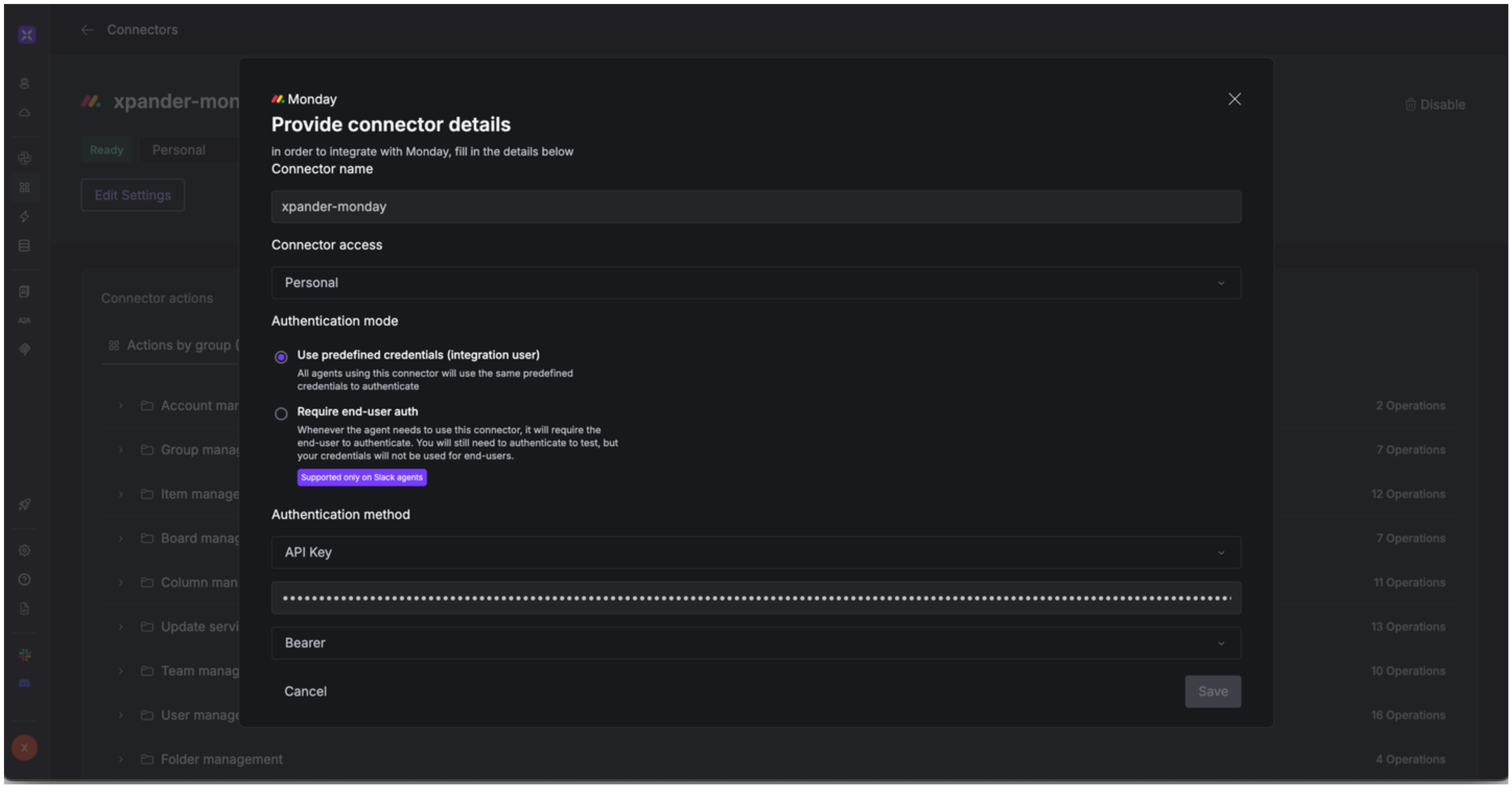
4. Enter a **connector name**, e.g., "xpander-monday".
5. Select **Integration User** for the authentication mode.
6. Choose **API Key** as the authentication method.
7. Paste your Monday API key into the provided field.
8. Set the **Auth Type** to **Basic**.
9. Save the configuration.
### Integrate Monday into xpander.ai
1. In your xpander.ai dashboard, go to the **Connectors** section in the sidebar.
2. Select **Monday** from the available integrations.
3. Click **Enable**.
4. Enter a **connector name**, e.g., "xpander-monday".
5. Select **Integration User** for the authentication mode.
6. Choose **API Key** as the authentication method.
7. Paste your Monday API key into the provided field.
8. Set the **Auth Type** to **Basic**.
9. Save the configuration.
 ## Integration of Monday into AI Agent
Once you've configured your Monday account with the authentication option(s) described above, you can integrate it into your AI agent with xpander.ai:
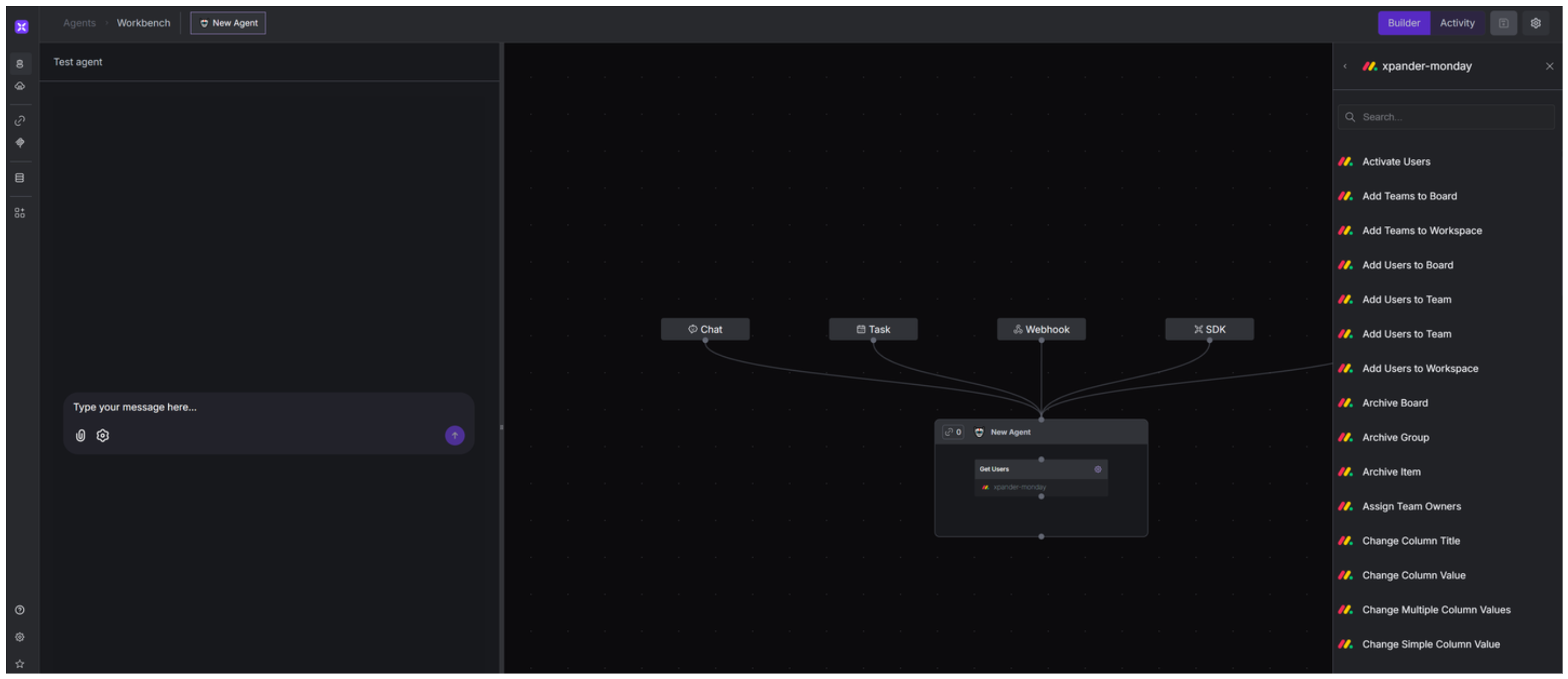
1. In your xpander.ai dashboard, go to the **Agent Configuration** tab and select **Tools**, then click **Add Tools**.
2. Select **Connectors**.
3. Choose **Monday** with the same **connector name** you configured in the previous section (e.g., xpander-moday).
4. Select the available Monday operations that suit your use case.
## Integration of Monday into AI Agent
Once you've configured your Monday account with the authentication option(s) described above, you can integrate it into your AI agent with xpander.ai:
1. In your xpander.ai dashboard, go to the **Agent Configuration** tab and select **Tools**, then click **Add Tools**.
2. Select **Connectors**.
3. Choose **Monday** with the same **connector name** you configured in the previous section (e.g., xpander-moday).
4. Select the available Monday operations that suit your use case.
 ## Expose Monday as MCP Server
Alternatively, you can also expose your Monday account as an MCP server. To do so:
1. Go to the **Connectors** section in the sidebar of your xpander.ai dashboard.
2. Select **Monday** with the same **connector name** you configured in the previous section (e.g., xpander-monday).
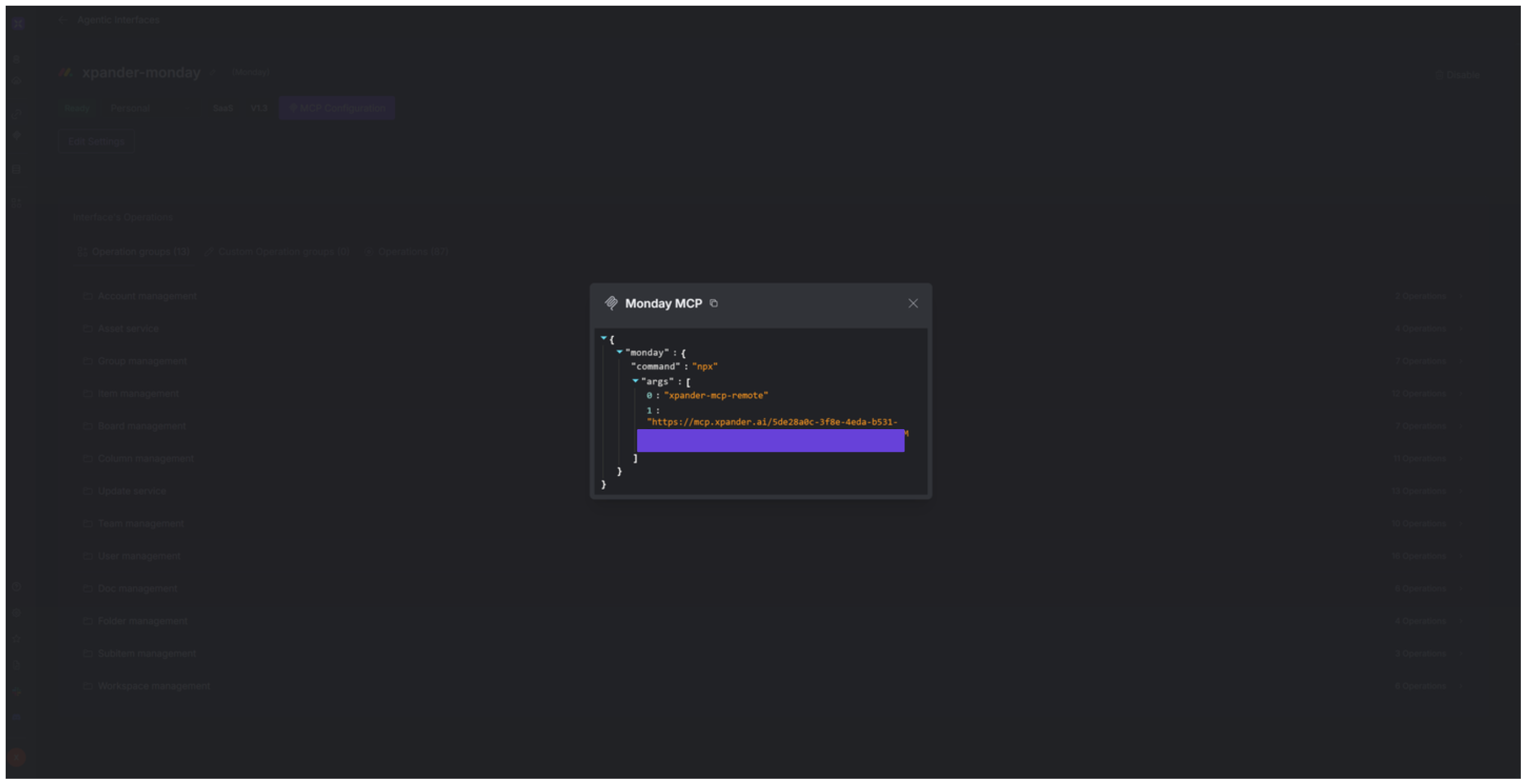
3. Click **MCP Configuration**.
4. Enter the MCP configuration into the appropriate settings of the client app you want to use (e.g., Cursor, Windsurf, Claude Desktop, etc.).
## Expose Monday as MCP Server
Alternatively, you can also expose your Monday account as an MCP server. To do so:
1. Go to the **Connectors** section in the sidebar of your xpander.ai dashboard.
2. Select **Monday** with the same **connector name** you configured in the previous section (e.g., xpander-monday).
3. Click **MCP Configuration**.
4. Enter the MCP configuration into the appropriate settings of the client app you want to use (e.g., Cursor, Windsurf, Claude Desktop, etc.).
 ## AI Agent Monday Prompt Library
Below are possible prompts or use cases you can try after integrating Monday into your xpander AI agent:
```
Can you create a new {team_type} team called {team_name}?
```
```
Can you retrieve all updates related to the {task_name} item?
```
```
Could you create a new workspace for the {department_name} team with {workspace_type} access?
```
```
Can you add our new team member {name} to the {project_name} board?
```
## Related Resources
* [Understanding Model Context Protocol (MCP)](/guides/deploy/mcp)
* \[Monday API Documentation]\([https://developer.monday.com/API](https://developer.monday.com/API) reference/)
## AI Agent Monday Prompt Library
Below are possible prompts or use cases you can try after integrating Monday into your xpander AI agent:
```
Can you create a new {team_type} team called {team_name}?
```
```
Can you retrieve all updates related to the {task_name} item?
```
```
Could you create a new workspace for the {department_name} team with {workspace_type} access?
```
```
Can you add our new team member {name} to the {project_name} board?
```
## Related Resources
* [Understanding Model Context Protocol (MCP)](/guides/deploy/mcp)
* \[Monday API Documentation]\([https://developer.monday.com/API](https://developer.monday.com/API) reference/)