> ## Documentation Index
> Fetch the complete documentation index at: https://docs.xpander.ai/llms.txt
> Use this file to discover all available pages before exploring further.
# PagerDuty
> Learn how to integrate AI agents with PagerDuty using xpander.ai. Create intelligent workflows that automatically detect incidents, analyze their impact, and trigger the appropriate on-call responders.
## About PagerDuty
PagerDuty is a cloud-based incident management and digital operations platform designed to help organizations detect, respond to, and resolve critical issues in real time.
Key features include:
* **Incident Management**: Automates the detection and resolution of incidents, ensuring rapid response to minimize downtime.
* **On-Call Scheduling**: Manages on-call rotations and escalations to ensure the right personnel are notified during incidents.
* **AIOps**: Utilizes artificial intelligence to reduce alert noise and accelerate issue triage.
* **Automation**: Streamlines repetitive tasks and workflows, enhancing operational efficiency.
* **Status Pages**: Provides real-time system status updates to stakeholders and customers.
* **Customer Service Operations**: Bridges support and engineering teams to improve customer experiences.
## Authentication Options
Below are possible authentication options you can choose:
### Generate a PagerDuty API Key
1. Sign in to your [PagerDuty account](https://app.pagerduty.com/).
2. Navigate to **Integrations**, then select **API Access Keys** under **Developer Tools**:
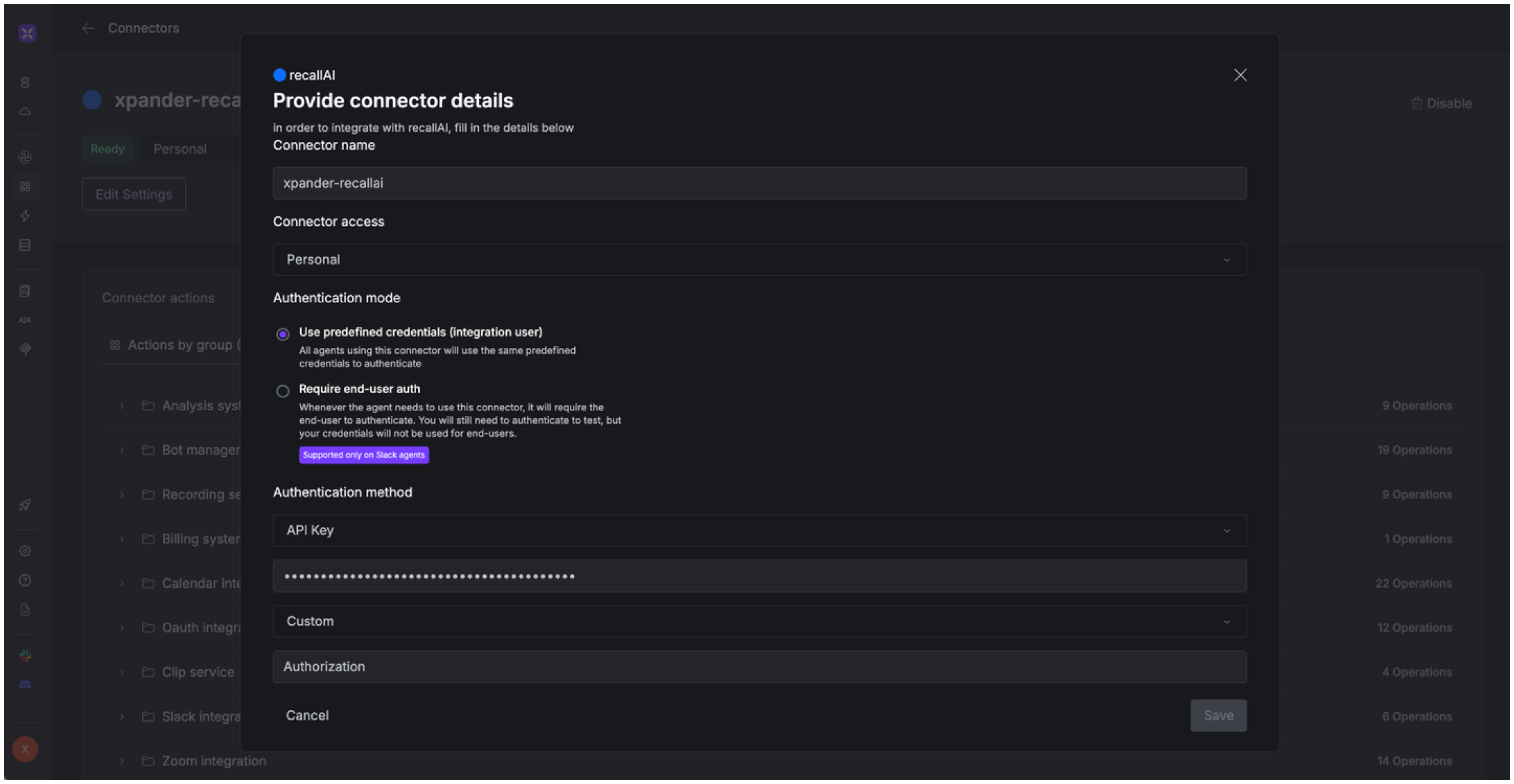 3. Click **Create New API Key**.
4. Enter a description to help you identify the key.
5. Click **Create Key**—your API key will be displayed immediately after.
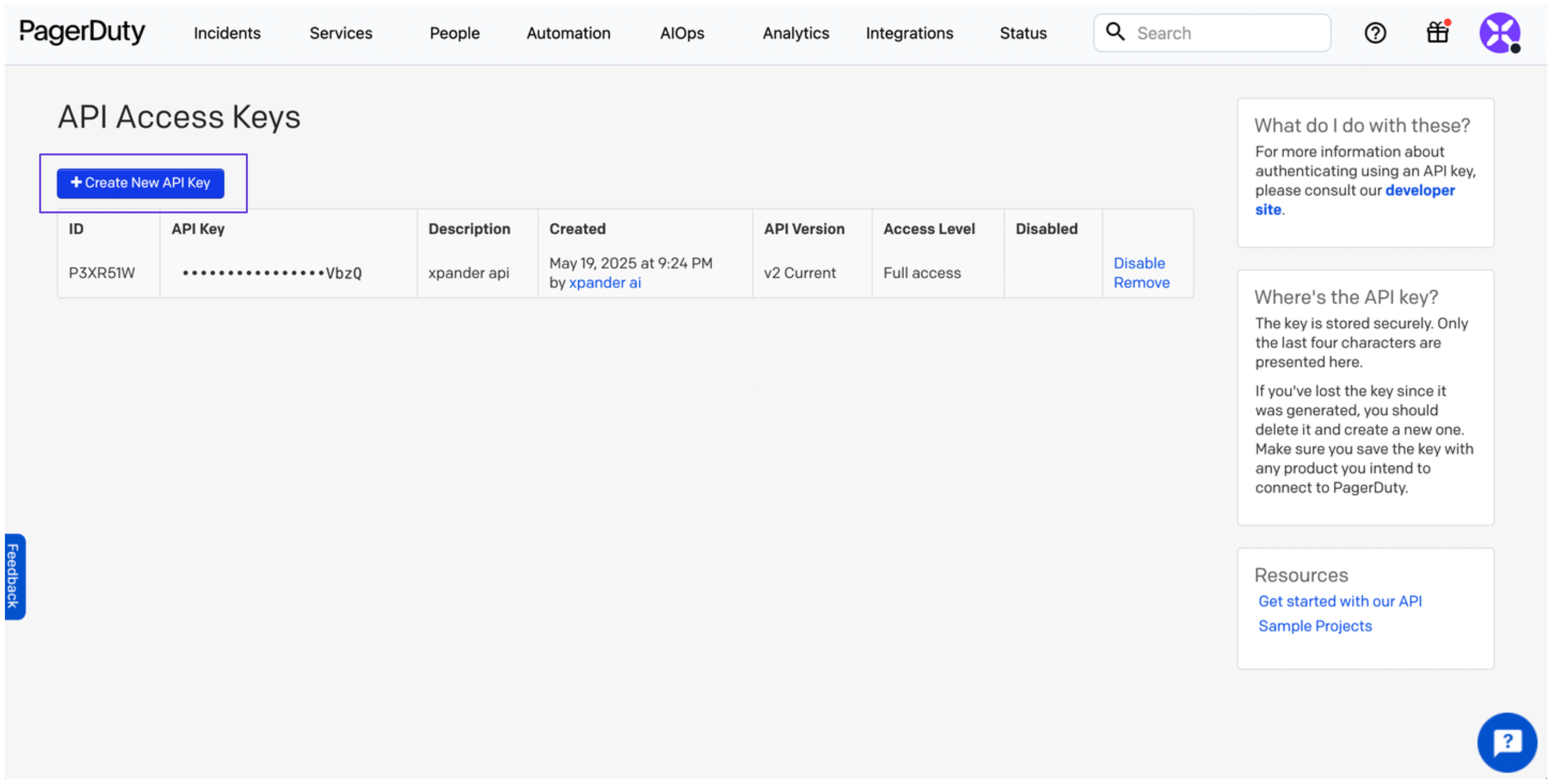
3. Click **Create New API Key**.
4. Enter a description to help you identify the key.
5. Click **Create Key**—your API key will be displayed immediately after.
 ### Integrate PagerDuty into xpander.ai
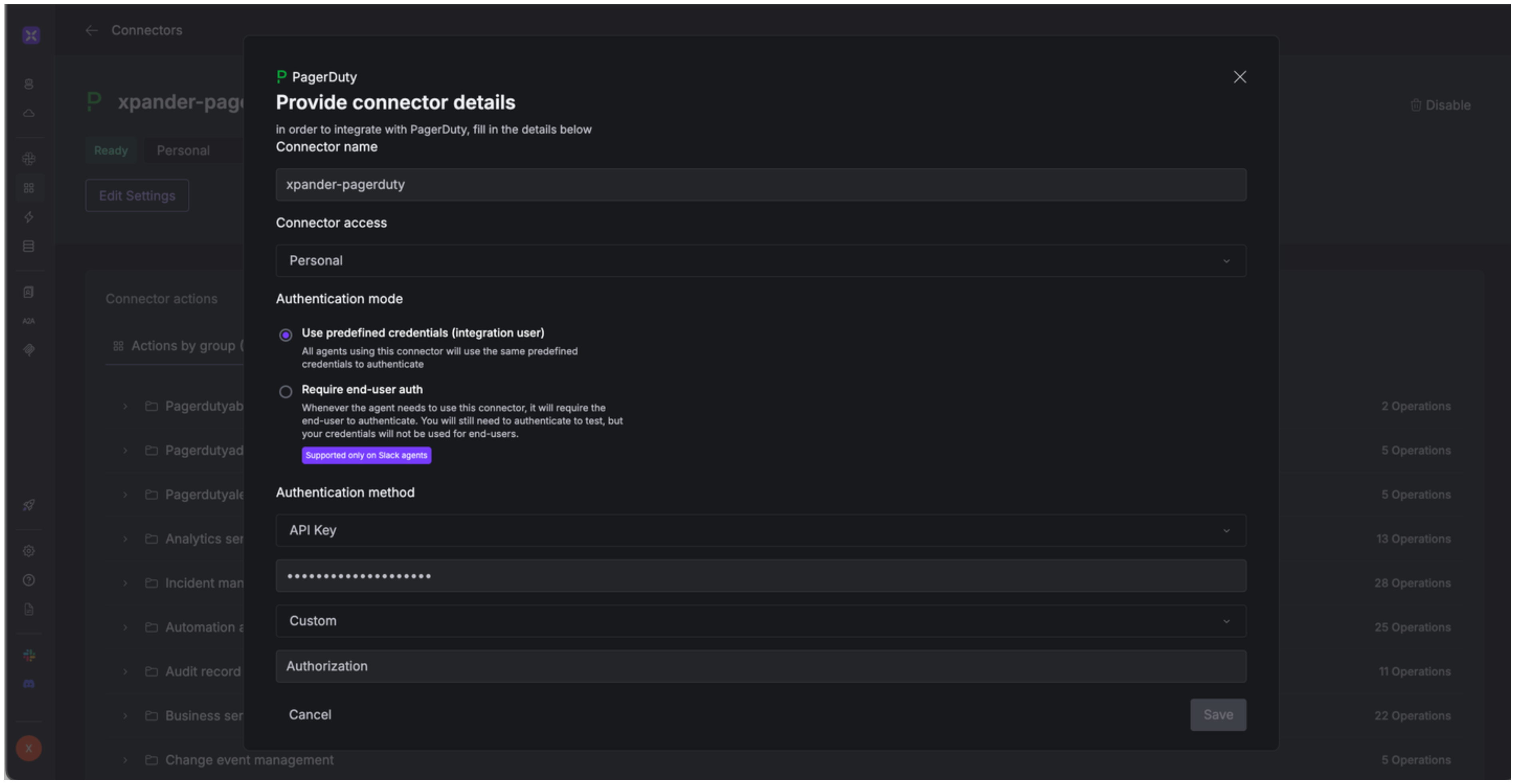
1. Go to the **Connectors** section in the sidebar of your xpander.ai dashboard.
2. Select **PagerDuty** from the available integrations.
3. Click **Enable**.
4. Enter a **connector name**, e.g., "xpander-pagerduty".
5. Select **Integration User** as the authentication mode.
6. Select **API Key** as the authentication method.
7. Paste the PagerDuty API key into the provided field using the following format:\
`Token token=[YOUR_API_KEY]`
8. Choose **Custom** as the **Auth Type**.
9. Under **Custom header name**, type `Authorization`.
10. Save the configuration.
### Integrate PagerDuty into xpander.ai
1. Go to the **Connectors** section in the sidebar of your xpander.ai dashboard.
2. Select **PagerDuty** from the available integrations.
3. Click **Enable**.
4. Enter a **connector name**, e.g., "xpander-pagerduty".
5. Select **Integration User** as the authentication mode.
6. Select **API Key** as the authentication method.
7. Paste the PagerDuty API key into the provided field using the following format:\
`Token token=[YOUR_API_KEY]`
8. Choose **Custom** as the **Auth Type**.
9. Under **Custom header name**, type `Authorization`.
10. Save the configuration.
 ## Integration of PagerDuty into AI Agent
Once you've configured your PagerDuty account with the authentication option(s) described above, you can integrate it into your AI agent with xpander.ai:
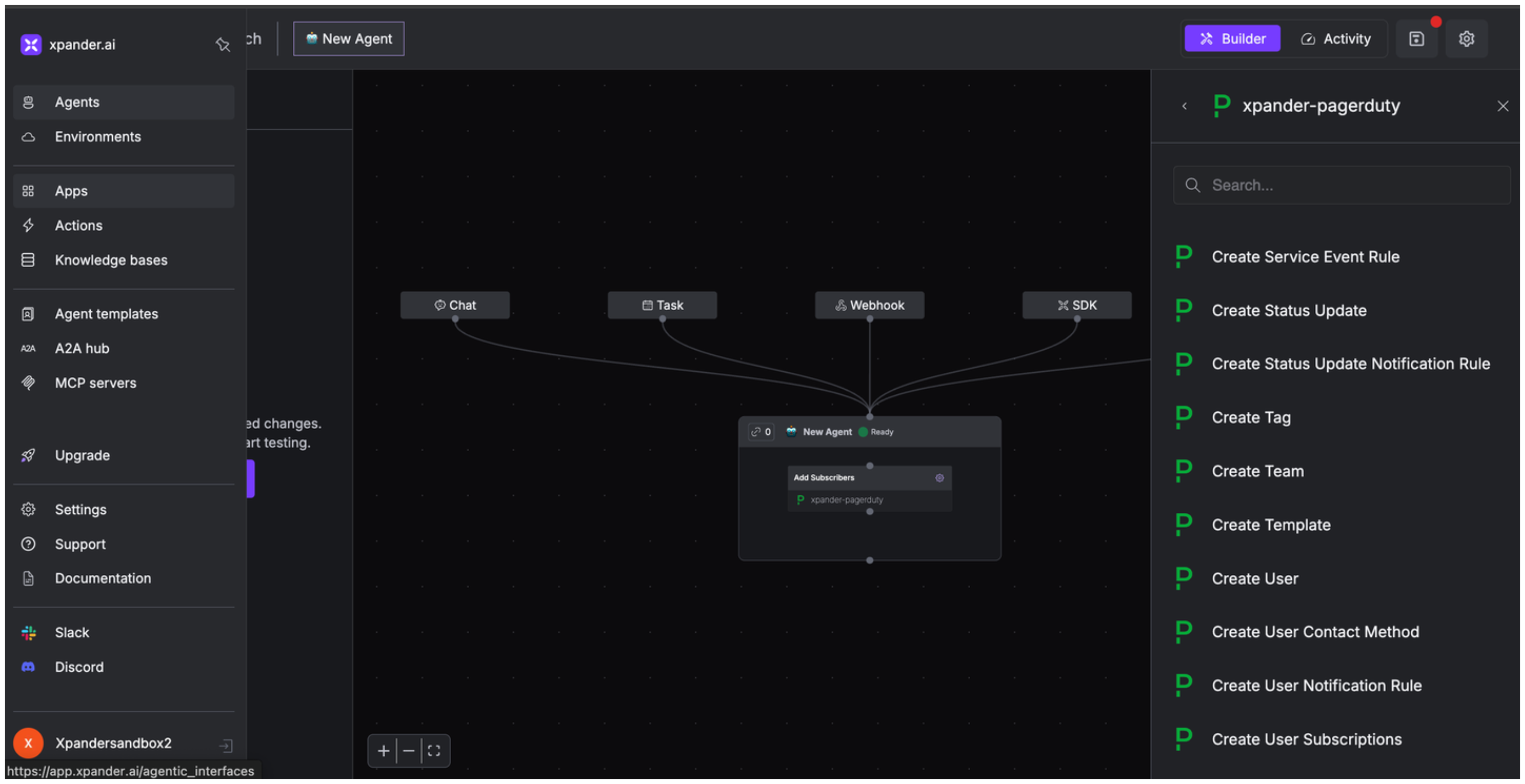
1. In your xpander.ai dashboard, go to the **Agent Configuration** tab and select **Tools**, then click **Add Tools**.
2. Select **Connectors**.
3. Choose **PagerDuty** with the same **connector name** you configured in the previous section (e.g., xpander-pagerduty).
4. Select the available PagerDuty operations that suit your use case.
## Integration of PagerDuty into AI Agent
Once you've configured your PagerDuty account with the authentication option(s) described above, you can integrate it into your AI agent with xpander.ai:
1. In your xpander.ai dashboard, go to the **Agent Configuration** tab and select **Tools**, then click **Add Tools**.
2. Select **Connectors**.
3. Choose **PagerDuty** with the same **connector name** you configured in the previous section (e.g., xpander-pagerduty).
4. Select the available PagerDuty operations that suit your use case.
 ## Expose PagerDuty as MCP Server
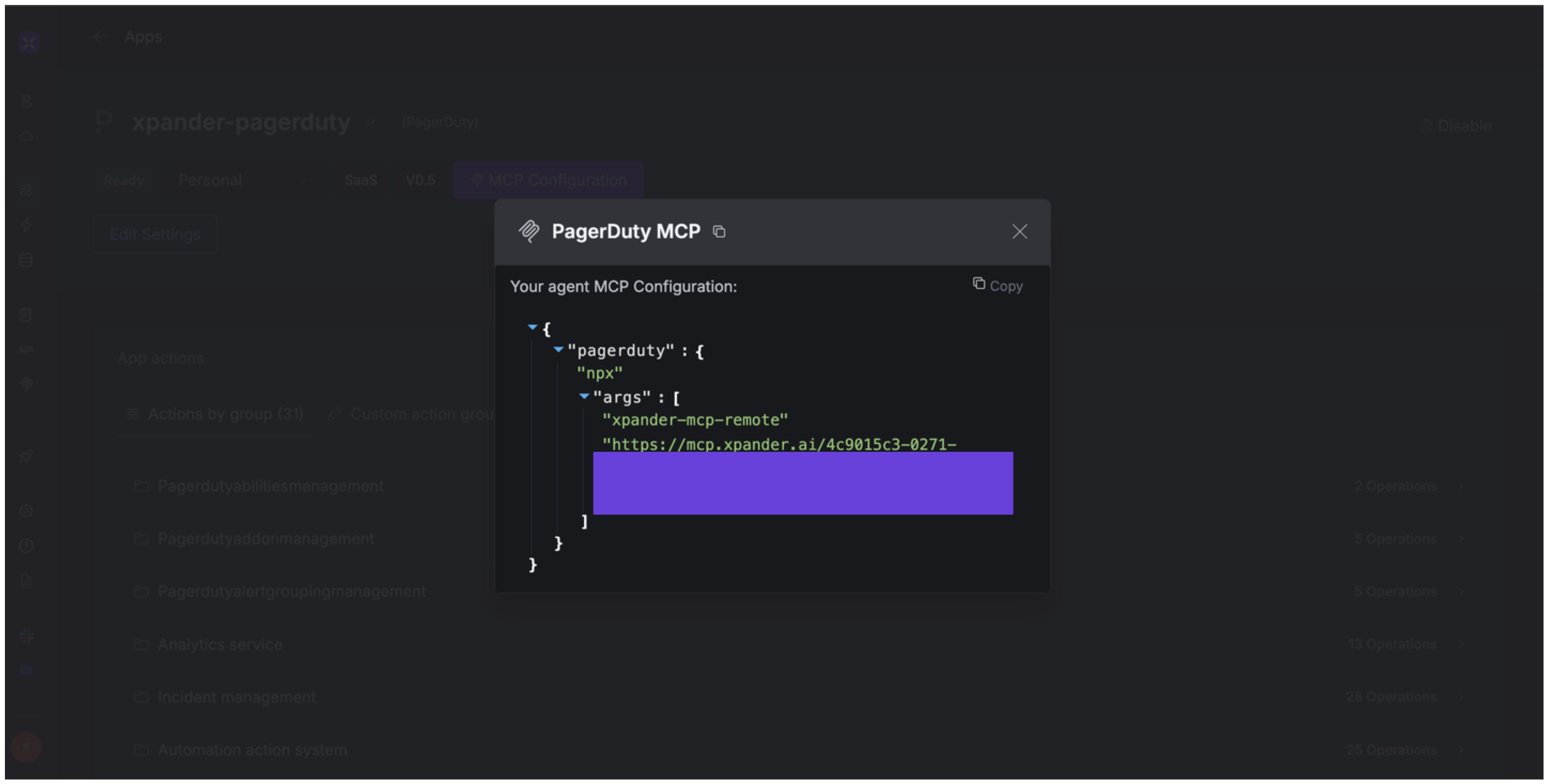
Alternatively, you can also expose your PagerDuty account as an MCP server. To do so:
1. Go to the **Connectors** section in the sidebar of your xpander.ai dashboard.
2. Select **PagerDuty** with the same **connector name** you configured in the previous section (e.g., xpander-pagerduty).
3. Click **MCP Configuration**.
4. Enter the MCP configuration into the appropriate settings of the client app you want to use (e.g., Cursor, Windsurf, Claude Desktop, etc.).
## Expose PagerDuty as MCP Server
Alternatively, you can also expose your PagerDuty account as an MCP server. To do so:
1. Go to the **Connectors** section in the sidebar of your xpander.ai dashboard.
2. Select **PagerDuty** with the same **connector name** you configured in the previous section (e.g., xpander-pagerduty).
3. Click **MCP Configuration**.
4. Enter the MCP configuration into the appropriate settings of the client app you want to use (e.g., Cursor, Windsurf, Claude Desktop, etc.).
 ## AI Agent PagerDuty Prompt Library
Below are possible prompts or use cases you can try after integrating PagerDuty into your xpander AI agent:
```
What is the current status of our {business_name} business service?
```
```
What's the average resolution time for incidents across all our services during {date_range}?
```
```
How can we update our service orchestration to route critical database alerts to {team_name}?
```
```
Which incidents are currently impacting our top-level business services?
```
## Related Resources
* [Understanding Model Context Protocol (MCP)](/guides/deploy/mcp)
* \[PagerDuty API Documentation]\([https://developer.pagerduty.com/API](https://developer.pagerduty.com/API) reference/)
## AI Agent PagerDuty Prompt Library
Below are possible prompts or use cases you can try after integrating PagerDuty into your xpander AI agent:
```
What is the current status of our {business_name} business service?
```
```
What's the average resolution time for incidents across all our services during {date_range}?
```
```
How can we update our service orchestration to route critical database alerts to {team_name}?
```
```
Which incidents are currently impacting our top-level business services?
```
## Related Resources
* [Understanding Model Context Protocol (MCP)](/guides/deploy/mcp)
* \[PagerDuty API Documentation]\([https://developer.pagerduty.com/API](https://developer.pagerduty.com/API) reference/)