> ## Documentation Index
> Fetch the complete documentation index at: https://docs.xpander.ai/llms.txt
> Use this file to discover all available pages before exploring further.
# Power BI
> Connect Power BI to xpander and give agents its 135 actions: how to sign in and connect it, and which actions to hold for approval.
HTTP API connector
An HTTP API described by an OpenAPI spec, not an MCP server. Calls go to `https://api.powerbi.com/v1.0/myorg` and carry an OAuth 2.0 token obtained with **Sign in with Microsoft** on the cloud edition, or an API key or custom header on a self-hosted installation, which offers no sign-in flow.
## What the skill can do
API connector: 135 actions, as they appear in the skill panel. 58 of them create, change or delete something in Power BI; mark those under **These actions need approval** when you add the skill to an agent.
* **Dataset management** (38): Bidatasets Manage Create New Embedded Dataset, Bidatasets Retrieve List Of Tables, Bidatasets Get Group Datasources, Bidatasets Execute Queries In Group, Bidatasets Get Group Refresh History, Bidatasets Update Group Table Schema, Bidatasets Manage Take Over Embedded Dataset, Bidatasets Delete Embedded Dataset, Bidatasets Set All Connections, Bidatasets Trigger Group Dataset Refresh, Bidatasets Trigger Dataset Refresh, Bidatasets Update Table Schema, Bidatasets Delete Rows From Table, Bidatasets Retrieve Group Dataset Details, and 24 more
* **Report management** (22): Bireports Clone Report In Group, Bireports Manage Generate Embed Token In Group, Bidatasets Manage Get All Embedded Datasets, Bireports Get Report Details In Group, Bireports Delete Report In Group, Bireports Generate Token In Group Report, Bireports Get Reports In Group, Bireports Generate Embed Token, Bireports Retrieve Report Details, Bireports Generate Report Embed Token, Bireports Get All Report Pages, Bireports Get Export Status, Bireports Rebind Dataset In Group, Bireports Delete Report, and 8 more
* **Gateway management** (17): Bigateway Create New Datasource, Bigateway Modify Datasource Configuration, Bidatasets Get Group Bound Gateway Datas, Bigateway Get Datasource Configurations, Bigateway Retrieve Datasource Details, Bigateway Remove Datasource, Bigateway Add User To Datasource, Bigateway Remove User, Bidatasets Bind Dataset To Gateway, Bidatasets Get Bound Gateway Datasources, Bigateway Retrieve Gateway Details, Biworkspace Manage Get All Workspace Groups, Bigateway Manage Get All Gateways, Bigateway Check Datasource Status, and 3 more
* **Tenant administration** (15): Bitenant Admin Get All All Datasets, Bitenant Admin Get All All Reports, Bitenant Admin Get All All Workspaces, Bitenant Admin Get All All Dataflows, Bitenant Admin Get Activity Events, Bitenant Admin Get All Unused Artifacts, Bitenant Admin Get All Published To Web, Bitenant Admin Get All Dataset Users, Bitenant Admin Get User Artifact Access, Bitenant Admin Get All Refreshables, Bitenant Admin Get All Report Users, Bitenant Admin Get All Org Wide Shares, Bitenant Admin Get All Capacities, Bitenant Admin Get All All Dashboards, and 1 more
* **Dashboard management** (13): Bidashboards Generate Embed Token, Bidashboards Get All Tiles, Bidashboards Retrieve Tile Details, Bidashboards Retrieve Group Tile Details, Bidashboards Get Group Dashboards, Bidashboards Generate Group Dashboard Token, Bidashboards Generate Group Tile Token, Bidashboards Create Dashboard, Bidashboards Get Group Dashboard Tiles, Bidashboards Get All Dashboards, Bidashboards Create New Dashboard Instance, Bidashboards Generate Tile Embed Token, Bidashboards Get Dashboard
* **Workspace management** (8): Biworkspace Manage Create Workspace, Biworkspace Manage Get Workspace, Biworkspace Manage Get All Workspace Users, Biworkspace Manage Add Workspace User, Biworkspace Manage Remove Workspace User, Biworkspace Manage Get All Apps, Biworkspace Manage Update Workspace User, Biworkspace Manage Get All App Reports
* **Dataflow management** (8): Bidataflows Get All Dataflow Datasources, Bidataflows Get All Dataflows, Bidataflows Get Dataflow, Bidataflows Refresh Dataflow, Bidataflows Cancel Dataflow Transaction, Bidataflows Get All Upstream Dataflows, Bidataflows Get All Dataflow Transactions, Bidataflows Update Refresh Schedule
* **Import service** (6): Biimports Create Group Import, Biimports Get Group Import Records, Biimports Retrieve Group Import Details, Biimports Manage Create Import Instance, Biimports Retrieve Import Details, Biimports Manage Get All Imports
* **Metadata scanning** (4): Bimetadata Scan Get Scan Status, Bimetadata Scan Get All Modified Workspaces, Bimetadata Scan Start Workspace Scan, Bimetadata Scan Get Scan Result
* **Capacity management** (4): Bicapacities Get All Capacities, Bicapacities Get All Refreshables, Bicapacities Get Assignment Status, Bicapacities Assign Workspace To Capacity
## Authentication Options
The simplest way to connect Power BI is by using xpander's built-in authentication:
1. In Xpander Chat, open the agent's settings and click **Add skill**.
2. Search for **Power BI** and select it.
3. Click **Sign in with Power BI**.
4. Grant xpander permission to access your account.
5. Your Power BI integration is now ready to use.
### Generate a Power BI API Token
1. Log in to [Azure Portal](https://portal.azure.com/).
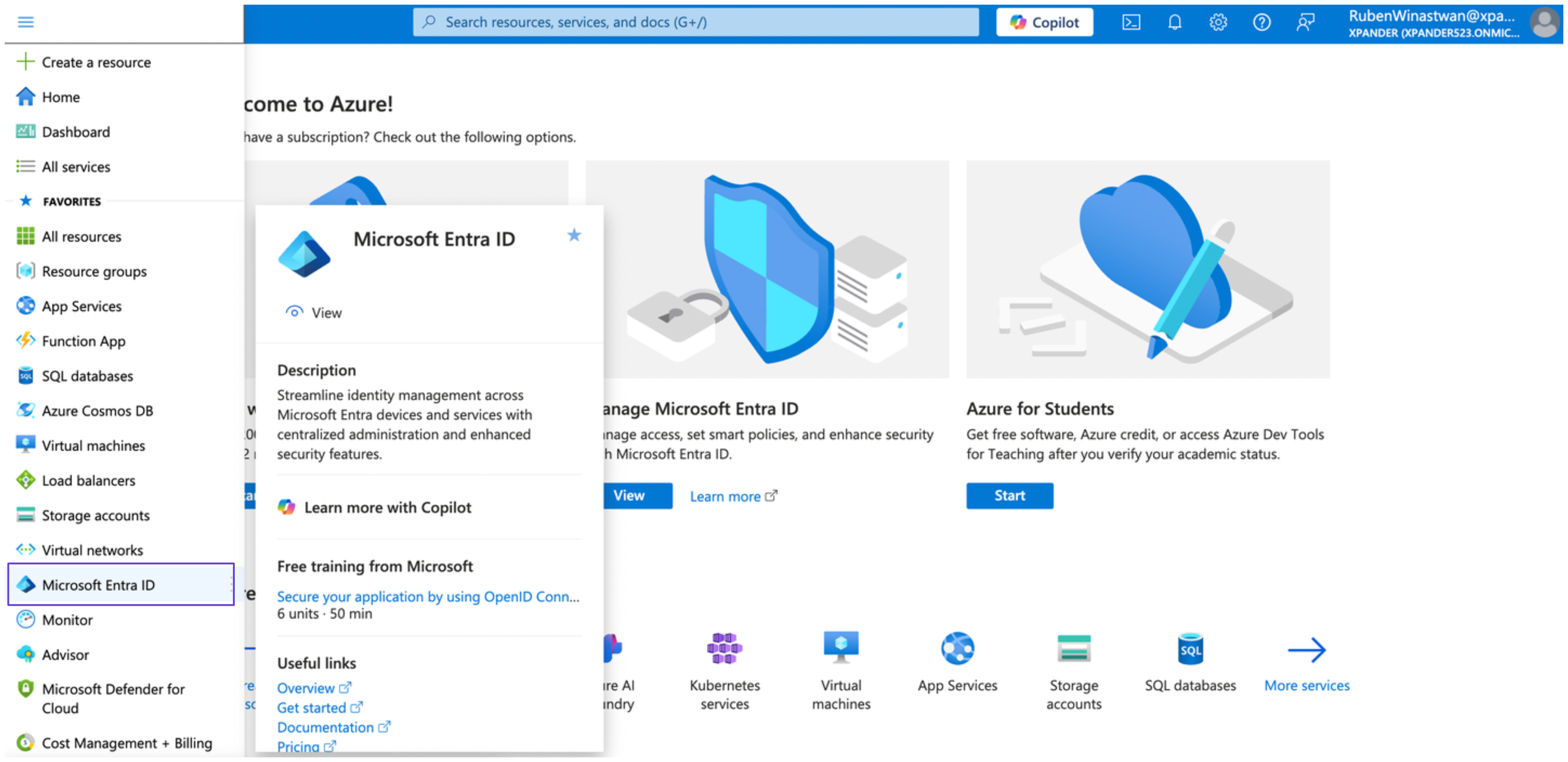
2. Create and register an app to access the Power BI API. To do this, in the sidebar, select **Microsoft Entra ID**.
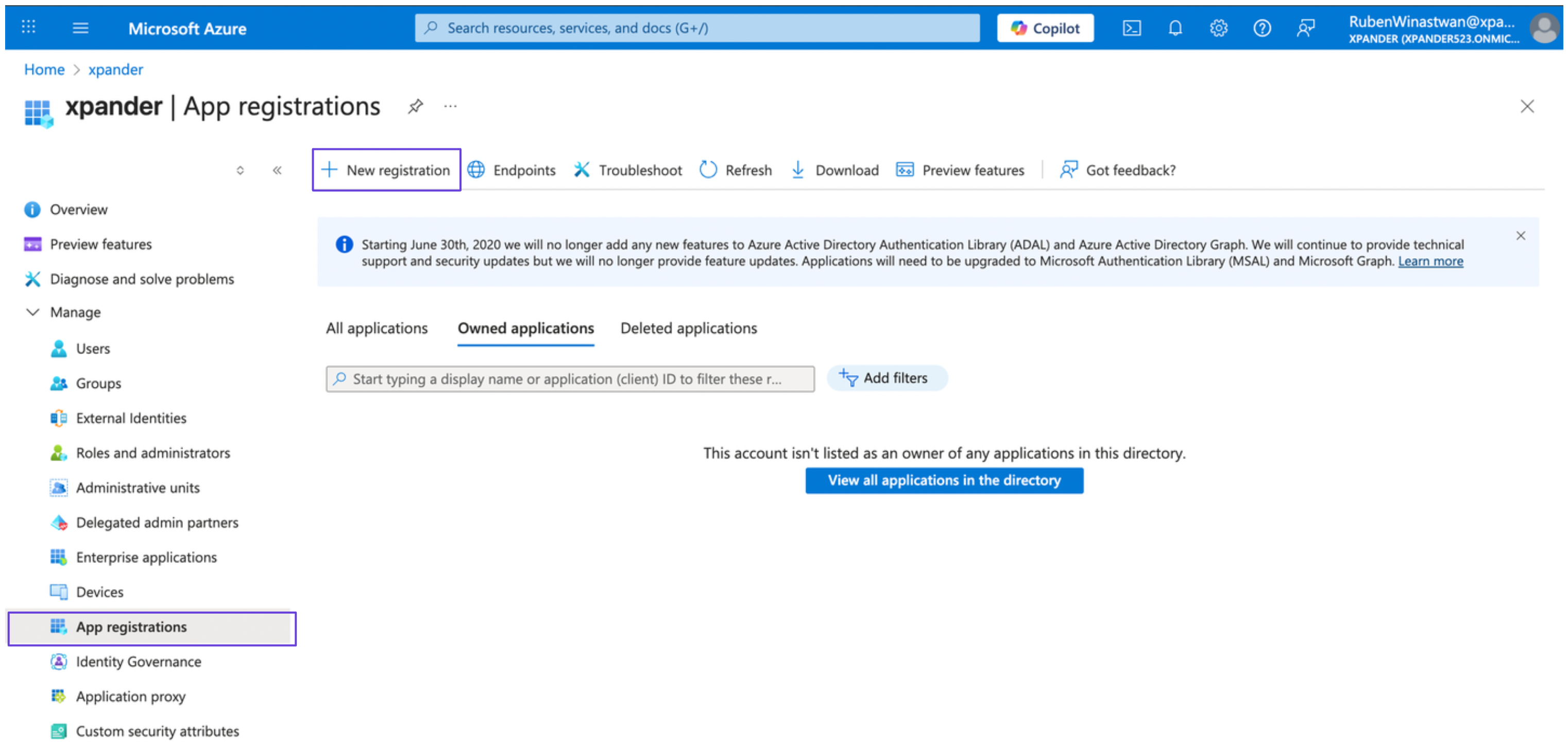
 3. Under the **Manage** section, select **App registrations** and click **New registration**.
 4. Provide an app name and choose the **Supported account types** option that fits your use case. Then, click **Register**.
5. After creating the app, note down the **Client ID** and **Tenant ID**. You’ll need these credentials later to obtain an access token.
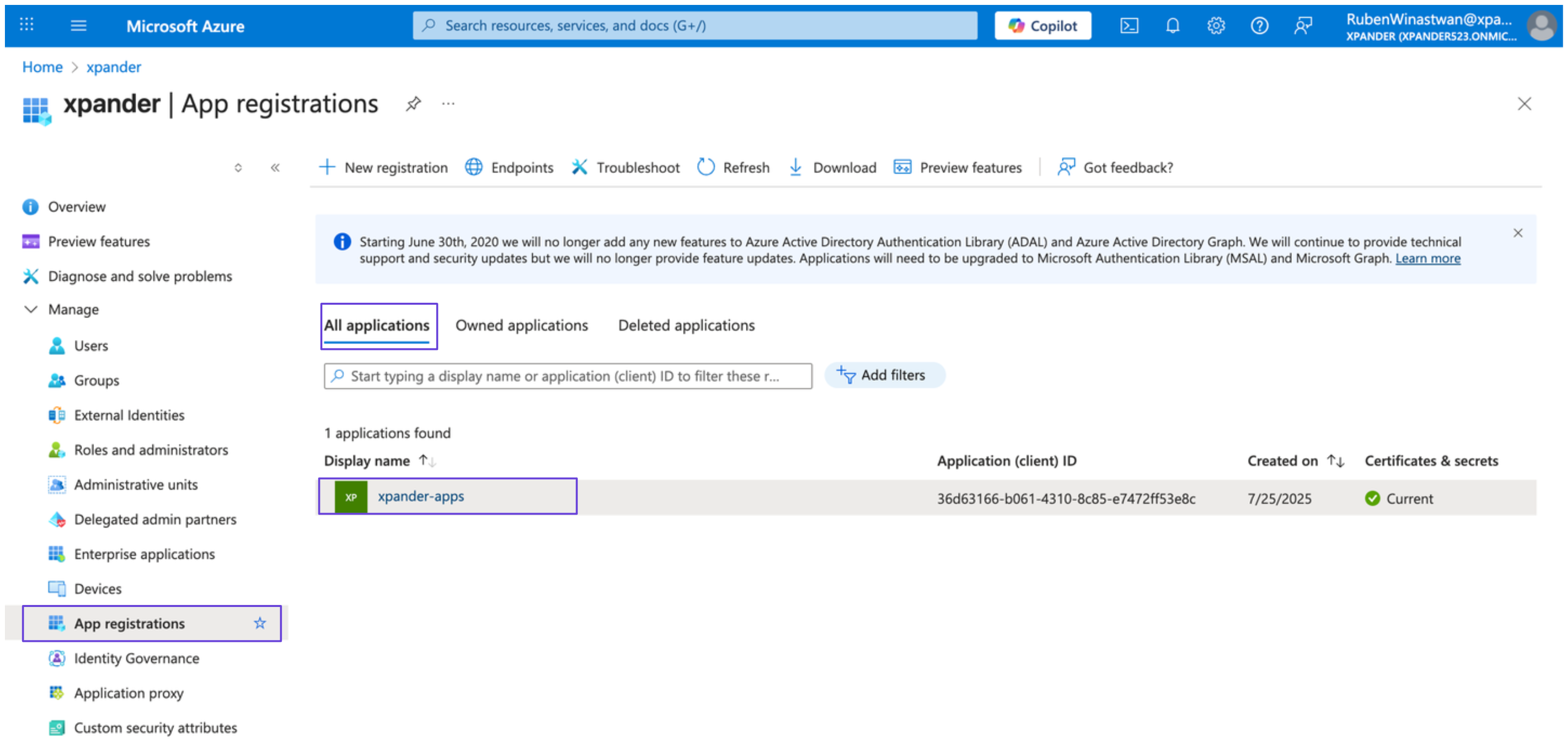
6. In **Microsoft Entra ID**, go to **App registrations** > **All applications**, and select your newly created app.
4. Provide an app name and choose the **Supported account types** option that fits your use case. Then, click **Register**.
5. After creating the app, note down the **Client ID** and **Tenant ID**. You’ll need these credentials later to obtain an access token.
6. In **Microsoft Entra ID**, go to **App registrations** > **All applications**, and select your newly created app.
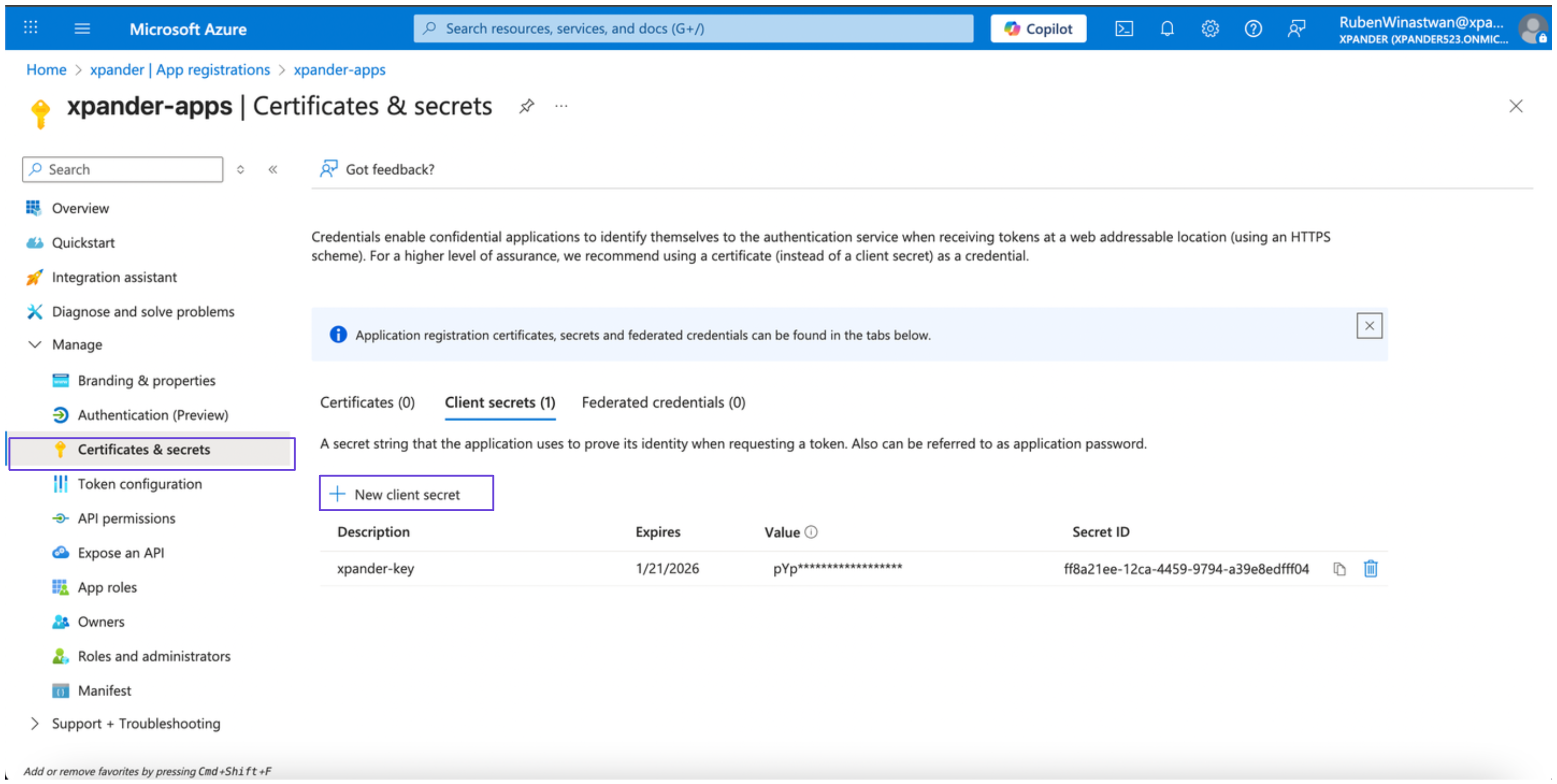
 7. Under **Manage**, select **Certificates & secrets**, then click **New client secret**. Save the secret value securely.
 8. Ensure your app does **not** have any admin-consent-required permissions. Follow [these steps in the Azure documentation](https://learn.microsoft.com/en-us/fabric/admin/enable-service-principal-admin-apis#how-to-check-if-your-app-has-admin-consent-required-permissions) to verify.
9. In your Power BI account, enable the Power BI Service admin settings by following [Step 3 in this guide](https://learn.microsoft.com/en-us/power-bi/developer/embedded/embed-service-principal?tabs=azure-portal#step-3---enable-the-power-bi-service-admin-settings).
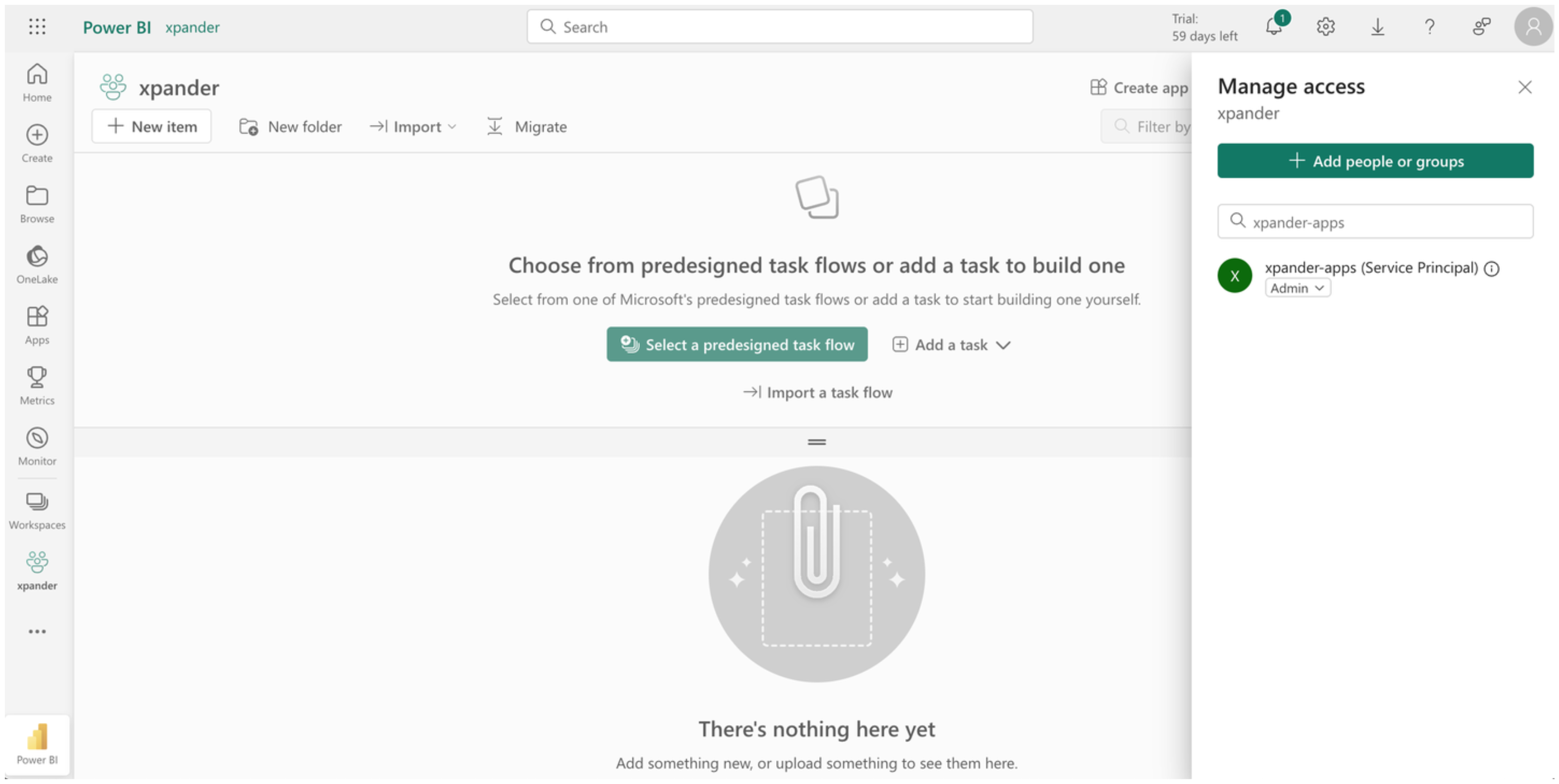
10. In the dashboard of your desired Power BI workspace, go to **Manage access** and add your newly created app as a **Member** or **Admin** by searching for its name.
8. Ensure your app does **not** have any admin-consent-required permissions. Follow [these steps in the Azure documentation](https://learn.microsoft.com/en-us/fabric/admin/enable-service-principal-admin-apis#how-to-check-if-your-app-has-admin-consent-required-permissions) to verify.
9. In your Power BI account, enable the Power BI Service admin settings by following [Step 3 in this guide](https://learn.microsoft.com/en-us/power-bi/developer/embedded/embed-service-principal?tabs=azure-portal#step-3---enable-the-power-bi-service-admin-settings).
10. In the dashboard of your desired Power BI workspace, go to **Manage access** and add your newly created app as a **Member** or **Admin** by searching for its name.
 11. Finally, obtain your access token by executing the following request:
```bash theme={"dark"}
curl -X POST \
-H "Content-Type: application/x-www-form-urlencoded" \
-d "grant_type=client_credentials" \
-d "client_id=" \
-d "client_secret=" \
-d "scope=https://analysis.windows.net/powerbi/api/.default" \
https://login.microsoftonline.com//oauth2/v2.0/token
```
Replace the placeholders with your credentials from previous steps, and store the access token securely.
### Connect Power BI in xpander
1. In Xpander Chat, open the agent's settings and click **Add skill**.
2. Search for **Power BI** and select it.
3. Click **Other auth options**.
4. Enter a **connection name**, e.g., "xpander-power-bi".
5. Choose **Organization** access (one shared account) or **Personal** (your own account, so the agent acts with your permissions where systems allow). On an agent other people use, a personal connection runs their requests as you unless the binding requires each person's own sign-in; see [whose credential a shared agent uses](/use/agents/permissions#whose-credential-a-shared-agent-uses).
6. Select **API Key** as the authentication method.
7. Paste your Power BI access token into the provided field.
8. Set the **Type** to **Bearer**.
9. Click **Connect**.
## Give an agent the Power BI skill
Once Power BI is connected, any agent you can edit may be given the skill: open the agent's settings, click **Add skill**, and choose **Power BI**. The skill panel lists the Power BI actions by group. Enable only the groups the agent needs, and mark the actions that should wait for a named person's sign-off under **These actions need approval**. Which skills exist for your organization, and who may add them, is decided by your admins; see [Skills](/use/skills).
## Related Resources
* [Skills](/use/skills)
* [Power BI API Documentation](https://learn.microsoft.com/en-us/rest/api/power-bi/)
11. Finally, obtain your access token by executing the following request:
```bash theme={"dark"}
curl -X POST \
-H "Content-Type: application/x-www-form-urlencoded" \
-d "grant_type=client_credentials" \
-d "client_id=" \
-d "client_secret=" \
-d "scope=https://analysis.windows.net/powerbi/api/.default" \
https://login.microsoftonline.com//oauth2/v2.0/token
```
Replace the placeholders with your credentials from previous steps, and store the access token securely.
### Connect Power BI in xpander
1. In Xpander Chat, open the agent's settings and click **Add skill**.
2. Search for **Power BI** and select it.
3. Click **Other auth options**.
4. Enter a **connection name**, e.g., "xpander-power-bi".
5. Choose **Organization** access (one shared account) or **Personal** (your own account, so the agent acts with your permissions where systems allow). On an agent other people use, a personal connection runs their requests as you unless the binding requires each person's own sign-in; see [whose credential a shared agent uses](/use/agents/permissions#whose-credential-a-shared-agent-uses).
6. Select **API Key** as the authentication method.
7. Paste your Power BI access token into the provided field.
8. Set the **Type** to **Bearer**.
9. Click **Connect**.
## Give an agent the Power BI skill
Once Power BI is connected, any agent you can edit may be given the skill: open the agent's settings, click **Add skill**, and choose **Power BI**. The skill panel lists the Power BI actions by group. Enable only the groups the agent needs, and mark the actions that should wait for a named person's sign-off under **These actions need approval**. Which skills exist for your organization, and who may add them, is decided by your admins; see [Skills](/use/skills).
## Related Resources
* [Skills](/use/skills)
* [Power BI API Documentation](https://learn.microsoft.com/en-us/rest/api/power-bi/)