> ## Documentation Index
> Fetch the complete documentation index at: https://docs.xpander.ai/llms.txt
> Use this file to discover all available pages before exploring further.
# Slack
> Learn how to integrate AI agents with Slack using xpander.ai. Create seamless workflows that automate repetitive tasks, provide instant insights, and enhance team collaboration by leveraging AI-powered assistants directly within your Slack channels and conversations.
**Looking for Slack-native AI agents?** Check out our [Slack Agents](/guides/deploy/slack) feature for the fastest way to deploy AI agents directly to Slack with Smart Engage™ technology, built-in OAuth, and zero infrastructure setup.
## About Slack
Slack is a cloud-based communication and collaboration platform designed to streamline team interactions, replacing traditional email chains and enhancing productivity.
Key features include:
* **Channels**: Organize conversations by topics, projects, or teams. Channels can be public (open to all members) or private (restricted access).
* **Direct Messaging**: Send private messages to individuals or groups for more focused discussions.
* **Huddles**: Initiate quick audio or video calls within channels or direct messages to facilitate real-time conversations.
* **File Sharing**: Easily share documents, images, and other files within conversations, with the ability to integrate with services like Google Drive and Dropbox.
* **Integrations**: Connect with over 2,400 third-party applications, including Google Calendar, Asana, and Salesforce, to centralize your workflow.
* **Searchable History**: Access and search through past messages and files, ensuring important information is always retrievable.
* **Automation**: Utilize tools like Workflow Builder to automate repetitive tasks and processes, enhancing efficiency.
## Authentication Options
Below are possible authentication options you can choose:
The simplest way to connect Slack is by using xpander.ai's built-in authentication:
1. Go to the **Connectors** section in the sidebar of your xpander.ai dashboard.
2. Select **Slack** from the available integrations.
3. Click **Sign in with Slack**.
4. Grant xpander.ai permission to access specific channels in your Slack workspace.
5. Your Slack integration is now ready to use.
### Generate a Slack API Key
1. Log in to [Slack Apps](https://api.slack.com/apps).
2. Click **Create an App**, then select **From scratch**.
3. Give your app a name, and select the Slack workspace you want to develop it in.
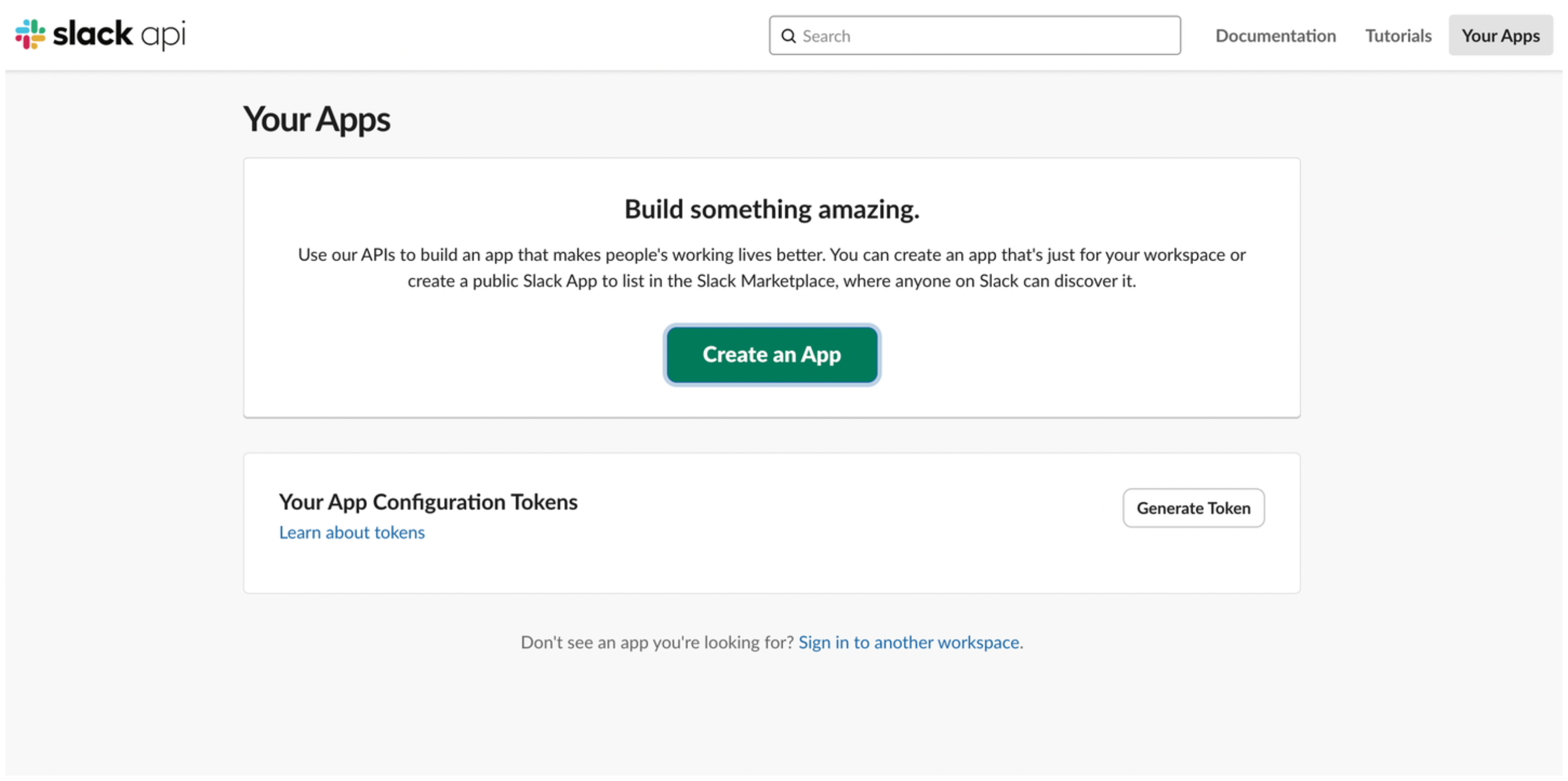 4. After clicking **Create App**, go to the **OAuth & Permissions** section in the sidebar.
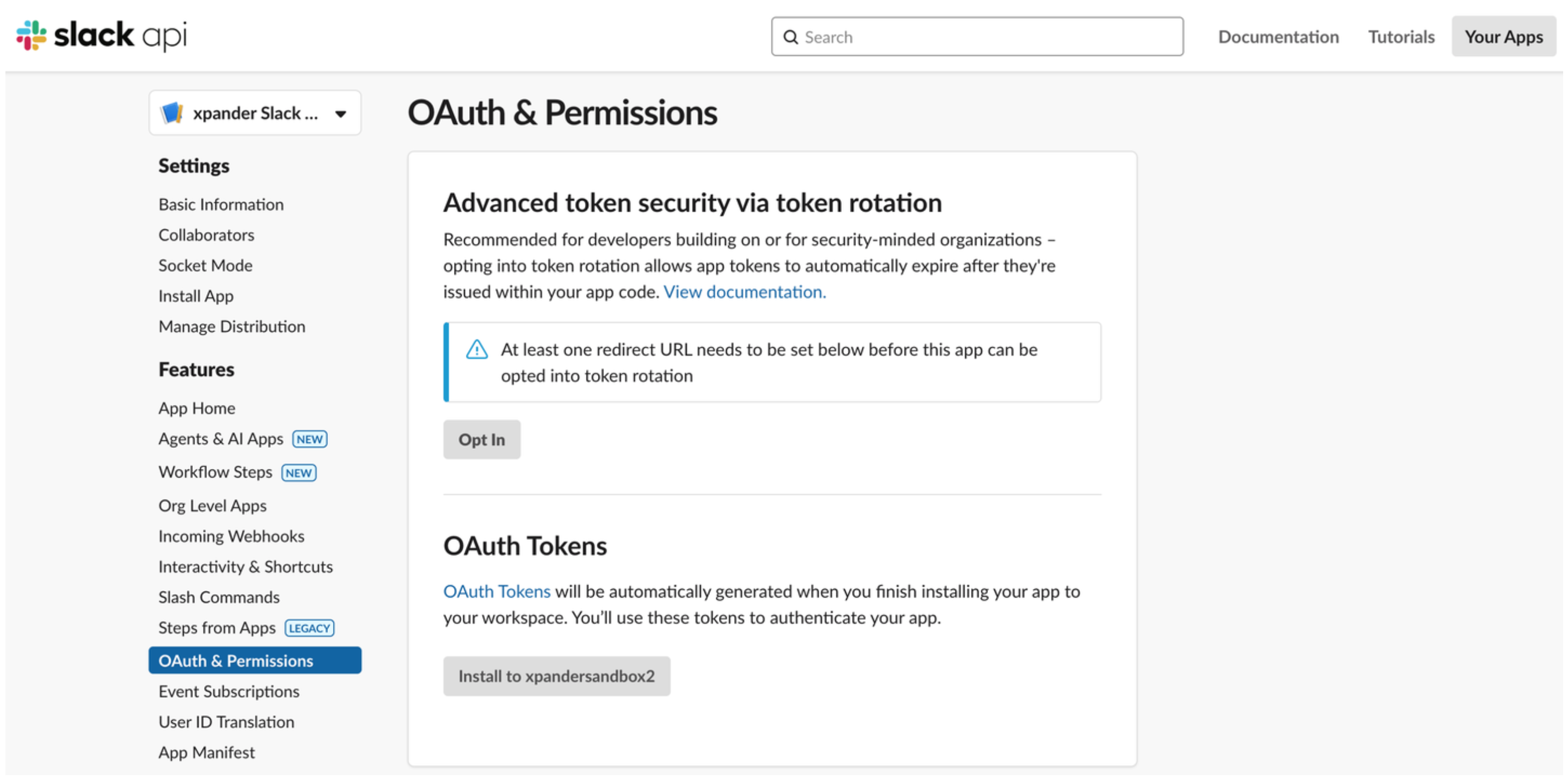 5. Under the **Scopes** section, in **Bot Token Scopes**, click **Add an OAuth Scope** and select the permissions your app needs.\
You can browse all available scopes [here](https://api.slack.com/scopes).
5. Under the **Scopes** section, in **Bot Token Scopes**, click **Add an OAuth Scope** and select the permissions your app needs.\
You can browse all available scopes [here](https://api.slack.com/scopes).
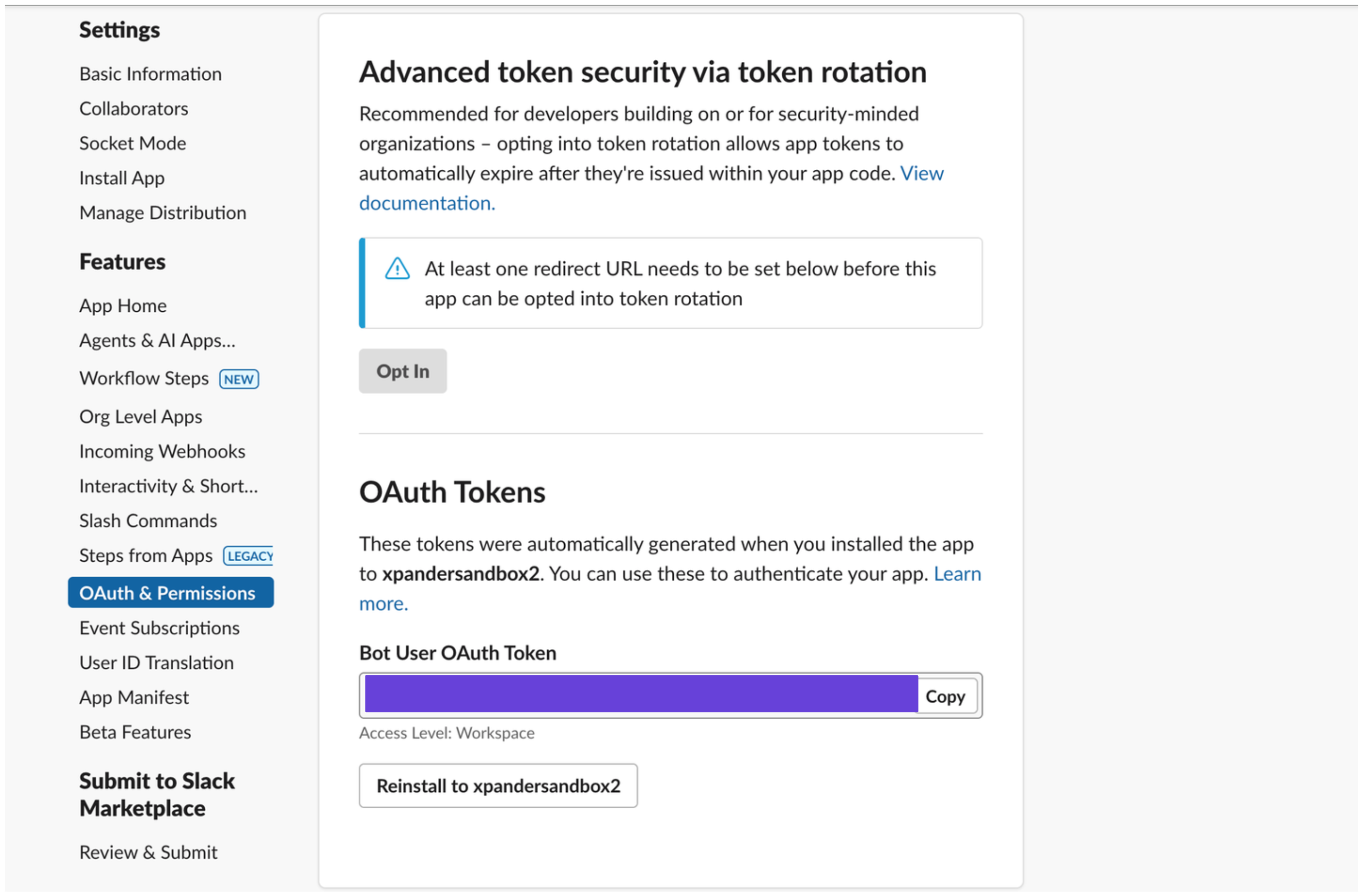
 6. Still in **OAuth & Permissions**, scroll to **OAuth Tokens** and click **Install to \**.
 7. After installation, your Slack access token will be displayed—make sure to save it securely.
 ### Integrate Slack into xpander.ai
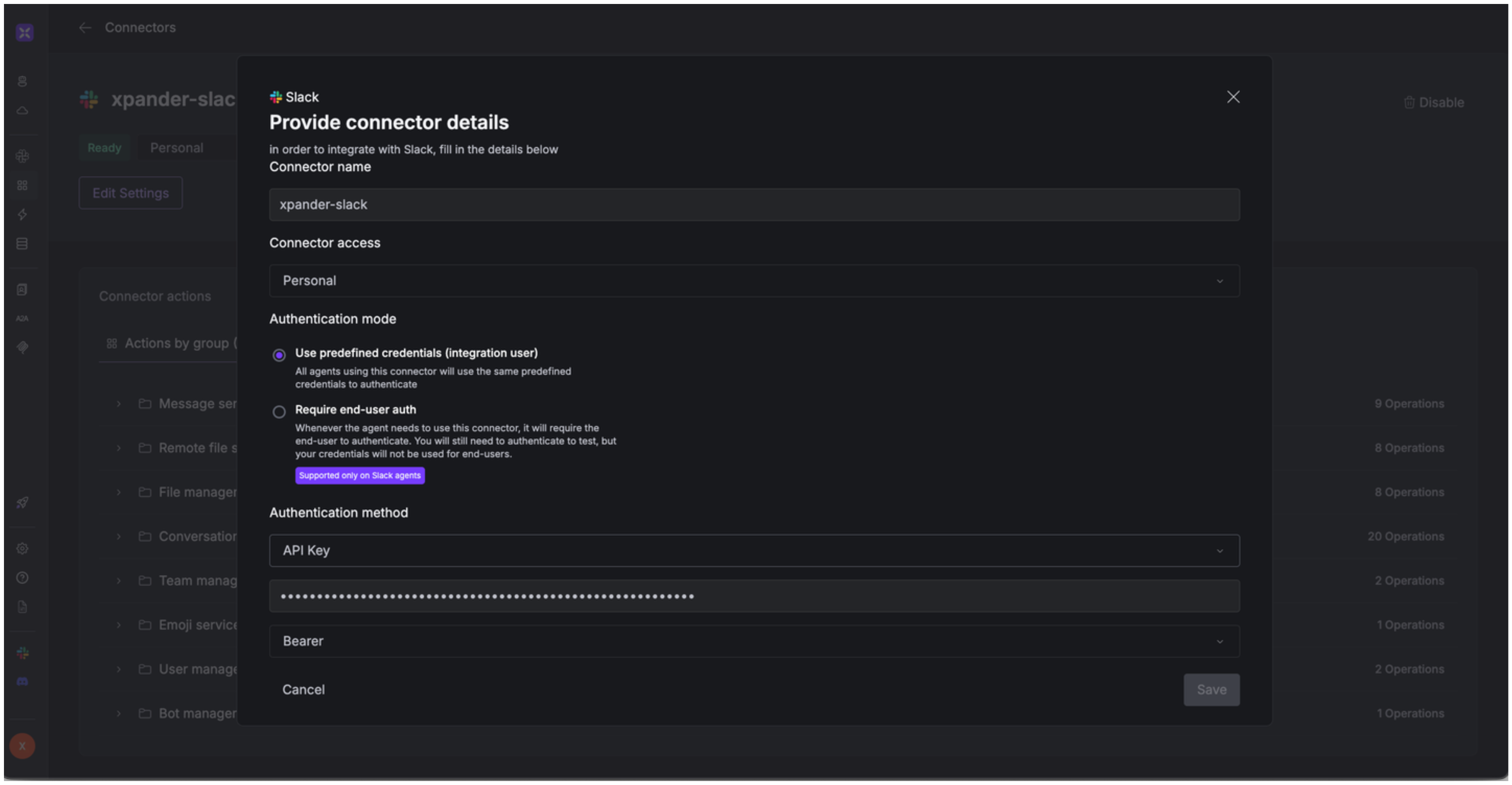
1. Go to the **Connectors** section in the sidebar of your xpander.ai dashboard.
2. Select **Slack** from the available integrations.
3. Click **Other auth options**.
4. Enter a **connector name**, e.g., "xpander-slack".
5. Choose **Integration User** as the authentication mode.
6. Select **API Key** as the authentication method.
7. Paste the Slack access token into the provided field.
8. Set the **Auth Type** to **Bearer**.
9. Save the configuration.
### Integrate Slack into xpander.ai
1. Go to the **Connectors** section in the sidebar of your xpander.ai dashboard.
2. Select **Slack** from the available integrations.
3. Click **Other auth options**.
4. Enter a **connector name**, e.g., "xpander-slack".
5. Choose **Integration User** as the authentication mode.
6. Select **API Key** as the authentication method.
7. Paste the Slack access token into the provided field.
8. Set the **Auth Type** to **Bearer**.
9. Save the configuration.
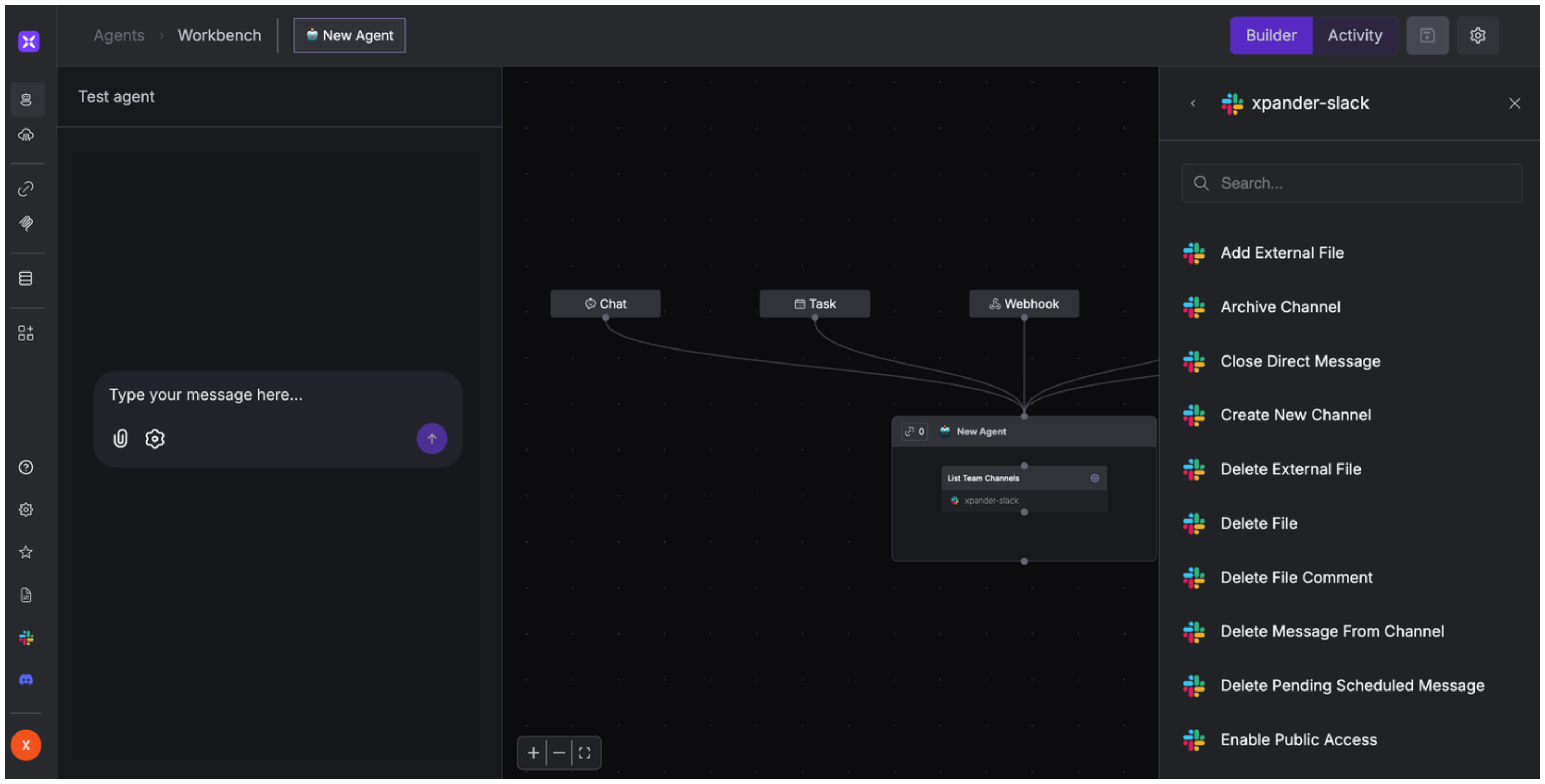
 ## Integration of Slack into AI Agent
Once you've configured your Slack account with the authentication option(s) described above, you can integrate it into your AI agent with xpander.ai:
1. In your xpander.ai dashboard, go to the **Agent Configuration** tab and select **Tools**, then click **Add Tools**.
2. Select **Connectors**.
3. Choose **Slack** with the same **connector name** you configured in the previous section (e.g., xpander-slack).
4. Select the available Slack operations that suit your use case.
## Integration of Slack into AI Agent
Once you've configured your Slack account with the authentication option(s) described above, you can integrate it into your AI agent with xpander.ai:
1. In your xpander.ai dashboard, go to the **Agent Configuration** tab and select **Tools**, then click **Add Tools**.
2. Select **Connectors**.
3. Choose **Slack** with the same **connector name** you configured in the previous section (e.g., xpander-slack).
4. Select the available Slack operations that suit your use case.
 ## Expose Slack as MCP Server
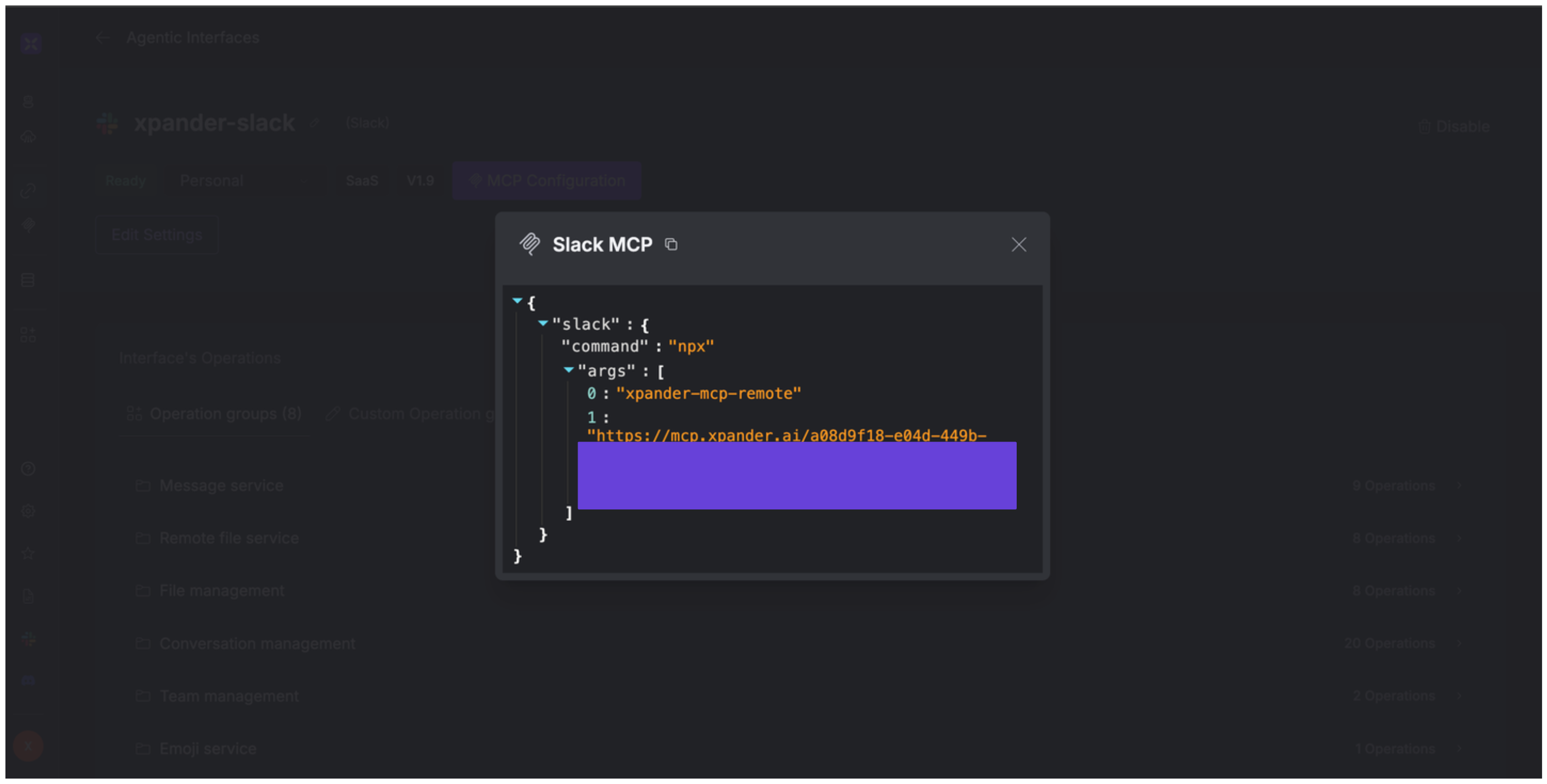
Alternatively, you can also expose your Slack account as an MCP server. To do so:
1. Go to the **Connectors** section in the sidebar of your xpander.ai dashboard.
2. Select **Slack** with the same **connector name** you configured in the previous section (e.g., xpander-slack).
3. Click **MCP Configuration**.
4. Enter the MCP configuration into the appropriate settings of the client app you want to use (e.g., Cursor, Windsurf, Claude Desktop, etc.).
## Expose Slack as MCP Server
Alternatively, you can also expose your Slack account as an MCP server. To do so:
1. Go to the **Connectors** section in the sidebar of your xpander.ai dashboard.
2. Select **Slack** with the same **connector name** you configured in the previous section (e.g., xpander-slack).
3. Click **MCP Configuration**.
4. Enter the MCP configuration into the appropriate settings of the client app you want to use (e.g., Cursor, Windsurf, Claude Desktop, etc.).
 ## AI Agent Slack Prompt Library
Below are possible prompts or use cases you can try after integrating Slack into your xpander AI agent:
```
Could you invite {user_name} to the #marketing-team channel?
```
```
Can you create a new private channel called {channel_name} for our upcoming project?
```
```
Would you schedule a reminder message about the {event_name} for next Friday at 3pm?
```
```
Can you share the {document_name} file with the #product-team channel?
```
## Related Resources
* [Understanding Model Context Protocol (MCP)](/guides/deploy/mcp)
* [Slack API Documentation](https://api.slack.com/quickstart)
## AI Agent Slack Prompt Library
Below are possible prompts or use cases you can try after integrating Slack into your xpander AI agent:
```
Could you invite {user_name} to the #marketing-team channel?
```
```
Can you create a new private channel called {channel_name} for our upcoming project?
```
```
Would you schedule a reminder message about the {event_name} for next Friday at 3pm?
```
```
Can you share the {document_name} file with the #product-team channel?
```
## Related Resources
* [Understanding Model Context Protocol (MCP)](/guides/deploy/mcp)
* [Slack API Documentation](https://api.slack.com/quickstart)