> ## Documentation Index
> Fetch the complete documentation index at: https://docs.xpander.ai/llms.txt
> Use this file to discover all available pages before exploring further.
# Snowflake
> Learn how to integrate AI agents with Snowflake using xpander.ai. Create intelligent agents that can query your Snowflake data warehouse, retrieve analytics insights, explore databases and schemas, and automate data-driven workflows.
## About Snowflake
**Snowflake** is a cloud-based data platform designed for modern analytics, AI applications, and large-scale data engineering. It enables developers, data teams, and intelligent agents to store, process, and analyze massive datasets using a unified, fully cloud-native data warehouse architecture.
Snowflake offers advanced capabilities such as data sharing, secure collaboration, and workload isolation through virtual warehouses, along with native support for modern data engineering and machine learning pipelines. These features allow teams to run concurrent analytical queries, ingest streaming or batch data, and securely share datasets across organizations, all while maintaining high performance and scalability.
## Authentication Options
Below are possible authentication options you can choose:
### Generate a Snowflake Programmatic Access Token
1. Log in to your [Snowflake account](https://app.snowflake.com/).
2. Select **Governance & security**, then click **Users & roles**.
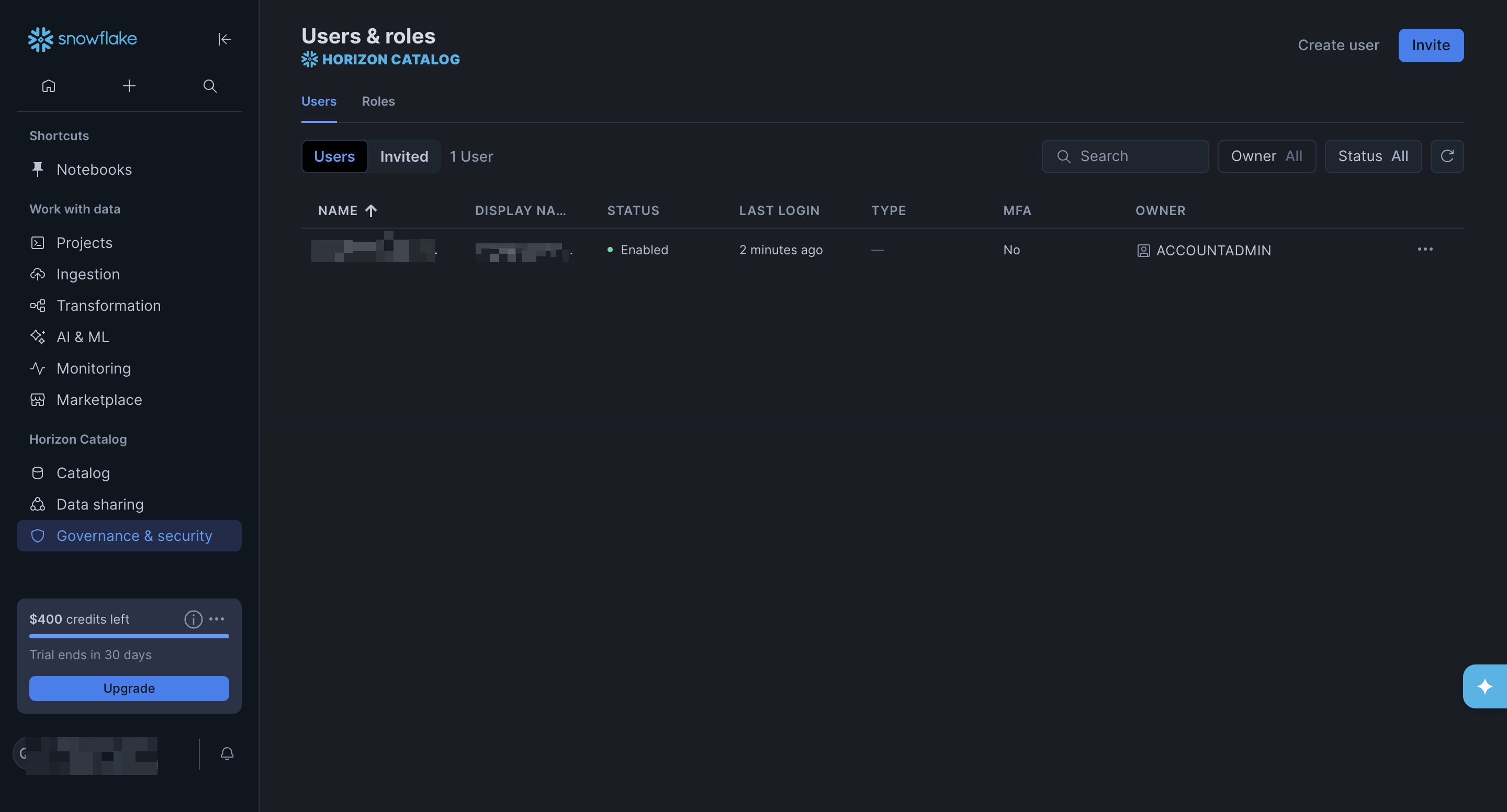 3. Select a user to open the user’s page, scroll down to the **Programmatic access tokens** section, and click **Generate token** to open the **New programmatic access token** dialog.
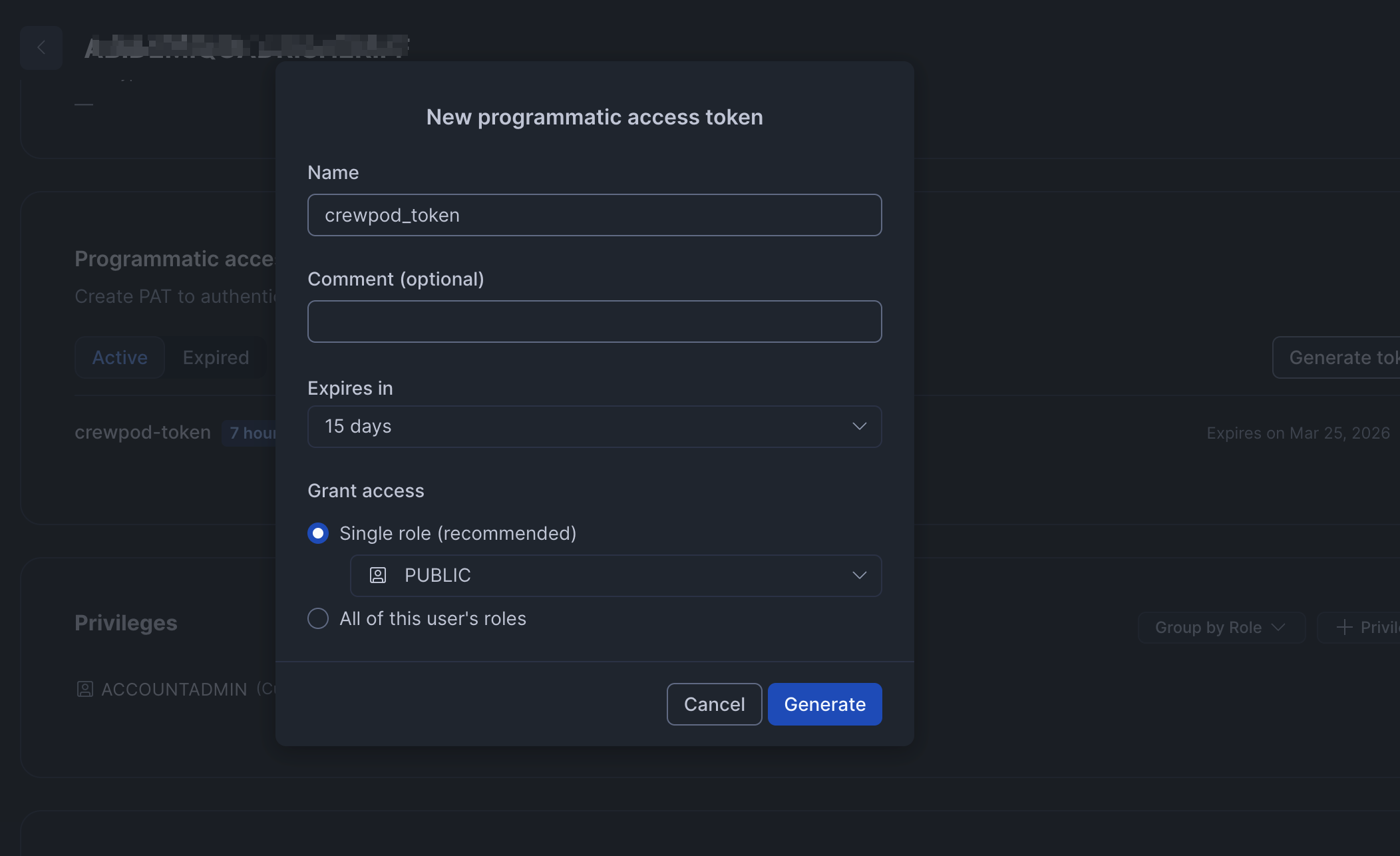 4. Enter a name for the new programmatic access token, set the expiry period and role, then click **Generate** to create the token.
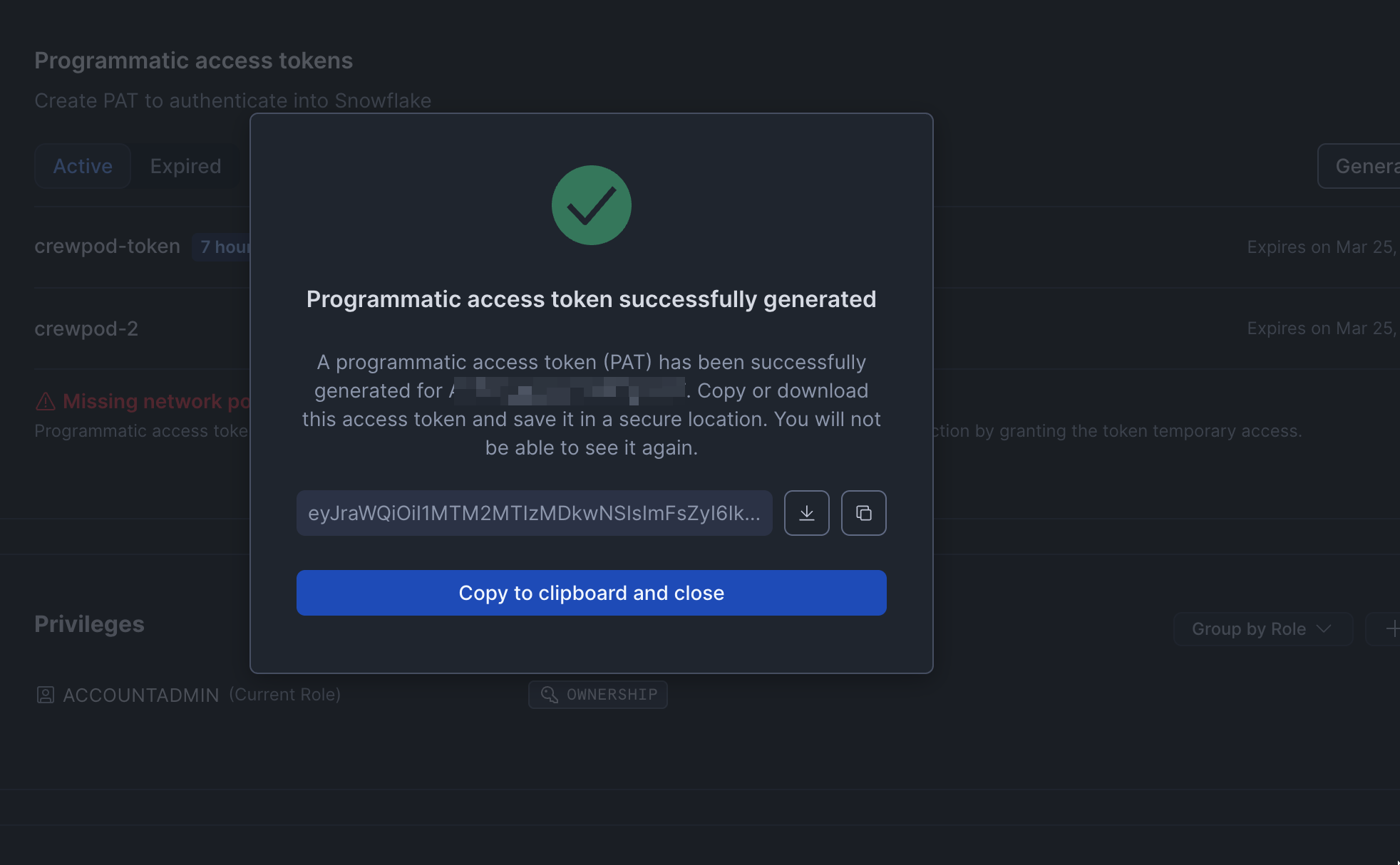
5. A new dialog will appear with the created token. Click **Copy to clipboard and close** to copy the generated token and store it somewhere safe.
4. Enter a name for the new programmatic access token, set the expiry period and role, then click **Generate** to create the token.
5. A new dialog will appear with the created token. Click **Copy to clipboard and close** to copy the generated token and store it somewhere safe.
 If your Snowflake user does not have a network policy, you’ll need to create one to proceed. Follow [Snowflake’s official instructions](https://docs.snowflake.com/en/guides/network-policies) to create a new network policy.
Alternatively, you can grant temporary access for your programmatic access token. To do that:
1. Click the ellipsis icon next to the programmatic access token
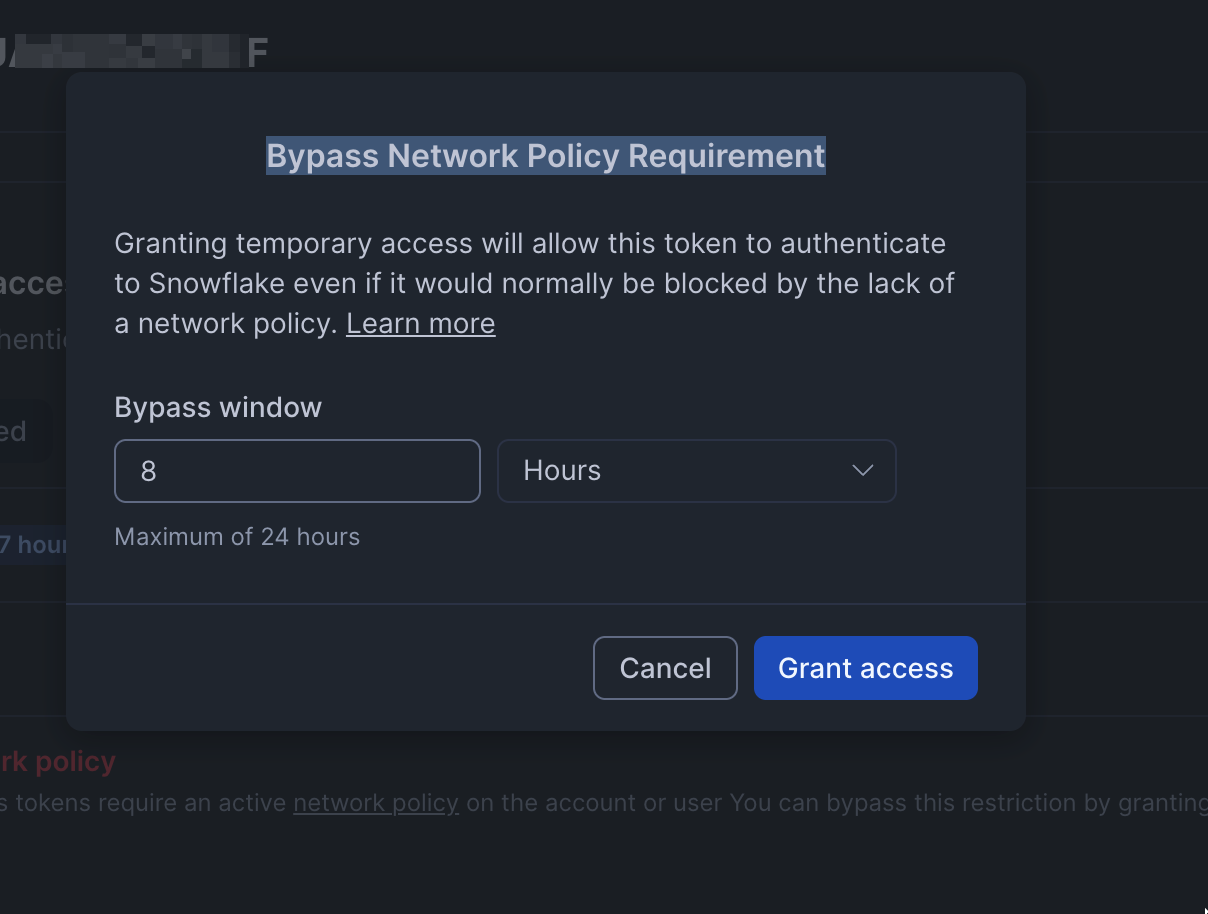
2. Select **Bypass requirement for network policy** in the dropdown that appears to open the **Bypass Network Policy Requirement** dialog.
If your Snowflake user does not have a network policy, you’ll need to create one to proceed. Follow [Snowflake’s official instructions](https://docs.snowflake.com/en/guides/network-policies) to create a new network policy.
Alternatively, you can grant temporary access for your programmatic access token. To do that:
1. Click the ellipsis icon next to the programmatic access token
2. Select **Bypass requirement for network policy** in the dropdown that appears to open the **Bypass Network Policy Requirement** dialog.
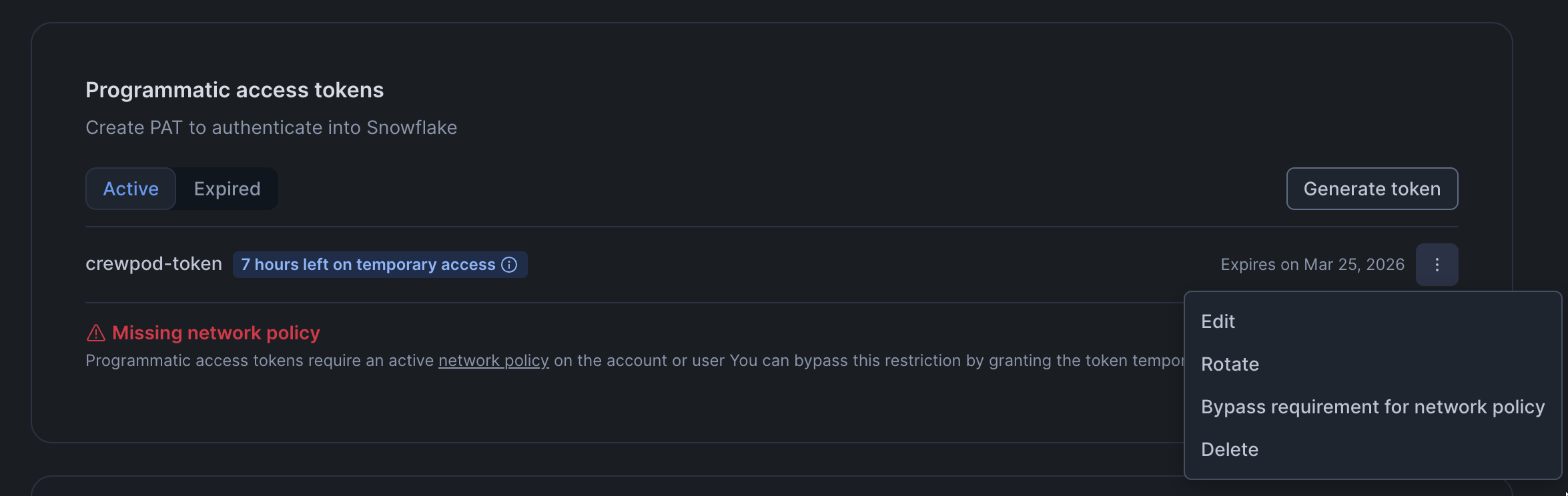 3. Specify a **Bypass window** and click **Grant access** to grant your programmatic access token temporary access.
 ### Integrate Snowflake into xpander.ai
1. Go to the **Agentic Connectors** section in the sidebar of your xpander.ai dashboard.
2. Select **Snowflake** from the available integrations.
3. Click **+ Create new connection**.
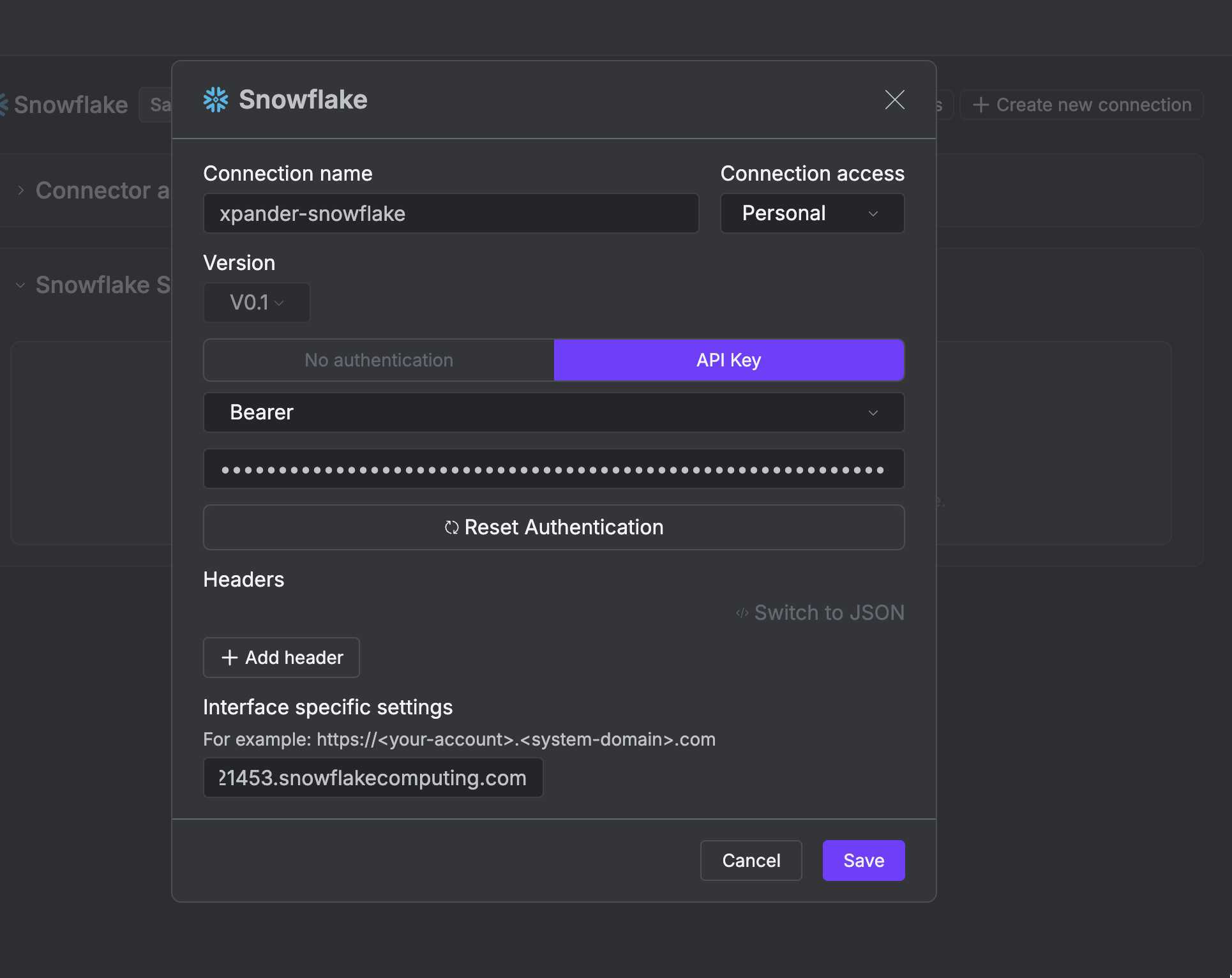
4. Enter a **connector name** as desired, e.g., "xpander-snowflake".
5. Paste your Snowflake programmatic access token into the provided **API Key** field.
6. Copy the **base URL** from your Snowflake web console, e.g., `https://.snowflakecomputing.com`, and paste it into the **Interface specific settings** field.
7. Save the configuration.
### Integrate Snowflake into xpander.ai
1. Go to the **Agentic Connectors** section in the sidebar of your xpander.ai dashboard.
2. Select **Snowflake** from the available integrations.
3. Click **+ Create new connection**.
4. Enter a **connector name** as desired, e.g., "xpander-snowflake".
5. Paste your Snowflake programmatic access token into the provided **API Key** field.
6. Copy the **base URL** from your Snowflake web console, e.g., `https://.snowflakecomputing.com`, and paste it into the **Interface specific settings** field.
7. Save the configuration.
 ## Integration of Snowflake into an AI Agent
Once you’ve configured your Snowflake connector with the authentication option(s) described above, you can integrate it into your AI agent with xpander.ai:
1. In your xpander.ai dashboard, navigate to the **Agents** page, select an agent and click **Edit** on the agent page to open the **Agent Configuration** tab.
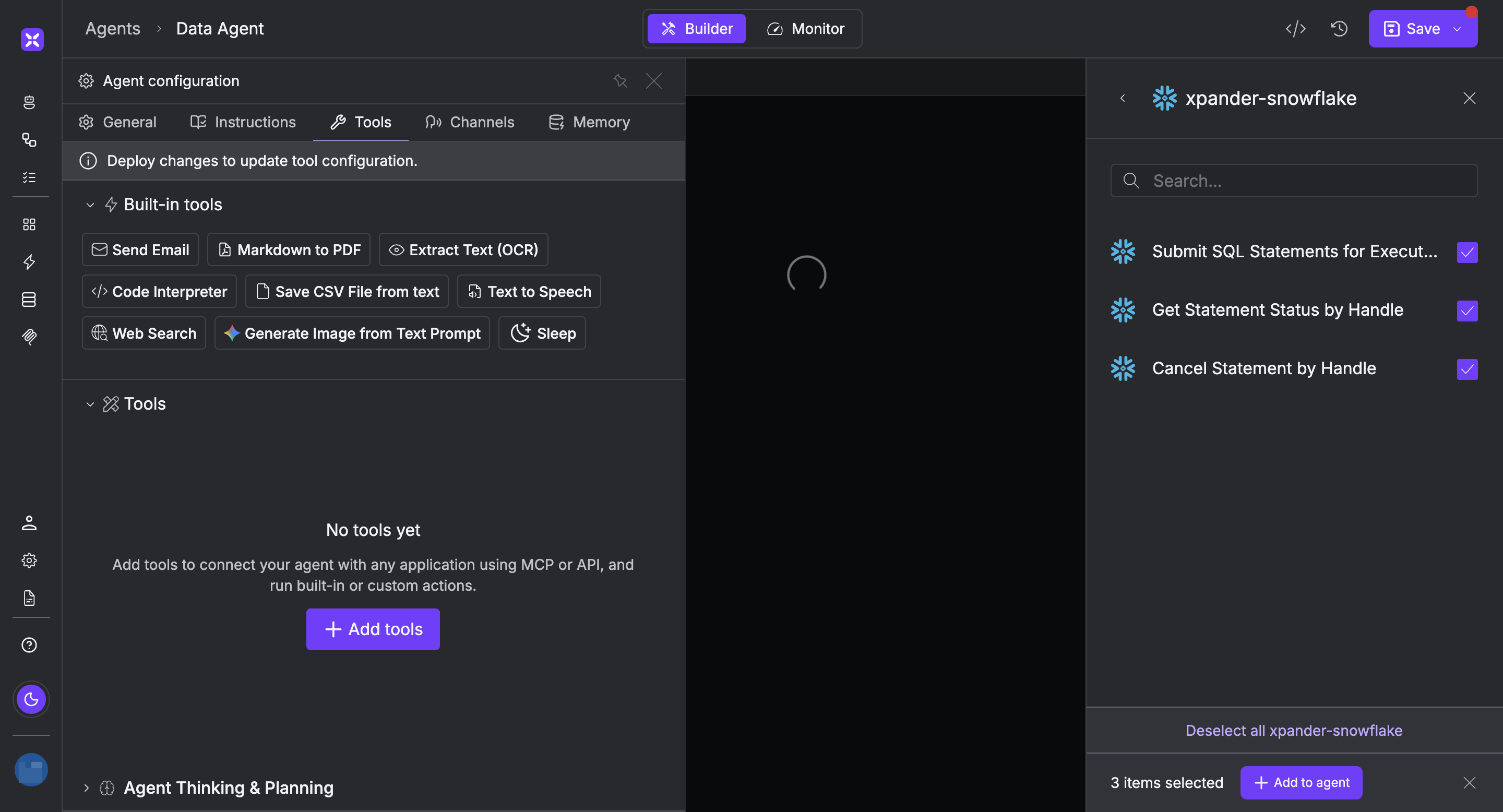
2. Select **Tools**, then click **Add Tools**.
3. Select **Connectors**.
4. Choose **Snowflake** with the same **connector name** you configured in the previous section (e.g., xpander-snowflake).
5. Select the available Snowflake operations that suit your use case.
To grant your agent database management capabilities, enable the following operations.
* **Submit SQL Statements For Execution**
* **Get Statement Status by Handle**
* **Cancel Statement by Handle**
## Integration of Snowflake into an AI Agent
Once you’ve configured your Snowflake connector with the authentication option(s) described above, you can integrate it into your AI agent with xpander.ai:
1. In your xpander.ai dashboard, navigate to the **Agents** page, select an agent and click **Edit** on the agent page to open the **Agent Configuration** tab.
2. Select **Tools**, then click **Add Tools**.
3. Select **Connectors**.
4. Choose **Snowflake** with the same **connector name** you configured in the previous section (e.g., xpander-snowflake).
5. Select the available Snowflake operations that suit your use case.
To grant your agent database management capabilities, enable the following operations.
* **Submit SQL Statements For Execution**
* **Get Statement Status by Handle**
* **Cancel Statement by Handle**
 ## AI Agent Snowflake Prompt Library
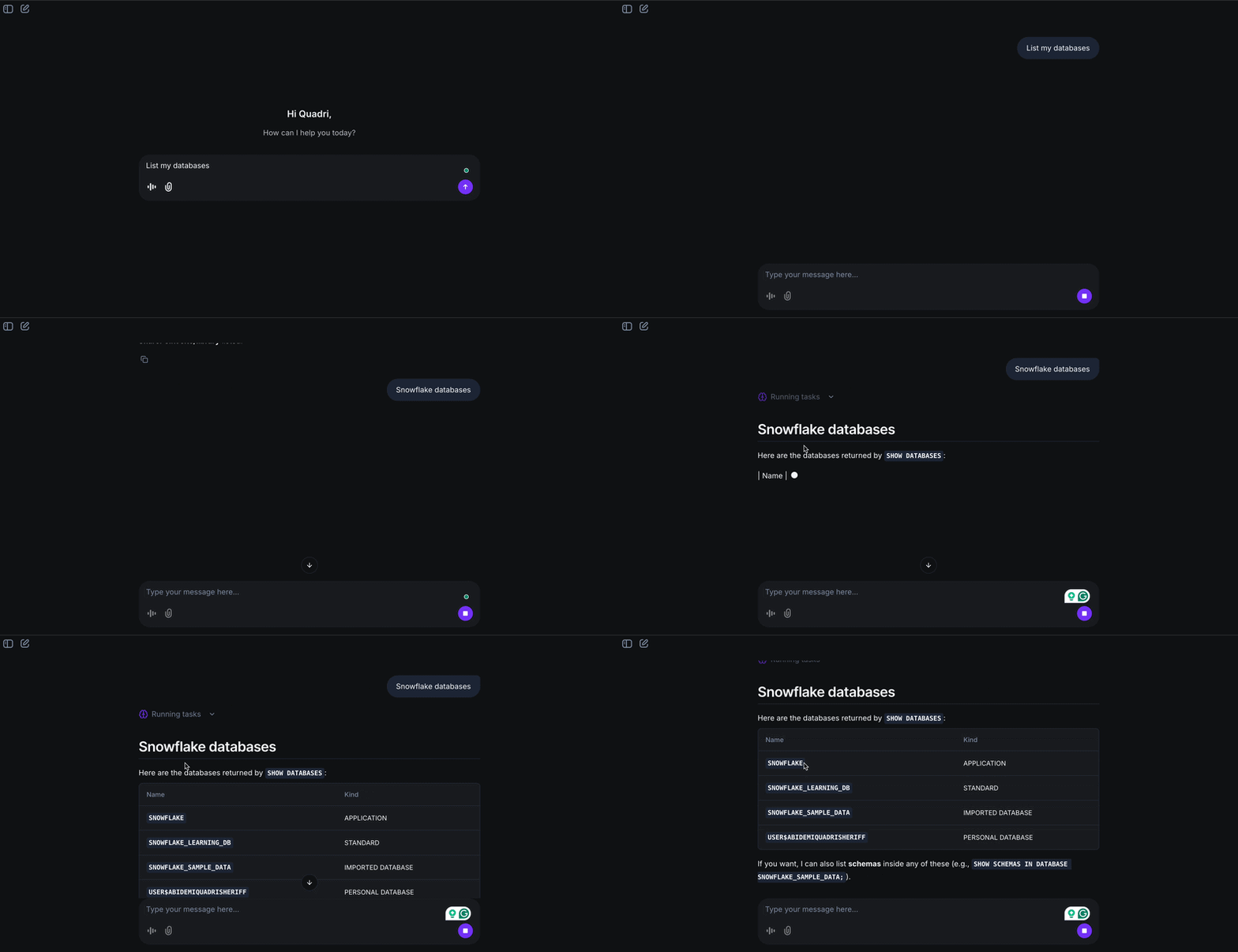
Below are possible prompts or use cases you can try after integrating Snowflake into your xpander.ai AI agent:
```
List my databases.
```
```
Add a to my database.
```
```
Add a with the following columns to the schema belonging to the database.
```
```
Return all rows in the table in the schema belonging to the database.
```
## AI Agent Snowflake Prompt Library
Below are possible prompts or use cases you can try after integrating Snowflake into your xpander.ai AI agent:
```
List my databases.
```
```
Add a to my database.
```
```
Add a with the following columns to the schema belonging to the database.
```
```
Return all rows in the table in the schema belonging to the database.
```
 ## Related Resources
* [Using Tools & Connectors in the xpander.ai platform](/guides/agents/tools-connectors)
* [Snowflake Documentation](https://docs.snowflake.com/en/index)
## Related Resources
* [Using Tools & Connectors in the xpander.ai platform](/guides/agents/tools-connectors)
* [Snowflake Documentation](https://docs.snowflake.com/en/index)