> ## Documentation Index
> Fetch the complete documentation index at: https://docs.xpander.ai/llms.txt
> Use this file to discover all available pages before exploring further.
# Supabase
> Learn how to integrate AI agents with Supabase using xpander.ai. Create intelligent, data-driven applications that leverage Supabase’s real-time PostgreSQL database, authentication, and storage features.
## About Supabase
Supabase is an open-source Backend-as-a-Service (BaaS) platform designed to simplify and accelerate application development by providing a suite of backend tools and services.
Key features include:
* **PostgreSQL Database**: Supabase provides a full PostgreSQL database with real-time capabilities, allowing developers to leverage SQL's robustness and familiarity .
* **Authentication & Authorization**: Built-in user management with support for various authentication methods, including email, password, and third-party providers.
* **Instant APIs**: Automatically generated RESTful and GraphQL APIs based on your database schema, facilitating rapid development.
* **Edge Functions**: Serverless functions that run close to the user, enabling low-latency operations and custom backend logic.
* **Realtime Subscriptions**: Listen to database changes in real-time, enabling dynamic and responsive applications.
* **Storage**: Manage and serve large files, such as images and videos, with built-in storage solutions.
* **Vector Embeddings**: Support for AI and machine learning workloads through vector embeddings, useful for applications like semantic search.
## Authentication Options
Below are possible authentication options you can choose:
### Generate a Supabase API Key
1. Log in to your [Supabase account](https://supabase.com).
2. Click your profile icon at the top right of the dashboard, then select **Account preferences**.
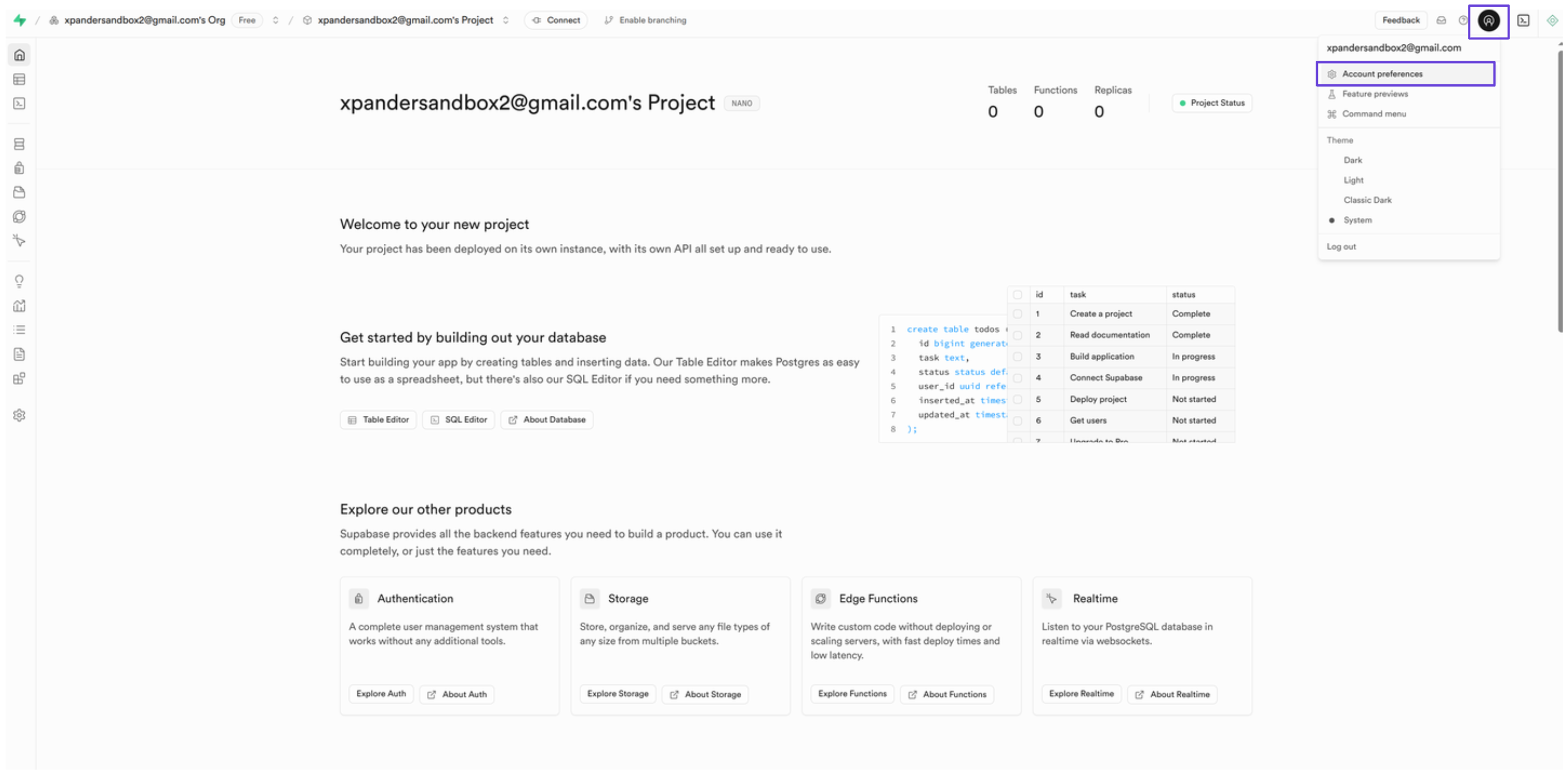 3. In the sidebar, click **Access tokens**, then click **Generate new token**.
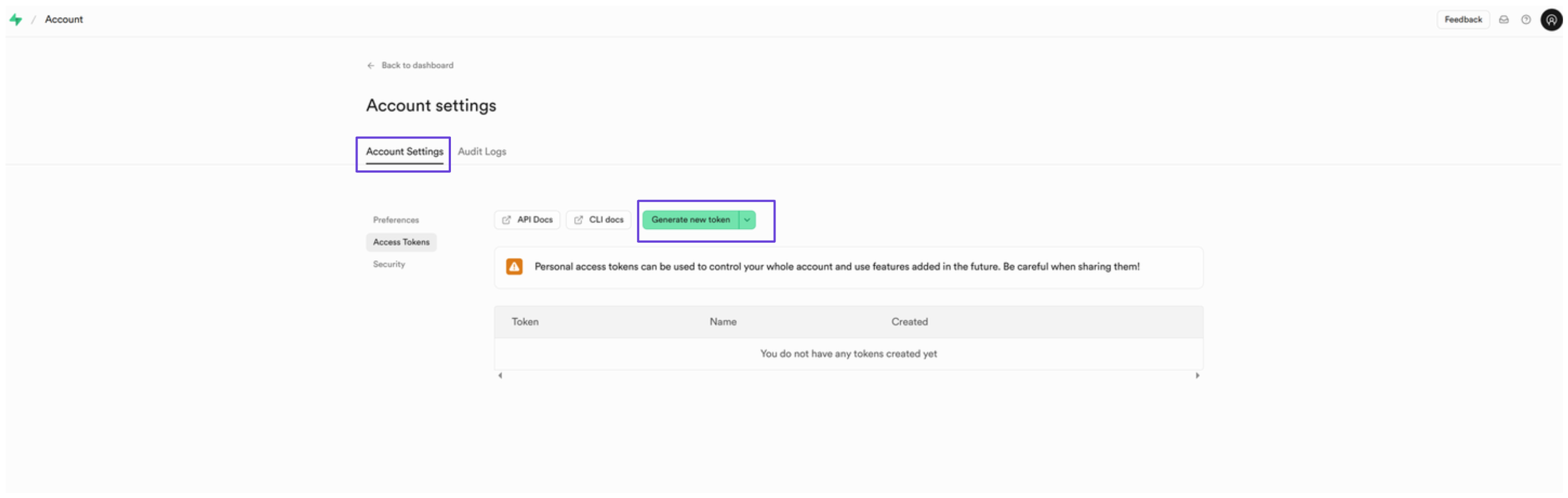 4. Give the token a name and click **Generate token**.
5. Your access token will be shown—copy it somewhere safe.
### Integrate Supabase into xpander.ai
1. Go to the **Connectors** section in the sidebar of your xpander.ai dashboard.
2. Select **Supabase** from the available integrations.
3. Click **Enable**.
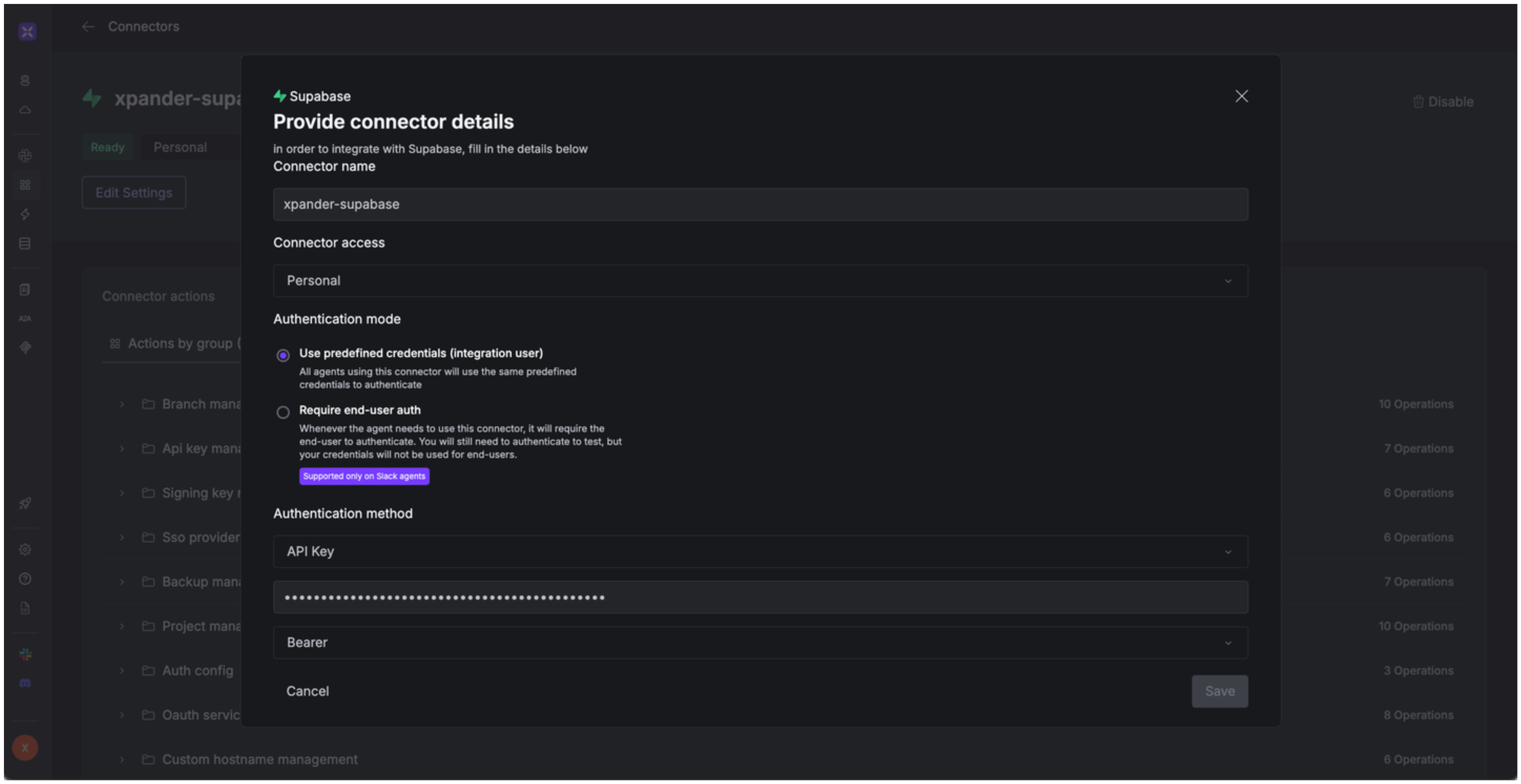
4. Enter a **connector name**, e.g., "xpander-supabase".
5. Choose **Integration User** as the authentication mode.
6. Select **API Key** as the authentication method.
7. Paste the Supabase access token into the provided field.
8. Set the **Auth Type** to **Bearer**.
9. Save the configuration.
4. Give the token a name and click **Generate token**.
5. Your access token will be shown—copy it somewhere safe.
### Integrate Supabase into xpander.ai
1. Go to the **Connectors** section in the sidebar of your xpander.ai dashboard.
2. Select **Supabase** from the available integrations.
3. Click **Enable**.
4. Enter a **connector name**, e.g., "xpander-supabase".
5. Choose **Integration User** as the authentication mode.
6. Select **API Key** as the authentication method.
7. Paste the Supabase access token into the provided field.
8. Set the **Auth Type** to **Bearer**.
9. Save the configuration.
 ## Integration of Supabase into AI Agent
Once you've configured your Supabase account with the authentication option(s) described above, you can integrate it into your AI agent with xpander.ai:
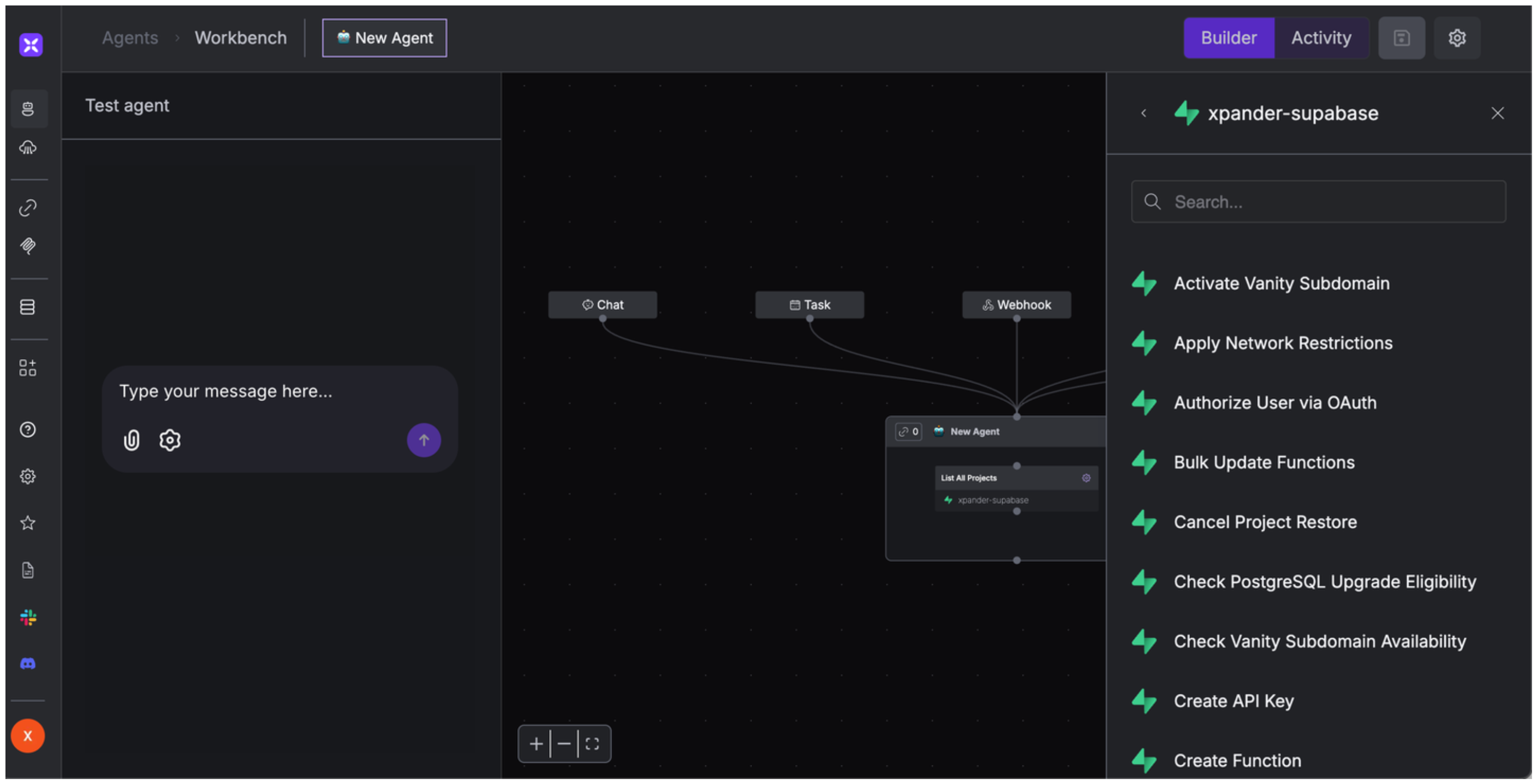
1. In your xpander.ai dashboard, go to the **Agent Configuration** tab and select **Tools**, then click **Add Tools**.
2. Select **Connectors**.
3. Choose **Supabase** with the same **connector name** you configured in the previous section (e.g., xpander-supabase).
4. Select the available Supabase operations that suit your use case.
## Integration of Supabase into AI Agent
Once you've configured your Supabase account with the authentication option(s) described above, you can integrate it into your AI agent with xpander.ai:
1. In your xpander.ai dashboard, go to the **Agent Configuration** tab and select **Tools**, then click **Add Tools**.
2. Select **Connectors**.
3. Choose **Supabase** with the same **connector name** you configured in the previous section (e.g., xpander-supabase).
4. Select the available Supabase operations that suit your use case.
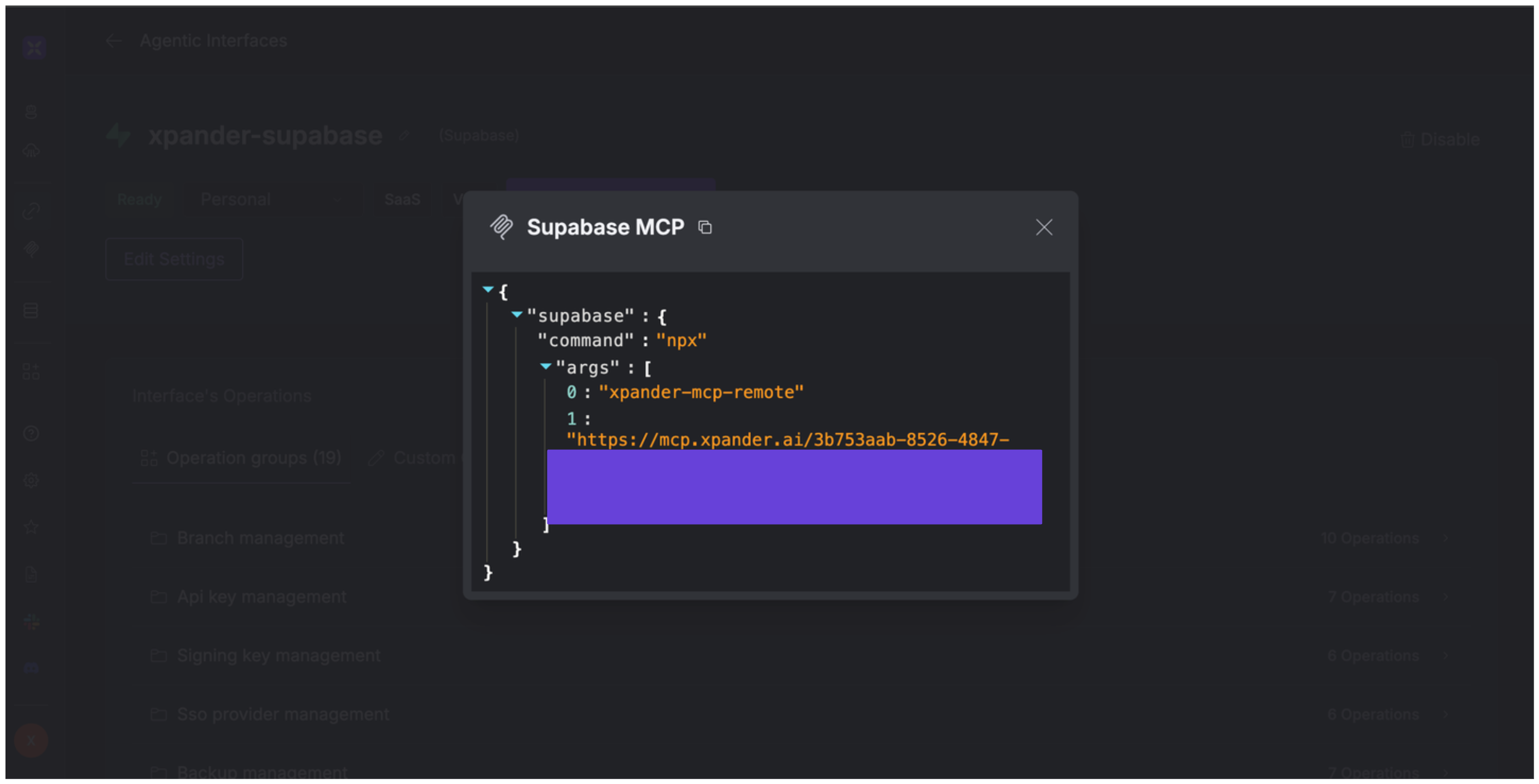
 ## Expose Supabase as MCP Server
Alternatively, you can also expose your Supabase account as an MCP server. To do so:
1. Go to the **Connectors** section in the sidebar of your xpander.ai dashboard.
2. Select **Supabase** with the same **connector name** you configured in the previous section (e.g., xpander-supabase).
3. Click **MCP Configuration**.
4. Enter the MCP configuration into the appropriate settings of the client app you want to use (e.g., Cursor, Windsurf, Claude Desktop, etc.).
## Expose Supabase as MCP Server
Alternatively, you can also expose your Supabase account as an MCP server. To do so:
1. Go to the **Connectors** section in the sidebar of your xpander.ai dashboard.
2. Select **Supabase** with the same **connector name** you configured in the previous section (e.g., xpander-supabase).
3. Click **MCP Configuration**.
4. Enter the MCP configuration into the appropriate settings of the client app you want to use (e.g., Cursor, Windsurf, Claude Desktop, etc.).
 ## AI Agent Supabase Prompt Library
Below are possible prompts or use cases you can try after integrating Supabase into your xpander AI agent:
```
Could you create a new branch called {branch_name} for my {project_name} project?
```
```
How do I delete the API key with ID {api_key_id} from my {project_name} project?
```
```
How can I update the PostgreSQL configuration for my {project_name} to increase the maximum connections?
```
```
Could you disable the read-only mode for my {project_name} project?
```
## Related Resources
* [Understanding Model Context Protocol (MCP)](/guides/deploy/mcp)
* [Supabase API Documentation](https://supabase.com/docs/guides/api)
## AI Agent Supabase Prompt Library
Below are possible prompts or use cases you can try after integrating Supabase into your xpander AI agent:
```
Could you create a new branch called {branch_name} for my {project_name} project?
```
```
How do I delete the API key with ID {api_key_id} from my {project_name} project?
```
```
How can I update the PostgreSQL configuration for my {project_name} to increase the maximum connections?
```
```
Could you disable the read-only mode for my {project_name} project?
```
## Related Resources
* [Understanding Model Context Protocol (MCP)](/guides/deploy/mcp)
* [Supabase API Documentation](https://supabase.com/docs/guides/api)