> ## Documentation Index
> Fetch the complete documentation index at: https://docs.xpander.ai/llms.txt
> Use this file to discover all available pages before exploring further.
# Tableau
> Learn how to integrate AI agents with Tableau using xpander.ai. Create intelligent dashboards that deliver contextual insights, automate data-driven decisions, and enable natural language interactions for a seamless analytics experience.
## About Tableau
Tableau is a visual analytics platform that empowers individuals and organizations to explore and understand data through interactive visualizations.
Key features include:
* **Interactive Data Visualization**: Drag-and-drop interface to create dashboards, charts, graphs, and maps without coding.
* **Wide Data Connectivity**: Connects to multiple data sources such as Relational databases (MySQL, PostgreSQL, SQL Server, Oracle), cloud services (Google BigQuery, AWS Redshift, Snowflake), spreadsheets (Excel, CSV, Google Sheets), and web connectors (APIs).
* **Geospatial & Mapping Capabilities**: Built-in geocoding and mapping for creating geographic visualizations.
* **Natural Language & AI Features**: Natural language queries for instant insights and AI-driven explanations of outliers and patterns.
* **Dashboard Interactivity**: Filters, actions, and parameters for interactive dashboards.
## Authentication Options
Below are possible authentication options you can choose:
### Generate a Tableau API Token
1. Log in to your [Tableau Cloud or Tableau Server account](https://www.tableau.com/tableau-login-hub).
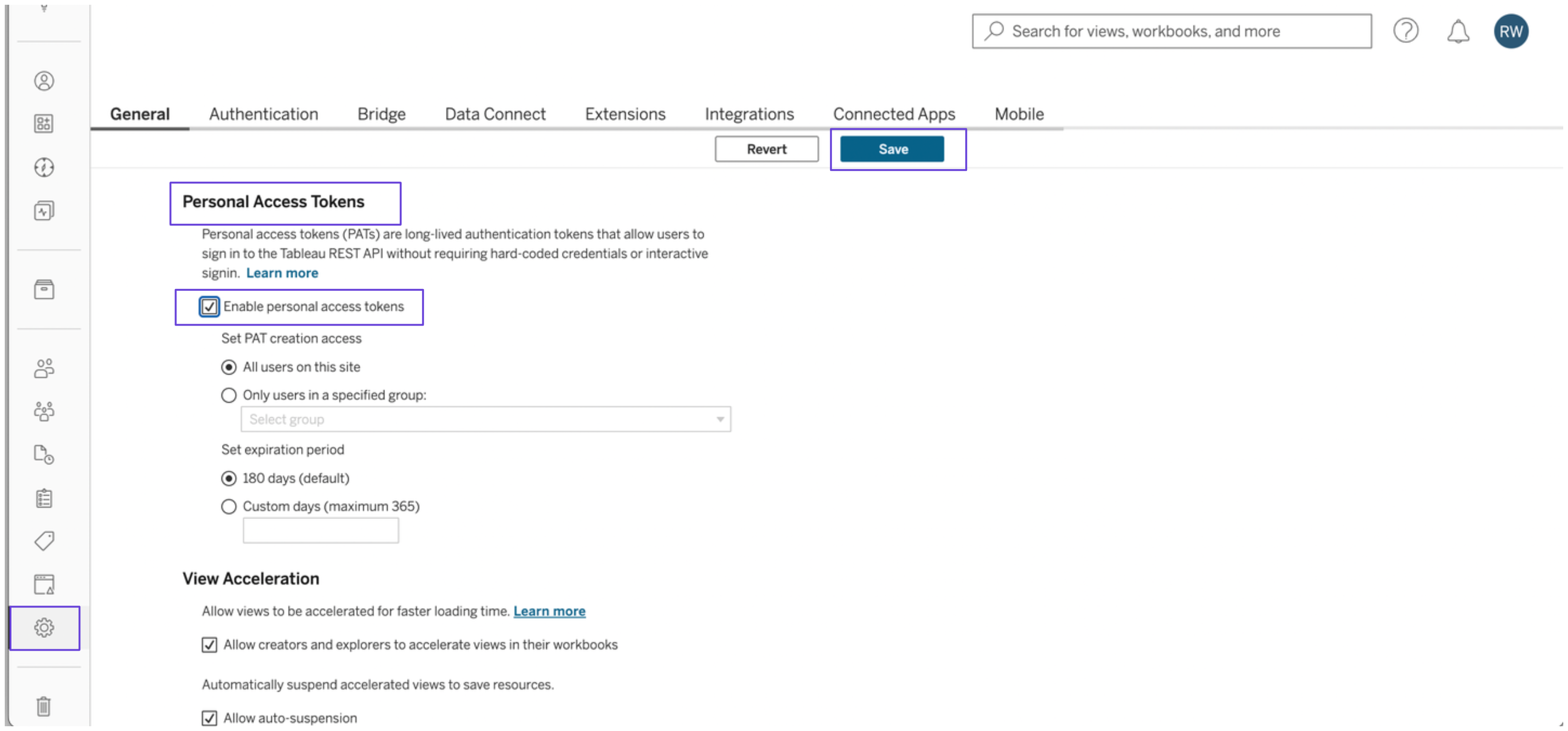
2. In the sidebar of your account dashboard, click the gear icon. Under the **General** tab, find the **Personal Access Tokens** section.
3. Check the box for **Enable personal access tokens**, then click **Save**.
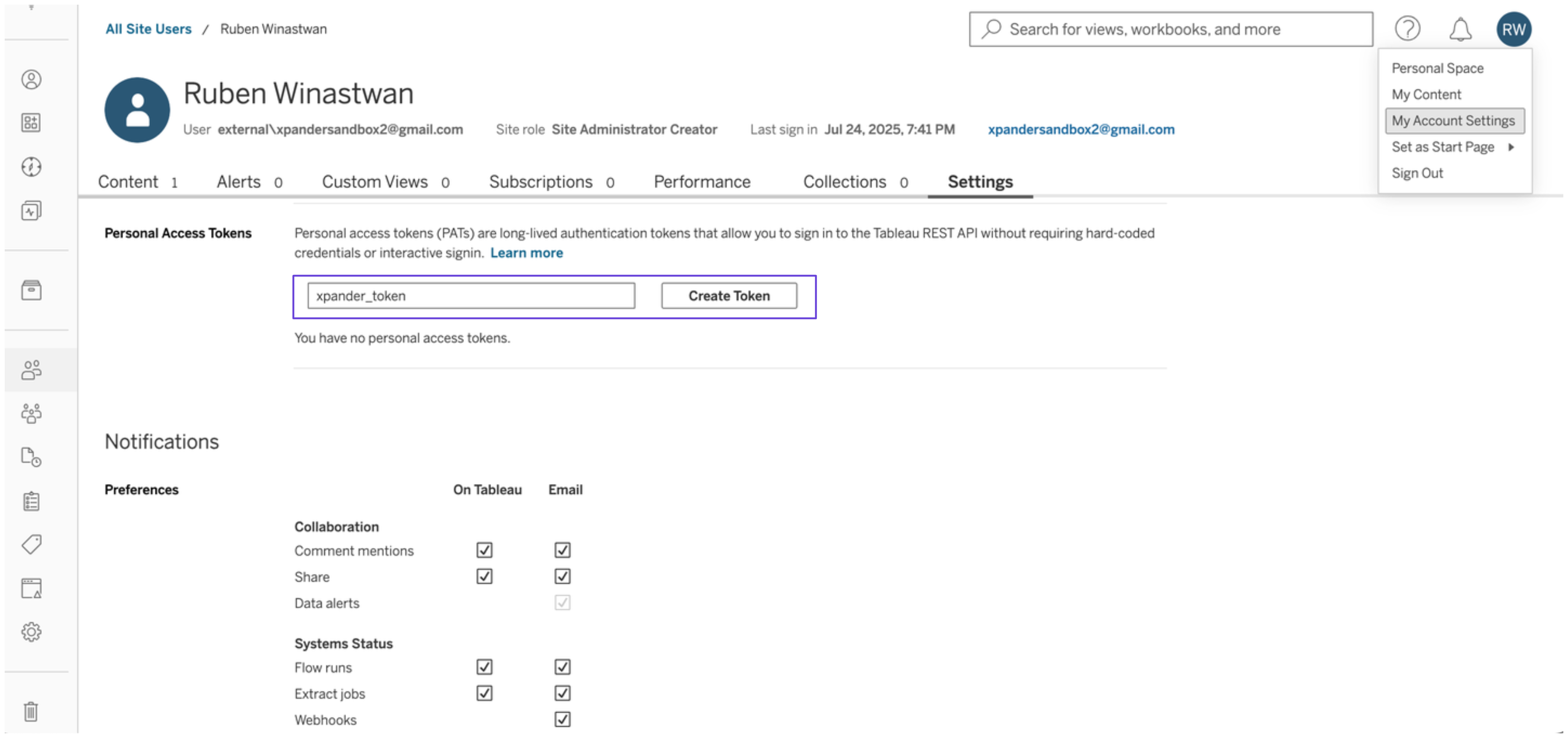
 4. Click your profile icon at the top right of the dashboard, then select **My Account Settings**.
5. In the **Settings** tab, locate the **Personal Access Tokens** section. Enter a name for your token and click **Create token**.
4. Click your profile icon at the top right of the dashboard, then select **My Account Settings**.
5. In the **Settings** tab, locate the **Personal Access Tokens** section. Enter a name for your token and click **Create token**.
 6. Copy your personal access token and save it securely before closing the dialog box.
7. Obtain an authentication token by executing the following request:
```
curl -X POST "https://{YOUR_SERVER_NAME}/api/3.26/auth/signin" \
-H "Content-Type: application/json" \
-d '{
"credentials": {
"personalAccessTokenName": "YOUR_PAT_NAME",
"personalAccessTokenSecret": "YOUR_PAT_SECRET",
"site": {
"contentUrl": "YOUR_SITE_NAME"
}
}
}'
```
Replace **personalAccessTokenName** and **personalAccessTokenSecret** with the token name and secret you obtained above.
You can find your server name and site name in your Tableau URL. For example, if your URL is: [https://dub01.online.tableau.com/#/site/xpandersandbox2-577b145t/](https://dub01.online.tableau.com/#/site/xpandersandbox2-577b145t/), then:
* Server name: dub01.online.tableau.com
* Site name: xpandersandbox2-577b145t
8. Save the authentication token you obtained somewhere safe.
### Integrate Tableau into xpander.ai
1. In your xpander.ai dashboard, go to the **Connectors** section in the sidebar.
2. Select **Tableau** from the available integrations.
3. Click **Enable**.
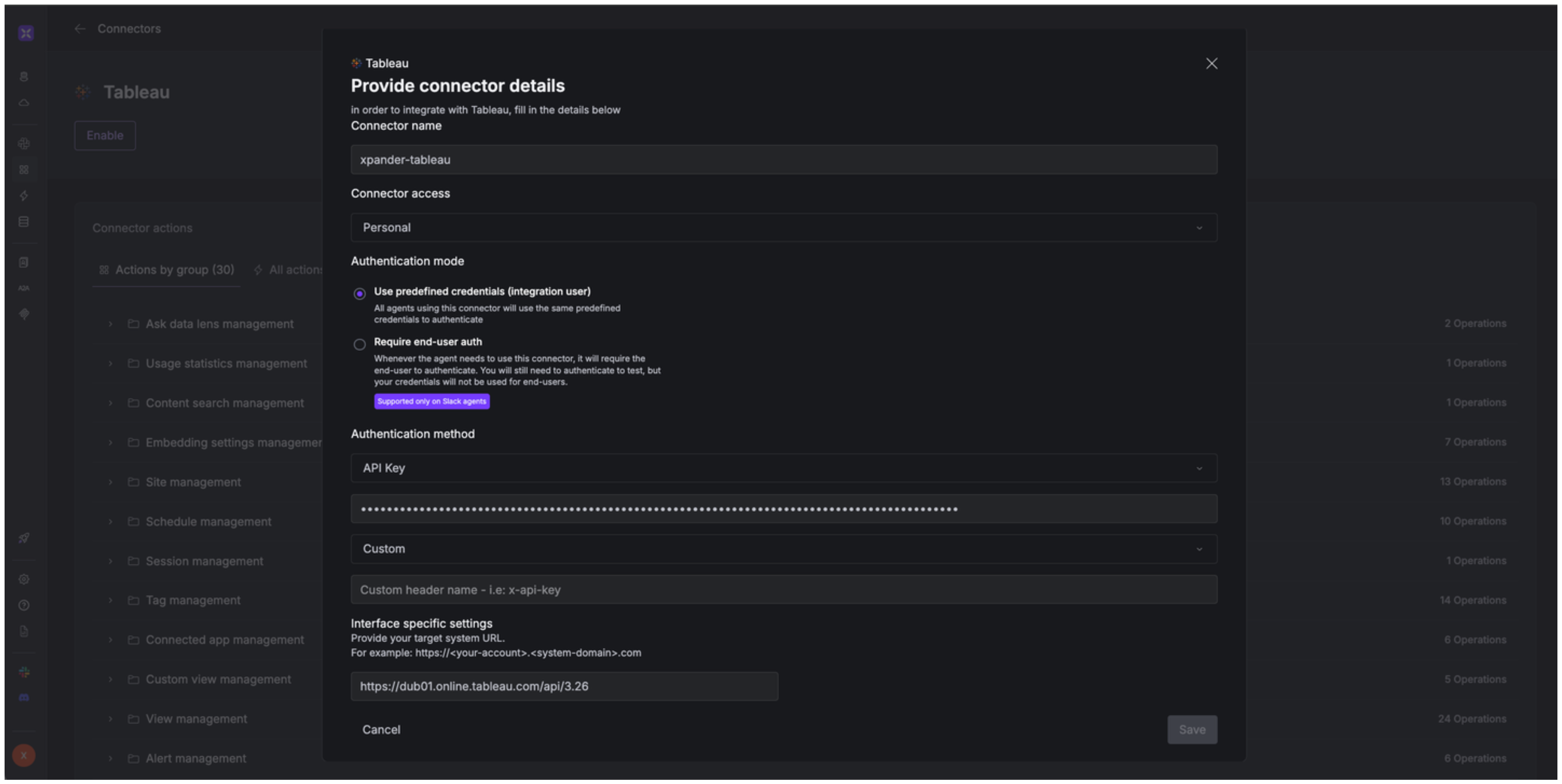
4. Enter a **connector name**, e.g., "xpander-tableau".
5. Choose **Integration User** as the authentication mode.
6. Select **API Key** as the authentication method.
7. Paste your Tableau authentication token into the provided field.
8. Set the **Auth Type** to **Custom**.
9. Write **X-Tableau-Auth** as the custom header name.
10. Under **Interface specific settings**, enter the base URL: `https://{server}/api/{api-version}`. Replace `{server}` with the server name of your Tableau account and `{api-version}` with the API version, such as 3.26.
11. Save the configuration.
6. Copy your personal access token and save it securely before closing the dialog box.
7. Obtain an authentication token by executing the following request:
```
curl -X POST "https://{YOUR_SERVER_NAME}/api/3.26/auth/signin" \
-H "Content-Type: application/json" \
-d '{
"credentials": {
"personalAccessTokenName": "YOUR_PAT_NAME",
"personalAccessTokenSecret": "YOUR_PAT_SECRET",
"site": {
"contentUrl": "YOUR_SITE_NAME"
}
}
}'
```
Replace **personalAccessTokenName** and **personalAccessTokenSecret** with the token name and secret you obtained above.
You can find your server name and site name in your Tableau URL. For example, if your URL is: [https://dub01.online.tableau.com/#/site/xpandersandbox2-577b145t/](https://dub01.online.tableau.com/#/site/xpandersandbox2-577b145t/), then:
* Server name: dub01.online.tableau.com
* Site name: xpandersandbox2-577b145t
8. Save the authentication token you obtained somewhere safe.
### Integrate Tableau into xpander.ai
1. In your xpander.ai dashboard, go to the **Connectors** section in the sidebar.
2. Select **Tableau** from the available integrations.
3. Click **Enable**.
4. Enter a **connector name**, e.g., "xpander-tableau".
5. Choose **Integration User** as the authentication mode.
6. Select **API Key** as the authentication method.
7. Paste your Tableau authentication token into the provided field.
8. Set the **Auth Type** to **Custom**.
9. Write **X-Tableau-Auth** as the custom header name.
10. Under **Interface specific settings**, enter the base URL: `https://{server}/api/{api-version}`. Replace `{server}` with the server name of your Tableau account and `{api-version}` with the API version, such as 3.26.
11. Save the configuration.
 ## Integration of Tableau into AI Agent
Once you've configured your Tableau account with the authentication option(s) described above, you can integrate it into your AI agent with xpander.ai:
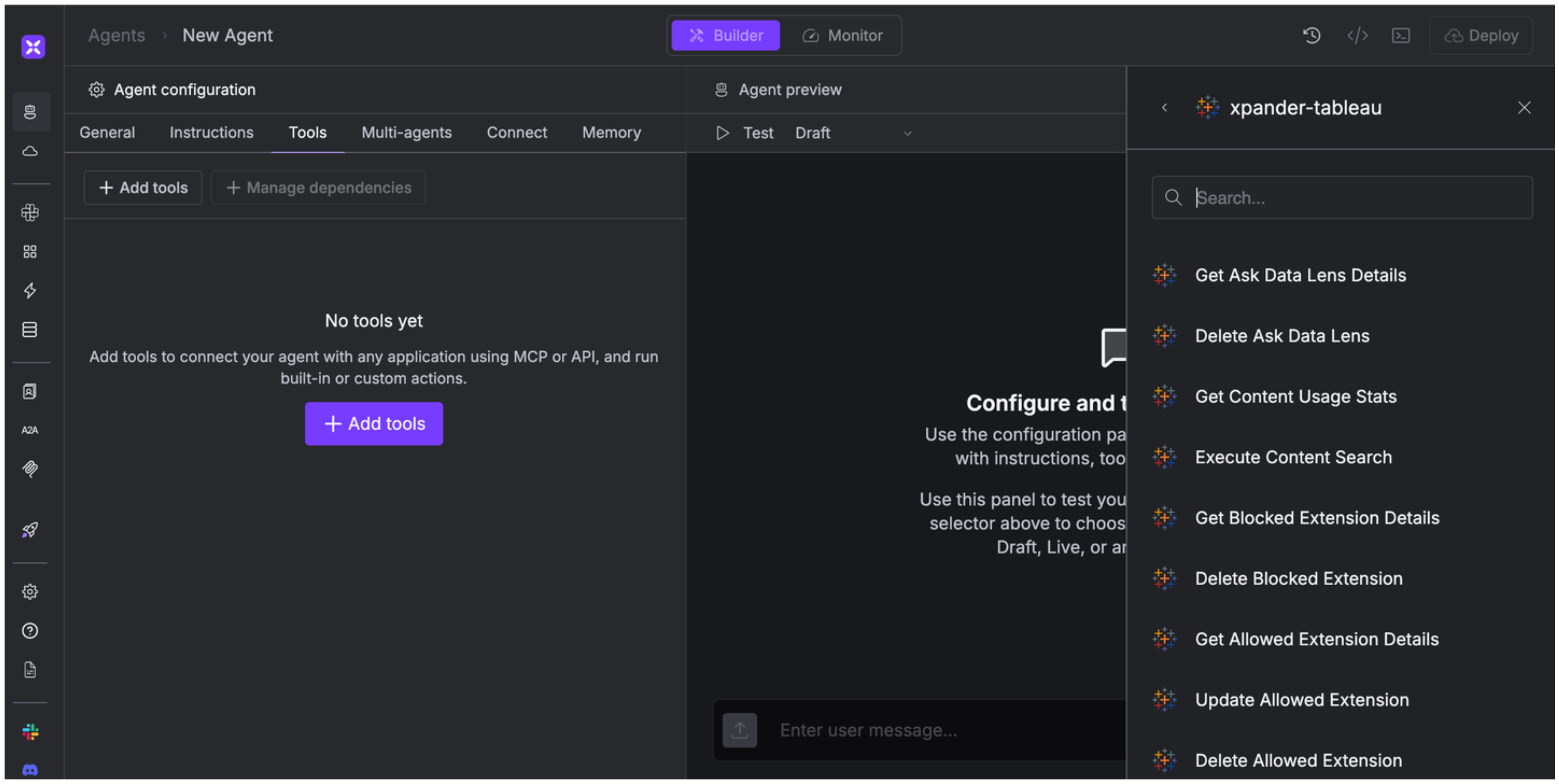
1. In your xpander.ai dashboard, go to the **Agent Configuration** tab and select **Tools**, then click **Add Tools**.
2. Select **Connectors**.
3. Choose **Tableau** with the same **connector name** you configured in the previous section (e.g., xpander-tableau).
4. Select the available Tableau operations that suit your use case.
## Integration of Tableau into AI Agent
Once you've configured your Tableau account with the authentication option(s) described above, you can integrate it into your AI agent with xpander.ai:
1. In your xpander.ai dashboard, go to the **Agent Configuration** tab and select **Tools**, then click **Add Tools**.
2. Select **Connectors**.
3. Choose **Tableau** with the same **connector name** you configured in the previous section (e.g., xpander-tableau).
4. Select the available Tableau operations that suit your use case.
 ## Expose Tableau as MCP Server
Alternatively, you can also expose your Tableau account as an MCP server. To do so:
1. Go to the **Connectors** section in the sidebar of your xpander.ai dashboard.
2. Select **Tableau** with the same **connector name** you configured in the previous section (e.g., xpander-tableau).
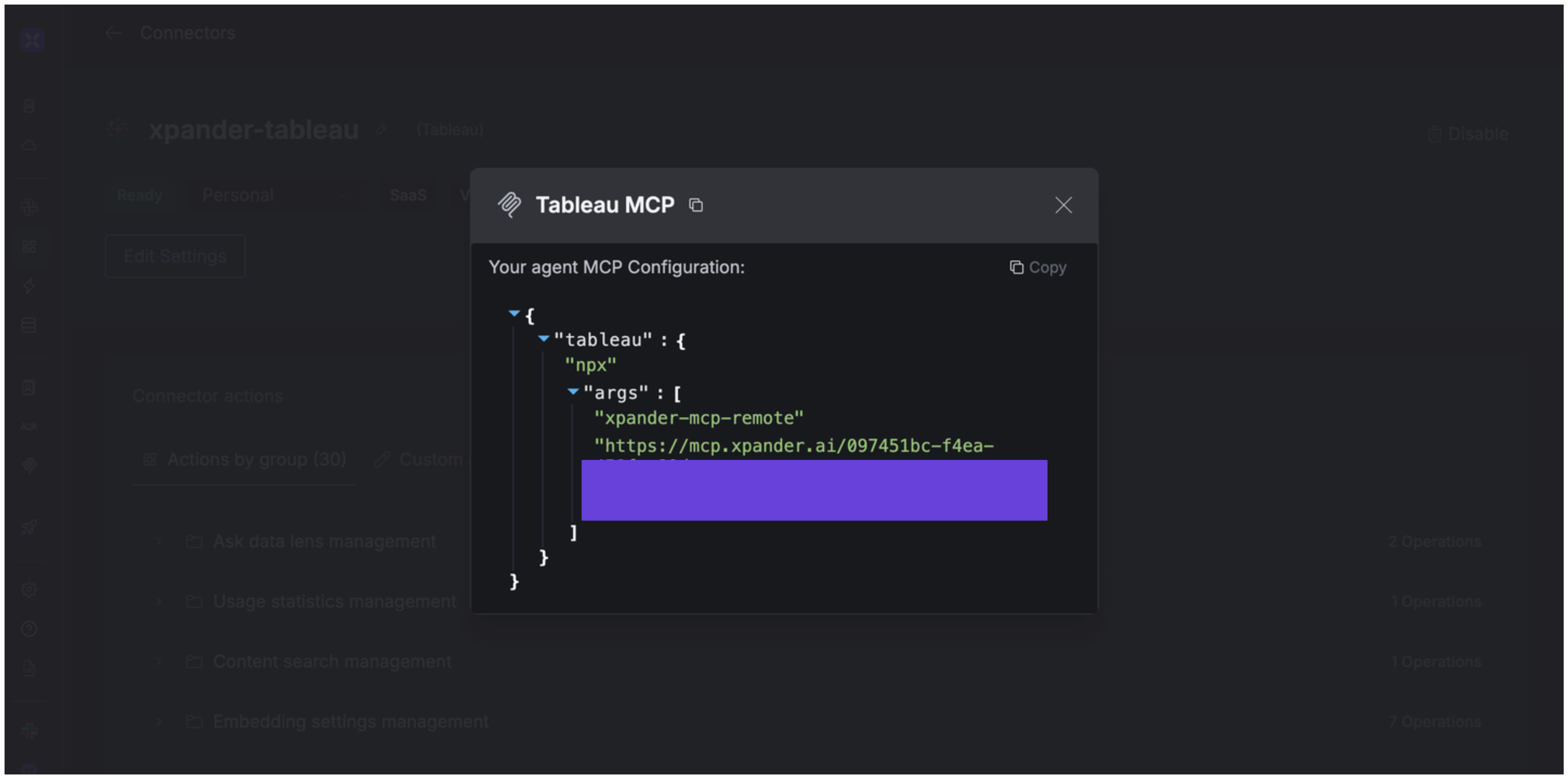
3. Click **MCP Configuration**.
4. Enter the MCP configuration into the appropriate settings of the client app you want to use (e.g., Cursor, Windsurf, Claude Desktop, etc.).
## Expose Tableau as MCP Server
Alternatively, you can also expose your Tableau account as an MCP server. To do so:
1. Go to the **Connectors** section in the sidebar of your xpander.ai dashboard.
2. Select **Tableau** with the same **connector name** you configured in the previous section (e.g., xpander-tableau).
3. Click **MCP Configuration**.
4. Enter the MCP configuration into the appropriate settings of the client app you want to use (e.g., Cursor, Windsurf, Claude Desktop, etc.).
 ## AI Agent Tableau Prompt Library
Below are possible prompts or use cases you can try after integrating Tableau into your xpander AI agent:
```
Can you get me the usage statistics for this {content_type} with ID {content_item_id} so I can analyze how frequently it's being accessed?
```
```
Can you show me all the sites available in our Tableau environment and their configuration details?
```
```
Can you retrieve the current data for metric {metric_id} in site {site_id} to analyze recent performance trends?
```
```
Can you remove the default user permission for user {user_id} from data sources in project {project_id} within site {site_id}?
```
## Related Resources
* [Understanding Model Context Protocol (MCP)](/guides/deploy/mcp)
* [Tableau API Documentation](https://help.tableau.com/current/api/rest_api/en-us/REST/rest_api.htm)
## AI Agent Tableau Prompt Library
Below are possible prompts or use cases you can try after integrating Tableau into your xpander AI agent:
```
Can you get me the usage statistics for this {content_type} with ID {content_item_id} so I can analyze how frequently it's being accessed?
```
```
Can you show me all the sites available in our Tableau environment and their configuration details?
```
```
Can you retrieve the current data for metric {metric_id} in site {site_id} to analyze recent performance trends?
```
```
Can you remove the default user permission for user {user_id} from data sources in project {project_id} within site {site_id}?
```
## Related Resources
* [Understanding Model Context Protocol (MCP)](/guides/deploy/mcp)
* [Tableau API Documentation](https://help.tableau.com/current/api/rest_api/en-us/REST/rest_api.htm)