> ## Documentation Index
> Fetch the complete documentation index at: https://docs.xpander.ai/llms.txt
> Use this file to discover all available pages before exploring further.
# Twilio
> Learn how to integrate AI agents with Twilio using xpander.ai. Create intelligent communication workflows that can autonomously handle customer interactions via SMS, voice, or WhatsApp—powered by real-time AI decision-making.
## About Twilio
Twilio is a cloud communications platform that allows developers and businesses to programmatically make and receive phone calls, send and receive text messages (SMS), and perform other communication functions using its web service APIs.
Key Features of Twilio:
* **Programmable Messaging**: SMS, MMS, WhatsApp messages
* **Programmable Voice**: Make, receive, and control phone calls
* **Email Services**: Via Twilio SendGrid for transactional and marketing emails
* **Video**: Real-time video capabilities for apps
* **Authentication**: Two-factor authentication and phone number verification
* **Flex**: A customizable cloud-based contact center platform
## Authentication Options
Below are possible authentication options you can choose:
### Generate Twilio API Key
1. Go to your [Twilio console account](https://console.twilio.com/).
2. You can find your **Account SID** and **Auth Token** at the bottom of your account dashboard.\\
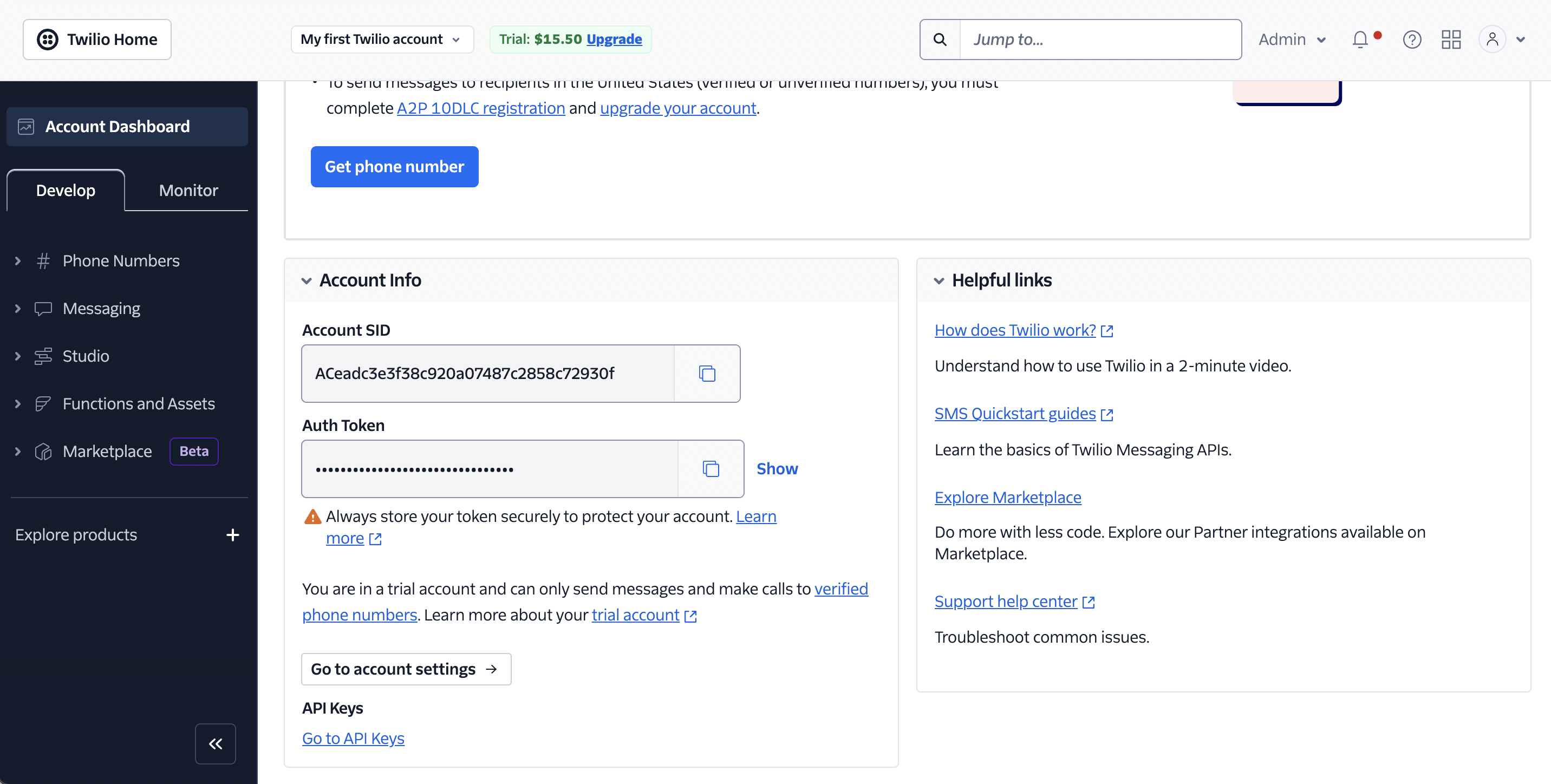 3. Combine the Account SID and Auth Token using the following format: `account_SID:Auth_token`, and encode it using Base64. You can do this in a few ways:
* Run this command: `echo -n '{account_SID}:{Auth_token}' | base64` (for Linux or macOS).
* Use an [online encoder](https://www.base64encode.org/).
4. The encoded result will serve as your Twilio API key.
### Integrate Twilio into Xpander.ai
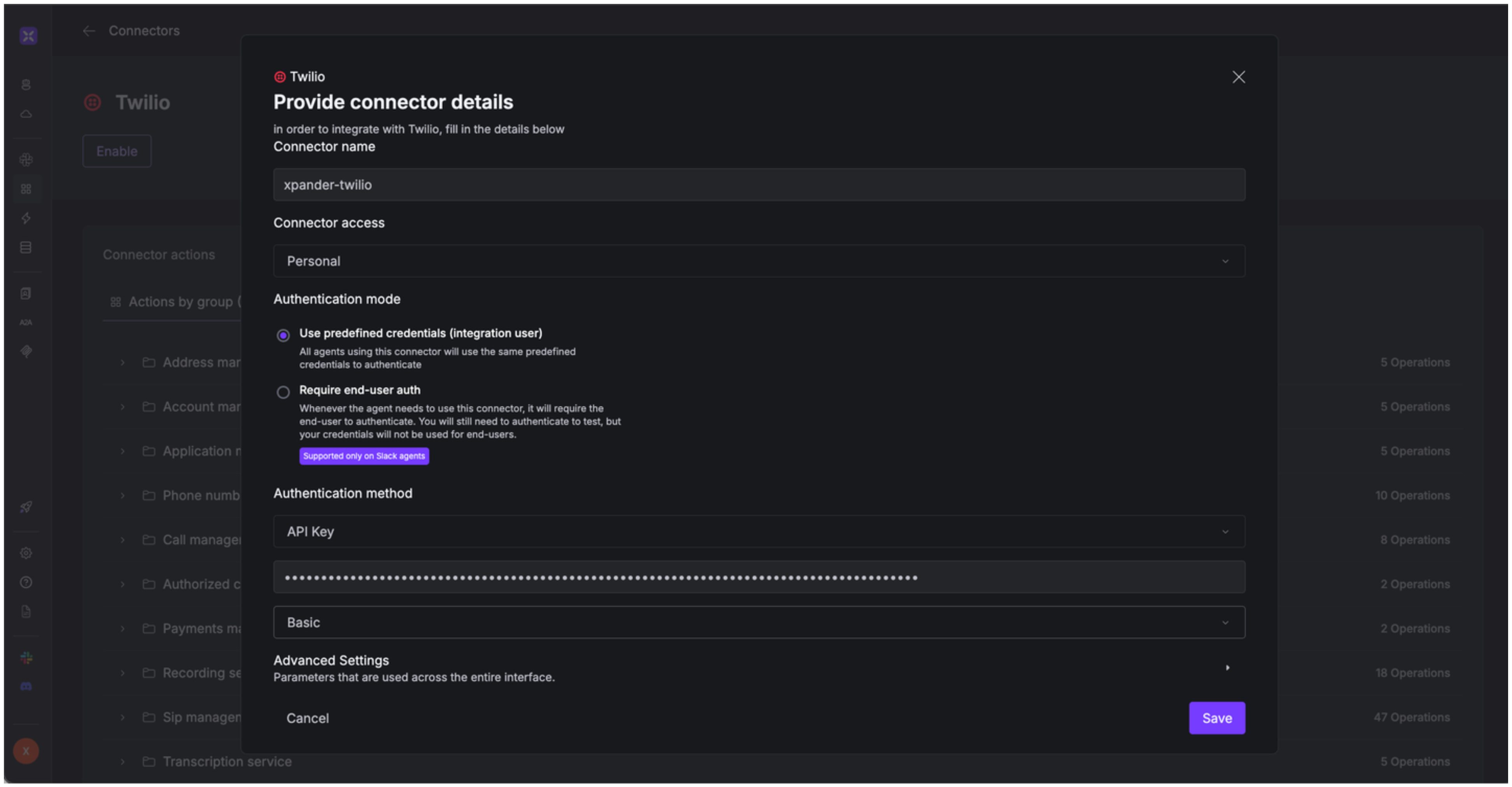
1. Go to the **Connectors** section in the sidebar of your xpander.ai dashboard.
2. Select **Twilio** from the available integrations.
3. Click **Enable**.
4. Fill in the **connector name** as desired, e.g., "xpander-twilio".
5. Choose **Integration User** as the authentication mode.
6. Choose **API Key** as the authentication method.
7. Copy and paste the encoded Twilio API key into the provided field.
8. Choose **Basic** as the **auth type**.
9. Save the configuration.
3. Combine the Account SID and Auth Token using the following format: `account_SID:Auth_token`, and encode it using Base64. You can do this in a few ways:
* Run this command: `echo -n '{account_SID}:{Auth_token}' | base64` (for Linux or macOS).
* Use an [online encoder](https://www.base64encode.org/).
4. The encoded result will serve as your Twilio API key.
### Integrate Twilio into Xpander.ai
1. Go to the **Connectors** section in the sidebar of your xpander.ai dashboard.
2. Select **Twilio** from the available integrations.
3. Click **Enable**.
4. Fill in the **connector name** as desired, e.g., "xpander-twilio".
5. Choose **Integration User** as the authentication mode.
6. Choose **API Key** as the authentication method.
7. Copy and paste the encoded Twilio API key into the provided field.
8. Choose **Basic** as the **auth type**.
9. Save the configuration.
 ## Integration of Twilio into AI Agent
Once you've configured your Twilio account with the authentication option(s) described above, you can integrate it into your AI agent with xpander.ai:
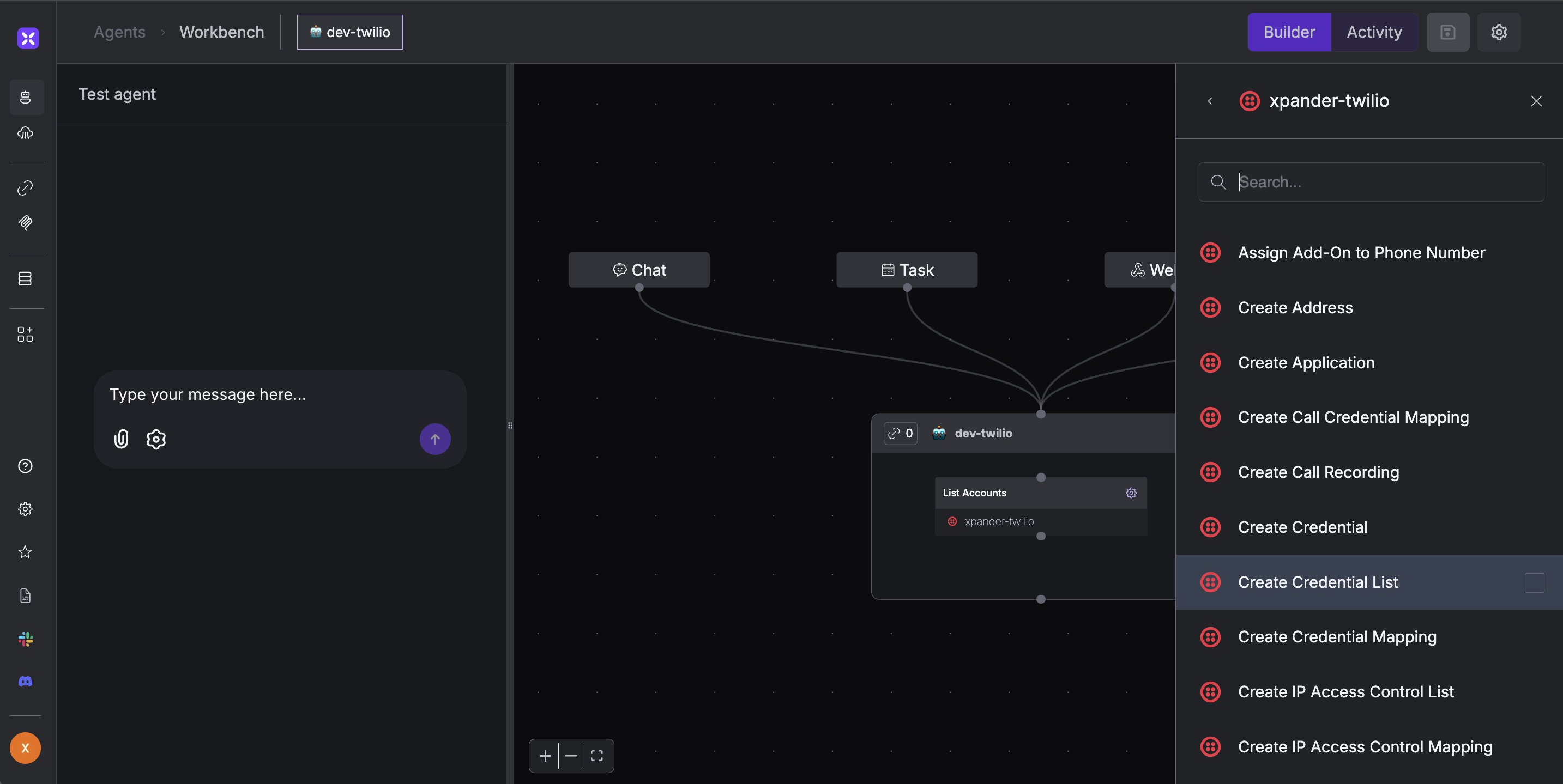
1. In your xpander.ai dashboard, go to the **Agent Configuration** tab and select **Tools**, then click **Add Tools**.
2. Select **Connectors**.
3. Choose **Twilio** with the same **connector name** you configured in the previous section (e.g., xpander-twilio).
4. Select the available Twilio operations that suit your use case.
## Integration of Twilio into AI Agent
Once you've configured your Twilio account with the authentication option(s) described above, you can integrate it into your AI agent with xpander.ai:
1. In your xpander.ai dashboard, go to the **Agent Configuration** tab and select **Tools**, then click **Add Tools**.
2. Select **Connectors**.
3. Choose **Twilio** with the same **connector name** you configured in the previous section (e.g., xpander-twilio).
4. Select the available Twilio operations that suit your use case.
 ## Expose Twilio as MCP Server
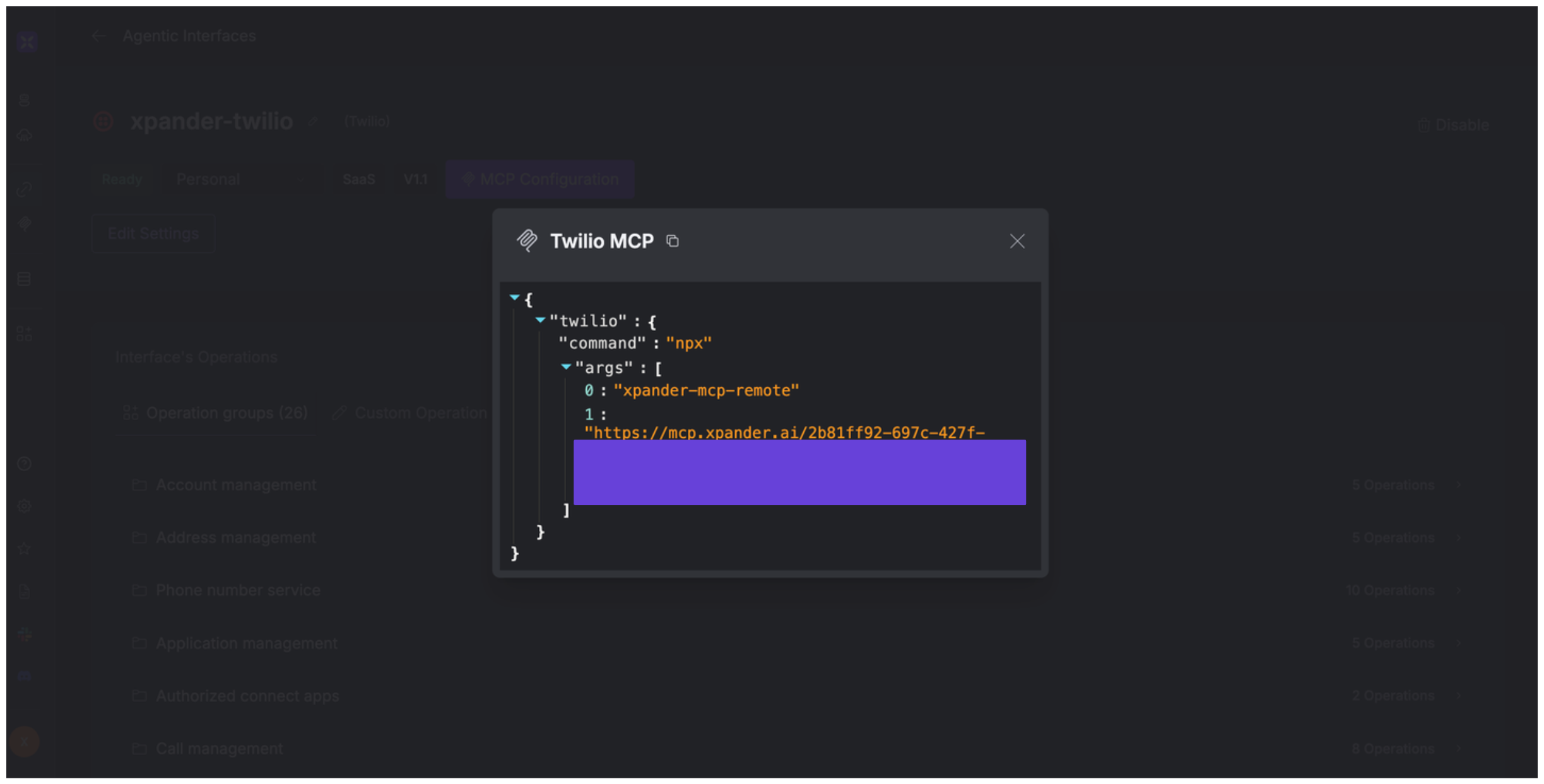
Alternatively, you can also expose your Twilio account as an MCP server. To do so:
1. Go to the **Connectors** section in the sidebar of your xpander.ai dashboard.
2. Select **Twilio** with the same **connector name** you configured in the previous section (e.g., xpander-twilio).
3. Click **MCP Configuration**.
4. Enter the MCP configuration into the appropriate settings of the client app you want to use (e.g., Cursor, Windsurf, Claude Desktop, etc.).
## Expose Twilio as MCP Server
Alternatively, you can also expose your Twilio account as an MCP server. To do so:
1. Go to the **Connectors** section in the sidebar of your xpander.ai dashboard.
2. Select **Twilio** with the same **connector name** you configured in the previous section (e.g., xpander-twilio).
3. Click **MCP Configuration**.
4. Enter the MCP configuration into the appropriate settings of the client app you want to use (e.g., Cursor, Windsurf, Claude Desktop, etc.).
 ## AI Agent Twilio Prompt Library
Below are possible prompts or use cases you can try after integrating Twilio into your xpander AI agent:
```
Record our conference call with {client_name} on {date}.
```
```
Add {new_participant} to our active conference call {conference_id}.
```
```
Generate call metrics for the {campaign_name} marketing campaign.
```
```
Set up SMS auto-responses for support line #{phone_number}.
```
## Related Resources
* [Understanding Model Context Protocol (MCP)](/guides/deploy/mcp)
* [Twilio API Documentation](https://www.twilio.com/docs)
## AI Agent Twilio Prompt Library
Below are possible prompts or use cases you can try after integrating Twilio into your xpander AI agent:
```
Record our conference call with {client_name} on {date}.
```
```
Add {new_participant} to our active conference call {conference_id}.
```
```
Generate call metrics for the {campaign_name} marketing campaign.
```
```
Set up SMS auto-responses for support line #{phone_number}.
```
## Related Resources
* [Understanding Model Context Protocol (MCP)](/guides/deploy/mcp)
* [Twilio API Documentation](https://www.twilio.com/docs)