> ## Documentation Index
> Fetch the complete documentation index at: https://docs.xpander.ai/llms.txt
> Use this file to discover all available pages before exploring further.
# Zoho
> Learn how to integrate AI agents with Zoho using xpander.ai. Create intelligent, low-code applications on Zoho Creator that leverage AI-driven automation, enabling your agents to analyze data, trigger workflows, and interact with customers seamlessly across your Zoho ecosystem.
## About Zoho
Zoho offers a wide array of applications designed to streamline various business operations, including sales, marketing, customer support, finance, human resources, and more.
This integration deals specifically with one of the features offered by Zoho, which is the Zoho Creator.
Zoho Creator offers a wide array of applications designed to streamline various business operations, including sales, marketing, customer support, finance, human resources, and more. Zoho Creator is a low-code application development platform designed to empower users to build custom business applications with minimal coding knowledge.
Zoho Creator key features:
* **Rapid Application Development**: Accelerate app creation by up to 10 times using visual development tools and guided scripting.
* **Cross-Platform Compatibility**: Applications built on Zoho Creator are natively compatible with web browsers, iOS, and Android devices, ensuring seamless access across platforms.
* **Pre-Built Templates**: Access over 60 ready-to-use app templates to jumpstart development for various business needs.
* **Workflow Automation**: Utilize drag-and-drop workflow builders and pre-written code snippets to automate business processes, schedule tasks, and manage approvals efficiently.
## Authentication Options
Below are possible authentication options you can choose:
### Generate a Zoho API Key
1. Log in to your [Zoho API console](https://accounts.zoho.com/signin?servicename=AaaServer\&context=\&serviceurl=https%3A%2F%2Fapi-console.zoho.com%2F).
2. Choose the type of application you want to create. In this example, we’ll create a **Self Client** app.
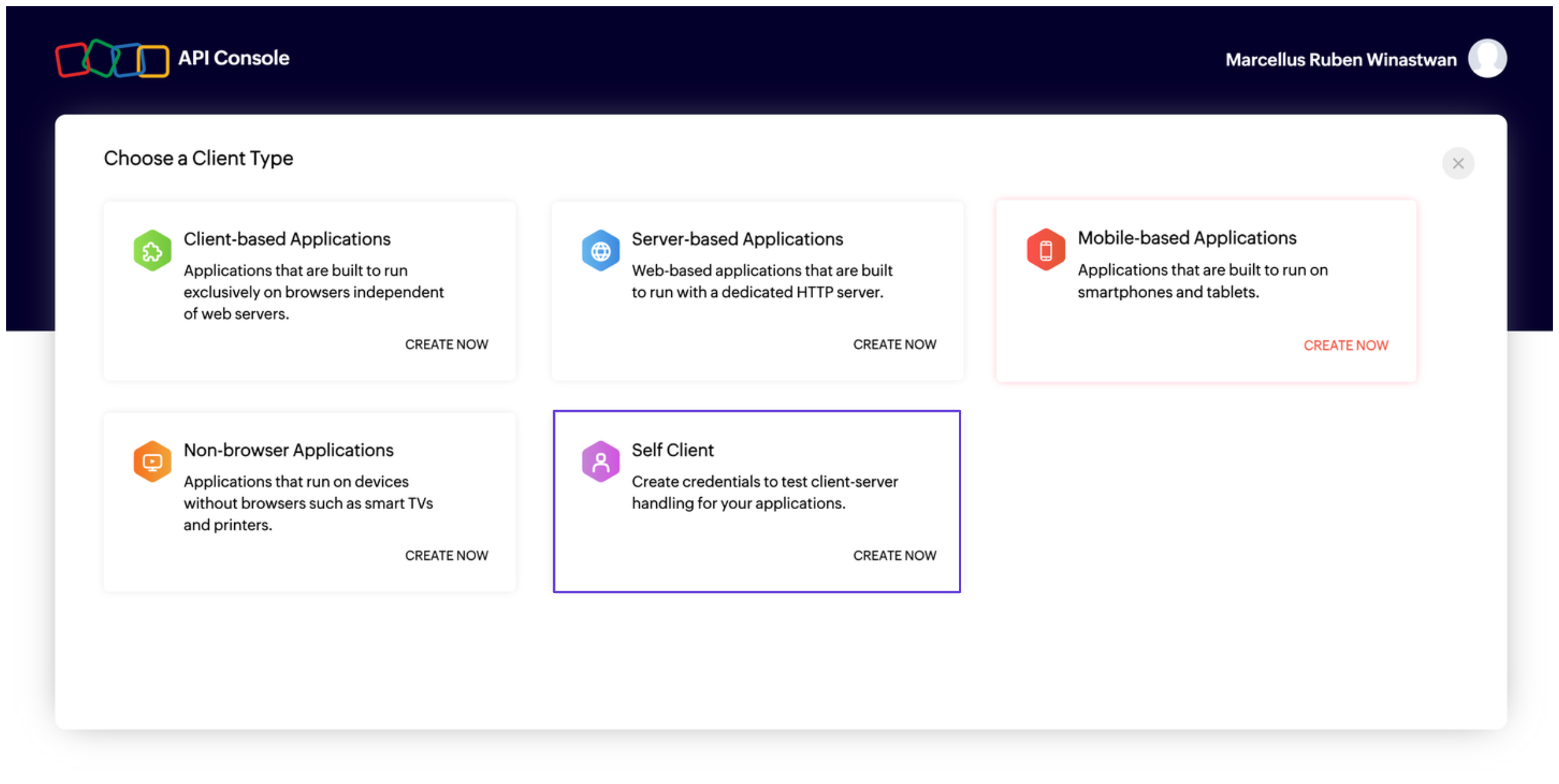 3. Select **Self Client** and click **Create**.
4. You’ll see the **Client ID** and **Client Secret**. Next, you’ll need to generate an **authorization code**.
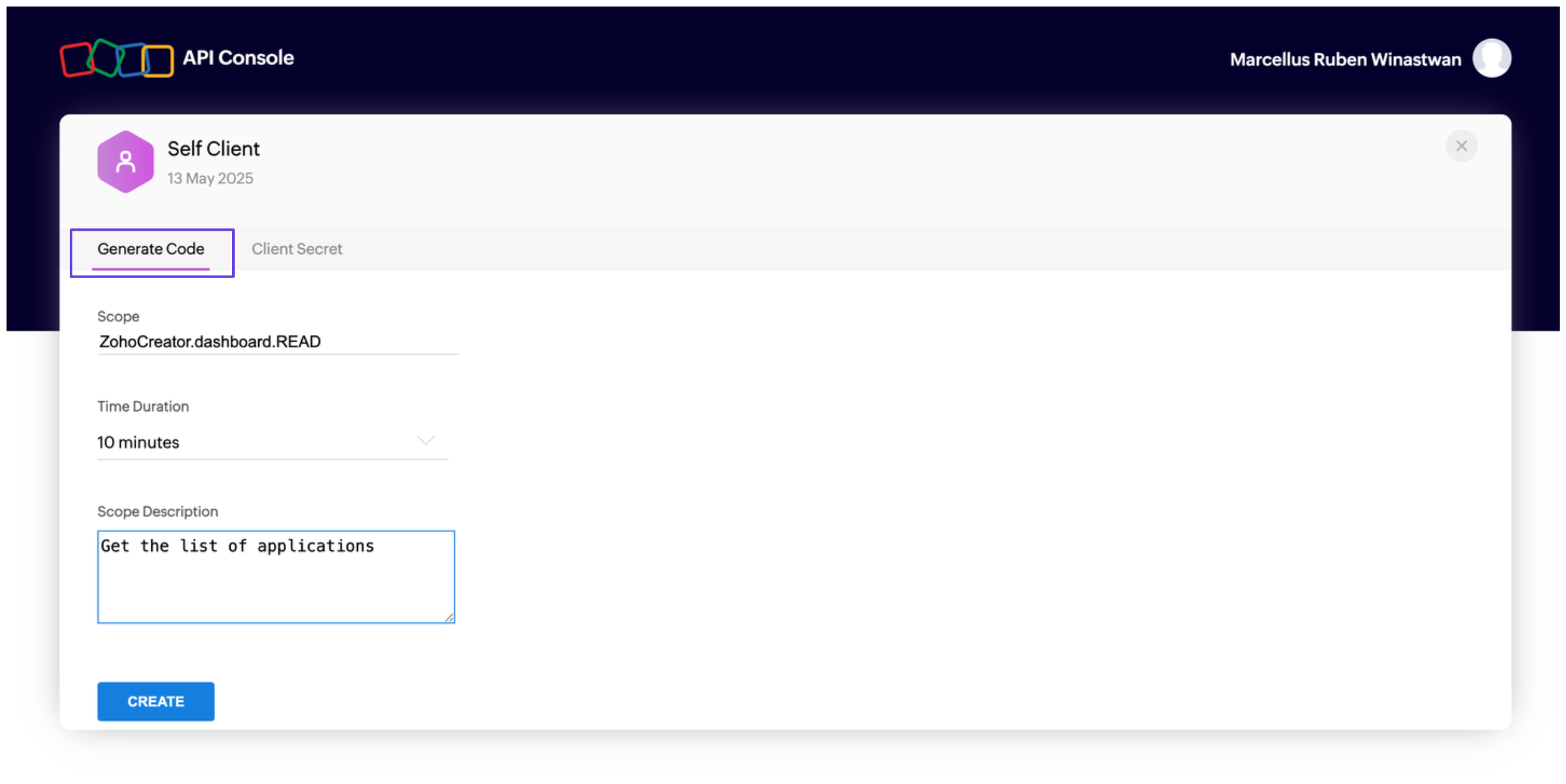
5. Go to the **Generate Code** tab. Under **Scope**, select the appropriate scopes for your app. You can find a full list in the [Zoho Creator documentation](https://www.zoho.com/creator/help/api/v2.1/oauth-overview.html).
6. Set the validity duration for the authorization code, then click **Create**.
3. Select **Self Client** and click **Create**.
4. You’ll see the **Client ID** and **Client Secret**. Next, you’ll need to generate an **authorization code**.
5. Go to the **Generate Code** tab. Under **Scope**, select the appropriate scopes for your app. You can find a full list in the [Zoho Creator documentation](https://www.zoho.com/creator/help/api/v2.1/oauth-overview.html).
6. Set the validity duration for the authorization code, then click **Create**.
 7. Copy and save your **authorization code**.
8. To get your access token, run the following request:
```bash theme={"dark"}
curl -X POST /oauth/v2/token \
-d "grant_type=authorization_code" \
-d "code=" \
-d "client_id=" \
-d "client_secret="
```
Replace the placeholders with your actual values. You can find the `` for your Zoho account [here](http://accounts.zoho.com/oauth/serverinfo).
9. The response will include your **access token** and **refresh token**.
### Integrate Zoho into xpander.ai
1. In your xpander.ai dashboard, go to the **Connectors** section in the sidebar.
2. Select **Zoho** from the available integrations.
3. Click **Enable**.
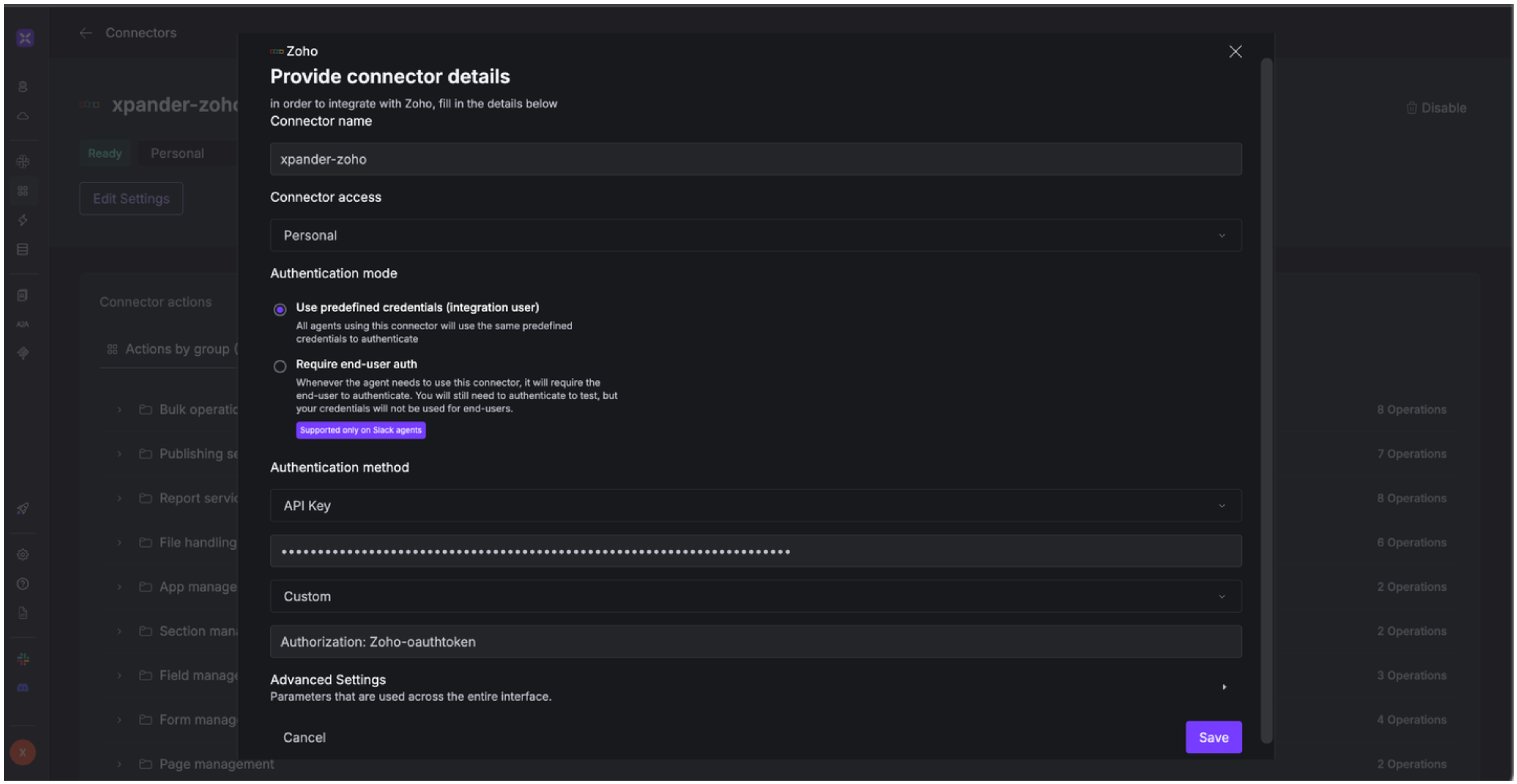
4. Enter a **connector name**, e.g., "xpander-zoho".
5. Select **Integration User** for the authentication mode.
6. Choose **API Key** as the authentication method.
7. Paste your Zoho access token into the provided field.
8. Set the **Auth Type** to **Custom**.
9. In the **Custom header name** field, enter: `Authorization: Zoho-oauthtoken`.
10. Save the configuration.
7. Copy and save your **authorization code**.
8. To get your access token, run the following request:
```bash theme={"dark"}
curl -X POST /oauth/v2/token \
-d "grant_type=authorization_code" \
-d "code=" \
-d "client_id=" \
-d "client_secret="
```
Replace the placeholders with your actual values. You can find the `` for your Zoho account [here](http://accounts.zoho.com/oauth/serverinfo).
9. The response will include your **access token** and **refresh token**.
### Integrate Zoho into xpander.ai
1. In your xpander.ai dashboard, go to the **Connectors** section in the sidebar.
2. Select **Zoho** from the available integrations.
3. Click **Enable**.
4. Enter a **connector name**, e.g., "xpander-zoho".
5. Select **Integration User** for the authentication mode.
6. Choose **API Key** as the authentication method.
7. Paste your Zoho access token into the provided field.
8. Set the **Auth Type** to **Custom**.
9. In the **Custom header name** field, enter: `Authorization: Zoho-oauthtoken`.
10. Save the configuration.
 ## Integration of Zoho into AI Agent
Once you've configured your Zoho account with the authentication option(s) described above, you can integrate it into your AI agent with xpander.ai:
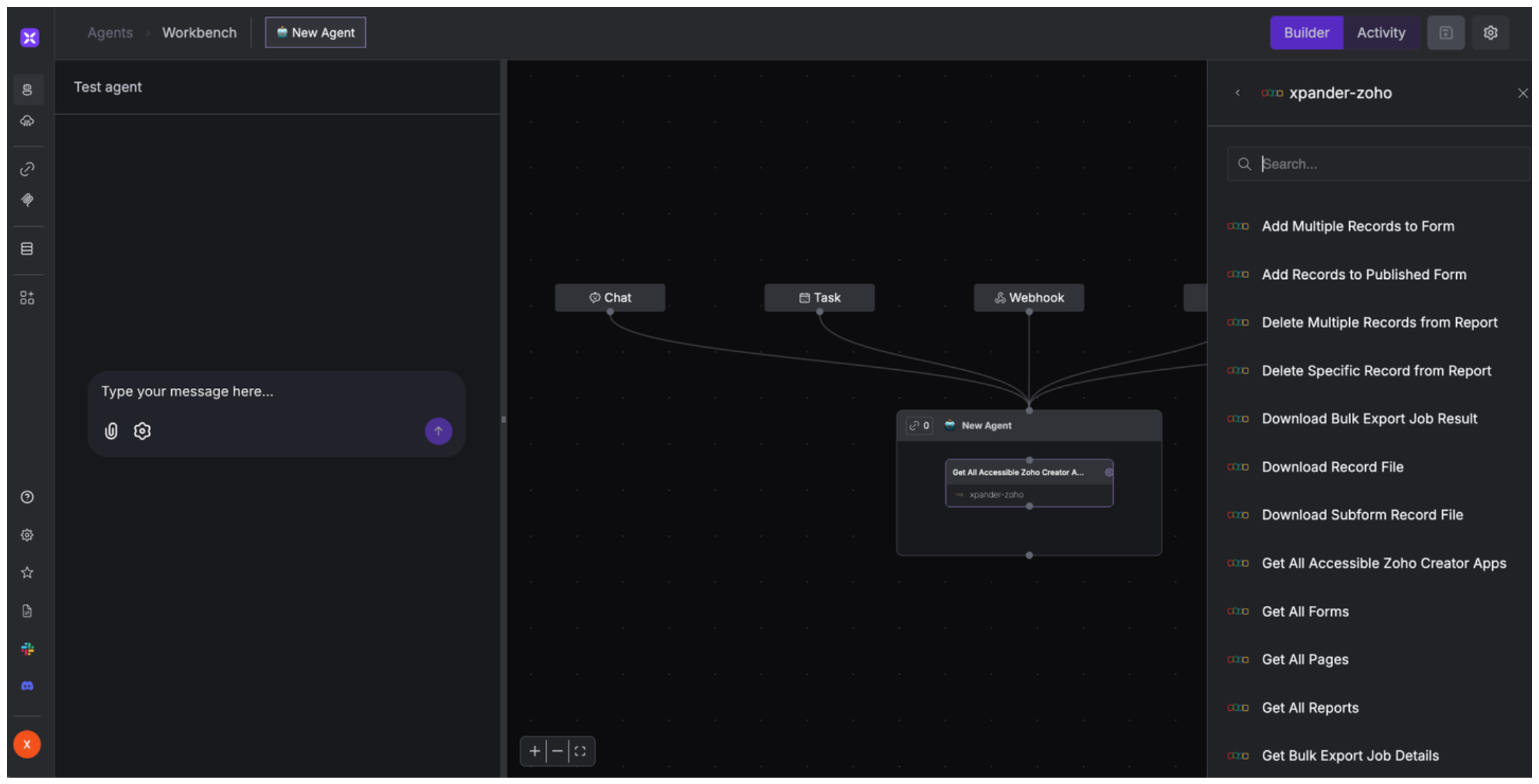
1. In your xpander.ai dashboard, go to the **Agent Configuration** tab and select **Tools**, then click **Add Tools**.
2. Select **Connectors**.
3. Choose **Zoho** with the same **connector name** you configured in the previous section (e.g., xpander-zoho).
4. Select the available Zoho operations that suit your use case.
## Integration of Zoho into AI Agent
Once you've configured your Zoho account with the authentication option(s) described above, you can integrate it into your AI agent with xpander.ai:
1. In your xpander.ai dashboard, go to the **Agent Configuration** tab and select **Tools**, then click **Add Tools**.
2. Select **Connectors**.
3. Choose **Zoho** with the same **connector name** you configured in the previous section (e.g., xpander-zoho).
4. Select the available Zoho operations that suit your use case.
 ## Expose Zoho as MCP Server
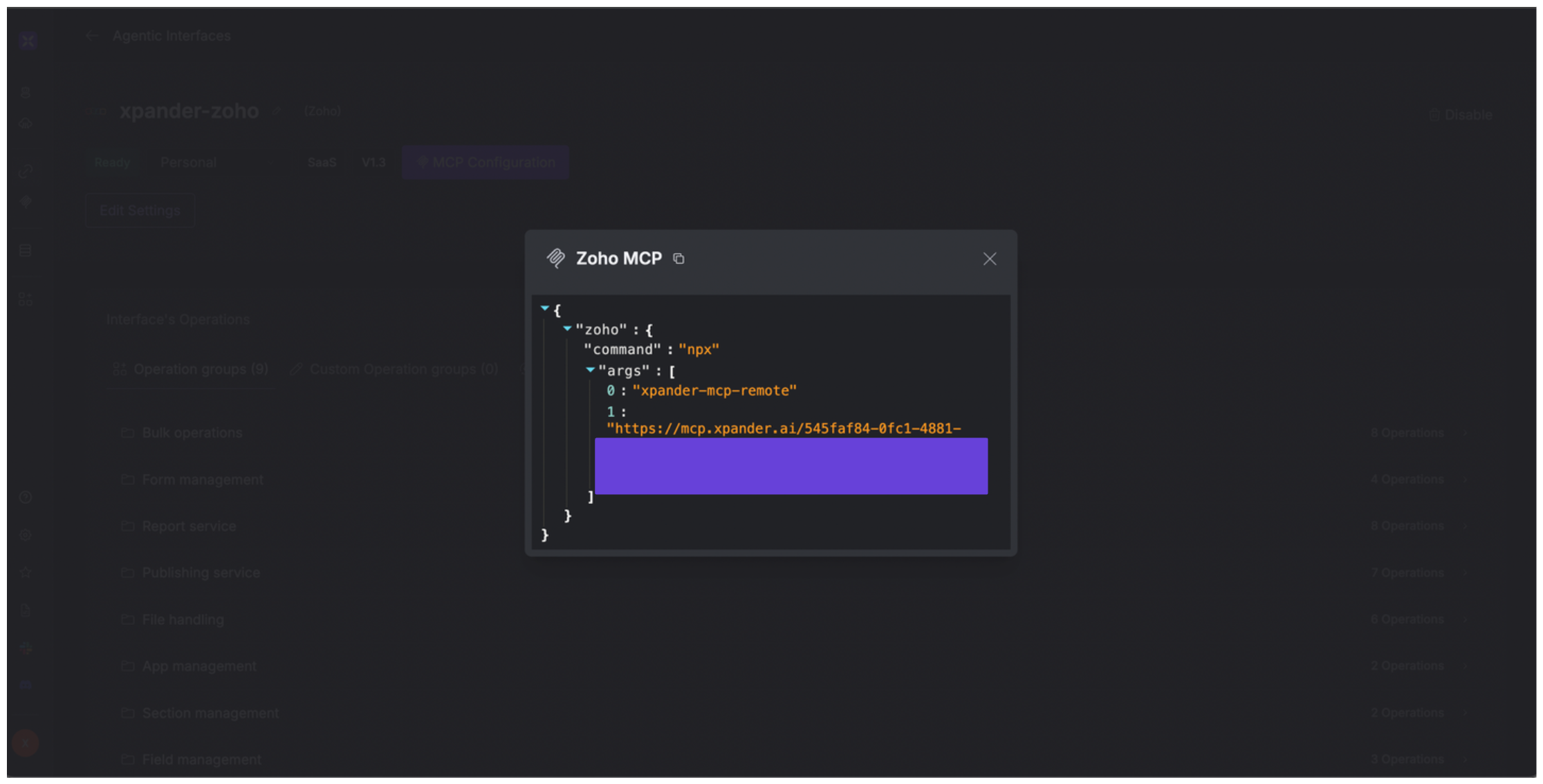
Alternatively, you can also expose your Zoho account as an MCP server. To do so:
1. Go to the **Connectors** section in the sidebar of your xpander.ai dashboard.
2. Select **Zoho** with the same **connector name** you configured in the previous section (e.g., xpander-zoho).
3. Click **MCP Configuration**.
4. Enter the MCP configuration into the appropriate settings of the client app you want to use (e.g., Cursor, Windsurf, Claude Desktop, etc.).
## Expose Zoho as MCP Server
Alternatively, you can also expose your Zoho account as an MCP server. To do so:
1. Go to the **Connectors** section in the sidebar of your xpander.ai dashboard.
2. Select **Zoho** with the same **connector name** you configured in the previous section (e.g., xpander-zoho).
3. Click **MCP Configuration**.
4. Enter the MCP configuration into the appropriate settings of the client app you want to use (e.g., Cursor, Windsurf, Claude Desktop, etc.).
 ## AI Agent Zoho Prompt Library
Below are possible prompts or use cases you can try after integrating Zoho into your xpander AI agent:
```
Could you download the invoice PDF attached to record #{record_id} in the {report_name} report?
```
```
Can you add these 50 new employee records to the {form_name} form in our HR application?
```
```
Has the export job {job_id} for our sales data completed yet?
```
```
Could you export all customer records from the {report_name} report in my {application_name}?
```
## Related Resources
* [Understanding Model Context Protocol (MCP)](/guides/deploy/mcp)
* [Zoho Creator API Documentation](https://www.zoho.com/creator/help/api/v2.1/)
## AI Agent Zoho Prompt Library
Below are possible prompts or use cases you can try after integrating Zoho into your xpander AI agent:
```
Could you download the invoice PDF attached to record #{record_id} in the {report_name} report?
```
```
Can you add these 50 new employee records to the {form_name} form in our HR application?
```
```
Has the export job {job_id} for our sales data completed yet?
```
```
Could you export all customer records from the {report_name} report in my {application_name}?
```
## Related Resources
* [Understanding Model Context Protocol (MCP)](/guides/deploy/mcp)
* [Zoho Creator API Documentation](https://www.zoho.com/creator/help/api/v2.1/)