> ## Documentation Index
> Fetch the complete documentation index at: https://docs.xpander.ai/llms.txt
> Use this file to discover all available pages before exploring further.
# Zoom
> Learn how to integrate AI agents with Zoom using xpander.ai. Create intelligent virtual assistants that can join meetings, transcribe conversations, provide real-time insights, and automate follow-up actions seamlessly.
## About Zoom
Zoom is a widely used video communications platform that offers services like:
* **Video Conferencing**: Zoom's core feature allows users to hold virtual meetings with HD video and audio. It supports large groups, screen sharing, breakout rooms, and virtual backgrounds.
* **Webinars**: Zoom lets users host large-scale webinars for marketing, training, or public speaking, with features like Q\&A, polling, and attendee management.
* **Zoom Phone**: A cloud-based phone system that includes voice calling, voicemail, call routing, and integrations with Zoom Meetings.
* **Zoom Rooms**: Hardware and software solutions for equipping conference rooms with video conferencing capabilities, allowing for seamless hybrid work setups.
* **Chat and Collaboration Tools**: Zoom offers built-in team chat features for direct messaging and group collaboration.
* **Integrations**: Zoom integrates with many third-party apps, such as Slack, Microsoft Teams, Google Workspace, and Salesforce.
## Authentication Options
Below are possible authentication options you can choose:
### Generate a Zoom API Key
1. Go to the [Zoom App Marketplace](https://marketplace.zoom.us/).
2. Click the **Develop** button at the top right of your dashboard, then select **Build App**.
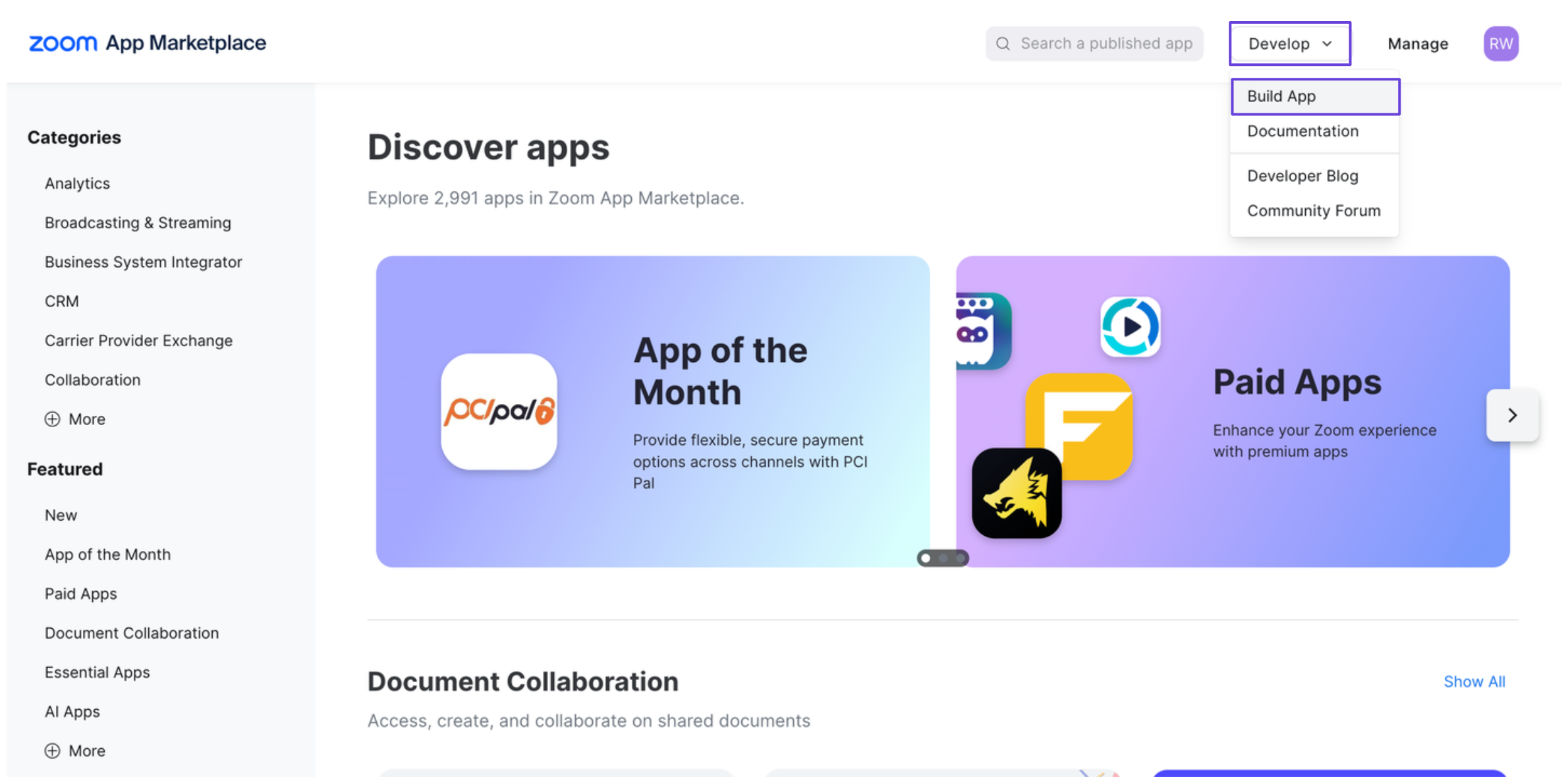 3. Choose **Server-to-Server OAuth App**, then click **Create**.
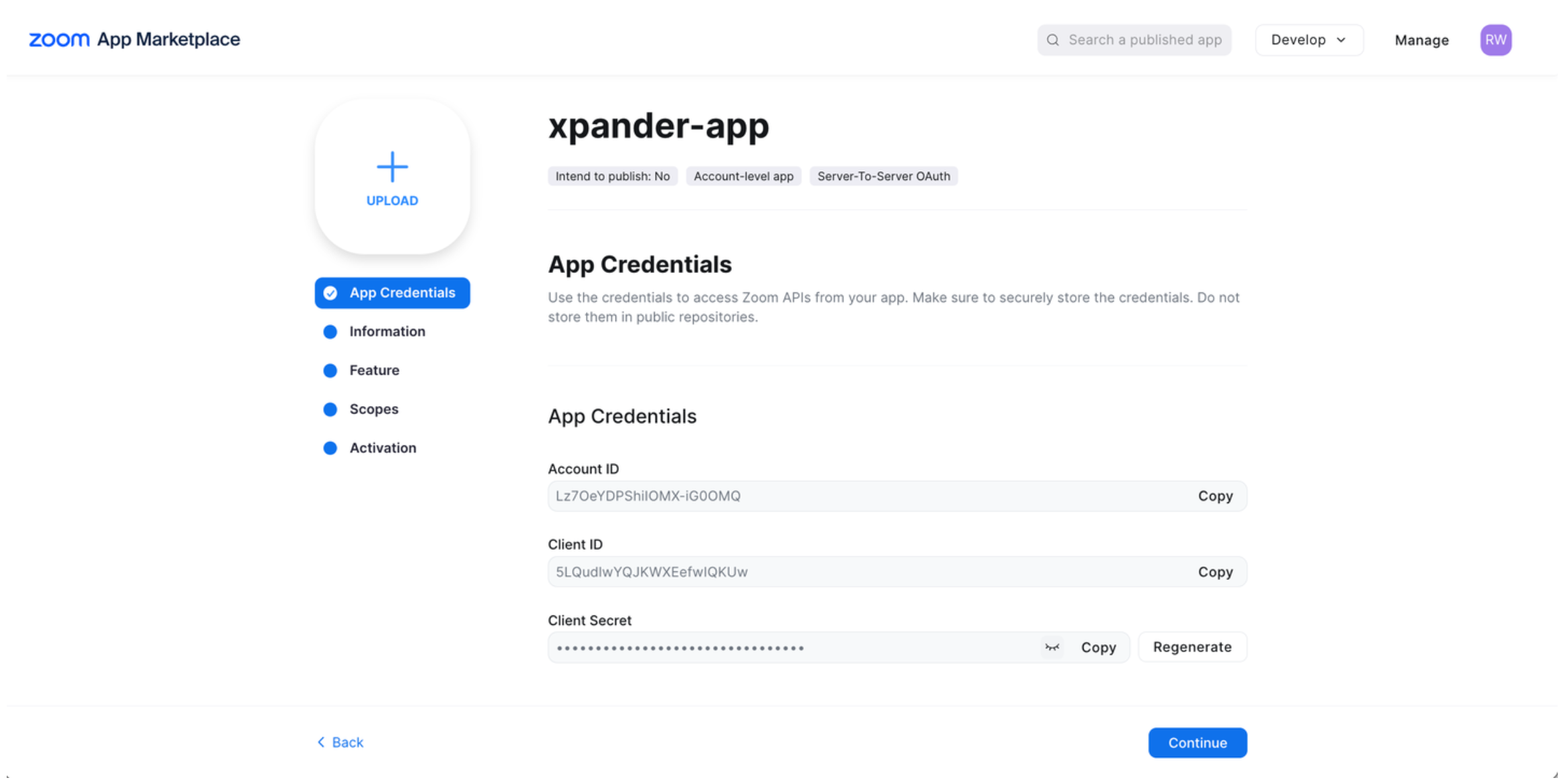
4. Give your app a name.
5. You’ll be shown the **Account ID**, **Client ID**, and **Client Secret**. Copy these values for later.
3. Choose **Server-to-Server OAuth App**, then click **Create**.
4. Give your app a name.
5. You’ll be shown the **Account ID**, **Client ID**, and **Client Secret**. Copy these values for later.
 6. Fill out the required fields and add the necessary scopes to your app.
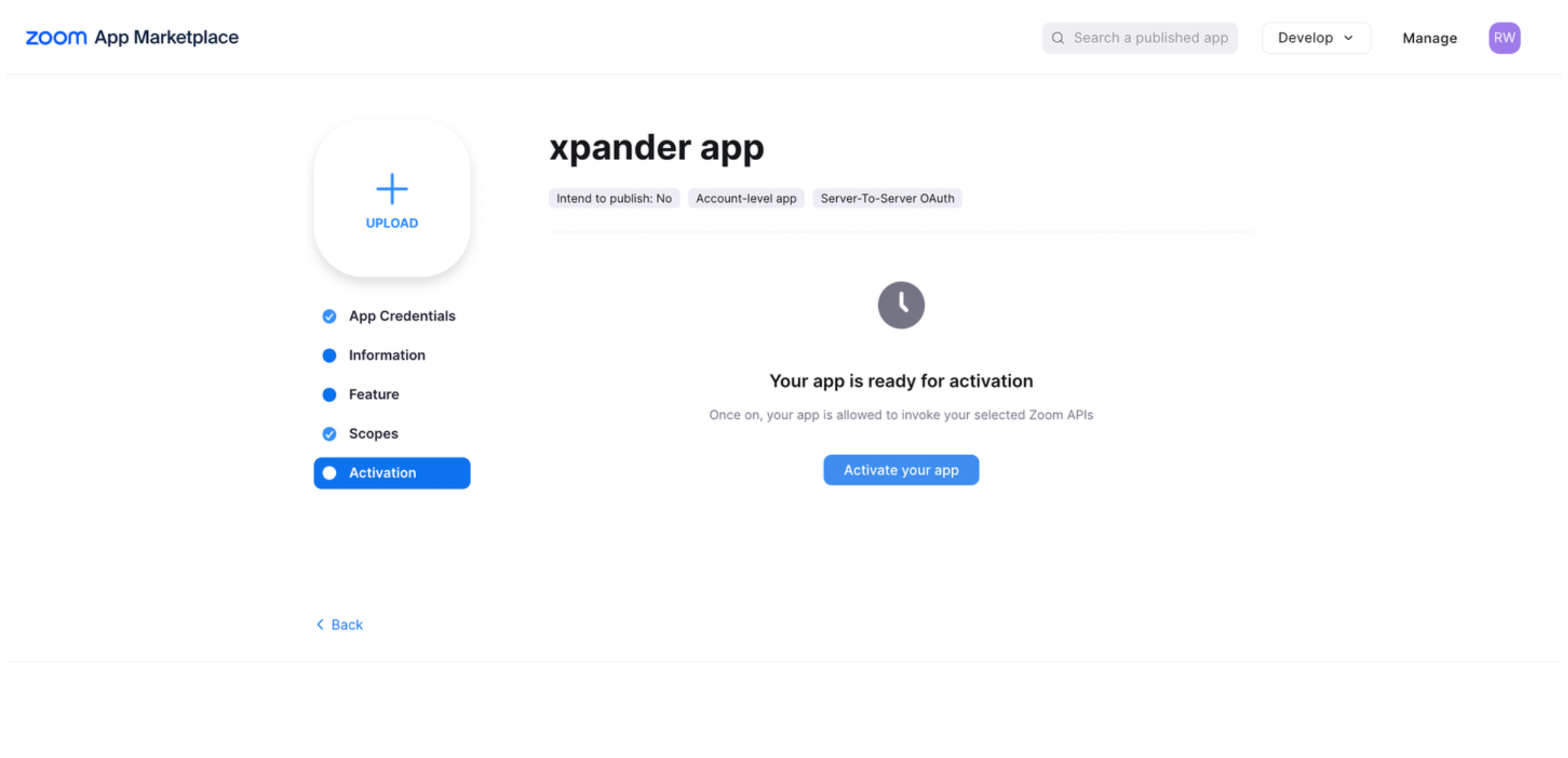
7. Finally, click **Activate your app**.
6. Fill out the required fields and add the necessary scopes to your app.
7. Finally, click **Activate your app**.
 8. Open your terminal and run the following command:
```bash theme={"dark"}
curl --request POST \
--url https://zoom.us/oauth/token \
--header 'Content-Type: application/x-www-form-urlencoded' \
--data-urlencode 'grant_type=account_credentials' \
--data-urlencode 'account_id=YOUR_ACCOUNT_ID' \
--data-urlencode 'client_id=YOUR_CLIENT_ID' \
--data-urlencode 'client_secret=YOUR_CLIENT_SECRET'
```
Replace the placeholders with your actual **Account ID**, **Client ID**, and **Client Secret**.
9. If successful, you’ll receive an **access token** in the response.
### Integrate Zoom into xpander.ai
1. In your xpander.ai dashboard, go to the **Connectors** section in the sidebar.
2. Select **Zoom** from the available integrations.
3. Click **Enable**.
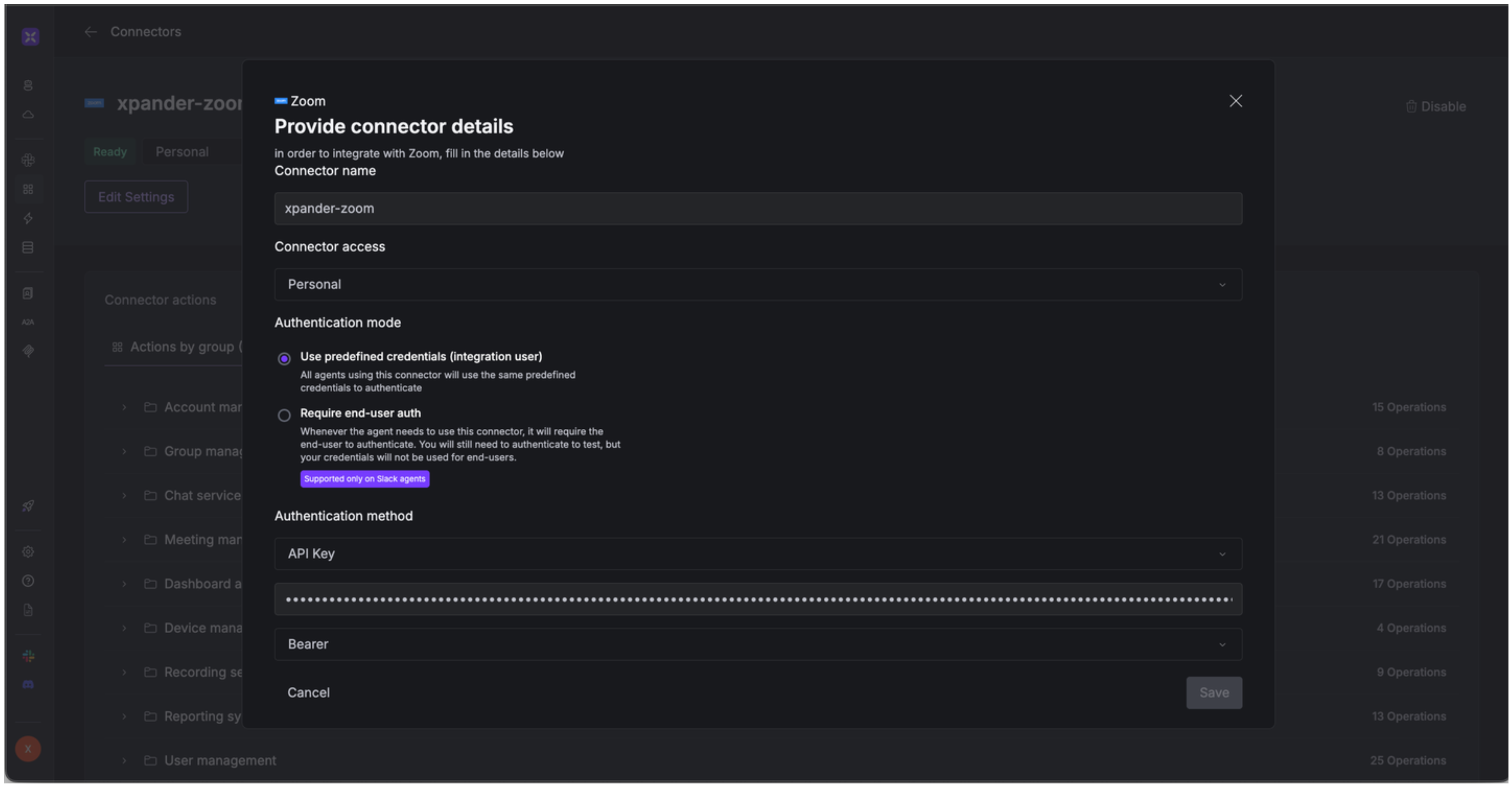
4. Enter a **connector name**, e.g., "xpander-zoom".
5. Select **Integration User** for the authentication mode.
6. Choose **API Key** as the authentication method.
7. Paste the Zoom access token from the previous step into the provided field.
8. Set the **Auth Type** to **Bearer**.
9. Save the configuration.
8. Open your terminal and run the following command:
```bash theme={"dark"}
curl --request POST \
--url https://zoom.us/oauth/token \
--header 'Content-Type: application/x-www-form-urlencoded' \
--data-urlencode 'grant_type=account_credentials' \
--data-urlencode 'account_id=YOUR_ACCOUNT_ID' \
--data-urlencode 'client_id=YOUR_CLIENT_ID' \
--data-urlencode 'client_secret=YOUR_CLIENT_SECRET'
```
Replace the placeholders with your actual **Account ID**, **Client ID**, and **Client Secret**.
9. If successful, you’ll receive an **access token** in the response.
### Integrate Zoom into xpander.ai
1. In your xpander.ai dashboard, go to the **Connectors** section in the sidebar.
2. Select **Zoom** from the available integrations.
3. Click **Enable**.
4. Enter a **connector name**, e.g., "xpander-zoom".
5. Select **Integration User** for the authentication mode.
6. Choose **API Key** as the authentication method.
7. Paste the Zoom access token from the previous step into the provided field.
8. Set the **Auth Type** to **Bearer**.
9. Save the configuration.
 ## Integration of Zoom into AI Agent
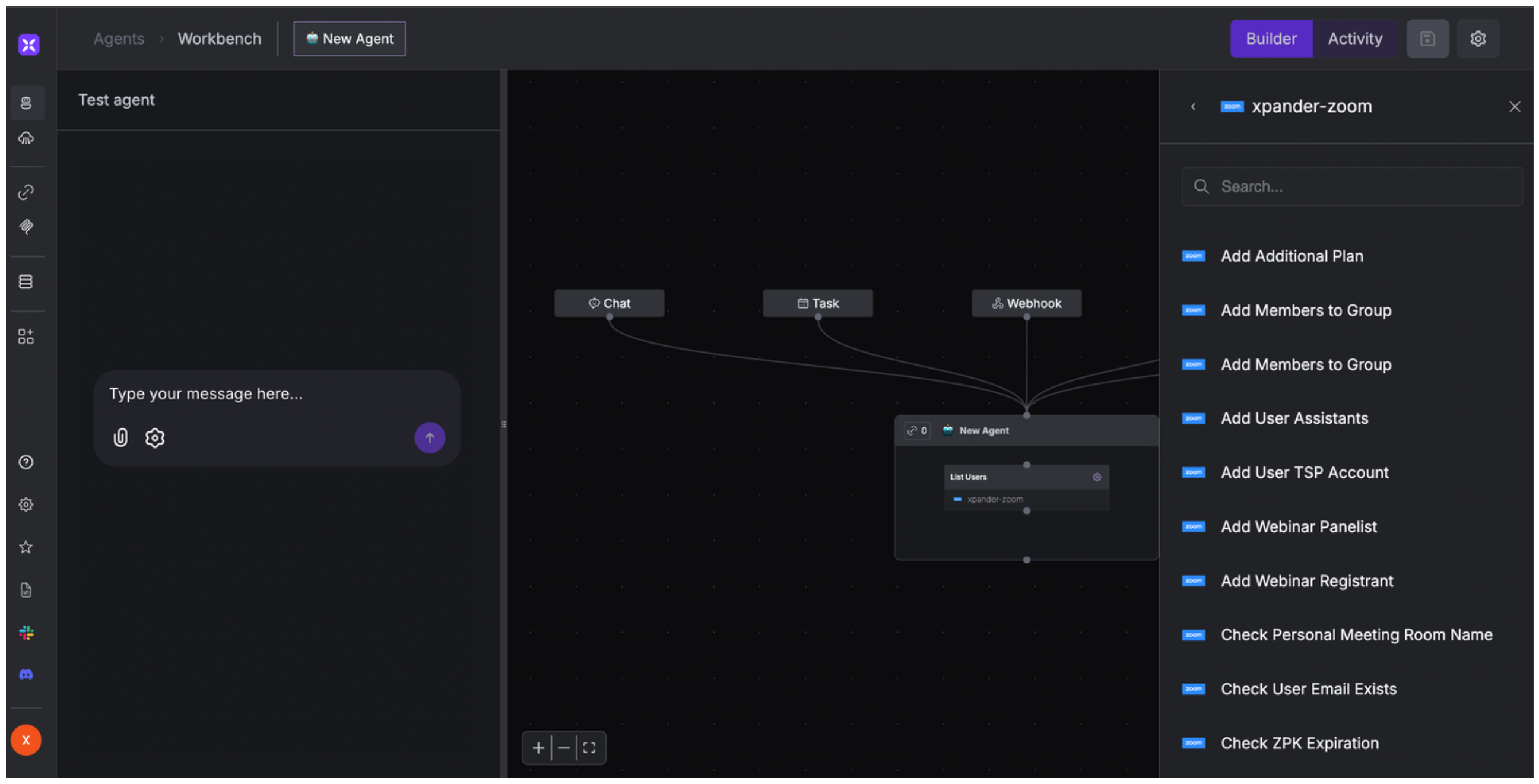
Once you've configured your Zoom account with the authentication option(s) described above, you can integrate it into your AI agent with xpander.ai:
1. In your xpander.ai dashboard, go to the **Agent Configuration** tab and select **Tools**, then click **Add Tools**.
2. Select **Connectors**.
3. Choose **Zoom** with the same **connector name** you configured in the previous section (e.g., xpander-zoom).
4. Select the available Zoom operations that suit your use case.
## Integration of Zoom into AI Agent
Once you've configured your Zoom account with the authentication option(s) described above, you can integrate it into your AI agent with xpander.ai:
1. In your xpander.ai dashboard, go to the **Agent Configuration** tab and select **Tools**, then click **Add Tools**.
2. Select **Connectors**.
3. Choose **Zoom** with the same **connector name** you configured in the previous section (e.g., xpander-zoom).
4. Select the available Zoom operations that suit your use case.
 ## Expose Zoom as MCP Server
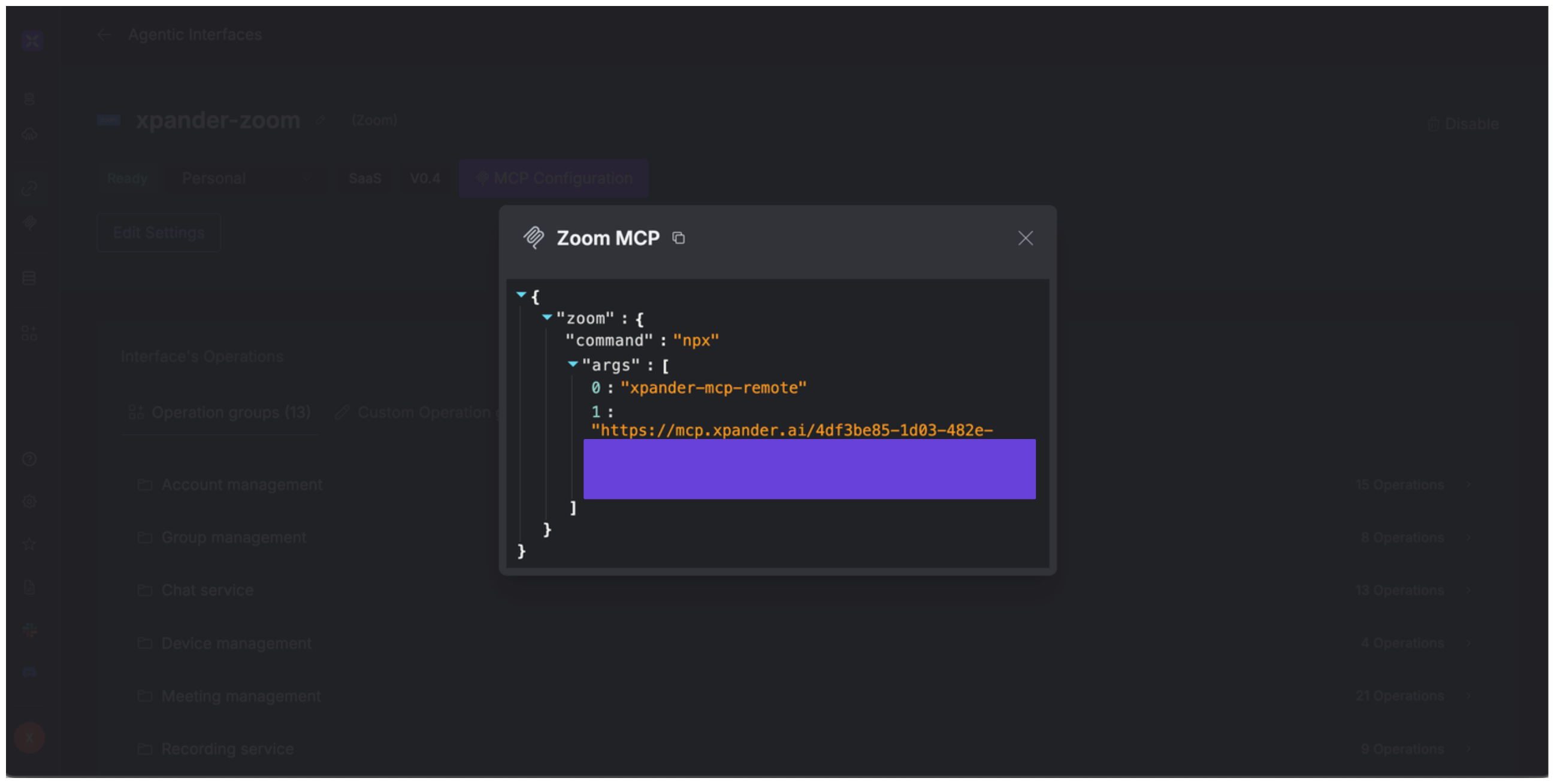
Alternatively, you can also expose your Zoom account as an MCP server. To do so:
1. Go to the **Connectors** section in the sidebar of your xpander.ai dashboard.
2. Select **Zoom** with the same **connector name** you configured in the previous section (e.g., xpander-zoom).
3. Click **MCP Configuration**.
4. Enter the MCP configuration into the appropriate settings of the client app you want to use (e.g., Cursor, Windsurf, Claude Desktop, etc.).
## Expose Zoom as MCP Server
Alternatively, you can also expose your Zoom account as an MCP server. To do so:
1. Go to the **Connectors** section in the sidebar of your xpander.ai dashboard.
2. Select **Zoom** with the same **connector name** you configured in the previous section (e.g., xpander-zoom).
3. Click **MCP Configuration**.
4. Enter the MCP configuration into the appropriate settings of the client app you want to use (e.g., Cursor, Windsurf, Claude Desktop, etc.).
 ## AI Agent Zoom Prompt Library
Below are possible prompts or use cases you can try after integrating Zoom into your xpander AI agent:
```
Could you retrieve the meeting details for the call scheduled on {date} with {client_name}?
```
```
Can you retrieve the participant list from our webinar on {topic} held last {day}?
```
```
Could you create a new poll for our upcoming meeting about {topic_name}?
```
```
Could you retrieve the cloud recording usage report from {start_date} to {end_date}?
```
## Related Resources
* [Understanding Model Context Protocol (MCP)](/guides/deploy/mcp)
* [Zoom API Documentation](https://developers.zoom.us/docs/api/)
## AI Agent Zoom Prompt Library
Below are possible prompts or use cases you can try after integrating Zoom into your xpander AI agent:
```
Could you retrieve the meeting details for the call scheduled on {date} with {client_name}?
```
```
Can you retrieve the participant list from our webinar on {topic} held last {day}?
```
```
Could you create a new poll for our upcoming meeting about {topic_name}?
```
```
Could you retrieve the cloud recording usage report from {start_date} to {end_date}?
```
## Related Resources
* [Understanding Model Context Protocol (MCP)](/guides/deploy/mcp)
* [Zoom API Documentation](https://developers.zoom.us/docs/api/)