> ## Documentation Index
> Fetch the complete documentation index at: https://docs.xpander.ai/llms.txt
> Use this file to discover all available pages before exploring further.
# Output Response Filtering
> Handle any size tool response without overflowing the context window
Output response filtering lets xpander agents handle tool responses of any size without overflowing the context window. A tool or connector might return a 50KB JSON response, which is mostly noise. You configure a per-tool output schema once in [Agent Studio](https://app.xpander.ai), and xpander trims the response down to the fields you whitelist before it reaches your framework.
## Configure an output schema
Open your agent in [Agent Studio](https://app.xpander.ai) and go to the **Tools** tab. You'll see your attached connectors listed under **Tools**.
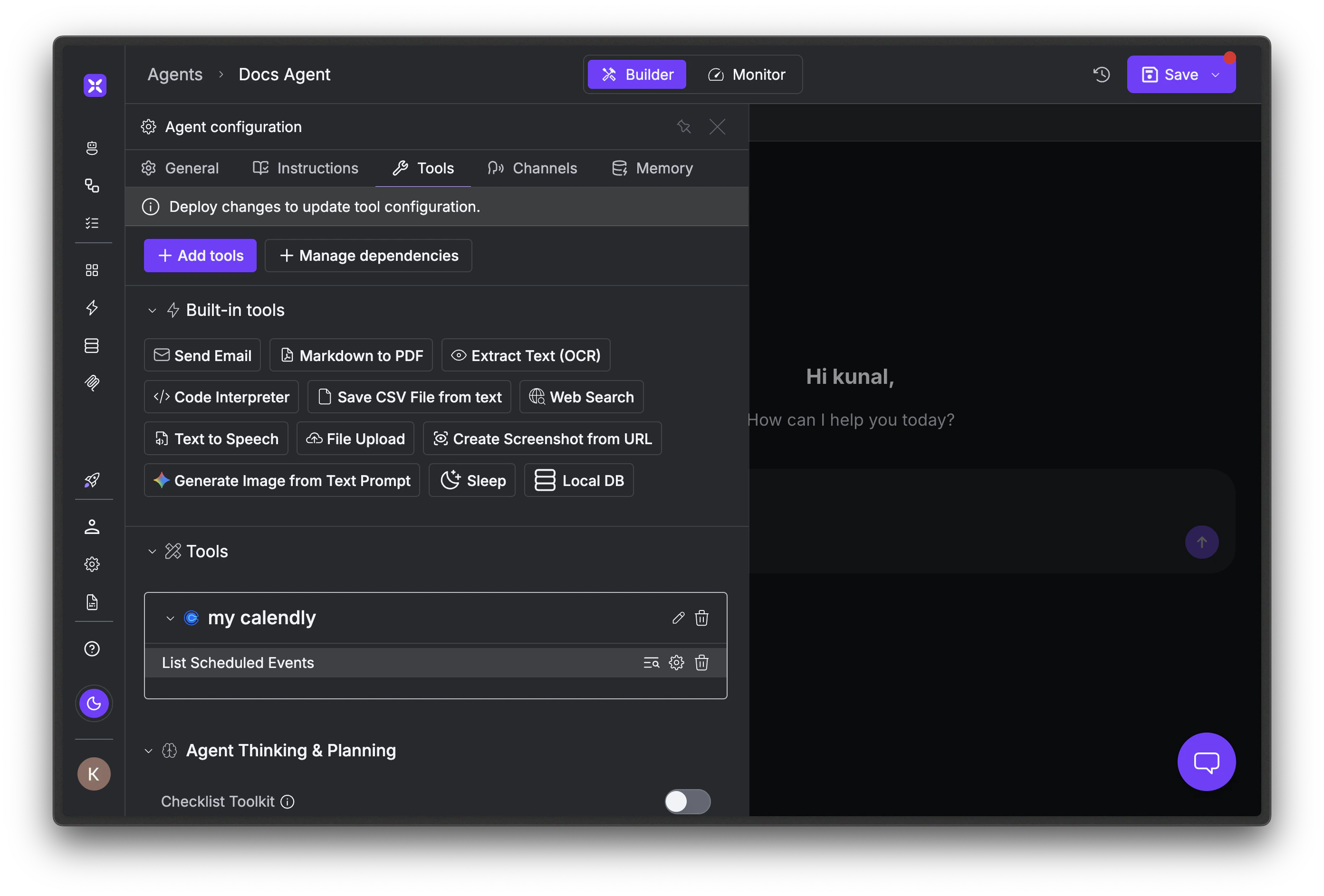 Click the edit icon next to the tool you want to filter. In the dialog, select the **Output schema** tab. Declare the fields you want the agent to see. Anything you omit is dropped before the response reaches the LLM.
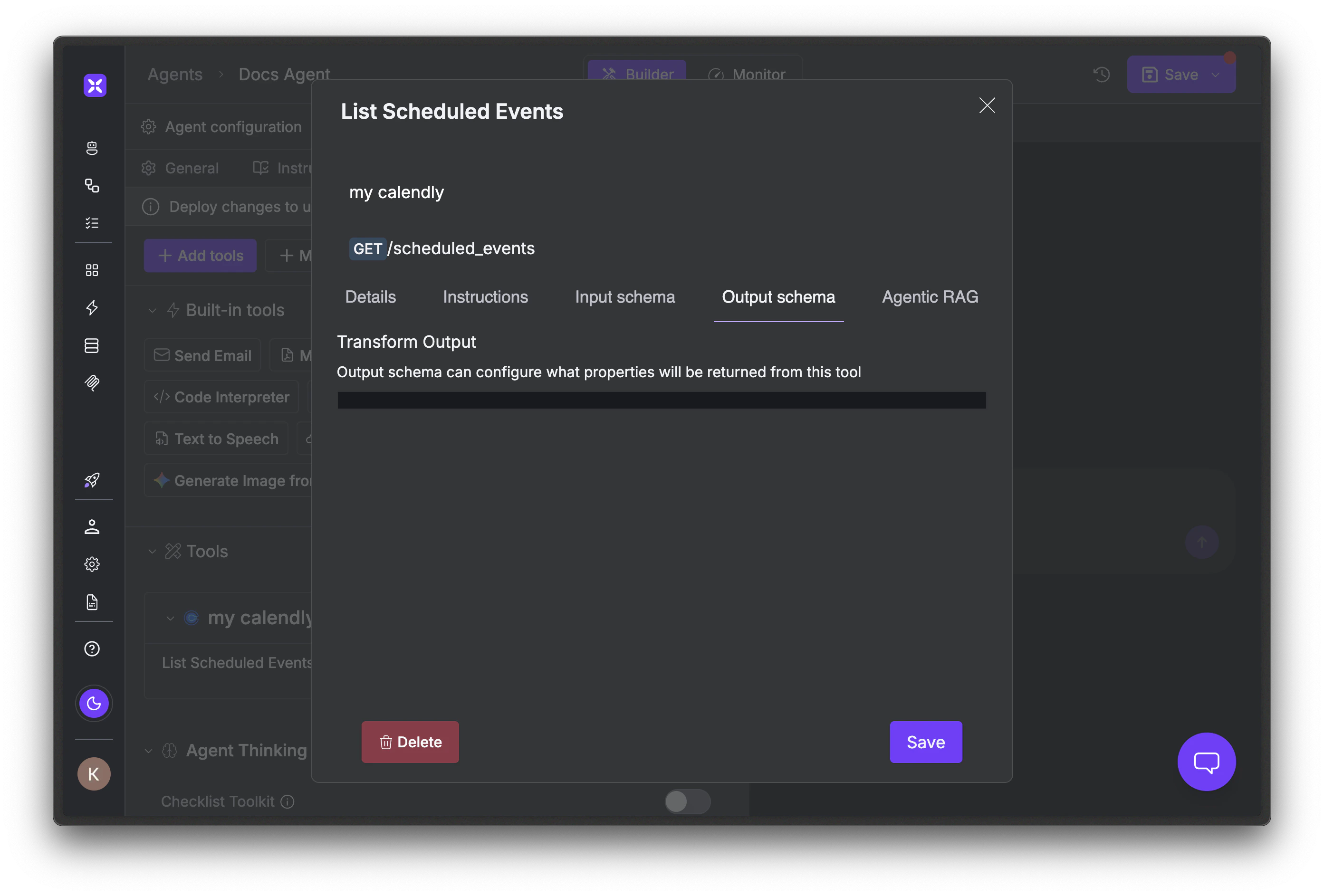 Write the schema from a real captured response, not the API docs. Open the agent's run history, expand a tool result to see the full JSON shape, and pick only the fields the agent actually needs to answer questions. Be aggressive. Leave a field out and add it back only if the agent fails without it.
Click **Save**, then **Deploy changes** at the top of the Builder. The schema applies to every invocation from that point on, across all frameworks.
## Verify the filtered shape from code
Once a schema is published, invoke the tool directly and inspect what the LLM actually receives:
```python theme={"dark"}
from xpander_sdk import Agents
agent = await Agents().aget(agent_id="agt_01H...")
tool = agent.tools.get_tool_by_name("SalesforceQueryAccounts")
result = await agent.ainvoke_tool(
tool=tool,
payload={"body_params": {"q": "SELECT Id, Name FROM Account"}},
)
print(result.result) # Already filtered by the configured output schema.
```
To confirm what was removed, briefly clear the schema in Agent Studio, capture the full response, then re-enable it. The diff is exactly what you've cut from the LLM's context.
## Troubleshooting
Output response filtering only applies to remote connector calls, not local `@register_tool` functions. Whatever you return from a Python function reaches the LLM verbatim. To slim local-tool output, do it inside the function before returning.
The schema dropped a field the agent actually needed. Add it back and republish. Common case: stripping `created_at` because it seems unnecessary, then a user asks "when did we onboard them?" and the agent guesses.
Output schemas are allow-lists. If the upstream API adds a field, your schema silently drops it. When a connector announces an API update, re-check your schemas against a fresh captured response.
Either no schema is configured, the tool you filtered isn't the one driving most tokens, or the response was already small. Use the run history to find which tool calls return the largest payloads and filter those first. List endpoints and search results are usually the biggest wins.
## Next steps
The full reference for connector tools, including the input-schema half of the Advanced tab.
Observe and log tool calls, including filtered responses, across the agent's lifetime.
Add your own Python functions with `@register_tool`. Output filtering does not apply to local tools.
Indexed retrieval for grounding agents in your own corpus.
Write the schema from a real captured response, not the API docs. Open the agent's run history, expand a tool result to see the full JSON shape, and pick only the fields the agent actually needs to answer questions. Be aggressive. Leave a field out and add it back only if the agent fails without it.
Click **Save**, then **Deploy changes** at the top of the Builder. The schema applies to every invocation from that point on, across all frameworks.
## Verify the filtered shape from code
Once a schema is published, invoke the tool directly and inspect what the LLM actually receives:
```python theme={"dark"}
from xpander_sdk import Agents
agent = await Agents().aget(agent_id="agt_01H...")
tool = agent.tools.get_tool_by_name("SalesforceQueryAccounts")
result = await agent.ainvoke_tool(
tool=tool,
payload={"body_params": {"q": "SELECT Id, Name FROM Account"}},
)
print(result.result) # Already filtered by the configured output schema.
```
To confirm what was removed, briefly clear the schema in Agent Studio, capture the full response, then re-enable it. The diff is exactly what you've cut from the LLM's context.
## Troubleshooting
Output response filtering only applies to remote connector calls, not local `@register_tool` functions. Whatever you return from a Python function reaches the LLM verbatim. To slim local-tool output, do it inside the function before returning.
The schema dropped a field the agent actually needed. Add it back and republish. Common case: stripping `created_at` because it seems unnecessary, then a user asks "when did we onboard them?" and the agent guesses.
Output schemas are allow-lists. If the upstream API adds a field, your schema silently drops it. When a connector announces an API update, re-check your schemas against a fresh captured response.
Either no schema is configured, the tool you filtered isn't the one driving most tokens, or the response was already small. Use the run history to find which tool calls return the largest payloads and filter those first. List endpoints and search results are usually the biggest wins.
## Next steps
The full reference for connector tools, including the input-schema half of the Advanced tab.
Observe and log tool calls, including filtered responses, across the agent's lifetime.
Add your own Python functions with `@register_tool`. Output filtering does not apply to local tools.
Indexed retrieval for grounding agents in your own corpus.