> ## Documentation Index
> Fetch the complete documentation index at: https://docs.xpander.ai/llms.txt
> Use this file to discover all available pages before exploring further.
# Multi-Agent Tasks
> Attach specialized agents to a coordinator so they can delegate tasks to each other during conversations.
Instead of building one agent with every connector and a massive system prompt, split the work across specialized agents. A coordinator agent talks to the user and delegates to specialists as needed.
```text theme={"dark"}
User
│
▼
┌─────────────┐
│ Coordinator │ ← talks to the user, decides who to call
└──────┬──────┘
│
┌─────┼──────┐
▼ ▼ ▼
┌─────┐ ┌────┐ ┌─────┐
│ CRM │ │Jira│ │Slack│ ← specialists with scoped tools
└─────┘ └────┘ └─────┘
```
**Multi-agent vs. workflows:** Multi-agent is for conversations where a user asks a question and agents collaborate to answer. Workflows are for backend automation triggered by events with no user in the loop.
## Attach agents to enable delegation
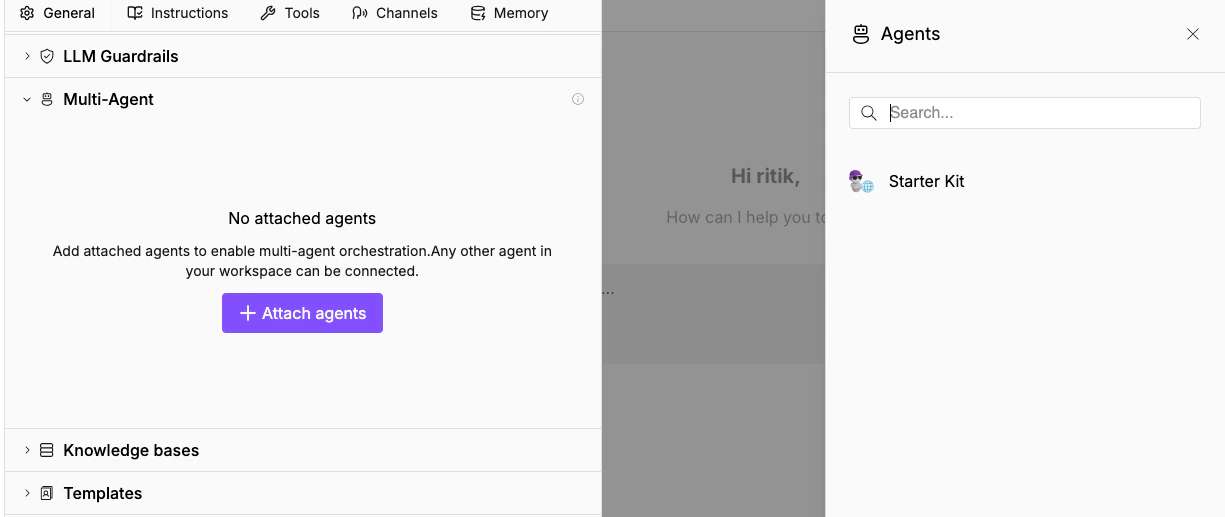
Open any agent's **General** tab and scroll to **Multi-Agent**. Click **Attach agents** to open a searchable panel listing every agent in your workspace.
When you attach Agent B to Agent A, Agent B appears as a callable tool in Agent A's tool list. The coordinator doesn't need to know how to query Salesforce directly. It just calls the Salesforce specialist tool, which runs that agent with the delegated task and returns the result.
## Set up a coordinator
**1. Build specialists first.** Each one gets its own system prompt, connectors, and knowledge base scoped to one domain. You'll see them listed on the Agents page alongside your other agents.
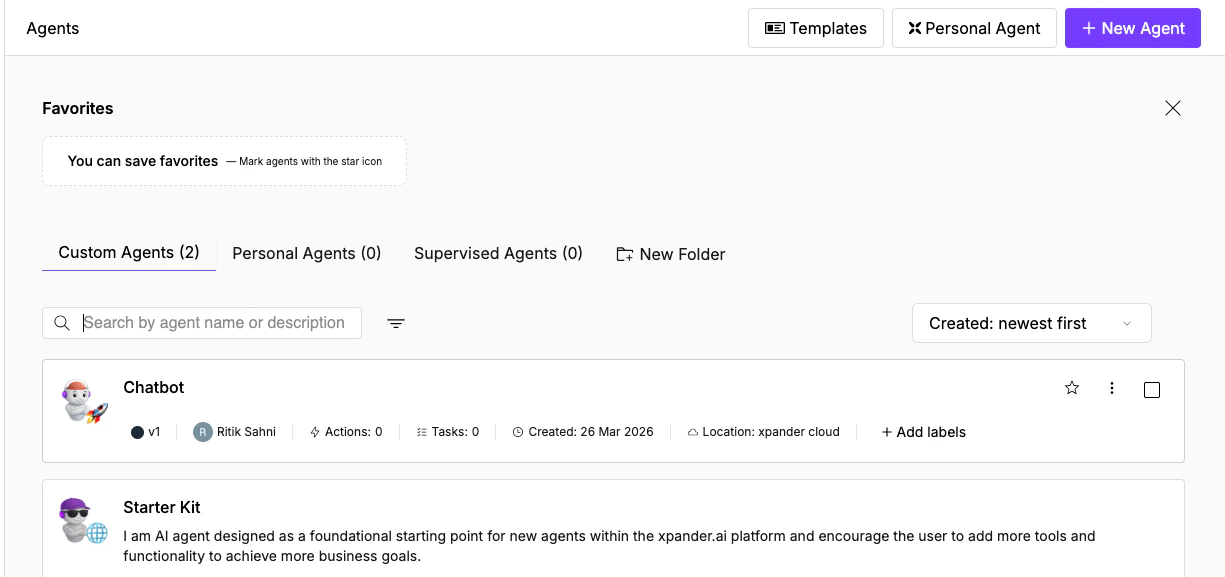 **2. Build the coordinator.** Go to the **Instructions** tab and write a system prompt that describes when to delegate:
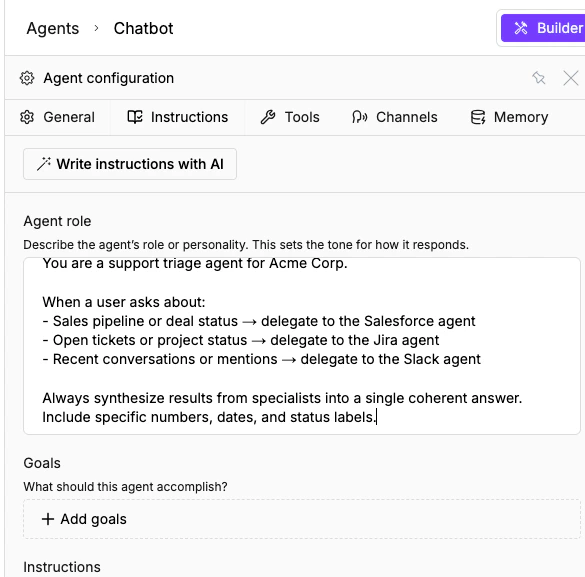 ```text theme={"dark"}
You are a support triage agent. When a user asks about:
- Sales pipeline or deal status: delegate to the Salesforce agent
- Open tickets or project status: delegate to the Jira agent
- Recent conversations or mentions: delegate to the Slack agent
Synthesize results from specialists into a single answer.
```
**3. Attach specialists** in the coordinator's General tab. Scroll to **Multi-Agent**, click **Attach agents**, and select the specialist agents from the panel.
```text theme={"dark"}
You are a support triage agent. When a user asks about:
- Sales pipeline or deal status: delegate to the Salesforce agent
- Open tickets or project status: delegate to the Jira agent
- Recent conversations or mentions: delegate to the Slack agent
Synthesize results from specialists into a single answer.
```
**3. Attach specialists** in the coordinator's General tab. Scroll to **Multi-Agent**, click **Attach agents**, and select the specialist agents from the panel.
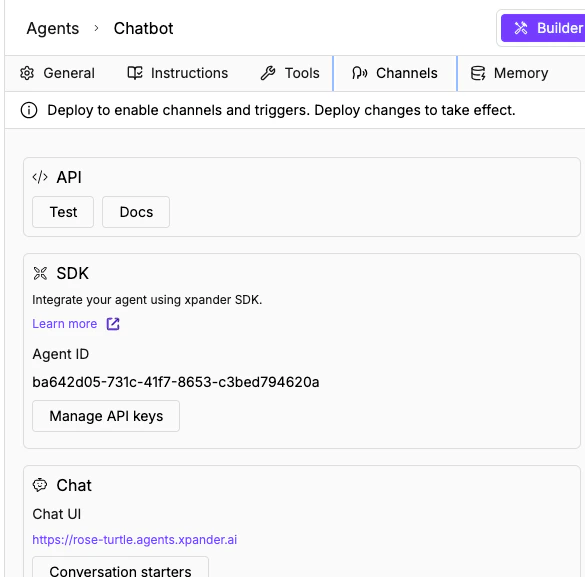
 **4. Deploy the coordinator** through any channel. The Channels tab shows all available deployment options: API, SDK, Chat, Slack, Webhook, Task, MCP, and A2A.
 ## A2A protocol for cross-platform delegation
For agents that need to communicate across organizations, Xpander supports Google's Agent2Agent (A2A) protocol. Enable it in the **Channels** tab to get an A2A URL and agent card.
## A2A protocol for cross-platform delegation
For agents that need to communicate across organizations, Xpander supports Google's Agent2Agent (A2A) protocol. Enable it in the **Channels** tab to get an A2A URL and agent card.
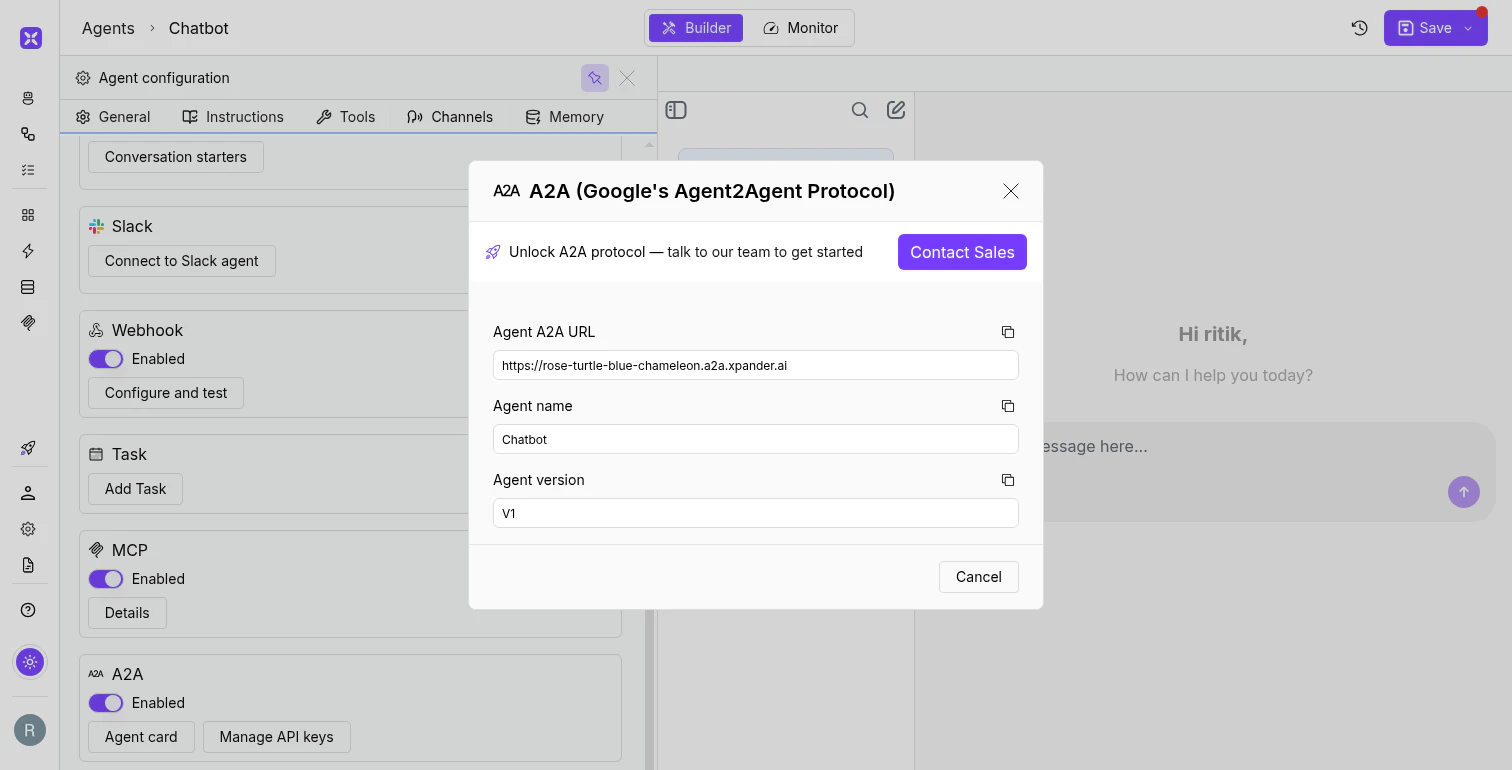 External A2A-compatible agents can invoke your agent at that URL, and your agent can invoke theirs.
**A2A vs. attached agents:** Attached agents coordinate within your Xpander workspace. A2A is for cross-platform communication between agents on different systems.
## When to use multi-agent
Use it when:
* The coordinator's system prompt is getting too long because it handles too many domains
* Different domains need different tool sets, and combining them confuses the model
* You want reusable specialists (one Salesforce agent attached to multiple coordinators)
A single agent is fine when the task stays within one domain. Don't add multi-agent complexity unless the single-agent approach is struggling.
## What's next
Select the right model for each agent and task type.
Backend automation on the visual canvas.
External A2A-compatible agents can invoke your agent at that URL, and your agent can invoke theirs.
**A2A vs. attached agents:** Attached agents coordinate within your Xpander workspace. A2A is for cross-platform communication between agents on different systems.
## When to use multi-agent
Use it when:
* The coordinator's system prompt is getting too long because it handles too many domains
* Different domains need different tool sets, and combining them confuses the model
* You want reusable specialists (one Salesforce agent attached to multiple coordinators)
A single agent is fine when the task stays within one domain. Don't add multi-agent complexity unless the single-agent approach is struggling.
## What's next
Select the right model for each agent and task type.
Backend automation on the visual canvas.