> ## Documentation Index
> Fetch the complete documentation index at: https://docs.xpander.ai/llms.txt
> Use this file to discover all available pages before exploring further.
# Agent Configuration
> Create an agent, pick where it runs, and configure every control in the Agent Studio
Personal Agents are great for day-to-day assistance, but you can create **Specialized Custom Agents** for dedicated tasks like customer support, weekly reporting, and bug hunting.
Custom Agents run on the [**Agno** framework](https://docs.agno.com/introduction) and give you full control over the model, memory, instructions, tools, and channels.
Need to run on a framework other than Agno (e.g., OpenAI Agents SDK, LangChain, Google ADK, AWS Strands)? Framework choice is available on the **Enterprise** plan. [Contact sales](https://cal.com/team/xpander-ai/activate) to enable it for your workspace.
## Create Your Agent
Go to [app.xpander.ai](https://app.xpander.ai) and sign in or sign up. New users get a 14-day free trial.
Click + New Agent in the top right of the Agents page.
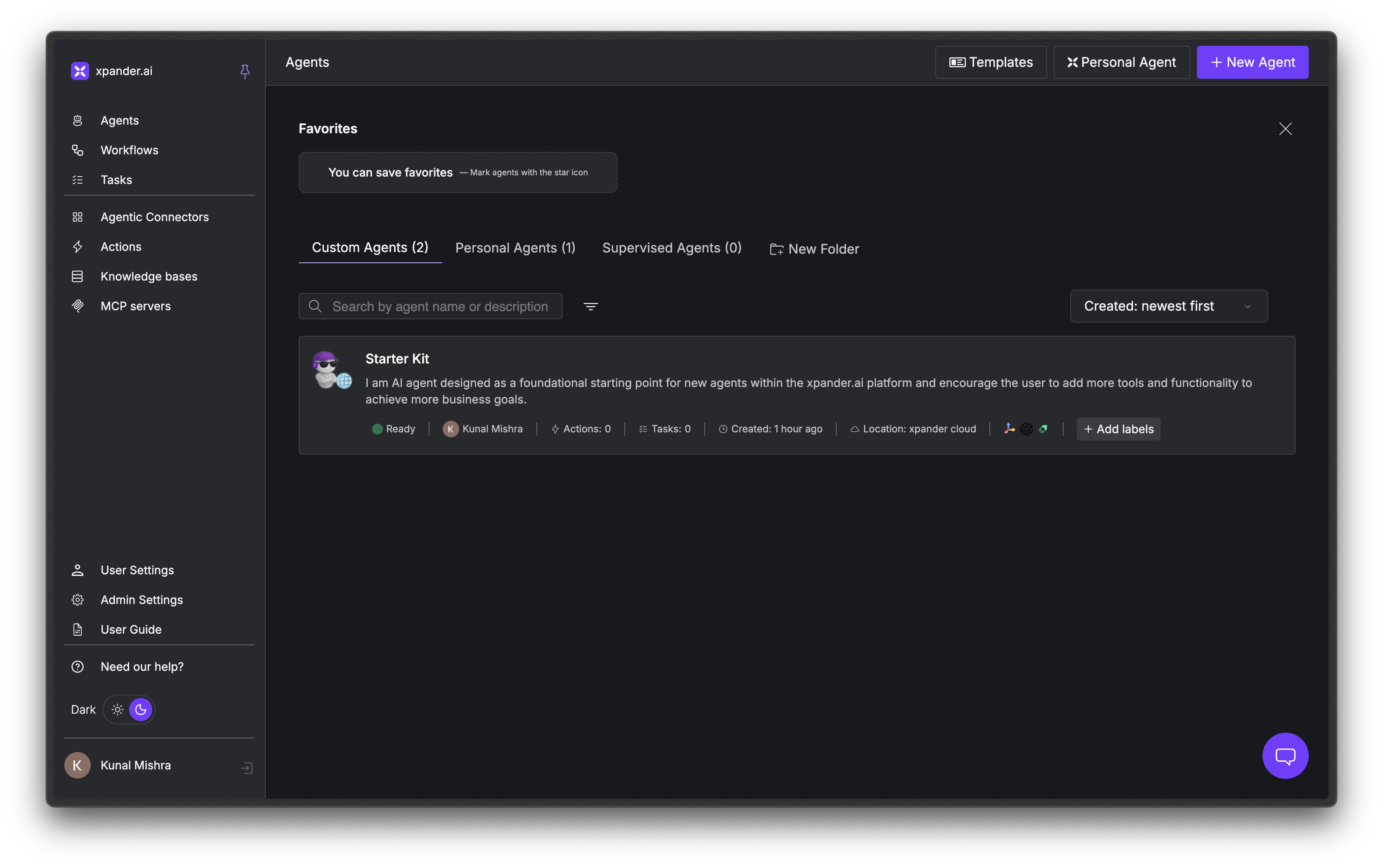 Environment will already be set to `xpander-cloud`, which is the default hosting setup, fully-managed by Xpander.
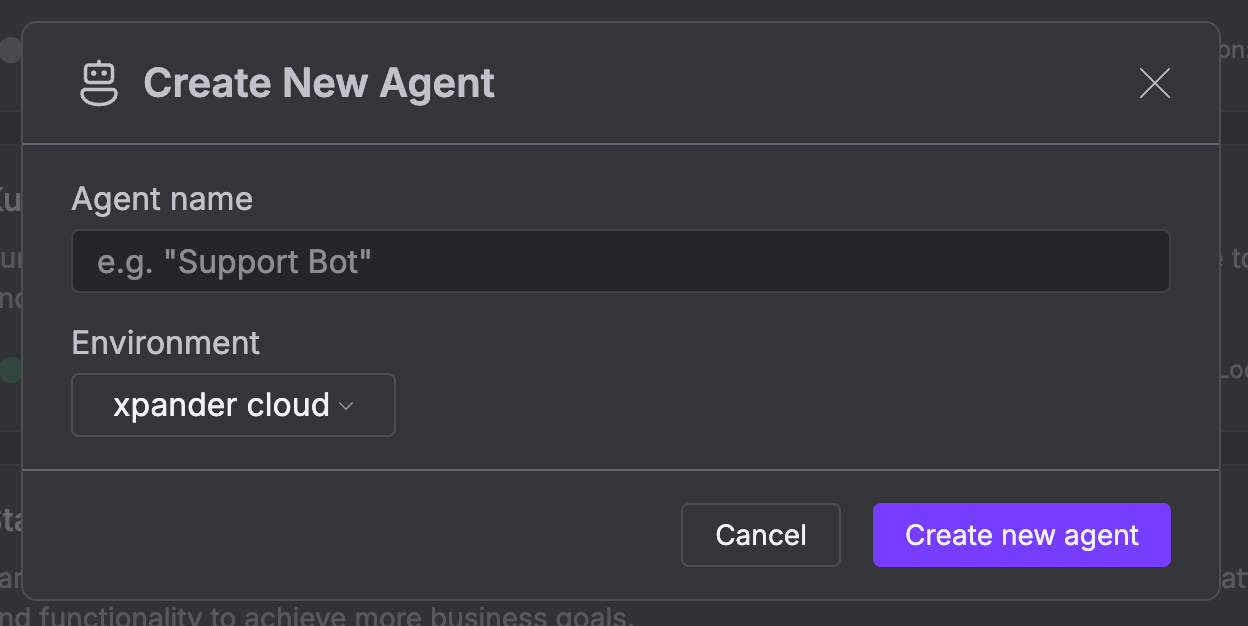 On the **Self-hosted Enterprise plan**, you can spin up Xpander's AI Agents on your own compute environments. [Contact sales](https://cal.com/team/xpander-ai/activate) to learn more.
Xpander sets up your agent's container and wires up memory, built-in tools, and networking. This one-time setup takes a minute or two.
On the **Self-hosted Enterprise plan**, you can spin up Xpander's AI Agents on your own compute environments. [Contact sales](https://cal.com/team/xpander-ai/activate) to learn more.
Xpander sets up your agent's container and wires up memory, built-in tools, and networking. This one-time setup takes a minute or two.
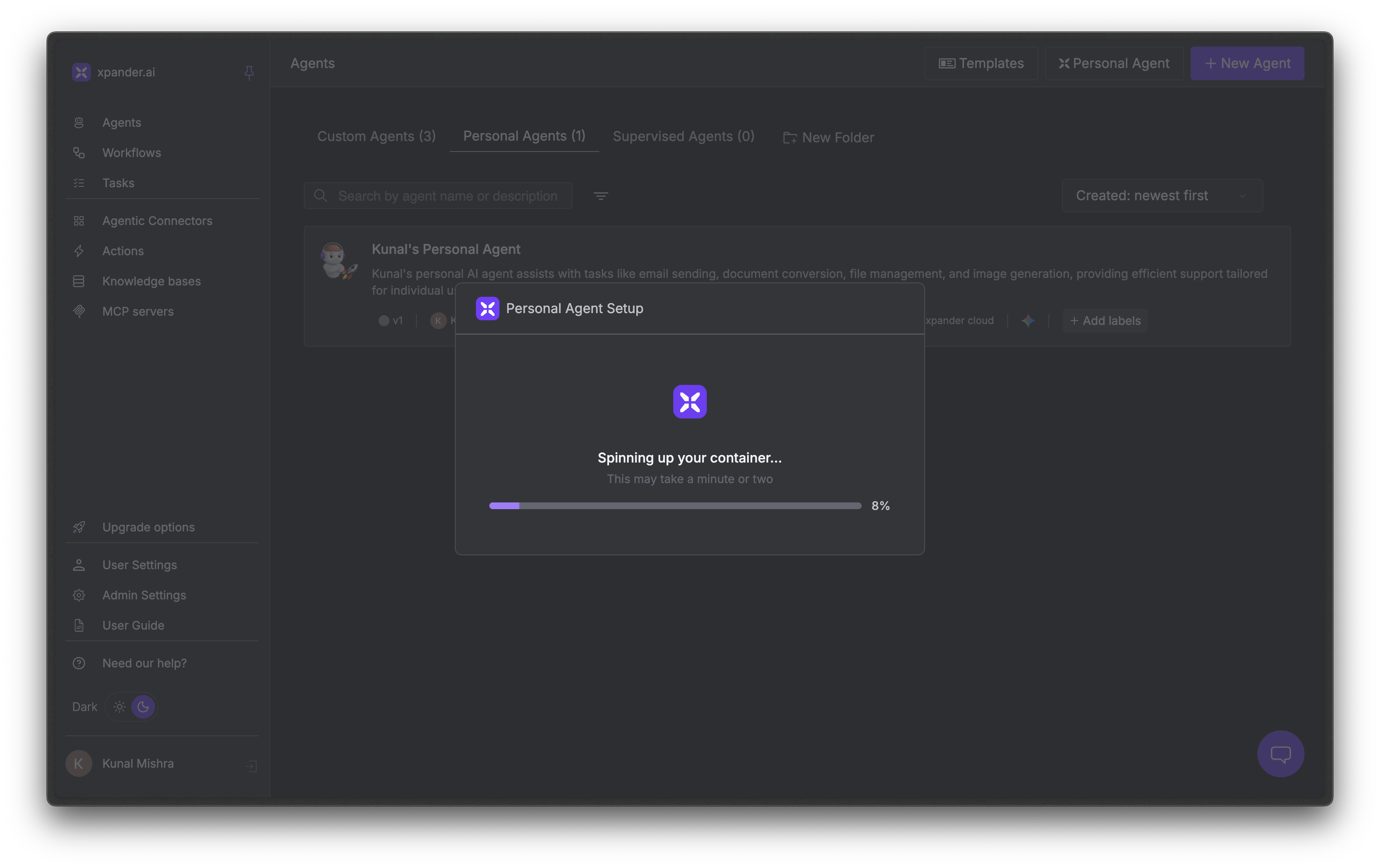 You're ready to try out your newly created agent.
Click the **gear** icon in the top left to open the configuration panel.
You're ready to try out your newly created agent.
Click the **gear** icon in the top left to open the configuration panel.
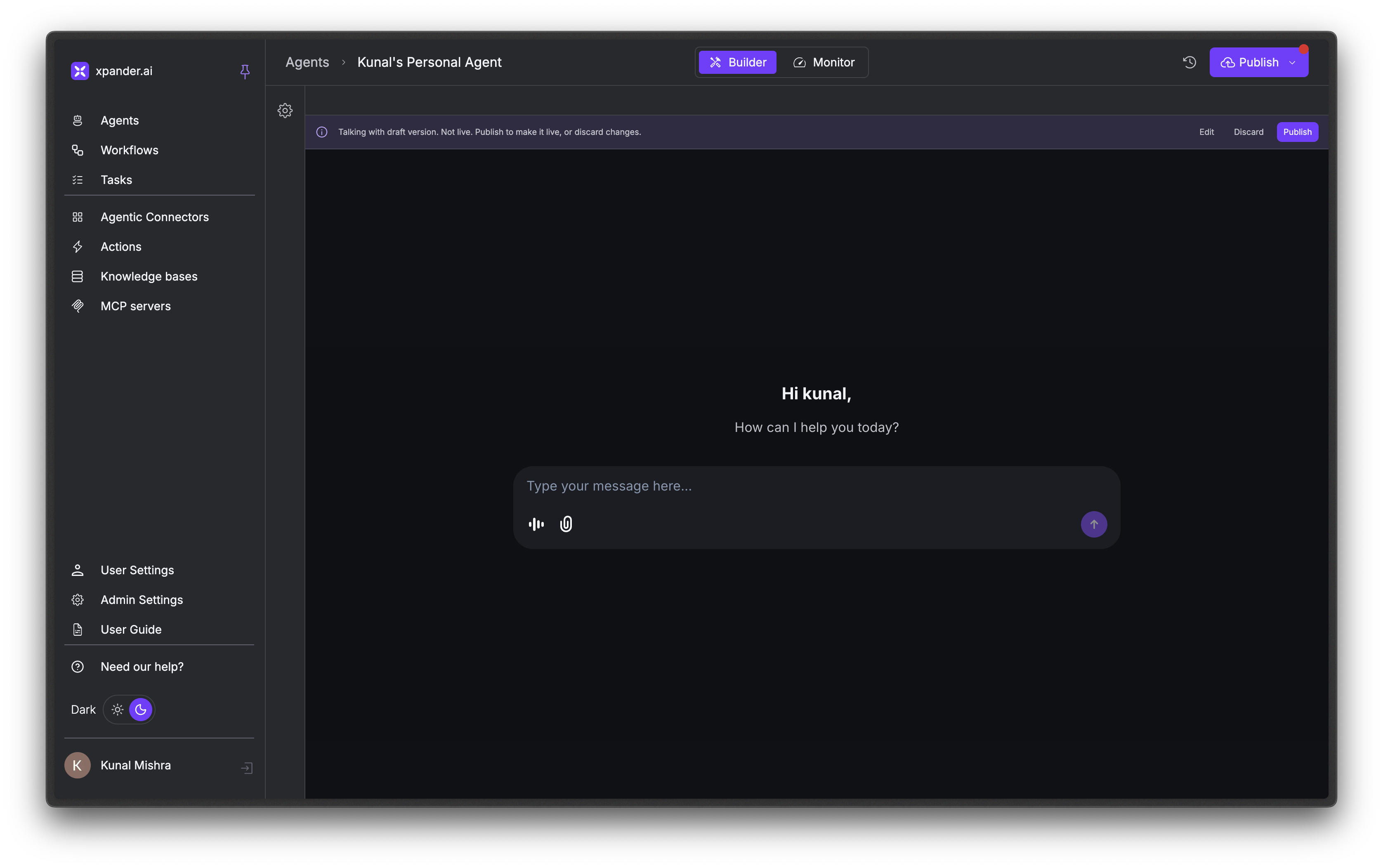 When you're ready, click Publish in the top right. You need to publish every time you change configuration before it takes effect.
## Tour the Agent Studio
The Agent Studio has two views:
* **Builder**: Configure your agent and chat with it directly
* **Monitor**: View conversation logs, performance metrics, and task history
When you're ready, click Publish in the top right. You need to publish every time you change configuration before it takes effect.
## Tour the Agent Studio
The Agent Studio has two views:
* **Builder**: Configure your agent and chat with it directly
* **Monitor**: View conversation logs, performance metrics, and task history
 ## Configuration Quick Reference
Xpander's Custom Agents expose full Agno configuration options.
Click the **gear** icon in the Builder view to open the configuration panel.
## Configuration Quick Reference
Xpander's Custom Agents expose full Agno configuration options.
Click the **gear** icon in the Builder view to open the configuration panel.
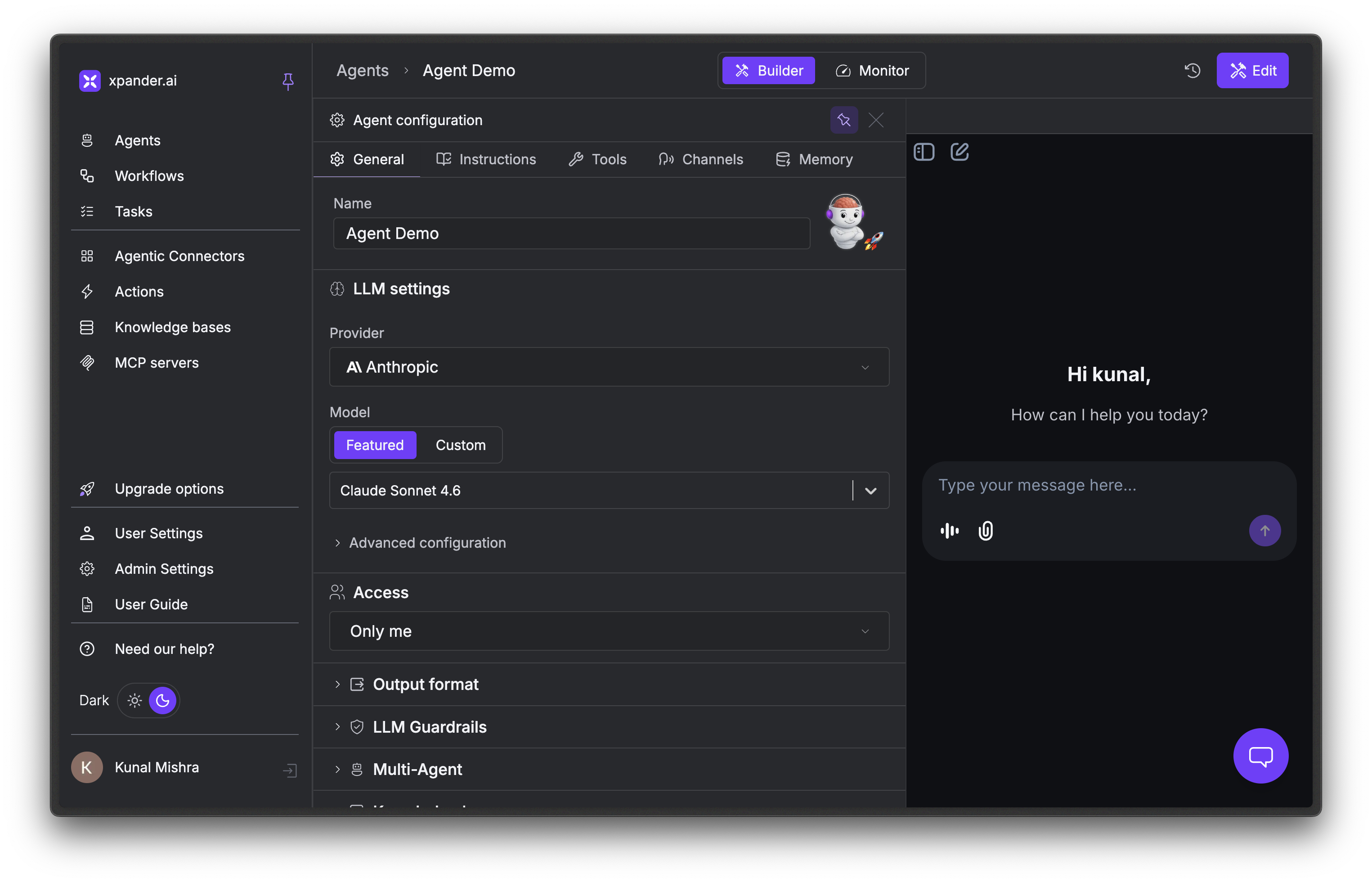 | Tab | What you configure |
| ---------------- | -------------------------------------------------------- |
| **General** | Model, access, output format, guardrails, notifications. |
| **Instructions** | System prompt - role, goals, rules, expected output. |
| **Tools** | Built-in tools, connectors, thinking controls. |
| **Channels** | API, SDK, Chat, Slack, Webhook, Task, MCP, A2A. |
| **Memory** | Session history, user and agent memories, compression. |
### General
High-level agent properties and model selection.
| Setting | What it does |
| ------------------- | ------------------------------------------------------------------------------------------------------------------------------------------ |
| **Name** | Your agent's display name. |
| **LLM settings** | Pick a provider and model. See [AI Models & Intelligence](/guides/agents/ai-models-intelligence). |
| **Access** | Private to you, or shared with your organization. |
| **Output format** | Free-form text, Markdown, Structured output, or Voice. |
| **Learning** | Capture user profiles and knowledge over time. See [Memory & State](/guides/agents/memory-state). |
| **LLM Guardrails** | PII detection, prompt injection blocks, and OpenAI moderation. See [LLM Guardrails](/guides/agents/ai-models-intelligence#llm-guardrails). |
| **Multi-Agent** | Attach other agents for orchestration. |
| **Knowledge bases** | Attach knowledge bases for retrieval. See [Knowledge Bases](/guides/agents/knowledge-bases). |
| **Templates** | Save the current configuration as a reusable template. |
| **Notifications** | Success and error alerts via Email, Webhook, or Slack. |
| **Danger zone** | Disable or delete the agent. |
### Instructions
The agent's system prompt.
| Tab | What you configure |
| ---------------- | -------------------------------------------------------- |
| **General** | Model, access, output format, guardrails, notifications. |
| **Instructions** | System prompt - role, goals, rules, expected output. |
| **Tools** | Built-in tools, connectors, thinking controls. |
| **Channels** | API, SDK, Chat, Slack, Webhook, Task, MCP, A2A. |
| **Memory** | Session history, user and agent memories, compression. |
### General
High-level agent properties and model selection.
| Setting | What it does |
| ------------------- | ------------------------------------------------------------------------------------------------------------------------------------------ |
| **Name** | Your agent's display name. |
| **LLM settings** | Pick a provider and model. See [AI Models & Intelligence](/guides/agents/ai-models-intelligence). |
| **Access** | Private to you, or shared with your organization. |
| **Output format** | Free-form text, Markdown, Structured output, or Voice. |
| **Learning** | Capture user profiles and knowledge over time. See [Memory & State](/guides/agents/memory-state). |
| **LLM Guardrails** | PII detection, prompt injection blocks, and OpenAI moderation. See [LLM Guardrails](/guides/agents/ai-models-intelligence#llm-guardrails). |
| **Multi-Agent** | Attach other agents for orchestration. |
| **Knowledge bases** | Attach knowledge bases for retrieval. See [Knowledge Bases](/guides/agents/knowledge-bases). |
| **Templates** | Save the current configuration as a reusable template. |
| **Notifications** | Success and error alerts via Email, Webhook, or Slack. |
| **Danger zone** | Disable or delete the agent. |
### Instructions
The agent's system prompt.
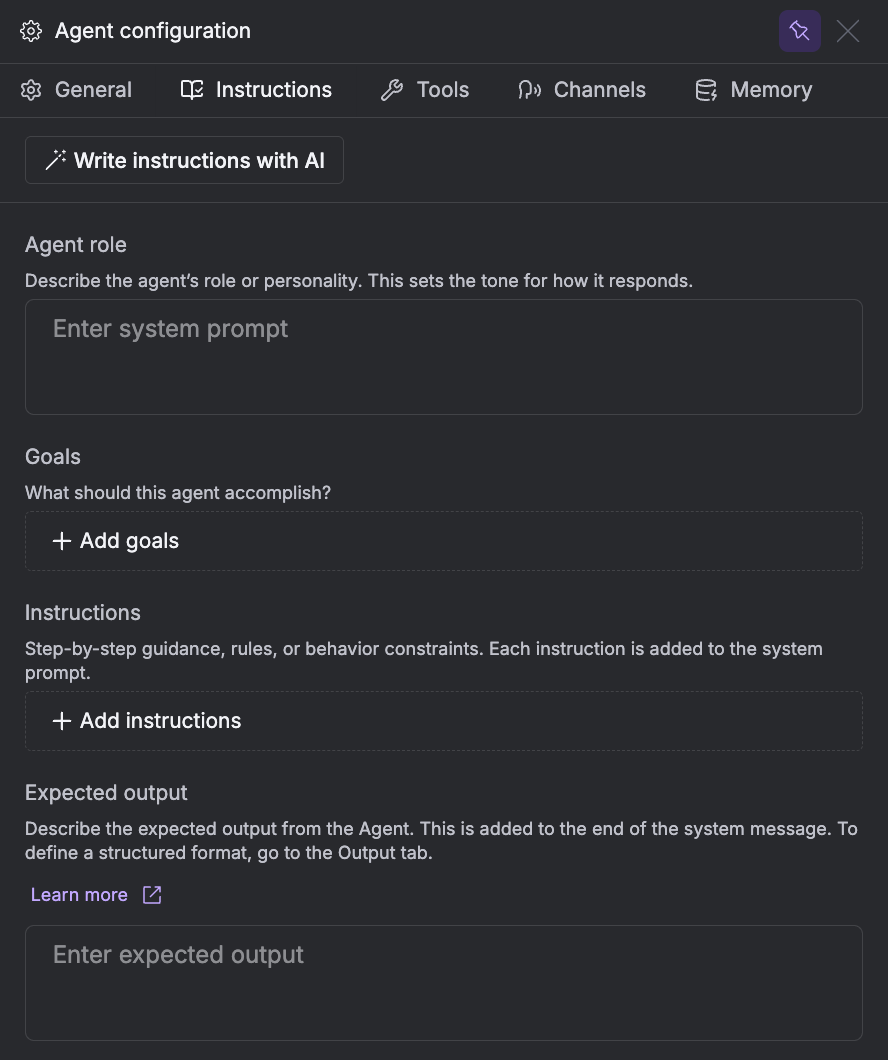 | Field | What it does |
| ------------------- | ------------------------------------------ |
| **Agent role** | The agent's role or personality. |
| **Goals** | What the agent should accomplish. |
| **Instructions** | Rules and behavior constraints. |
| **Expected output** | How the agent should format its responses. |
Click Write instructions with AI to prompt an LLM to fill these fields for you.
### Tools
Built-in tools, connectors, and thinking controls. See [Tools & Connectors](/guides/agents/tools-connectors).
| Field | What it does |
| ------------------- | ------------------------------------------ |
| **Agent role** | The agent's role or personality. |
| **Goals** | What the agent should accomplish. |
| **Instructions** | Rules and behavior constraints. |
| **Expected output** | How the agent should format its responses. |
Click Write instructions with AI to prompt an LLM to fill these fields for you.
### Tools
Built-in tools, connectors, and thinking controls. See [Tools & Connectors](/guides/agents/tools-connectors).
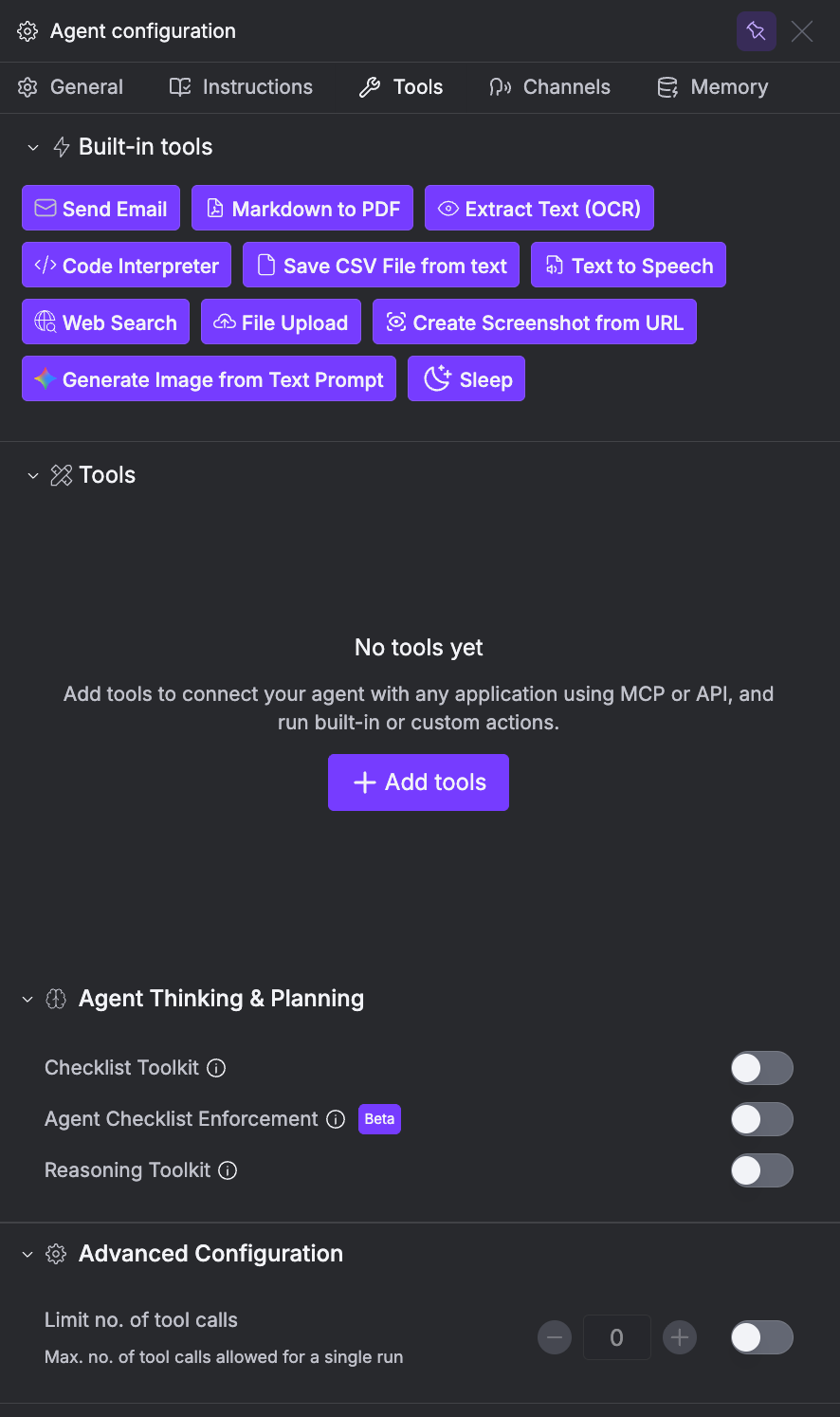 | Section | What it does |
| ----------------------------- | --------------------------------------------------------------------------------------------------------------------------------------- |
| **Built-in tools** | Toggle xpander's built-in tools (Send Email, OCR, etc.). |
| **Tools** | Connect external apps via MCP or API. See [Tools & Connectors](/guides/agents/tools-connectors). |
| **Agent Thinking & Planning** | Checklist Toolkit, Checklist Enforcement, and Reasoning Toolkit. See [AI Models & Intelligence](/guides/agents/ai-models-intelligence). |
| **Advanced Configuration** | Max tool calls per run. |
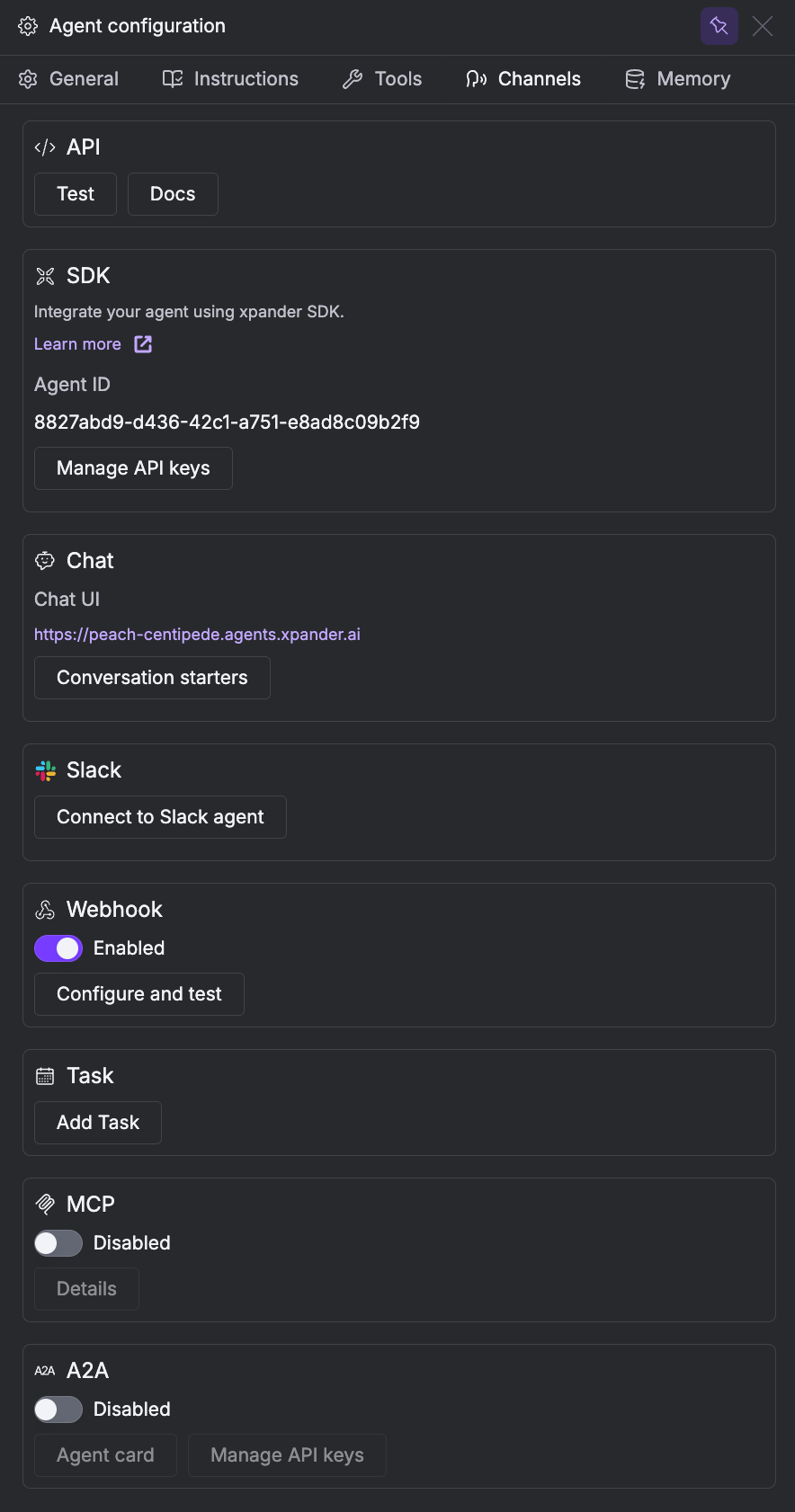
### Channels
How users and systems reach your agent - API, SDK, Chat, Slack, Webhook, Task, MCP, and A2A. See [Deploy an Agent](/guides/agents/deploy-agent) for setup on each channel.
| Section | What it does |
| ----------------------------- | --------------------------------------------------------------------------------------------------------------------------------------- |
| **Built-in tools** | Toggle xpander's built-in tools (Send Email, OCR, etc.). |
| **Tools** | Connect external apps via MCP or API. See [Tools & Connectors](/guides/agents/tools-connectors). |
| **Agent Thinking & Planning** | Checklist Toolkit, Checklist Enforcement, and Reasoning Toolkit. See [AI Models & Intelligence](/guides/agents/ai-models-intelligence). |
| **Advanced Configuration** | Max tool calls per run. |
### Channels
How users and systems reach your agent - API, SDK, Chat, Slack, Webhook, Task, MCP, and A2A. See [Deploy an Agent](/guides/agents/deploy-agent) for setup on each channel.
 ### Memory
What the agent remembers across conversations. See [Memory & State](/guides/agents/memory-state).
### Memory
What the agent remembers across conversations. See [Memory & State](/guides/agents/memory-state).
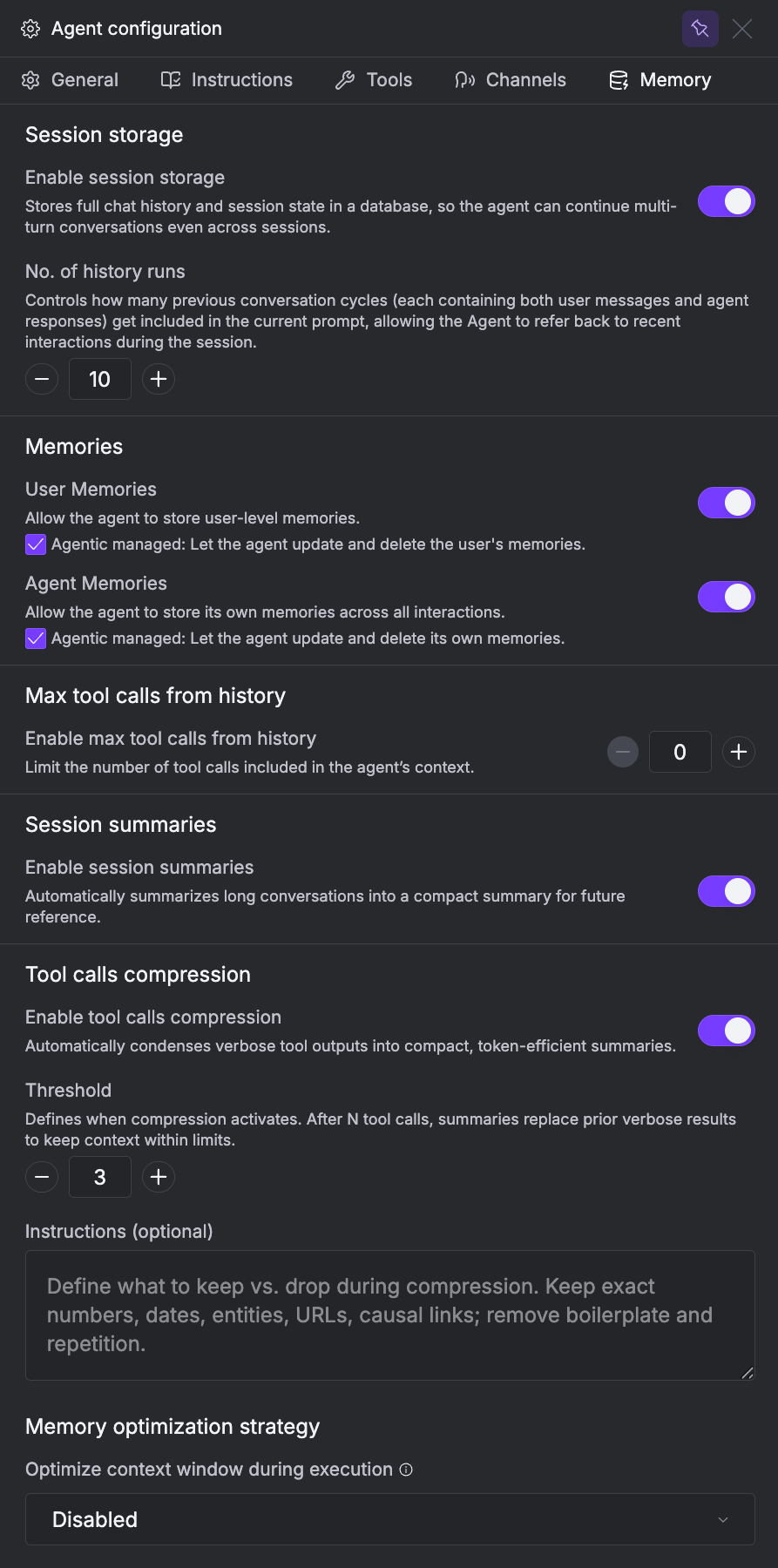 | Setting | What it does |
| -------------------------------- | --------------------------------------------- |
| **Session storage** | Persist chat history across sessions. |
| **User Memories** | Store per-user memories. |
| **Agent Memories** | Store agent-wide memories across all users. |
| **Max tool calls from history** | Cap tool calls included in context. |
| **Session summaries** | Summarize long conversations automatically. |
| **Tool calls compression** | Shrink verbose tool outputs in context. |
| **Memory optimization strategy** | Optimize the context window during execution. |
## Common Use Cases
| I want my agent to... | What to configure |
| ---------------------------------------------- | ------------------------------------------------------------------------------------------------------- |
| Answer questions about my company's docs | Attach a [Knowledge Base](/guides/agents/knowledge-bases) with your documents |
| Send emails and search the web | Enable [built-in tools](/guides/agents/tools-connectors) (Send Email, Web Search) |
| Integrate with Slack, Jira, GitHub, etc. | Install [connector tools](/guides/agents/tools-connectors) from the catalog |
| Remember user preferences across conversations | Enable [User Memories](/guides/agents/memory-state) in the Memory tab |
| Learn and improve over time | Enable [Agent Memories](/guides/agents/memory-state) with agentic management |
| Handle complex multi-step tasks | Enable [Checklist Toolkit or Planning Mode](/guides/agents/ai-models-intelligence) |
| Give deeper, more thorough answers | Enable [Reasoning Toolkit](/guides/agents/ai-models-intelligence) or increase reasoning effort |
| Respond in structured JSON | Set **Output format** to Structured output in General tab |
| Run on a framework other than Agno | [Contact sales](https://cal.com/team/xpander-ai/activate) to enable framework choice on Enterprise |
| Run agents in your own infrastructure | [Contact sales](https://cal.com/team/xpander-ai/activate) to enable self-hosted locations on Enterprise |
## Next Steps
Browse 100+ connectors and configure tool behavior
Providers, planning mode, and reasoning mode
Session storage, user memories, and agent memories
Publish and connect to Slack, API, SDK, and more
| Setting | What it does |
| -------------------------------- | --------------------------------------------- |
| **Session storage** | Persist chat history across sessions. |
| **User Memories** | Store per-user memories. |
| **Agent Memories** | Store agent-wide memories across all users. |
| **Max tool calls from history** | Cap tool calls included in context. |
| **Session summaries** | Summarize long conversations automatically. |
| **Tool calls compression** | Shrink verbose tool outputs in context. |
| **Memory optimization strategy** | Optimize the context window during execution. |
## Common Use Cases
| I want my agent to... | What to configure |
| ---------------------------------------------- | ------------------------------------------------------------------------------------------------------- |
| Answer questions about my company's docs | Attach a [Knowledge Base](/guides/agents/knowledge-bases) with your documents |
| Send emails and search the web | Enable [built-in tools](/guides/agents/tools-connectors) (Send Email, Web Search) |
| Integrate with Slack, Jira, GitHub, etc. | Install [connector tools](/guides/agents/tools-connectors) from the catalog |
| Remember user preferences across conversations | Enable [User Memories](/guides/agents/memory-state) in the Memory tab |
| Learn and improve over time | Enable [Agent Memories](/guides/agents/memory-state) with agentic management |
| Handle complex multi-step tasks | Enable [Checklist Toolkit or Planning Mode](/guides/agents/ai-models-intelligence) |
| Give deeper, more thorough answers | Enable [Reasoning Toolkit](/guides/agents/ai-models-intelligence) or increase reasoning effort |
| Respond in structured JSON | Set **Output format** to Structured output in General tab |
| Run on a framework other than Agno | [Contact sales](https://cal.com/team/xpander-ai/activate) to enable framework choice on Enterprise |
| Run agents in your own infrastructure | [Contact sales](https://cal.com/team/xpander-ai/activate) to enable self-hosted locations on Enterprise |
## Next Steps
Browse 100+ connectors and configure tool behavior
Providers, planning mode, and reasoning mode
Session storage, user memories, and agent memories
Publish and connect to Slack, API, SDK, and more