> ## Documentation Index
> Fetch the complete documentation index at: https://docs.xpander.ai/llms.txt
> Use this file to discover all available pages before exploring further.
# Knowledge Bases
> Upload documents and give your agent searchable, citable knowledge
Without a Knowledge Base, your agent only knows what the LLM was trained on. With a Knowledge Base, it can search your actual documents (company policies, product docs, FAQs, spreadsheets) and ground its answers in real information.
This is **Retrieval-Augmented Generation (RAG)**. When a user asks a question, Xpander searches your uploaded documents for relevant chunks and injects them into the agent's context before it responds. The result: fewer hallucinations, more accurate answers, and the ability to cite sources.
 This page covers:
* [Create a Knowledge Base](#create-a-knowledge-base): upload and index your documents
* [Attach to your agent](#attach-to-your-agent): connect a Knowledge Base to an agent
* [Tuning relevance](#tuning-relevance): control search quality with Top K and similarity threshold
* [Best practices](#best-practices): structure documents for better retrieval
## Create a Knowledge Base
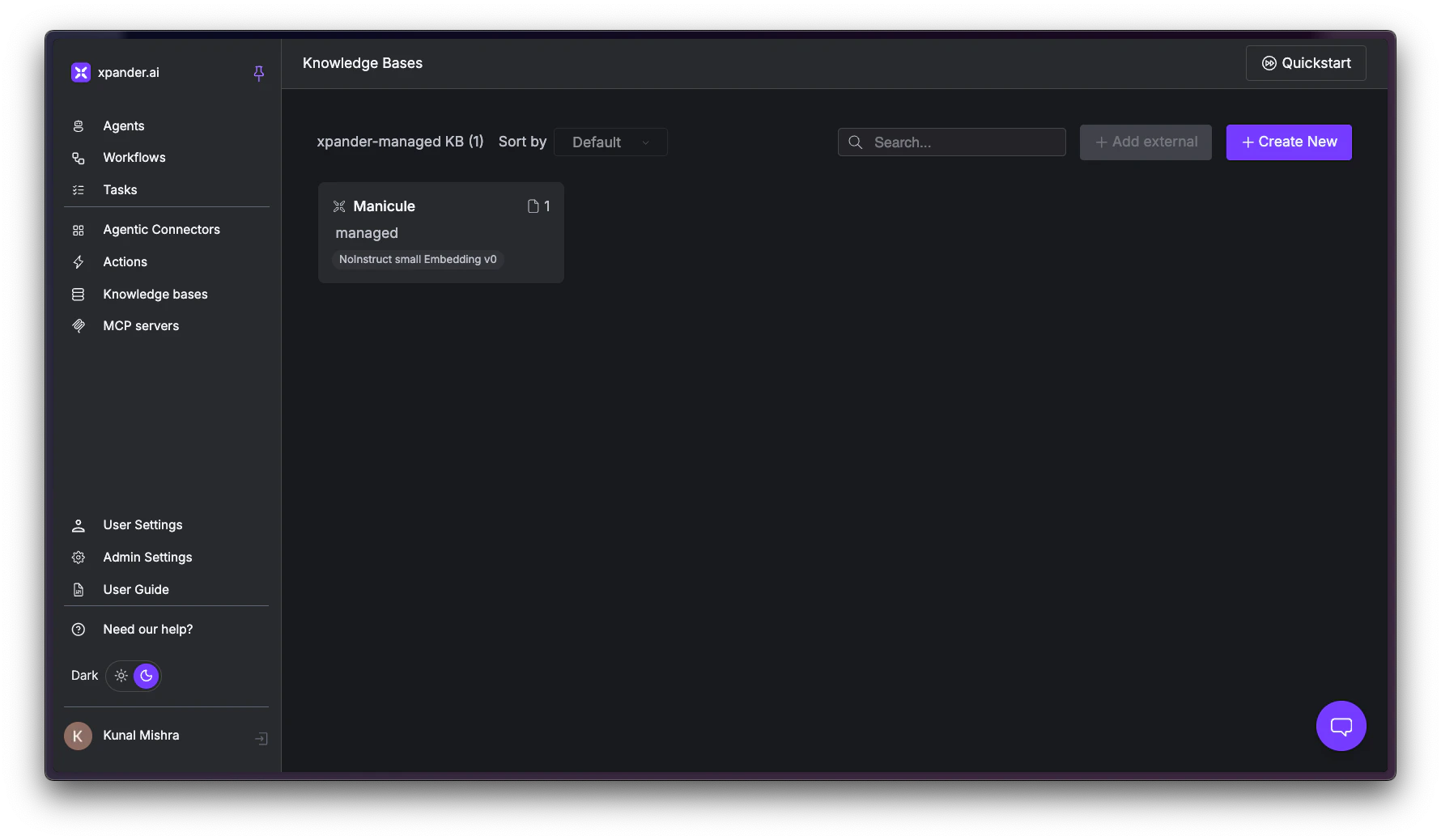
Go to [Knowledge Bases](https://app.xpander.ai/knowledge-bases) from the left sidebar. You'll see all Knowledge Bases in your organization.
Click + Create New in the top right.
This page covers:
* [Create a Knowledge Base](#create-a-knowledge-base): upload and index your documents
* [Attach to your agent](#attach-to-your-agent): connect a Knowledge Base to an agent
* [Tuning relevance](#tuning-relevance): control search quality with Top K and similarity threshold
* [Best practices](#best-practices): structure documents for better retrieval
## Create a Knowledge Base
Go to [Knowledge Bases](https://app.xpander.ai/knowledge-bases) from the left sidebar. You'll see all Knowledge Bases in your organization.
Click + Create New in the top right.
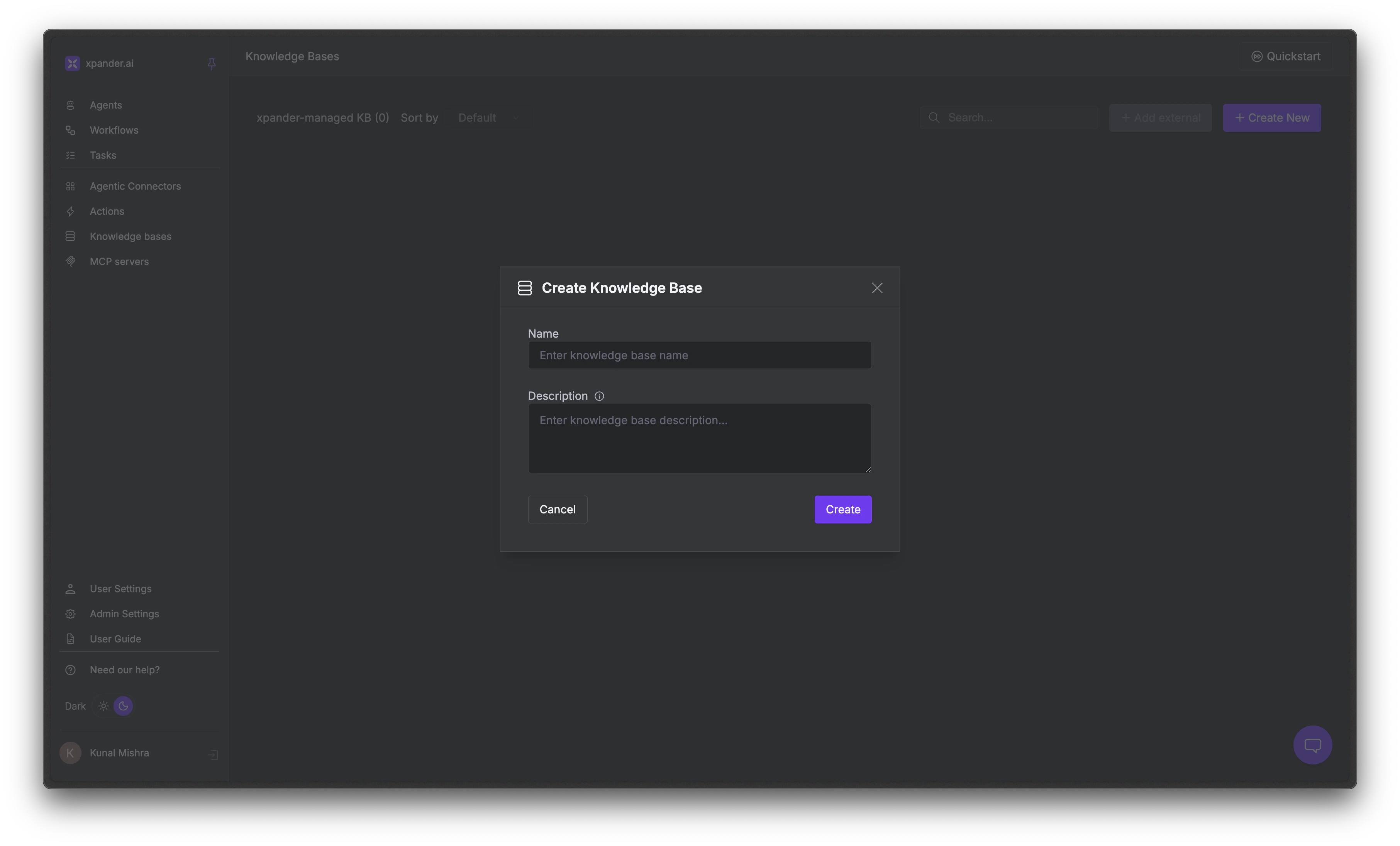 Enter a **name** and optional **description**. Use a name that describes the content (e.g., "Product Documentation," "HR Policies," "Sales Playbook").
Already have a vector database? You can bring a compatible one and expose it to your agent as a tool. [Contact Xpander](https://cal.com/team/xpander-ai/activate) to set this up.
Inside your new Knowledge Base, click Upload File. Drag and drop files or use the upload dialog. Maximum file size is 50 MB.
Enter a **name** and optional **description**. Use a name that describes the content (e.g., "Product Documentation," "HR Policies," "Sales Playbook").
Already have a vector database? You can bring a compatible one and expose it to your agent as a tool. [Contact Xpander](https://cal.com/team/xpander-ai/activate) to set this up.
Inside your new Knowledge Base, click Upload File. Drag and drop files or use the upload dialog. Maximum file size is 50 MB.
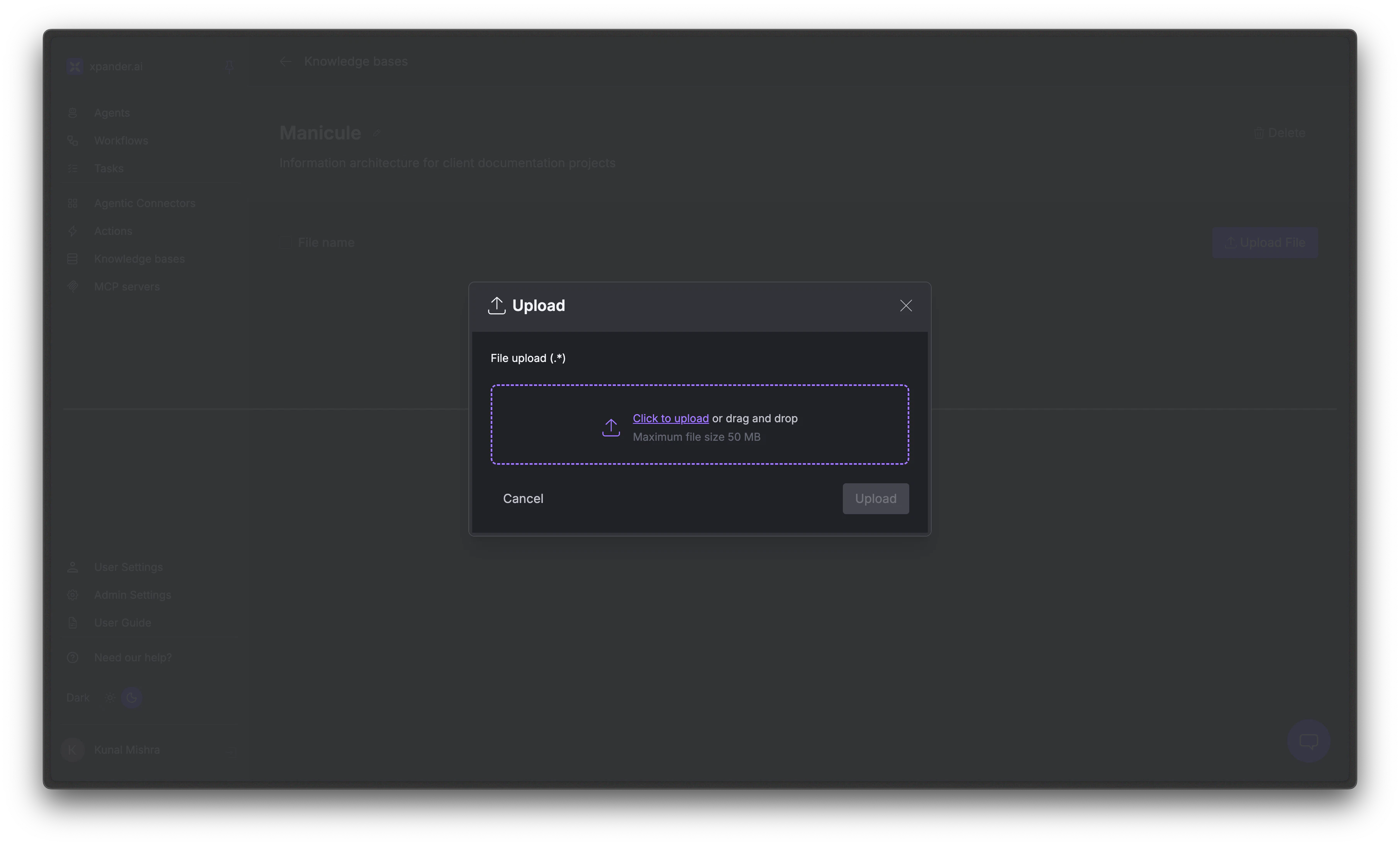 Xpander accepts a wide range of file types:
| Category | Formats |
| ----------------- | ----------------------- |
| **Documents** | PDF, DOCX, TXT, MD, RTF |
| **Spreadsheets** | XLSX, CSV |
| **Presentations** | PPTX |
| **Web & Data** | HTML, JSON, YAML, XML |
Xpander processes each document through a pipeline: extract text, chunk into segments, generate vector embeddings, and index in the vector database. This typically takes 10–60 seconds per document.
Xpander accepts a wide range of file types:
| Category | Formats |
| ----------------- | ----------------------- |
| **Documents** | PDF, DOCX, TXT, MD, RTF |
| **Spreadsheets** | XLSX, CSV |
| **Presentations** | PPTX |
| **Web & Data** | HTML, JSON, YAML, XML |
Xpander processes each document through a pipeline: extract text, chunk into segments, generate vector embeddings, and index in the vector database. This typically takes 10–60 seconds per document.
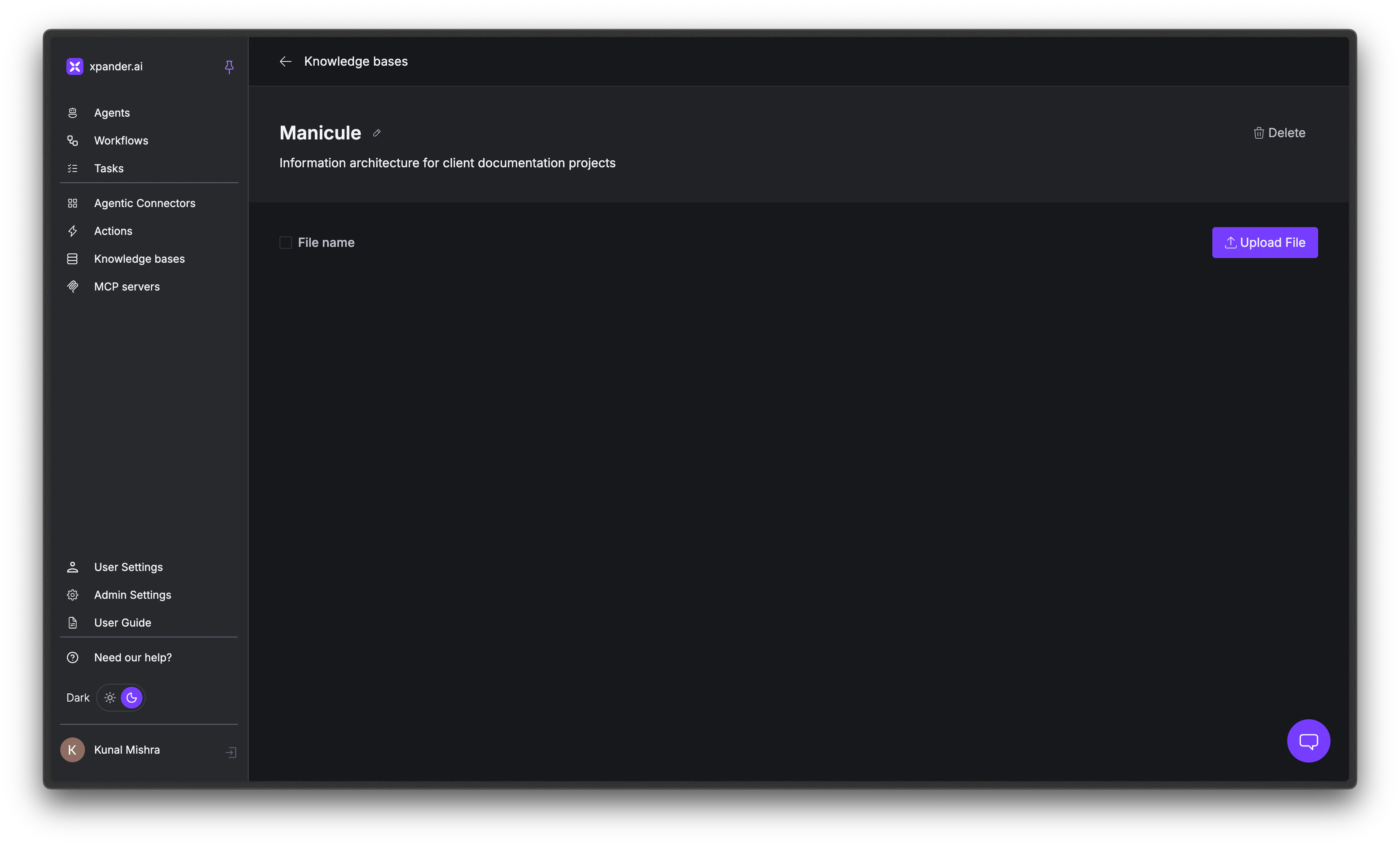 Once processing completes, your documents are searchable.
You can also click + Add external on the Knowledge Bases page to connect an external vector database instead of using Xpander's built-in one.
## Attach to Your Agent
Creating a Knowledge Base doesn't automatically make it available to an agent. You need to attach it.
In the Agent Studio, click the **gear** icon and go to the **General** tab. Scroll down to the **Knowledge Bases** section.
Choose the **Knowledge bases toolkit**. This determines the vector database used for search. The default is **Xpander built-in vector database**.
Under **Add knowledge base**, select your Knowledge Base from the dropdown and click Add.
Once processing completes, your documents are searchable.
You can also click + Add external on the Knowledge Bases page to connect an external vector database instead of using Xpander's built-in one.
## Attach to Your Agent
Creating a Knowledge Base doesn't automatically make it available to an agent. You need to attach it.
In the Agent Studio, click the **gear** icon and go to the **General** tab. Scroll down to the **Knowledge Bases** section.
Choose the **Knowledge bases toolkit**. This determines the vector database used for search. The default is **Xpander built-in vector database**.
Under **Add knowledge base**, select your Knowledge Base from the dropdown and click Add.
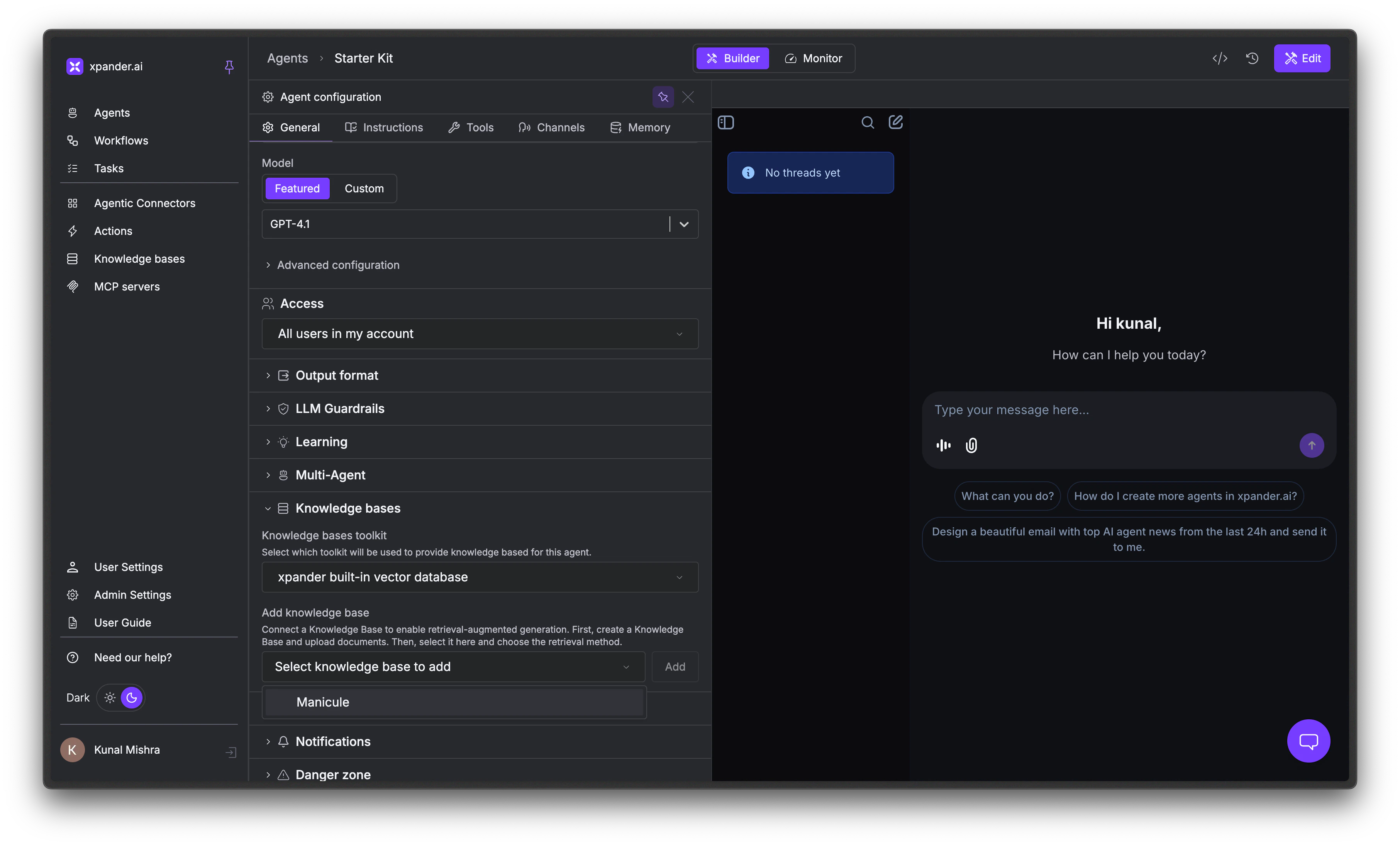 Click Publish to push the changes live. Your agent now automatically searches this Knowledge Base when answering questions.
You can attach multiple Knowledge Bases to the same agent. The agent searches across all of them when retrieving context.
## How Search Works at Runtime
When a user asks a question, the agent doesn't scan every document line by line. It uses semantic search:
1. The user's query is converted into a vector embedding
2. Xpander compares it against all document chunks in the Knowledge Base
3. The closest-matching chunks are injected into the agent's context
4. The agent generates a response grounded in the retrieved content
The agent uses a built-in `search_knowledge_base` tool automatically. You don't need to configure this.
## Tuning Relevance
Two settings control the quality of search results. Configure these in the Knowledge Base settings.
| Setting | What it does | Default |
| ------------------------ | ----------------------------------------------------------------------------------------------------------------- | ------- |
| **Top K** | How many document chunks to retrieve per query. Higher values give the agent more context but use more tokens. | 5 |
| **Similarity Threshold** | How closely a chunk must match the query to be included. Scale of 0.0 (match anything) to 1.0 (exact match only). | 0.7 |
If the agent is missing relevant information, increase Top K or lower the threshold. If it's pulling in irrelevant content, raise the threshold or reduce Top K.
## Best Practices
* **Write for search, not just for humans.** Semantic search works best when documents have clear headings, self-contained sections, and explicit language. A section titled "Refund Policy" that says "Customers can request a refund within 30 days" will surface much better than one buried in a 50-page PDF with no headings.
* **Keep documents focused.** One well-organized document per topic outperforms one massive document covering everything. Split large files into logical sections before uploading.
* **Use descriptive names.** Clear Knowledge Base names help you understand which one to query when you have multiple attached to an agent.
* **Update regularly.** Knowledge Bases aren't set-and-forget. When your source documents change, re-upload them so the agent stays current.
## Next Steps
How your agent remembers across conversations
Give your agent actions beyond conversation
Test Knowledge Base retrieval in the chat
REST API for programmatic access
Click Publish to push the changes live. Your agent now automatically searches this Knowledge Base when answering questions.
You can attach multiple Knowledge Bases to the same agent. The agent searches across all of them when retrieving context.
## How Search Works at Runtime
When a user asks a question, the agent doesn't scan every document line by line. It uses semantic search:
1. The user's query is converted into a vector embedding
2. Xpander compares it against all document chunks in the Knowledge Base
3. The closest-matching chunks are injected into the agent's context
4. The agent generates a response grounded in the retrieved content
The agent uses a built-in `search_knowledge_base` tool automatically. You don't need to configure this.
## Tuning Relevance
Two settings control the quality of search results. Configure these in the Knowledge Base settings.
| Setting | What it does | Default |
| ------------------------ | ----------------------------------------------------------------------------------------------------------------- | ------- |
| **Top K** | How many document chunks to retrieve per query. Higher values give the agent more context but use more tokens. | 5 |
| **Similarity Threshold** | How closely a chunk must match the query to be included. Scale of 0.0 (match anything) to 1.0 (exact match only). | 0.7 |
If the agent is missing relevant information, increase Top K or lower the threshold. If it's pulling in irrelevant content, raise the threshold or reduce Top K.
## Best Practices
* **Write for search, not just for humans.** Semantic search works best when documents have clear headings, self-contained sections, and explicit language. A section titled "Refund Policy" that says "Customers can request a refund within 30 days" will surface much better than one buried in a 50-page PDF with no headings.
* **Keep documents focused.** One well-organized document per topic outperforms one massive document covering everything. Split large files into logical sections before uploading.
* **Use descriptive names.** Clear Knowledge Base names help you understand which one to query when you have multiple attached to an agent.
* **Update regularly.** Knowledge Bases aren't set-and-forget. When your source documents change, re-upload them so the agent stays current.
## Next Steps
How your agent remembers across conversations
Give your agent actions beyond conversation
Test Knowledge Base retrieval in the chat
REST API for programmatic access