> ## Documentation Index
> Fetch the complete documentation index at: https://docs.xpander.ai/llms.txt
> Use this file to discover all available pages before exploring further.
# Action Nodes
> Run deterministic operations in your workflows: invoke tools from 2,000+ connectors, execute Python code, send emails, extract text with OCR, and more.
Action nodes execute fixed operations without an LLM. Seven types are available.
**Action nodes vs. agent nodes:** Action nodes execute a fixed operation (API call, code, email) with predictable results. Agent nodes use AI to reason about data, make decisions, and generate output. If the step has a single correct behavior given the inputs, use an action node. If it requires interpretation or judgment, use an agent node.
| Node | What it does | Best for |
| ------------------- | -------------------------------------- | ----------------------------------------------------------- |
| **Action** | Invokes a tool from 2,000+ connectors | Calling external APIs (Salesforce, GitHub, Slack, BigQuery) |
| **Code** | Runs Python in a sandboxed editor | Calculations, data transformation, custom logic |
| **Email** | Sends an email via a connector | Notifications, confirmations, reports |
| **OCR** | Extracts text from images | Processing invoices, receipts, scanned documents |
| **Custom Function** | Calls a reusable function you've built | Shared logic across multiple workflows |
| **Workflow** | Runs another workflow as a sub-process | Decomposing complex automations into modular pieces |
| **Upload File** | Uploads a file to a destination | Storing generated reports, moving attachments |
## Invoke tools from 2,000+ connectors
The Action node connects to any of the 2,000+ pre-built connectors (Salesforce, GitHub, Slack, Jira, BigQuery, Google Sheets, Stripe, HubSpot, and more) and executes a specific tool from that connector. Where an Agent node would reason about which tool to call, the Action node calls exactly the tool you select with exactly the inputs you define.
When you add an Action node, click **Select Tool** to open the tool browser. It organizes tools into two categories:
* **Connectors** lists all 2,000+ integrations alphabetically, each with its available actions. Search by name to find the right one.
* **Built-in actions** provides pre-built Xpander functions for common operations that don't require an external connector.
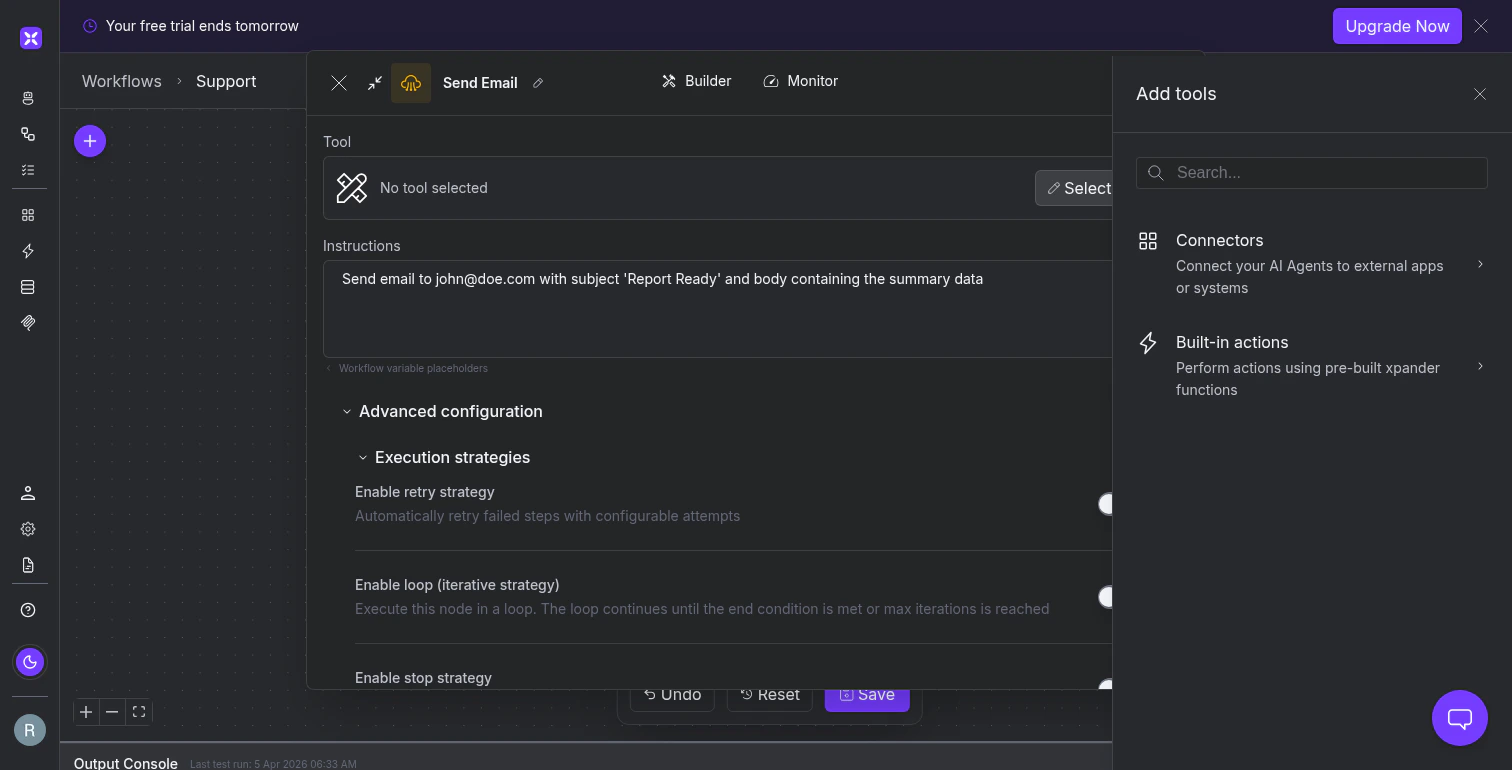 Once you select a tool, write instructions describing what the node should do with its inputs. Use workflow variable placeholders to inject data from previous steps:
```text theme={"dark"}
Create a new Jira ticket in the SUPPORT project. Set the summary
to the customer's issue description and assign it to the on-call
engineer. Priority should match the severity level from the
classifier step.
```
After selecting a tool, the **Tool input schema** section in Advanced Configuration populates with the tool's expected input fields. Use this to define or override specific field values rather than relying on instructions alone.
The Action node also supports an **Enable stop strategy** toggle in its execution settings. When enabled, the workflow can terminate based on the action's failure conditions rather than propagating bad data downstream.
Like other nodes, it supports retry and loop strategies for handling transient failures and iterative processing.
## Run Python code for calculations and transformations
The Code node provides a Python editor directly in the workflow canvas. It has syntax highlighting, line numbers, and comes with scaffold code for a handler function. Execution is deterministic with no LLM involved.
Two features extend the Code node beyond a basic script runner:
**Packages** lets you add pip dependencies (type a package name and it's available at runtime). Need `pandas` for data manipulation or `python-dateutil` for date parsing? Add the package and import it.
**Generate with AI** lets you describe what the code should do in natural language, then review and modify the generated implementation.
The Code node outputs text by default, but you can change the **Output type** in Advanced Configuration to match what downstream nodes expect.
Loop and stop strategies are available for iterative processing and conditional workflow termination.
**Code node vs. Agent node for code:** The Code node executes Python you've written (or generated). It's deterministic: same input, same output, every time. If you need an LLM to write and adapt code dynamically at runtime based on varying inputs, use an Agent node with coding tools instead.
## Other action node types
The remaining five node types handle specific operations. Each follows the same pattern: select a tool or resource, write instructions, and configure execution strategies in the advanced settings.
Sends an email through a connector you choose (Gmail, SendGrid, Outlook, or another email integration). After selecting a tool, the input schema populates with `to`, `subject`, and `body_html` fields.
Use workflow variable placeholders to pull values from previous steps. Retry is particularly useful here since transient email delivery failures are common.
Extracts text from images and scanned documents. Select an OCR integration, point it at an image via the `file_url` input field, and the node returns extracted text for downstream processing. Pair it with a Classifier or Summarizer to structure the output.
Calls a reusable function you've defined outside the workflow. Select a function from the dropdown (or create one with **+ New function**) and write instructions for how it should be used.
The **Run asynchronously** toggle fires the function without waiting for a result, useful for side effects like audit logging.
Use Custom Functions when the same logic appears in multiple workflows, so updates propagate from a single source. For one-off logic specific to a single workflow, the Code node is simpler.
Runs another workflow as a sub-step. Select a workflow from the dropdown (or create one with **+ New workflow**), and its output becomes the input for the next node in the parent.
Like Custom Functions, it supports **Run asynchronously** for fire-and-forget operations. Use this when a sequence of steps forms a logical unit that could be tested independently or reused across multiple parent workflows.
Moves files to a destination you specify. Write instructions describing what to upload and where, and configure the destination through the tool input schema in Advanced Configuration.
## Choosing the right action node
| Decision | Use this | When |
| ---------------------------- | --------------- | ----------------------------------------------------------------------------------------- |
| **Action vs. Code** | Action | A connector exists for the service and you want managed auth |
| | Code | No connector exists, or the operation involves data manipulation beyond a single API call |
| **Code vs. Custom Function** | Code | The logic appears in only one workflow |
| | Custom Function | The same logic is copied across multiple workflows (updates propagate from one source) |
| **Workflow vs. inline** | Workflow node | The steps could be tested, versioned, or triggered independently |
| | Inline | The steps only make sense in the context of the current workflow |
| **Email vs. Action** | Email node | You need a quick email with standard fields (to, subject, body) |
| | Action node | You need more control (templates, attachments, tracking) via a full email connector |
## What's next
Branch with conditions, validate with guardrails, pause for human approval, and run steps in parallel.
Execute workflows, view results, and debug failed runs.
Once you select a tool, write instructions describing what the node should do with its inputs. Use workflow variable placeholders to inject data from previous steps:
```text theme={"dark"}
Create a new Jira ticket in the SUPPORT project. Set the summary
to the customer's issue description and assign it to the on-call
engineer. Priority should match the severity level from the
classifier step.
```
After selecting a tool, the **Tool input schema** section in Advanced Configuration populates with the tool's expected input fields. Use this to define or override specific field values rather than relying on instructions alone.
The Action node also supports an **Enable stop strategy** toggle in its execution settings. When enabled, the workflow can terminate based on the action's failure conditions rather than propagating bad data downstream.
Like other nodes, it supports retry and loop strategies for handling transient failures and iterative processing.
## Run Python code for calculations and transformations
The Code node provides a Python editor directly in the workflow canvas. It has syntax highlighting, line numbers, and comes with scaffold code for a handler function. Execution is deterministic with no LLM involved.
Two features extend the Code node beyond a basic script runner:
**Packages** lets you add pip dependencies (type a package name and it's available at runtime). Need `pandas` for data manipulation or `python-dateutil` for date parsing? Add the package and import it.
**Generate with AI** lets you describe what the code should do in natural language, then review and modify the generated implementation.
The Code node outputs text by default, but you can change the **Output type** in Advanced Configuration to match what downstream nodes expect.
Loop and stop strategies are available for iterative processing and conditional workflow termination.
**Code node vs. Agent node for code:** The Code node executes Python you've written (or generated). It's deterministic: same input, same output, every time. If you need an LLM to write and adapt code dynamically at runtime based on varying inputs, use an Agent node with coding tools instead.
## Other action node types
The remaining five node types handle specific operations. Each follows the same pattern: select a tool or resource, write instructions, and configure execution strategies in the advanced settings.
Sends an email through a connector you choose (Gmail, SendGrid, Outlook, or another email integration). After selecting a tool, the input schema populates with `to`, `subject`, and `body_html` fields.
Use workflow variable placeholders to pull values from previous steps. Retry is particularly useful here since transient email delivery failures are common.
Extracts text from images and scanned documents. Select an OCR integration, point it at an image via the `file_url` input field, and the node returns extracted text for downstream processing. Pair it with a Classifier or Summarizer to structure the output.
Calls a reusable function you've defined outside the workflow. Select a function from the dropdown (or create one with **+ New function**) and write instructions for how it should be used.
The **Run asynchronously** toggle fires the function without waiting for a result, useful for side effects like audit logging.
Use Custom Functions when the same logic appears in multiple workflows, so updates propagate from a single source. For one-off logic specific to a single workflow, the Code node is simpler.
Runs another workflow as a sub-step. Select a workflow from the dropdown (or create one with **+ New workflow**), and its output becomes the input for the next node in the parent.
Like Custom Functions, it supports **Run asynchronously** for fire-and-forget operations. Use this when a sequence of steps forms a logical unit that could be tested independently or reused across multiple parent workflows.
Moves files to a destination you specify. Write instructions describing what to upload and where, and configure the destination through the tool input schema in Advanced Configuration.
## Choosing the right action node
| Decision | Use this | When |
| ---------------------------- | --------------- | ----------------------------------------------------------------------------------------- |
| **Action vs. Code** | Action | A connector exists for the service and you want managed auth |
| | Code | No connector exists, or the operation involves data manipulation beyond a single API call |
| **Code vs. Custom Function** | Code | The logic appears in only one workflow |
| | Custom Function | The same logic is copied across multiple workflows (updates propagate from one source) |
| **Workflow vs. inline** | Workflow node | The steps could be tested, versioned, or triggered independently |
| | Inline | The steps only make sense in the context of the current workflow |
| **Email vs. Action** | Email node | You need a quick email with standard fields (to, subject, body) |
| | Action node | You need more control (templates, attachments, tracking) via a full email connector |
## What's next
Branch with conditions, validate with guardrails, pause for human approval, and run steps in parallel.
Execute workflows, view results, and debug failed runs.