> ## Documentation Index
> Fetch the complete documentation index at: https://docs.xpander.ai/llms.txt
> Use this file to discover all available pages before exploring further.
# Introduction to Workflows
> Backend automation where AI handles data mapping at runtime. Trigger with webhooks, schedules, emails, or API calls.
Workflows are backend automation pipelines that use AI to resolve data mapping at runtime. Each step is described in natural language, so the automation adapts when an API restructures its response or a field gets renamed, without manual rewiring.
```text theme={"dark"}
# Traditional automation (brittle)
Step 1: GET /api/enrich → map response.company.size to lead.company_size
Step 2: IF lead.company_size > 500 → map to enterprise_pipeline
Step 3: POST /salesforce/lead → map 12 fields individually
# Agentic automation (intent-based)
Step 1: "Enrich this lead with company data from Clearbit"
Step 2: "Route enterprise leads (500+ employees) to enterprise pipeline"
Step 3: "Update the lead in Salesforce with the enrichment results"
```
AI nodes understand intent and resolve mapping themselves. Action nodes that need deterministic execution (sending an email, running a SQL query) run without an LLM. You get AI reasoning where it helps and predictable execution where it matters.
**Workflows vs. agents:** Agents handle conversations through Slack, Teams, or a chat widget. Workflows handle backend automation triggered by events, with no chat interface. If a human is typing messages, you want an agent. If an event should kick off a process automatically, you want a workflow.
## The canvas
Every workflow is built on a horizontal canvas that flows left to right: a **START** block, an **END** block, and your logic in between. Add nodes by clicking the **+** button on the connection line.
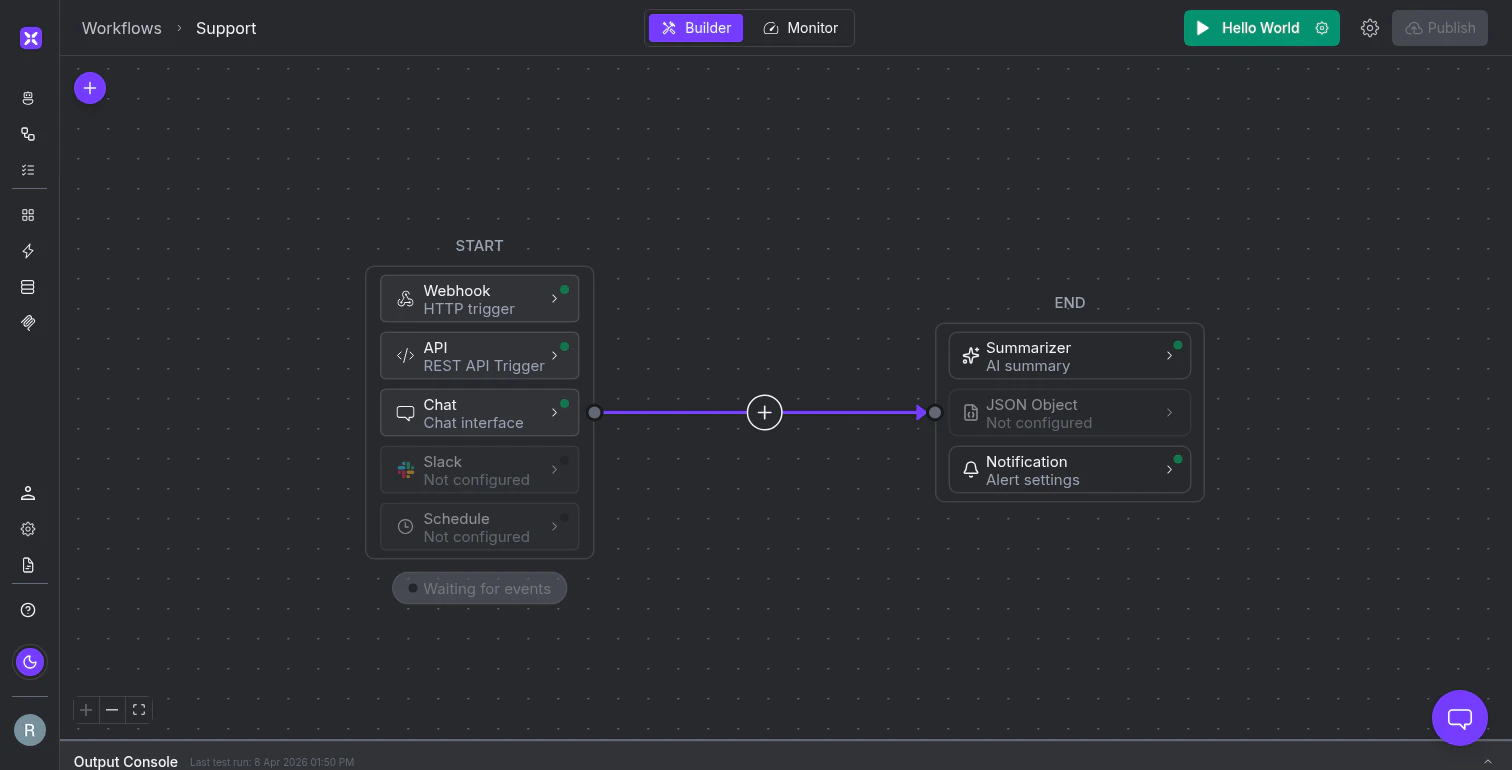 The **START block** stacks five trigger types vertically. You can enable multiple triggers on the same workflow so the same process fires from different sources.
| Trigger | What starts the workflow |
| ------------ | ----------------------------------------------------------------------------------- |
| **Webhook** | An HTTP POST from an external system (Stripe payment, GitHub push, form submission) |
| **API** | A REST call from your own application code |
| **Chat** | A message sent through a web chat interface |
| **Slack** | A message in a Slack channel or DM |
| **Schedule** | A recurring cron schedule (every 5 minutes, daily at 9am, weekdays only) |
Between START and END, **nodes** handle processing in three categories.
**Agent nodes** use AI to reason about data: an Agent queries connected systems and makes decisions, a Classifier routes inputs to branches based on intent, and a Summarizer condenses large inputs into structured output.
**Action nodes** run without an LLM for fast, deterministic execution: invoking any of the 2,000+ connectors (Salesforce, GitHub, Slack, BigQuery), sending emails, extracting text with OCR, running Python code, or nesting a workflow as a sub-process.
**Flow control nodes** handle branching and validation: conditions split the flow, guardrails use an AI judge to validate output, wait nodes pause for human approval, and parallel nodes run independent branches simultaneously.
The **END block** offers three output options.
* A **Summarizer** generates a natural language digest of everything the workflow processed.
* A **JSON Object** returns structured data against a schema you define (or generate with AI) for downstream systems that need a predictable format.
* **Notifications** send emails or webhooks on success or failure.
## When to use workflows
Workflows fit when a process should run automatically in response to an event, without a human in the conversation loop:
* A Stripe webhook fires, kicking off invoice reconciliation across your ERP and billing system
* A daily schedule enriches new leads overnight and updates Salesforce
* An inbound email gets parsed, classified by urgency, and routed to the right support queue in Jira
* A GitHub push triggers compliance scanning, and a guardrail node blocks deployment if PII is detected
## What's next
Navigate the canvas, add and connect nodes, save and version your work.
Configure webhooks, schedules, API calls, and other trigger types.
Use AI to reason about data, classify inputs, and summarize results.
Invoke tools, send emails, run code, and execute deterministic operations.
The **START block** stacks five trigger types vertically. You can enable multiple triggers on the same workflow so the same process fires from different sources.
| Trigger | What starts the workflow |
| ------------ | ----------------------------------------------------------------------------------- |
| **Webhook** | An HTTP POST from an external system (Stripe payment, GitHub push, form submission) |
| **API** | A REST call from your own application code |
| **Chat** | A message sent through a web chat interface |
| **Slack** | A message in a Slack channel or DM |
| **Schedule** | A recurring cron schedule (every 5 minutes, daily at 9am, weekdays only) |
Between START and END, **nodes** handle processing in three categories.
**Agent nodes** use AI to reason about data: an Agent queries connected systems and makes decisions, a Classifier routes inputs to branches based on intent, and a Summarizer condenses large inputs into structured output.
**Action nodes** run without an LLM for fast, deterministic execution: invoking any of the 2,000+ connectors (Salesforce, GitHub, Slack, BigQuery), sending emails, extracting text with OCR, running Python code, or nesting a workflow as a sub-process.
**Flow control nodes** handle branching and validation: conditions split the flow, guardrails use an AI judge to validate output, wait nodes pause for human approval, and parallel nodes run independent branches simultaneously.
The **END block** offers three output options.
* A **Summarizer** generates a natural language digest of everything the workflow processed.
* A **JSON Object** returns structured data against a schema you define (or generate with AI) for downstream systems that need a predictable format.
* **Notifications** send emails or webhooks on success or failure.
## When to use workflows
Workflows fit when a process should run automatically in response to an event, without a human in the conversation loop:
* A Stripe webhook fires, kicking off invoice reconciliation across your ERP and billing system
* A daily schedule enriches new leads overnight and updates Salesforce
* An inbound email gets parsed, classified by urgency, and routed to the right support queue in Jira
* A GitHub push triggers compliance scanning, and a guardrail node blocks deployment if PII is detected
## What's next
Navigate the canvas, add and connect nodes, save and version your work.
Configure webhooks, schedules, API calls, and other trigger types.
Use AI to reason about data, classify inputs, and summarize results.
Invoke tools, send emails, run code, and execute deterministic operations.