> ## Documentation Index
> Fetch the complete documentation index at: https://docs.xpander.ai/llms.txt
> Use this file to discover all available pages before exploring further.
# MCP Protocol
> Expose your agents to Claude Desktop, Cursor, VS Code, and other MCP-compatible clients
Your agent has tools, memory, and instructions configured in Xpander, but your developers spend their day in Claude Desktop, Cursor, or VS Code. The MCP server lets those clients call your agent directly, so your team works in the tools they already have.
Once set up, you can:
* Expose your agent as an MCP server that any compatible client can call
* Connect from Claude Desktop, ChatGPT, Cursor, VS Code, or any MCP-compatible client
* Let clients kick off agent runs asynchronously and poll for results
* Authenticate with a per-server API key without sharing your account credentials
Pre-requisites:
* a [**Custom Agent**](/guides/agents/agent-configuration)
MCP is not available for Personal Agents. Personal Agents only expose API, Slack, Telegram, and Webhook channels. Create a [Custom Agent](/guides/agents/agent-configuration) to use MCP.
## Enable MCP in the Agent Studio
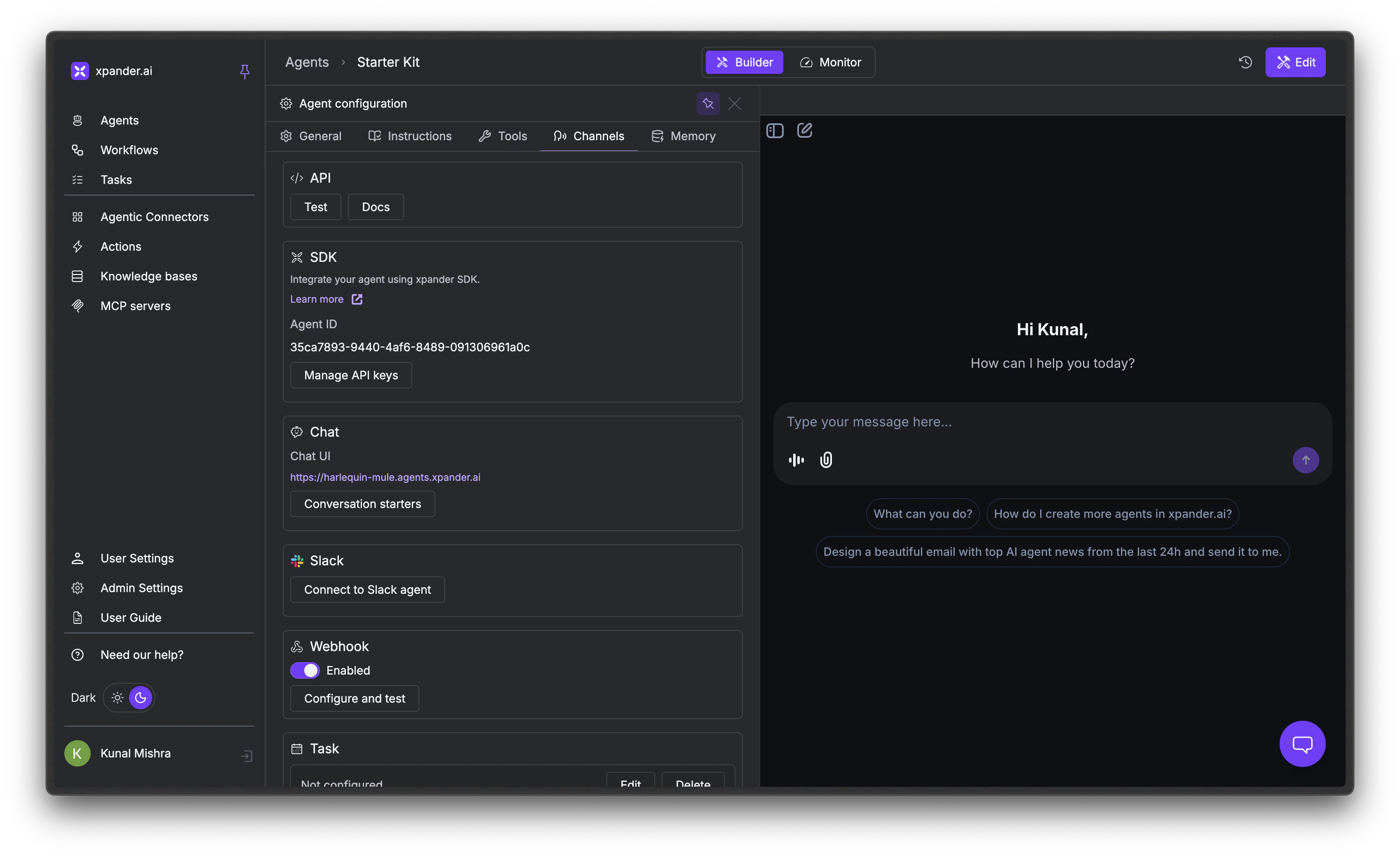
In the Agent Studio, click the **gear** icon and go to the **Channels** tab. Find the **MCP** section and toggle it on.
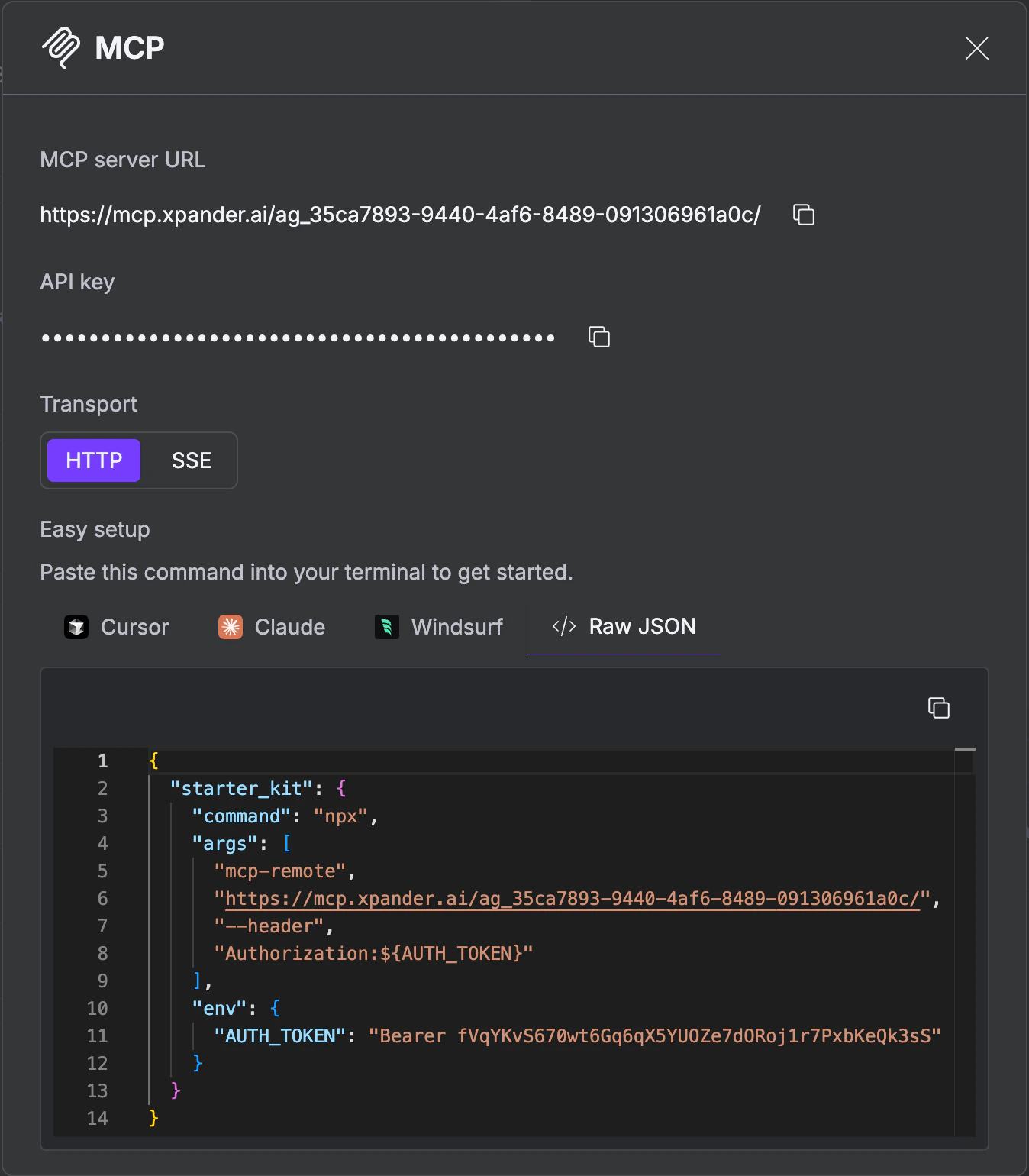
 Click Details. The modal shows your **MCP server URL**, **API key**, and **transport** options (HTTP or SSE).
Under **Easy setup**, select your client - **Cursor**, **Claude**, **Windsurf**, or **Raw JSON** - and copy the ready-to-paste configuration.
Click Details. The modal shows your **MCP server URL**, **API key**, and **transport** options (HTTP or SSE).
Under **Easy setup**, select your client - **Cursor**, **Claude**, **Windsurf**, or **Raw JSON** - and copy the ready-to-paste configuration.
 Click Publish to make the MCP server live.
## Connect from a Client
The Agent Studio's **Easy setup** generates the exact command for your client. The page also gives you a **Raw JSON** option you can paste into any MCP-compatible client's config file.
The MCP server supports two transports:
| Transport | URL shape |
| ------------------ | --------------------------------------------- |
| **HTTP** (default) | `https://mcp.xpander.ai/ag_YOUR_AGENT_ID/` |
| **SSE** | `https://mcp.xpander.ai/ag_YOUR_AGENT_ID/sse` |
HTTP is the standard choice and works with all current MCP clients. SSE (Server-Sent Events) enables server-initiated updates during long-running tasks.
### Easy setup (Cursor, Claude Desktop, Windsurf)
The Agent Studio generates an `npx install-mcp` command per client that registers the server and writes the config for you.
```bash theme={"dark"}
npx install-mcp \
--name "" \
--client cursor \
--header "x-api-key:" \
-y --oauth no
```
Fill in the placeholders:
| Placeholder | What to use |
| ----------- | -------------------------------------------------------------------------------------------------------------------------------------- |
| `` | The per-agent MCP URL from the **Details** modal, e.g. `https://mcp.xpander.ai/ag_YOUR_AGENT_ID/` (or append `/sse` for SSE transport) |
| `` | A short, slug-friendly label for the server in your client's MCP list (lowercase letters, numbers, hyphens) - e.g. `support-bot` |
| `` | The Xpander API key from the **Details** modal |
Swap `--client cursor` for `--client claude` or `--client windsurf` to install in those apps. Run the command once per client.
### Raw JSON
For any other MCP-compatible client, paste this into its config file (e.g., `~/Library/Application Support/Claude/claude_desktop_config.json` for Claude Desktop on macOS):
```json theme={"dark"}
{
"your_agent_name": {
"command": "npx",
"args": [
"mcp-remote",
"https://mcp.xpander.ai/ag_YOUR_AGENT_ID/",
"--header",
"Authorization:${AUTH_TOKEN}"
],
"env": {
"AUTH_TOKEN": "Bearer YOUR_API_KEY"
}
}
}
```
For SSE, append `/sse` to the URL:
```json theme={"dark"}
"https://mcp.xpander.ai/ag_YOUR_AGENT_ID/sse"
```
Restart your client after saving the config.
## Use the Available Tools
Each agent's MCP server exposes two tools. The flow is asynchronous because agent runs can take seconds to minutes (tool calls, multi-step reasoning, external API requests). Call `invoke_agent` to start a task, then poll `get_task_status` until it completes.
| Tool | What it does |
| ----------------- | ------------------------------------------------------------------------------------------------------------------- |
| `invoke_agent` | Fire-and-forget. Creates an asynchronous agent task with the given prompt and returns the task details immediately. |
| `get_task_status` | Checks the current state of a task created with `invoke_agent` and returns its result once complete. |
### invoke\_agent
| Parameter | Required | Description |
| --------- | -------- | --------------------------------------------------------- |
| `prompt` | Yes | Natural language prompt/instruction to send to the agent. |
Returns a `result` field containing the task details, including the task ID you'll pass to `get_task_status`.
### get\_task\_status
| Parameter | Required | Description |
| --------- | -------- | -------------------------------------------------------- |
| `task_id` | Yes | The unique task identifier returned from `invoke_agent`. |
Returns a `result` field with the current task state and, once complete, the agent's response.
### Example queries
* "Ask my agent to summarize the latest support tickets" → `invoke_agent`
* "Check on the task you just kicked off" → `get_task_status`
## Authentication
Each MCP server is protected by a per-agent API key generated in the Agent Studio. The client passes it on every request, either as an `x-api-key` header (when using `npx install-mcp`) or as an `Authorization: Bearer ` header (Raw JSON). There's no interactive OAuth flow. The key is set up once when you install the server and reused on every call.
The API key is stored in the client's MCP config file (e.g., `claude_desktop_config.json`). Treat that file as a secret: don't commit it or share it after the install.
## Security
* **Per-agent API key** - Each MCP server has its own key, scoped to a single agent. No shared account credentials sit in the config.
* **Scoped access** - The key only authorizes calls to that agent's MCP tools (`invoke_agent` and `get_task_status`); it can't access other agents or org-level operations.
* **Revoke anytime** - Rotate or revoke the key from the Agent Studio's **MCP** section in the Channels tab.
## Troubleshooting
* Verify your `claude_desktop_config.json` syntax is valid JSON.
* Check the file location: `~/Library/Application Support/Claude/claude_desktop_config.json` (macOS).
* Restart Claude Desktop completely.
* Check Claude logs: `~/Library/Logs/Claude/mcp.log`.
* Confirm the API key in your MCP config matches the one in the Agent Studio's MCP **Details** modal.
* If you rotated the key, re-run `install-mcp` or update the Raw JSON config so the client picks up the new key.
* Check organization permissions - some agents may be restricted to specific users.
* Verify the agent is published in the Agent Studio.
* Ensure the agent isn't stopped or in an error state.
* Check the agent's logs in the Monitor tab.
## Next Steps
Trigger agents from external systems
Run agents on a schedule
Trace execution, debug failures, and review AI performance
Click Publish to make the MCP server live.
## Connect from a Client
The Agent Studio's **Easy setup** generates the exact command for your client. The page also gives you a **Raw JSON** option you can paste into any MCP-compatible client's config file.
The MCP server supports two transports:
| Transport | URL shape |
| ------------------ | --------------------------------------------- |
| **HTTP** (default) | `https://mcp.xpander.ai/ag_YOUR_AGENT_ID/` |
| **SSE** | `https://mcp.xpander.ai/ag_YOUR_AGENT_ID/sse` |
HTTP is the standard choice and works with all current MCP clients. SSE (Server-Sent Events) enables server-initiated updates during long-running tasks.
### Easy setup (Cursor, Claude Desktop, Windsurf)
The Agent Studio generates an `npx install-mcp` command per client that registers the server and writes the config for you.
```bash theme={"dark"}
npx install-mcp \
--name "" \
--client cursor \
--header "x-api-key:" \
-y --oauth no
```
Fill in the placeholders:
| Placeholder | What to use |
| ----------- | -------------------------------------------------------------------------------------------------------------------------------------- |
| `` | The per-agent MCP URL from the **Details** modal, e.g. `https://mcp.xpander.ai/ag_YOUR_AGENT_ID/` (or append `/sse` for SSE transport) |
| `` | A short, slug-friendly label for the server in your client's MCP list (lowercase letters, numbers, hyphens) - e.g. `support-bot` |
| `` | The Xpander API key from the **Details** modal |
Swap `--client cursor` for `--client claude` or `--client windsurf` to install in those apps. Run the command once per client.
### Raw JSON
For any other MCP-compatible client, paste this into its config file (e.g., `~/Library/Application Support/Claude/claude_desktop_config.json` for Claude Desktop on macOS):
```json theme={"dark"}
{
"your_agent_name": {
"command": "npx",
"args": [
"mcp-remote",
"https://mcp.xpander.ai/ag_YOUR_AGENT_ID/",
"--header",
"Authorization:${AUTH_TOKEN}"
],
"env": {
"AUTH_TOKEN": "Bearer YOUR_API_KEY"
}
}
}
```
For SSE, append `/sse` to the URL:
```json theme={"dark"}
"https://mcp.xpander.ai/ag_YOUR_AGENT_ID/sse"
```
Restart your client after saving the config.
## Use the Available Tools
Each agent's MCP server exposes two tools. The flow is asynchronous because agent runs can take seconds to minutes (tool calls, multi-step reasoning, external API requests). Call `invoke_agent` to start a task, then poll `get_task_status` until it completes.
| Tool | What it does |
| ----------------- | ------------------------------------------------------------------------------------------------------------------- |
| `invoke_agent` | Fire-and-forget. Creates an asynchronous agent task with the given prompt and returns the task details immediately. |
| `get_task_status` | Checks the current state of a task created with `invoke_agent` and returns its result once complete. |
### invoke\_agent
| Parameter | Required | Description |
| --------- | -------- | --------------------------------------------------------- |
| `prompt` | Yes | Natural language prompt/instruction to send to the agent. |
Returns a `result` field containing the task details, including the task ID you'll pass to `get_task_status`.
### get\_task\_status
| Parameter | Required | Description |
| --------- | -------- | -------------------------------------------------------- |
| `task_id` | Yes | The unique task identifier returned from `invoke_agent`. |
Returns a `result` field with the current task state and, once complete, the agent's response.
### Example queries
* "Ask my agent to summarize the latest support tickets" → `invoke_agent`
* "Check on the task you just kicked off" → `get_task_status`
## Authentication
Each MCP server is protected by a per-agent API key generated in the Agent Studio. The client passes it on every request, either as an `x-api-key` header (when using `npx install-mcp`) or as an `Authorization: Bearer ` header (Raw JSON). There's no interactive OAuth flow. The key is set up once when you install the server and reused on every call.
The API key is stored in the client's MCP config file (e.g., `claude_desktop_config.json`). Treat that file as a secret: don't commit it or share it after the install.
## Security
* **Per-agent API key** - Each MCP server has its own key, scoped to a single agent. No shared account credentials sit in the config.
* **Scoped access** - The key only authorizes calls to that agent's MCP tools (`invoke_agent` and `get_task_status`); it can't access other agents or org-level operations.
* **Revoke anytime** - Rotate or revoke the key from the Agent Studio's **MCP** section in the Channels tab.
## Troubleshooting
* Verify your `claude_desktop_config.json` syntax is valid JSON.
* Check the file location: `~/Library/Application Support/Claude/claude_desktop_config.json` (macOS).
* Restart Claude Desktop completely.
* Check Claude logs: `~/Library/Logs/Claude/mcp.log`.
* Confirm the API key in your MCP config matches the one in the Agent Studio's MCP **Details** modal.
* If you rotated the key, re-run `install-mcp` or update the Raw JSON config so the client picks up the new key.
* Check organization permissions - some agents may be restricted to specific users.
* Verify the agent is published in the Agent Studio.
* Ensure the agent isn't stopped or in an error state.
* Check the agent's logs in the Monitor tab.
## Next Steps
Trigger agents from external systems
Run agents on a schedule
Trace execution, debug failures, and review AI performance