> ## Documentation Index
> Fetch the complete documentation index at: https://docs.xpander.ai/llms.txt
> Use this file to discover all available pages before exploring further.

# Scheduled Tasks

> Run your agents automatically on a cron schedule

Scheduled tasks let you run an agent at recurring intervals (every few minutes, daily, weekly, or on any custom cadence) without anyone needing to trigger it manually. Useful for automated reports, periodic data syncs, monitoring jobs, or any recurring agent workflow.

Once set up, you can:

* Run an agent on a quick preset (every N minutes/hours, daily, weekly) or a custom cron expression
* Pass fixed instructions to the agent at each run, like a stored prompt
* Run the task as a specific user so per-user memory, permissions, and credentials apply
* Monitor every scheduled execution from the Tasks view alongside manual runs

Pre-requisites:

* a [**Custom Agent**](/guides/agents/agent-configuration)

<Note>
  Scheduled tasks are not available for Personal Agents. Personal Agents only expose API, Slack, Telegram, and Webhook channels. Create a [Custom Agent](/guides/agents/agent-configuration) to schedule recurring runs.
</Note>

## Create a Scheduled Task

<Steps>
  <Step title="Open the Channels tab">
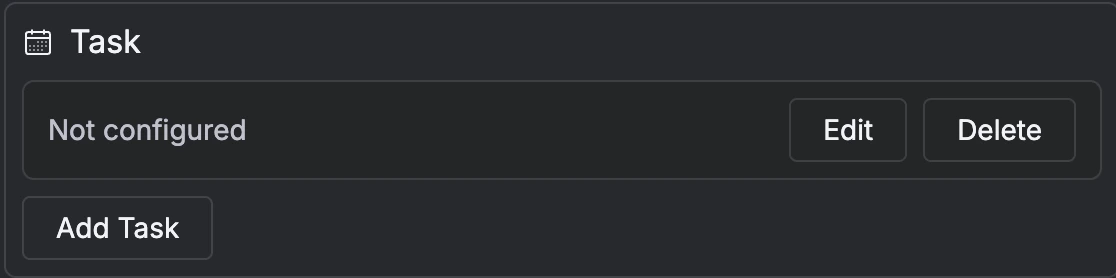
    In the Agent Studio, click the **gear** <Icon icon="gear" size={16} /> icon and go to the **Channels** tab. Find the **Task** section.
    <Frame>
      <img src="https://mintcdn.com/xpanderai-099931d1/OGlJJ1lp1VY3af7I/images/guide/deployment-task-card.png?fit=max&auto=format&n=OGlJJ1lp1VY3af7I&q=85&s=63a9148a5022f6a52049a6356fd02e1b" alt="Task section in Channels tab showing Add Task button" width="500" data-path="images/guide/deployment-task-card.png" />
    </Frame>
  </Step>

  <Step title="Add a task">
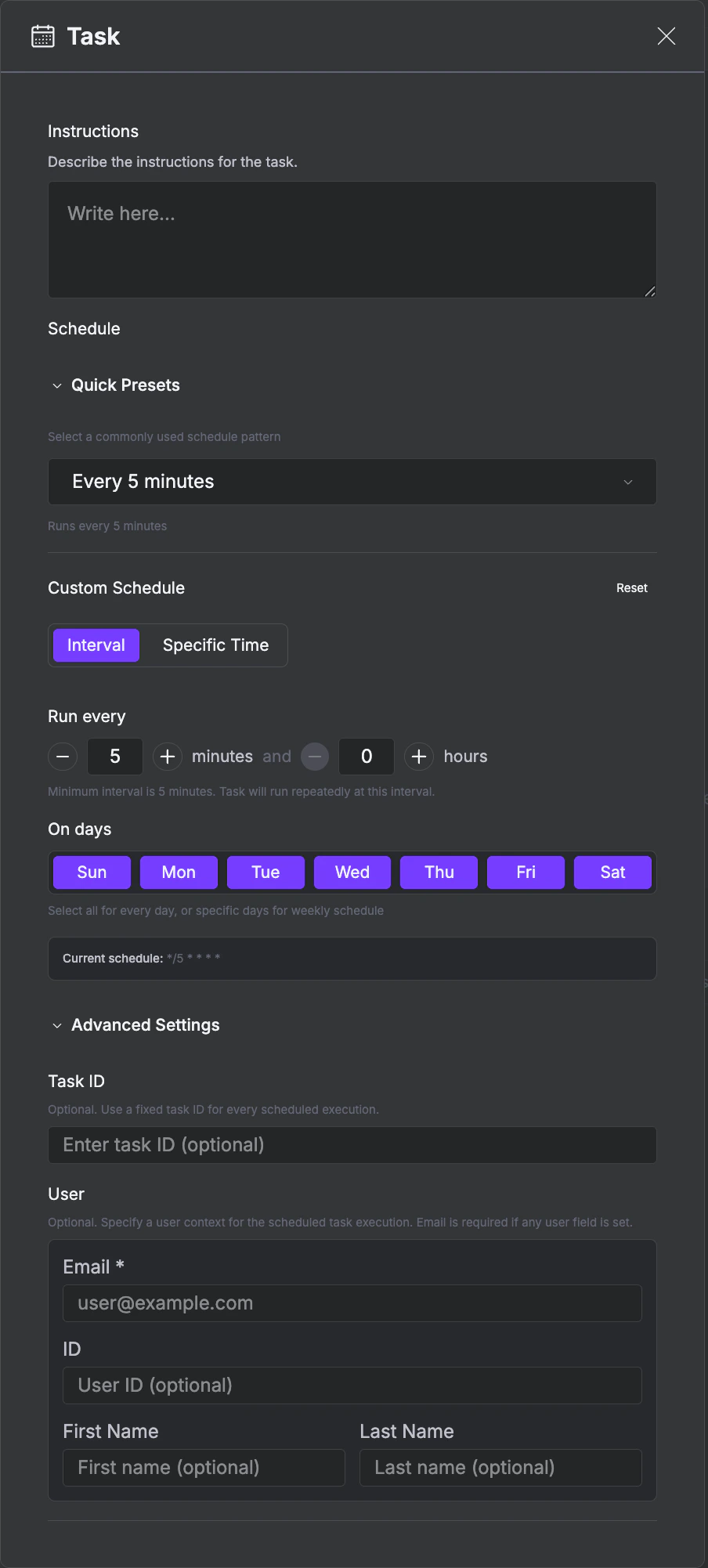
    Click <kbd>Add Task</kbd> to open the task configuration panel.

    <Frame>
      <img src="https://mintcdn.com/xpanderai-099931d1/OGlJJ1lp1VY3af7I/images/guide/deployment-task.png?fit=max&auto=format&n=OGlJJ1lp1VY3af7I&q=85&s=f7a6488476722588cdc2c81f102355ed" alt="Task configuration showing instructions, schedule presets, interval settings, and user context" width="350" data-path="images/guide/deployment-task.png" />
    </Frame>
  </Step>

  <Step title="Set the instructions">
    In the **Instructions** field, describe what the agent should do on each run. For example: "Check for open P0 incidents and post a summary to #ops-alerts."
  </Step>

  <Step title="Set the schedule">
    Choose a **Quick Preset** (every 5 minutes, hourly, daily, etc.) or configure a **Custom Schedule** with a specific interval, time, and active days. The current cron expression is shown at the bottom of the scheduler.
  </Step>

  <Step title="Publish">
    Click <kbd>Publish</kbd>. The agent will run automatically at the configured times.
  </Step>
</Steps>

<Tip>
  All schedule times are in UTC. Convert from your local timezone accordingly. For example, 9:00 AM US Eastern is 13:00 or 14:00 UTC depending on daylight saving time.
</Tip>

## Configure the Schedule

### Use Quick Presets

Select a preset from the dropdown for common intervals like every 5 minutes, every hour, or once daily.

### Build a Custom Schedule

Switch to **Custom Schedule** for more control:

* **Interval** vs **Specific Time** - run every N minutes/hours, or at a fixed time each day
* **On days** - select which days of the week the task should run (all days are selected by default)

The panel shows the resolved cron expression so you can verify the schedule.

### Write Cron Expressions

Under the hood, schedules use standard five-field cron syntax:

```
┌───────── minute (0–59)
│ ┌─────── hour (0–23)
│ │ ┌───── day of month (1–31)
│ │ │ ┌─── month (1–12)
│ │ │ │ ┌─ day of week (0–6, Sunday = 0)
│ │ │ │ │
* * * * *
```

| Schedule                 | Expression     |
| ------------------------ | -------------- |
| Every hour               | `0 * * * *`    |
| Every day at 9 AM UTC    | `0 9 * * *`    |
| Every Monday at 8 AM UTC | `0 8 * * 1`    |
| Every 15 minutes         | `*/15 * * * *` |
| First of every month     | `0 0 1 * *`    |

### Try It: Cron Builder

Edit each field, see the expression update, and get a plain-English description of when your schedule will fire.

<iframe
  srcDoc={`<!doctype html><html><head><meta charset="utf-8"/><style>
:root {
  color-scheme: light dark;
  --xp-purple: #753CFF;
  --xp-purple-light: #9B70FF;
  --xp-violet-400: #a78bfa;
  --xp-mono: "JetBrains Mono", "Fira Code", "SF Mono", ui-monospace, Menlo, monospace;
  --xp-sans: "Helvetica Thin", Helvetica, Arial, sans-serif;
  --xp-bg: #ffffff;
  --xp-bg-card: #fafafa;
  --xp-bg-input: #ffffff;
  --xp-text: #18181b;
  --xp-text-muted: #71717a;
  --xp-text-faint: #a1a1aa;
  --xp-border: rgba(0,0,0,0.08);
  --xp-border-subtle: rgba(0,0,0,0.04);
  --xp-accent-bg: rgba(117,60,255,0.04);
  --xp-accent-border: rgba(117,60,255,0.25);
  --xp-danger: #dc2626;
}
@media (prefers-color-scheme: dark) {
  :root {
    --xp-bg: #111113;
    --xp-bg-card: rgba(255,255,255,0.03);
    --xp-bg-input: rgba(255,255,255,0.02);
    --xp-text: #f4f4f5;
    --xp-text-muted: #a1a1aa;
    --xp-text-faint: #71717a;
    --xp-border: rgba(255,255,255,0.08);
    --xp-border-subtle: rgba(255,255,255,0.04);
    --xp-accent-bg: rgba(167,139,250,0.06);
    --xp-accent-border: rgba(167,139,250,0.35);
    --xp-danger: #f87171;
  }
}
* { box-sizing: border-box; }
html, body { margin: 0; padding: 0; background: var(--xp-bg); color: var(--xp-text); font-family: var(--xp-sans); font-weight: 100; overflow-x: hidden; }
body { padding: 20px; font-size: 15px; line-height: 1.7; word-break: break-word; }
.kicker { font-family: var(--xp-mono); font-size: 11px; font-weight: 500; letter-spacing: 0.14em; text-transform: uppercase; color: var(--xp-text-faint); margin: 0 0 10px; }
.sentence { display: flex; flex-wrap: wrap; align-items: center; gap: 8px 10px; background: var(--xp-bg-card); border: 1px solid var(--xp-border); border-radius: 12px; padding: 20px 22px; max-width: 100%; line-height: 2; }
.sentence .w { white-space: nowrap; color: var(--xp-text); }
select, input {
  background: var(--xp-bg-input);
  color: var(--xp-purple);
  border: 1px solid var(--xp-border);
  border-radius: 8px;
  padding: 6px 10px;
  font-family: var(--xp-mono);
  font-size: 13px;
  outline: none;
  max-width: 100%;
  transition: border-color 0.15s ease, background-color 0.15s ease;
}
@media (prefers-color-scheme: dark) { select, input { color: var(--xp-violet-400); } }
select { padding-right: 26px; appearance: none; background-image: linear-gradient(45deg, transparent 50%, var(--xp-text-faint) 50%), linear-gradient(135deg, var(--xp-text-faint) 50%, transparent 50%); background-position: calc(100% - 14px) calc(50% - 1px), calc(100% - 9px) calc(50% - 1px); background-size: 5px 5px, 5px 5px; background-repeat: no-repeat; }
select:hover, input:hover { border-color: var(--xp-accent-border); }
select:focus, input:focus { border-color: var(--xp-purple); }
input.num { width: 56px; text-align: center; }
input.time { width: 88px; text-align: center; }
input.bad { border-color: var(--xp-danger); }

.out { margin-top: 16px; background: var(--xp-bg-card); border: 1px solid var(--xp-border); border-radius: 12px; padding: 16px 22px; }
.expr-label { font-family: var(--xp-mono); font-size: 11px; font-weight: 500; letter-spacing: 0.14em; text-transform: uppercase; color: var(--xp-text-faint); margin: 0 0 6px; }
.expr { font-family: var(--xp-mono); font-size: 15px; color: var(--xp-purple); word-break: break-all; letter-spacing: 0.02em; }
@media (prefers-color-scheme: dark) { .expr { color: var(--xp-violet-400); } }

.presets { display: flex; flex-wrap: wrap; gap: 8px; margin-top: 16px; }
.presets button {
  background: transparent;
  color: var(--xp-text-muted);
  border: 1px solid var(--xp-border);
  border-radius: 999px;
  padding: 6px 14px;
  font-family: var(--xp-sans);
  font-size: 12px;
  font-weight: 300;
  cursor: pointer;
  transition: border-color 0.15s ease, color 0.15s ease, background-color 0.15s ease;
}
.presets button:hover { border-color: var(--xp-accent-border); color: var(--xp-purple); background: var(--xp-accent-bg); }
@media (prefers-color-scheme: dark) { .presets button:hover { color: var(--xp-violet-400); } }

@media (max-width: 520px) {
  body { padding: 16px; font-size: 14px; }
  .sentence { padding: 16px 18px; gap: 6px 8px; }
  select, input { font-size: 12.5px; }
}
</style></head><body>
<p class="kicker">Build your schedule</p>
<div class="sentence">
<span class="w">Run this scheduled task</span>
<select id="mode">
  <option value="every">every</option>
  <option value="daily">every day</option>
  <option value="weekly">every week</option>
  <option value="monthly">every month</option>
</select>
<span class="w" id="every-wrap">
  <input class="num" id="n" type="number" min="1" value="15" />
  <select id="unit">
    <option value="minute">minutes</option>
    <option value="hour">hours</option>
    <option value="day">days</option>
  </select>
</span>
<span class="w" id="dow-wrap" style="display:none">on
  <select id="dow">
    <option value="1">Monday</option>
    <option value="2">Tuesday</option>
    <option value="3">Wednesday</option>
    <option value="4">Thursday</option>
    <option value="5">Friday</option>
    <option value="6">Saturday</option>
    <option value="0">Sunday</option>
  </select>
</span>
<span class="w" id="dom-wrap" style="display:none">on day
  <input class="num" id="dom" type="number" min="1" max="31" value="1" />
</span>
<span class="w" id="at-wrap">at
  <input class="time" id="time" type="time" value="09:00" />
  <span>UTC</span>
</span>
</div>
<div class="out">
<p class="expr-label">Cron expression</p>
<div class="expr" id="expr">*/15 * * * *</div>
</div>
<div class="presets">
<button data-m="every" data-n="5" data-u="minute">Every 5 min</button>
<button data-m="every" data-n="1" data-u="hour">Hourly</button>
<button data-m="daily" data-t="09:00">Daily 9 AM</button>
<button data-m="weekly" data-dow="1" data-t="08:00">Mondays 8 AM</button>
<button data-m="monthly" data-dom="1" data-t="00:00">1st of month</button>
</div>
<script>
const el = id => document.getElementById(id);
function show(id, on){ el(id).style.display = on ? "" : "none"; }
function parseTime(v){
  const m = /^(\\d{1,2}):(\\d{2})$/.exec(v || "");
  if (!m) return null;
  const h = +m[1], mi = +m[2];
  if (h<0||h>23||mi<0||mi>59) return null;
  return [mi, h];
}
function update(){
  const mode = el("mode").value;
  show("every-wrap", mode === "every");
  show("dow-wrap", mode === "weekly");
  show("dom-wrap", mode === "monthly");
  show("at-wrap", mode !== "every");
  let expr = "* * * * *";
  let bad = false;
  if (mode === "every") {
    const n = parseInt(el("n").value, 10);
    const unit = el("unit").value;
    const valid = Number.isInteger(n) && n > 0;
    el("n").classList.toggle("bad", !valid);
    if (!valid) { bad = true; }
    else if (unit === "minute") expr = (n === 1 ? "*" : "*/"+n) + " * * * *";
    else if (unit === "hour")   expr = "0 " + (n === 1 ? "*" : "*/"+n) + " * * *";
    else if (unit === "day")    expr = "0 0 " + (n === 1 ? "*" : "*/"+n) + " * *";
  } else {
    const t = parseTime(el("time").value);
    el("time").classList.toggle("bad", !t);
    if (!t) bad = true;
    else {
      const [mi, h] = t;
      if (mode === "daily")   expr = mi + " " + h + " * * *";
      if (mode === "weekly")  expr = mi + " " + h + " * * " + el("dow").value;
      if (mode === "monthly") {
        const d = parseInt(el("dom").value, 10);
        const dv = Number.isInteger(d) && d >= 1 && d <= 31;
        el("dom").classList.toggle("bad", !dv);
        if (!dv) bad = true;
        else expr = mi + " " + h + " " + d + " * *";
      }
    }
  }
  el("expr").textContent = bad ? "—" : expr;
  const h = document.documentElement.scrollHeight;
  if (window.parent && h) window.parent.postMessage({ type: "cron-builder-height", height: h }, "*");
}
["mode","n","unit","dow","dom","time"].forEach(id => {
  el(id).addEventListener("input", update);
  el(id).addEventListener("change", update);
});
document.querySelectorAll(".presets button").forEach(b => b.addEventListener("click", () => {
  const d = b.dataset;
  el("mode").value = d.m;
  if (d.n) el("n").value = d.n;
  if (d.u) el("unit").value = d.u;
  if (d.dow) el("dow").value = d.dow;
  if (d.dom) el("dom").value = d.dom;
  if (d.t) el("time").value = d.t;
  update();
}));
update();
window.addEventListener("resize", update);
</script></body></html>`}
  style={{ width: "100%", height: "320px", border: "none", borderRadius: "12px", display: "block", colorScheme: "light dark" }}
/>

## Set User Context

Under **Advanced Settings** in the task configuration, you can provide a user identity for the scheduled run:

| Field                      | What it does                                                       |
| -------------------------- | ------------------------------------------------------------------ |
| **Task ID**                | Optional fixed task ID for conversation continuity across runs     |
| **Email**                  | User email - lets the agent access per-user memory and preferences |
| **ID**                     | User ID for tracking                                               |
| **First Name / Last Name** | User identity for personalization                                  |

Without user context, the agent runs as an anonymous user with no memory or personalization. Setting a user identity means the agent can access that user's memories and the run shows up under their history in the Monitor tab.

<Tip>
  If your scheduled task should build on previous runs (e.g., "add to yesterday's report"), set a fixed **Task ID** so all runs share the same conversation thread.
</Tip>

## Monitor Runs

Each scheduled execution creates a task that appears in the **Monitor** tab, just like any other agent invocation. You can see:

* When the task ran and how long it took
* The agent's full response and any tool calls it made
* Whether the run succeeded or failed
* Token usage and cost

Failed runs are flagged in the task list. Expand a failed task to see the full execution trace and debug the issue. For details on reading execution traces, see [Threads](/guides/observability/threads).

<Tip>
  Scheduled tasks work well with Planning Mode. The agent creates a checklist on each run, giving you a structured audit trail of what it did and in what order.
</Tip>

## Handle Failures

If a scheduled run fails, the failure is logged in the Monitor tab. To investigate, open the failed task and switch to [Threads](/guides/observability/threads) to trace the execution log.

## Next Steps

<CardGroup cols={2}>
  <Card title="Webhooks" icon="webhook" href="/guides/deploy/webhooks">
    Trigger agents from external systems on demand
  </Card>

  <Card title="Slack" icon="slack" href="/guides/deploy/slack">
    Deploy to Slack workspaces
  </Card>

  <Card title="Monitor Runs" icon="chart-line" href="/guides/observability/threads">
    Trace execution, debug failures, and review AI performance
  </Card>
</CardGroup>