> ## Documentation Index
> Fetch the complete documentation index at: https://docs.xpander.ai/llms.txt
> Use this file to discover all available pages before exploring further.
# Webhooks
> Trigger your agents from any external system with inbound HTTP requests
Webhooks let you trigger an Xpander agent from any system that can make an HTTP request, including automation platforms like Zapier, form submissions, CI/CD pipelines, or your own applications.
Once set up, you can:
* Trigger an agent run from any inbound HTTP POST with a prompt or payload
* Choose synchronous (wait for the agent's response) or asynchronous (fire-and-forget) invocation
* Upload files (documents, images, audio) alongside the prompt
* Extract specific fields from the agent's response instead of returning the full payload
* Map nested fields from the incoming payload to the agent's input parameters
* Pass through MCP OAuth tokens for downstream tool authentication
Pre-requisites:
* a [**Personal Agent**](/guides/quickstart)
* or, a [**Custom Agent**](/guides/agents/agent-configuration)
## Enable Webhooks
In the Agent Studio, click the **gear** icon and go to the **Channels** tab. Find the **Webhook** section and toggle it on.
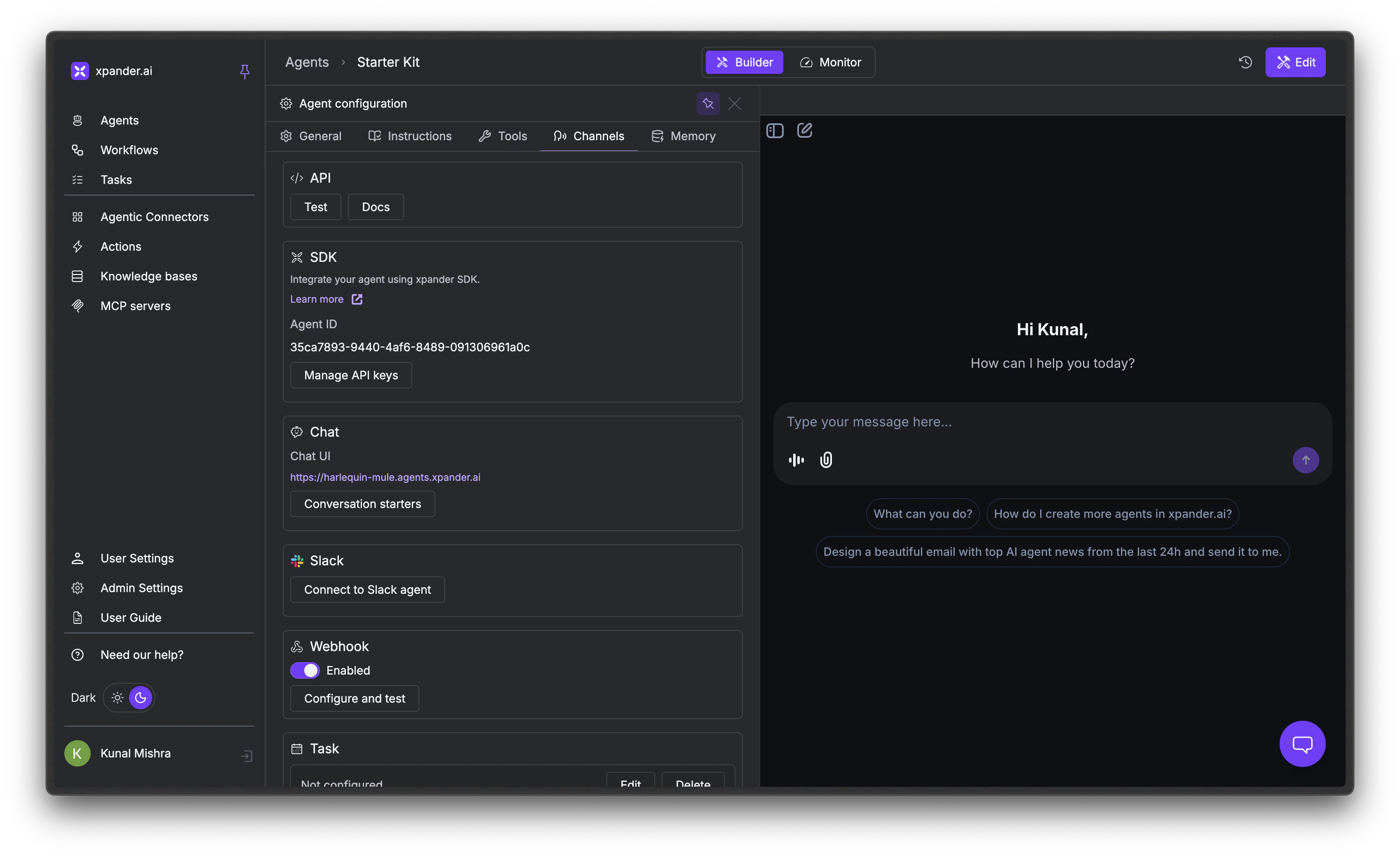 Click Configure and test to open the Agent Webhook Tester. This shows your **Payload URL** (with agent ID and API key embedded) and a ready-to-use **cURL command**.
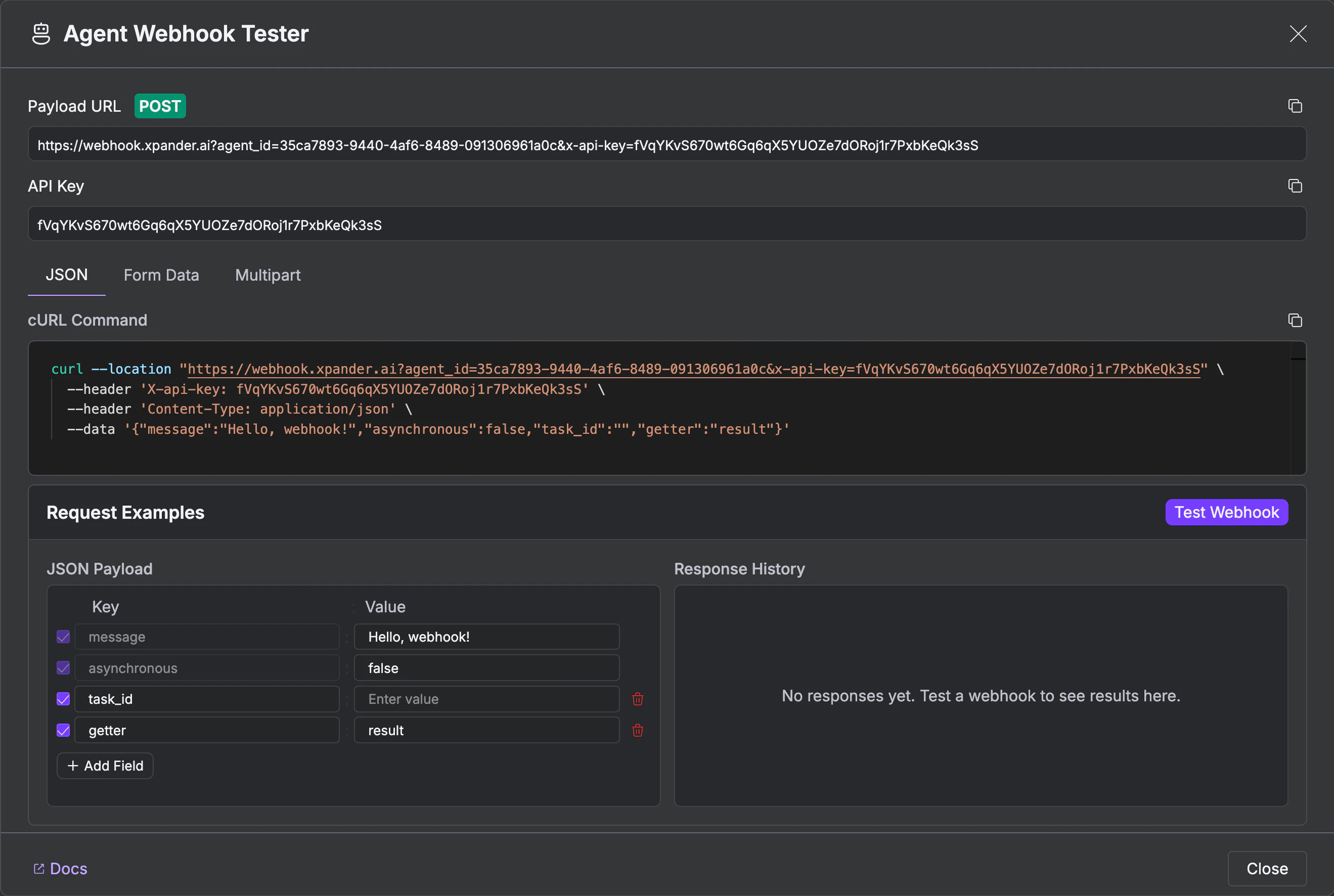 Choose an input format - **JSON**, **Form Data**, or **Multipart**. Set your payload fields and click Test Webhook. The response appears in the **Response History** panel.
## Make Requests
All webhook requests are POST requests to `https://webhook.xpander.ai/` with your agent ID and API key.
```bash theme={"dark"}
curl -X POST 'https://webhook.xpander.ai/?agent_id=YOUR_AGENT_ID' \
-H 'Content-Type: application/json' \
-H 'x-api-key: YOUR_API_KEY' \
-d '{"prompt": "Summarize the latest support tickets"}'
```
### Required Parameters
| Parameter | Location | Description |
| ----------- | ---------------------- | --------------- |
| `agent_id` | Query string or body | Your agent's ID |
| `x-api-key` | Header or query string | Your API key |
### Optional Parameters
| Parameter | Type | Description |
| ------------------------------ | ------------- | ------------------------------------------------------------------------------------------------------------------------------------------------------------------------------------------------------------------------------------------------------------------- |
| `prompt` | string | Text input for the agent |
| `asynchronous` | boolean | Return immediately without waiting (default: `false`) |
| `task_id` | string | Continue an existing conversation thread |
| `user_id` | string | User identifier for tracking |
| `user_email` | string | User email for personalization |
| `user_first_name` | string | User's first name |
| `user_last_name` | string | User's last name |
| `getter` | string | Dot-notation path to extract from the response |
| `json` | boolean | Parse the result as JSON instead of returning a string |
| `user_tokens` | string (JSON) | Pre-authenticated MCP OAuth tokens (see below) |
| `disable_attachment_injection` | boolean | When `true`, uploaded files are not injected into the LLM context window. File URLs are still available to the agent's tools, but the raw content is not prepended to the prompt. Useful when files are large or the agent's tools handle file processing directly. |
You can include any additional fields in your request body - they're all passed to the agent as context.
When the same parameter appears in multiple places, **query parameters** take priority over **body parameters**, which take priority over **defaults**.
## Choose Sync vs Async
**Synchronous** (default) - The request blocks until the agent finishes and returns the full result. Best for short tasks and interactive workflows.
```json theme={"dark"}
{
"id": "task-uuid",
"agent_id": "your-agent-id",
"status": "completed",
"result": "The agent's response...",
"created_at": "2026-01-29T00:40:46.161472+00:00",
"finished_at": "2026-01-29T00:40:47.919145+00:00",
"source": "webhook",
"execution_attempts": 1
}
```
**Asynchronous** - Set `asynchronous=true` to return immediately. The agent processes in the background. Best for long-running tasks, file processing, or when you don't need the result inline.
```bash theme={"dark"}
curl -X POST 'https://webhook.xpander.ai/?agent_id=YOUR_AGENT_ID&asynchronous=true' \
-H 'x-api-key: YOUR_API_KEY' \
-d '{"prompt": "Generate the monthly report"}'
```
```json theme={"dark"}
{"status": "Started"}
```
## Upload Files
Upload files using `multipart/form-data`. The agent automatically processes them - OCR for images, text extraction for PDFs, transcription for audio.
```bash theme={"dark"}
curl -X POST 'https://webhook.xpander.ai/?agent_id=YOUR_AGENT_ID' \
-H 'x-api-key: YOUR_API_KEY' \
--form 'files=@"/path/to/document.pdf"' \
--form 'files=@"/path/to/image.png"'
```
Supported types: PDF, DOC, DOCX, TXT, XLS, XLSX, CSV, PNG, JPEG, GIF, WEBP, SVG, ZIP.
Files must be uploaded directly - URLs to external files are not supported. The webhook needs the actual file content.
For large batches (10+ files), use async mode and break uploads into batches of 5-10 files.
Uploaded files are stored on the Xpander platform and exposed to your agent through secure presigned URLs. Those URLs are scoped to your organization's agents and remain valid for 30 days after upload. Your agent never handles download or storage logic directly.
## Extract Data from Responses
Use the `getter` parameter to extract a specific field from the agent's response using dot notation.
```bash theme={"dark"}
curl -X POST 'https://webhook.xpander.ai/?agent_id=YOUR_AGENT_ID&getter=result.summary' \
-H 'x-api-key: YOUR_API_KEY' \
-d '{"prompt": "Analyze quarterly report"}'
```
Instead of the full response object, this returns just the extracted value:
```json theme={"dark"}
"Q4 revenue increased 15%"
```
## Map Dynamic Parameters
Use `params_mapping` as a query parameter to extract values from nested payload fields and map them to webhook parameters. This is especially useful for integrations with Telegram bots, WhatsApp, and other messaging platforms where identifiers are nested.
```bash theme={"dark"}
curl -X POST 'https://webhook.xpander.ai/?agent_id=YOUR_AGENT_ID¶ms_mapping={"task_id":"message.chat.id","prompt":"message.text","user_email":"message.from.email"}' \
-H 'x-api-key: YOUR_API_KEY' \
-d '{
"message": {
"chat": {"id": 123456789},
"from": {"email": "user@example.com"},
"text": "Hello agent!"
}
}'
```
The mapping uses dot notation to navigate nested fields. It supports all standard parameters: `task_id`, `user_id`, `user_email`, `user_first_name`, `user_last_name`, `prompt`.
## Pass MCP OAuth Tokens
If your agent uses MCP servers with OAuth authentication, pass pre-authenticated user tokens via `user_tokens` to bypass the interactive OAuth flow during webhook execution.
```bash theme={"dark"}
curl -X POST 'https://webhook.xpander.ai/?agent_id=YOUR_AGENT_ID' \
-H 'x-api-key: YOUR_API_KEY' \
-d '{
"prompt": "Check my calendar",
"user_email": "user@example.com",
"user_tokens": {
"mcp-graph-item-uuid-1": "user-access-token-abc123"
}
}'
```
To find the graph item IDs for your MCP servers, call the [Get Agent API](/api-reference/v1/agents/get-agent) and inspect `graph.items` for entries with `type: "mcp"`.
## Monitor Webhook Runs
Every webhook invocation creates a task visible in the **Monitor** tab, exactly like any other agent run. You get the full execution trace: prompts, tool calls with request/response payloads, files processed, timing, and token usage. For details on reading execution traces, see [Threads](/guides/observability/threads).
## Handle Errors
| Status | Response | Cause |
| ------ | ------------------------------------- | ----------------------------------------- |
| 400 | `{"detail": "agent_id is required"}` | Missing `agent_id` parameter |
| 401 | `{"detail": "API key not specified"}` | Missing `x-api-key` header or query param |
| 403 | `{"detail": "Invalid API key"}` | Wrong API key or no access to this agent |
## Next Steps
Run agents on a recurring schedule
Expose agents to Claude Desktop and code editors
Trace execution, debug failures, and review AI performance
Choose an input format - **JSON**, **Form Data**, or **Multipart**. Set your payload fields and click Test Webhook. The response appears in the **Response History** panel.
## Make Requests
All webhook requests are POST requests to `https://webhook.xpander.ai/` with your agent ID and API key.
```bash theme={"dark"}
curl -X POST 'https://webhook.xpander.ai/?agent_id=YOUR_AGENT_ID' \
-H 'Content-Type: application/json' \
-H 'x-api-key: YOUR_API_KEY' \
-d '{"prompt": "Summarize the latest support tickets"}'
```
### Required Parameters
| Parameter | Location | Description |
| ----------- | ---------------------- | --------------- |
| `agent_id` | Query string or body | Your agent's ID |
| `x-api-key` | Header or query string | Your API key |
### Optional Parameters
| Parameter | Type | Description |
| ------------------------------ | ------------- | ------------------------------------------------------------------------------------------------------------------------------------------------------------------------------------------------------------------------------------------------------------------- |
| `prompt` | string | Text input for the agent |
| `asynchronous` | boolean | Return immediately without waiting (default: `false`) |
| `task_id` | string | Continue an existing conversation thread |
| `user_id` | string | User identifier for tracking |
| `user_email` | string | User email for personalization |
| `user_first_name` | string | User's first name |
| `user_last_name` | string | User's last name |
| `getter` | string | Dot-notation path to extract from the response |
| `json` | boolean | Parse the result as JSON instead of returning a string |
| `user_tokens` | string (JSON) | Pre-authenticated MCP OAuth tokens (see below) |
| `disable_attachment_injection` | boolean | When `true`, uploaded files are not injected into the LLM context window. File URLs are still available to the agent's tools, but the raw content is not prepended to the prompt. Useful when files are large or the agent's tools handle file processing directly. |
You can include any additional fields in your request body - they're all passed to the agent as context.
When the same parameter appears in multiple places, **query parameters** take priority over **body parameters**, which take priority over **defaults**.
## Choose Sync vs Async
**Synchronous** (default) - The request blocks until the agent finishes and returns the full result. Best for short tasks and interactive workflows.
```json theme={"dark"}
{
"id": "task-uuid",
"agent_id": "your-agent-id",
"status": "completed",
"result": "The agent's response...",
"created_at": "2026-01-29T00:40:46.161472+00:00",
"finished_at": "2026-01-29T00:40:47.919145+00:00",
"source": "webhook",
"execution_attempts": 1
}
```
**Asynchronous** - Set `asynchronous=true` to return immediately. The agent processes in the background. Best for long-running tasks, file processing, or when you don't need the result inline.
```bash theme={"dark"}
curl -X POST 'https://webhook.xpander.ai/?agent_id=YOUR_AGENT_ID&asynchronous=true' \
-H 'x-api-key: YOUR_API_KEY' \
-d '{"prompt": "Generate the monthly report"}'
```
```json theme={"dark"}
{"status": "Started"}
```
## Upload Files
Upload files using `multipart/form-data`. The agent automatically processes them - OCR for images, text extraction for PDFs, transcription for audio.
```bash theme={"dark"}
curl -X POST 'https://webhook.xpander.ai/?agent_id=YOUR_AGENT_ID' \
-H 'x-api-key: YOUR_API_KEY' \
--form 'files=@"/path/to/document.pdf"' \
--form 'files=@"/path/to/image.png"'
```
Supported types: PDF, DOC, DOCX, TXT, XLS, XLSX, CSV, PNG, JPEG, GIF, WEBP, SVG, ZIP.
Files must be uploaded directly - URLs to external files are not supported. The webhook needs the actual file content.
For large batches (10+ files), use async mode and break uploads into batches of 5-10 files.
Uploaded files are stored on the Xpander platform and exposed to your agent through secure presigned URLs. Those URLs are scoped to your organization's agents and remain valid for 30 days after upload. Your agent never handles download or storage logic directly.
## Extract Data from Responses
Use the `getter` parameter to extract a specific field from the agent's response using dot notation.
```bash theme={"dark"}
curl -X POST 'https://webhook.xpander.ai/?agent_id=YOUR_AGENT_ID&getter=result.summary' \
-H 'x-api-key: YOUR_API_KEY' \
-d '{"prompt": "Analyze quarterly report"}'
```
Instead of the full response object, this returns just the extracted value:
```json theme={"dark"}
"Q4 revenue increased 15%"
```
## Map Dynamic Parameters
Use `params_mapping` as a query parameter to extract values from nested payload fields and map them to webhook parameters. This is especially useful for integrations with Telegram bots, WhatsApp, and other messaging platforms where identifiers are nested.
```bash theme={"dark"}
curl -X POST 'https://webhook.xpander.ai/?agent_id=YOUR_AGENT_ID¶ms_mapping={"task_id":"message.chat.id","prompt":"message.text","user_email":"message.from.email"}' \
-H 'x-api-key: YOUR_API_KEY' \
-d '{
"message": {
"chat": {"id": 123456789},
"from": {"email": "user@example.com"},
"text": "Hello agent!"
}
}'
```
The mapping uses dot notation to navigate nested fields. It supports all standard parameters: `task_id`, `user_id`, `user_email`, `user_first_name`, `user_last_name`, `prompt`.
## Pass MCP OAuth Tokens
If your agent uses MCP servers with OAuth authentication, pass pre-authenticated user tokens via `user_tokens` to bypass the interactive OAuth flow during webhook execution.
```bash theme={"dark"}
curl -X POST 'https://webhook.xpander.ai/?agent_id=YOUR_AGENT_ID' \
-H 'x-api-key: YOUR_API_KEY' \
-d '{
"prompt": "Check my calendar",
"user_email": "user@example.com",
"user_tokens": {
"mcp-graph-item-uuid-1": "user-access-token-abc123"
}
}'
```
To find the graph item IDs for your MCP servers, call the [Get Agent API](/api-reference/v1/agents/get-agent) and inspect `graph.items` for entries with `type: "mcp"`.
## Monitor Webhook Runs
Every webhook invocation creates a task visible in the **Monitor** tab, exactly like any other agent run. You get the full execution trace: prompts, tool calls with request/response payloads, files processed, timing, and token usage. For details on reading execution traces, see [Threads](/guides/observability/threads).
## Handle Errors
| Status | Response | Cause |
| ------ | ------------------------------------- | ----------------------------------------- |
| 400 | `{"detail": "agent_id is required"}` | Missing `agent_id` parameter |
| 401 | `{"detail": "API key not specified"}` | Missing `x-api-key` header or query param |
| 403 | `{"detail": "Invalid API key"}` | Wrong API key or no access to this agent |
## Next Steps
Run agents on a recurring schedule
Expose agents to Claude Desktop and code editors
Trace execution, debug failures, and review AI performance