> ## Documentation Index
> Fetch the complete documentation index at: https://docs.xpander.ai/llms.txt
> Use this file to discover all available pages before exploring further.
# Build your first Agentic Application
> Start with a business outcome and turn it into an agent-powered application.
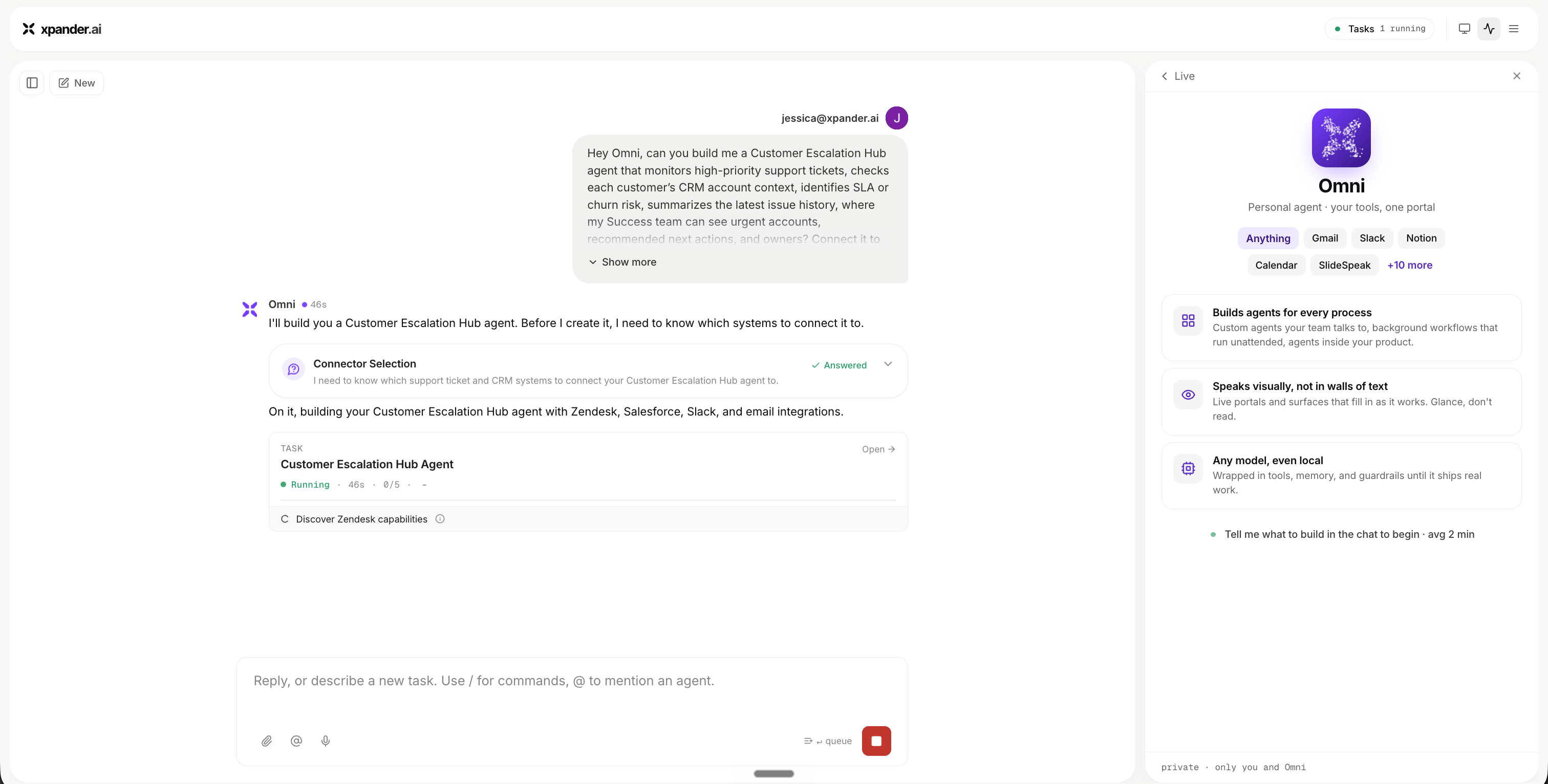
To build your first Agentic Application, start with the outcome you want users to experience.
For example, a Customer Escalation Hub could let support teams see escalated accounts, urgency signals, and the recommended next action - and share the full picture with a teammate.
You describe the outcome in plain language, and Omni helps turn it into an application with a frontend experience and a backend agent.
 ## Start with a business use case
A good starting point describes what you want users to be able to do, not the technical steps.
Examples:
* “Let users ask questions about Redshift warehouse usage and generate cost charts.”
* “Give support a place to see escalated accounts and recommended next actions.”
* “Turn weekly sales data into an executive report teammates can open.”
* “Create a KYC review workspace for document checks and case status.”
## Example: Redshift Analyzer or Power BI Analyzer
A **Redshift Analyzer** lets users ask about warehouse usage, inspect query patterns, generate charts, and share the analysis.
A **Power BI Analyzer** lets users explore reports and datasets in natural language, surface the metrics that matter, and produce a shareable summary.
Both follow the same shape: a built-in frontend experience users interact with, and a backend you configure to do the work.
## The frontend experience (built in)
The frontend experience comes built in. Every Agentic Application includes the same set of surfaces out of the box - you don't have to design them:
* Chat for asking questions and giving instructions
* Live surfaces that show current state and progress
* Reports, dashboards, charts, and visual components
* Inputs, forms, and approvals where the workflow needs them
What you decide is **who can see it** - the frontend becomes available to teammates as you grant them access to the application.
## Set up the backend
The backend is the part you actually set up. It's where the real work of building an Agentic Application happens:
* The model that powers reasoning
* A system prompt that defines the role and output
* Skills and tools for taking action
* Data access for the systems the workflow touches
* An execution engine that runs the work
## Connect tools, skills, and data
Give the agent the capabilities the workflow needs - for a Redshift Analyzer, that might mean a Redshift connector, a charting skill, and access to the relevant schemas.
Keep the set focused. An application with the right few capabilities is easier to trust, govern, and improve.
See [Work with Data and Tools](/guides/omni/building-agents/connectors-skills) for connectors and skills.
## Generate the first live surface
Once the agent can do the work, generate the first live surface so the result becomes visible - for example, a usage overview with charts the user can open and explore.
This is the moment the workflow becomes an application rather than a conversation.
See [Live Surfaces](/guides/omni/agentic-applications/live-surfaces) and [Reports & Dashboards](/guides/omni/agentic-applications/reports-dashboards).
## Share the application
When the experience is useful, share it so teammates can open the same live surfaces, reports, and dashboards - and continue from the same context instead of a copied summary.
See [Share Agentic Applications](/guides/omni/agentic-applications/share-agentic-applications) for access and visibility.
## Start with a business use case
A good starting point describes what you want users to be able to do, not the technical steps.
Examples:
* “Let users ask questions about Redshift warehouse usage and generate cost charts.”
* “Give support a place to see escalated accounts and recommended next actions.”
* “Turn weekly sales data into an executive report teammates can open.”
* “Create a KYC review workspace for document checks and case status.”
## Example: Redshift Analyzer or Power BI Analyzer
A **Redshift Analyzer** lets users ask about warehouse usage, inspect query patterns, generate charts, and share the analysis.
A **Power BI Analyzer** lets users explore reports and datasets in natural language, surface the metrics that matter, and produce a shareable summary.
Both follow the same shape: a built-in frontend experience users interact with, and a backend you configure to do the work.
## The frontend experience (built in)
The frontend experience comes built in. Every Agentic Application includes the same set of surfaces out of the box - you don't have to design them:
* Chat for asking questions and giving instructions
* Live surfaces that show current state and progress
* Reports, dashboards, charts, and visual components
* Inputs, forms, and approvals where the workflow needs them
What you decide is **who can see it** - the frontend becomes available to teammates as you grant them access to the application.
## Set up the backend
The backend is the part you actually set up. It's where the real work of building an Agentic Application happens:
* The model that powers reasoning
* A system prompt that defines the role and output
* Skills and tools for taking action
* Data access for the systems the workflow touches
* An execution engine that runs the work
## Connect tools, skills, and data
Give the agent the capabilities the workflow needs - for a Redshift Analyzer, that might mean a Redshift connector, a charting skill, and access to the relevant schemas.
Keep the set focused. An application with the right few capabilities is easier to trust, govern, and improve.
See [Work with Data and Tools](/guides/omni/building-agents/connectors-skills) for connectors and skills.
## Generate the first live surface
Once the agent can do the work, generate the first live surface so the result becomes visible - for example, a usage overview with charts the user can open and explore.
This is the moment the workflow becomes an application rather than a conversation.
See [Live Surfaces](/guides/omni/agentic-applications/live-surfaces) and [Reports & Dashboards](/guides/omni/agentic-applications/reports-dashboards).
## Share the application
When the experience is useful, share it so teammates can open the same live surfaces, reports, and dashboards - and continue from the same context instead of a copied summary.
See [Share Agentic Applications](/guides/omni/agentic-applications/share-agentic-applications) for access and visibility.