> ## Documentation Index
> Fetch the complete documentation index at: https://docs.xpander.ai/llms.txt
> Use this file to discover all available pages before exploring further.
# Tasks
> Track what any agent is doing from request to result.
Tasks make agent work visible.
When an agent starts working on a request, the task becomes the execution record: what happened, what is still running, which tools were used, what files were created, and what result came back.
Instead of asking users to read raw logs, Tasks turn agent activity into a clean, readable timeline that is easy to scan, debug, and share.
 ## What You Can See in a Task
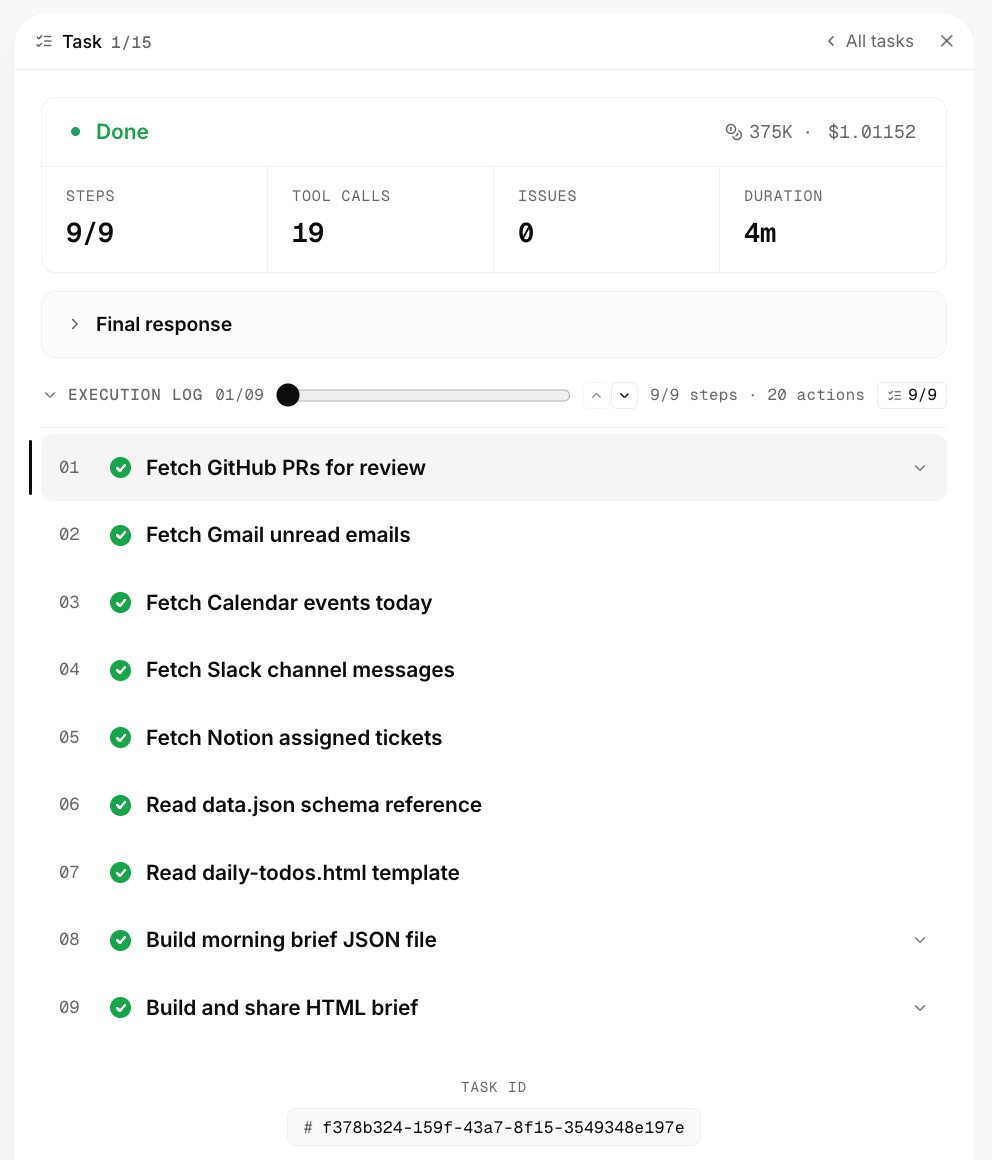
Each task shows its current status and completed steps, the tool calls it made, and any files it created or updated. It also surfaces issues or failures, along with the run's duration, token usage, cost, and the final response.
## From Request to Result
Tasks help you follow the work from the original ask to the final output.
For example, if an agent runs a Stock & IPO Monitor, the task can show it gathering market signals, calling tools, creating the digest, sending the email, and returning the final result.
This makes the work feel less like a black box and more like an inspectable workflow.
## Summary View
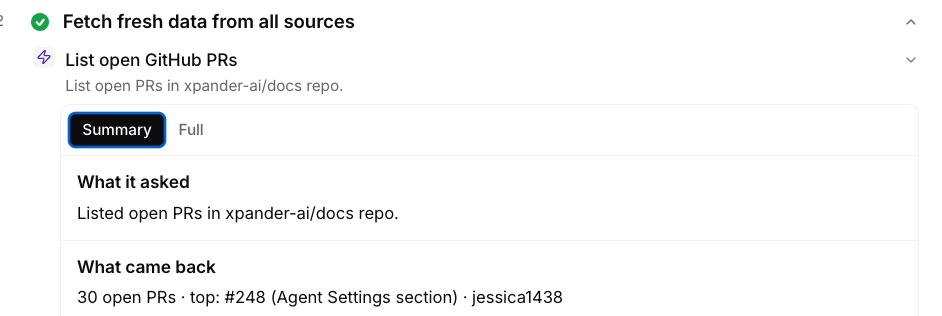
The summary view gives you the important version first.
Use it when you want to quickly understand whether the work completed, what the agent produced, and whether anything needs follow-up.
## What You Can See in a Task
Each task shows its current status and completed steps, the tool calls it made, and any files it created or updated. It also surfaces issues or failures, along with the run's duration, token usage, cost, and the final response.
## From Request to Result
Tasks help you follow the work from the original ask to the final output.
For example, if an agent runs a Stock & IPO Monitor, the task can show it gathering market signals, calling tools, creating the digest, sending the email, and returning the final result.
This makes the work feel less like a black box and more like an inspectable workflow.
## Summary View
The summary view gives you the important version first.
Use it when you want to quickly understand whether the work completed, what the agent produced, and whether anything needs follow-up.
 ## Full Execution View
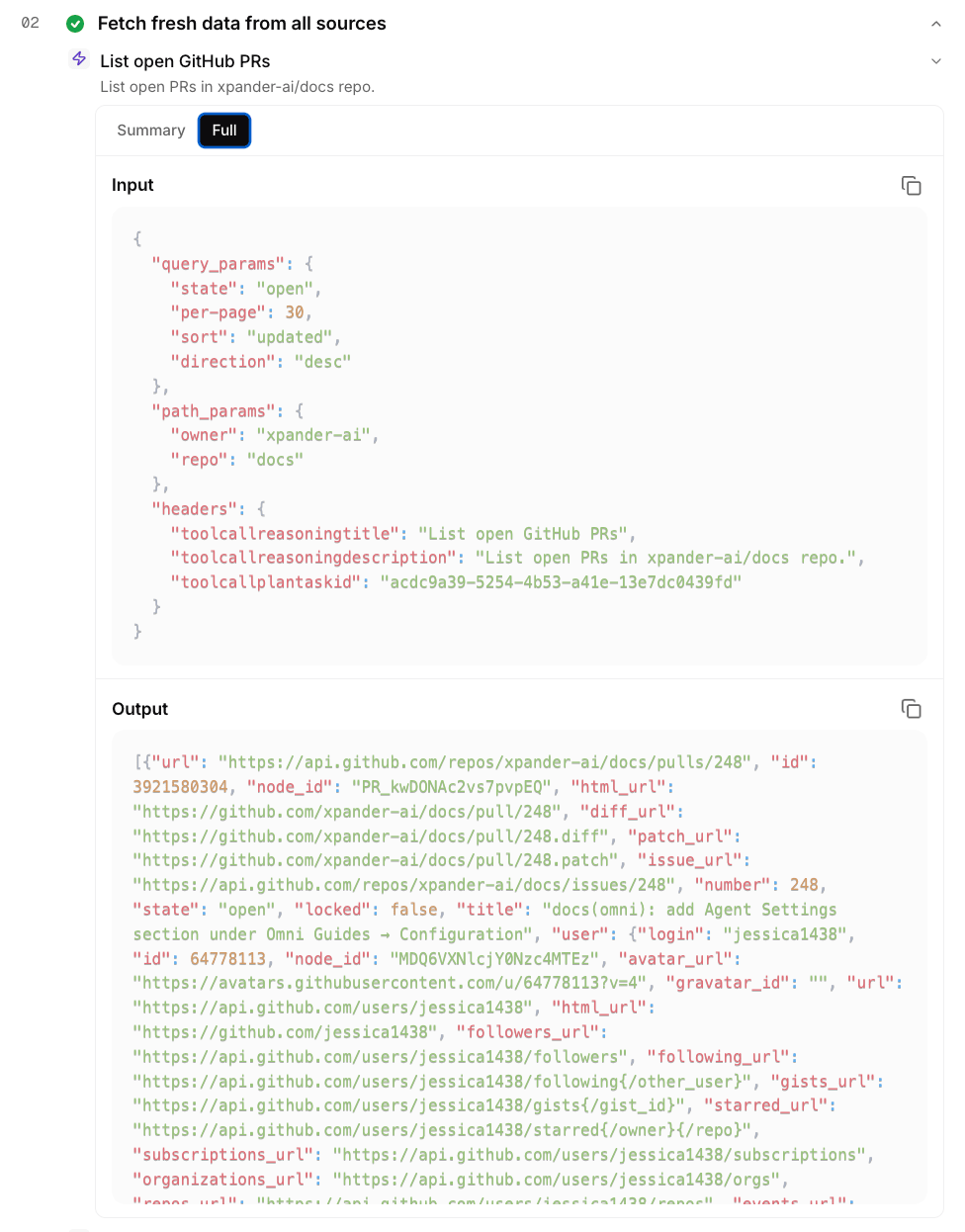
The full execution view shows the underlying steps in more detail.
Use it when you need to inspect how the task ran, which tools were called, what each tool returned, or where the workflow failed.
## Full Execution View
The full execution view shows the underlying steps in more detail.
Use it when you need to inspect how the task ran, which tools were called, what each tool returned, or where the workflow failed.
 ## When To Use Tasks
Use Tasks when you want to:
* Check whether a request finished successfully
* Understand what an agent did behind the scenes
* Debug a failed or incomplete run
* Review tool calls and generated files
* Share an execution record with a teammate
* Monitor cost, latency, and usage
## Why Tasks Matter
Tasks give every agent-powered workflow a clear trail.
They make any agent easier to trust because users can see not only the final answer, but also the work behind it.
## When To Use Tasks
Use Tasks when you want to:
* Check whether a request finished successfully
* Understand what an agent did behind the scenes
* Debug a failed or incomplete run
* Review tool calls and generated files
* Share an execution record with a teammate
* Monitor cost, latency, and usage
## Why Tasks Matter
Tasks give every agent-powered workflow a clear trail.
They make any agent easier to trust because users can see not only the final answer, but also the work behind it.