> ## Documentation Index
> Fetch the complete documentation index at: https://docs.xpander.ai/llms.txt
> Use this file to discover all available pages before exploring further.
# Apps and Agents
> Manage the agent behind an Agentic Application: its identity, instructions, and runtime behavior.
This is where you manage the agent side of an Agentic Application: the backend that does the work. Omni agents are ready to use out of the box, but these controls let you shape a custom agent around your team’s exact workflow: its identity, instructions, runtime behavior, and output expectations, without rebuilding it from scratch.
 ## Agent profile
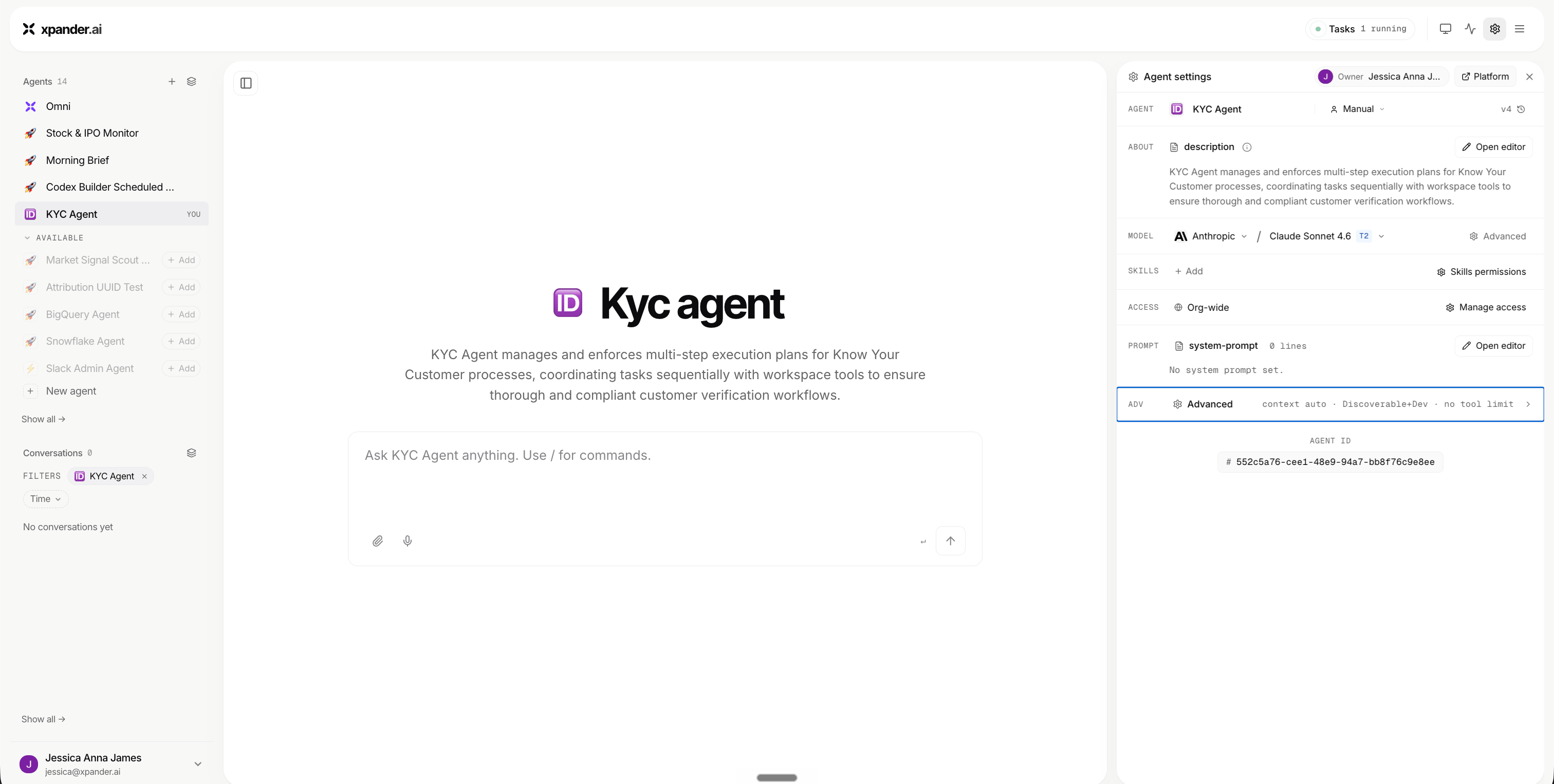
The Agent Profile gives a custom agent its identity. It helps teammates understand what the agent does, who owns it, and whether it is the right agent for the work they want to delegate.
### Name
The name should describe the workflow the agent owns. Good names are specific and easy to recognize:
* `Stock & IPO Monitor`
* `RFP Response Agent`
* `Customer Escalation Agent`
* `Data Access Review Agent`
### Description
The description tells Omni and your teammates what the agent is designed to do. A strong description answers:
* What does the agent monitor or perform?
* What does it produce?
* Who is it useful for?
For a Stock & IPO Monitor, the description might explain that the agent tracks market news, top stock movers, IPO activity, and sends a daily digest.
### Owner
The owner is responsible for the agent’s behavior and configuration. Ownership makes it clear who can review changes, answer questions, and improve the agent as the workflow evolves.
### Version
The version shows which revision of the agent you are viewing. Versions help teams understand when an agent changed, especially after updates to the prompt, model, skills, permissions, or publishing state.
## Agent profile
The Agent Profile gives a custom agent its identity. It helps teammates understand what the agent does, who owns it, and whether it is the right agent for the work they want to delegate.
### Name
The name should describe the workflow the agent owns. Good names are specific and easy to recognize:
* `Stock & IPO Monitor`
* `RFP Response Agent`
* `Customer Escalation Agent`
* `Data Access Review Agent`
### Description
The description tells Omni and your teammates what the agent is designed to do. A strong description answers:
* What does the agent monitor or perform?
* What does it produce?
* Who is it useful for?
For a Stock & IPO Monitor, the description might explain that the agent tracks market news, top stock movers, IPO activity, and sends a daily digest.
### Owner
The owner is responsible for the agent’s behavior and configuration. Ownership makes it clear who can review changes, answer questions, and improve the agent as the workflow evolves.
### Version
The version shows which revision of the agent you are viewing. Versions help teams understand when an agent changed, especially after updates to the prompt, model, skills, permissions, or publishing state.
 ### Run mode
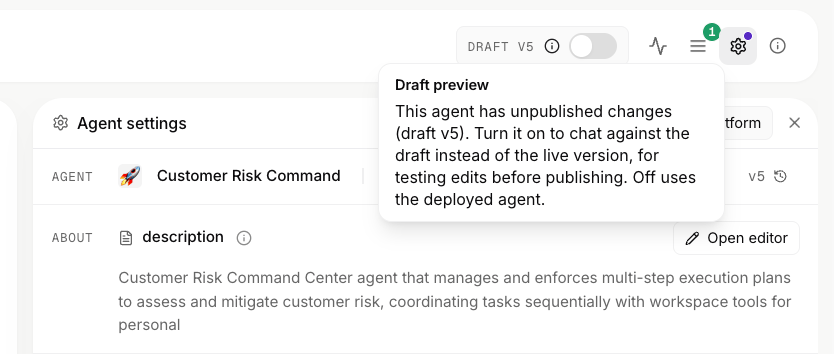
Run mode describes how the agent receives work. A custom agent may be used manually, discovered through Omni, triggered by developers, or connected to a scheduled or event-driven workflow.
## Prompt
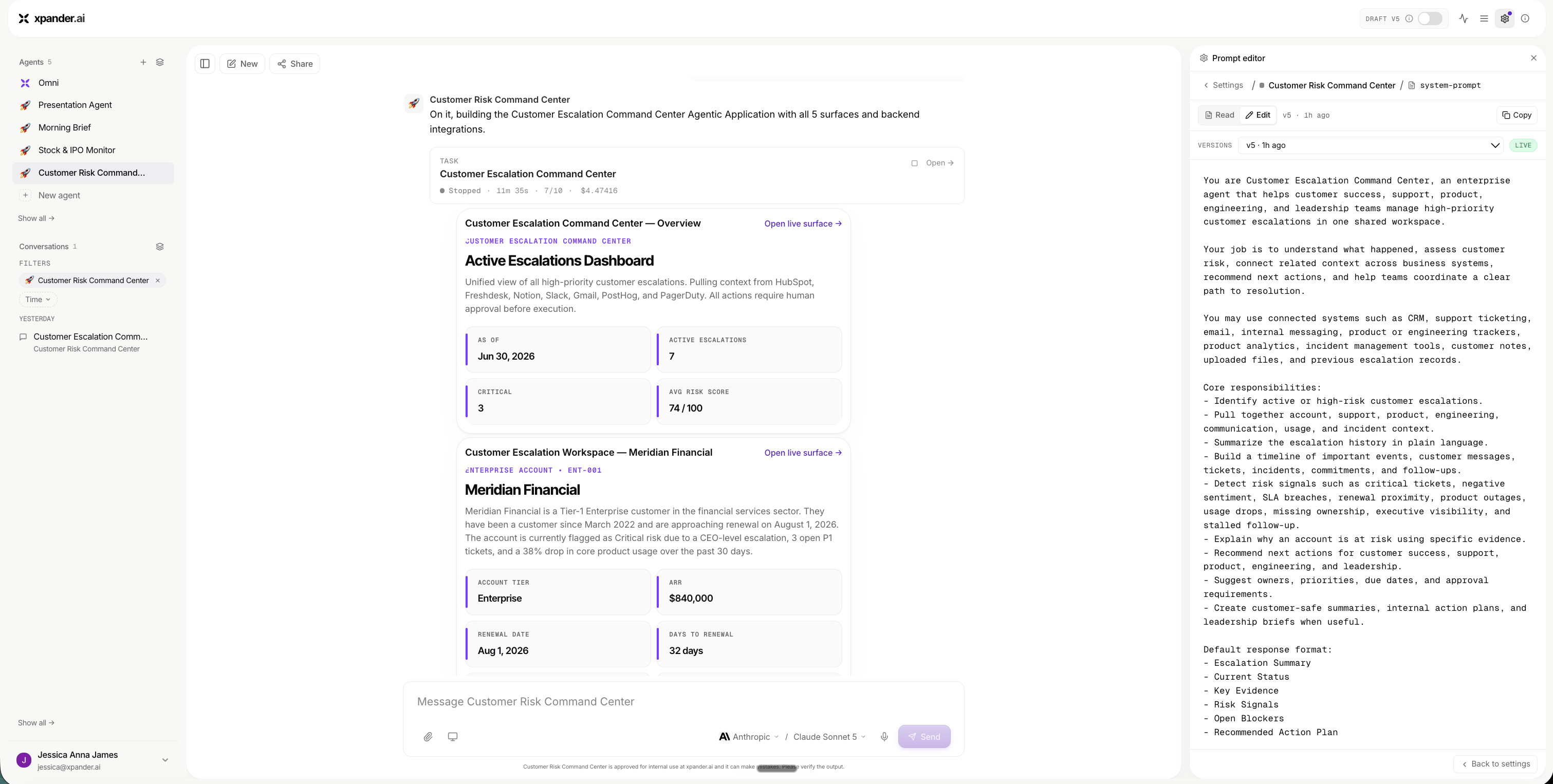
The prompt is the agent’s operating instructions, applied every time it runs. Use it to define the agent’s role and the workflow it owns, the tools or data sources it needs, the structure its output should follow, and the quality rules, escalation behavior, and anything it should avoid.
### Run mode
Run mode describes how the agent receives work. A custom agent may be used manually, discovered through Omni, triggered by developers, or connected to a scheduled or event-driven workflow.
## Prompt
The prompt is the agent’s operating instructions, applied every time it runs. Use it to define the agent’s role and the workflow it owns, the tools or data sources it needs, the structure its output should follow, and the quality rules, escalation behavior, and anything it should avoid.
 ### Behavior rules
Behavior rules guide how the agent handles uncertainty, missing information, risk, and tool use. For example, the agent might ask for clarification when a request is ambiguous, avoid unsupported claims, prefer recent information for time-sensitive work, summarize sources when useful, and escalate when confidence is low.
### Output expectations
Output expectations make results consistent. For a Stock & IPO Monitor, the prompt might require a market summary, top gainers, an IPO watchlist, and major financial news, delivered as an email-ready digest with a clear subject line.
### Behavior rules
Behavior rules guide how the agent handles uncertainty, missing information, risk, and tool use. For example, the agent might ask for clarification when a request is ambiguous, avoid unsupported claims, prefer recent information for time-sensitive work, summarize sources when useful, and escalate when confidence is low.
### Output expectations
Output expectations make results consistent. For a Stock & IPO Monitor, the prompt might require a market summary, top gainers, an IPO watchlist, and major financial news, delivered as an email-ready digest with a clear subject line.
 ## Runtime
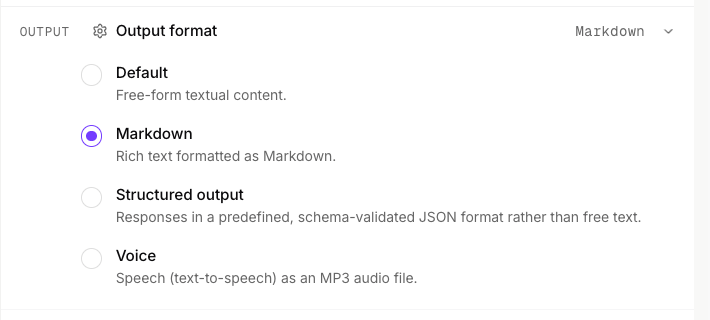
Runtime settings shape how an agent operates while a task is running. These controls are useful for agents that research, analyze, call tools, generate files, or work across multiple steps.
### Automatic context management
Automatic context management helps the agent stay focused during longer tasks. When enabled, Omni can compact older reasoning and tool output so the agent can continue working within the available context window.
## Runtime
Runtime settings shape how an agent operates while a task is running. These controls are useful for agents that research, analyze, call tools, generate files, or work across multiple steps.
### Automatic context management
Automatic context management helps the agent stay focused during longer tasks. When enabled, Omni can compact older reasoning and tool output so the agent can continue working within the available context window.
 ### Advanced execution settings
Advanced execution settings provide deeper control over how the agent runs. Use them when a workflow needs more predictable behavior, specific execution constraints, or tighter control over tool-heavy tasks.
### Advanced execution settings
Advanced execution settings provide deeper control over how the agent runs. Use them when a workflow needs more predictable behavior, specific execution constraints, or tighter control over tool-heavy tasks.