> ## Documentation Index
> Fetch the complete documentation index at: https://docs.xpander.ai/llms.txt
> Use this file to discover all available pages before exploring further.
# Usage, Budgets, and Activity
> Manage secrets, publishing, spend limits, and result notifications for custom agents.
Budgets and Notifications give teams operational control over custom agents. Use them to manage credentials, test changes, limit tool usage, control spend, and stay informed when work succeeds or fails.
 ## Workspace secrets
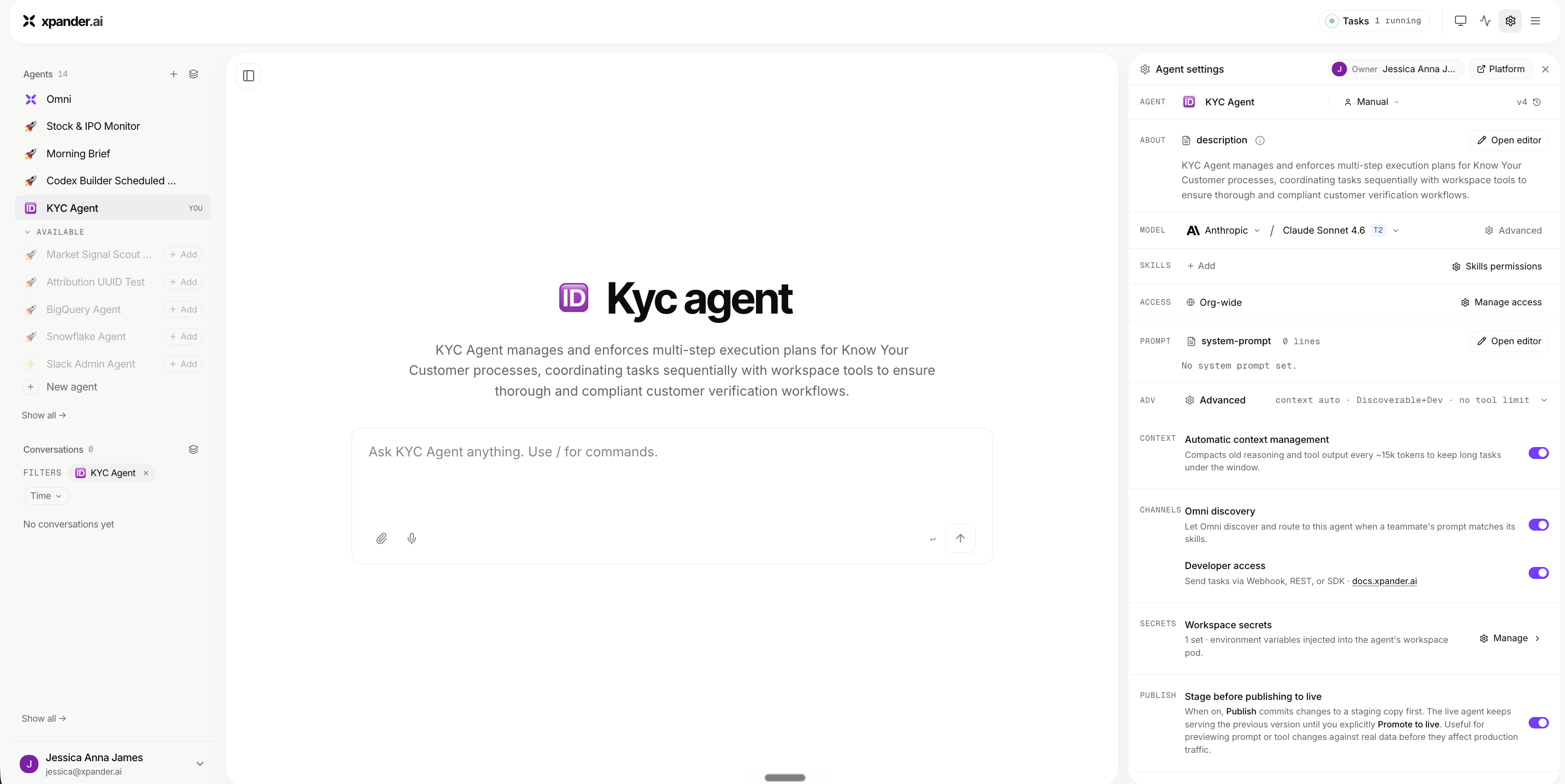
Workspace secrets store credentials and environment variables securely. Use secrets for API keys, tokens, and private configuration. Do not place sensitive values directly in prompts.
## Workspace secrets
Workspace secrets store credentials and environment variables securely. Use secrets for API keys, tokens, and private configuration. Do not place sensitive values directly in prompts.
 ## Stage before publishing, then promote to live
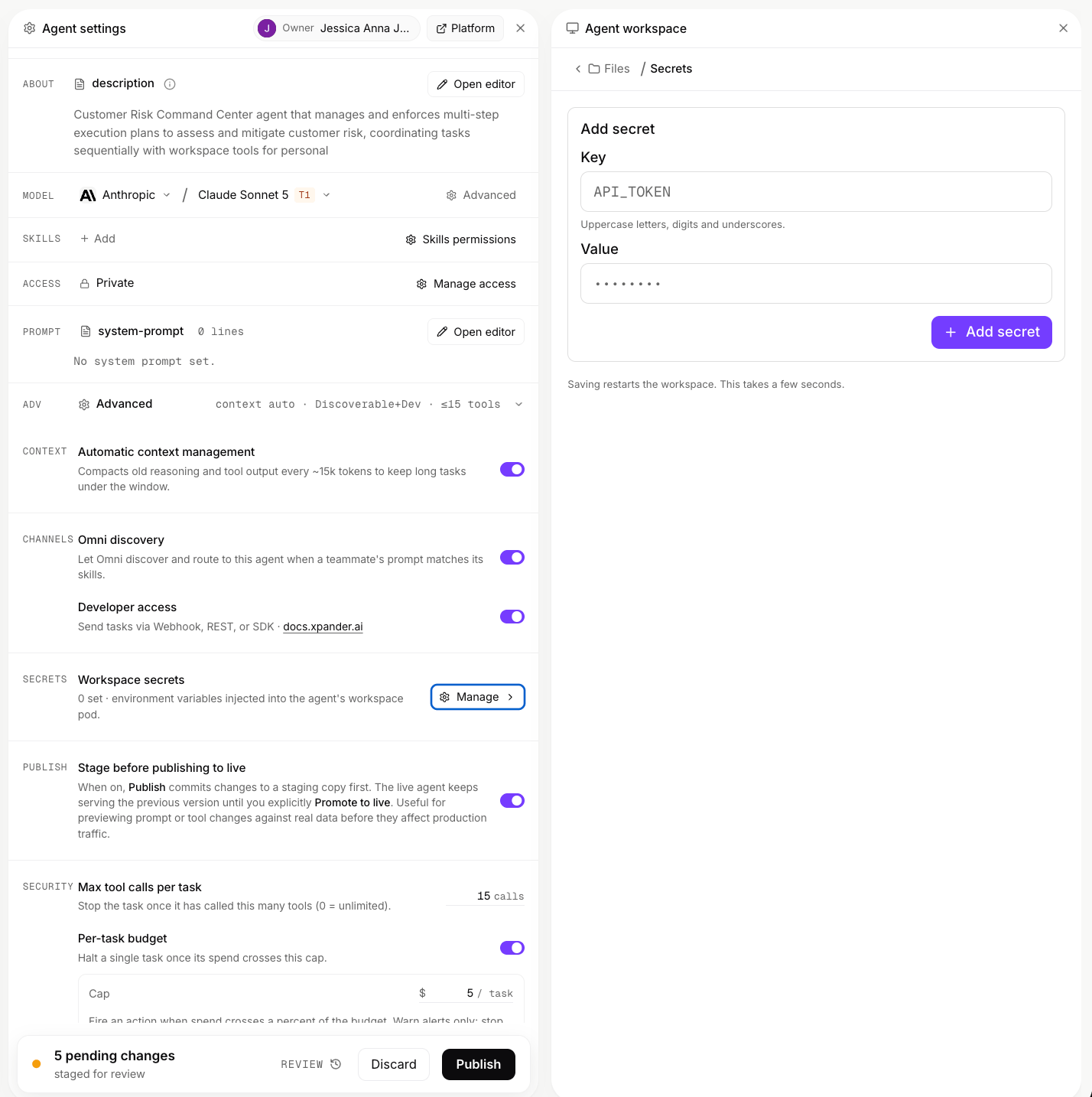
Staging lets teams test changes before they affect the live agent. Stage before publishing whenever you change prompts, tools, models, permissions, or runtime behavior, so you can verify the update in isolation without disrupting the version users are on. When the staged changes are ready, promote to live to publish them. Together, staging and promoting give teams a clean, deliberate way to update important agents.
## Stage before publishing, then promote to live
Staging lets teams test changes before they affect the live agent. Stage before publishing whenever you change prompts, tools, models, permissions, or runtime behavior, so you can verify the update in isolation without disrupting the version users are on. When the staged changes are ready, promote to live to publish them. Together, staging and promoting give teams a clean, deliberate way to update important agents.
 ## Max tool calls
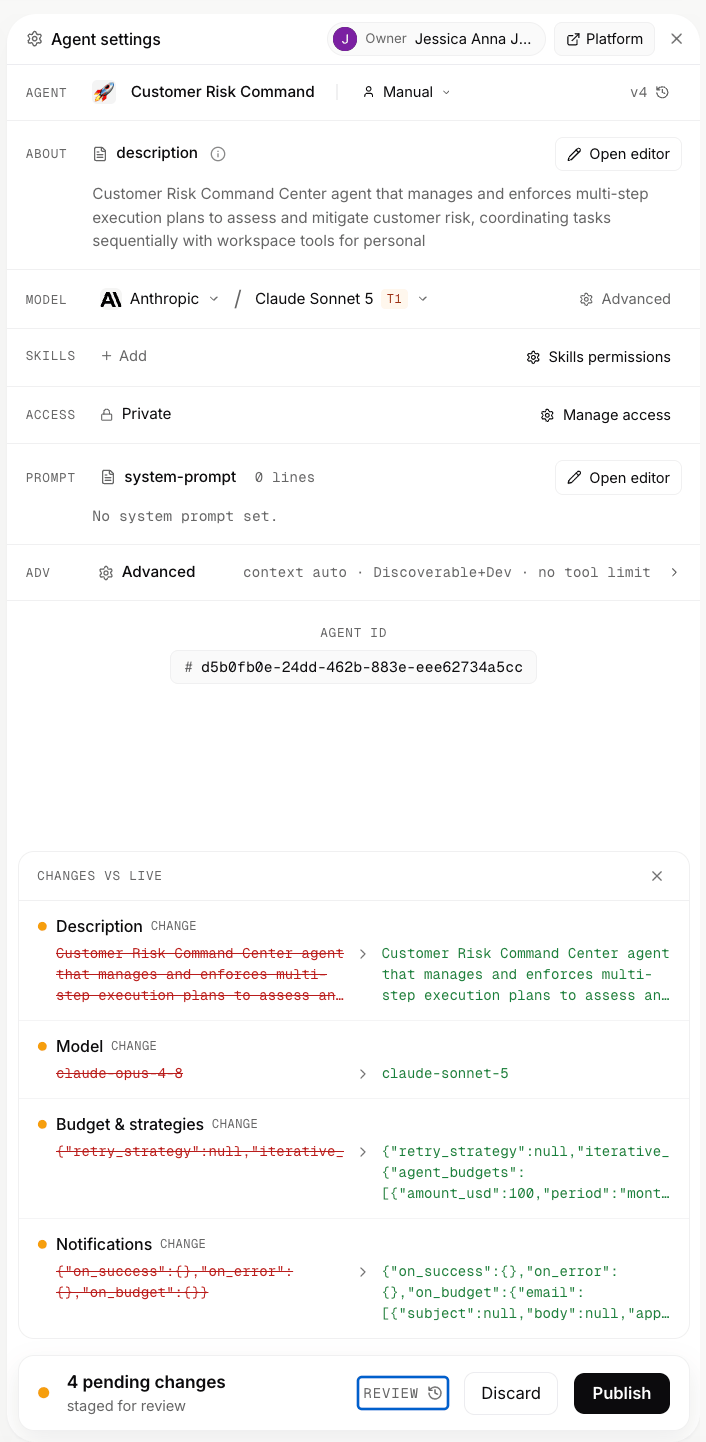
Max tool calls limits how many tools an agent can call in one task. Use it to keep work bounded and avoid unnecessary tool usage.
## Per-task vs. per-agent budgets and alerts
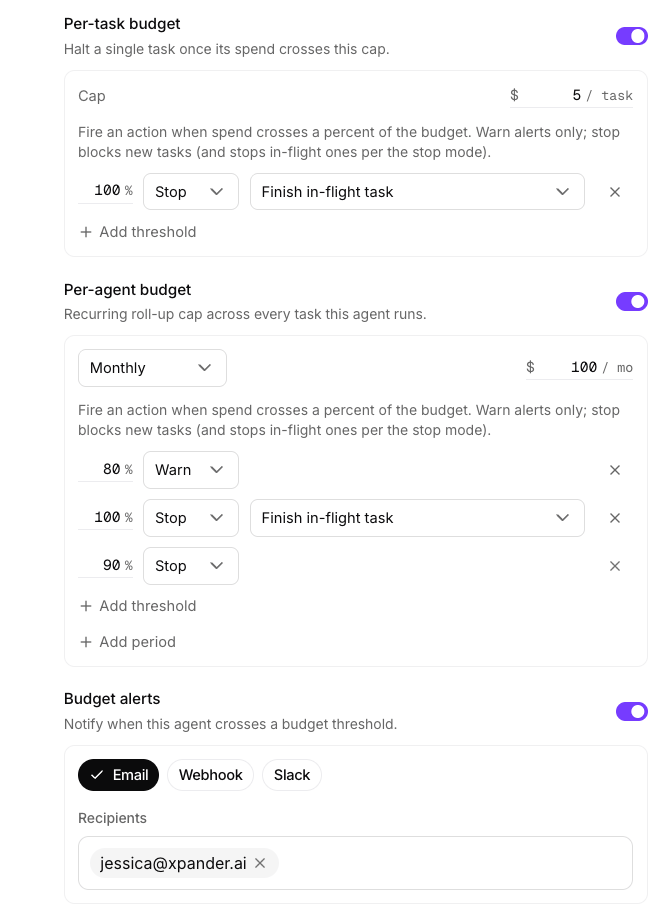
Budgets cap spend at two levels: a per-task budget bounds a single run (good for research- or tool-heavy and recurring workflows), while a per-agent budget bounds spend across the agent’s activity over time (good for agents that run often or on schedules). Budget alerts sit alongside both, flagging unusual usage early without blocking work. Use the two limits together to bound cost, and turn on alerts for a heads-up before a limit is reached.
## Max tool calls
Max tool calls limits how many tools an agent can call in one task. Use it to keep work bounded and avoid unnecessary tool usage.
## Per-task vs. per-agent budgets and alerts
Budgets cap spend at two levels: a per-task budget bounds a single run (good for research- or tool-heavy and recurring workflows), while a per-agent budget bounds spend across the agent’s activity over time (good for agents that run often or on schedules). Budget alerts sit alongside both, flagging unusual usage early without blocking work. Use the two limits together to bound cost, and turn on alerts for a heads-up before a limit is reached.
 ## Notifications
Notifications keep agent work visible even when no one is watching the task run. They are useful for scheduled agents, background workflows, long-running jobs, and agents that send work to other systems.
## Notifications
Notifications keep agent work visible even when no one is watching the task run. They are useful for scheduled agents, background workflows, long-running jobs, and agents that send work to other systems.
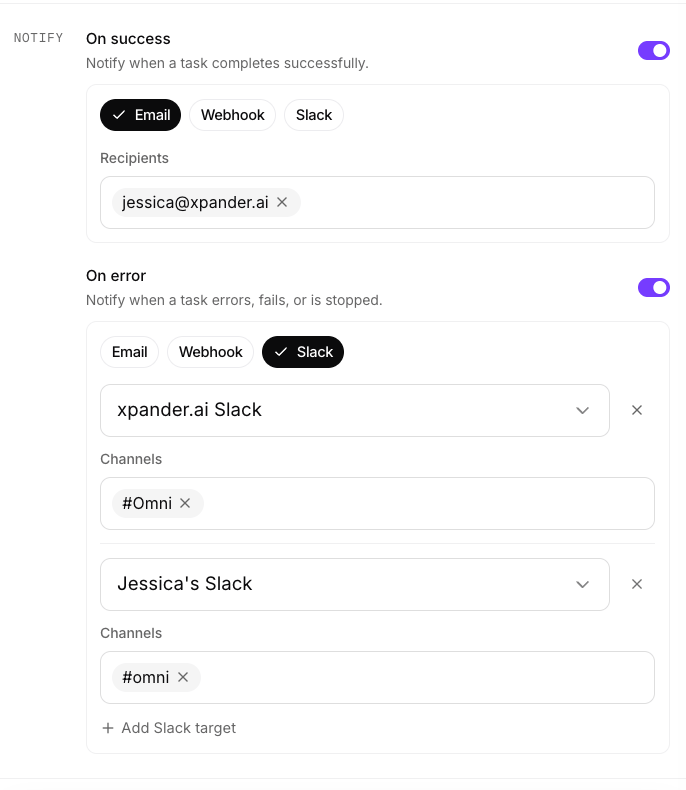 ### On success
Success notifications tell users when a task completes. Use them when the result matters, but the user does not need to monitor every step.
> The daily market digest was generated and sent.
### On error
Error notifications tell users when a task fails, stops, or needs attention. Use them for workflows where failures should be noticed quickly, such as email delivery, approvals, data access, scheduled reports, or external API actions.
### Recommended pattern
Turn on notifications for agents that run in the background or complete work outside the main conversation. For interactive agents, users may only need error notifications. For scheduled or business-critical agents, success and error notifications can both be useful.
### On success
Success notifications tell users when a task completes. Use them when the result matters, but the user does not need to monitor every step.
> The daily market digest was generated and sent.
### On error
Error notifications tell users when a task fails, stops, or needs attention. Use them for workflows where failures should be noticed quickly, such as email delivery, approvals, data access, scheduled reports, or external API actions.
### Recommended pattern
Turn on notifications for agents that run in the background or complete work outside the main conversation. For interactive agents, users may only need error notifications. For scheduled or business-critical agents, success and error notifications can both be useful.