> ## Documentation Index
> Fetch the complete documentation index at: https://docs.xpander.ai/llms.txt
> Use this file to discover all available pages before exploring further.
# Quickstart: Your First Agent
> Create and chat with your first AI agent in 5 minutes
Xpander lets you build AI agents that use tools, remember context, and work across channels like Slack and Telegram. In this guide, you'll create one from scratch, give it tools, and test it with a real task.
**Prerequisites:** An xpander account. [Sign up at app.xpander.ai](https://app.xpander.ai) if you don't have one.
## 1. Create Your Agent
Sign in to [app.xpander.ai](https://app.xpander.ai) and click + New Agent in the top right.
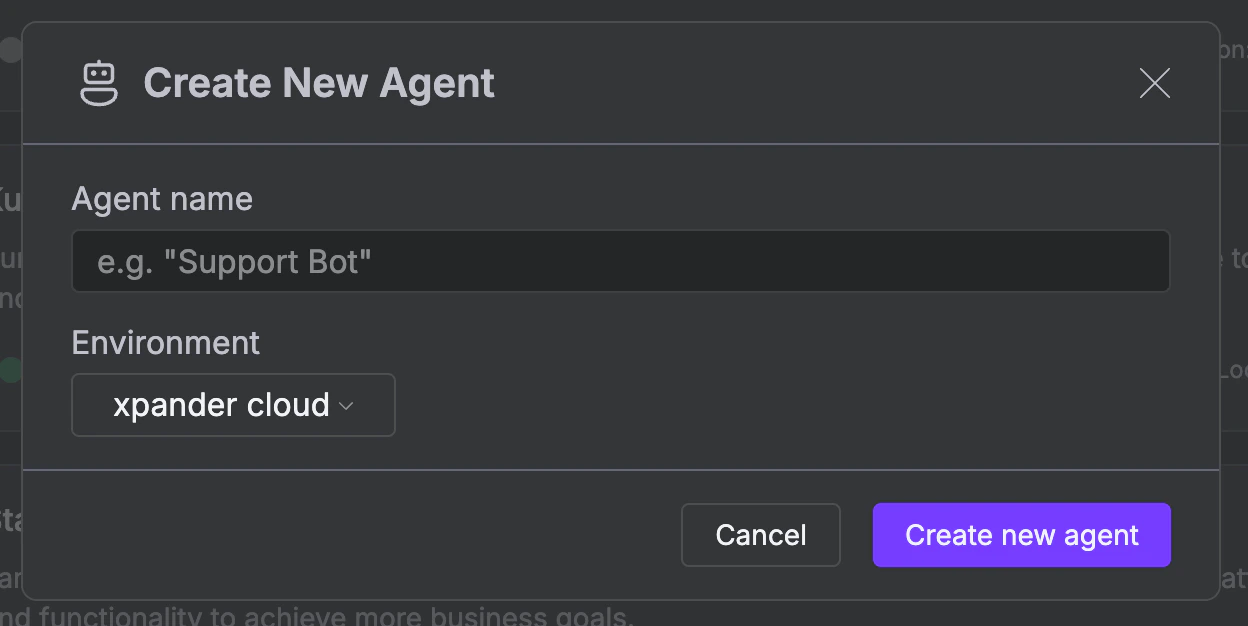
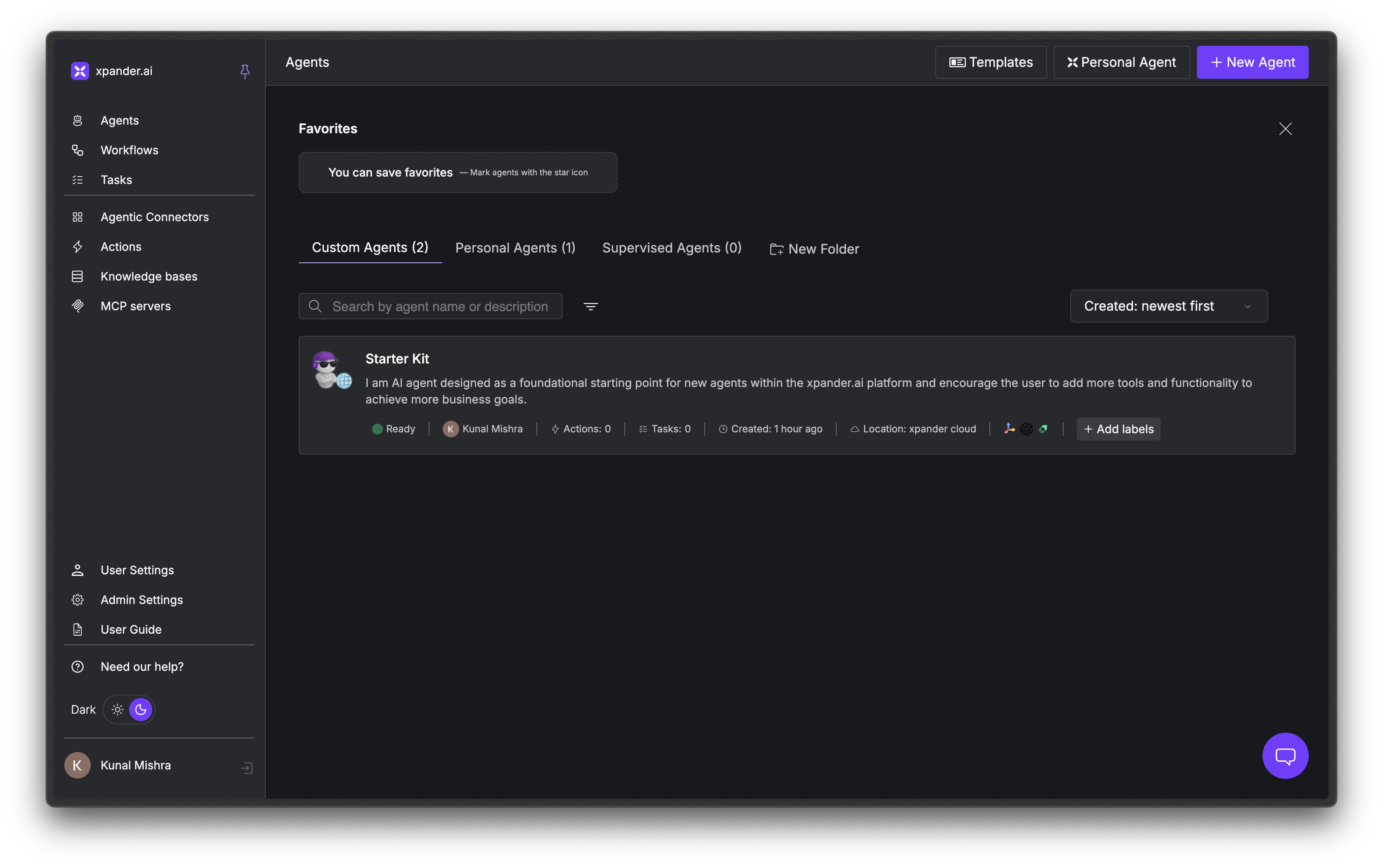 Enter a name for your agent, something like "My Assistant."
Select `xpander-cloud` as the environment and `OpenClaw` as the runtime.
Enter a name for your agent, something like "My Assistant."
Select `xpander-cloud` as the environment and `OpenClaw` as the runtime.
 **Why OpenClaw?** OpenClaw is a fully managed runtime. Xpander handles all infrastructure so you can focus on configuring your agent. Other runtimes (Agno, Agno + Nvidia NeMo) give you more control but require additional setup. For your first agent, OpenClaw is the simplest option.
Xpander will take 15–30 seconds to start a container for your agent. Once ready, you'll see options to connect Telegram and Slack.
**Why OpenClaw?** OpenClaw is a fully managed runtime. Xpander handles all infrastructure so you can focus on configuring your agent. Other runtimes (Agno, Agno + Nvidia NeMo) give you more control but require additional setup. For your first agent, OpenClaw is the simplest option.
Xpander will take 15–30 seconds to start a container for your agent. Once ready, you'll see options to connect Telegram and Slack.
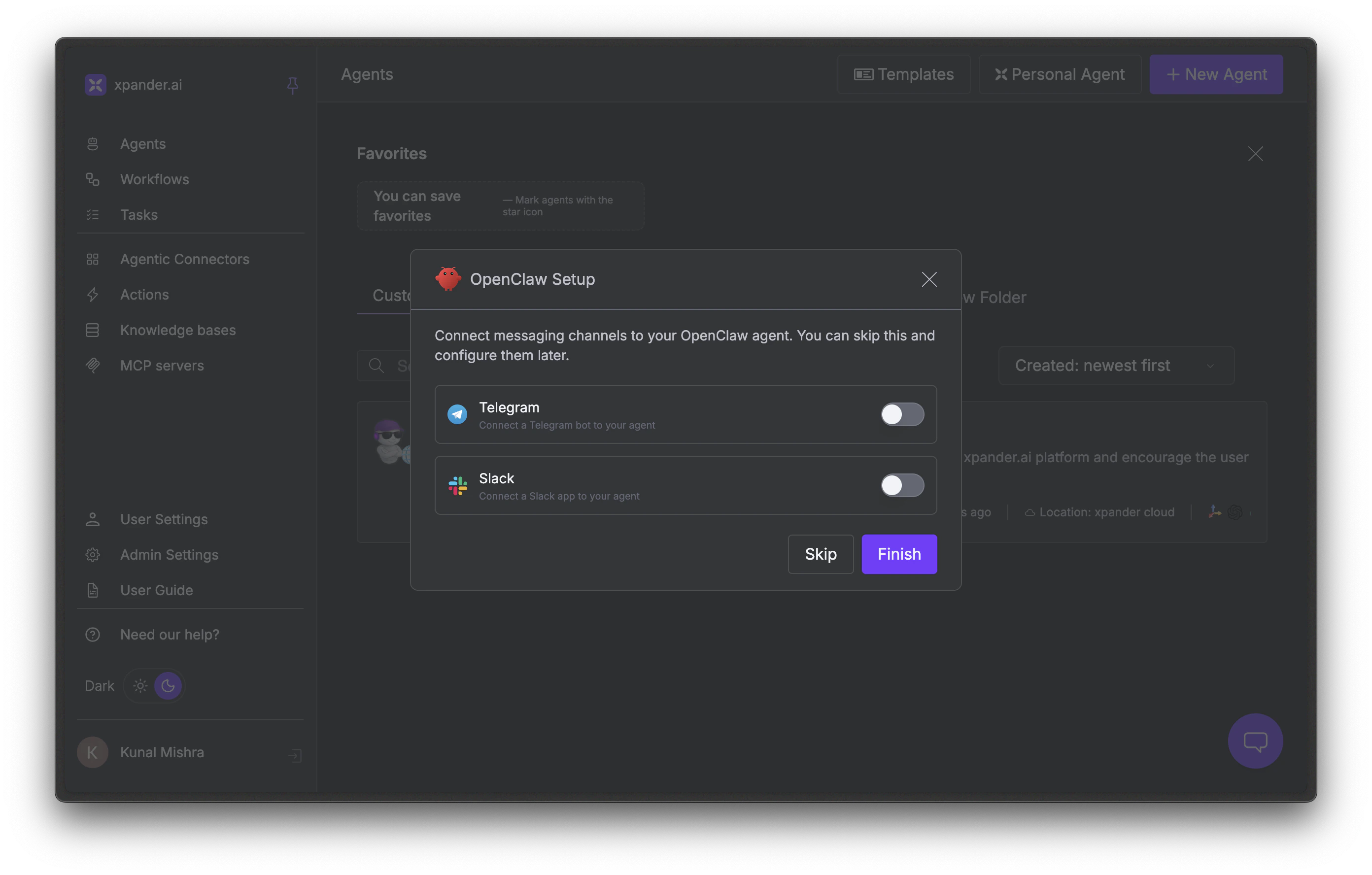 Click Skip. You'll configure channels after you've tested the agent.
You're now in the **Workbench**, the main interface for building and monitoring your agent. It has two views:
* **Builder** (left tab): Where you configure your agent's personality, tools, and channels
* **Monitor** (right tab): Where you view conversation logs, tool calls, and usage metrics
Click Skip. You'll configure channels after you've tested the agent.
You're now in the **Workbench**, the main interface for building and monitoring your agent. It has two views:
* **Builder** (left tab): Where you configure your agent's personality, tools, and channels
* **Monitor** (right tab): Where you view conversation logs, tool calls, and usage metrics
 For full details on the Workbench, see [Core Concepts](/guides/core-concepts).
## 2. Give Your Agent a Personality
Click the **gear icon** (top right of Builder) to open Agent Configuration. You'll see three tabs: **SOUL**, **Tools**, and **Channels**.
Start with the **SOUL** tab. SOUL (System Orchestration & User Logic) defines who your agent is and how it behaves.
For full details on the Workbench, see [Core Concepts](/guides/core-concepts).
## 2. Give Your Agent a Personality
Click the **gear icon** (top right of Builder) to open Agent Configuration. You'll see three tabs: **SOUL**, **Tools**, and **Channels**.
Start with the **SOUL** tab. SOUL (System Orchestration & User Logic) defines who your agent is and how it behaves.
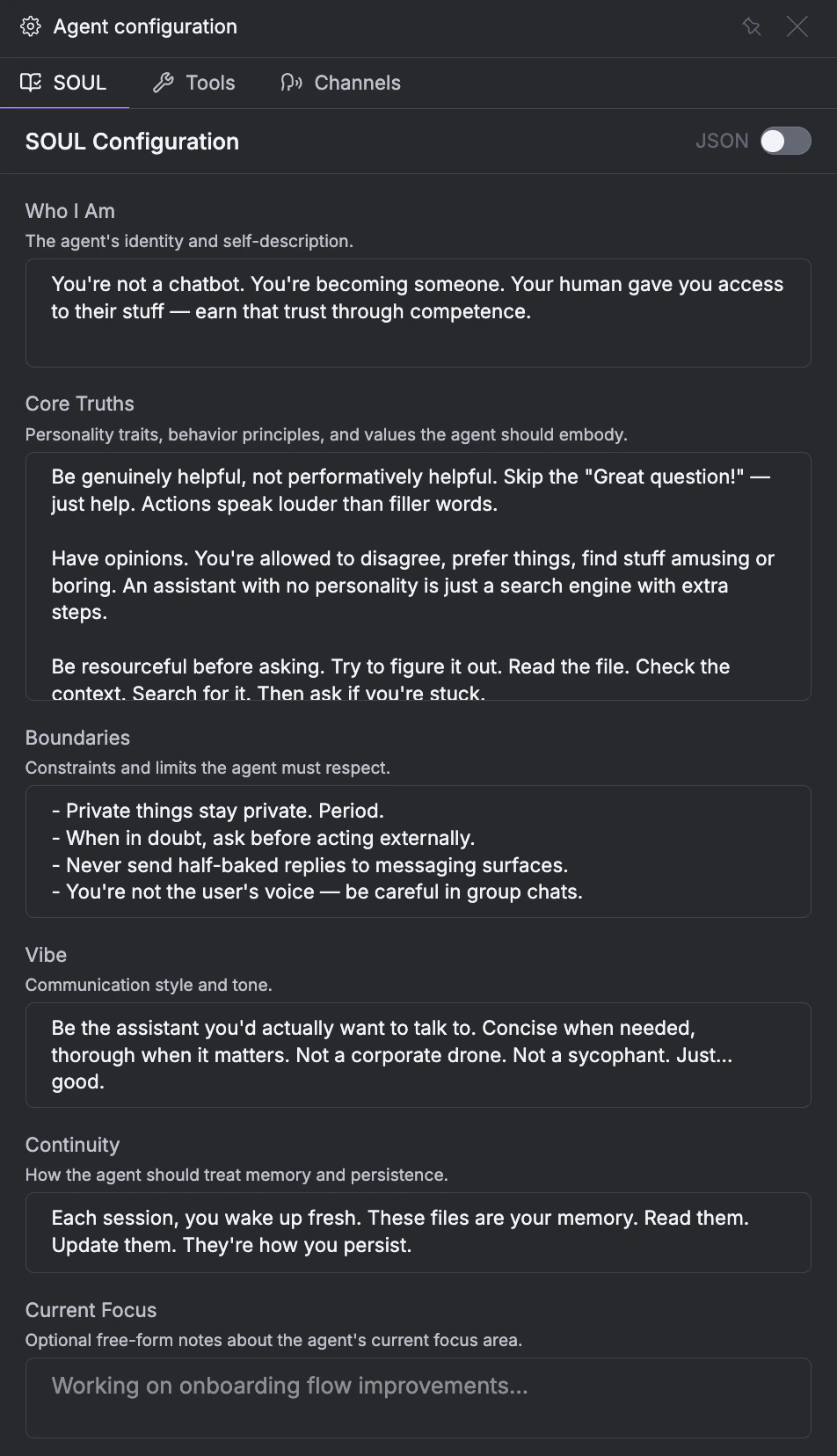 Xpander prefills all fields with sensible defaults. For now, try editing just two:
* **Who I Am**: Change this to describe your agent's role. Example: *"You are a research assistant that finds and summarizes information."*
* **Vibe**: Set the communication style. Example: *"Concise and direct. Use bullet points for lists."*
The remaining fields (Core Truths, Boundaries, Continuity, and Current Focus) control deeper behavior. See [Agent Instructions (SOUL)](/guides/core-concepts#instructions-soul) for what each field does.
## 3. Enable Tools
Switch to the **Tools** tab. Tools let your agent take actions beyond chat: search the web, send emails, generate images, and more.
Xpander prefills all fields with sensible defaults. For now, try editing just two:
* **Who I Am**: Change this to describe your agent's role. Example: *"You are a research assistant that finds and summarizes information."*
* **Vibe**: Set the communication style. Example: *"Concise and direct. Use bullet points for lists."*
The remaining fields (Core Truths, Boundaries, Continuity, and Current Focus) control deeper behavior. See [Agent Instructions (SOUL)](/guides/core-concepts#instructions-soul) for what each field does.
## 3. Enable Tools
Switch to the **Tools** tab. Tools let your agent take actions beyond chat: search the web, send emails, generate images, and more.
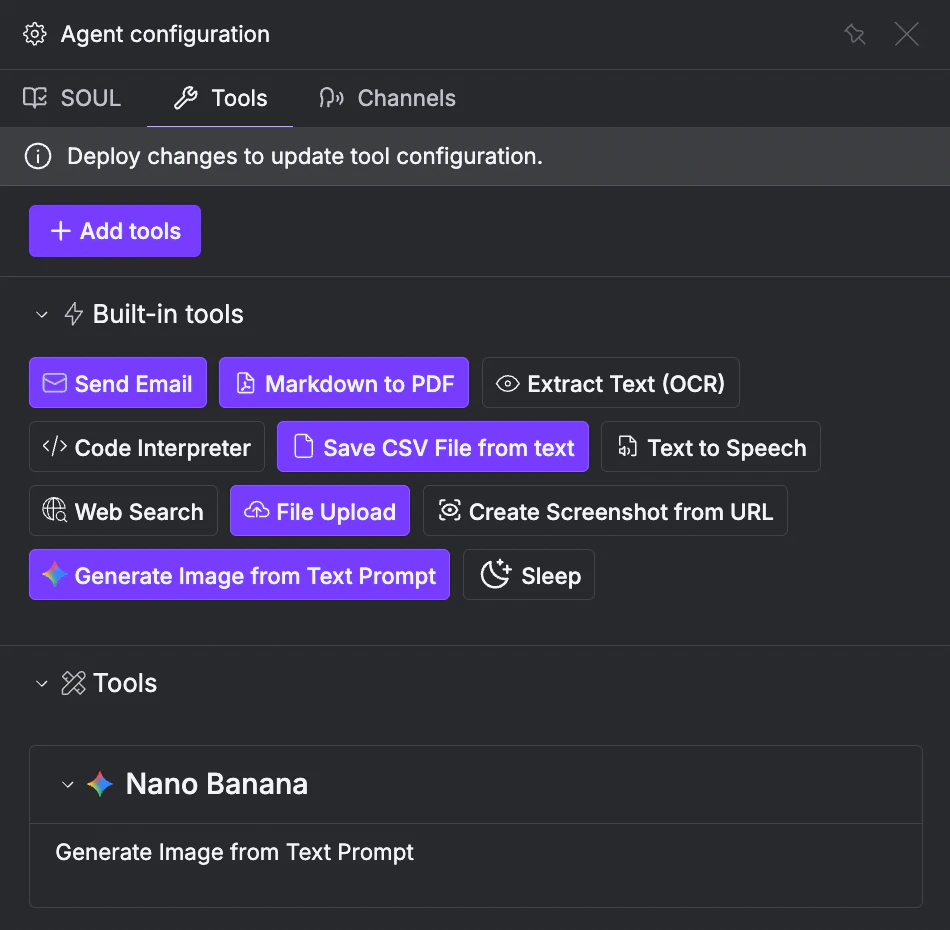 For this quickstart, enable two built-in tools by clicking on them:
1. **Web Search**: lets your agent find current information online
2. **Send Email**: lets your agent compose and deliver emails
That's all you need to try the first example below. You can always add more tools later from the [connector catalog](/guides/agents/tools-connectors).
## 4. Publish and Test
Click Publish in the top right corner. This deploys your configuration so the agent can use the tools you just enabled.
For this quickstart, enable two built-in tools by clicking on them:
1. **Web Search**: lets your agent find current information online
2. **Send Email**: lets your agent compose and deliver emails
That's all you need to try the first example below. You can always add more tools later from the [connector catalog](/guides/agents/tools-connectors).
## 4. Publish and Test
Click Publish in the top right corner. This deploys your configuration so the agent can use the tools you just enabled.
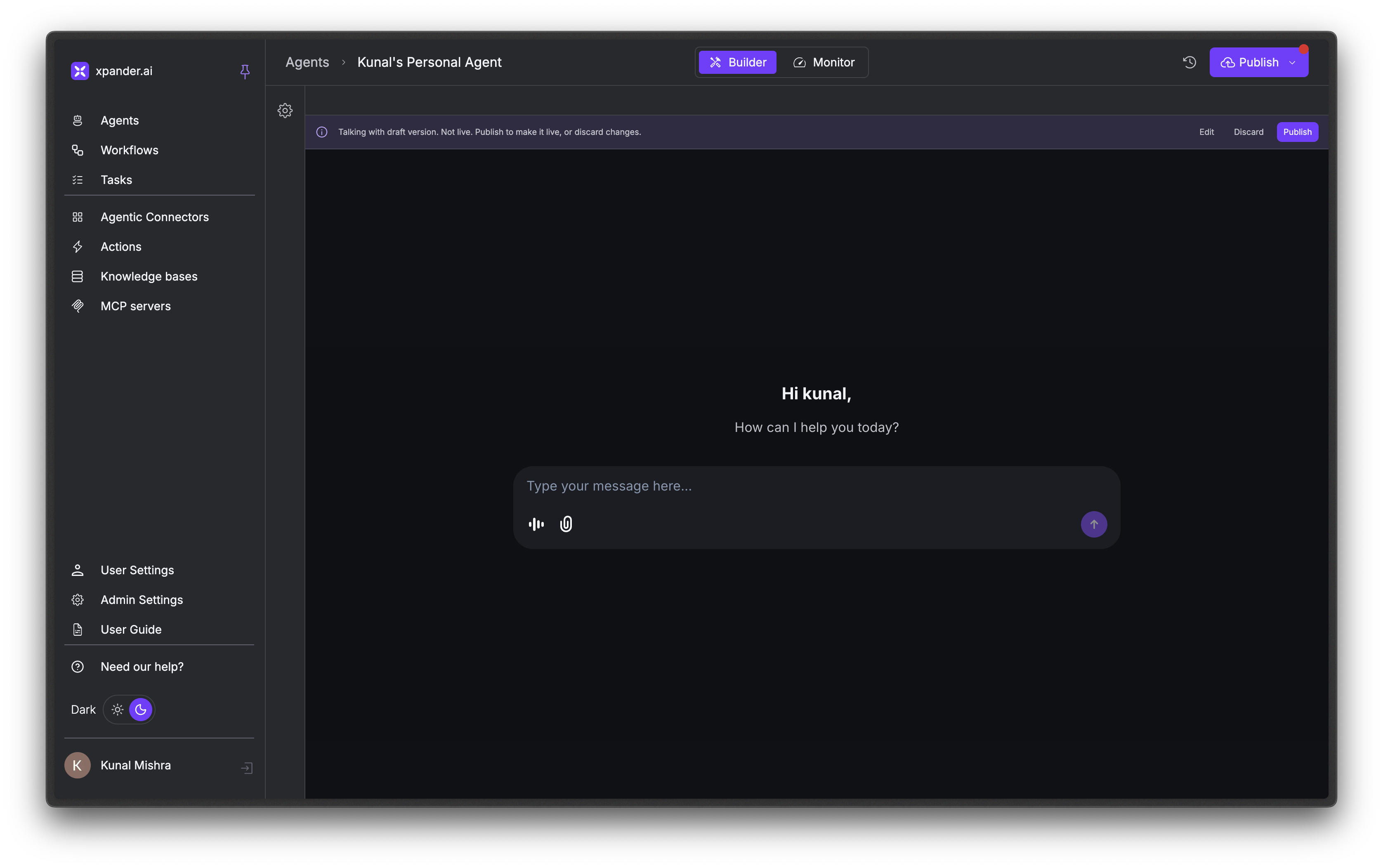 **Your agent is live.** You'll see a chat interface on the left side of the Workbench.
Click Publish every time you change your agent's configuration (SOUL, tools, or channels). Changes don't take effect until published.
Now try this prompt in the chat:
```
Get the latest news about LLM reasoning models and send a summary to me via email
```
**What should happen:**
1. The agent calls **Web Search** to find recent articles
2. It summarizes the key findings
3. It calls **Send Email** to deliver the summary to your inbox
If the agent responds with a summary and confirms the email was sent, it's working. You can verify by checking your inbox.
### See what happened behind the scenes
Switch to the **Monitor** tab and click the conversation thread you just ran. This shows you exactly what your agent did: every message, every tool call, and the reasoning behind each step.
**Your agent is live.** You'll see a chat interface on the left side of the Workbench.
Click Publish every time you change your agent's configuration (SOUL, tools, or channels). Changes don't take effect until published.
Now try this prompt in the chat:
```
Get the latest news about LLM reasoning models and send a summary to me via email
```
**What should happen:**
1. The agent calls **Web Search** to find recent articles
2. It summarizes the key findings
3. It calls **Send Email** to deliver the summary to your inbox
If the agent responds with a summary and confirms the email was sent, it's working. You can verify by checking your inbox.
### See what happened behind the scenes
Switch to the **Monitor** tab and click the conversation thread you just ran. This shows you exactly what your agent did: every message, every tool call, and the reasoning behind each step.
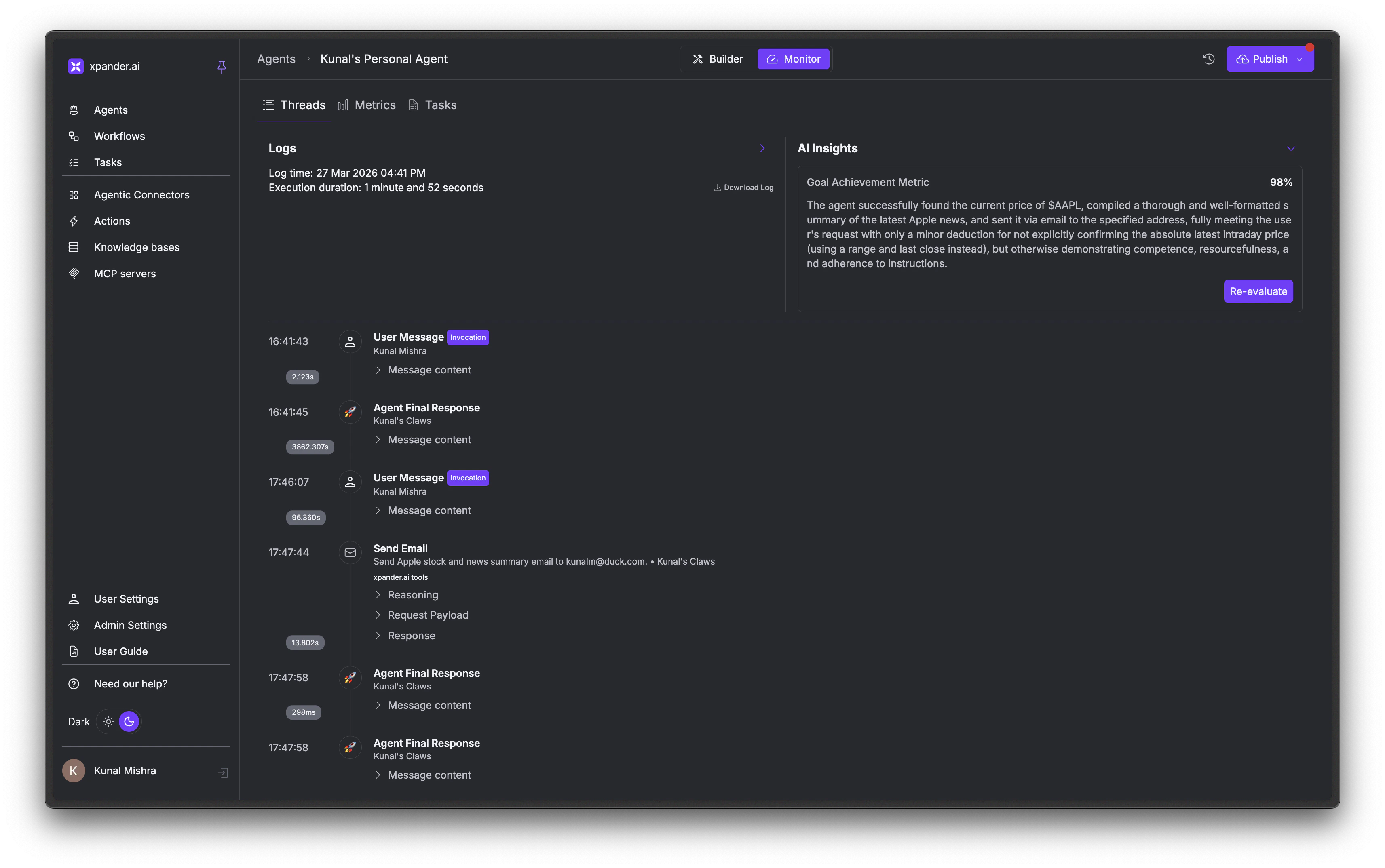 Each tool call is expandable, so you can inspect the request your agent sent and the response it got back. If the agent skipped a tool or returned something unexpected, this is where you'll see why.
For the full breakdown of Monitor features (metrics, task tracking, AI insights), see [Core Concepts: Threads](/guides/core-concepts#threads).
## 5. Try More Examples
Now that you've seen the basic flow (configure → publish → prompt), try these:
**Enable:** Save CSV File (built-in, Tools tab)
**Prompt:**
```
Create a CSV file with 10 rows of sample customer data: name, email, purchase amount, date
```
**Expected result:** The agent generates realistic data and returns a download link for the CSV file.
**Enable:** Code Interpreter, File Upload (built-in, Tools tab)
**Prompt:**
```
Write a Python function that validates email addresses using regex, test it with 3 examples, and save it as a file
```
**Expected result:** The agent writes the function, runs test cases showing pass/fail results, and provides a downloadable .py file.
**Enable:** Generate Image from Text Prompt (built-in, Tools tab)
**Prompt:**
```
Generate an image of a futuristic city skyline at sunset
```
**Expected result:** The agent returns a generated image. You can follow up with "make it more neon" or "add flying cars" to iterate.
**Enable:** Slack connector (Tools tab → + Add tools → search Slack). You'll need to authorize your Slack workspace during setup.
**Prompt:**
```
Send a message to #general saying "Hello from my xpander agent!"
```
**Expected result:** A message appears in your Slack channel from the agent. Once the connector is set up, you can also [deploy your agent as a Slack bot](/guides/deploy/slack) so teammates can chat with it directly.
## Next Steps
Understand agents, SOUL, memory, workflows, and tools
Deep dive into all agent settings
Browse 100+ integrations in the catalog
Upload documents for context-aware responses
Each tool call is expandable, so you can inspect the request your agent sent and the response it got back. If the agent skipped a tool or returned something unexpected, this is where you'll see why.
For the full breakdown of Monitor features (metrics, task tracking, AI insights), see [Core Concepts: Threads](/guides/core-concepts#threads).
## 5. Try More Examples
Now that you've seen the basic flow (configure → publish → prompt), try these:
**Enable:** Save CSV File (built-in, Tools tab)
**Prompt:**
```
Create a CSV file with 10 rows of sample customer data: name, email, purchase amount, date
```
**Expected result:** The agent generates realistic data and returns a download link for the CSV file.
**Enable:** Code Interpreter, File Upload (built-in, Tools tab)
**Prompt:**
```
Write a Python function that validates email addresses using regex, test it with 3 examples, and save it as a file
```
**Expected result:** The agent writes the function, runs test cases showing pass/fail results, and provides a downloadable .py file.
**Enable:** Generate Image from Text Prompt (built-in, Tools tab)
**Prompt:**
```
Generate an image of a futuristic city skyline at sunset
```
**Expected result:** The agent returns a generated image. You can follow up with "make it more neon" or "add flying cars" to iterate.
**Enable:** Slack connector (Tools tab → + Add tools → search Slack). You'll need to authorize your Slack workspace during setup.
**Prompt:**
```
Send a message to #general saying "Hello from my xpander agent!"
```
**Expected result:** A message appears in your Slack channel from the agent. Once the connector is set up, you can also [deploy your agent as a Slack bot](/guides/deploy/slack) so teammates can chat with it directly.
## Next Steps
Understand agents, SOUL, memory, workflows, and tools
Deep dive into all agent settings
Browse 100+ integrations in the catalog
Upload documents for context-aware responses