> ## Documentation Index
> Fetch the complete documentation index at: https://docs.xpander.ai/llms.txt
> Use this file to discover all available pages before exploring further.
# Slack workspace
> Connect a Slack workspace to your organization once, authorize agent handles, set the workspace-wide Slack behavior, and disconnect. Everything on this page is an organization admin's step.
One xpander Slack app serves the whole Slack workspace. An organization admin connects it once under **Settings > Channels**. From then on every member has their own conversation with Omni, the built-in agent, in Slack, agent owners route channels to their agents from the agent's settings, and an agent can carry a mention handle. What members do with it is on [Agents in Slack](/guides/deploy/slack).
## Connect the workspace
In Xpander Chat, open **Settings** and pick the **Channels** tab (admins only).
Click Connect Slack. A Slack window opens asking you to authorize the xpander Slack app for your workspace. Review the permissions and click Allow.
The window closes on its own and the Channels tab shows your workspace as connected. Members can start DMing the app immediately.
A Slack workspace can be connected to one xpander organization at a time. Disconnect from the same place: this uninstalls the xpander Slack app from the Slack workspace, so it disappears from everyone's sidebar, while past DM history remains visible under Slack's retention. Removing the app from the Slack side instead (**Settings & administration → Manage apps → xpander → Remove App**) has the same effect: xpander is notified and marks the workspace as disconnected. Either way the channel routing is kept on the xpander side, and reconnecting the same workspace restores it.
 ## Workspace-wide settings
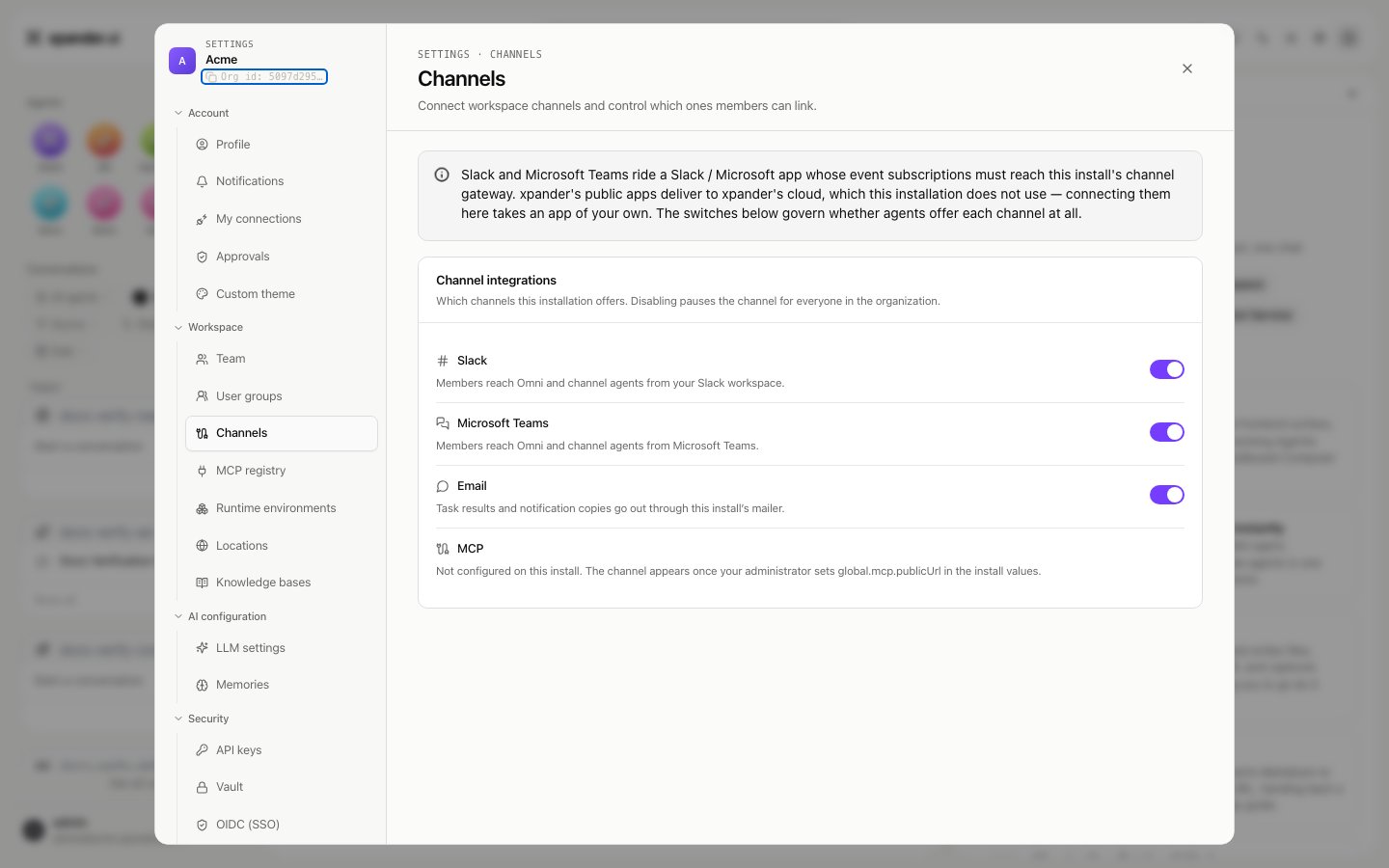
**Settings > Channels** lists each channel with a switch. On xpander cloud that list is WhatsApp, Slack, Microsoft Teams and Telegram. On a self-hosted installation it is Slack, Microsoft Teams, Email and MCP, with the last two appearing once the install values set a mailer and an MCP endpoint. The Slack entry holds the workspace-wide **Slack behavior** options and shows every channel routed to an agent with its rules. **Show detailed tool activity** in the bot's settings turns the step list on for every channel; a channel row can override it. Which channel sections a person may configure on an agent is set per user group under **Triggers**. Changes to these switches land in **Settings > Audit logs** as `Org Channels Updated`.
## Authorize handle management
A handle such as `@account-research` lets people select an agent from Slack's mention picker. Handles need the workspace authorized once by an **xpander organization admin**, with a Slack account allowed to create, edit and deactivate user groups. This is a separate step from connecting or reconnecting the Slack app. Slack user groups require a paid Slack plan.
Use a Slack administrator account with the required user-group permissions. You do not need to let everyone create or deactivate groups. Your Slack admin can check these permissions in the workspace settings under **Permissions → User Groups**. See [Slack's group-management requirements](https://docs.slack.dev/reference/methods/usergroups.create/#usage-info).
In xpander, open **Settings → Channels → Slack** and select Authorize agent handles. On Slack's consent screen, confirm the already-connected workspace and approve the user-group management permission with the authorized Slack account.
After authorization succeeds, the workspace shows **Authorized**. Agent owners can now create, rename and delete their agents' handles; organization admins can manage handles for agents in their organization.
**Authorized** means workspace setup is complete: xpander has verified the bot's current permissions and user-group availability, saved the admin grant in Vault, and enabled handles. No manual database flags or support-side activation are required. Slack checks the authorizing account's group-management rights when a handle is created, renamed or deleted. Authorization alone does not create or activate an agent handle.
The user access token and any refresh token are encrypted in **Supabase Vault**. Ordinary database tables contain only references and authorization metadata. Neither the browser nor the agent's skills ever receive these tokens; the existing bot connection continues to handle messages and replies.
## Reauthorize when needed
If the authorizing account loses group-management rights or its grant is revoked, open **Settings → Channels → Slack** and select **Reauthorize**. Existing active handles can continue receiving mentions while management authorization is unavailable. Creating or renaming handles requires authorization; deletion still removes the mapping immediately, with Slack cleanup waiting for authorization to be restored.
If authorization asks you to update app permissions instead, use **Reconnect** in the same Slack settings and then select **Authorize agent handles** again. This refreshes the bot permission grant; it is separate from the admin user-group grant. If a workspace was authorized before automatic setup was available, authorize handles once more to finish setup.
Reconnecting or disconnecting the workspace clears its handle-management authorization. After reconnecting, authorize handle management again. Bot **Reconnect** and user **Reauthorize** serve different purposes.
## Related
What members do once the workspace is connected: DM Omni, mention agents by handle, route channels
The same connection for a Microsoft 365 tenant
## Workspace-wide settings
**Settings > Channels** lists each channel with a switch. On xpander cloud that list is WhatsApp, Slack, Microsoft Teams and Telegram. On a self-hosted installation it is Slack, Microsoft Teams, Email and MCP, with the last two appearing once the install values set a mailer and an MCP endpoint. The Slack entry holds the workspace-wide **Slack behavior** options and shows every channel routed to an agent with its rules. **Show detailed tool activity** in the bot's settings turns the step list on for every channel; a channel row can override it. Which channel sections a person may configure on an agent is set per user group under **Triggers**. Changes to these switches land in **Settings > Audit logs** as `Org Channels Updated`.
## Authorize handle management
A handle such as `@account-research` lets people select an agent from Slack's mention picker. Handles need the workspace authorized once by an **xpander organization admin**, with a Slack account allowed to create, edit and deactivate user groups. This is a separate step from connecting or reconnecting the Slack app. Slack user groups require a paid Slack plan.
Use a Slack administrator account with the required user-group permissions. You do not need to let everyone create or deactivate groups. Your Slack admin can check these permissions in the workspace settings under **Permissions → User Groups**. See [Slack's group-management requirements](https://docs.slack.dev/reference/methods/usergroups.create/#usage-info).
In xpander, open **Settings → Channels → Slack** and select Authorize agent handles. On Slack's consent screen, confirm the already-connected workspace and approve the user-group management permission with the authorized Slack account.
After authorization succeeds, the workspace shows **Authorized**. Agent owners can now create, rename and delete their agents' handles; organization admins can manage handles for agents in their organization.
**Authorized** means workspace setup is complete: xpander has verified the bot's current permissions and user-group availability, saved the admin grant in Vault, and enabled handles. No manual database flags or support-side activation are required. Slack checks the authorizing account's group-management rights when a handle is created, renamed or deleted. Authorization alone does not create or activate an agent handle.
The user access token and any refresh token are encrypted in **Supabase Vault**. Ordinary database tables contain only references and authorization metadata. Neither the browser nor the agent's skills ever receive these tokens; the existing bot connection continues to handle messages and replies.
## Reauthorize when needed
If the authorizing account loses group-management rights or its grant is revoked, open **Settings → Channels → Slack** and select **Reauthorize**. Existing active handles can continue receiving mentions while management authorization is unavailable. Creating or renaming handles requires authorization; deletion still removes the mapping immediately, with Slack cleanup waiting for authorization to be restored.
If authorization asks you to update app permissions instead, use **Reconnect** in the same Slack settings and then select **Authorize agent handles** again. This refreshes the bot permission grant; it is separate from the admin user-group grant. If a workspace was authorized before automatic setup was available, authorize handles once more to finish setup.
Reconnecting or disconnecting the workspace clears its handle-management authorization. After reconnecting, authorize handle management again. Bot **Reconnect** and user **Reauthorize** serve different purposes.
## Related
What members do once the workspace is connected: DM Omni, mention agents by handle, route channels
The same connection for a Microsoft 365 tenant