> ## Documentation Index
> Fetch the complete documentation index at: https://docs.xpander.ai/llms.txt
> Use this file to discover all available pages before exploring further.
# Budgets
> Spending limits for the organization, groups, members, API keys, agents, agent turns and your apps' end users: warn or block, per day, week or month.
[Budgets](https://platform.xpander.ai/governance/budgets) (**Platform > AI governance > Budgets**) sets how much can be spent on model calls. Every call is checked against the budgets it belongs to before it reaches a provider. A blocked call is refused with a clear reason and costs nothing.
Amounts are in credits when your organization is billed in credits (1 credit = \$0.01; the form shows the dollar value), otherwise in USD.
## What each budget covers
| Budget | Where | Covers |
| - | - | - |
| **Organization limit** | **Overview** > **Set limit** | Everything the organization spends in a month: agent runs and calls from people's coding tools together |
| **Groups** | **Spending limits by scope** > **Groups** | Calls from people's coding tools and keys, for every member whose primary group it is |
| **Members** | **Spending limits by scope** > **Members** | One person: their coding tools and keys, and the agent runs they start |
| **API keys** | **Spending limits by scope** > **API keys** | One key |
| **Agents** | **Spending limits by scope** > **Agents** | Every run of one agent, whoever started it |
| **End users** | **Spending limits by scope** > **End users** | One user of your own app, named by the `user` field your app sends with each request |
| **Agent budget** and **per-turn budget** | Each agent's settings, under **Advanced** | One agent, and one turn of it |
A call goes through only when every budget it belongs to has room left. A person's own budget and their group's budget both apply. A call made by an agent counts for the agent, for the turn and for the person who started the run, and every call counts toward the organization limit.
Two kinds of calls count toward no budget: calls on a person's own Claude plan, and work xpander does for your organization that Logs marks **Not billed**.
## Set the organization limit
1. In **Overview**, choose **Set limit** (or **Edit limit**).
2. Enter **Limit per month**. Leave it empty for no limit.
3. Choose **Save limit**.
When the organization reaches this limit, requests stop. **Overview** also counts your budgets this period: **Budgets over the limit** (at or over the limit), **Budgets near the limit** (75-99%) and **Budgets under 75%**.
If your organization is an account run by a main account, an **Account limit** card shows the limit the main account set. Only the main account's admins can change it. A main account sets one limit for each of its accounts, and an account's own limit can only be lower.
## Add a budget
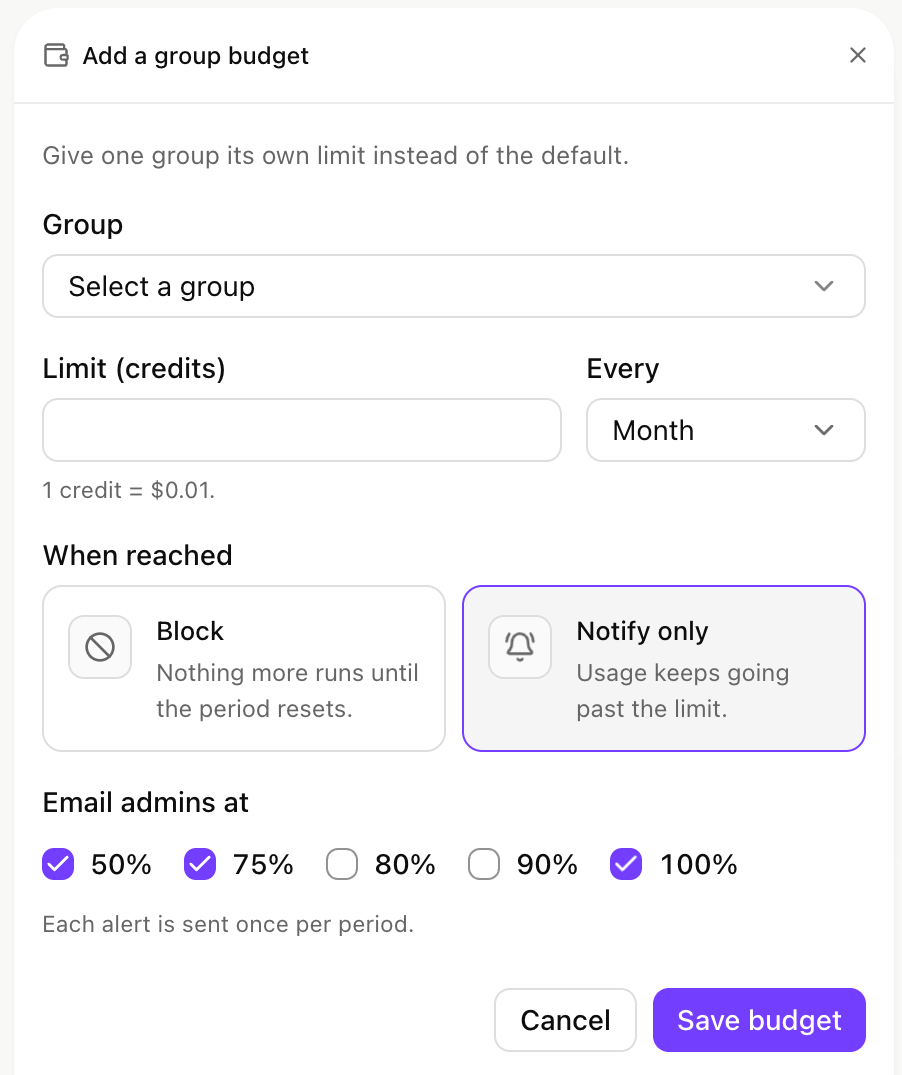 1. Under **Spending limits by scope**, pick the tab: **Groups**, **Members**, **API keys**, **Agents** or **End users**.
2. Choose **Add budget** and pick the group, member, key or agent. For an end user, enter the **End user ID**: the `user` value your app sends with each request.
3. Fill in the budget:
| Field | Options |
| - | - |
| **Limit** | The amount, in credits or USD |
| **Every** | **Day**, **Week** (weeks start Monday) or **Month** |
| **When reached** | **Block**: nothing more runs until the period resets. **Notify only**: usage keeps going past the limit. |
| **Email admins at** | **50%**, **75%**, **80%**, **90%**, **100%**. Each alert is sent once per period. |
4. Choose **Save budget**.
A new budget starts as **Month**, **Notify only**, with alerts at 50%, 75% and the full limit. Choose **Block** for a hard stop.
Each tab also has a pinned **Default budget for ...** row. Every group, member, key, agent or end user without a budget of its own gets that limit. A row's menu has **Set budget** (**Edit budget** once it has one) and **Remove budget**. Removing a budget sends that row back to the default. In the table, **Blocks at limit** and **Notifies only** show what each budget does.
## Agent and turn budgets
An agent's own budget and its per-turn budget are set in the agent's settings, under **Advanced**. The **Budgets set in agent settings** section at the bottom of the Budgets page holds the settings they share:
* **Maximum agent budget**: the most any agent or turn budget can be.
* **Enforce agent, turn and member budgets**: when off, these budgets track spend but never block.
* **Email alerts for agent, turn and member budgets**: email admins when one of these budgets crosses a threshold.
## What people see at a limit
* **In Xpander Chat.** A run stopped by a budget ends with **Budget limit reached** (*Raise the budget or wait for the next period.*). A run that reaches its budget in the middle of a turn finishes the call in progress and stops, instead of failing halfway.
* **In a coding tool or SDK.** The call is refused with status `429` and *The daily / weekly / monthly spending limit set for this ... on the xpander LLM Gateway is reached until ... Ask your admin to raise it, or wait.* When the organization limit is reached, the status is `402` and the message says the organization reached its spending limit.
* **In Logs.** The request shows **Budget reached**, and its **Gateway decisions** name the budget that blocked it.
* **In their own Usage.** [Usage](https://chat.xpander.ai/?settings=my-usage) shows **Limit reached** and when calls resume. Members see *For a higher limit, ask an organization admin.*; admins get **Change limit**.
A budget with **Notify only** never refuses a call. It emails admins at the thresholds you picked.
## Self-hosted installs
On a Hybrid or Air-Gapped install, your install enforces agent, member and organization budgets for the agents that run on it, with its own counters. A block holds even when your install cannot reach xpander cloud.
* **Hybrid.** Budgets are set in the Platform as on xpander cloud and reach your install within seconds. Your install also reports its spend to xpander cloud, so the cloud's totals include both. Calls from your people's coding tools go through xpander cloud and are stopped there at once.
* **Air-Gapped.** Budgets are set and enforced entirely inside your install.
* Calls on your own provider keys are counted at the cost the gateway measures, so a budget counts what Logs shows.
* Budget alert emails are sent from xpander cloud only.
This documentation is built and hosted on [Mintlify](https://mintlify.com), a developer documentation platform.
1. Under **Spending limits by scope**, pick the tab: **Groups**, **Members**, **API keys**, **Agents** or **End users**.
2. Choose **Add budget** and pick the group, member, key or agent. For an end user, enter the **End user ID**: the `user` value your app sends with each request.
3. Fill in the budget:
| Field | Options |
| - | - |
| **Limit** | The amount, in credits or USD |
| **Every** | **Day**, **Week** (weeks start Monday) or **Month** |
| **When reached** | **Block**: nothing more runs until the period resets. **Notify only**: usage keeps going past the limit. |
| **Email admins at** | **50%**, **75%**, **80%**, **90%**, **100%**. Each alert is sent once per period. |
4. Choose **Save budget**.
A new budget starts as **Month**, **Notify only**, with alerts at 50%, 75% and the full limit. Choose **Block** for a hard stop.
Each tab also has a pinned **Default budget for ...** row. Every group, member, key, agent or end user without a budget of its own gets that limit. A row's menu has **Set budget** (**Edit budget** once it has one) and **Remove budget**. Removing a budget sends that row back to the default. In the table, **Blocks at limit** and **Notifies only** show what each budget does.
## Agent and turn budgets
An agent's own budget and its per-turn budget are set in the agent's settings, under **Advanced**. The **Budgets set in agent settings** section at the bottom of the Budgets page holds the settings they share:
* **Maximum agent budget**: the most any agent or turn budget can be.
* **Enforce agent, turn and member budgets**: when off, these budgets track spend but never block.
* **Email alerts for agent, turn and member budgets**: email admins when one of these budgets crosses a threshold.
## What people see at a limit
* **In Xpander Chat.** A run stopped by a budget ends with **Budget limit reached** (*Raise the budget or wait for the next period.*). A run that reaches its budget in the middle of a turn finishes the call in progress and stops, instead of failing halfway.
* **In a coding tool or SDK.** The call is refused with status `429` and *The daily / weekly / monthly spending limit set for this ... on the xpander LLM Gateway is reached until ... Ask your admin to raise it, or wait.* When the organization limit is reached, the status is `402` and the message says the organization reached its spending limit.
* **In Logs.** The request shows **Budget reached**, and its **Gateway decisions** name the budget that blocked it.
* **In their own Usage.** [Usage](https://chat.xpander.ai/?settings=my-usage) shows **Limit reached** and when calls resume. Members see *For a higher limit, ask an organization admin.*; admins get **Change limit**.
A budget with **Notify only** never refuses a call. It emails admins at the thresholds you picked.
## Self-hosted installs
On a Hybrid or Air-Gapped install, your install enforces agent, member and organization budgets for the agents that run on it, with its own counters. A block holds even when your install cannot reach xpander cloud.
* **Hybrid.** Budgets are set in the Platform as on xpander cloud and reach your install within seconds. Your install also reports its spend to xpander cloud, so the cloud's totals include both. Calls from your people's coding tools go through xpander cloud and are stopped there at once.
* **Air-Gapped.** Budgets are set and enforced entirely inside your install.
* Calls on your own provider keys are counted at the cost the gateway measures, so a budget counts what Logs shows.
* Budget alert emails are sent from xpander cloud only.
This documentation is built and hosted on [Mintlify](https://mintlify.com), a developer documentation platform.