> ## Documentation Index
> Fetch the complete documentation index at: https://docs.xpander.ai/llms.txt
> Use this file to discover all available pages before exploring further.
# Providers, keys and model access
> Connect model providers with your own keys, set Azure endpoints and Bedrock IAM roles, choose whose key pays for each call, and decide which groups may use which models.
[Models](https://platform.xpander.ai/governance/model-access) (**Platform > AI governance > Models**) is where providers, their keys and their models are set up, and where you decide who may use them.
Provider keys stay in your organization's vault. The LLM Gateway reads a key when a call needs it and adds it to the call on its way to the provider. No person, agent or laptop ever receives a provider key.
## The Models page
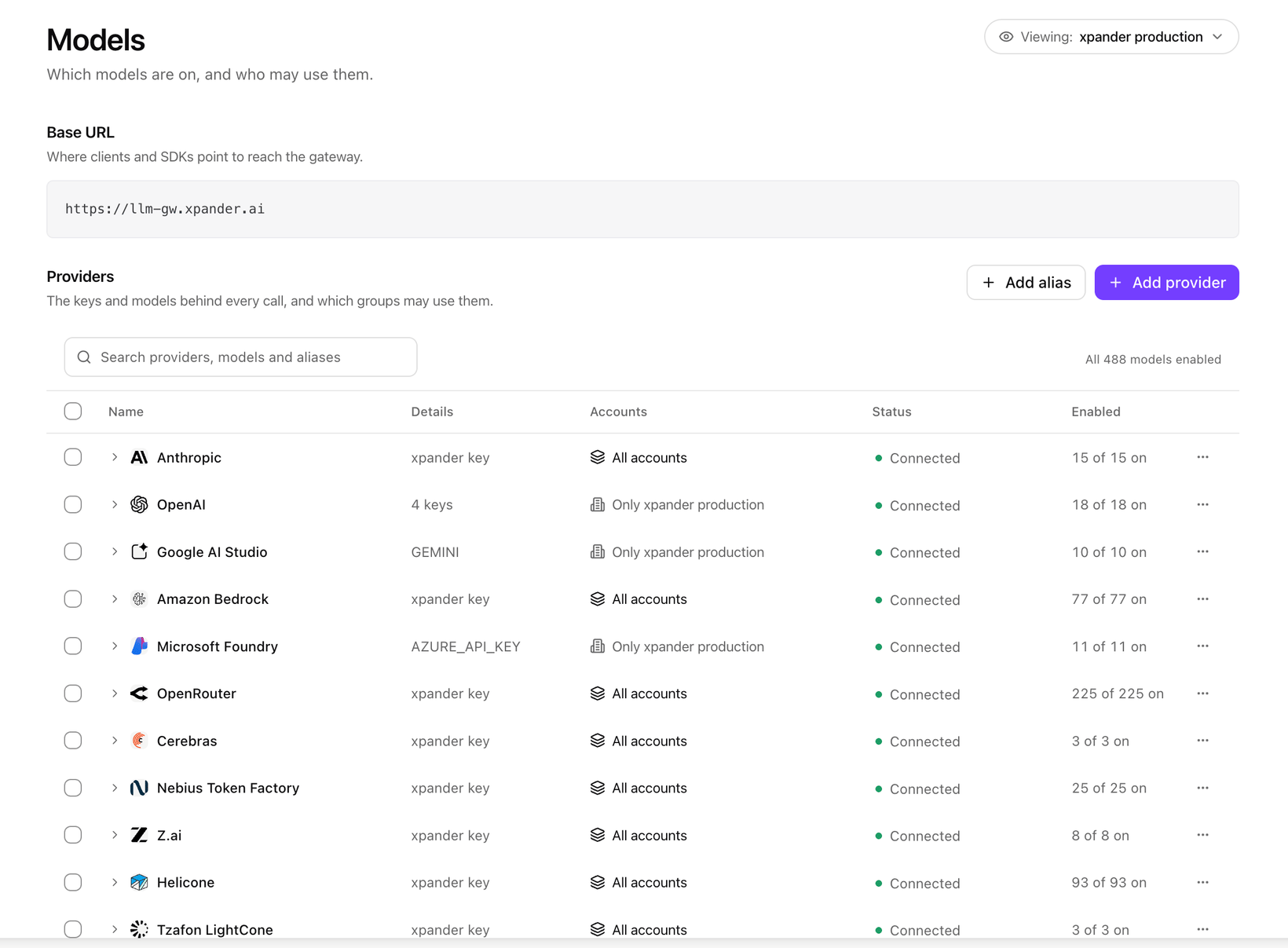 From the top:
* **Base URL**: the gateway address clients and SDKs point at, with a copy button.
* **Get started**: a checklist until your first request: **Connect a provider**, **Enable models**, **Create an alias** (optional), **Create an API key** and **Send a first request**. It hides once the required steps are done.
* **Providers**: every provider with its keys and models. Columns: **Name**, **Details**, **Status** (**Connected**, **Needs a key**, **All models off**, **Key error**) and **Enabled**. Search with **Search providers, models and aliases**.
* **Organization defaults**: the provider, model and credentials new agents start with.
* **Who can use what**: a read-only view of which models each person and group can call (below).
## Add a provider
On xpander cloud:
1. Under **Providers**, choose **Add provider**.
2. Pick the **Provider**, such as Anthropic, OpenAI, Google Gemini, Amazon Bedrock or Microsoft Foundry.
3. Paste the **API key**, and give it a **Name** in uppercase letters and underscores, such as `PROD_ANTHROPIC`. **Description** is optional.
4. Choose **Add provider**.
To add a key to a provider already on the list, open its row's menu and choose **Use your own key…**, or **Add key** in its card. Using your own provider keys is part of the Enterprise plan. Without it, the page shows *Bring-your-own LLM keys is an Enterprise feature* with **Contact us**.
On xpander cloud, **Add provider** offers **Model vendor** (the steps above) and **Custom endpoint** (below). On a Hybrid or Air-Gapped install, **Add provider** adds a custom endpoint; add a key for a listed provider with the row's **Use your own key…**.
### Amazon Bedrock with an IAM role
Instead of an API key, Bedrock can use an IAM role in your AWS account. No secret is stored: xpander assumes the role for short-lived credentials on each use. In the add form, set **Credential** to **IAM role** and follow the trust and permissions policies the dialog shows. Then enter the **Role ARN** and **Region**, choose **Test connection**, and choose **Add role**. On xpander cloud, your organization ID is the external ID, sent every time the role is assumed, so only your organization can use it. The full steps, including Hybrid and Air-Gapped installs, are on [Amazon Bedrock with an IAM role](/run/integrations/bedrock-iam-role).
### Azure endpoint
An Azure key belongs to one Azure resource, so each Azure key carries the endpoint its calls go to.
1. When you add a **Microsoft Foundry** key, enter the **Azure endpoint**: the resource endpoint from **Keys and Endpoint** in the Azure portal, such as `https://my-resource.openai.azure.com`.
2. Optionally set the **API version**, such as `2024-10-21`. Leave it empty to use the default.
3. To change it later, open the key's menu in the provider's card and choose **Set endpoint** or **Edit endpoint**, then **Save endpoint**. Leave **Endpoint** empty to remove it.
A key without an endpoint shows **No endpoint**. Until you add one, calls that would use the key are refused with a message that points to this section. On a self-hosted install whose Azure endpoint was set at install time, a key's own endpoint is optional.
### Custom endpoints
From the top:
* **Base URL**: the gateway address clients and SDKs point at, with a copy button.
* **Get started**: a checklist until your first request: **Connect a provider**, **Enable models**, **Create an alias** (optional), **Create an API key** and **Send a first request**. It hides once the required steps are done.
* **Providers**: every provider with its keys and models. Columns: **Name**, **Details**, **Status** (**Connected**, **Needs a key**, **All models off**, **Key error**) and **Enabled**. Search with **Search providers, models and aliases**.
* **Organization defaults**: the provider, model and credentials new agents start with.
* **Who can use what**: a read-only view of which models each person and group can call (below).
## Add a provider
On xpander cloud:
1. Under **Providers**, choose **Add provider**.
2. Pick the **Provider**, such as Anthropic, OpenAI, Google Gemini, Amazon Bedrock or Microsoft Foundry.
3. Paste the **API key**, and give it a **Name** in uppercase letters and underscores, such as `PROD_ANTHROPIC`. **Description** is optional.
4. Choose **Add provider**.
To add a key to a provider already on the list, open its row's menu and choose **Use your own key…**, or **Add key** in its card. Using your own provider keys is part of the Enterprise plan. Without it, the page shows *Bring-your-own LLM keys is an Enterprise feature* with **Contact us**.
On xpander cloud, **Add provider** offers **Model vendor** (the steps above) and **Custom endpoint** (below). On a Hybrid or Air-Gapped install, **Add provider** adds a custom endpoint; add a key for a listed provider with the row's **Use your own key…**.
### Amazon Bedrock with an IAM role
Instead of an API key, Bedrock can use an IAM role in your AWS account. No secret is stored: xpander assumes the role for short-lived credentials on each use. In the add form, set **Credential** to **IAM role** and follow the trust and permissions policies the dialog shows. Then enter the **Role ARN** and **Region**, choose **Test connection**, and choose **Add role**. On xpander cloud, your organization ID is the external ID, sent every time the role is assumed, so only your organization can use it. The full steps, including Hybrid and Air-Gapped installs, are on [Amazon Bedrock with an IAM role](/run/integrations/bedrock-iam-role).
### Azure endpoint
An Azure key belongs to one Azure resource, so each Azure key carries the endpoint its calls go to.
1. When you add a **Microsoft Foundry** key, enter the **Azure endpoint**: the resource endpoint from **Keys and Endpoint** in the Azure portal, such as `https://my-resource.openai.azure.com`.
2. Optionally set the **API version**, such as `2024-10-21`. Leave it empty to use the default.
3. To change it later, open the key's menu in the provider's card and choose **Set endpoint** or **Edit endpoint**, then **Save endpoint**. Leave **Endpoint** empty to remove it.
A key without an endpoint shows **No endpoint**. Until you add one, calls that would use the key are refused with a message that points to this section. On a self-hosted install whose Azure endpoint was set at install time, a key's own endpoint is optional.
### Custom endpoints
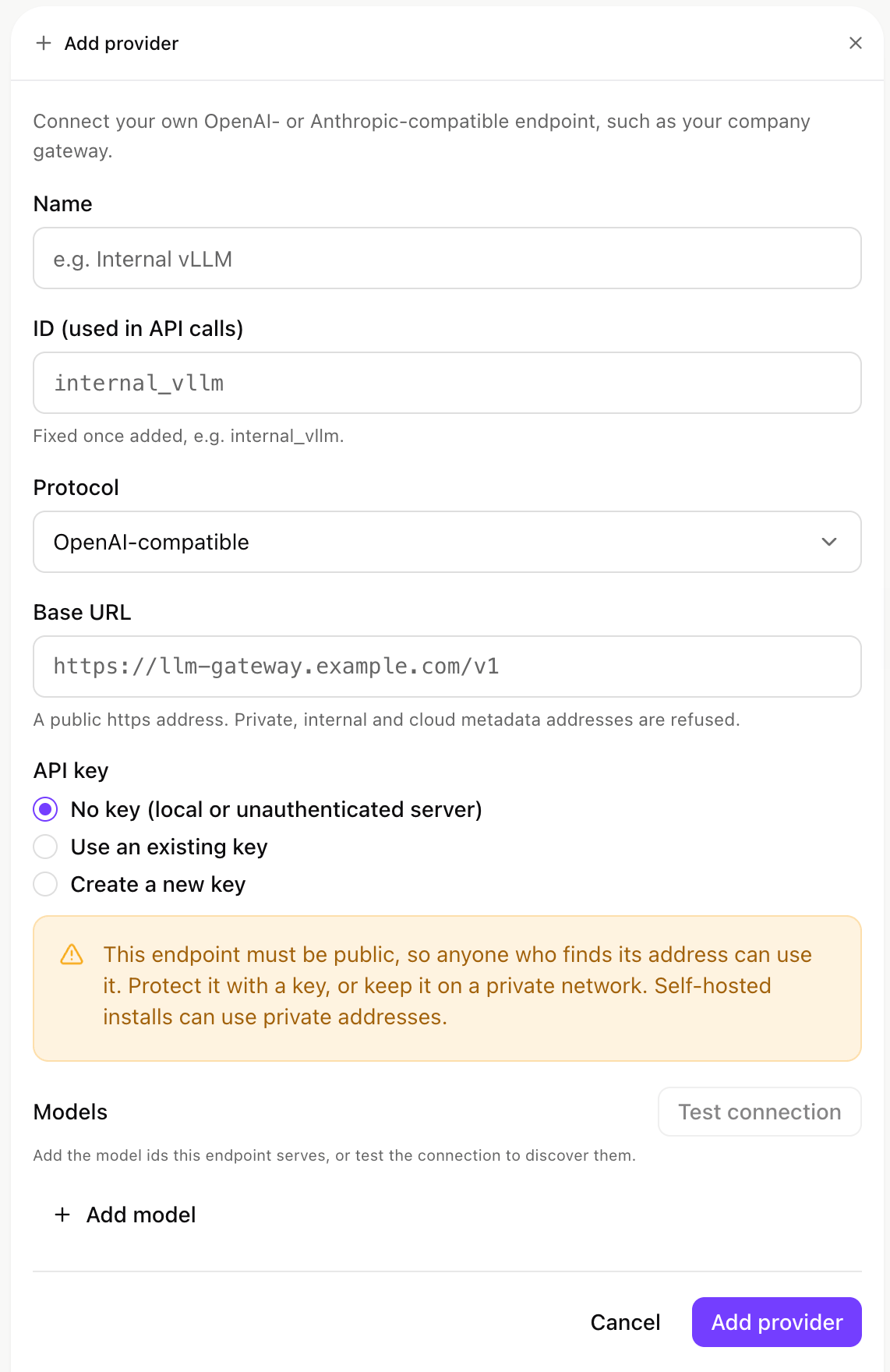 A custom endpoint connects a model server or AI gateway you run, such as vLLM, Ollama or an internal gateway. On xpander cloud, choose **Add provider**, then **Custom endpoint**. On a Hybrid or Air-Gapped install, choose **Add provider**. Any admin who can add provider keys can add one.
1. Enter a **Name** and the **ID (used in API calls)**, which is fixed once added.
2. Pick the **Protocol**: **OpenAI-compatible** or **Anthropic-compatible**.
3. Enter the **Base URL**: on xpander cloud a public `https` address, such as `https://ai-gateway.example.com/v1`; on a Hybrid or Air-Gapped install it can be inside your network, such as `http://vllm.ai-tools.svc.cluster.local:8000`.
4. Pick a key: **No key (local or unauthenticated server)**, **Use an existing key** or **Create a new key**.
5. Under **Models**, choose **Test connection** to list what the server offers, or **Add model** to enter model IDs yourself.
6. Choose **Add provider**. The models you listed are turned on for your organization; give each one a cost (**Set model cost**) so agents can use it.
The row's menu has **Check now**, **Edit provider** and **Remove provider**.
#### A server with no key
Choose **No key (local or unauthenticated server)** for a server that does not check keys, such as vLLM or Ollama started without one.
* Every call carries a placeholder in place of a key, never a real one. A server that does not check keys ignores it.
* Gateway callers name the model `::`, such as `internal_vllm::llama-3.3-70b`. Agents use it like any other model.
* **Check now** and **Test connection** work without a key.
* Calls through the LLM Gateway show in [Logs](https://platform.xpander.ai/governance/logs) under the provider's ID, at the cost you set with **Set model cost**. They are not charged in credits.
On xpander cloud the endpoint must be public, so anyone who finds its address can use it. Protect the server with a key, or connect it from a Hybrid or Air-Gapped install, where it can stay on a private address inside your network.
To connect an AI gateway your company already runs, see [Use xpander with your existing AI gateway](/run/llm-gateway/existing-gateway).
### Model endpoints on xpander cloud
On xpander cloud, every model endpoint you enter must be a public `https` address. This covers an Azure endpoint, an OpenAI-compatible endpoint and a model endpoint set on an agent. An endpoint at a private, loopback, link-local, cloud metadata or cluster address is refused when you save it: *Model endpoints are called at public addresses here, so this endpoint was not saved. Use the endpoint's public https address, or keep the provider's own endpoint.* Each call checks the address again, so a name that later resolves to a private address is refused too.
On a Hybrid or Air-Gapped install, an endpoint can be a private address inside your network. Link-local and cloud metadata addresses are refused everywhere.
## Turn models on
Open a provider's row (or **Keys and models…** in its menu) and tick the models the organization may use. Prices are USD per 1M tokens. A model that is off is refused for every caller. **Disable provider** or **Disable model** in a row's menu stops it everywhere, after you confirm.
A model blocked at the gateway shows **Off** (*No one in the organization can use this model.*); **Unblock at the gateway** in its menu lifts the block.
## Who may use which models
A custom endpoint connects a model server or AI gateway you run, such as vLLM, Ollama or an internal gateway. On xpander cloud, choose **Add provider**, then **Custom endpoint**. On a Hybrid or Air-Gapped install, choose **Add provider**. Any admin who can add provider keys can add one.
1. Enter a **Name** and the **ID (used in API calls)**, which is fixed once added.
2. Pick the **Protocol**: **OpenAI-compatible** or **Anthropic-compatible**.
3. Enter the **Base URL**: on xpander cloud a public `https` address, such as `https://ai-gateway.example.com/v1`; on a Hybrid or Air-Gapped install it can be inside your network, such as `http://vllm.ai-tools.svc.cluster.local:8000`.
4. Pick a key: **No key (local or unauthenticated server)**, **Use an existing key** or **Create a new key**.
5. Under **Models**, choose **Test connection** to list what the server offers, or **Add model** to enter model IDs yourself.
6. Choose **Add provider**. The models you listed are turned on for your organization; give each one a cost (**Set model cost**) so agents can use it.
The row's menu has **Check now**, **Edit provider** and **Remove provider**.
#### A server with no key
Choose **No key (local or unauthenticated server)** for a server that does not check keys, such as vLLM or Ollama started without one.
* Every call carries a placeholder in place of a key, never a real one. A server that does not check keys ignores it.
* Gateway callers name the model `::`, such as `internal_vllm::llama-3.3-70b`. Agents use it like any other model.
* **Check now** and **Test connection** work without a key.
* Calls through the LLM Gateway show in [Logs](https://platform.xpander.ai/governance/logs) under the provider's ID, at the cost you set with **Set model cost**. They are not charged in credits.
On xpander cloud the endpoint must be public, so anyone who finds its address can use it. Protect the server with a key, or connect it from a Hybrid or Air-Gapped install, where it can stay on a private address inside your network.
To connect an AI gateway your company already runs, see [Use xpander with your existing AI gateway](/run/llm-gateway/existing-gateway).
### Model endpoints on xpander cloud
On xpander cloud, every model endpoint you enter must be a public `https` address. This covers an Azure endpoint, an OpenAI-compatible endpoint and a model endpoint set on an agent. An endpoint at a private, loopback, link-local, cloud metadata or cluster address is refused when you save it: *Model endpoints are called at public addresses here, so this endpoint was not saved. Use the endpoint's public https address, or keep the provider's own endpoint.* Each call checks the address again, so a name that later resolves to a private address is refused too.
On a Hybrid or Air-Gapped install, an endpoint can be a private address inside your network. Link-local and cloud metadata addresses are refused everywhere.
## Turn models on
Open a provider's row (or **Keys and models…** in its menu) and tick the models the organization may use. Prices are USD per 1M tokens. A model that is off is refused for every caller. **Disable provider** or **Disable model** in a row's menu stops it everywhere, after you confirm.
A model blocked at the gateway shows **Off** (*No one in the organization can use this model.*); **Unblock at the gateway** in its menu lifts the block.
## Who may use which models
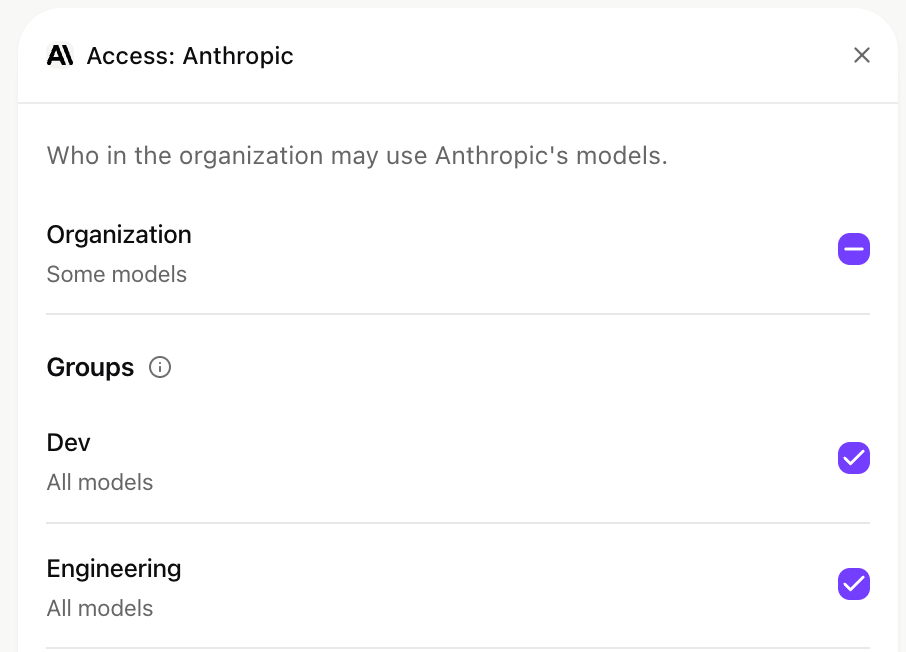 A provider's or a model's menu has **Who may use it…**. It holds an **Organization** switch and one switch per group. A group can use only what the organization has on.
**Who can use what** at the bottom of the page shows the result, **By person**, **By group** or **By model**: each model with **Allowed** or **Blocked**, and why it is blocked (**Blocked for everyone**, **Group switched off**, **Not on the organization's list** or **Not on the group's list**). It applies the same rules as the gateway, so use it to answer "why can't this person use this model".
## Whose key pays
A provider can hold several keys, for example one per team or cost center. A provider's card shows its keys; the key the gateway uses across the organization carries **Used by the gateway**, and a key the provider refused shows **Rejected by the provider**.
Under **LLM gateway** in the provider's card:
1. **Organization default** picks the key everyone uses. **Automatic** lets the gateway pick.
2. **Give a group, person or agent its own key**: pick the group, person or agent and the **Key**, then **Assign**. Remove an assignment with its **X**.
3. **Check a person or agent** shows which key their calls use.
Each call uses the first key assigned in this order:
1. the agent making the call
2. the person making the call
3. the person's primary group
4. the organization default for that provider
Whether a stored key or xpander's key pays at all is decided by your [license model](/run/llm-gateway/which-key-pays). On a provider with no key of your own, the card shows the **xpander key** row (*Metered in credits.*) on xpander cloud, or **Installation credentials** on a self-hosted install.
## Rotating a key
Add the new key and assign it, or replace the value in the vault. The next call uses the new value. A key you delete stops being used from the next call.
This documentation is built and hosted on [Mintlify](https://mintlify.com), a developer documentation platform.
A provider's or a model's menu has **Who may use it…**. It holds an **Organization** switch and one switch per group. A group can use only what the organization has on.
**Who can use what** at the bottom of the page shows the result, **By person**, **By group** or **By model**: each model with **Allowed** or **Blocked**, and why it is blocked (**Blocked for everyone**, **Group switched off**, **Not on the organization's list** or **Not on the group's list**). It applies the same rules as the gateway, so use it to answer "why can't this person use this model".
## Whose key pays
A provider can hold several keys, for example one per team or cost center. A provider's card shows its keys; the key the gateway uses across the organization carries **Used by the gateway**, and a key the provider refused shows **Rejected by the provider**.
Under **LLM gateway** in the provider's card:
1. **Organization default** picks the key everyone uses. **Automatic** lets the gateway pick.
2. **Give a group, person or agent its own key**: pick the group, person or agent and the **Key**, then **Assign**. Remove an assignment with its **X**.
3. **Check a person or agent** shows which key their calls use.
Each call uses the first key assigned in this order:
1. the agent making the call
2. the person making the call
3. the person's primary group
4. the organization default for that provider
Whether a stored key or xpander's key pays at all is decided by your [license model](/run/llm-gateway/which-key-pays). On a provider with no key of your own, the card shows the **xpander key** row (*Metered in credits.*) on xpander cloud, or **Installation credentials** on a self-hosted install.
## Rotating a key
Add the new key and assign it, or replace the value in the vault. The next call uses the new value. A key you delete stops being used from the next call.
This documentation is built and hosted on [Mintlify](https://mintlify.com), a developer documentation platform.