> ## Documentation Index
> Fetch the complete documentation index at: https://docs.xpander.ai/llms.txt
> Use this file to discover all available pages before exploring further.
# Locations and environments
> Choose where your agents run, the xpander.ai cloud or your own self-hosted locations, and switch between them from Xpander Chat.
A **location** is where xpander runs your agents. In a cloud organization the only location is the **xpander.ai cloud**, which xpander manages. A **Hybrid** organization adds **self-hosted** locations, Kubernetes clusters you run yourself and connect with the Helm chart, next to the cloud. An **air-gapped** installation has no cloud location at all: its locations are its own clusters. In Xpander Chat, the location you are currently working against is your **environment**.
This is a different thing from a **runtime environment**, the agent's computer: the CLIs, packages, config files and standing context it finds installed on every run. A location says where that computer runs; the runtime environment says what is on it. See [Runtime environments](/use/agents/runtime-environments).
## Locations in Settings
Organization admins manage locations in Settings > **Locations**. Each row names the location, marks it **Managed** (xpander.ai cloud) or **Self-hosted** with its address, and shows its status: **Connected**, **Checking**, **Unreachable**, or **Setup incomplete** for a cluster that has not connected yet. One location carries the **Default** badge; any row's menu offers **Set as default**.
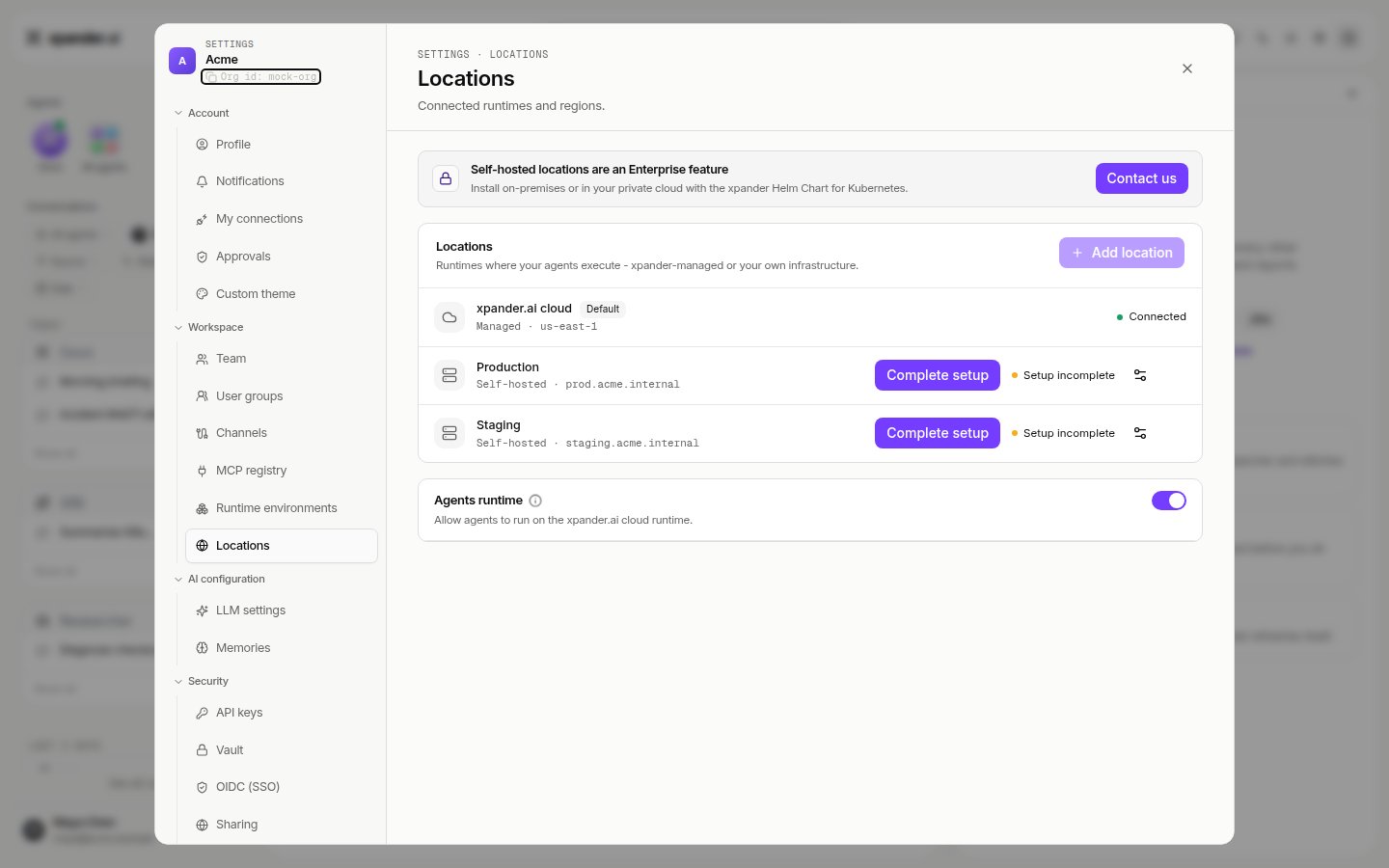 **Add location** walks you through connecting a cluster. On a cloud organization the dialog asks which deployment you are connecting. Hybrid keeps your data and agents in your cluster, while the control plane, the xpander services that manage agent and skill definitions, stays in the xpander.ai cloud. Air-gapped keeps xpander entirely in your environment, control plane included, and then has no cloud location. Self-hosted locations depend on your plan, and the tab tells you if a plan change is needed. On a licensed installation, where the whole org already runs air-gapped, the dialog is titled **New remote location** instead. It only asks for a name and an optional URL for the cluster you are connecting, since that new cluster joins the installation you are already on rather than choosing an edition of its own.
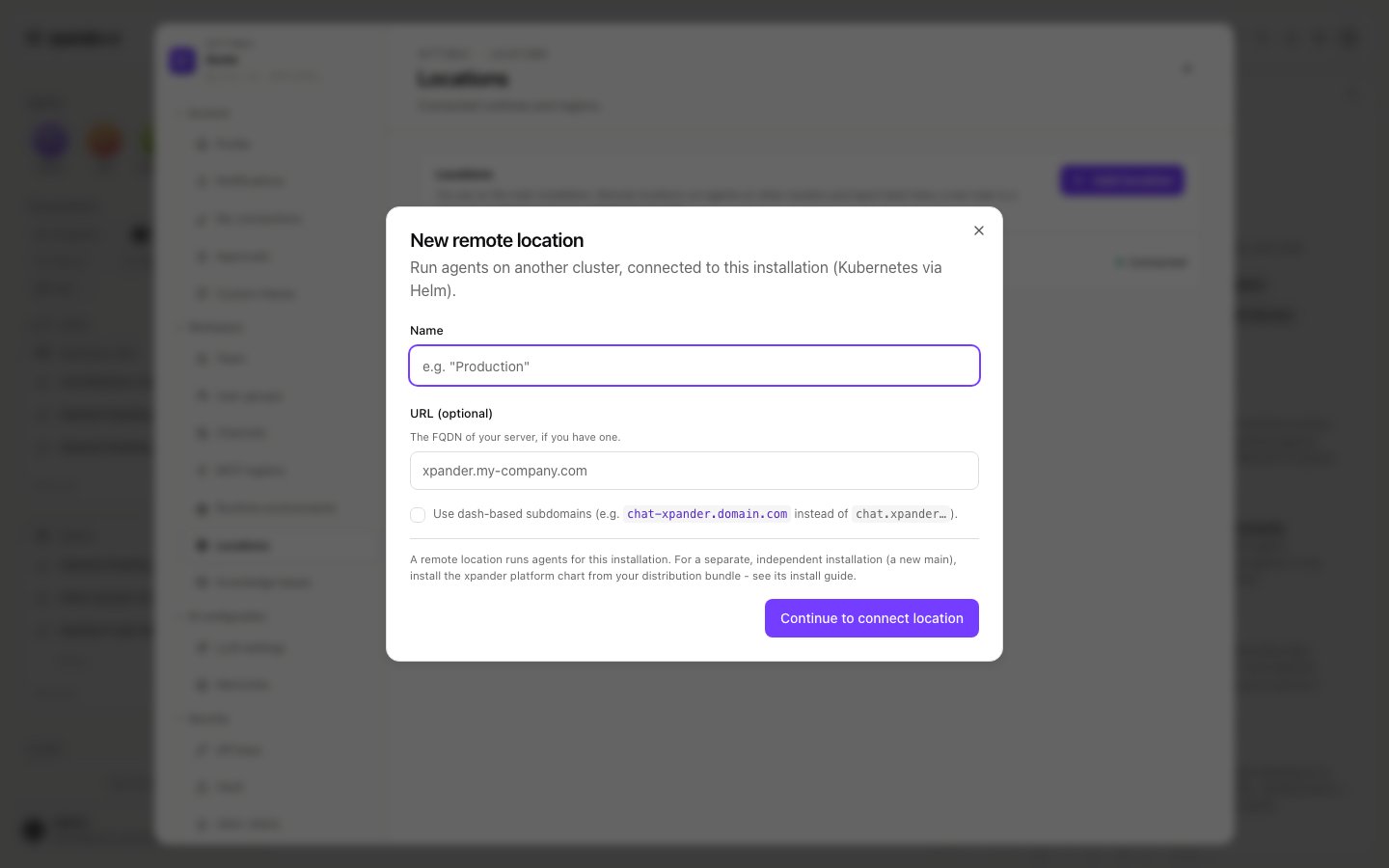 Name it, run the snippet in your cluster's terminal, and the row turns **Connected** once the cluster reports in. Installation guides are under [Self-hosted](/self-hosted/index), with the [hybrid](/self-hosted/hybrid) and [air-gapped](/self-hosted/airgap) deployments covered separately.
For a self-hosted row, the **Cloud controls** dialog decides what that cluster exposes through the xpander.ai cloud: **Chat** (talking to its agents through the cloud, including relaying when the cluster cannot be reached directly), **Streaming** (execution status and skill calls) and **Scheduler** (task scheduling from the cloud). **Delete location** removes the row; agents assigned to it stop running there.
## Which location an agent runs in
An agent's location is set when it is created. With more than one location, the **New agent** form shows an **Environment** picker with the default starred. Managed locations appear as **xpander.ai cloud**; self-hosted ones under their own names.
## Switching environments
When your organization has a connected self-hosted location, the profile menu at the bottom of the sidebar gains an **Environments** section. It lists **xpander.ai cloud** (subtitled **Managed**) first, then each self-hosted location with its address. On a licensed installation the first row reads **Main** and **This installation** instead. Picking a row switches Xpander Chat to that environment; your choice sticks across visits, and until you pick you start in the organization's default location.
Name it, run the snippet in your cluster's terminal, and the row turns **Connected** once the cluster reports in. Installation guides are under [Self-hosted](/self-hosted/index), with the [hybrid](/self-hosted/hybrid) and [air-gapped](/self-hosted/airgap) deployments covered separately.
For a self-hosted row, the **Cloud controls** dialog decides what that cluster exposes through the xpander.ai cloud: **Chat** (talking to its agents through the cloud, including relaying when the cluster cannot be reached directly), **Streaming** (execution status and skill calls) and **Scheduler** (task scheduling from the cloud). **Delete location** removes the row; agents assigned to it stop running there.
## Which location an agent runs in
An agent's location is set when it is created. With more than one location, the **New agent** form shows an **Environment** picker with the default starred. Managed locations appear as **xpander.ai cloud**; self-hosted ones under their own names.
## Switching environments
When your organization has a connected self-hosted location, the profile menu at the bottom of the sidebar gains an **Environments** section. It lists **xpander.ai cloud** (subtitled **Managed**) first, then each self-hosted location with its address. On a licensed installation the first row reads **Main** and **This installation** instead. Picking a row switches Xpander Chat to that environment; your choice sticks across visits, and until you pick you start in the organization's default location.
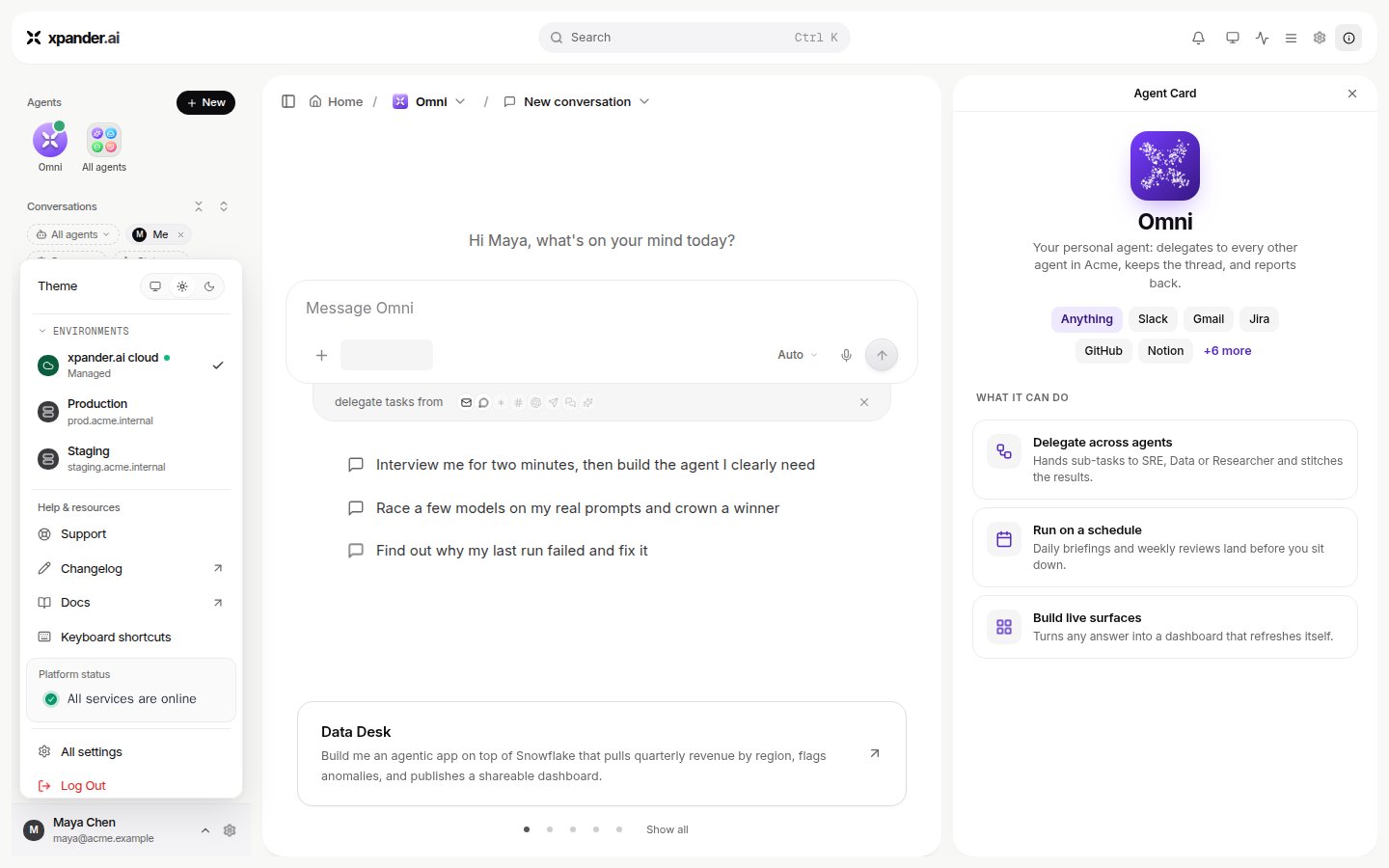 Agents are usable only in their own environment. Open one that lives elsewhere and the chat and workspace pause behind a notice naming both environments, with a **Switch to** button.
The active self-hosted environment shows a live status dot in the menu and next to your name. When the cluster stops answering, the row reads **Not connected** and a callout suggests checking your VPN or using a different environment. If **Chat** is allowed in that location's cloud controls, Xpander Chat keeps working through the xpander.ai cloud relay, noting that the file browser is unavailable until you reconnect. If it is not, Xpander Chat blocks until you retry, switch environments, or an admin opens the location's settings.
## The cloud location in a Hybrid organization
In a Hybrid organization the xpander.ai cloud stays one of your locations. Agents can run in the cloud or in your clusters. Admins decide whether the cloud stays available. Once a self-hosted location exists, Settings > **Locations** shows an **Agents runtime** row at the bottom with a switch labelled "Allow agents to run on the xpander.ai cloud runtime." With the switch off, members work only with agents in your self-hosted locations. The cloud leaves the environment switcher and the **New agent** picker, new tasks on cloud agents are blocked, and a direct link to one shows a notice asking an admin to re-enable it in Settings > **Locations**.
An air-gapped installation never shows this row. It has no cloud location, so there is nothing to switch.
Agents are usable only in their own environment. Open one that lives elsewhere and the chat and workspace pause behind a notice naming both environments, with a **Switch to** button.
The active self-hosted environment shows a live status dot in the menu and next to your name. When the cluster stops answering, the row reads **Not connected** and a callout suggests checking your VPN or using a different environment. If **Chat** is allowed in that location's cloud controls, Xpander Chat keeps working through the xpander.ai cloud relay, noting that the file browser is unavailable until you reconnect. If it is not, Xpander Chat blocks until you retry, switch environments, or an admin opens the location's settings.
## The cloud location in a Hybrid organization
In a Hybrid organization the xpander.ai cloud stays one of your locations. Agents can run in the cloud or in your clusters. Admins decide whether the cloud stays available. Once a self-hosted location exists, Settings > **Locations** shows an **Agents runtime** row at the bottom with a switch labelled "Allow agents to run on the xpander.ai cloud runtime." With the switch off, members work only with agents in your self-hosted locations. The cloud leaves the environment switcher and the **New agent** picker, new tasks on cloud agents are blocked, and a direct link to one shows a notice asking an admin to re-enable it in Settings > **Locations**.
An air-gapped installation never shows this row. It has no cloud location, so there is nothing to switch.