

Agent. In the SDK a skill is a Tool; agent.tools lists them. No manual fetching, no schema conversion, no client setup.
Prerequisites
- Complete the Quickstart so the CLI, SDK, and
xpander loginare already set up. - Python 3.12+ for the local handler.
1. Set up skills in Xpander Chat
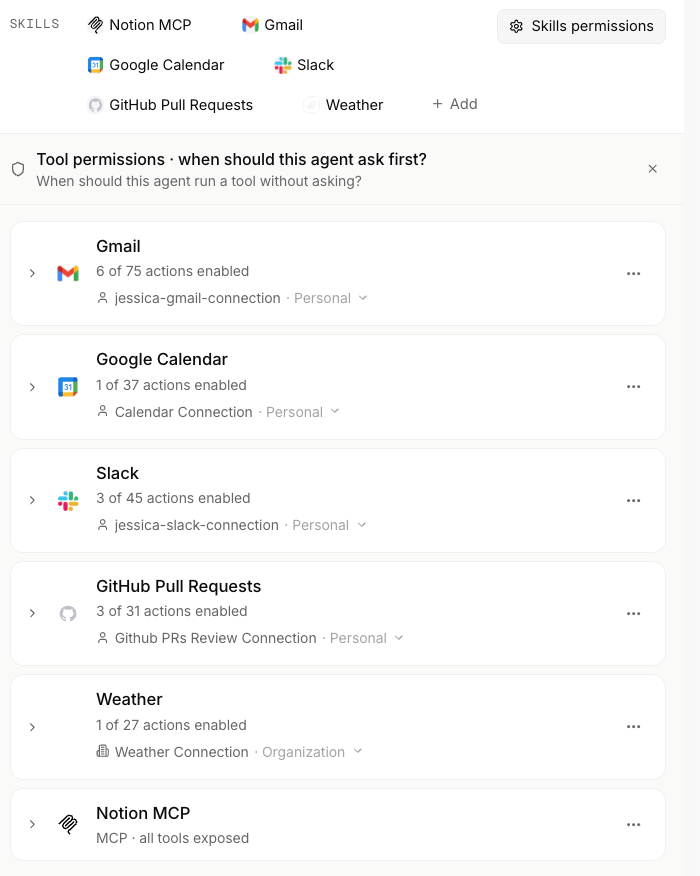
Setup is a one-time UI flow: use Add skill in the agent’s settings, pick a skill, connect your account if it asks, and attach the operations you want (see Skills on an agent for the full flow). Once published, the skill’s operations are live on every loadedAgent instance and reachable from any agent loop you bind them into.
Set up skills in Xpander Chat
Pick a skill, connect your account, attach operations to your agent.
2. List all available skills
Once a skill is attached, your agent has access to it. xpander’s kinds of skill are described on the catalog; from the SDK they arrive as three groups:- Catalog skills: every operation you selected from a pre-built skill (Slack, Gmail, GitHub, etc.)
- Custom skills: Python functions you decorated with
@register_tool - MCP skills: skills from any MCP endpoint you’ve attached
agent.tools.list to enumerate all of them:
- Build a UI that shows the user which capabilities an agent has before they prompt it.
- Sanity-check after a publish that the skill you just attached actually shows up.
- Filter the skill list at runtime (e.g. drop write-operations when running in a read-only context).
Inspect individual skills
If you want to inspect the exact shape that’s about to be handed to the agent loop (debugging “are myFunctionTool objects correct?”, “did the LangChain callables get their docstrings?”), enumerate the loop-specific list instead:
- Agno
- OpenAI Agents SDK
- LangChain
- AWS Strands
The args dict from
Backend.aget_args() carries the resolved skills list. Iterate args["tools"] to see exactly what Agno will receive:3. Bind skills into the agent loop
Listing skills tells you what the agent can do. Binding them is what gets the LLM to actually call them. Each agent loop (Agno, OpenAI Agents SDK, LangChain, AWS Strands) wants its functions in its own shape, and the xpanderAgent exposes one property per supported loop, computed off the same underlying skill list:
- Agno
- OpenAI Agents SDK
- LangChain
- AWS Strands
xpander_handler.py
4. Invoke a skill yourself (optional)
To call a skill outside the agent loop: Use this to:- Run an admin or migration script that calls a skill once (send a Slack announcement, archive a Salesforce record) without standing up a full agent loop.
- Backfill or batch-process by iterating over a queue of inputs and firing the same skill against each.
- Test a skill’s payload shape end-to-end before exposing it to the LLM.
agent.tools.get_tool_by_id(...)looks up the skill by its stable identifier. Useget_tool_by_name(...)if you have the human-readable name instead.- The
payloadmirrors the skill’s JSON schema. Catalog skills typically havebody_params,path_params, andquery_paramsas the top-level keys, mapping to the underlying API’s request shape. Inspecttool.parametersif you need the schema. ToolInvocationResultcomes back withis_success(bool) andresult(the raw response). Checkis_successbefore consumingresult.
agent.invoke_tool(...) exists with the same signature.
5. Pass per-request context to every skill call
When the same agent definition serves many tenants, customers, or users, you usually need to stamp something onto every skill call (a tenant ID, a customer ID, a request ID, an OAuth token override) without putting it in the prompt or hardcoding it on the agent. That’s whattool_call_payload_extension is for. It deep-merges into every skill call’s payload for the lifetime of the task:
- Multi-tenant: stamp the tenant ID on every downstream call so skill requests scope correctly.
- Per-user OAuth: pass a user-scoped token override into
body_paramsor a custom auth header. - Traceability: add a request ID to every skill call so you can follow a single user’s actions across systems.
The merge is deep, not shallow. Mirror the skill’s payload shape (
body_params, path_params, query_params) when extending, otherwise the keys land at the wrong level and the skill ignores them.
Troubleshooting
agent.tools.list is empty
agent.tools.list is empty
The agent has no skills attached, or the skills you attached aren’t published yet. Open the agent in Xpander Chat, check the Skills row for at least one entry, and click Publish if the agent has unpublished changes. Then reload the agent:
agent = await Agents().aget(agent_id=...).Skill call returns is_success=False with a 4xx body error
Skill call returns is_success=False with a 4xx body error
The payload doesn’t match the skill’s expected shape. Inspect
tool.parameters (raw JSON schema) and confirm body_params, path_params, and query_params line up with the underlying API. The Pydantic tool.schema is also useful for type-checking the payload before sending.tool_call_payload_extension doesn't show up in skill calls
tool_call_payload_extension doesn't show up in skill calls
The extension is deep-merged, so it only adds keys at the same path. If you pass
{"body_params": {"tenant_id": "..."}}, it merges into the skill’s body_params; it won’t appear in query_params. Mirror the skill’s payload structure when extending.Next steps
Custom skills
Add your own Python functions alongside catalog skills with
@register_tool.Skill call hooks
Observe, log, and rewrite every skill call across the agent’s lifetime.
Output Response Filtering
How large skill responses get filtered before reaching the LLM.
Skills catalog
Browse all pre-built skills.
Set up skills in Xpander Chat
The UI walkthrough: connected accounts, OAuth, attaching operations.
Agent loops
How
agent.tools.functions, openai_agents_sdk_tools, and strands_tools map onto Agno, OpenAI Agents SDK, LangChain, and AWS Strands.