

Tutorial Summary
- Goal: Build a BigQuery Finance SME agent that can query procurement and budget data and explain business insights clearly.
- Estimated Time: 10-15 minutes
- What you’ll build: A BigQuery-connected agent that understands your default project and dataset context, answers finance operations questions, and summarizes results from procurement and budget tables.
Key Features
- Native Google BigQuery Integration
- Natural-language BigQuery Q&A
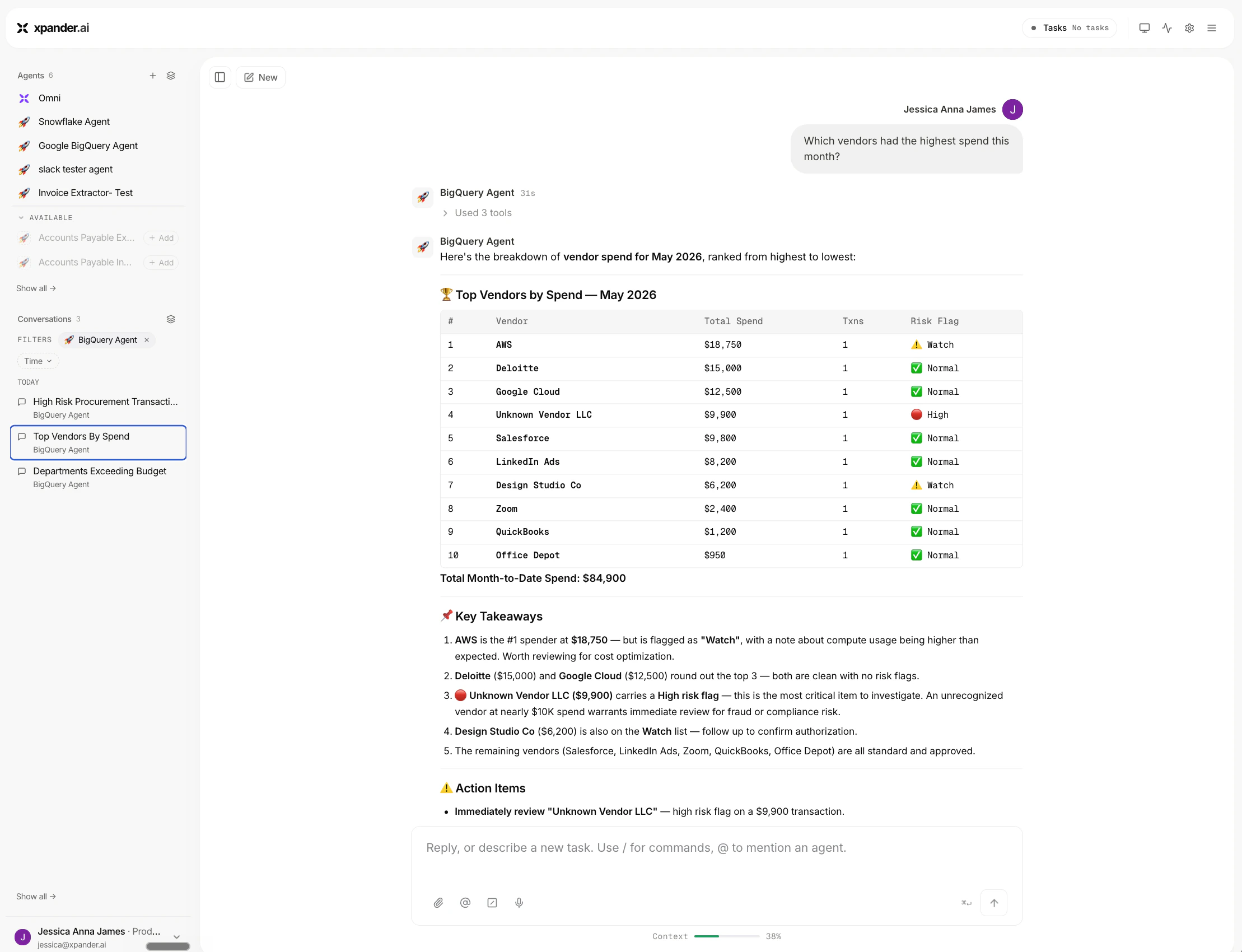
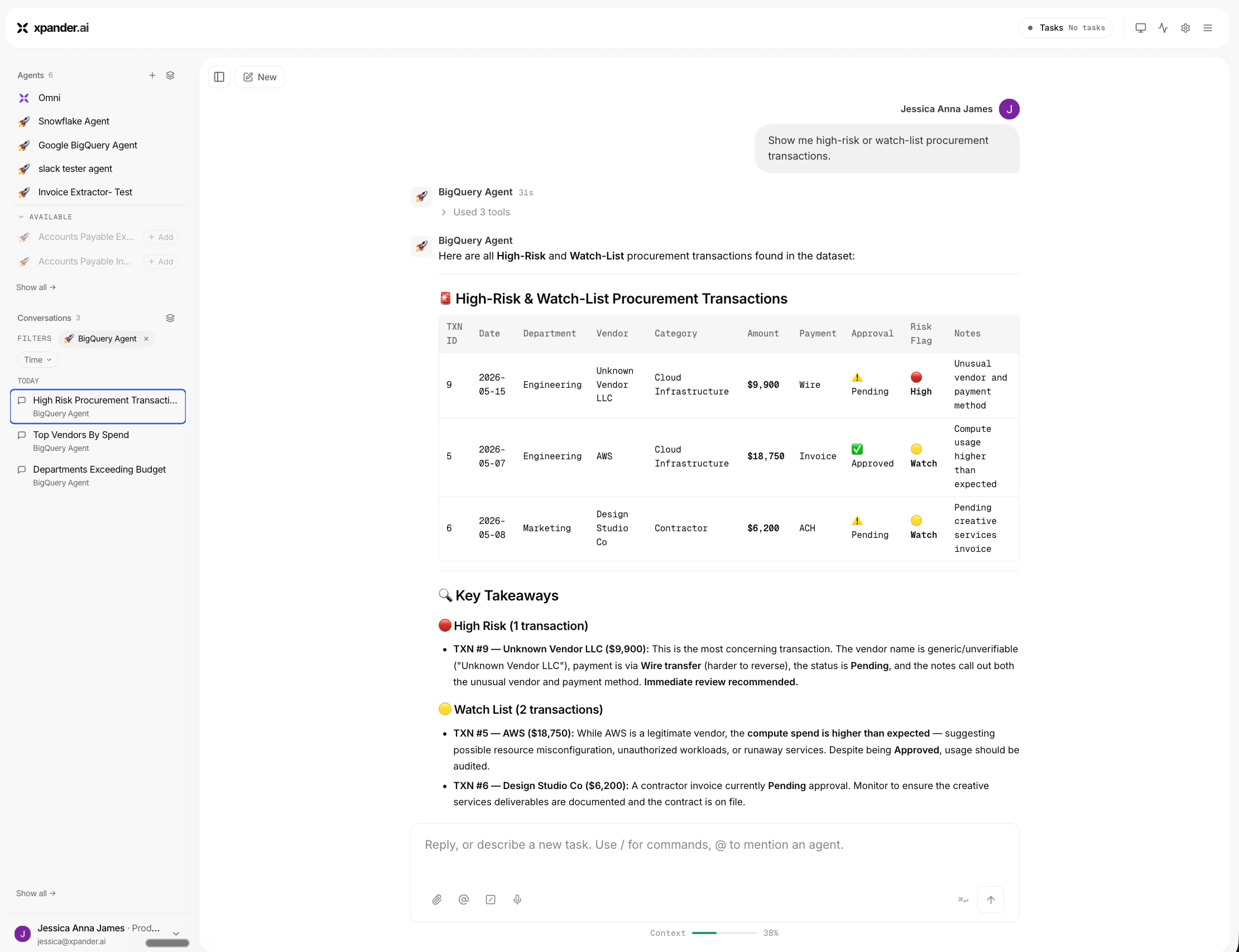
- Procurement spend analysis, budget usage and department-level reporting, vendor-risk and approval-status analysis
Prerequisites
- xpander.ai account
- Google Cloud account
- BigQuery connector configured in xpander.ai
- Active Google Cloud project
- Finance/procurement tables created in BigQuery
Step-by-Step Implementation
Step 1 - Create the BigQuery Agent
In xpander.ai, create a new agent and name it: BigQuery Agent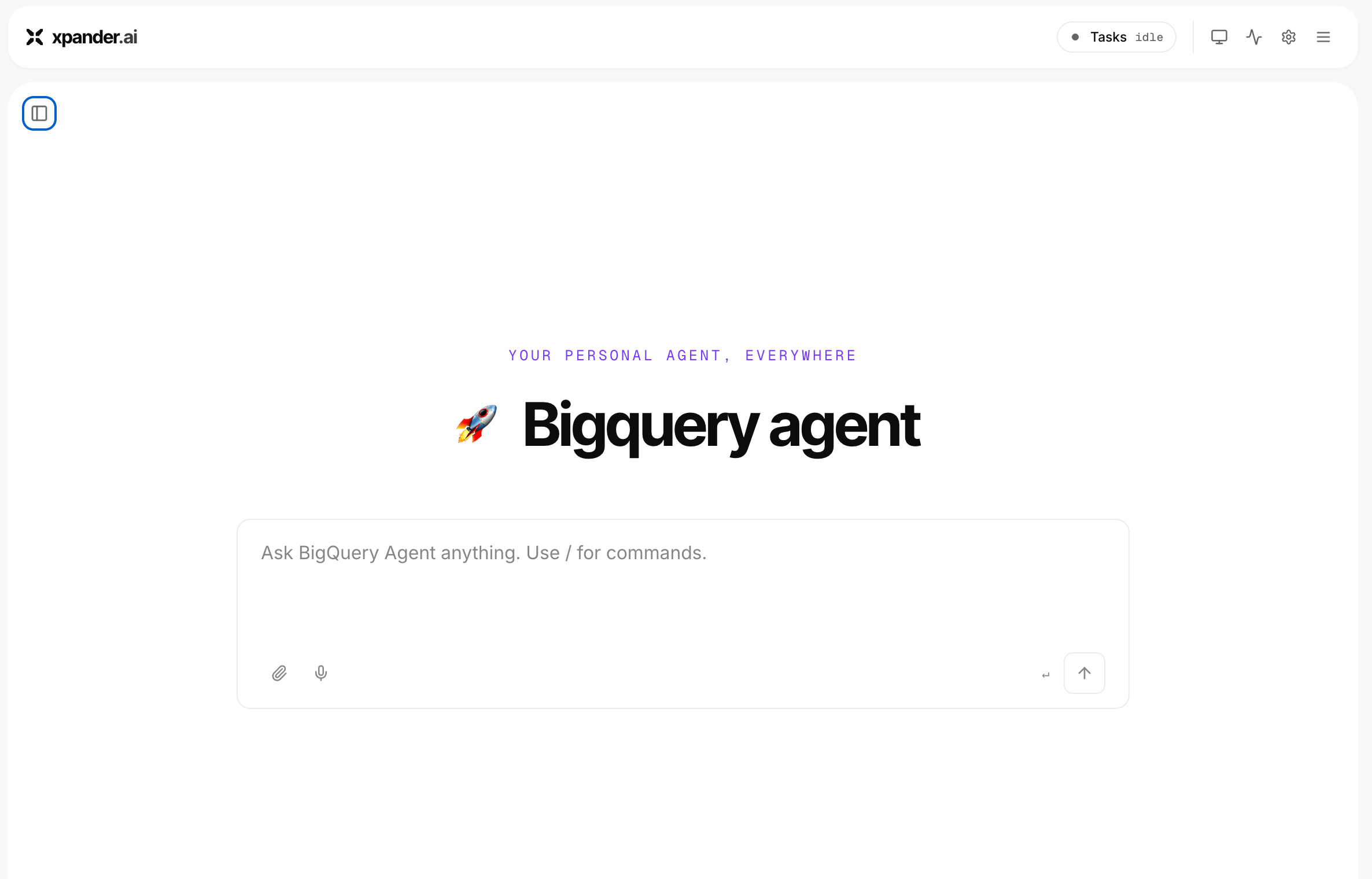
Step 2 - Connect BigQuery
Add the BigQuery connector and configure it with access to your Google Cloud project.Use:
- Project ID: <your-google-cloud-project-id>
- Dataset: <your-bigquery-dataset-name>
Step 3 - Add SME Instructions
Use these instructions to make the agent respond like a business-focused BigQuery SME:You are a BigQuery SME agent. Your job is to help users answer business questions using BigQuery data. When answering:
- Infer the correct query when the user’s intent is clear.
- Include a small result table when useful.
- Add key takeaways.
- Mention important caveats when relevant.
Example Questions
The agent identifies departments approaching their monthly budget limit: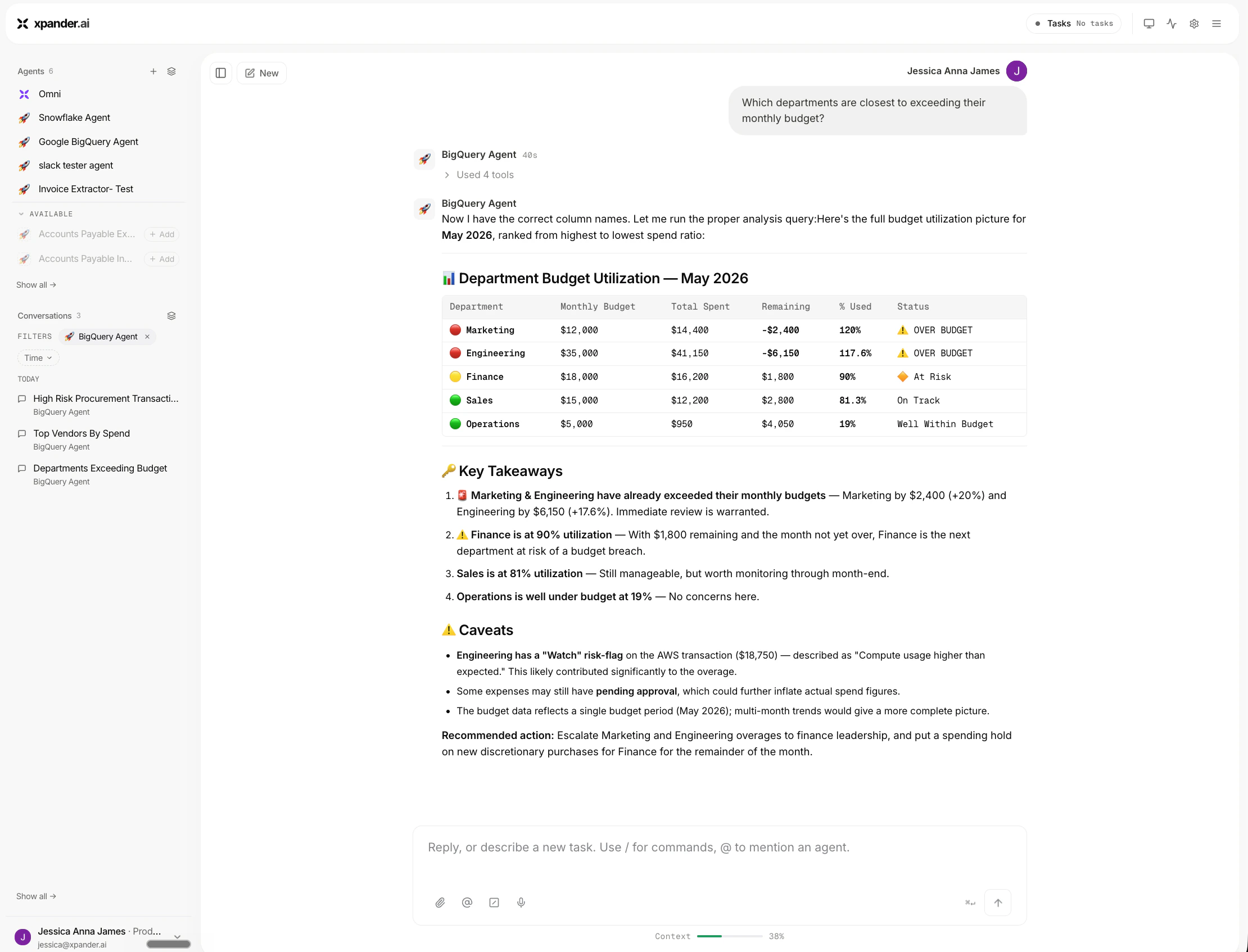
Troubleshooting
- Wrong Project ID: Use the full Google Cloud project ID, not the display name.
- Missing dataset or table context: Confirm the connector points to the correct project, dataset, and tables.
- Permission error: Make sure the BigQuery connector has access to run queries and read the required datasets.
- Table not found: Check that the project ID, dataset name, and table name match exactly.