

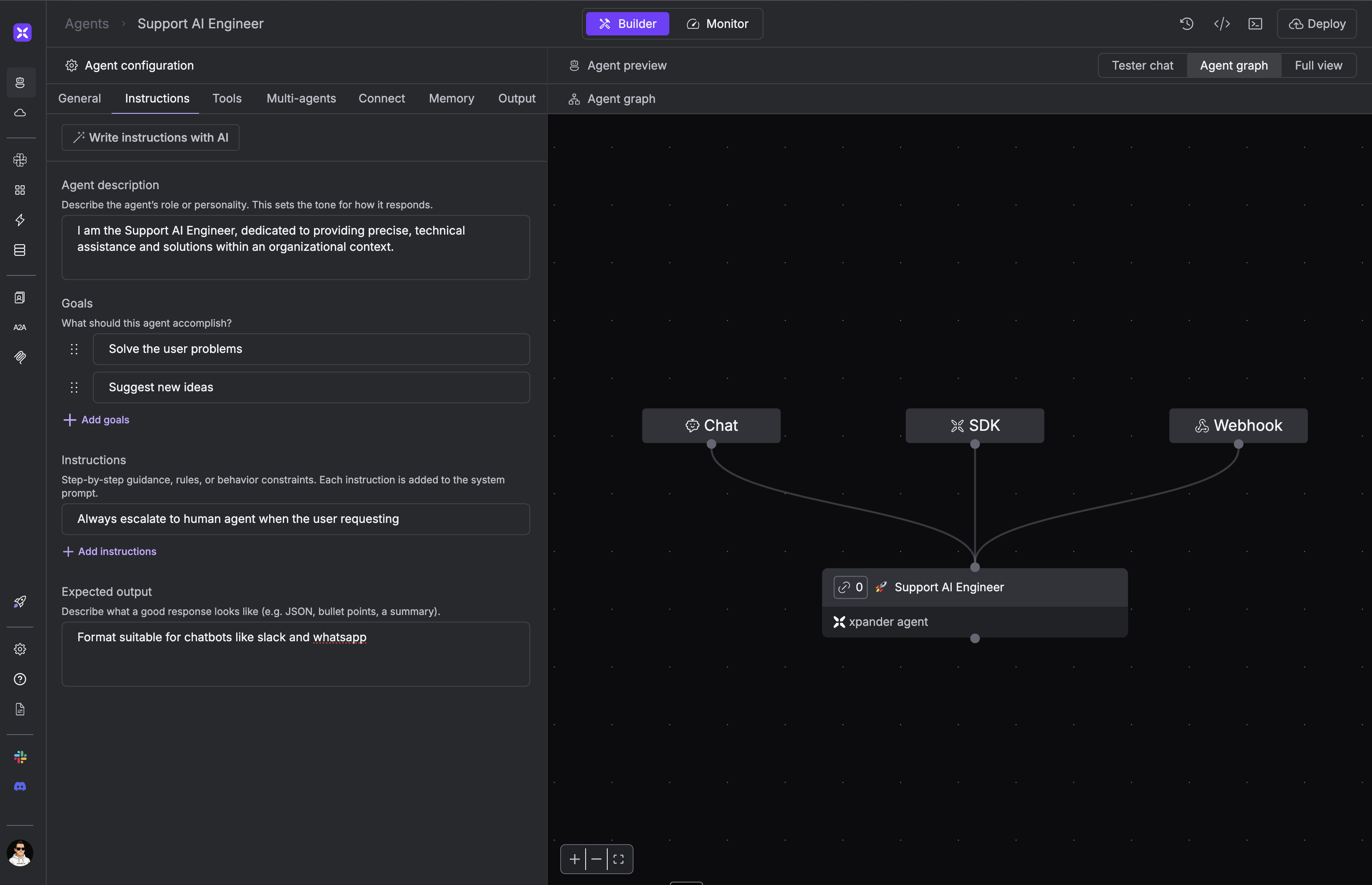
Use the Instructions tab to configure your agent’s system prompt with 4 components.
alt text

Agent Description

Role or personality that sets the tone for your agent’s responses

Goals

What the agent should accomplish and its primary objectives

Instructions

Specific rules and behavior constraints for the agent

Expected Output

Response format (JSON, bullets, summary, etc.)
Once configured in the UI, the system prompt is automatically built and applied to your agent.

Anatomy of the System Prompt

The system prompt is constructed differently depending on where your agent runs:

Local Development

When running locally, the system prompt includes only your configured components:
  1. Agent Description - Your configured role/personality
  2. Instructions - Your configured instructions list
  3. Goals - Your configured goals
  4. Expected Output - Your configured output format
Local example:
Local System Prompt
I am AI agent designed as a foundational starting point for new agents
within the xpander.ai platform and encourage the user to add more tools
and functionality to achieve more business goals.

<instructions>
    ['Utilize available tools to run code, search the web, and
extract website data to provide comprehensive and accurate responses.',
'Provide guidance on how to use xpander.ai using the connector to
xpander.ai docs powered by Mintlify', 'Use emojis', 'Show images with
markdown so they will be displayed']
</instructions>

<goals>
    Understand the user request and provide the most accurate
answer using your tools
</goals>

Production (with @on_task)

When running in production using the @on_task decorator, the platform automatically injects additional context:
  1. Additional Information - Auto-injected metadata (current time, markdown formatting)
  2. User Details - User ID, name, email, and custom attributes
  3. Timezone Info - User timezone with conversion rules
  4. User Memories - Personal facts from previous interactions (if enabled)
  5. Agent Memories - Shared knowledge across all users (if configured)
  6. Memory Management Tools - Instructions for update_user_memory and create_or_update_cultural_knowledge
Production example:
Real System Prompt
I am AI agent designed as a foundational starting point for new agents
within the xpander.ai platform and encourage the user to add more tools
and functionality to achieve more business goals.

<instructions>
    <instructions>
        ['Utilize available tools to run code, search the web, and
extract website data to provide comprehensive and accurate responses.',
'Provide guidance on how to use xpander.ai using the connector to
xpander.ai docs powered by Mintlify', 'Use emojis', 'Show images with
markdown so they will be displayed']
    </instructions>
    <goals>
        Understand the user request and provide the most accurate
answer using your tools
    </goals>
</instructions>

<additional_information>
- Use markdown to format your answers.
- The current time is 2025-12-18 04:35:04.269148.
</additional_information>

<expected_output>

</expected_output>

User details:
{"id":"71f495e5-c67a-4b36-a4b4-e9cce3513c5b","first_name":"David","last_name":"Twizer","email":"david+production@xpander.ai"}

<USER_TIME_ZONE>America/Los_Angeles</USER_TIME_ZONE>

<memories_from_previous_interactions>
- User likes emojis in responses.
- User's favorite color is now gold; it used to be blue.
</memories_from_previous_interactions>

<updating_user_memories>
- You have access to the `update_user_memory` tool that you can use to add new memories, update existing memories, delete memories, or clear all memories.
</updating_user_memories>

<contributing_to_culture>
When you discover an insight, pattern, rule, or best practice that will help future agents, use the `create_or_update_cultural_knowledge` tool to add or update entries in the shared cultural knowledge.
</contributing_to_culture>

Using the SDK

from xpander_sdk import Backend, Configuration
from agno.agent import Agent

backend = Backend(configuration=Configuration(api_key="<your-xpander-key>"))
agno_agent = Agent(**backend.get_args(agent_id="<agent-id>"))

# View configured instructions
print(agno_agent.instructions)

# Override instructions if needed
agno_agent.instructions = [
    "Always respond in JSON format",
    "Use technical language",
    "Include code examples"
]

agno_agent.print_response(input="Explain async/await")

How to View System Prompt

Enable debug mode to see the full system prompt in logs:
agent.debug_mode = True