Why Agentic?
Traditional workflow builders force you to map every field manually: takeresponse.data.items[0].email from Step 1 and pipe it into recipient on Step 2. If the API changes shape, your workflow breaks.
xpander workflows are different. Each node receives the full output of the previous node as context. An AI agent inside the node reads that context, understands what’s needed, and takes the right action. There’s no brittle field mapping — just intelligent data flow.
This design has three consequences:
- Zero-config nodes — Most nodes work the moment you add them. An OCR node doesn’t need you to tell it which field contains the image URL. It reads the previous step’s output and finds it.
- Natural language control — Instead of JSON schemas and field mappings, you write instructions like “Extract only the billing address from this document” or “Only continue if the sentiment is negative.”
- Graceful adaptation — When upstream data changes shape, the agent adapts. A renamed field or a restructured payload doesn’t break the pipeline.

The Canvas

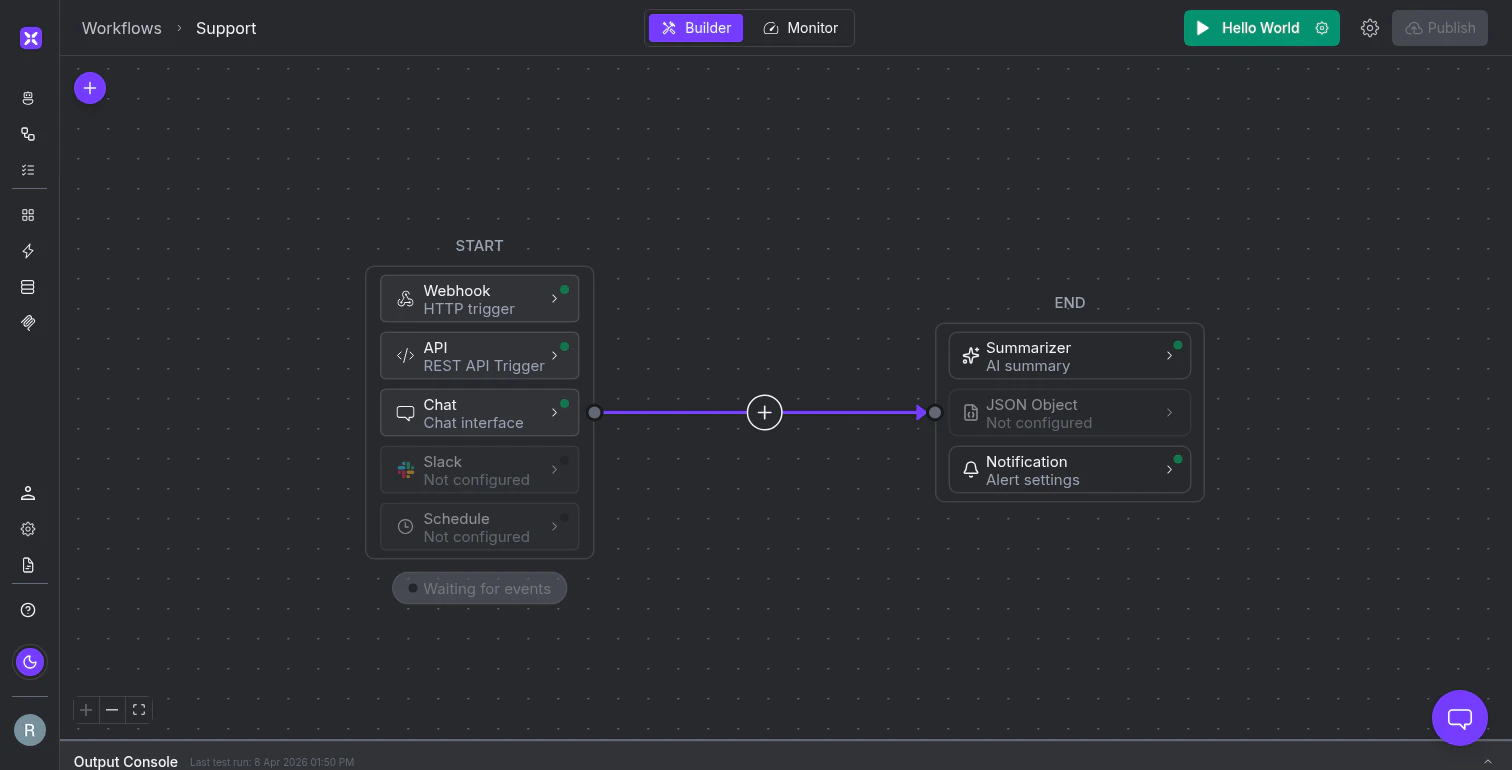
- START — Your triggers. Every workflow comes with four trigger types pre-configured: Webhook (HTTP POST), API (REST), Chat (conversational interface), and Schedule (cron). Each trigger shows an Enabled badge when active and provides its own URL, test buttons, and API docs.
- END — Your output configuration. The END block determines how results are returned: as an AI-generated summary (Summarizer), structured JSON (JSON Object), or notifications (Alert settings).
Preventing Duplicate Events
Webhook-triggered workflows often receive the same event more than once — retries, redundant notifications, or upstream systems that fire multiple times. Enable Prevent Duplicate Events in the Webhook trigger settings to handle this automatically. When enabled, the workflow uses Event Identifier Fields (JSON paths likemessageId, customer.email, or payload.iCalUID) to build a composite key for each incoming event. If the same key arrives within the configured time window (in minutes), the workflow skips execution and returns "Event skipped: duplicate event within configured time window".
This means you can point a webhook at a chatty upstream system and trust that the workflow only processes each unique event once.
Node Types
Nodes are organized into three categories.Agents
These nodes explicitly invoke AI models to process data.Agent
Invokes one of your xpander AI agents. Select an existing agent or create a new one inline. The agent receives the previous node’s output as its input and runs with its full tool set, memory, and system prompt.
Classifier
An LLM that classifies, labels, or transforms inputs based on natural language instructions. Use it to route data to different branches — e.g., “Is this a billing question or a technical support request?”
Summarizer
An agent that takes large payloads and answers specific questions. Give it instructions like “What is the total revenue?” or “List the action items” and it returns a focused answer from the data.

Actions
Action nodes execute tools, code, and integrations. Most of them are secretly agents — they use an LLM behind the scenes to intelligently map data and invoke tools, so you never touch a schema.Action
Pick any tool from the xpander library. An AI agent reads the previous step’s output and calls the tool with the right parameters — no schema configuration needed.
Sends emails via xpander’s email service. Specify a recipient and describe what you want to say. The agent composes a properly formatted email and sends it.
OCR
Extracts text from images and documents. Processes files from the previous node automatically — no configuration needed.
Code
Execute custom code for data transformation, API calls, or any deterministic logic. The one node that doesn’t use an LLM — it runs exactly what you write.
Custom Function
Run a pre-defined function. Useful for reusable logic shared across workflows.
Workflow
Nest another workflow inside this one. Build composable automations by referencing existing workflows as sub-steps.
How the Action Node Works
When you add an Action node and select a tool from the xpander library, you won’t see any schema to fill in. No input fields, no output mapping, no parameter configuration. Behind the scenes, xpander creates an AI agent with that tool marked as required. At runtime:- The agent receives the full output of the previous node
- It reads the tool’s function signature to understand what parameters are needed
- It extracts the right values from the previous node’s output
- It invokes the tool and returns the result
Flow
Flow nodes control the execution path.Condition
Branch your workflow into different paths based on conditions. Route data depending on the input.
Guardrail
An AI judge. Write a natural language condition like “Only continue if this is a pull request to the main branch” and the node evaluates incoming data against your rule, returning Pass or Fail.
Wait
Pause execution until a condition is met. Supports webhook callbacks and human-in-the-loop approval.
Send to End
Skip remaining nodes and route data directly to the END block. Useful for early exits or conditional completions.
Guardrails are agents too. When you write “Only continue if this is a pull request to the main branch,” you’re configuring a Classifier agent with structured output set to Pass/Fail. The LLM reads the incoming data, evaluates your condition, and makes a judgment call — this isn’t pattern matching, it’s reasoning. You can add more output options beyond Pass/Fail in the Advanced settings.
Instructions and Data Flow
This is the core concept that makes workflows powerful. Every agent-powered node has an Instructions field — and what you write there controls what the node does at runtime.How Instructions Work
When you click a node on the canvas, its settings panel opens. The Instructions field (also called “Agent Instructions” on Agent nodes) accepts natural language text that gets injected into the agent’s system prompt at runtime, alongside the data from the previous node. For an Agent node, these instructions are added alongside the agent’s existing system prompt — they extend the agent’s behavior for this specific step. For Action, Email, OCR, Summarizer, and Guardrail nodes, the instructions guide the hidden agent that powers the node. Example — Summarizer node instructions:What Happens at Runtime
When a workflow executes, data flows left to right through each node:- START block receives the trigger payload (webhook body, API request, chat message, or schedule event)
- Each node receives the full output of the previous node as context
- The agent inside the node reads its instructions + the incoming data, then acts
- The node’s output becomes the input for the next node
- The END block formats the final result as a summary, JSON, or notification
Configuring Output Schema
In a node’s Advanced settings, you can define structured output using schema fields. This is useful when:- A downstream node needs specific fields in a predictable format
- You want to filter out noise and pass only the relevant data forward
- You’re building a pipeline where multiple branches converge
Agentic Context
Agentic Context is what makes workflows stateful across runs. When enabled in Workflow Settings, the workflow remembers data from previous executions and makes it available to nodes in subsequent runs.How It Works
Toggle Agentic Context on in Workflow Settings. Once enabled:- The last run datetime and last run result are automatically stored after each execution
- Every node that has input instructions can access this stored context
- You control what flows in and out of the agentic context through per-node input/output instructions
Input and Output Instructions
Each node can have two types of instructions that interact with the agentic context:- Input instructions — Tell the node what to pull from the agentic context. For example: “Check the previous run’s result. If the customer list has changed since last time, only process the new entries.”
- Output instructions — Tell the agentic context what to remember from this node’s execution. For example: “Store the list of processed customer IDs so we can diff against them next run.”
Example: Call Analyzer Workflow
Here’s a real workflow that processes sales calls from a CRM:- START — A webhook receives a Salesforce notification when a new call recording is available. The payload includes the recording URL and account metadata.
- Code: Prompt Builder — A Code node transforms the raw Salesforce payload into a structured prompt. It extracts the recording URL, account name, deal stage, and recent activity, then formats them into a context block for the agent.
- Agent: Call Analyzer — An AI agent receives the formatted prompt. Its instructions tell it to transcribe the call, identify customer objections, assess rep performance, and score the call on a 1-10 scale. The agent has tools for audio transcription, CRM lookup, and sentiment analysis.
- END — The Summarizer output extracts the call score, key objections, and recommended next steps into a clean summary. A Notification sends an alert to the sales manager if the score is below 5.
Version Management
Workflows use immutable versioning.- Auto-save — Changes save automatically as you work in the Builder
- Deploy — Click Deploy to publish a new version (v1, v2, v3…). Each deployment is an immutable snapshot.
- Version History — Click the clock icon in the top bar to see all published versions with timestamps
- Rollback — Select any previous version to restore it
Monitoring
Switch to the Monitor tab to observe your workflow in production.Threads
Every workflow execution appears as a thread showing the last interaction time, action count, token usage (input and output), and task ID. Click a thread to see its execution timeline:- Step-by-step logs — Each node execution with timestamps, request payloads, and responses
- Execution duration — Total time broken down by step (e.g., “2 seconds and 530 milliseconds”)
- Download Log — Export the full log for debugging
AI Insights
Click Evaluate on any thread to get an AI-powered analysis of the execution — bottleneck identification, prompt improvement suggestions, and behavior analysis.Metrics & Tasks
The Metrics tab shows aggregate analytics across all executions — performance trends, success rates, and resource consumption. The Tasks tab provides task-level tracking for individual executions.Workflow Settings
Click the gear icon in the top bar to access:- General Details — Name and description (shown in the workflow list)
- Agentic Context — Enable cross-run memory (see Agentic Context above)
- LLM Settings — Default AI model for the workflow. Select a provider (OpenAI, Anthropic, Google, etc.), choose a model, and set reasoning effort. Individual nodes can override these defaults.
- Access — Control who can view and edit the workflow
- Notifications — Alert rules for failures, completions, or threshold breaches
Running and Testing
The green Run button in the top bar executes the workflow. Click the gear icon next to it to open the test input panel:- Test Input — Enter a text or JSON payload. Toggle between Text and JSON modes.
- Presets — Save test inputs with names for quick reuse. The Run button label updates to show the active preset (e.g., “Salesforce request” instead of the default “Hello World”).