

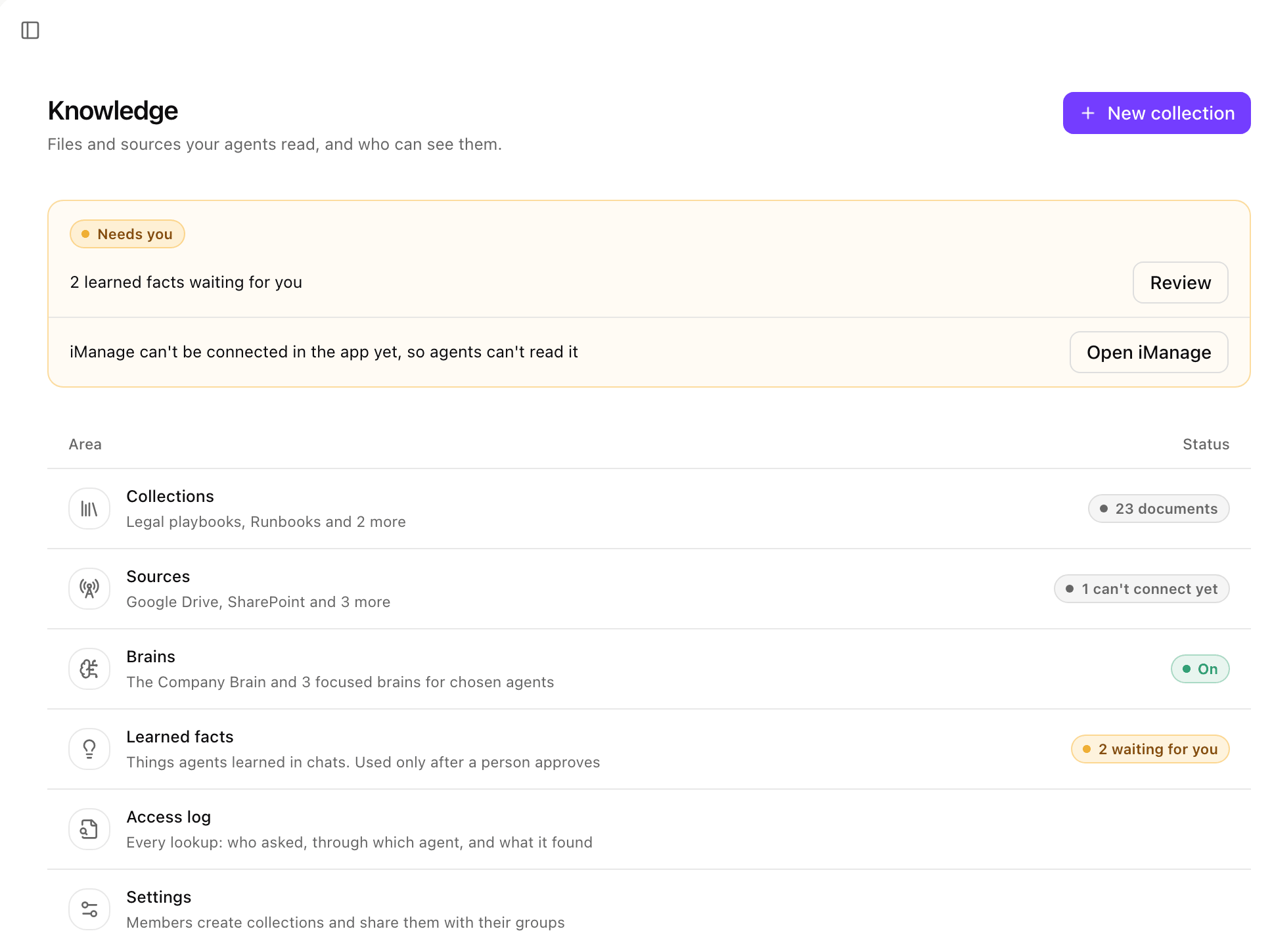
Platform > Agents > Knowledge: the Needs you strip above the six areas, each with its status. Shown with sample data.
Brains
The Company Brain is built in and on every agent. A specific brain, such as Legal, holds only the collections and source paths you pick and serves only the agents it is attached to.The Company Brain and a specific brain compared
The Company Brain and a specific brain compared
Create a specific brain
Describe it
Pick what it holds
/sites/legal. A brain can narrow a source, never widen it.Set access
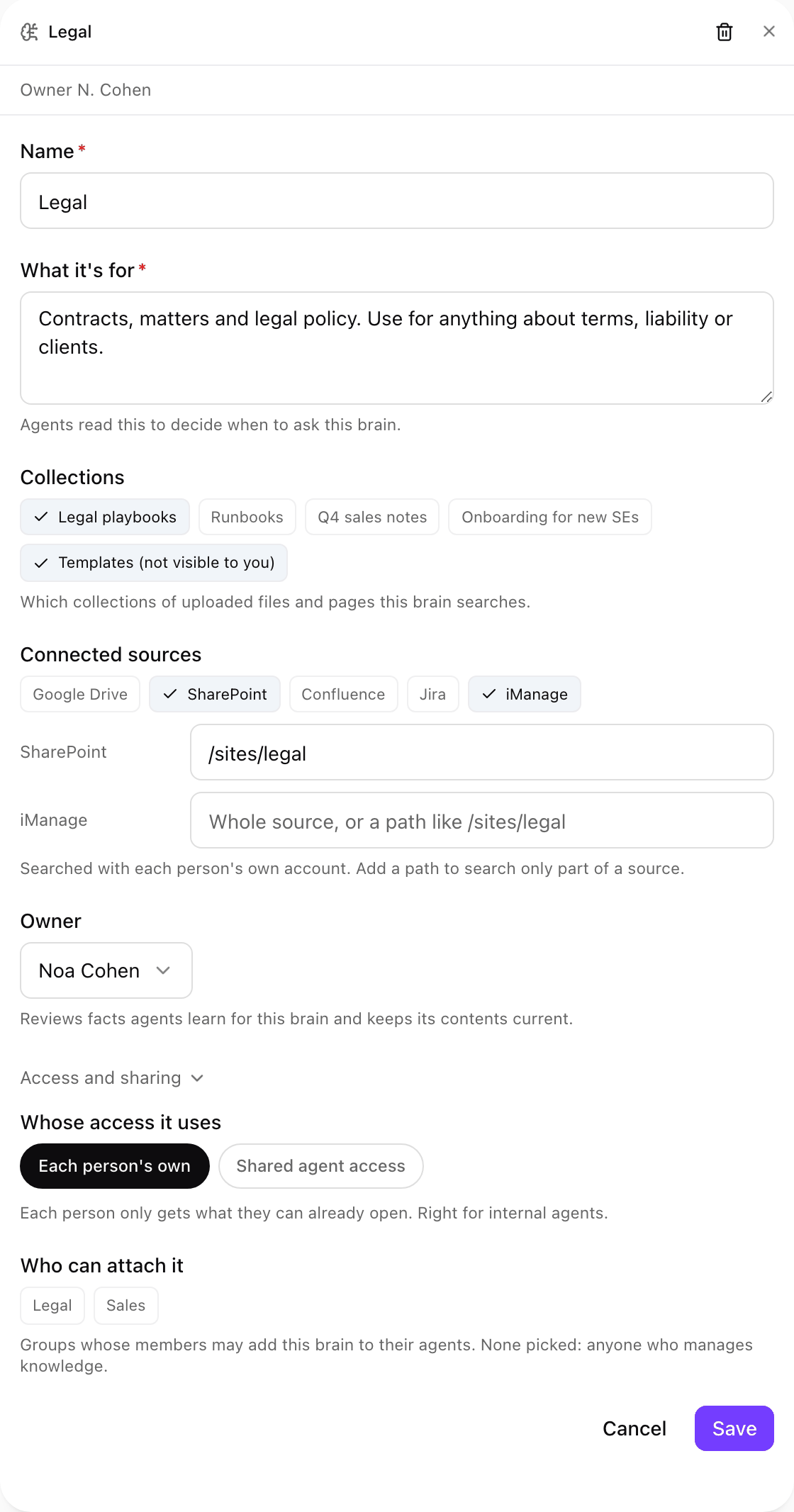
A brain opened from Brains: what it is for, the collections and connected sources it searches, its owner, and under Access and sharing whose access it uses and who can attach it. Shown with sample data.
Whose access it uses
- Each person’s own (default): each person gets only what they can open. Use it for any agent your own people sign in to.
- Shared agent access: anyone using an agent this brain is attached to can read its collections, signed in or not. Use it for public, embedded and community agents. Connected sources are left out, because they need each person’s own sign-in. To include a folder’s files, keep a copy of it.
Collections
A collection is a set of documents stored in xpander, with an owner and an audience (Who can read it). Select New collection in the page header to create one.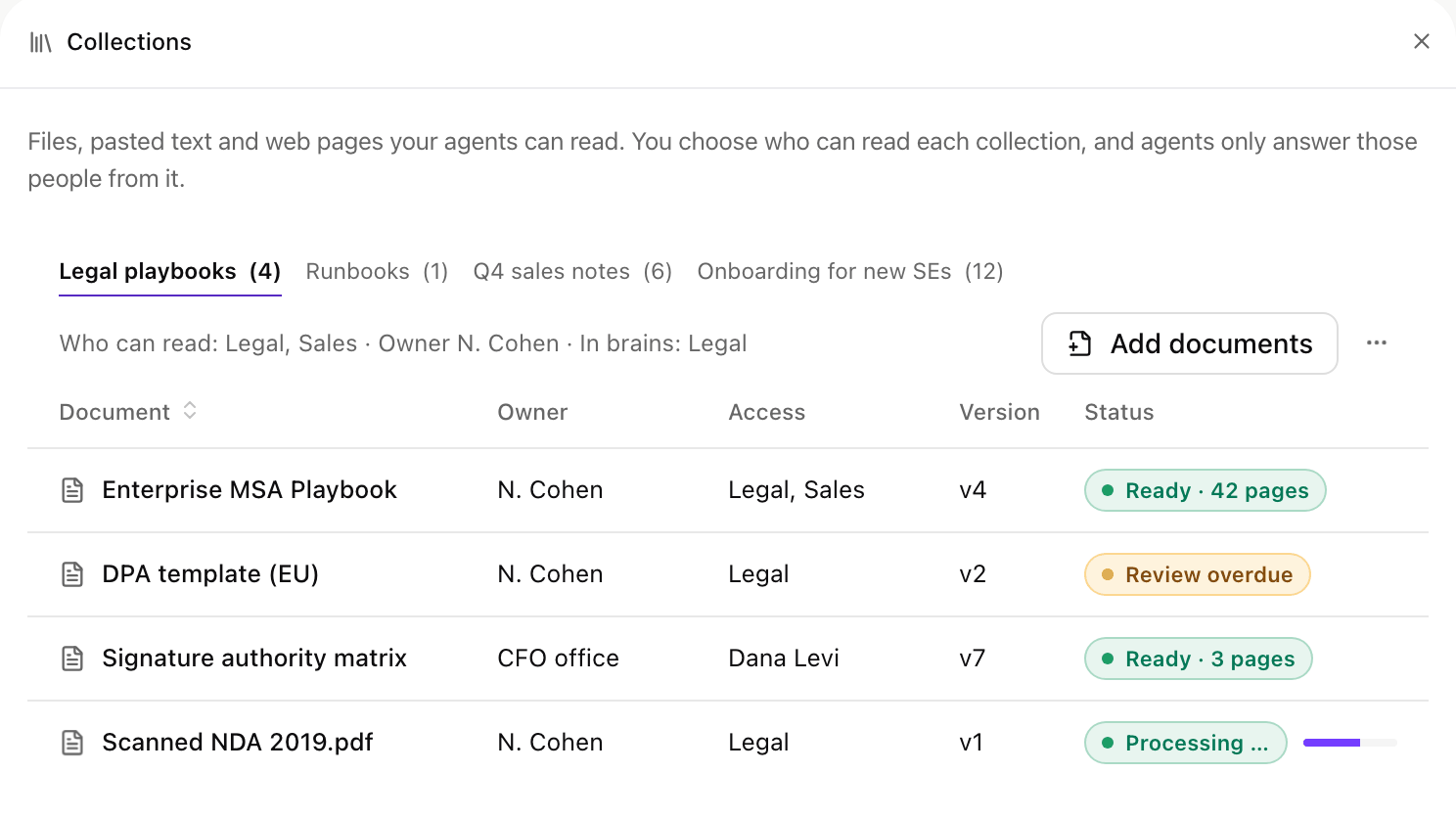
The Collections panel: one tab per collection, who can read it, and each document with its owner, access, version and status. Shown with sample data.
Create a collection, add documents, versions and delete
Create a collection, add documents, versions and delete
- Select New collection in the page header.
- Fill Name and What it holds.
- Under Who can read it, choose Everyone in the organization, or pick people and groups. Each document can narrow this further.
- Turn on Let others who can read it add files to let anyone in the audience add documents. Off, only the owner and admins add files.
- Select Create collection. The Add documents card opens next.
- Upload: drop files or choose them. PDF, Word, PowerPoint, Excel, Markdown, HTML or images, up to 25 MB each. Scans are read with OCR.
- Paste: a Title and the Text.
- From a URL: the Address of a public page, and an optional Title (the address is used when it is empty). Addresses inside your network are refused.
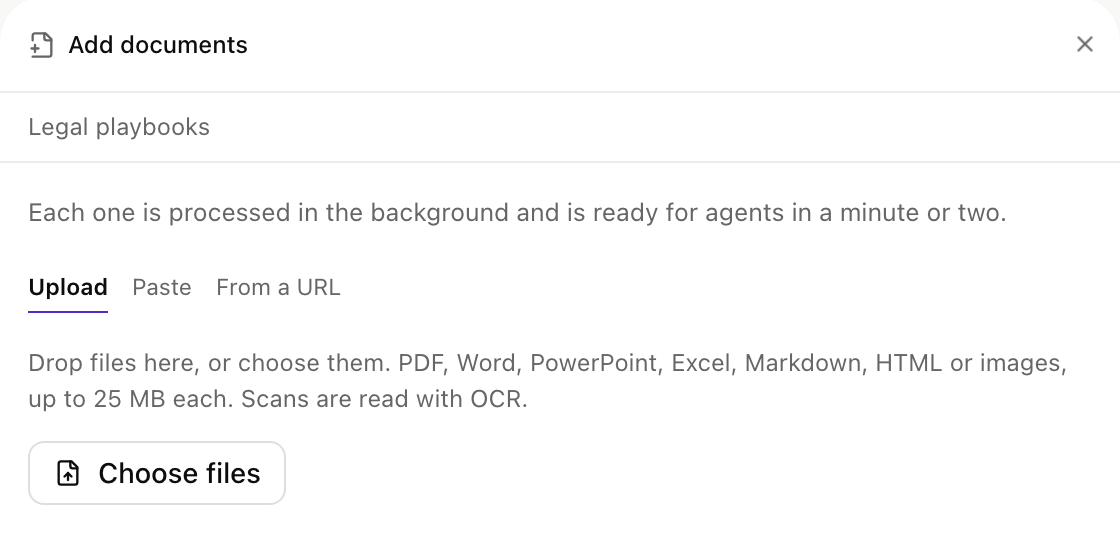
Add documents on a collection: Upload, Paste or From a URL. Shown with sample data.
Sources
Each live source shows its status and how many people signed in.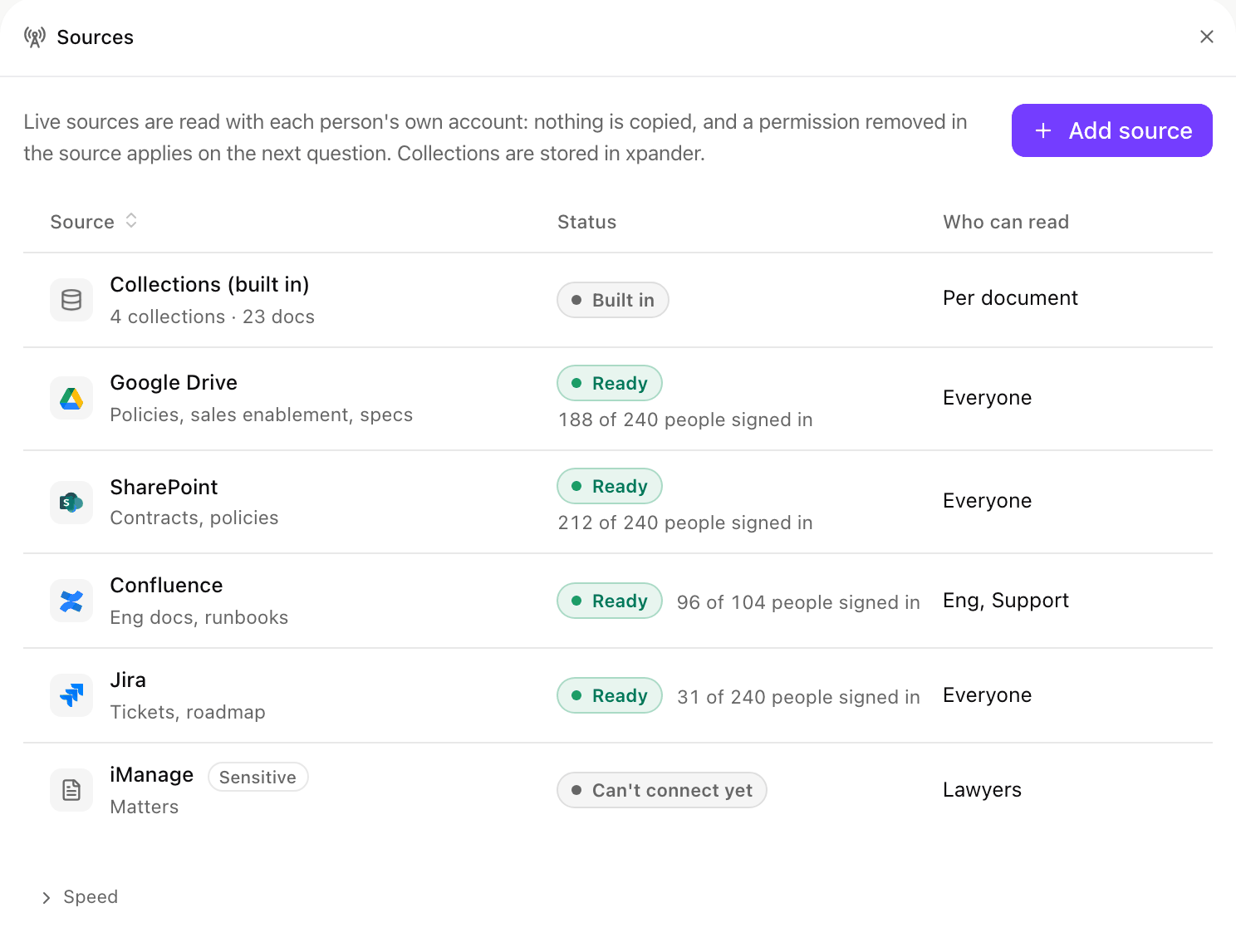
The Sources panel: the built-in collections, then each live source with its status, how many people signed in, and who can read it. Shown with sample data.
Add a source
Pick the type and connection
Name it
Set its scope
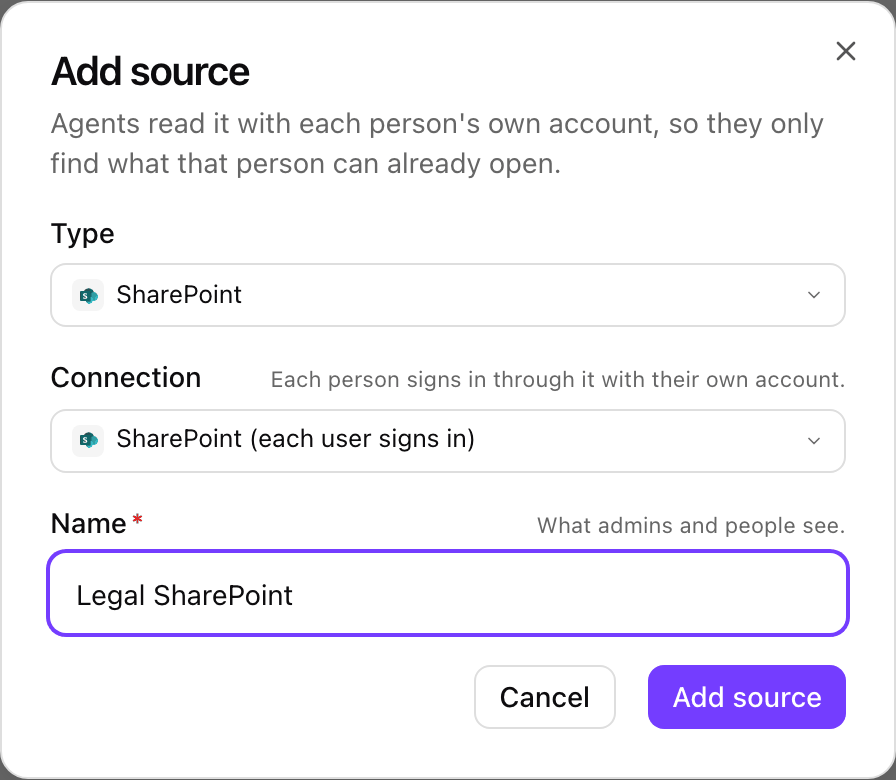
Add source: the type, the connection each person signs in through, and the name people see. Shown with sample data.
Each person signs in once
There is no shared or service account. Each person connects once, from Settings > Knowledge in xpander Chat, the source’s Scope tab, or Connect under an answer that skipped the source. Until then, the brain skips that source for them. SharePoint and OneDrive first need Microsoft tenant admin consent.Scope
The brain still reads only what each person can open.- All the user can see: everything the person can open. Best for wikis and ticket systems.
- Only what you pick: only what is under Include. Best for file drives, where personal drives add noise.
Include, exclude, users' own files and Test as a user
Include, exclude, users' own files and Test as a user
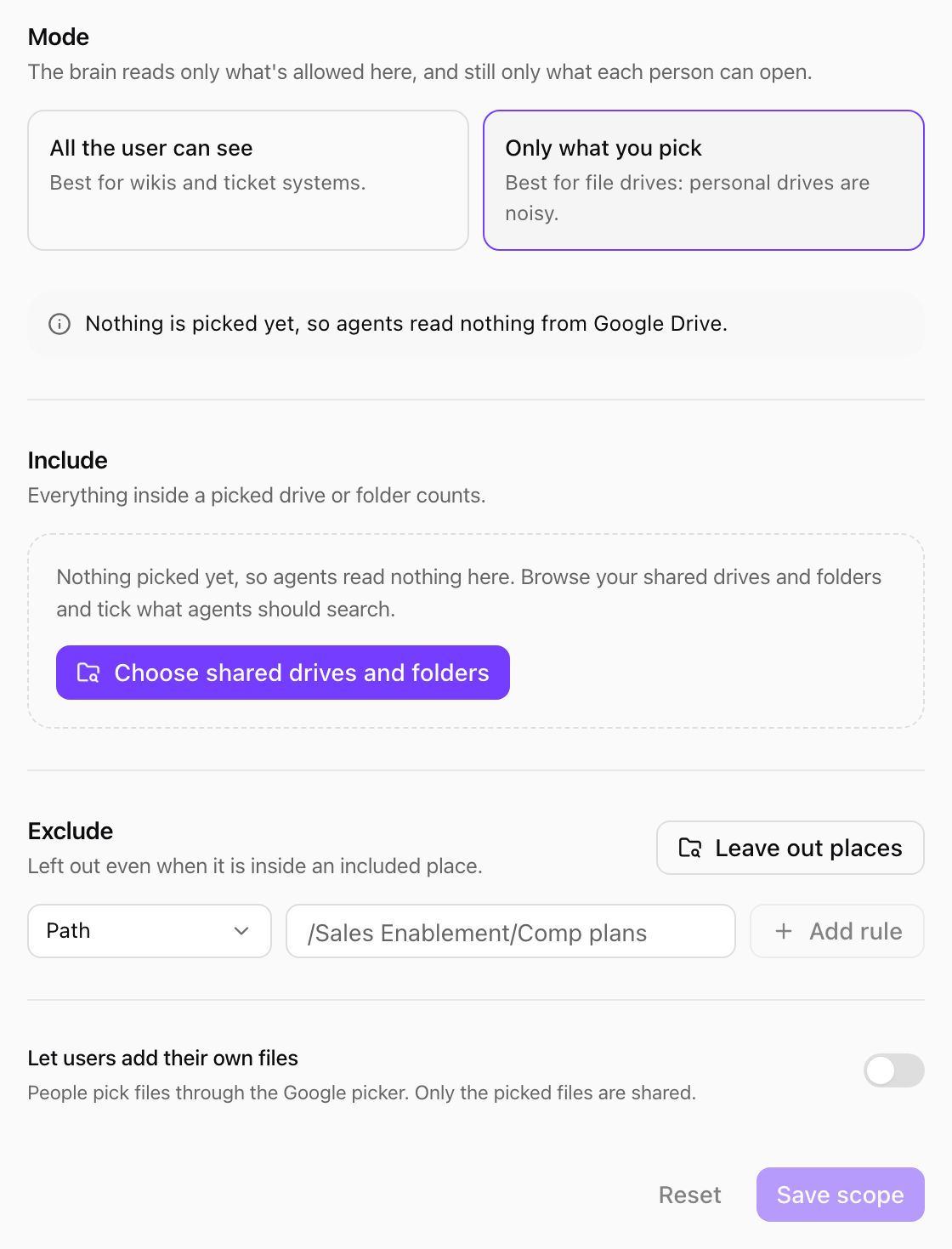
The Scope tab of a Google Drive source with Only what you pick and nothing picked yet. Shown with sample data.
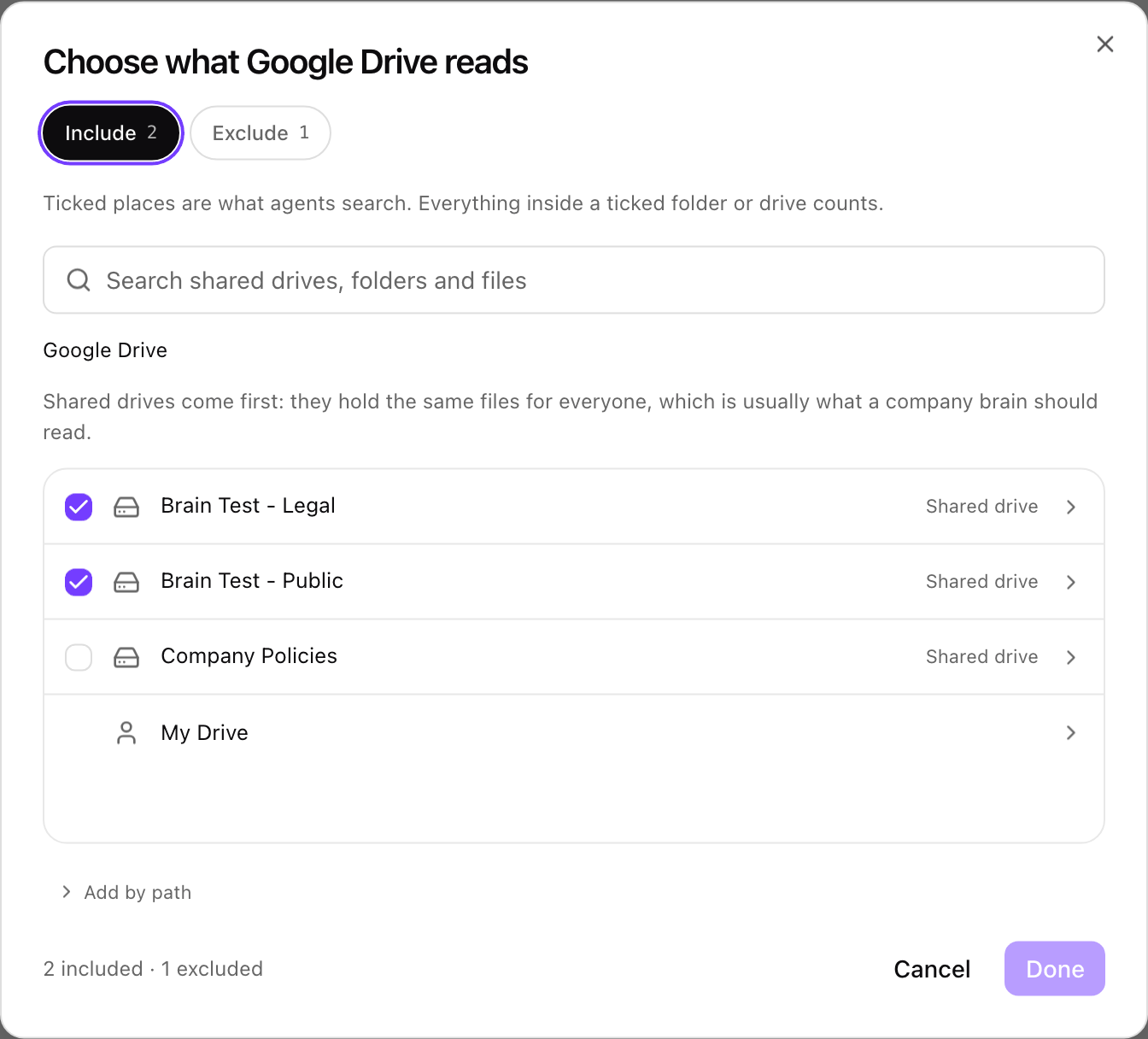
The picker: shared drives come first; tick what agents search, or switch to Exclude to tick what they leave out. Shown with sample data.
xlsx) or Modified date (older than a number of months).The scope is applied to the query and checked again on every result and read.Let users add their own files (Google Drive, SharePoint and OneDrive) lets each person share single files with the brain through the Google or OneDrive picker. Only the picked files are shared, and exclude rules still apply to them.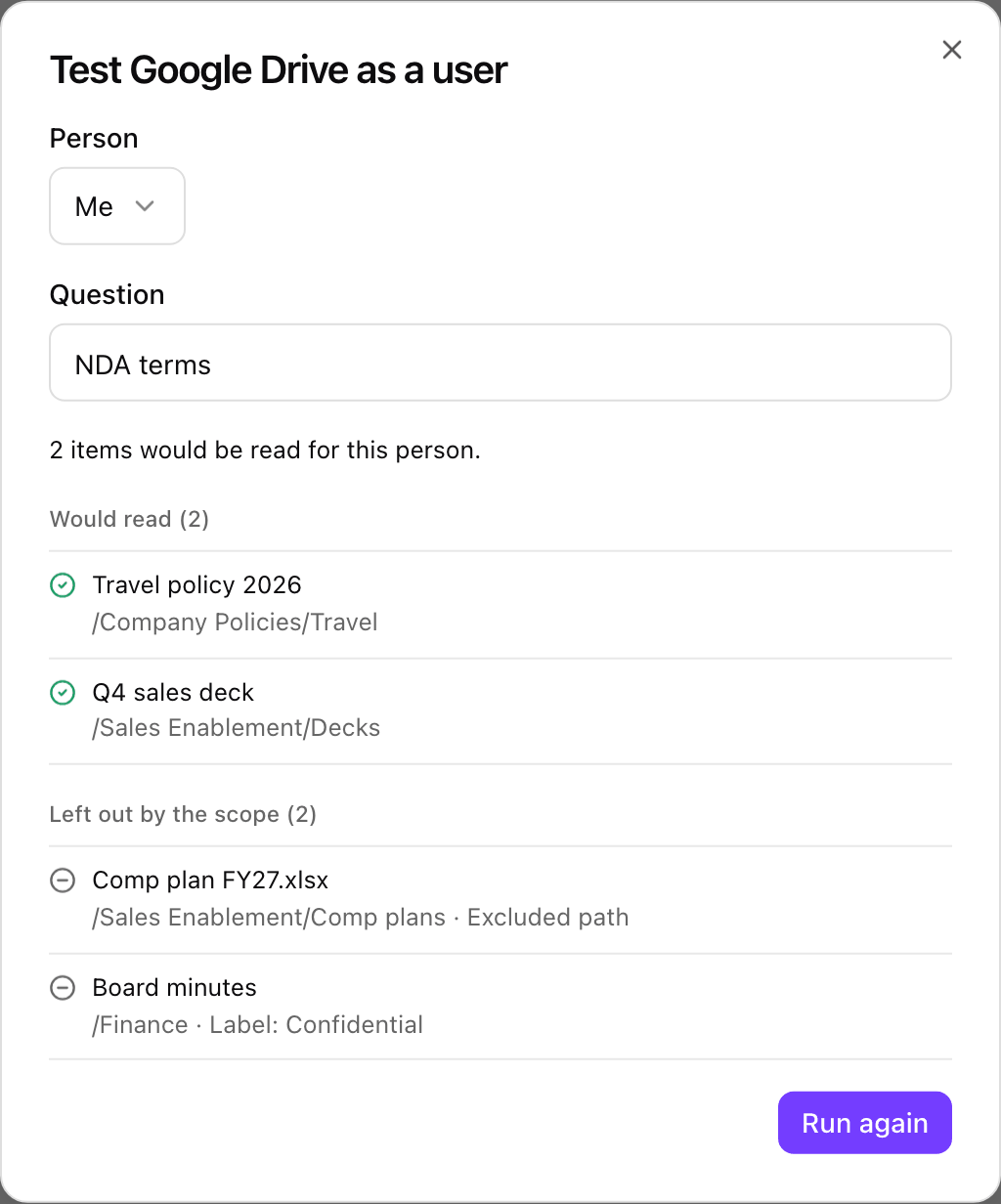
Test as a user on a Google Drive source: two items would be read, two were left out by the scope with the reason. Shown with sample data.
Source status, Connection tab, sensitive sources and cache
Source status, Connection tab, sensitive sources and cache
188 of 240 people signed in. Needs connection means it has no connection yet. Needs scope means it reads only what you pick and nothing is picked.The source’s Connection tab shows how many people are connected, the timeout, and whether any content is stored in xpander.The source’s Speed tab holds two settings:- Sensitive: results are never cached, so every answer reads the source fresh. Use it for HR, legal and other restricted material. The Sources table marks it with a Sensitive badge.
- Cache results for: seconds results are kept for the same person (0 to 3600, default 60, 0 turns it off). Cached results are never shared, so a permission removed in the source can take up to this long to apply.
Keep a copy of a folder
The Keep a copy tab copies a Google Drive folder, or a SharePoint or OneDrive library folder, into a collection, so a brain with shared agent access can use those files.Keep a copy, step by step
Keep a copy, step by step
- Enter the Folder: a Google Drive folder link or id, or for SharePoint and OneDrive the library’s Drive id and Folder item id.
- Under Copy into, pick a collection or A new collection.
- Set Who can read the copy. It does not follow who can open the folder: everyone in this audience sees every copied file. Confirm that, then select Keep a copy.
Notion
Notion is read live through Notion’s hosted service with each person’s own Notion account, so answers follow their real Notion access. Nothing is copied into xpander and nobody shares pages with xpander.Notion setup, scope and limits
Notion setup, scope and limits
Set up Notion (once)
Add it
Narrow it (optional)
/Engineering/Interviews). The places picker searches Notion by name with your own account.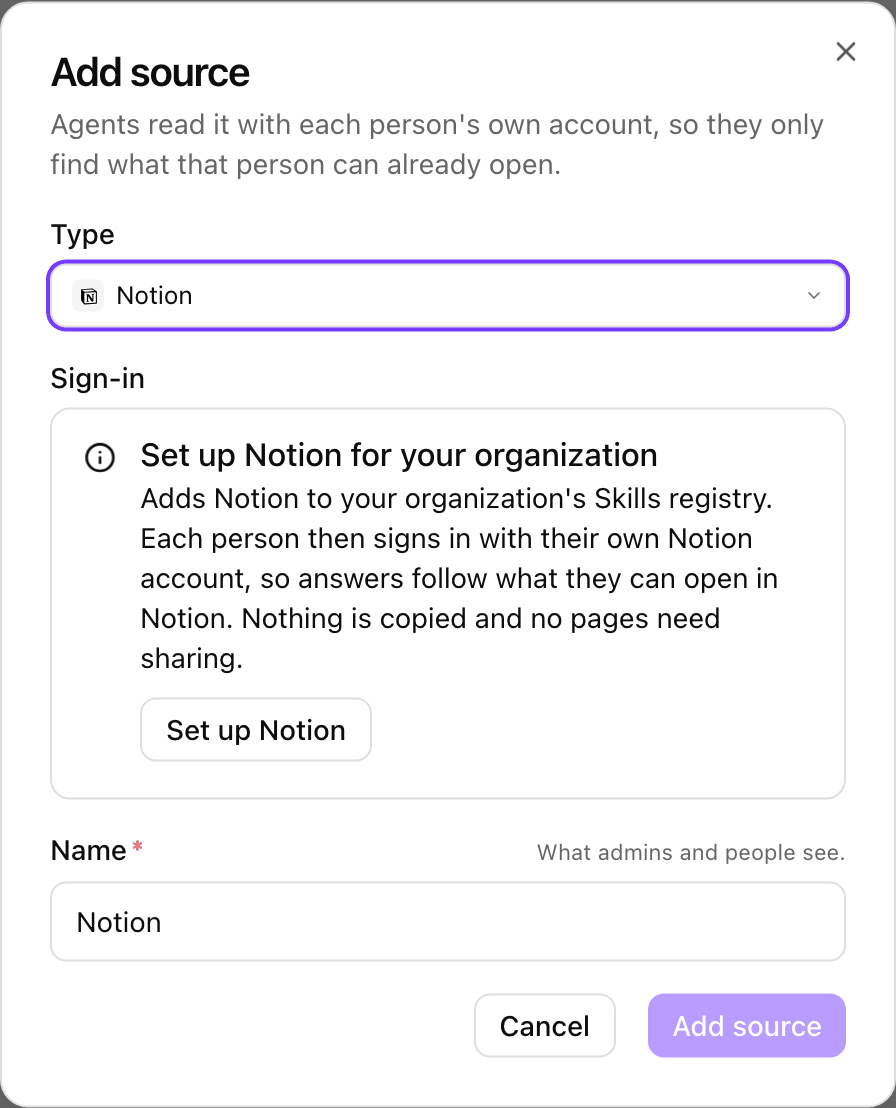
Add source with Notion before it is set up: Set up Notion adds Notion for the whole organization. Shown with sample data.
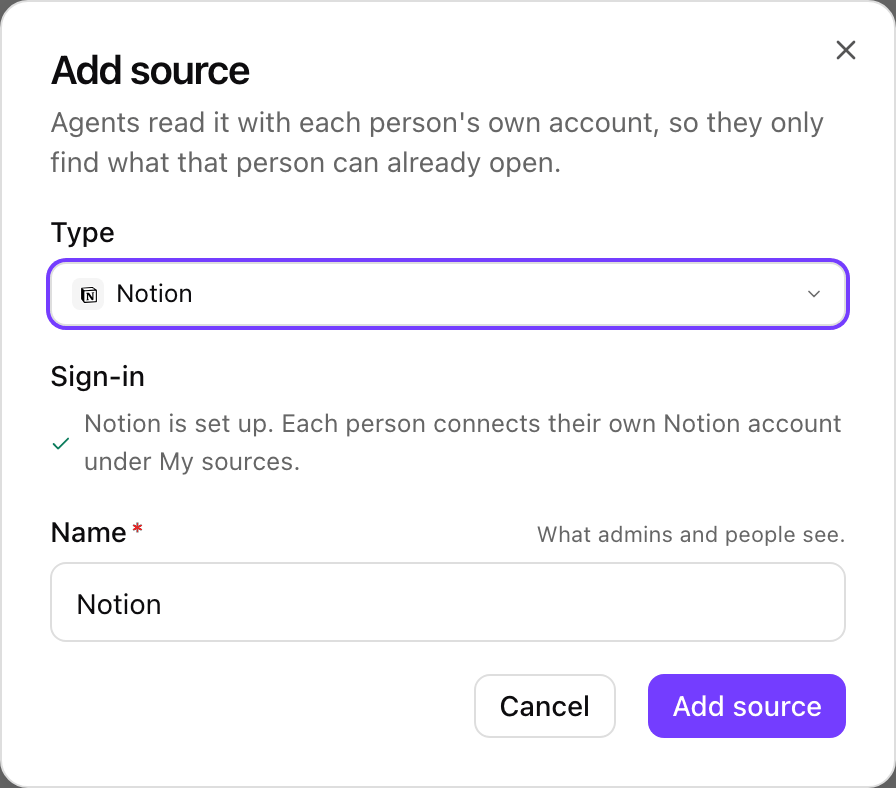
Notion set up: add the source, and each person connects their own Notion account. Shown with sample data.
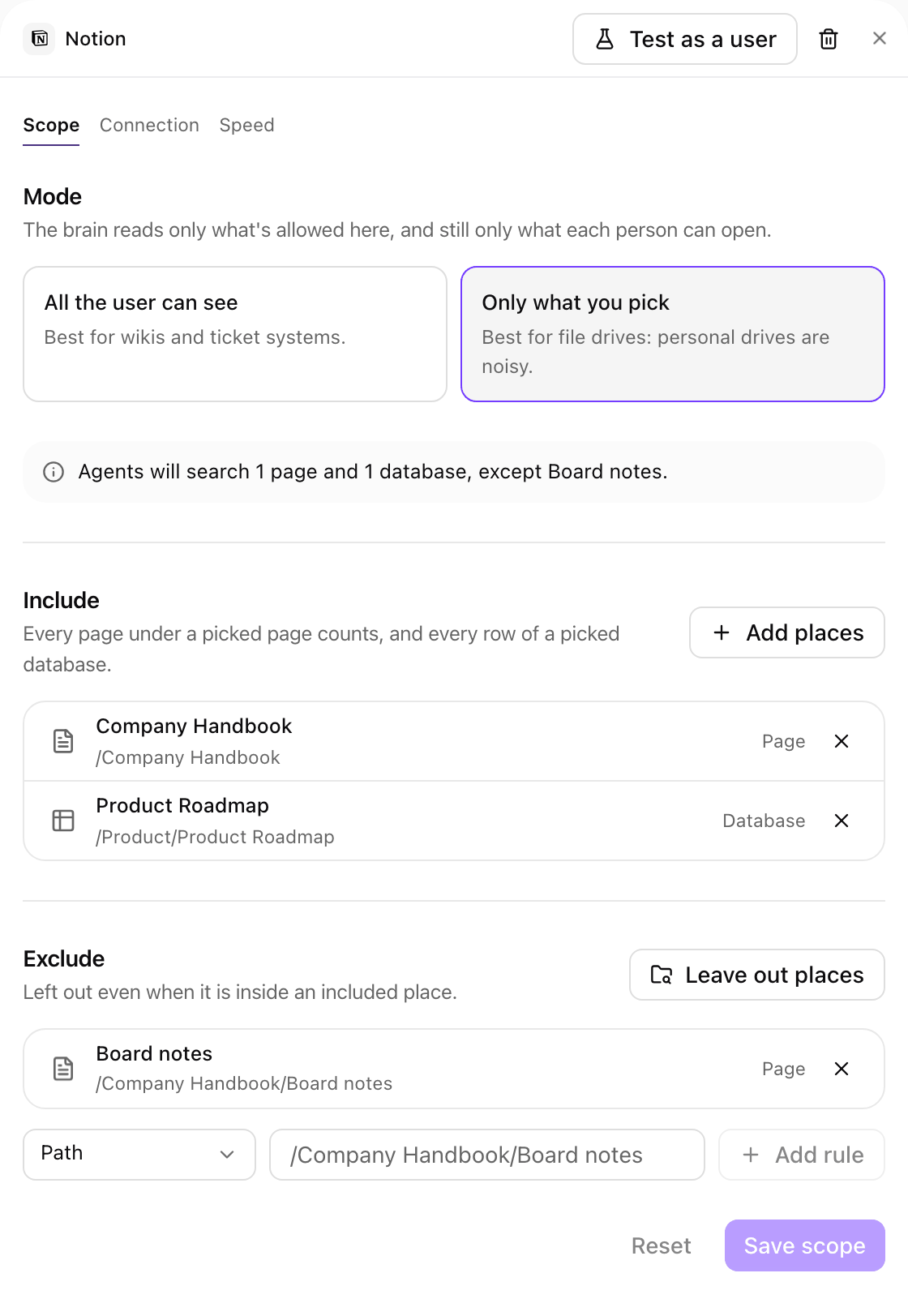
A Notion source's Scope tab, narrowed to a page and a database with one page left out. Shown with sample data.
- Each person connects. Someone who has not connected Notion gets nothing from it and is offered Connect, as for any source. They connect once from Settings > Knowledge > My sources with their own Notion account.
- Citations name the page and link straight to it in Notion.
- Search quality follows each person’s Notion plan: with Notion AI, Notion’s search understands questions, not just keywords.
- Rate limits. Notion limits how often each person can search (about 30 searches a minute). A person who hits it gets nothing from Notion for a short while; other sources still answer.
- Removing the source changes nothing in Notion and leaves Notion in your organization’s Skills registry.
Add a custom source
A custom source puts your own system, such as an internal wiki or ticketing system, in the brain. Each call carries a signed token naming the person, and your system answers only what they may open. Engineers build it to the custom source contract.Pick Custom and the contract
Connect it
https://kb.example.com/xpander, and the Authentication. For MCP server, pick the server and its Search tool and Read tool.Name it and copy the identity values
Test the connection
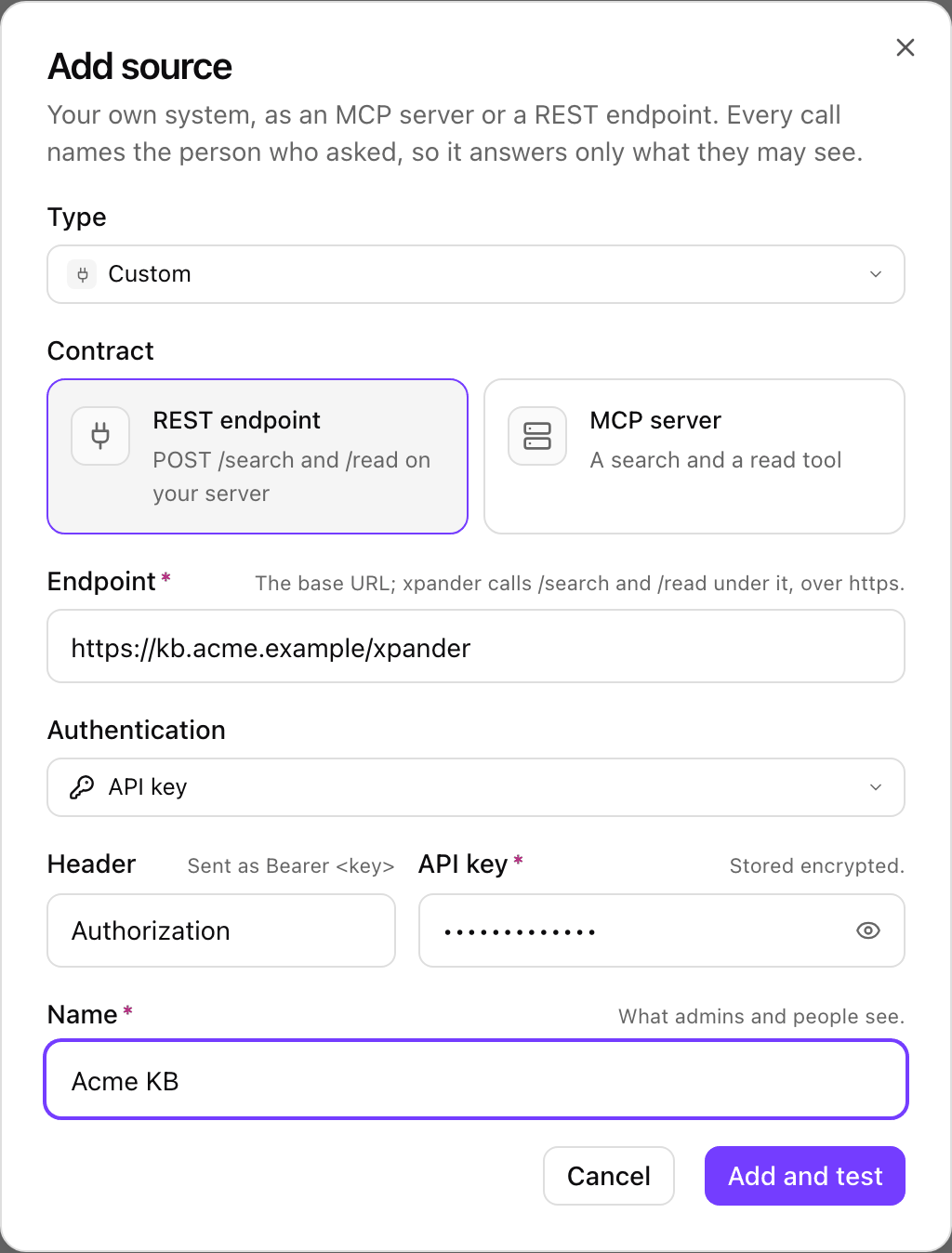
Add source with Custom and REST endpoint: the base URL, an API key in the Authorization header, and the name people see. Shown with sample data.
Custom source settings
Custom source settings
search and read.Name appears in citations and in the access log. Test connection shows what came back or why it failed, and accepts a word you know is in the source under Sample search. It runs with your signed identity, and you can run it again any time from the card’s Connection tab. When the source uses each person’s sign-in, Disconnect on that tab signs you out of it.The API key is stored encrypted and never shown again. The card shows only that a key is set and its last four characters; to change it, select Edit on the Connection tab and type a new one. Leaving the field blank keeps the stored key.Scope. A custom source cannot be browsed, so on the Scope tab you use Add by path to include or leave out:- A ref prefix, such as
wiki:eng/. It matches every ref that starts with it at a/or:boundary:wiki:eng/matcheswiki:eng/setup, notwiki:engineering. - A path, such as
/Engineering/Runbooks. It matches thepathyour system sends with each item. An item without apathis left out when the scope has a path rule.
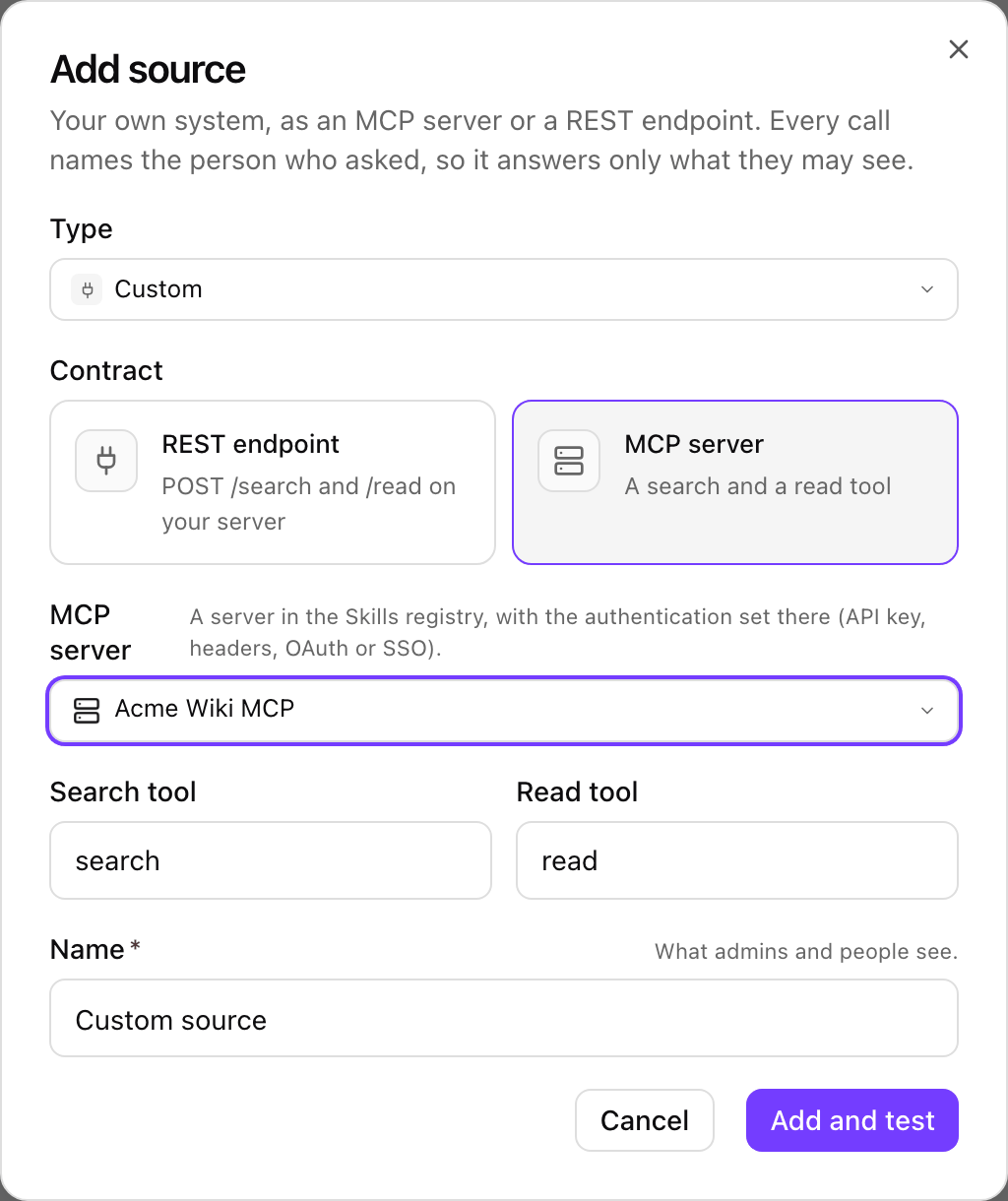
Custom over an MCP connector: an entry from the Skills registry and the names of its search and read functions. Shown with sample data.
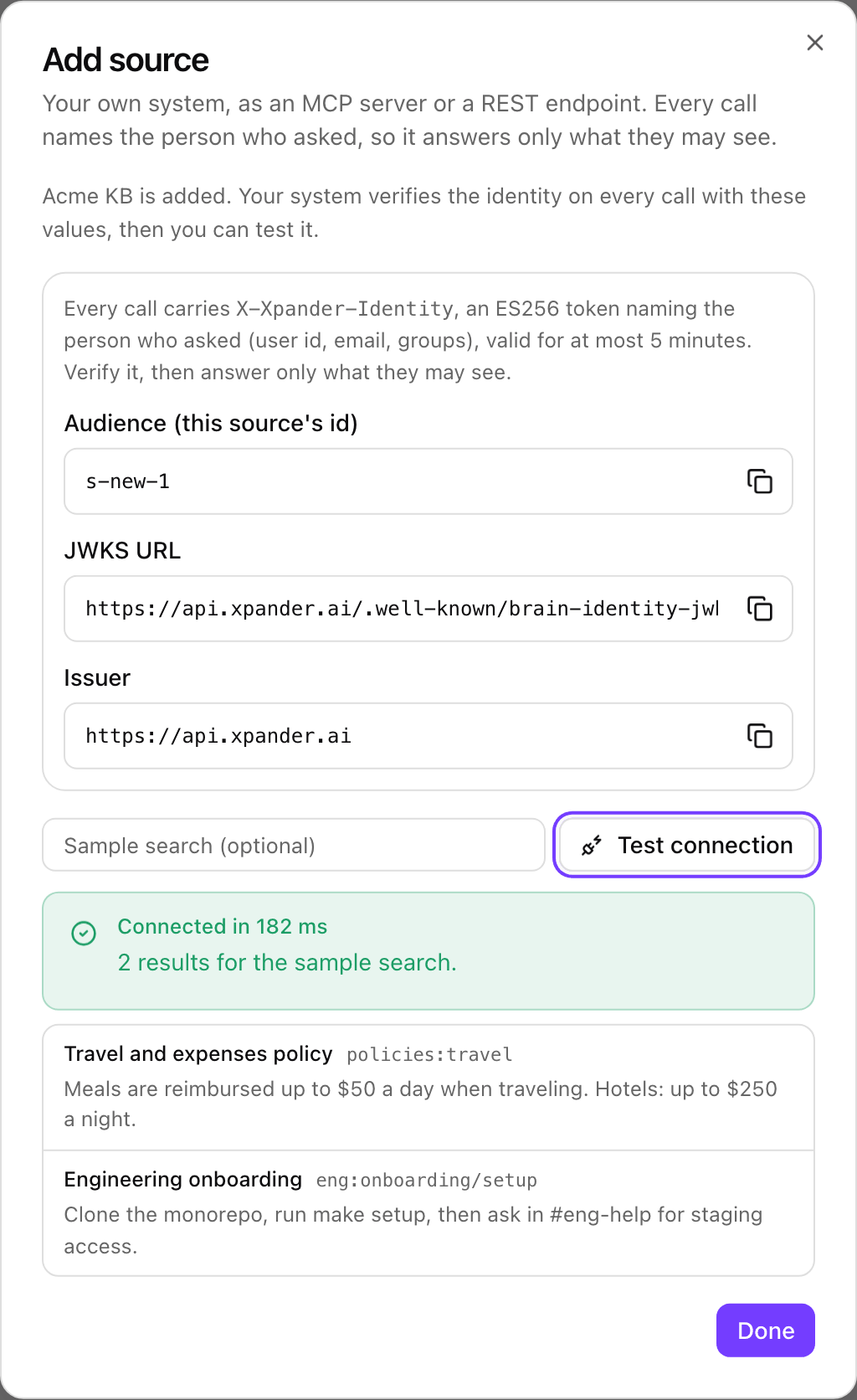
After Add and test: the values your system verifies, and a Test connection that found two items. Shown with sample data.
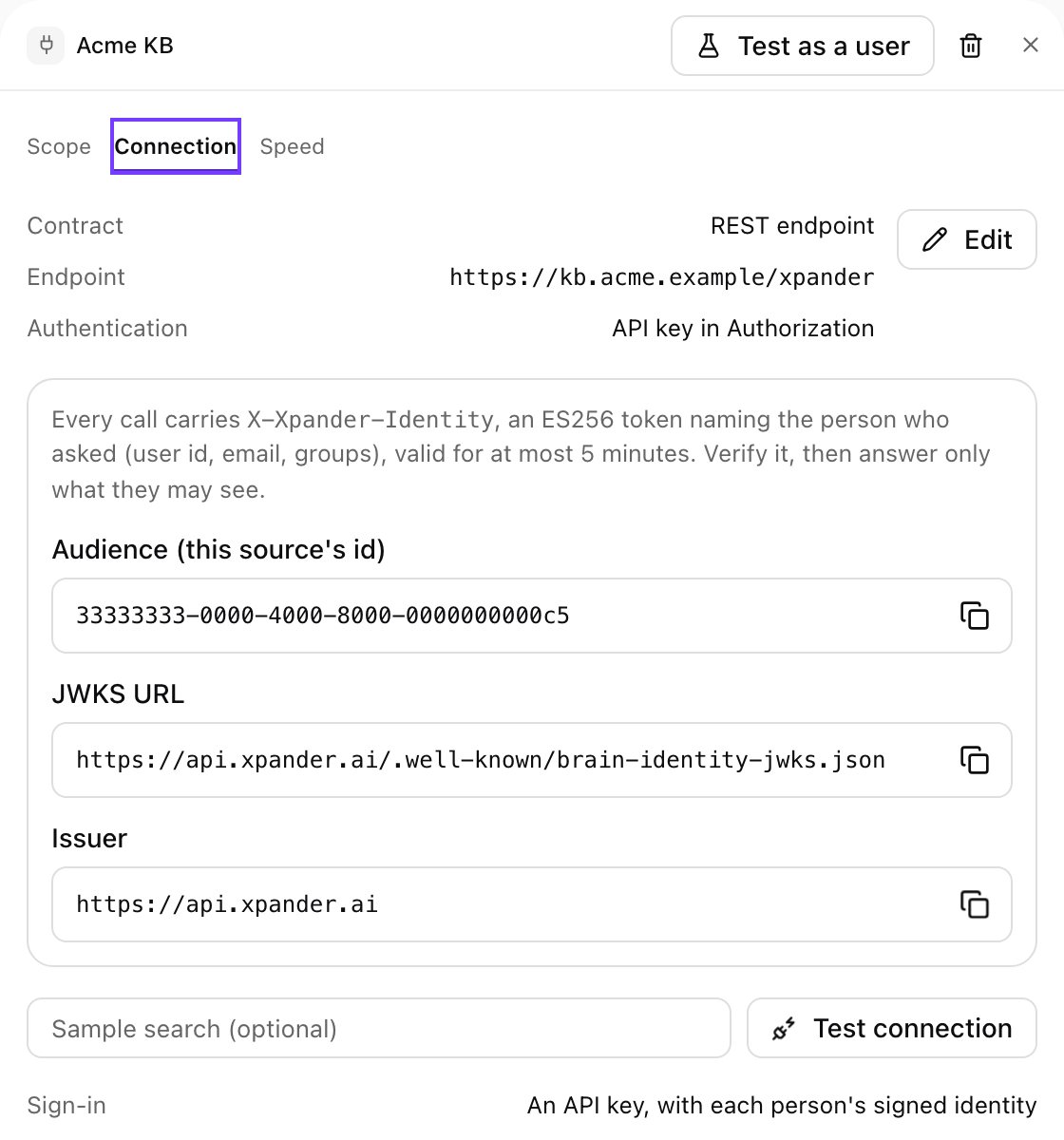
A custom source's Connection tab: the contract and endpoint, the values your system verifies, and Test connection. Shown with sample data.
Settings
Members can create their own collections and Members can share with everyone are off by default; Agents can propose facts is on.What each setting does
What each setting does
Learned facts
Agents propose facts, decisions and procedures from conversations. None is used until its reviewer approves it, and then only for its audience. Approve it, edit first (Save and approve), or reject it; a rejected fact is never returned.Who reviews, and conflicts with documents
Who reviews, and conflicts with documents
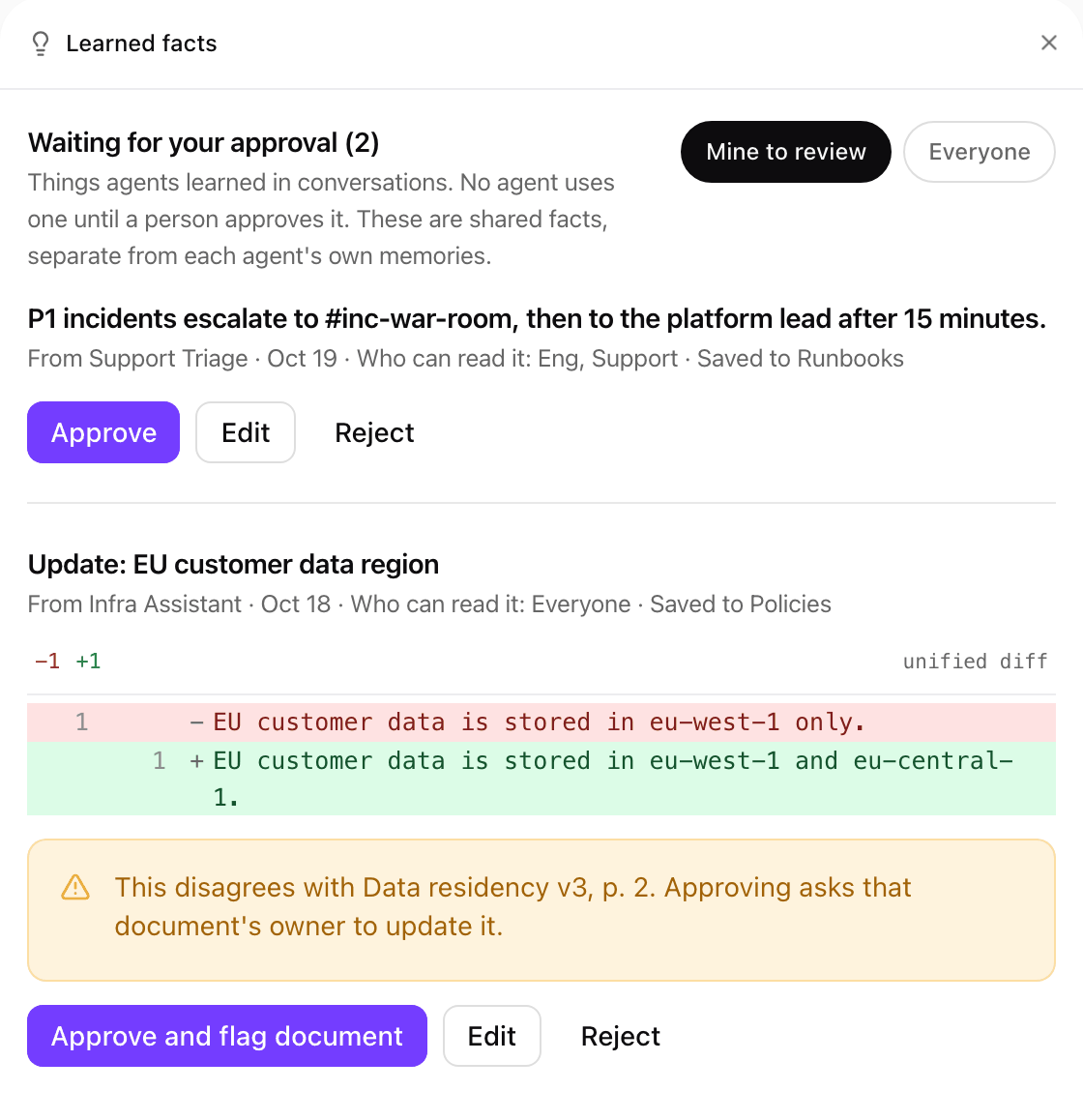
Learned facts waiting for approval. The second proposal updates a stored fact and disagrees with a document, so approving it flags that document. Shown with sample data.
Access log and speed
Access log lists every brain read, including cached ones: who, through which agent, which source and document (with version and page), and the result.Access log results and brain speed
Access log results and brain speed
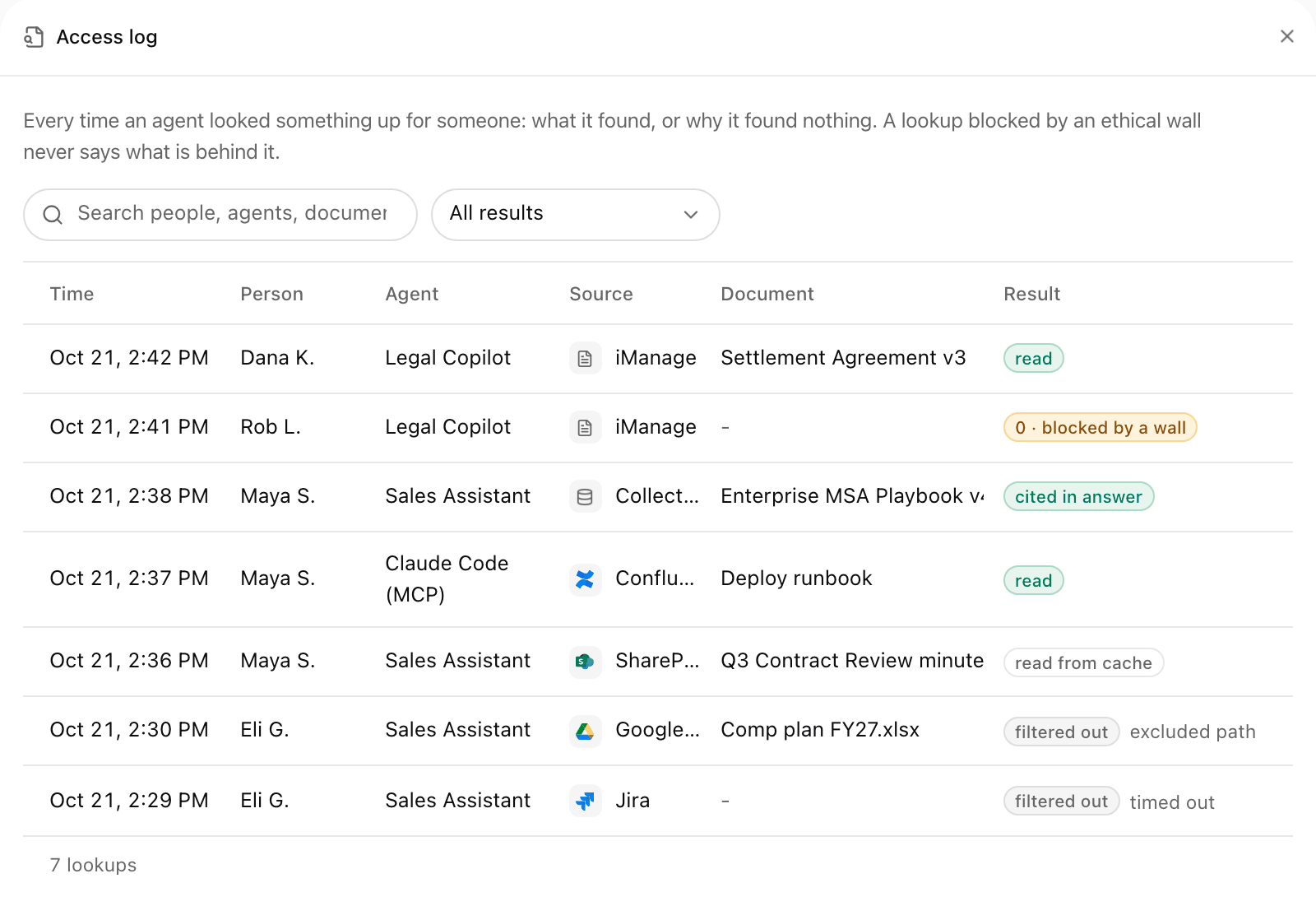
The access log: who asked, through which agent, what was read, and the result of each lookup. Shown with sample data.
Self-hosted and Hybrid
On a self-hosted install, everything the brain stores and caches stays in your cluster. It is off in the charts by default.Where the data stays
Where the data stays
onpremPerOrgDb: true. Decide before you load content: the setting picks one database per organization and never splits one organization’s brain across two.Hybrid. xpander cloud never connects to your database, Redis or object store. A brain call that starts in the cloud (xpander Chat, an MCP client, a Platform page, an upload) is relayed to your install’s agent controller, which does the work and returns only the answer. Only usage counts go up. If your install does not answer, the agent is told the company knowledge is offline, and nothing falls back to cloud storage. Live sources are called from your network, so sources that accept only your IP addresses work.Air-gapped. Nothing leaves your environment. Parsing, OCR, embeddings and ranking run on models baked into the images, so nothing is downloaded at run time. Answers are written by the model your install already uses, such as an in-network vLLM, Ollama or NIM endpoint. Usage goes to the local credits ledger when metering is on.Turn it on: chart values
Turn it on: chart values
- Hybrid (xpander chart)
- Air-gapped (xpander-airgap chart)
type: local, originals are kept on a volume the chart creates and keeps on uninstall. That volume is ReadWriteOnce, so more than one replica needs accessMode: ReadWriteMany or type: s3. The chart refuses the combination otherwise. S3 credentials come from the pod identity or envFromSecret.Ranking model
Ranking model
reranker.backend:ingest: nothing to stage. The brain-ingest image already includes the model and serves it. Ranking waits at most 5 seconds per question, then answers without it.onnx(default): stagemodel.onnxandtokenizer.jsonon a volume and name the claim inreranker.modelVolume.existingClaim. It is mounted read-only on the agent controller.http: setreranker.urlto a ranking endpoint in your network.
Sizing
Sizing
Postgres with pgvector
Postgres with pgvector
pgvector/pgvector:0.8.7-pg15-trixie on hybrid, 0.8.7-pg16-bookworm on air-gapped), so an upgrade swaps the image on the same volume and the Postgres pod restarts once.- Before you upgrade, mirror the new image and take a restore point: a snapshot of the Postgres volume, or set
postgres.upgradeGuard.backup.pvcNameto an existing claim and the upgrade writes a full dump there first. - During the upgrade, a guard on the new image refuses to continue if the running server’s major version differs from the image’s.
- After every install and upgrade, a job creates the
vectorextension in every database and the installer prints one status line, for examplepgvector: ok vector=0.8.7 ok=3 failed=none. Adegradedorfailedline names the databases to look at.
CREATE EXTENSION vector once per database where your user cannot create extensions. Without pgvector, the Company Brain is unavailable and everything else keeps working.Network
Network
mcp.notion.com), so your agent controller needs outbound access to mcp.notion.com. Nothing from Notion is stored.Air-gapped installs cannot use Google Drive, SharePoint, OneDrive, Confluence, Jira or Notion: they need each person to sign in to Google, Microsoft, Atlassian or Notion’s cloud service, so Add source offers only Custom. A custom source is your own system inside your network: xpander calls it over HTTPS (or plain HTTP to an in-network address when agent-controller has BRAIN_CUSTOM_SOURCES_ALLOW_HTTP=true), the keys that sign its identity token are served by your own API at /.well-known/brain-identity-jwks.json, and nothing leaves the installation. Collections work fully, and with global.network.internetEgress: false importing a document from a URL is off as well.Custom sources on a hybrid install may call endpoints inside your network as well as public ones; cloud metadata addresses are never called, and the calls do not use HTTPS_PROXY. See Network rules.Troubleshooting and FAQ
For a missed file or a skipped source, see the member troubleshooting.Connect is not offered for a source
Connect is not offered for a source
A custom source fails Test connection
A custom source fails Test connection
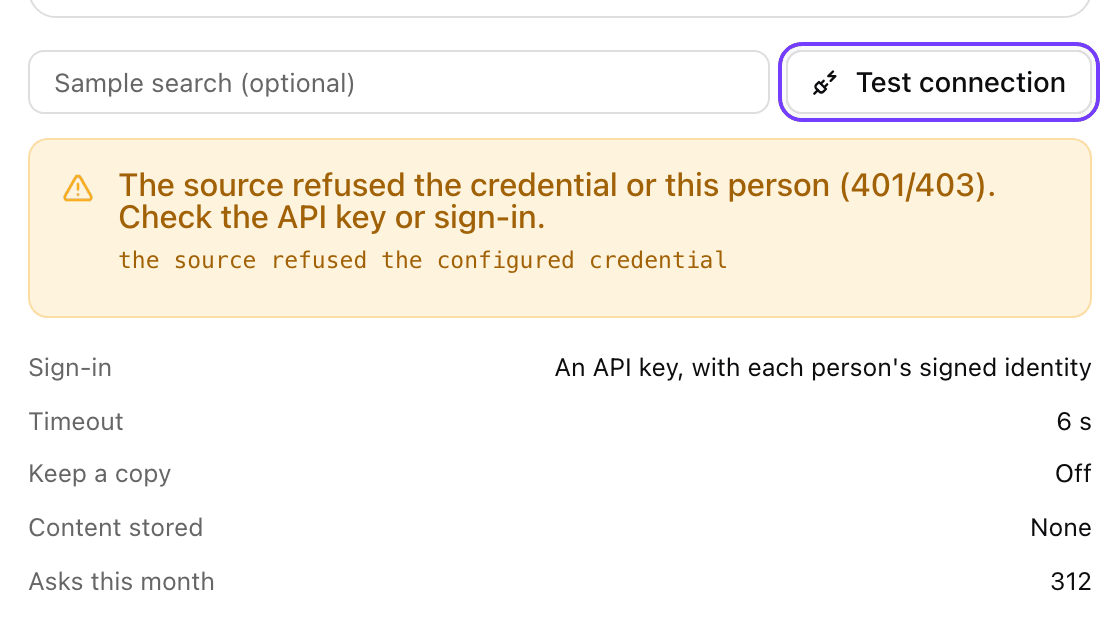
Test connection when the source refused the API key: what failed, and the source's own words. Shown with sample data.
What happens to existing knowledge bases?
What happens to existing knowledge bases?
What about knowledge bases no agent used?
What about knowledge bases no agent used?
Does the knowledge base API still work?
Does the knowledge base API still work?